

 80mm Receipt Printer
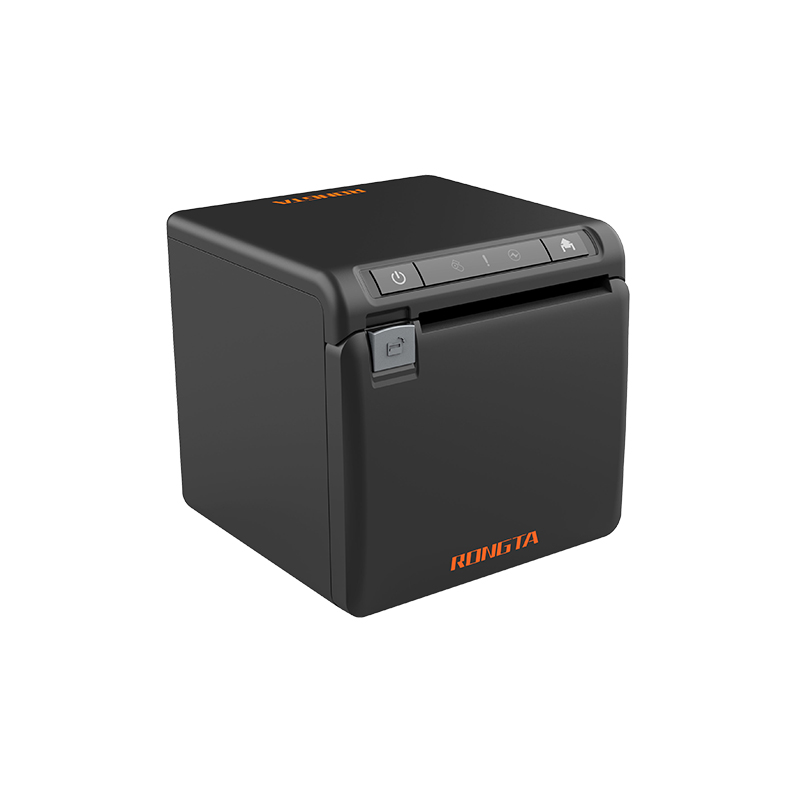 ACE H2 Receipt Printer
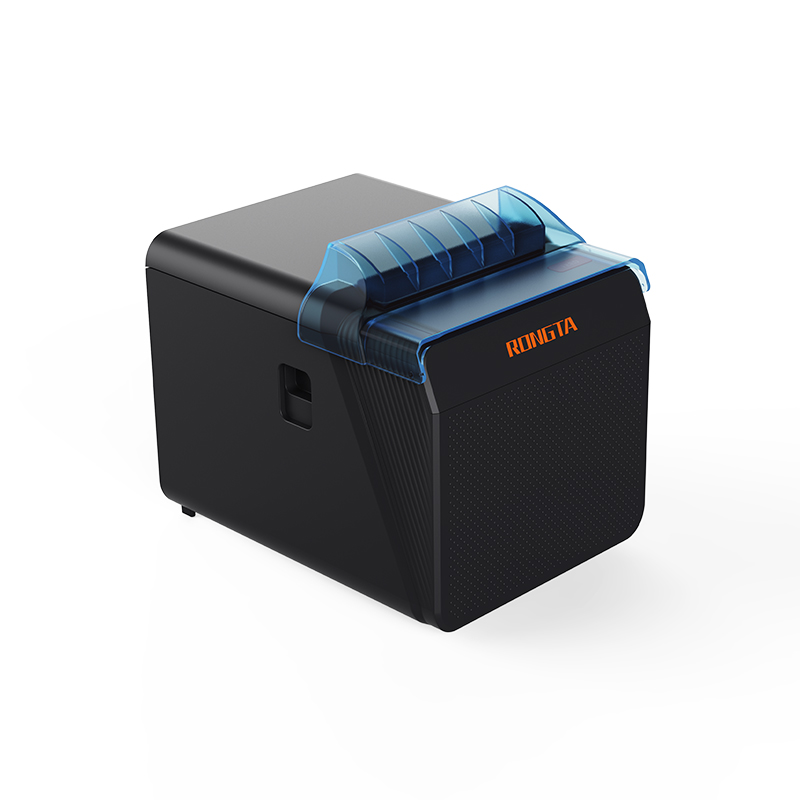 RP337 Receipt Printer
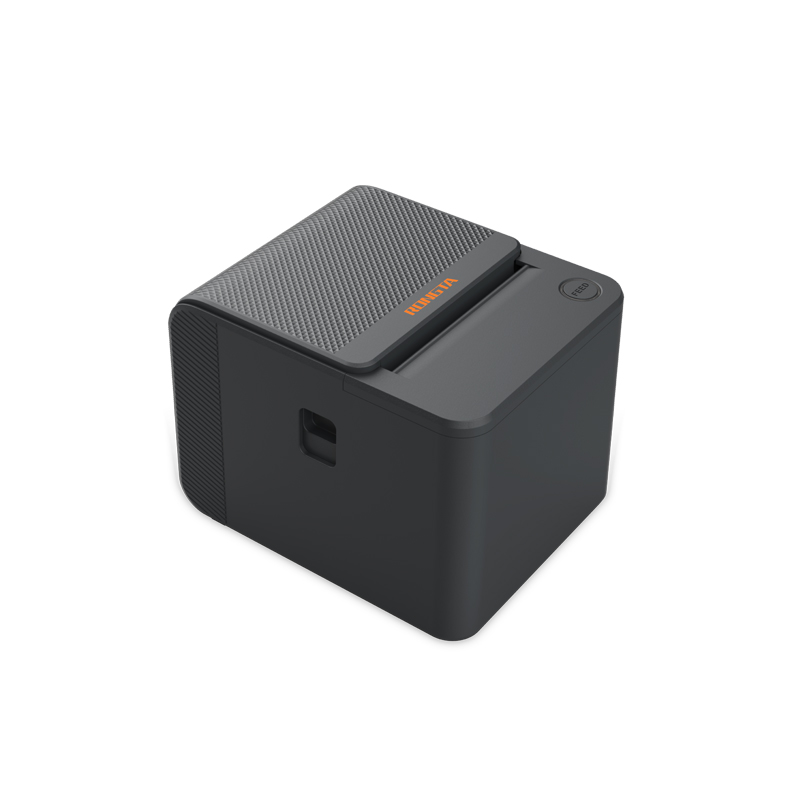 RP336S Dual-Color Receipt Printer
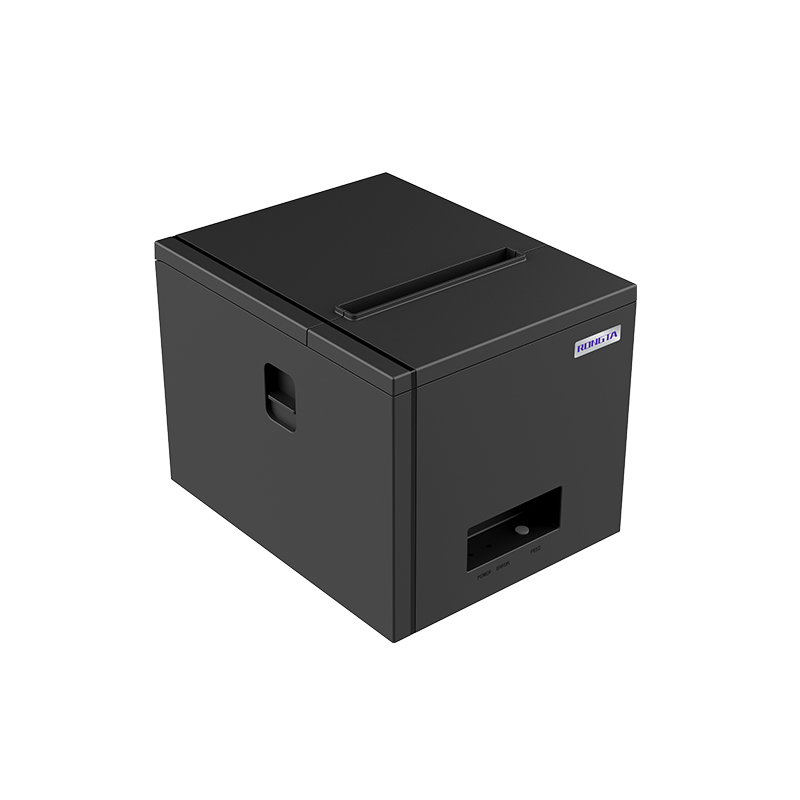 RP350 Receipt Printer
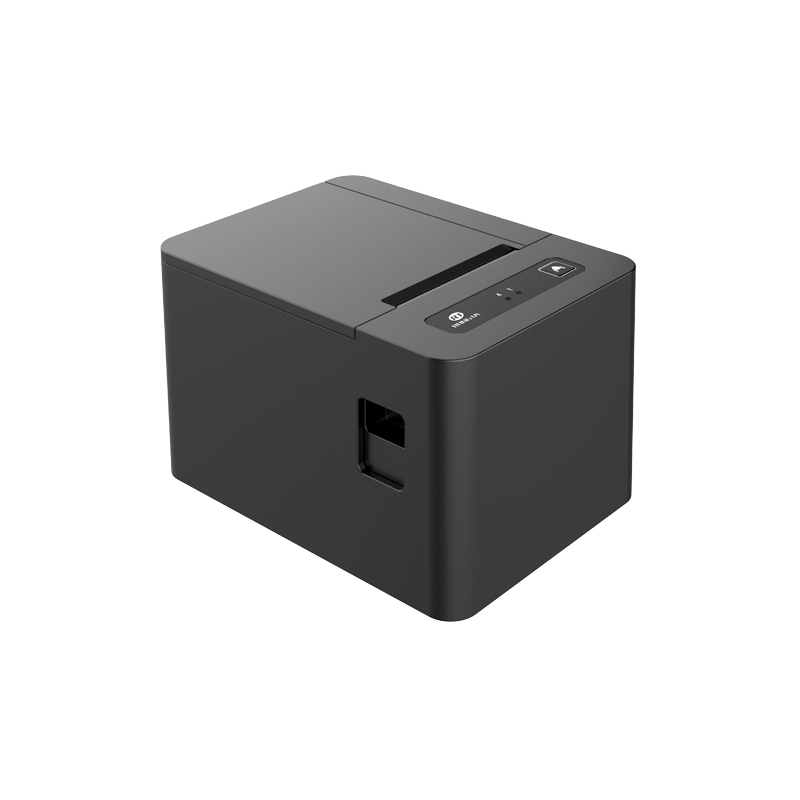 RP582 Receipt Printer
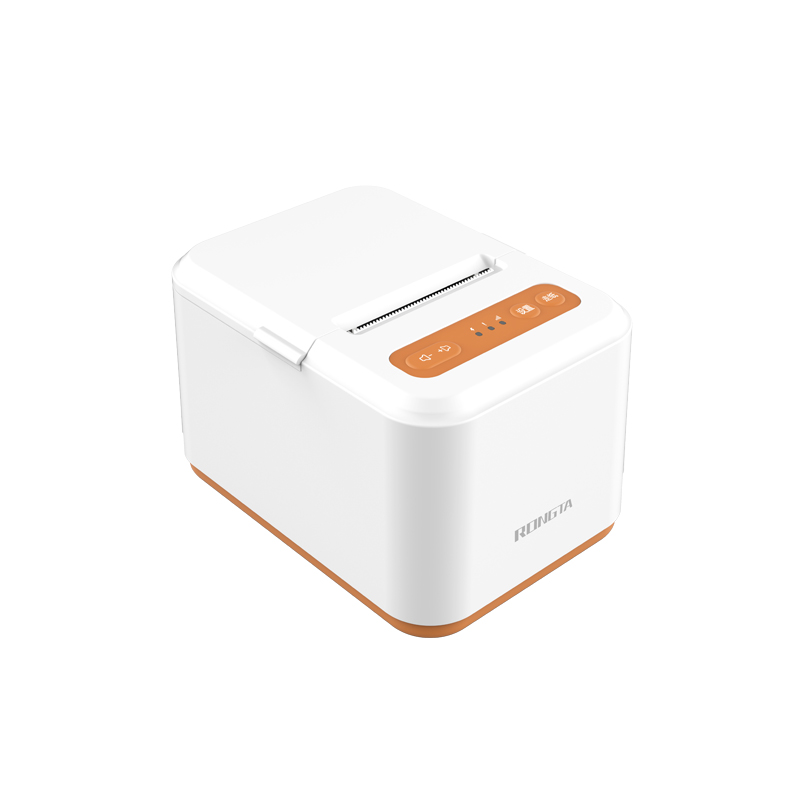 RP581 Receipt Printer
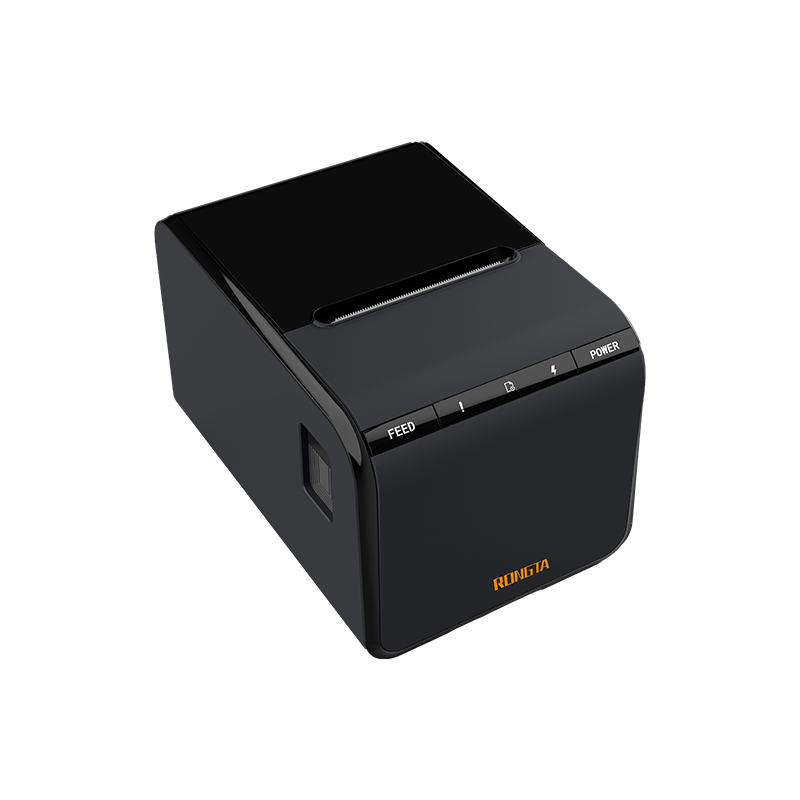 ACE G1Y Receipt Printer
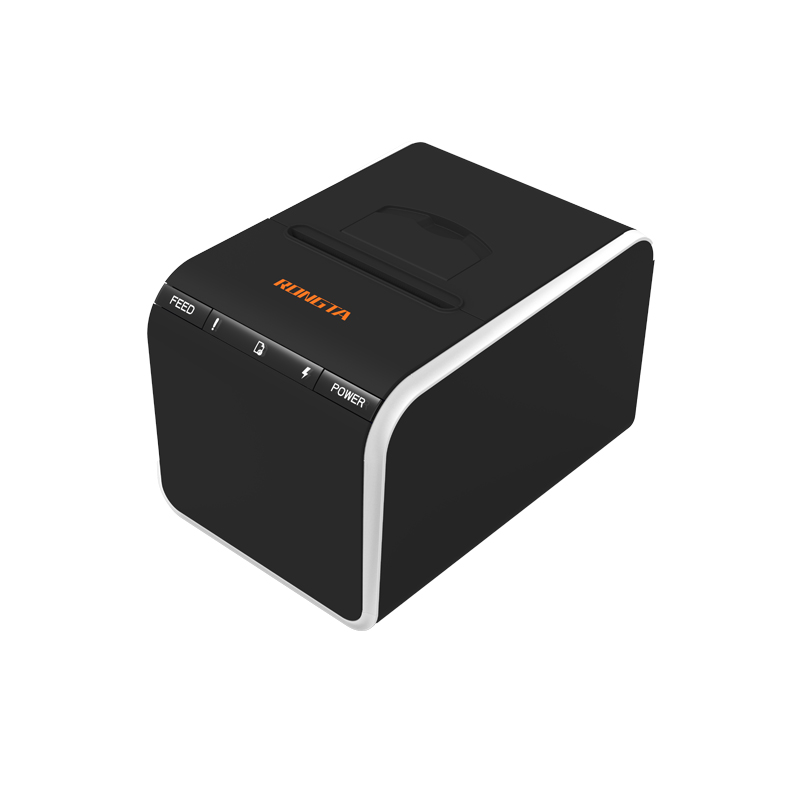 ACE G1YP Cloud Printer
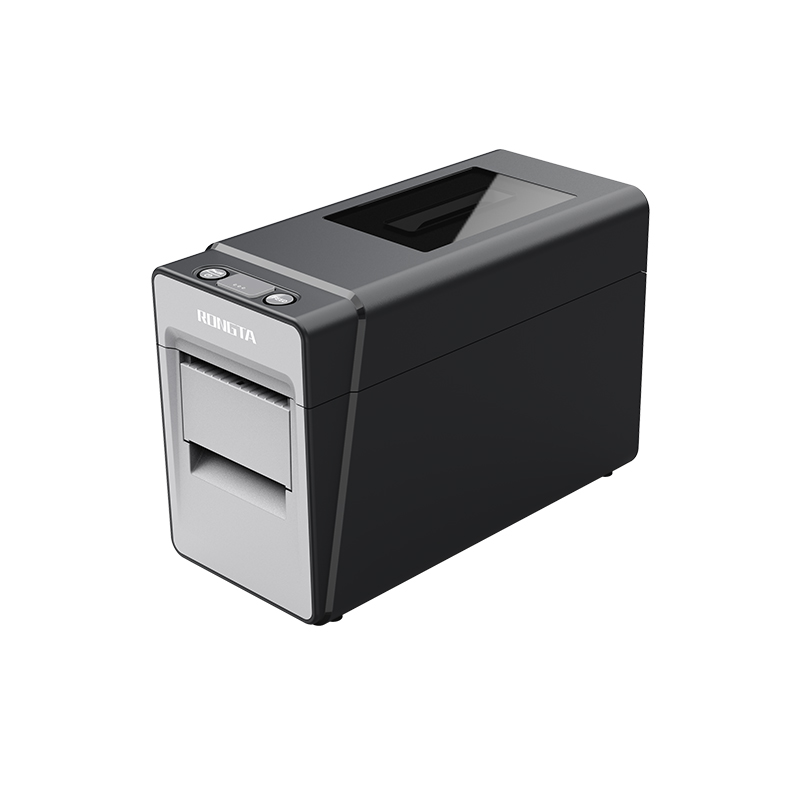 RP216 2'' Dual-color High-definition Label Printer
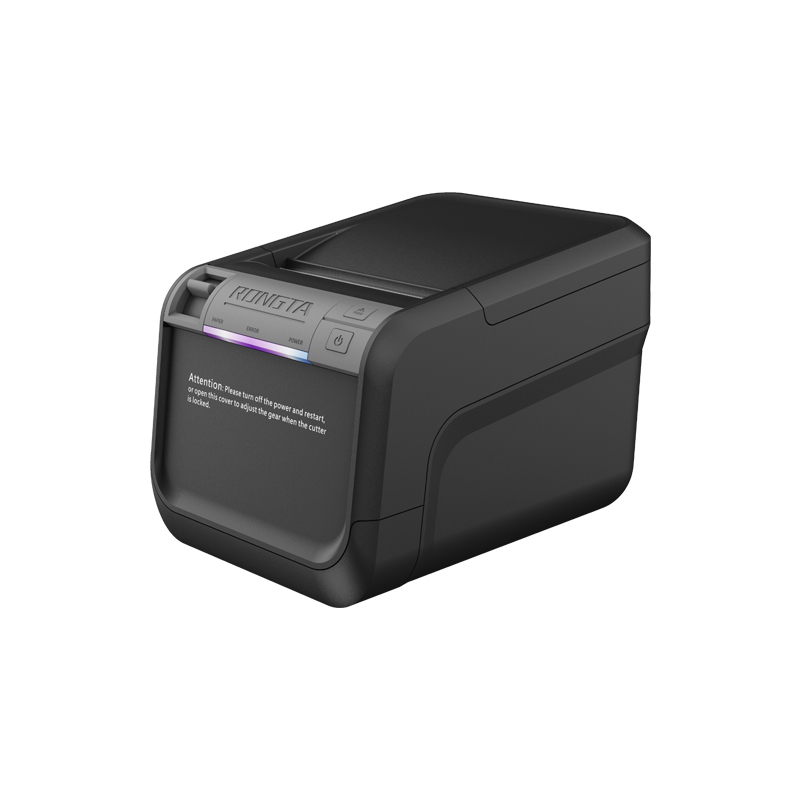 ACE V1S 3'' Backless Label Printer
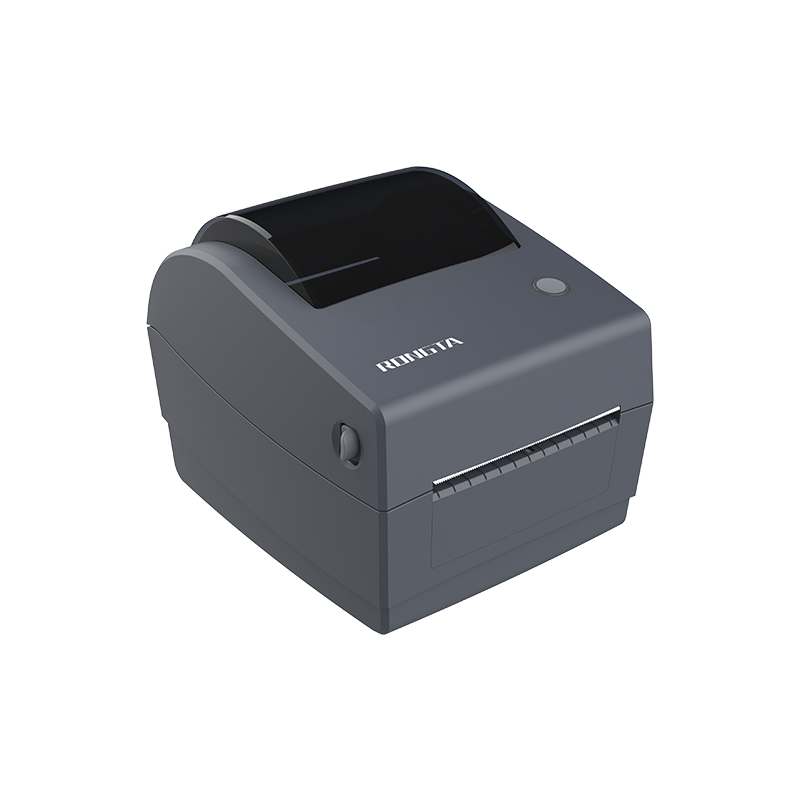 RP310D 3'' Dual-color Label Printer
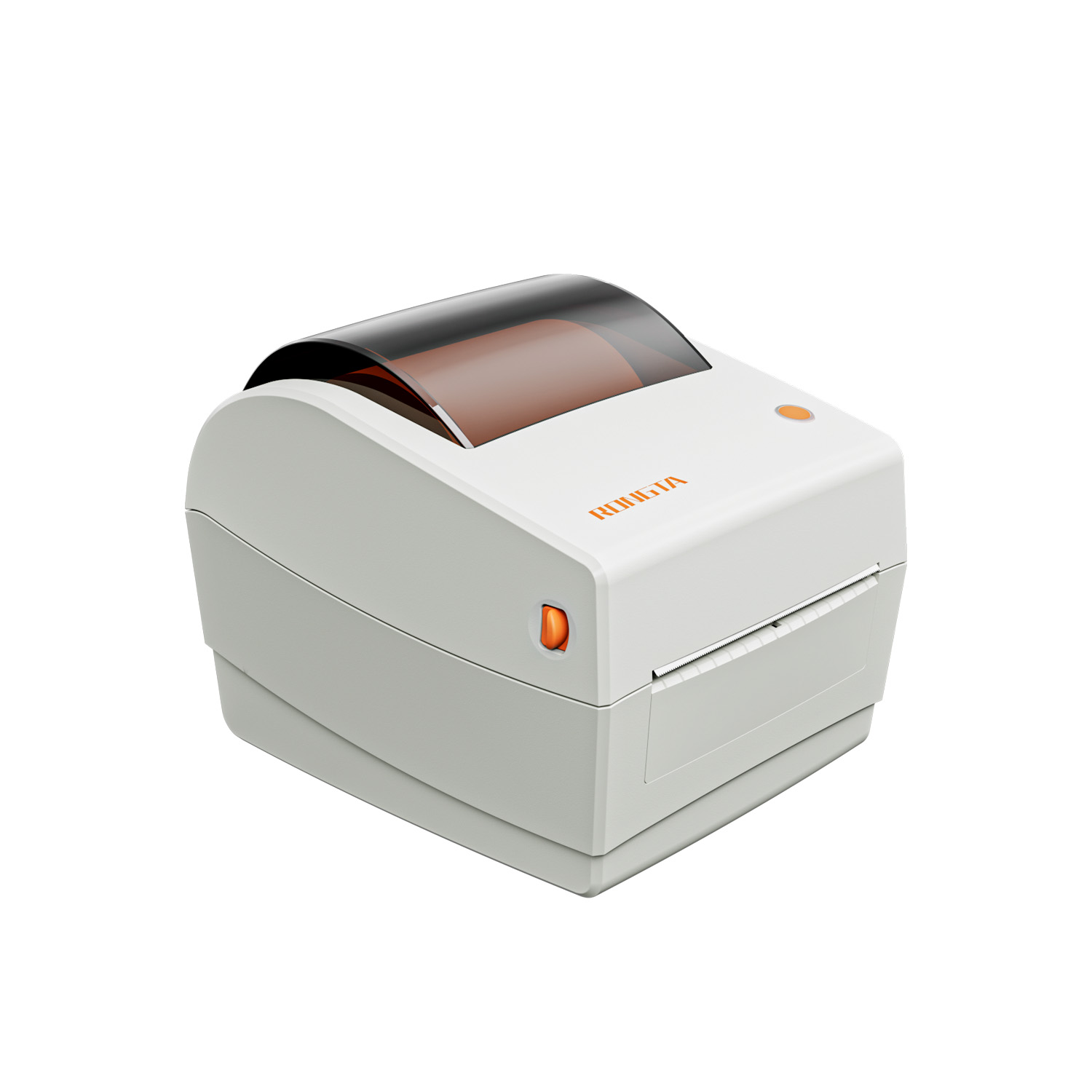 RP410N 4'' Thermal Label Printer
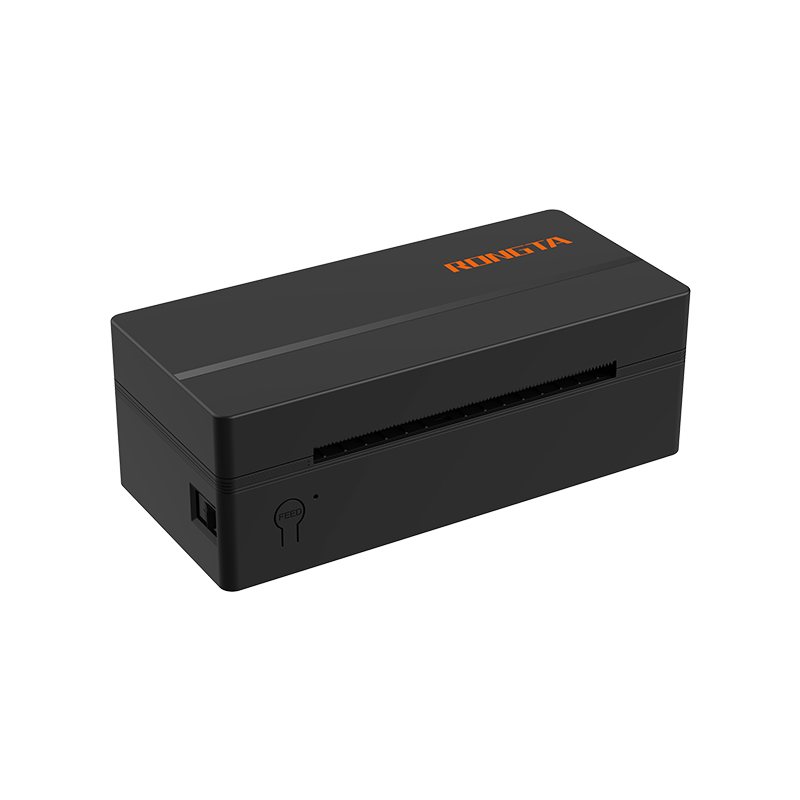 RP425 4'' Electronic Waybill Printer
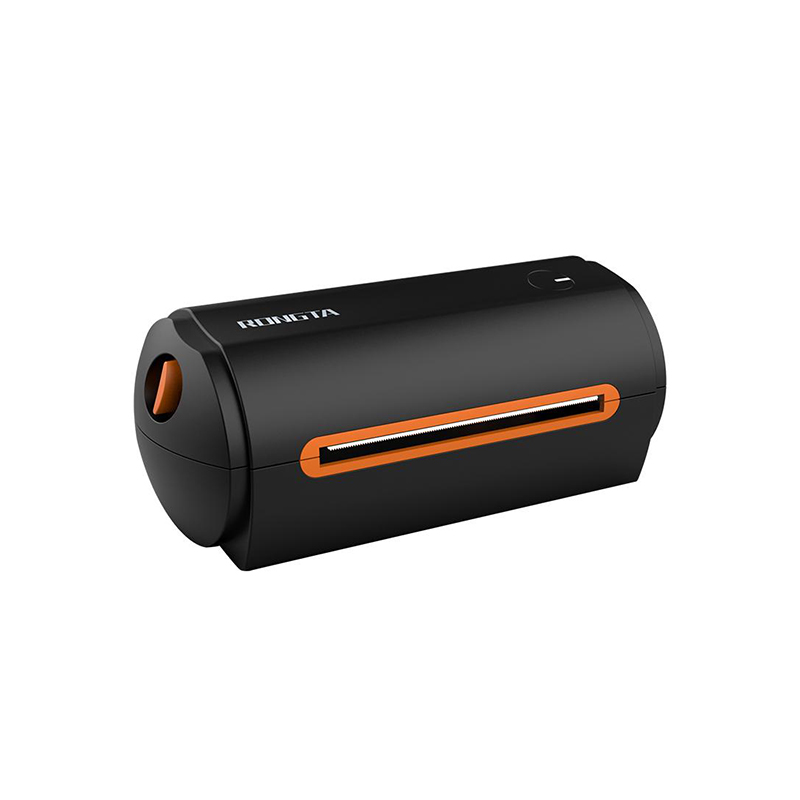 RP422 4'' Electronic Waybill Printer
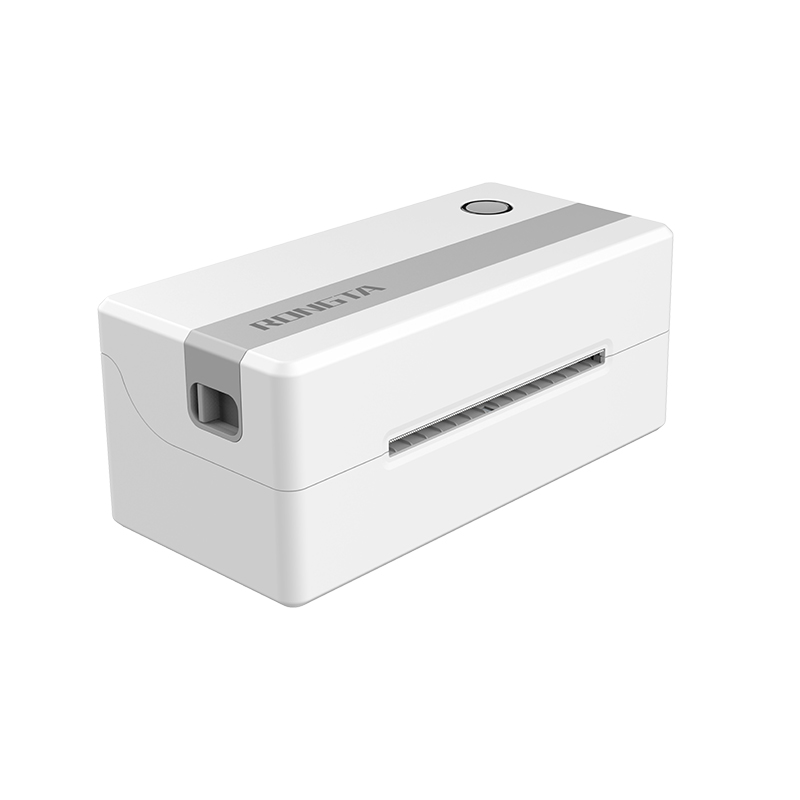 RP421A 4'' Electronic Waybill Printer
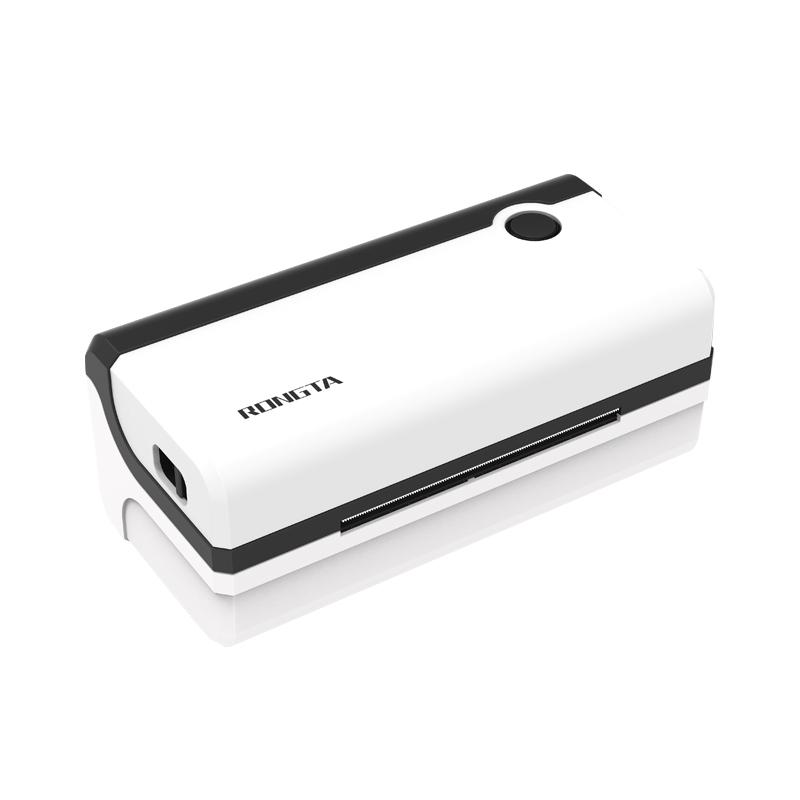 RP420 4'' Electronic Waybill Printer
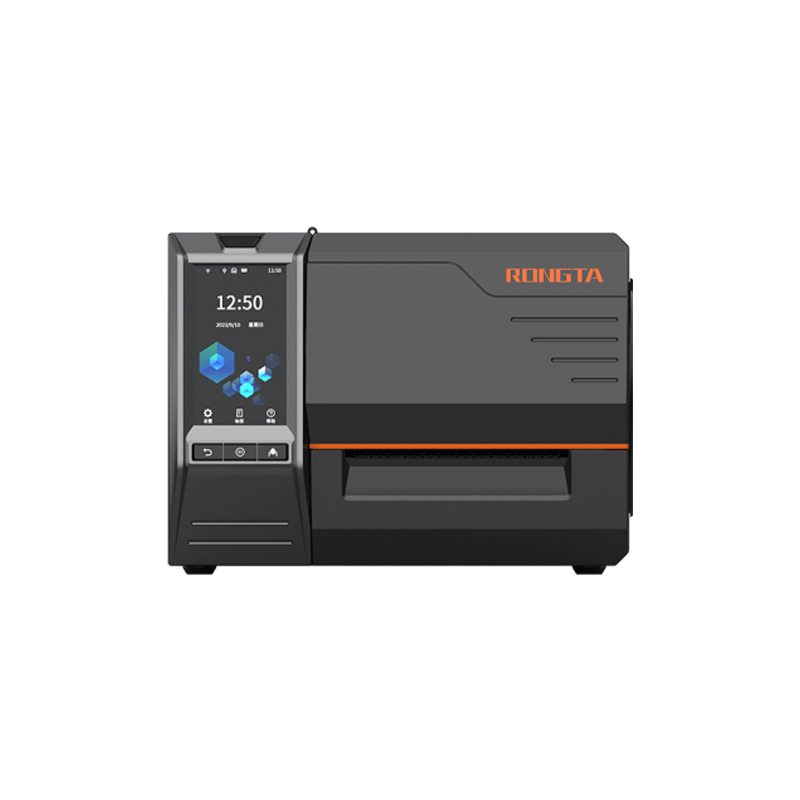 RI463 Series Barcode Printers
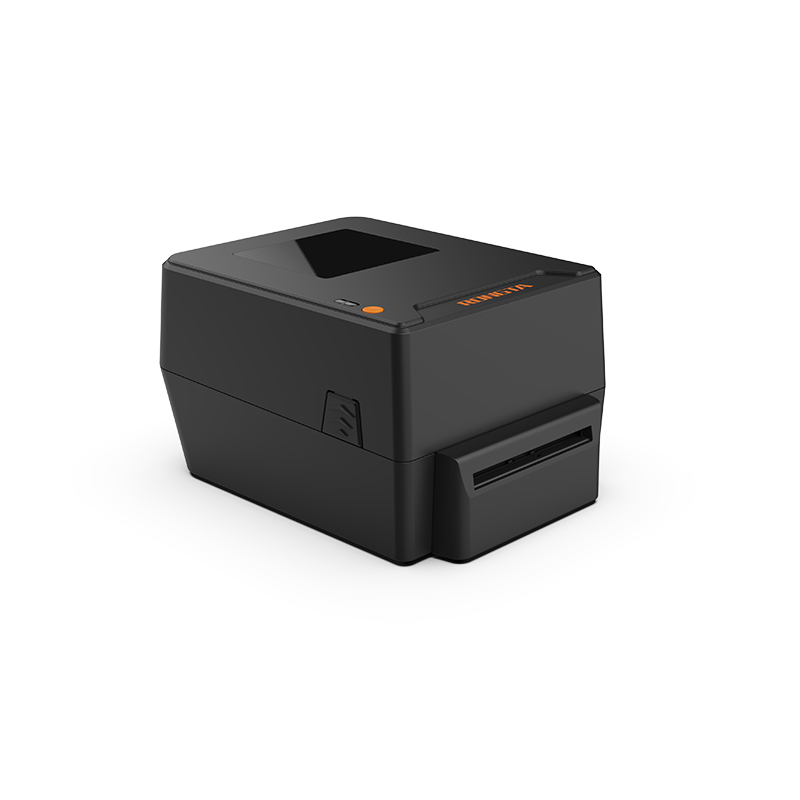 RP400A 4'' Thermal Transfer Tape Cutter Printer
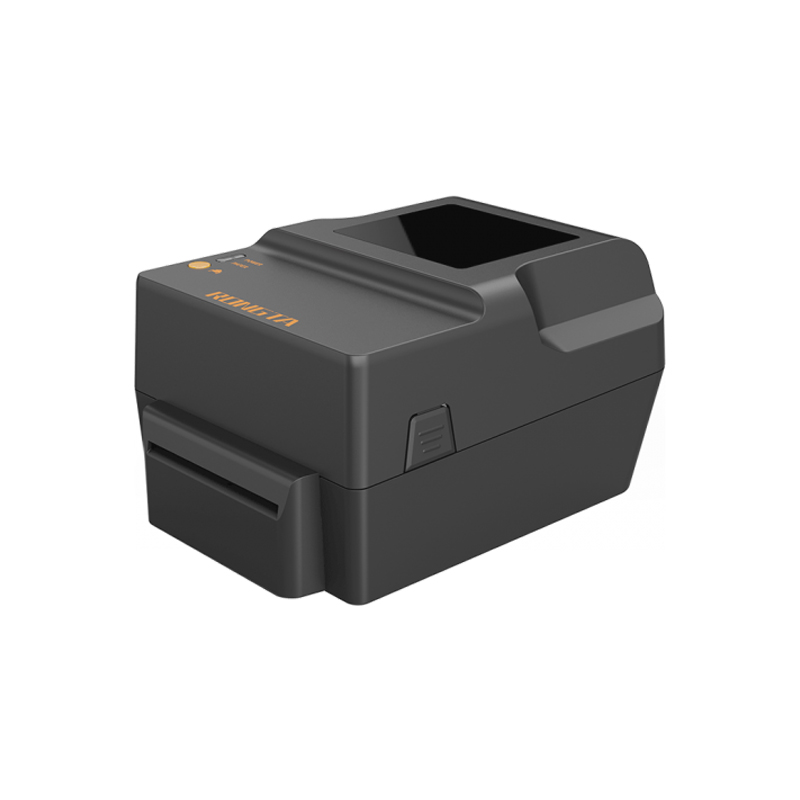 RP400H 4'' Thermal Transfer Tape Cutter Printer
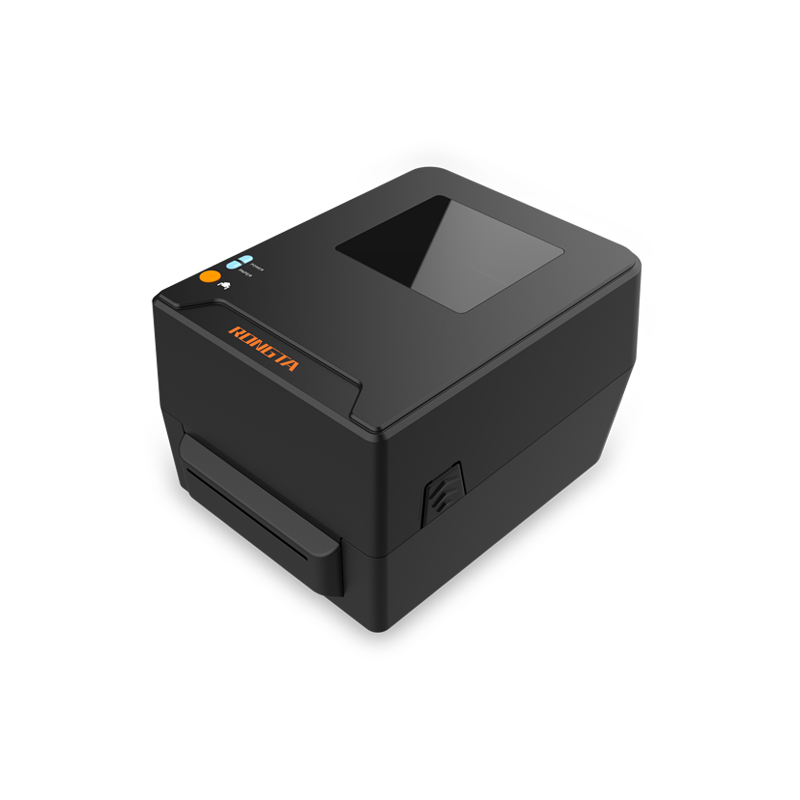 RPF413 300dpi RFID barcode label printer
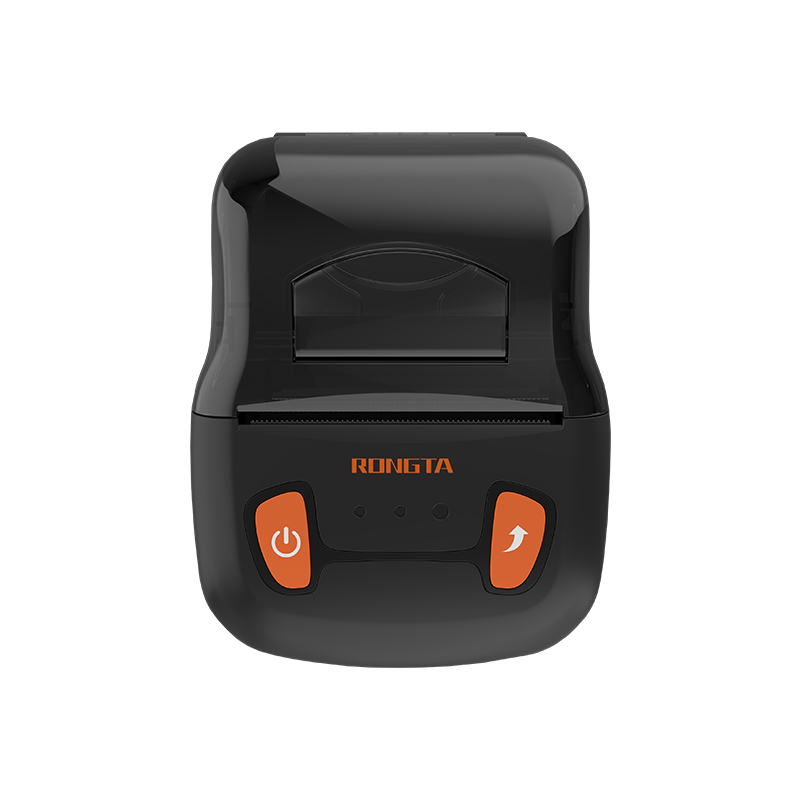 RPP02A Portable Receipt Printer
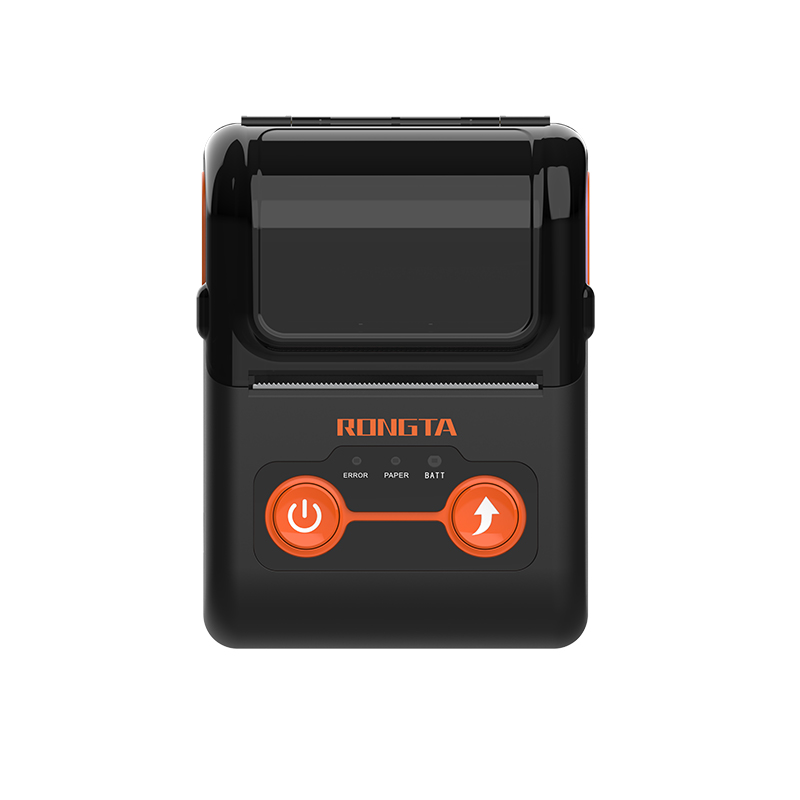 RPP02B Thermal Portable Printer
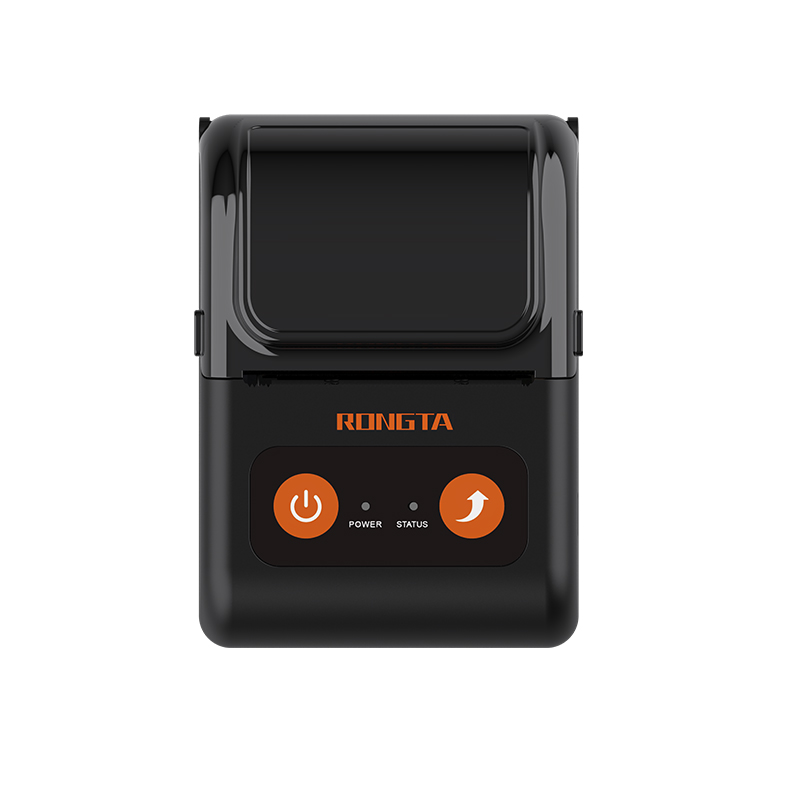 RPP02C Portable Receipt Printer
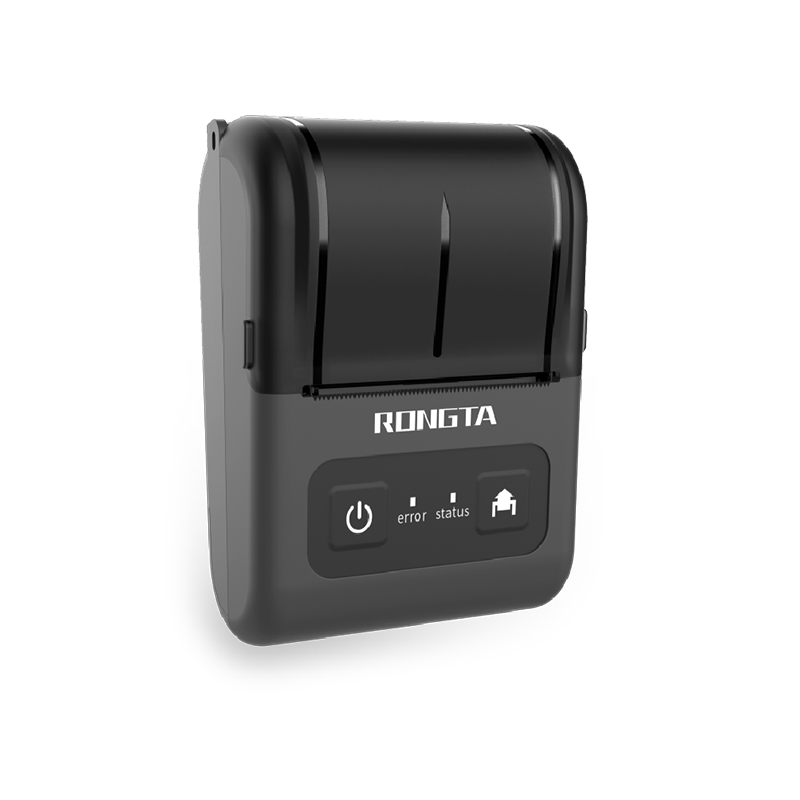 RPP02D Thermal Portable Printer
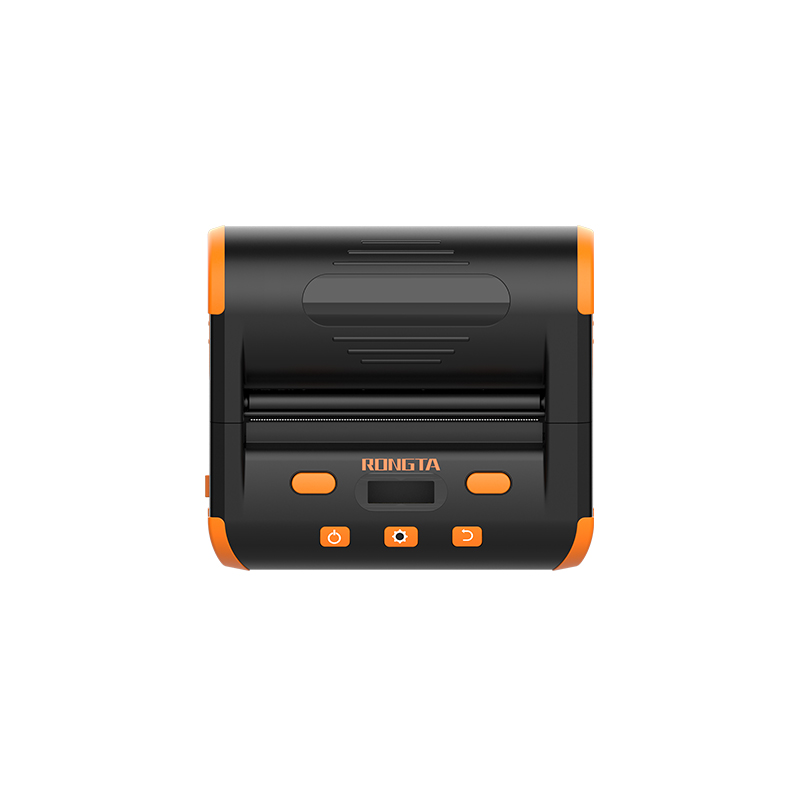 RPP04 4" Portable Label Printer
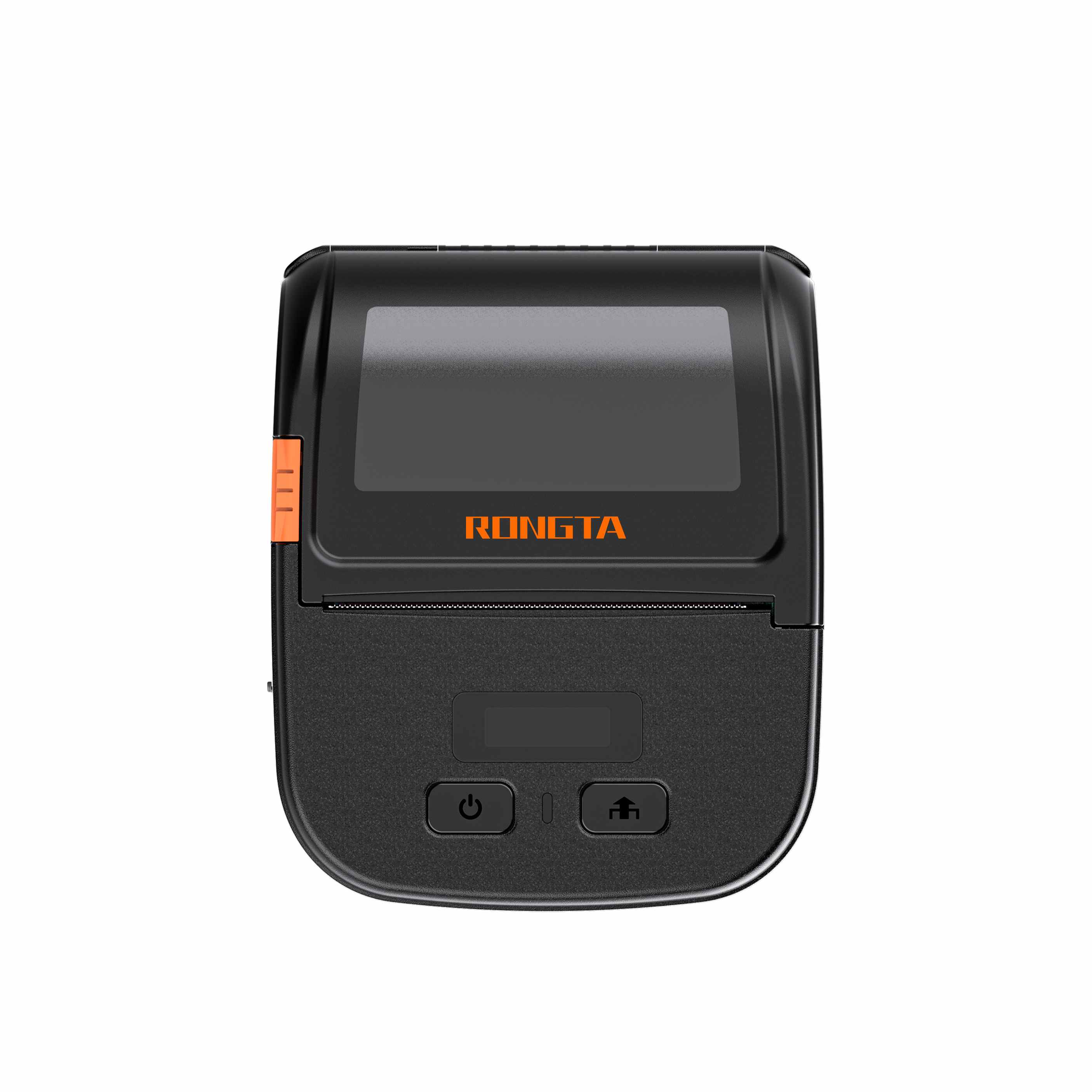 RPP30 3" Portable Label Printer
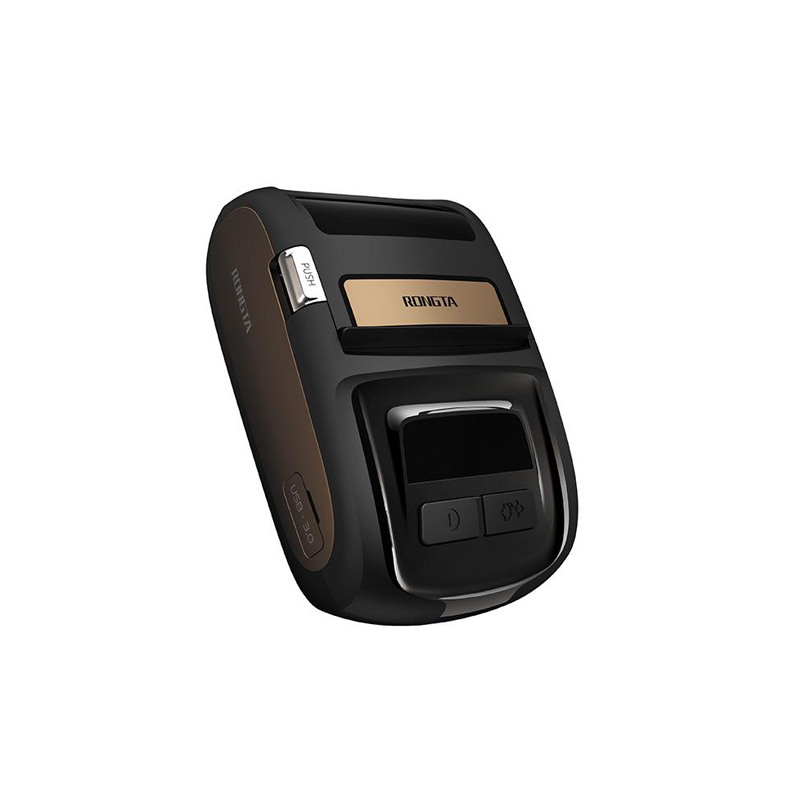 ACE M1 2" Portable Label Printer
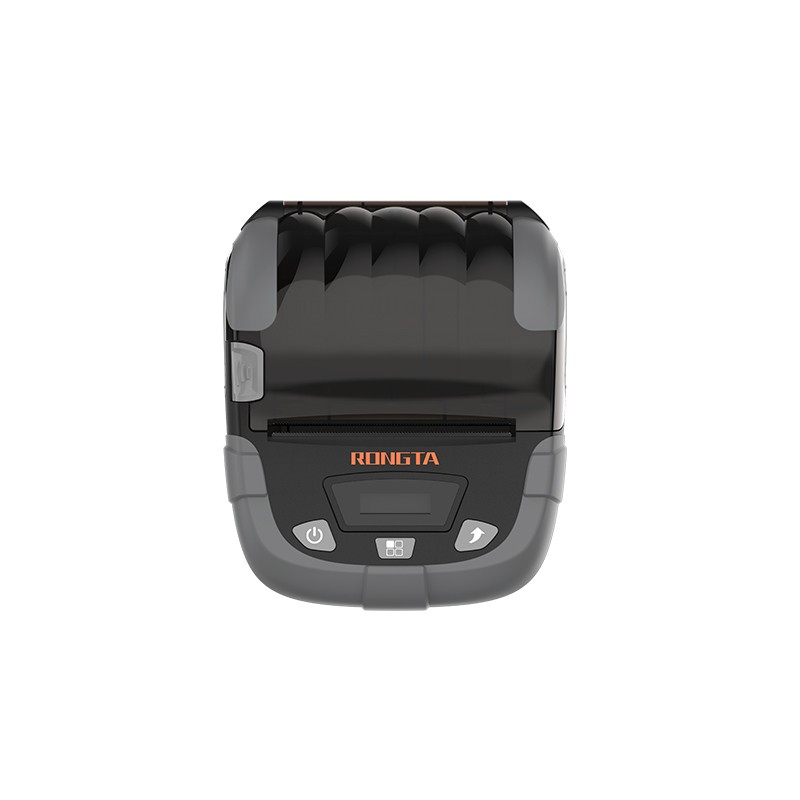 RPP320N 3" Portable Label Printer
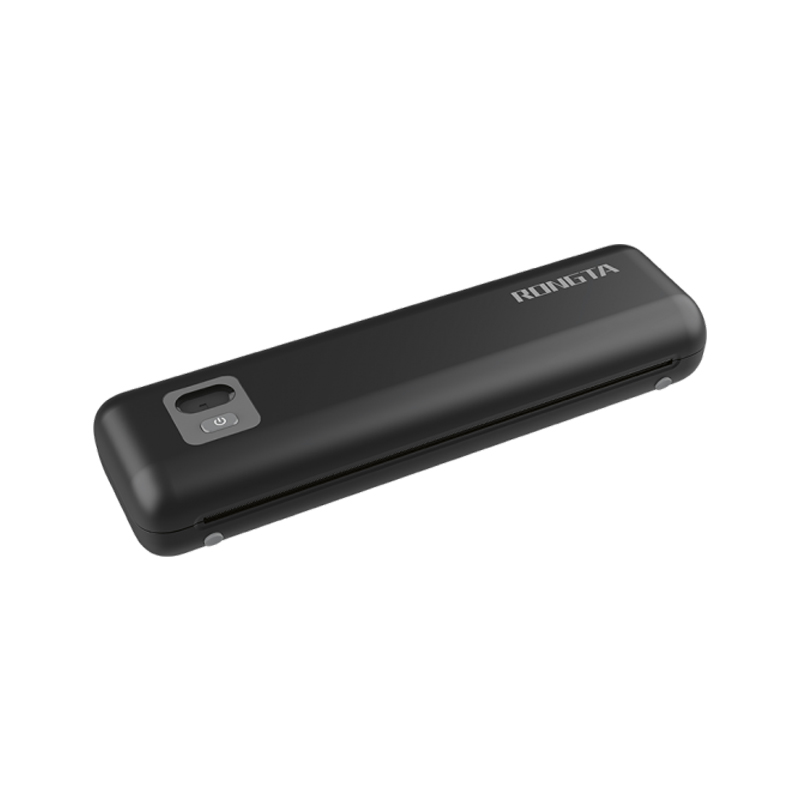 F82A A4 Front-Out Paper Tray Thermal Printer
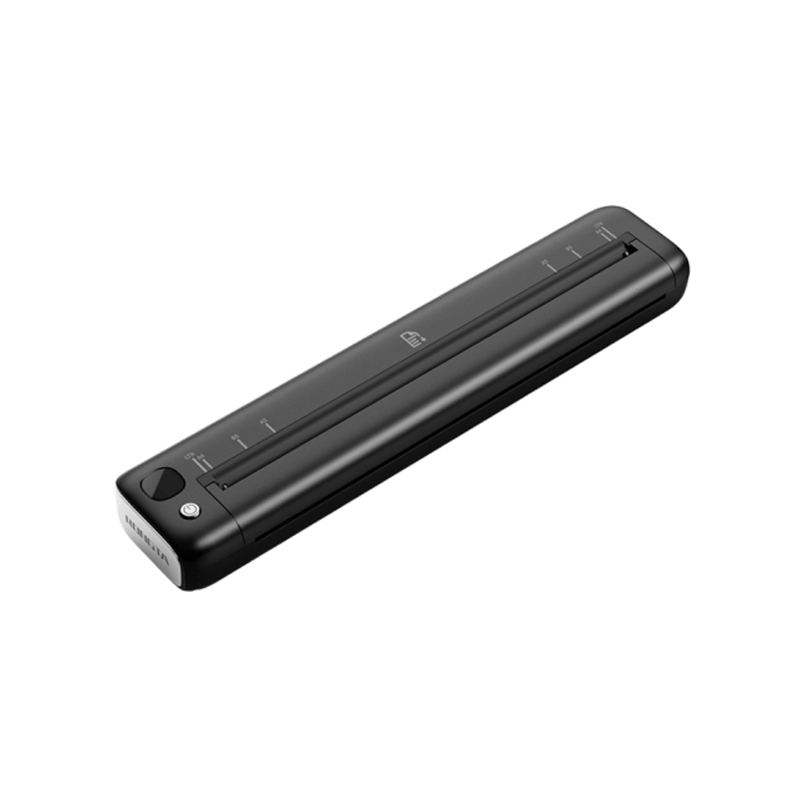 F81A Portable A4 Thermal Printer
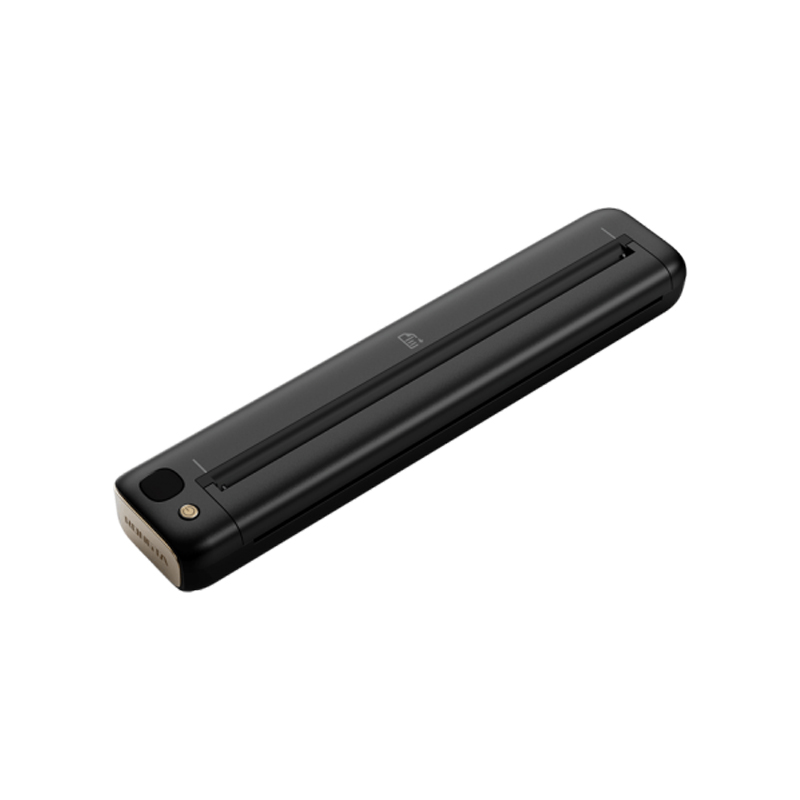 F81S Portable A4 Tattoo Printer
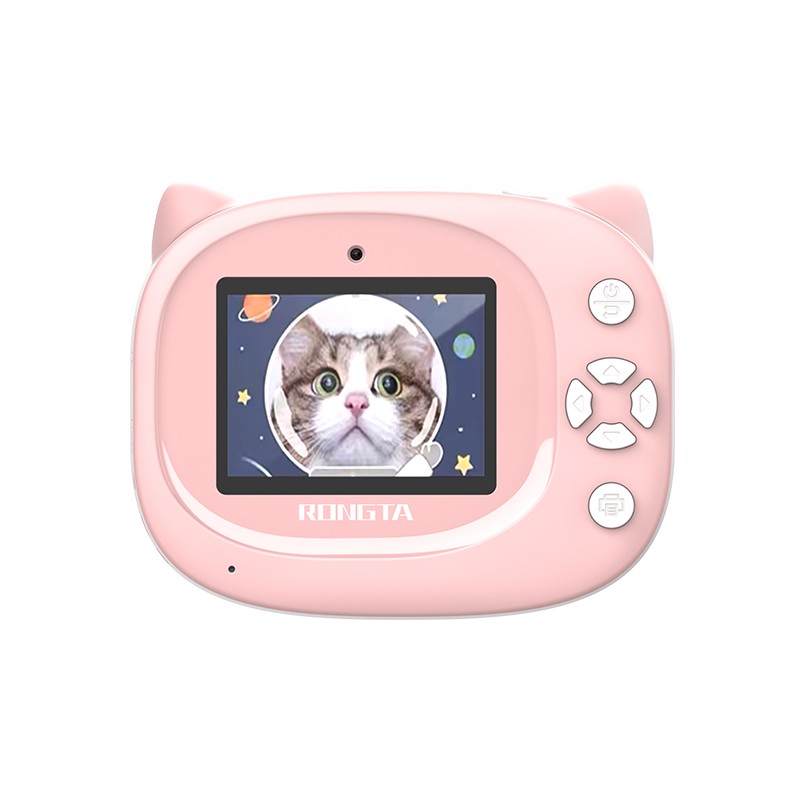 Z1 Children's Educational Photo Printer
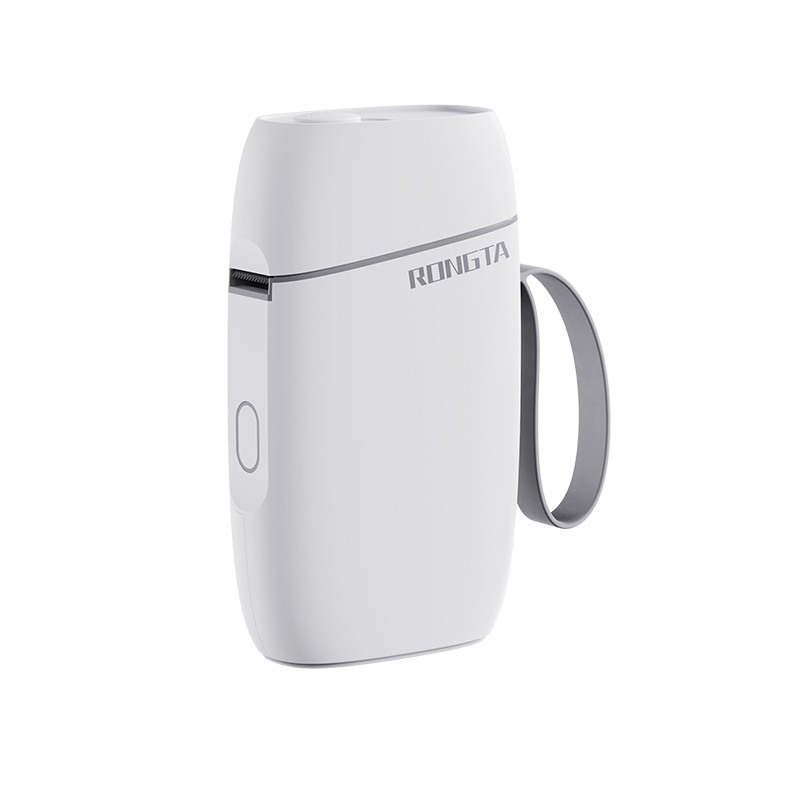 R5 Mini Label Printer
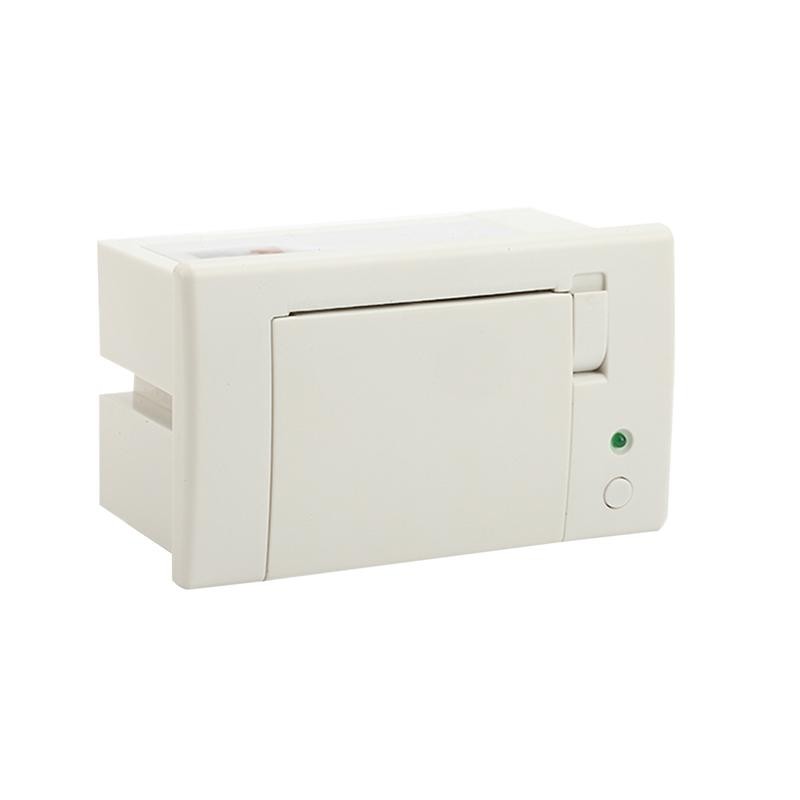 RP07 58mm Embedded Printer
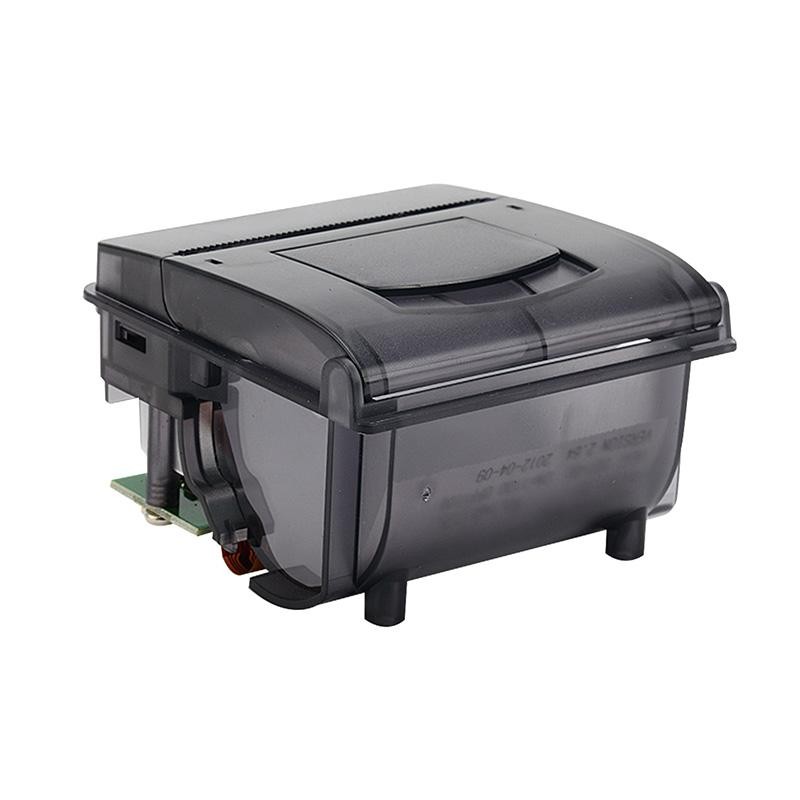 RP203 58mm Embedded Printer
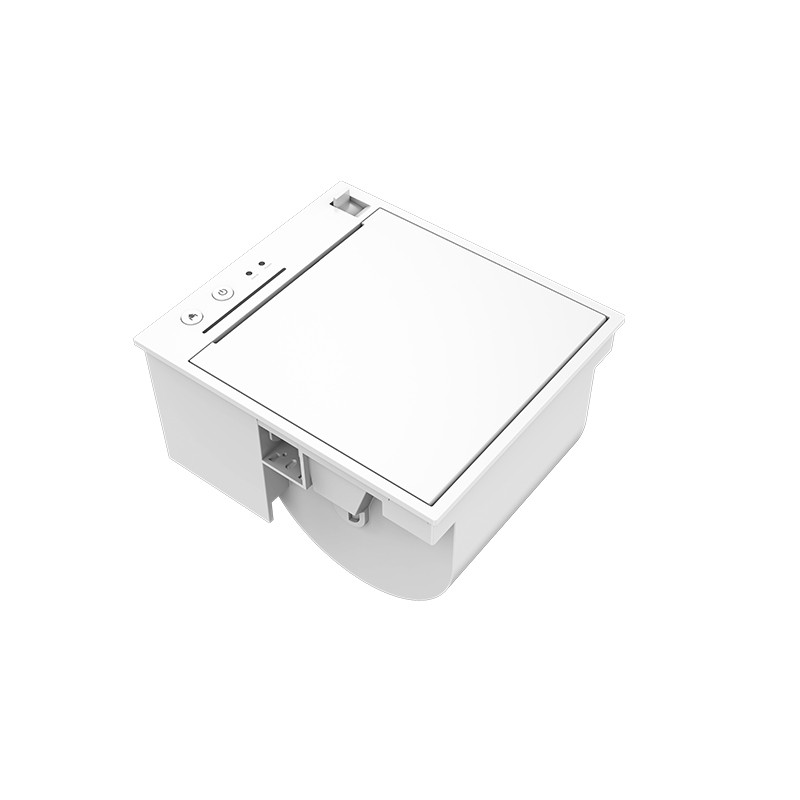 PM315 Embedded Thermal Printer
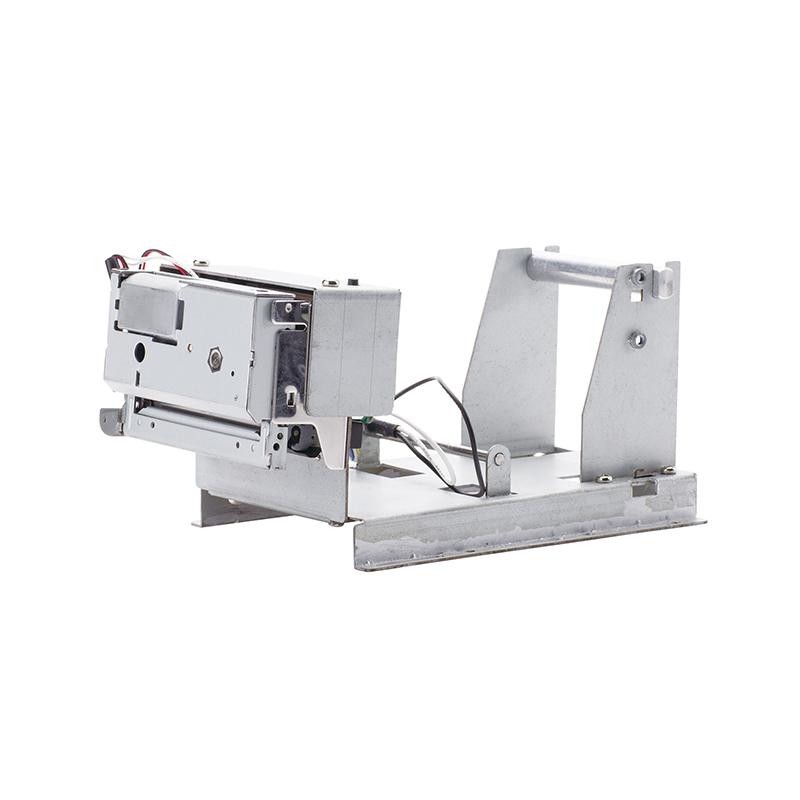 PM201 48mm Printing Module
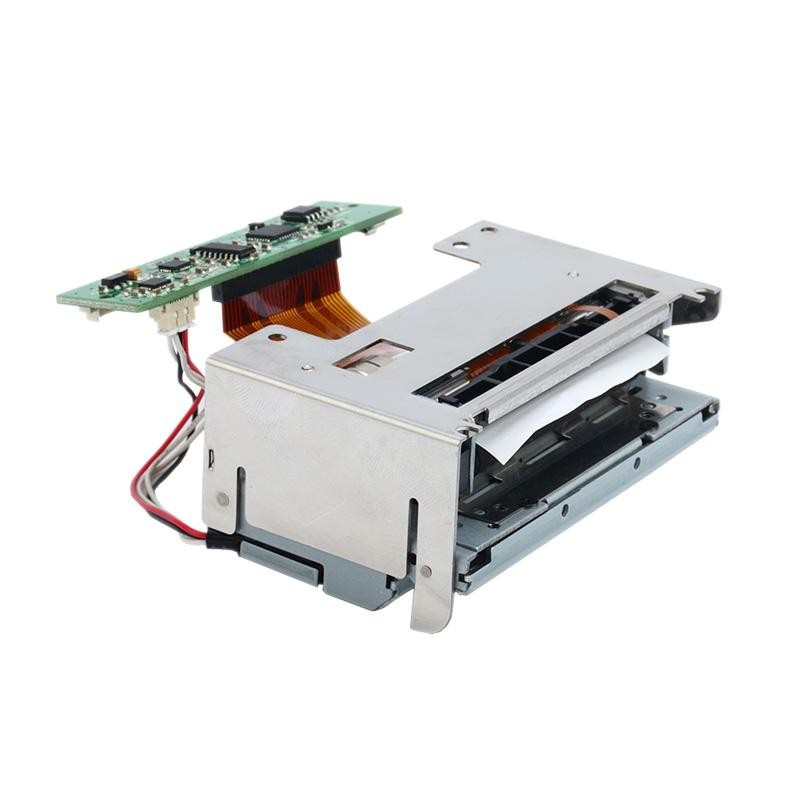 PM628 58mm printing module
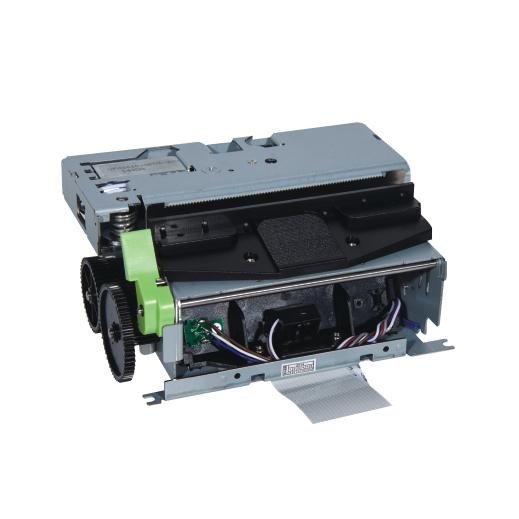 PM532A Printing Module
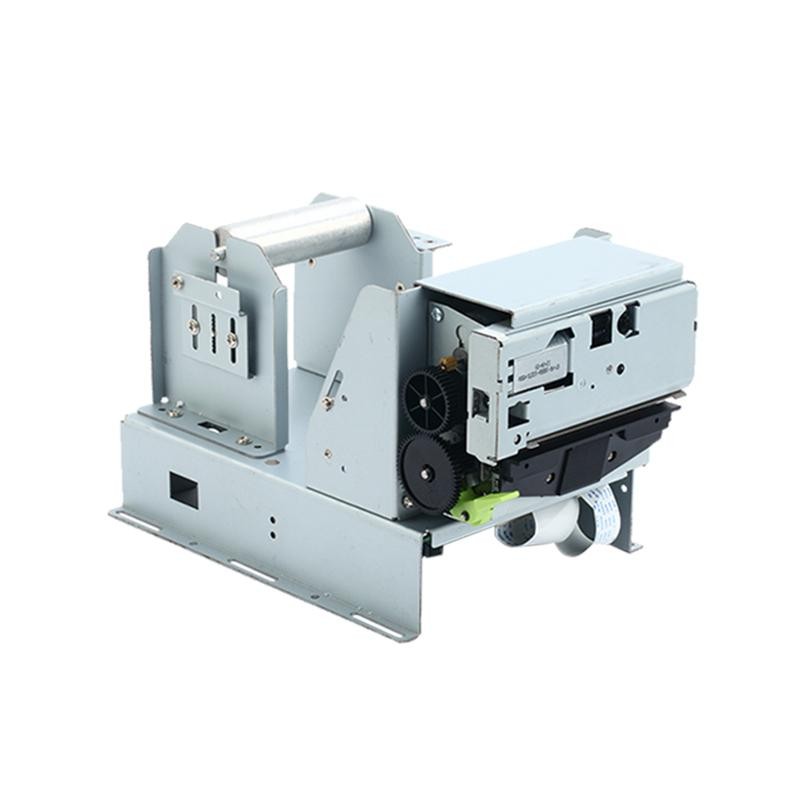 PM532B printer module
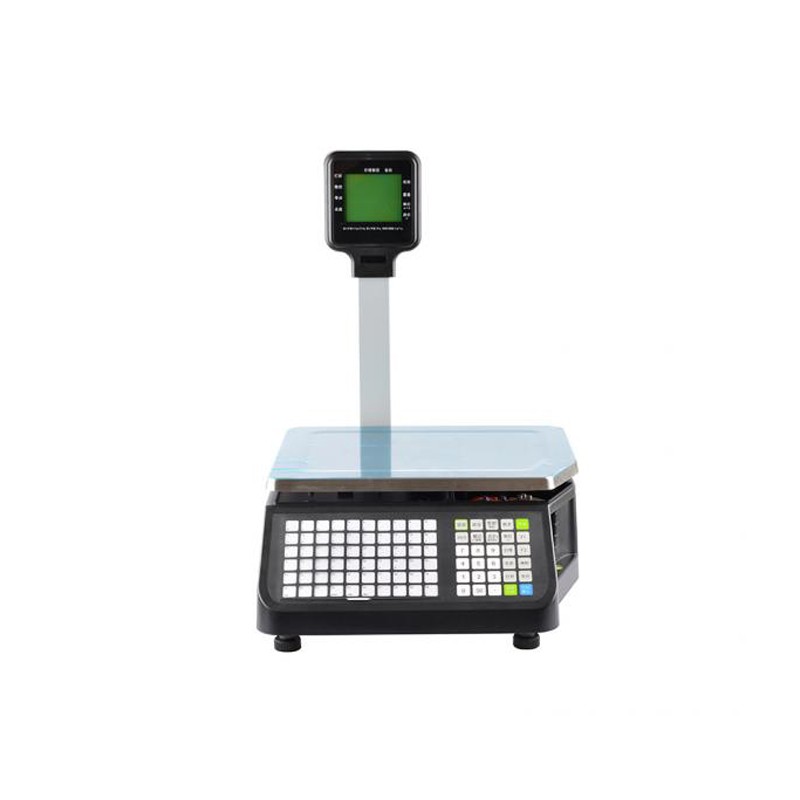 LS015/LS015A Barcode Scale
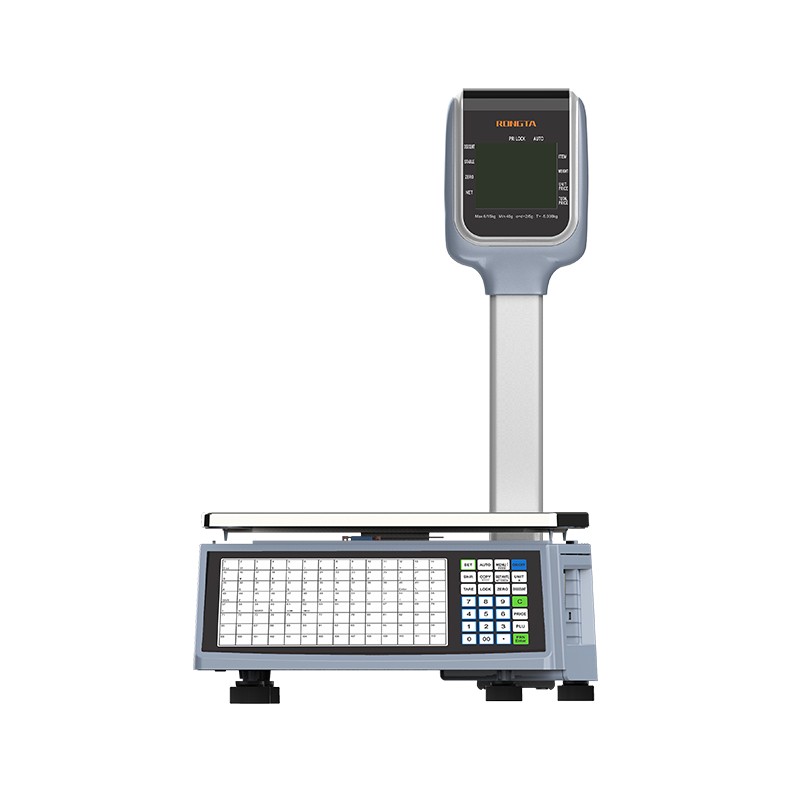 RLS1815D/RLS1830D Barcode Scale
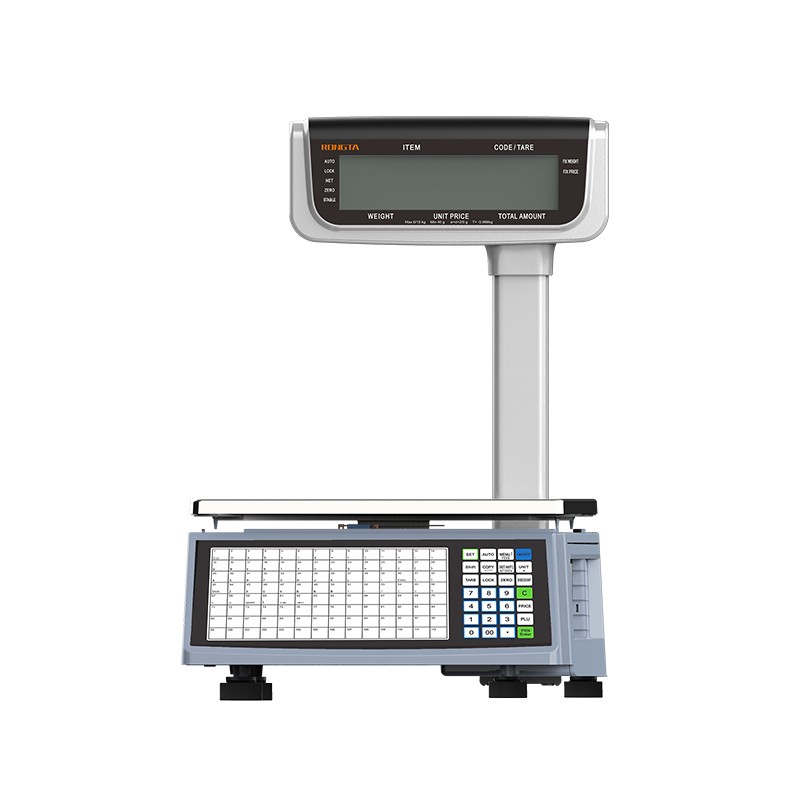 RLS1815C/RLS1830C Barcode Scale
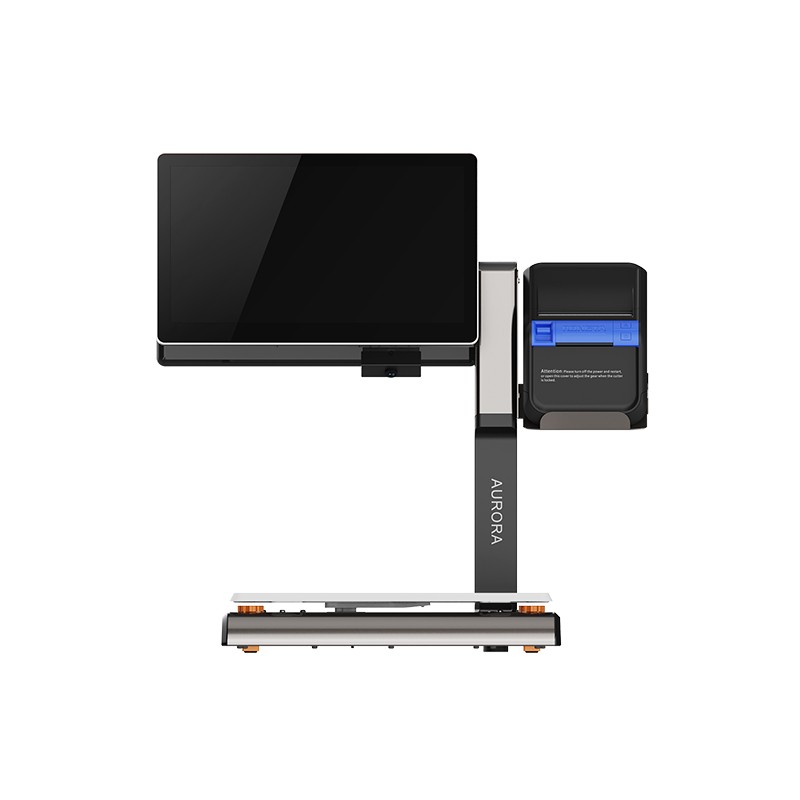 AURORA S2L-S Labelless Scale
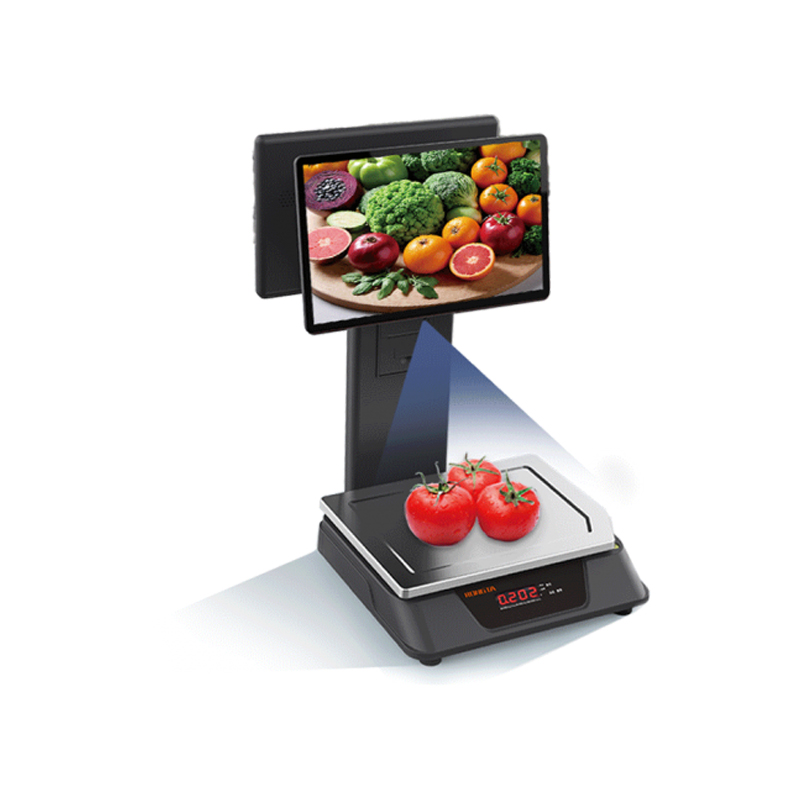 AURORA E1 PRO-AI Cash Register Scale
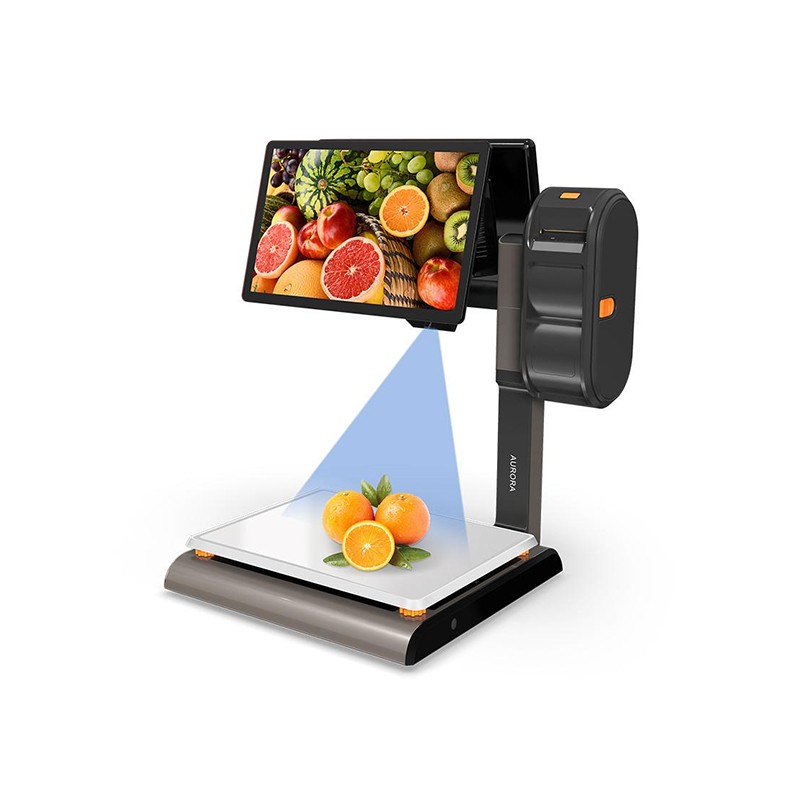 AURORA S2L-AI Label Scale
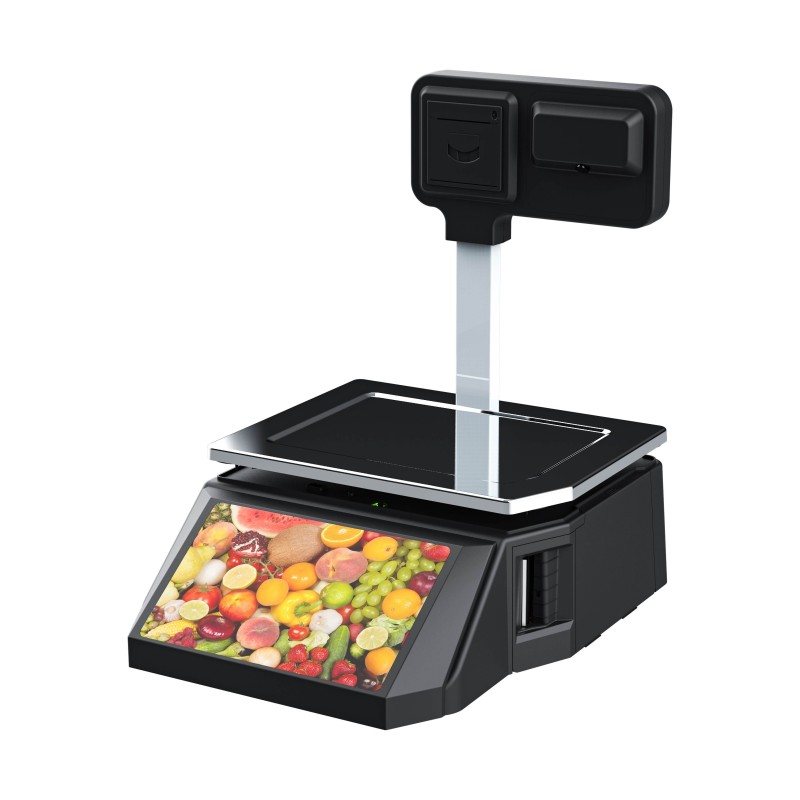 DP01-AI Smart Tag Cashier Dual-Use Scale
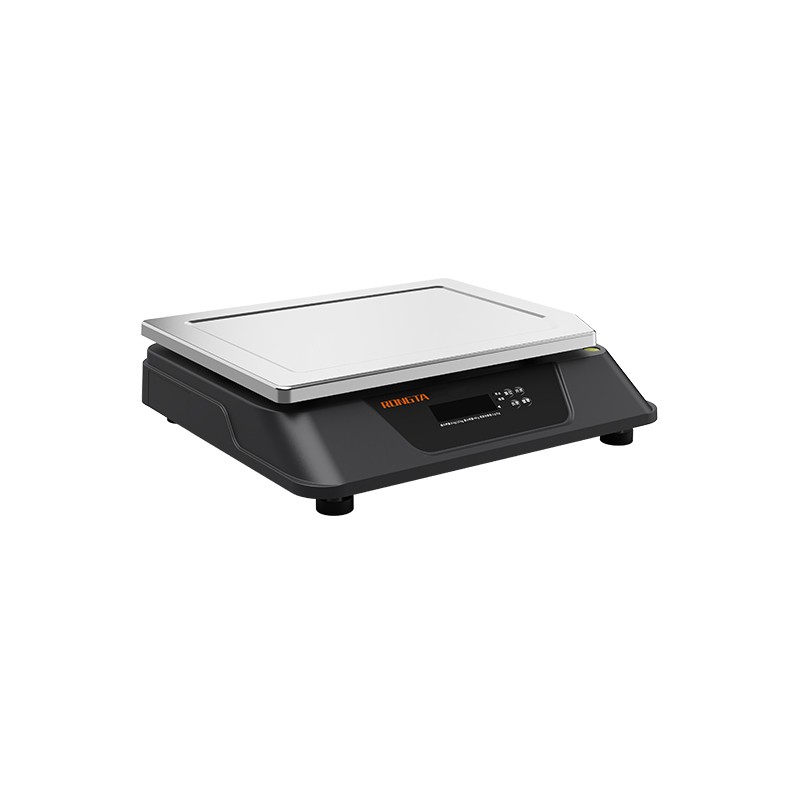 C3 Weighing Scale
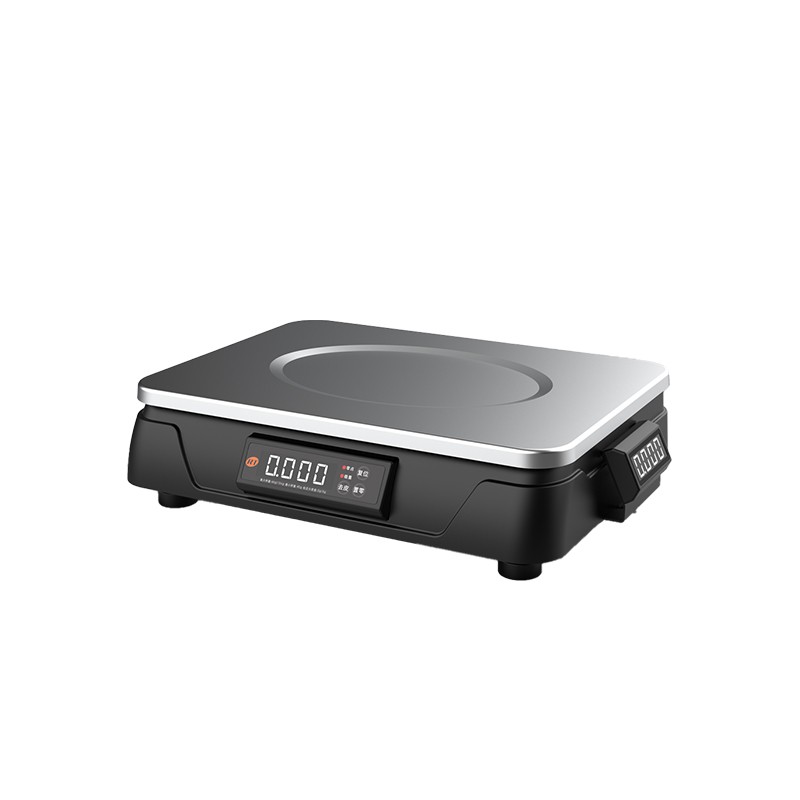 C1 weighing scale
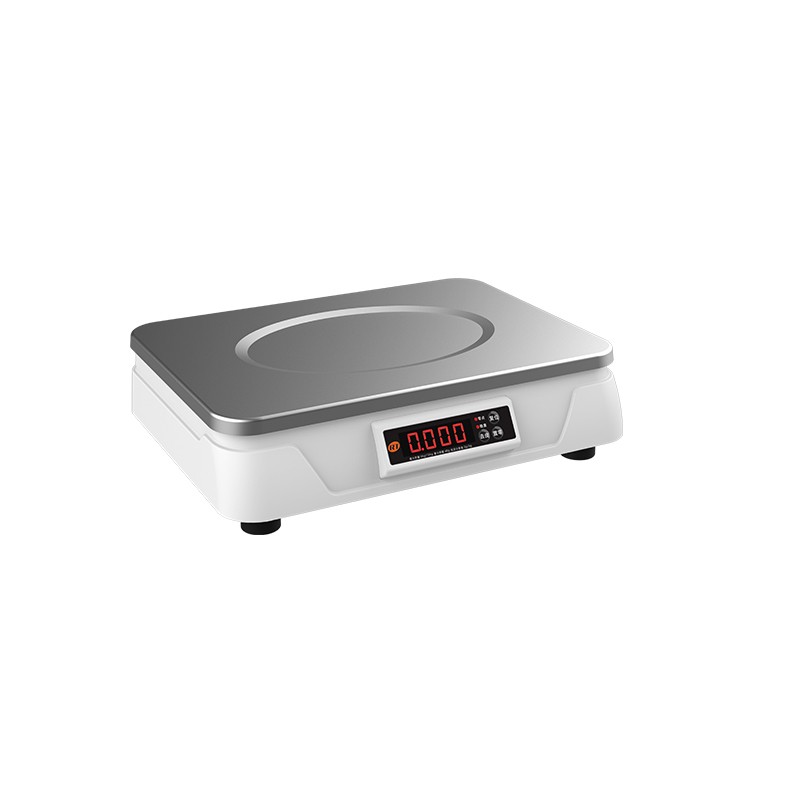 C11 Weighing Scale
 retail
 FOOD
FOOD Medical
 Mobile office/home
 asset Management
 logistics
 Driver download
 User Manual
 Tool Download
 Tag software
 Product Video
 Development Documentation
 Frequently Asked Questions
 User Guide
 Company News
 Exhibition Updates
 Industry Insights
 Product Update
 General situation
 Development history
 Honors and Qualifications
 R&D strength
 Team activities
 Social responsibility




User Guide
search

58mm Thermal Receipt Printer Product Overview and Technical Specifications
I. Overview of 58mm Series Thermal Receipt Printers Main Features: 1) High print quality 2) Low noise 3) Supports cash drawer driver 4) Attractive design 5) Reasonable structure, easy to use and maintain 6) Optional USB communication interface...
Precautions for using RP58 series receipt printers
The 58mm series printer is a direct thermal POS receipt printer. It is easy to operate, cost-effective, and widely used in shopping malls, supermarkets, hospitals, restaurants, banks, gas stations, toll collection points, and other fields. 1. Safety Precautions Before operating the printer, please carefully read the following instructions and strictly adhere to them. Safety Warning 01: Do not touch the printer's cutter or tearer. Warning 02: The printhead is a heat-generating component. Do not touch the printhead or surrounding parts during or immediately after printing. Warning 03: Do not touch the surface of the thermal printhead or its connectors to avoid static electricity damage to the printhead. Warning 04: This is a Class A product. In living environments, this product may cause radio interference. In such...
Detailed instructions and usage guide for the RPP02N portable receipt printer
RPP02N Portable Receipt Printer Usage Instructions and Guidelines I. Preparation Before Use 1. Battery Installation 1) Lift the belt buckle upwards to open the battery cover and then open the battery compartment cover. 2) As shown in the picture, insert the battery into the battery compartment, making sure the positive and negative terminals are not reversed. 3) Then close the battery compartment cover. 2. Printing Paper Roll Installation Usage Method 1) Hold the top paper roll with both hands...
RPP02N Portable Receipt Printer Product Introduction and Performance Features
Today, we'll introduce the Rongda RPP02N portable receipt printer, including its product overview and features. 1. RPP02N Portable Receipt Printer Appearance: 1) Paper Feed Button 2) Power Button 3) Power Indicator Light 4) Paper Feed Indicator Light 5) Top Cover 6) Main Body 7) Front Cover 8) RS232 Serial Port Socket 9) Power Interface 10) USB Interface 11) Battery Box 2. RPP02N Portable Receipt Printer Features: 1) Printing Performance: Printing Method: Line Layout, Thermal Paper Width: 58mm Print Width: 48mm Resolution: 8 dots/mm (203dpi) Dots per Line: 384 dots...
Precautions for using the RPP02N portable receipt printer
The Rongda RPP02N portable receipt printer has a wide range of applications, and boasts advantages such as portability, compact size, and fast printing speed. Today, we'll be sharing some usage precautions for the Rongda RPP02N portable receipt printer. Please read this chapter carefully before using the printer! 1. Safety Precautions (1) This printer can only use the dedicated batteries and power adapter provided by our company. Otherwise, it may cause product damage, battery leakage, fire, or even explosion. Replacing the wrong type of battery may cause an explosion hazard. Be sure to dispose of the used battery according to the instructions. (2) Do not throw the battery into fire, do not short-circuit, disassemble, or heat the battery, otherwise it may cause battery leakage, fire, or even explosion. (3) ...
SF-RPP322-FAQ
SF RPP322N - FAQ 1. RPP322N Quick Installation 1.1 RPP322N Quick Unpacking and Installation Video 2. Button and Function Description 2.1 Button Description 2.2 Self-Test Page Information 3. Common Problems and Solutions 3.1 Printer Paper Feed Abnormalities (White Paper Feed, Incorrect Paper Tear Position, etc.) 3.2 Printed Content Abnormalities (Blank, Unclear, Missing Content, Garbled Characters, Offset) 3.3 Unable to Power On 3.4 Printer Abnormal Alarm 3.5 Bluetooth Connection Failure 3.6 Printer Not Printing 3.7 Unable to Charge 3.8 Buttons Unresponsive 4. ...
Mixue Ice Cream RP850 Thermal Receipt Printer User Manual
I. RP850-US Mixue POS Machine Setup 1. Turn on the Mixue POS machine and click 【Receipt Printer Settings】. 2. If using USB connection: Follow the steps in the image above. Click 【Receipt Printer Default】, select 【USB】 as the receipt printer connection method. In the printer selection bar on the right, select the printer named 【0fe6:ffff811e@3】, then click Save. Print a test print. 3. If using serial port connection: Follow the steps in the image above. Click 【Receipt Printer Default】, select 【Serial Port】 as the receipt printer connection method. Select the correct serial port number (you can see COM1, COM2... port numbers on the Mixue POS machine interface; make sure to select the correct one), then click Save. Print a test print. II. ...
Mixue Ice Cream RP80VI Label Printer User Manual
I. RP80VI Mixue Ice Cream Store Label Printer Connection Steps: 1. On the POS interface, click Label Printer Settings: 2. Select Label Printer 1, choose USB as the label printer connection method, and click the printer drop-down menu to select: Rongda RP80VI (some systems display: RONGTA USB Label Printer). Click Save in the lower right corner, then print a test label. If a test label appears, the connection is successful. (If Label Printers 2, 3, 4... are enabled, ensure they are all disabled.) II. RP80VI Lucky Cafe Store Label Printer Connection Steps: 1. On the POS interface, click Label Printer Settings: 2. Select Label Printer 1, choose Serial Port as the label printer connection method. There are 4 serial ports...
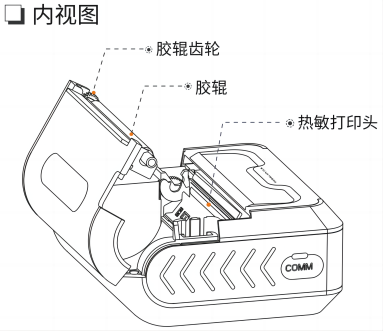
RPP322N-cs
SF RPP322N - FAQ 1. RPP322N Quick Installation 1.1 RPP322N Quick Installation 2. Button and Function Description 2.1 Button Description 2.2 Self-Test Page Information 3. Common Problems and Solutions 3.1 Printer Paper Feed Abnormalities (Blank Paper, Incorrect Paper Tear Position, etc.) 3.2 Printed Content Abnormalities (Blank, Unclear, Missing Content, Garbled Characters, Offset) 3.3 Unable to Power On 3.4 Printer Abnormal Alarm 3.5 Bluetooth Connection Failure 3.6 Printer Not Printing 3.7 Unable to Charge 3.8 Buttons Unresponsive 4. After-Sales Service and Repair Methods...
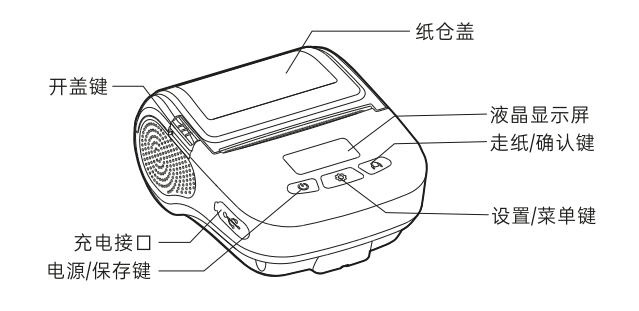
RPP31(SF-FAQ)
SF RPP31 Common Problem Troubleshooting Manual 1. Basic Function Description 1.1 Appearance and Component Description 1.2 System Operation Instructions 1.3 Menu Function Description Short press the [Power/Save] button to wake up the printer → Long press the [Settings/Menu] button for 3 seconds to enter the settings interface → Short press the [Settings/Menu] button to select → Switch to the corresponding menu interface, and use the [Power/Save] button and [Paper Feed/Confirm] button to switch and confirm; Menu function interface: 2. Daily Use Operation Instructions 2.1 Printing Self-Test Page Long press the [Settings/Menu] button to switch to "Print Self-Test Page"...
RP310D Label Printer FAQ
RP310D Thermal Label Printer Common Problem Guide I. Button/Indicator Light Usage Instructions 1.1 Button Function Description ① Print Self-Test Page: With the printer off, press and hold the paper feed button + power button to automatically print a self-test page; ② Paper Learning: With the printer on, press and hold the paper feed button until two beeps sound, then release the button to automatically perform paper learning calibration; ③ Restore Factory Settings: With the cover open, press and hold the paper feed button for 10 seconds, then release the button to complete the factory reset; ④ Print Blank Paper: In standby mode, briefly press the paper feed button to automatically feed one blank label; 1.2 Indicator Light Description ① Solid Indicator Light: Normal standby mode; ② Flashing Indicator Light: Printer error, buzzer alarm; Two consecutive beeps: Printer error; Two consecutive beeps...