

 80mm Receipt Printer
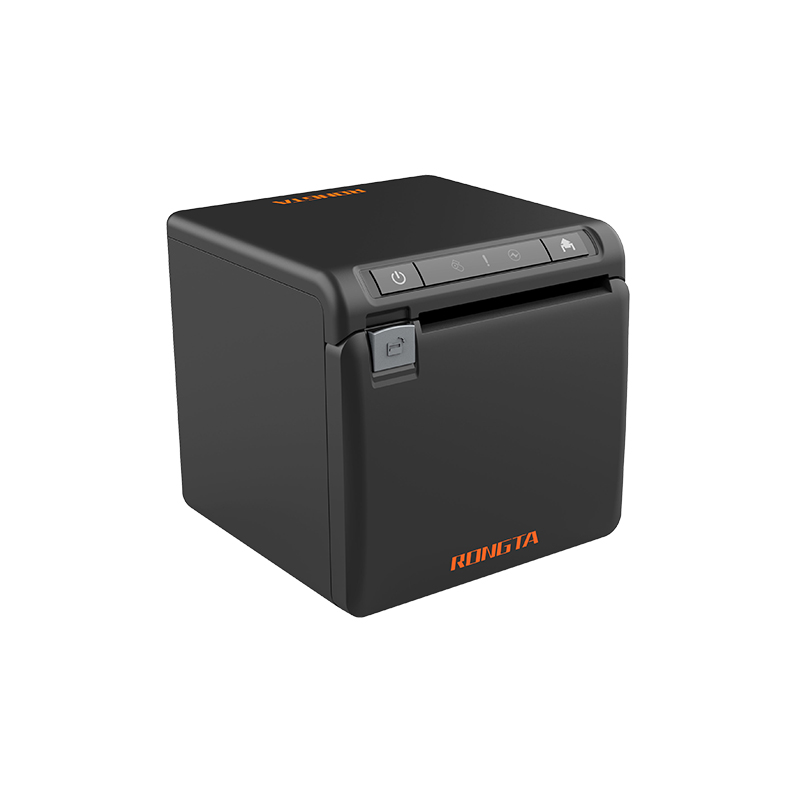 ACE H2 Receipt Printer
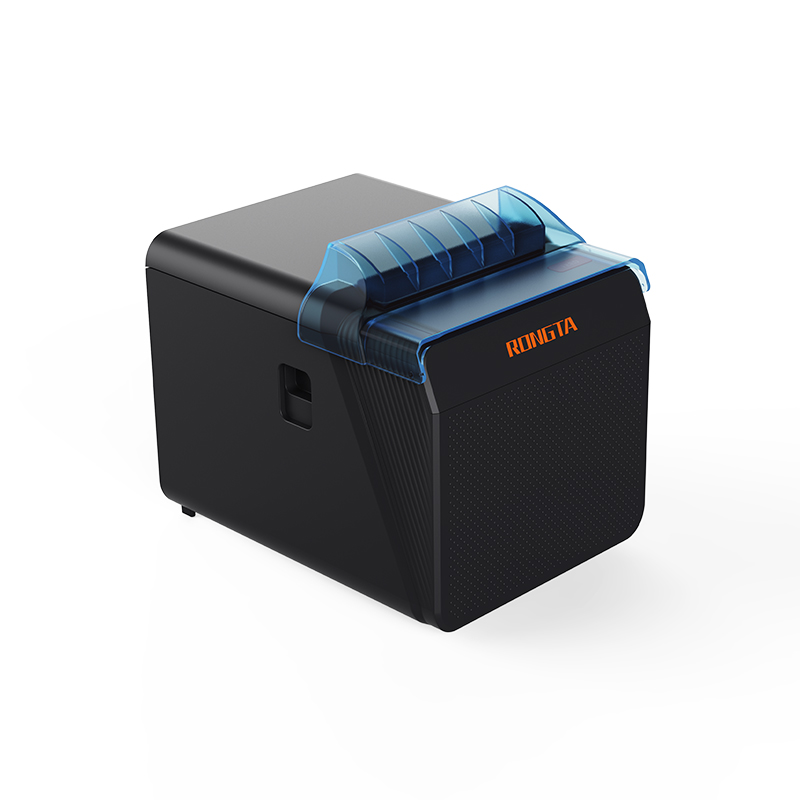 RP337 Receipt Printer
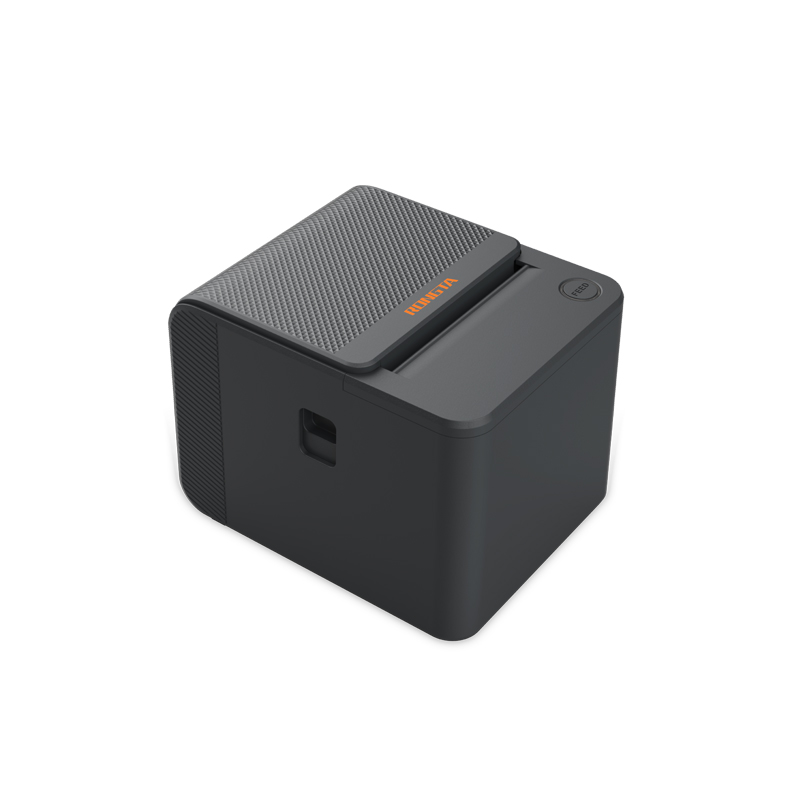 RP336S Dual-Color Receipt Printer
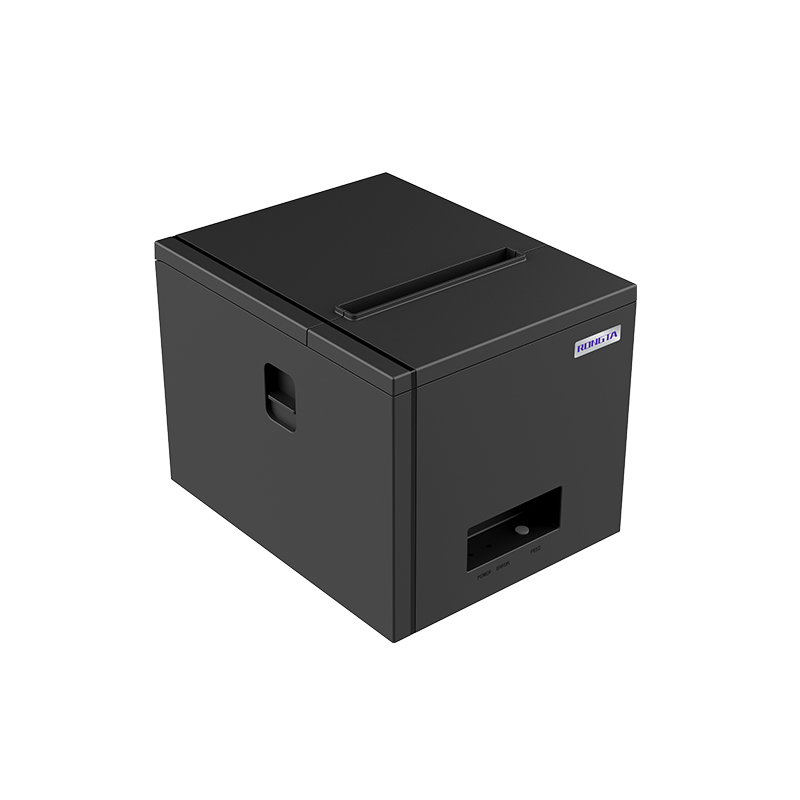 RP350 Receipt Printer
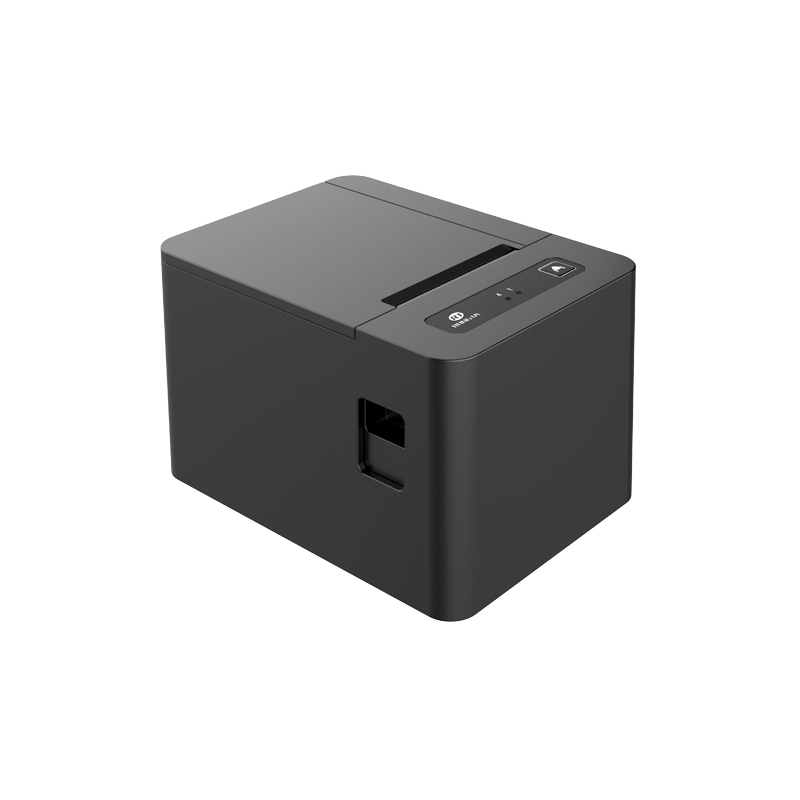 RP582 Receipt Printer
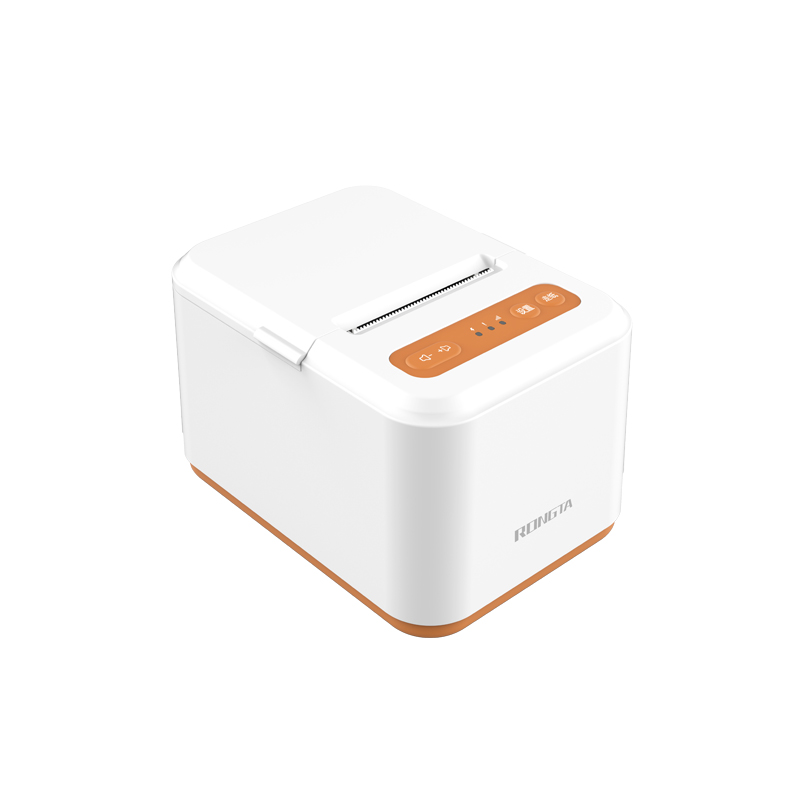 RP581 Receipt Printer
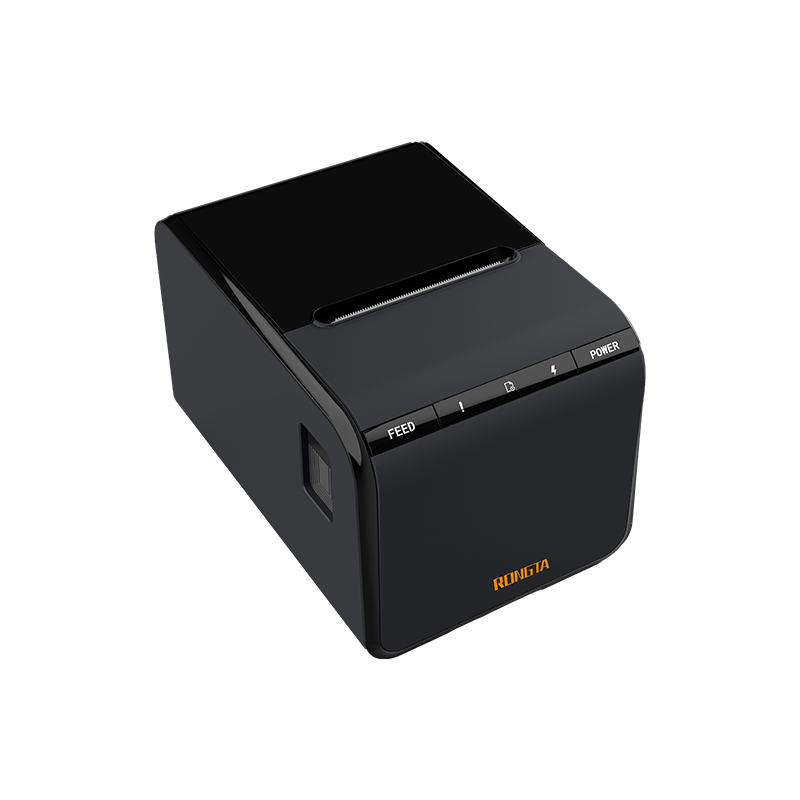 ACE G1Y Receipt Printer
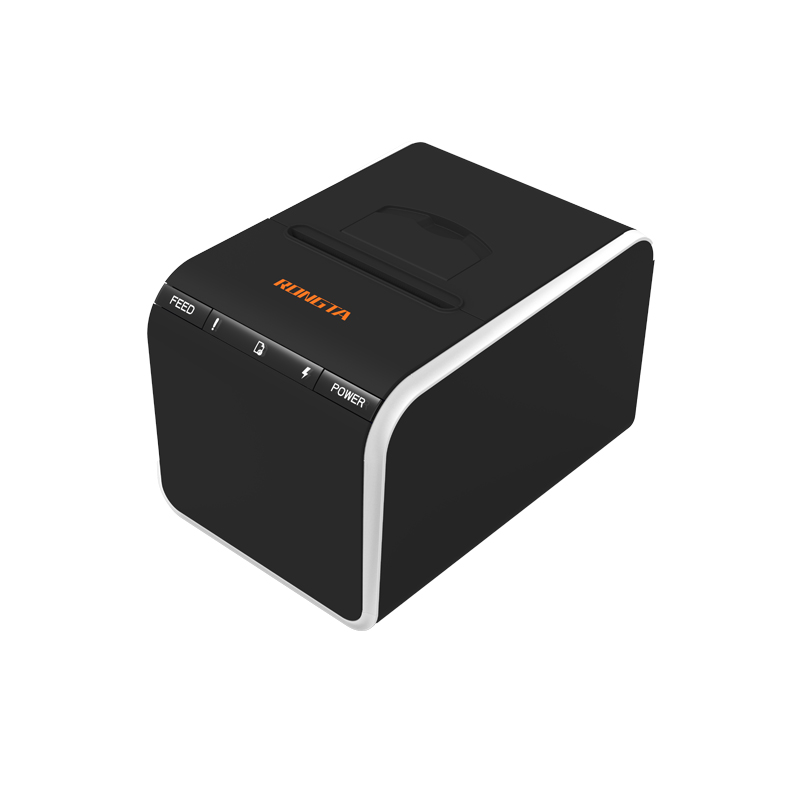 ACE G1YP Cloud Printer
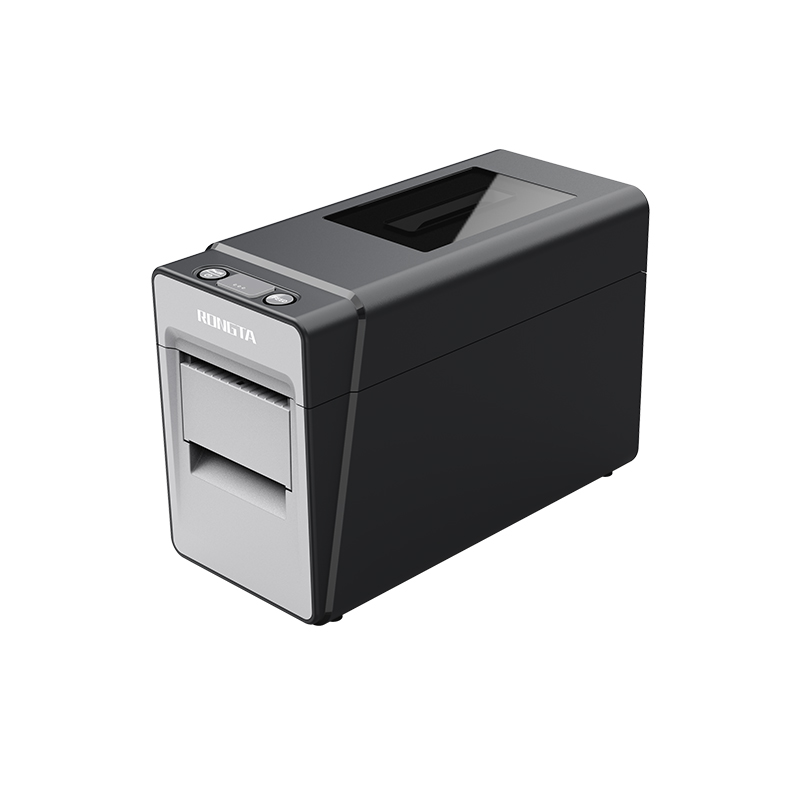 RP216 2'' Dual-color High-definition Label Printer
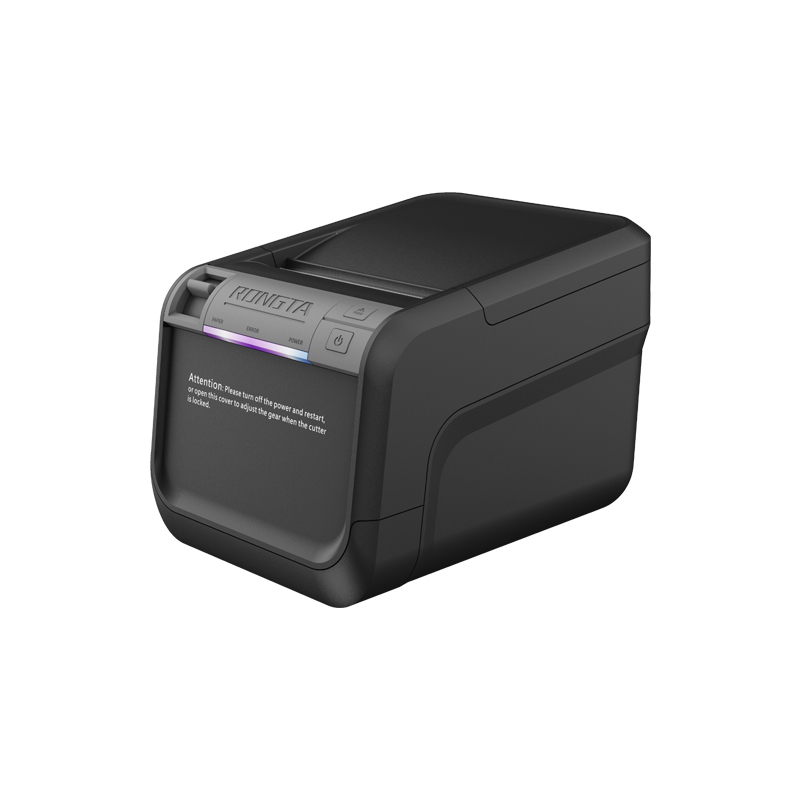 ACE V1S 3'' Backless Label Printer
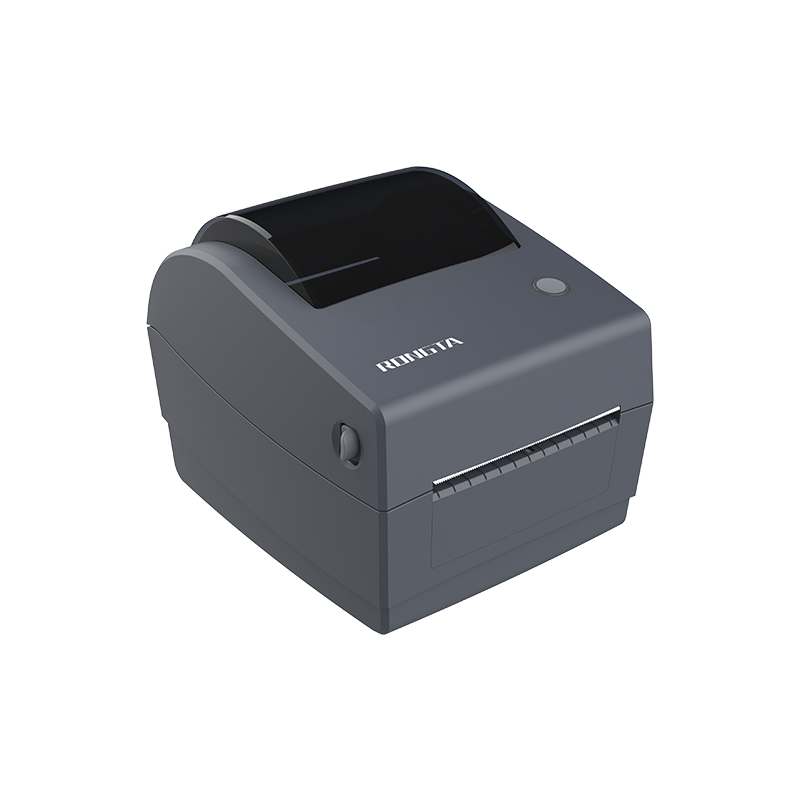 RP310D 3'' Dual-color Label Printer
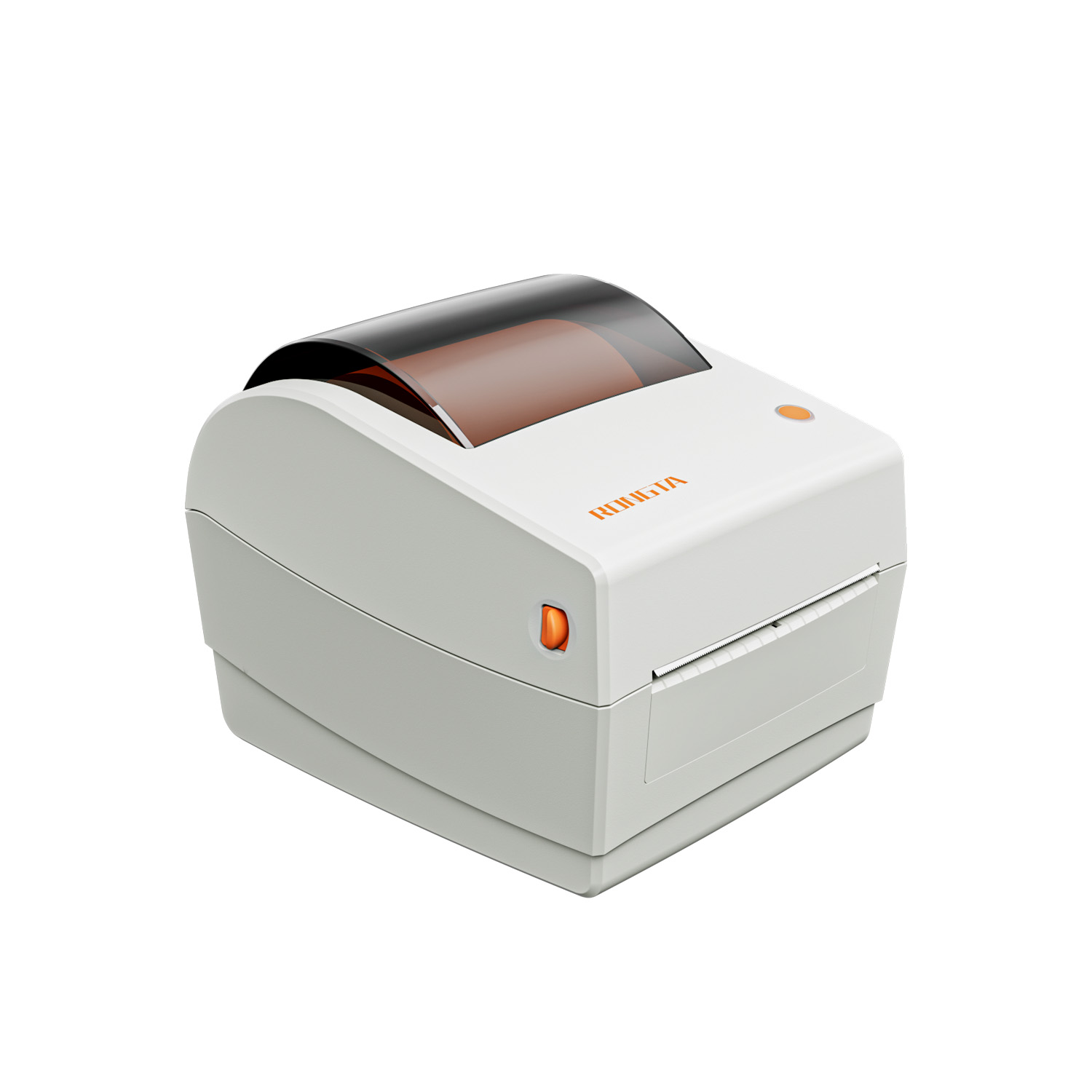 RP410N 4'' Thermal Label Printer
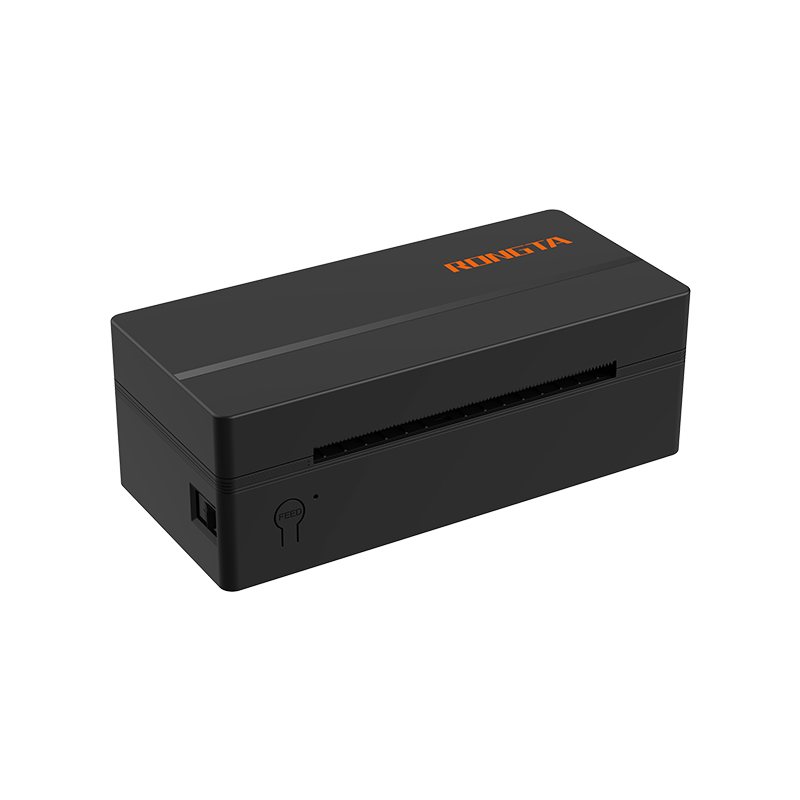 RP425 4'' Electronic Waybill Printer
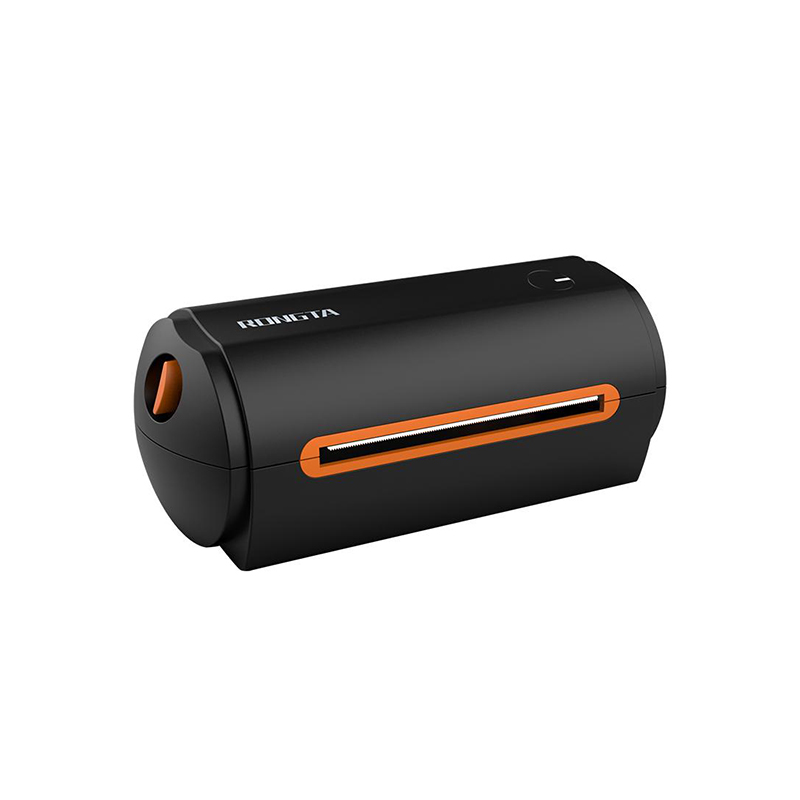 RP422 4'' Electronic Waybill Printer
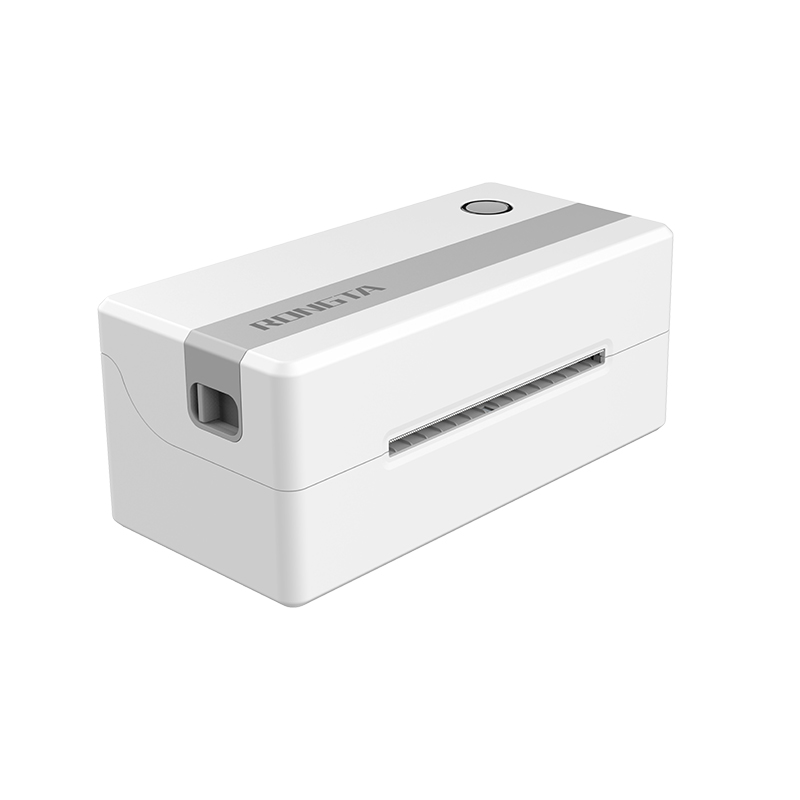 RP421A 4'' Electronic Waybill Printer
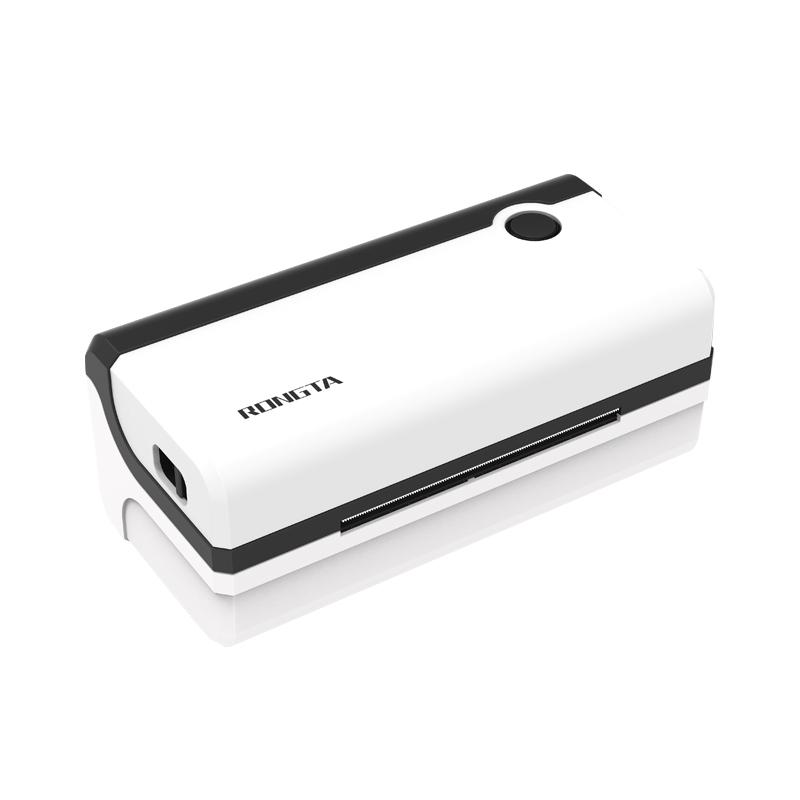 RP420 4'' Electronic Waybill Printer
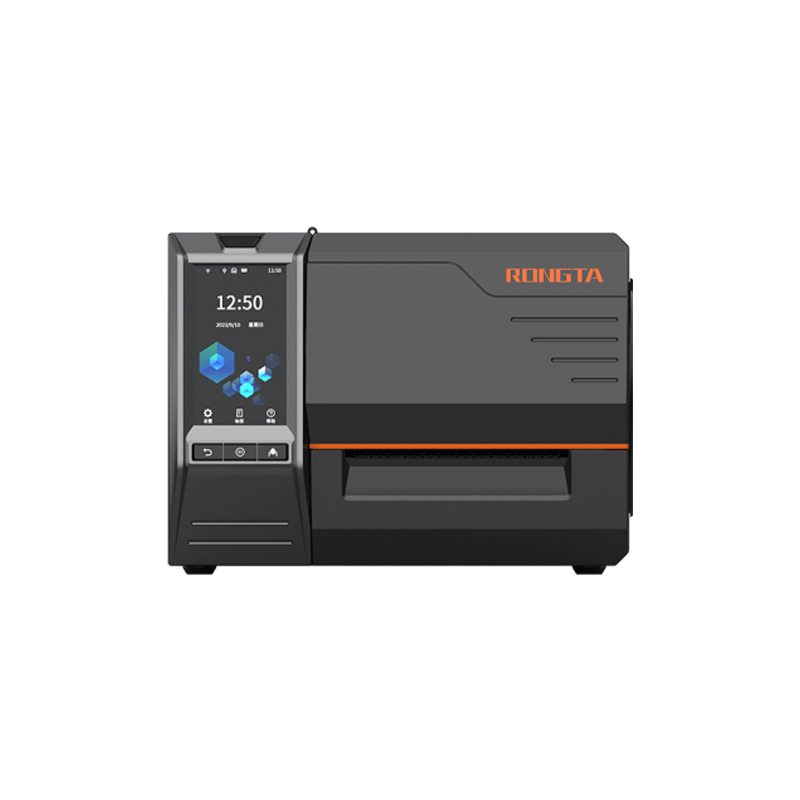 RI463 Series Barcode Printers
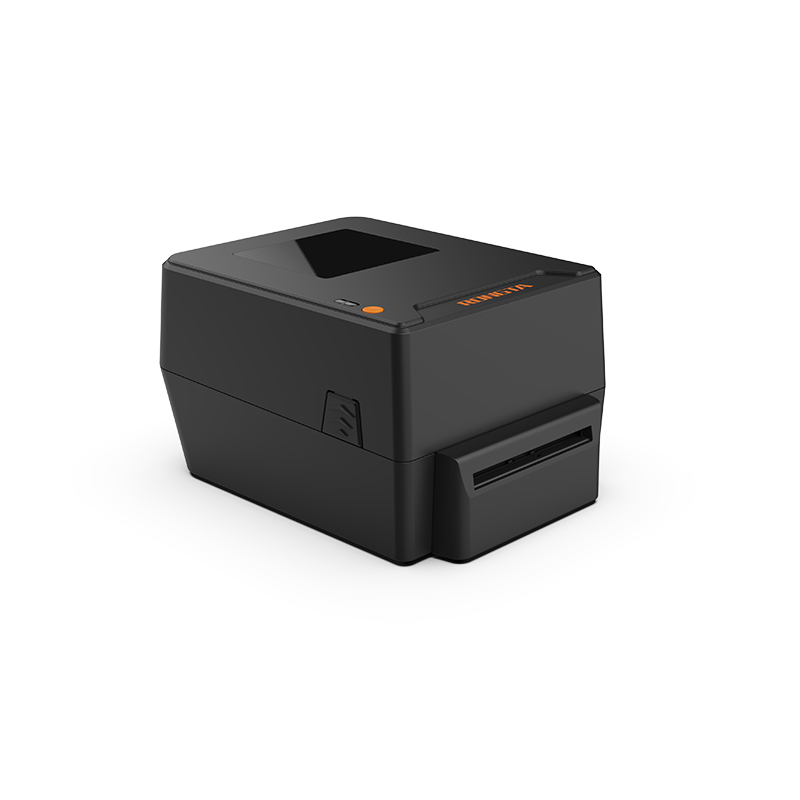 RP400A 4'' Thermal Transfer Tape Cutter Printer
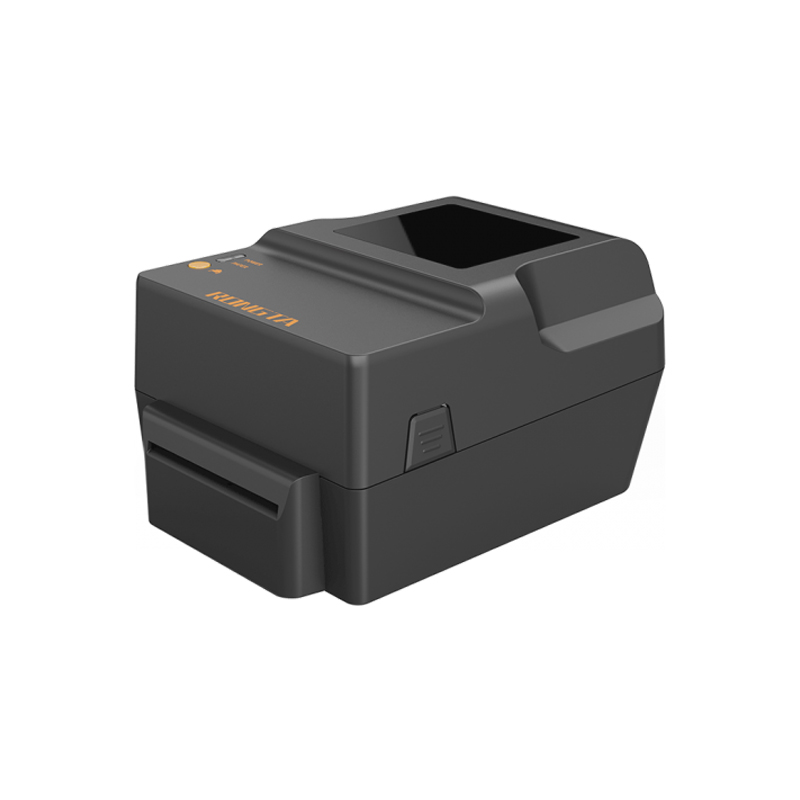 RP400H 4'' Thermal Transfer Tape Cutter Printer
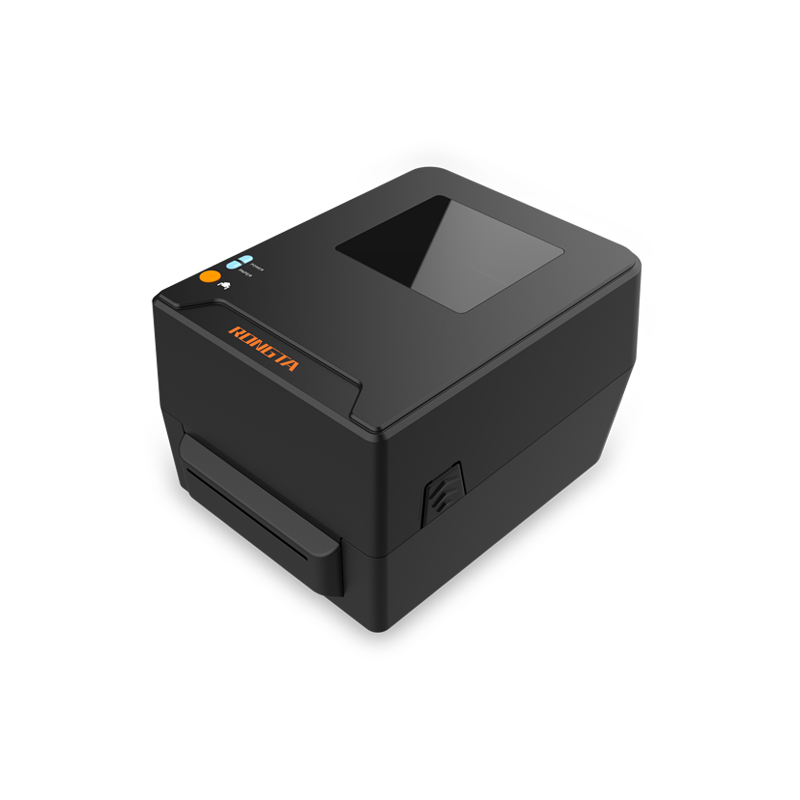 RPF413 300dpi RFID barcode label printer
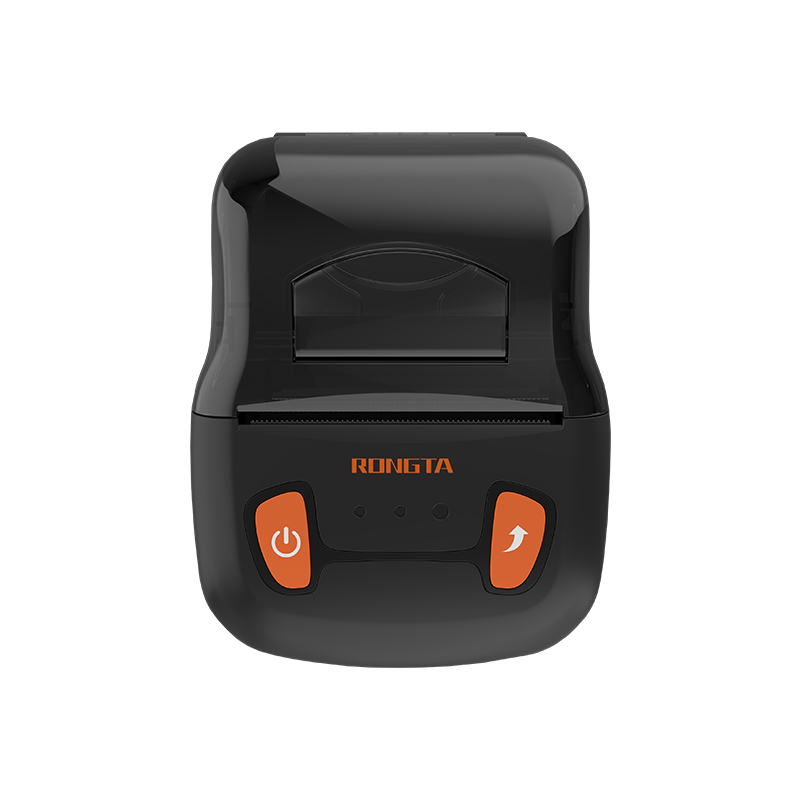 RPP02A Portable Receipt Printer
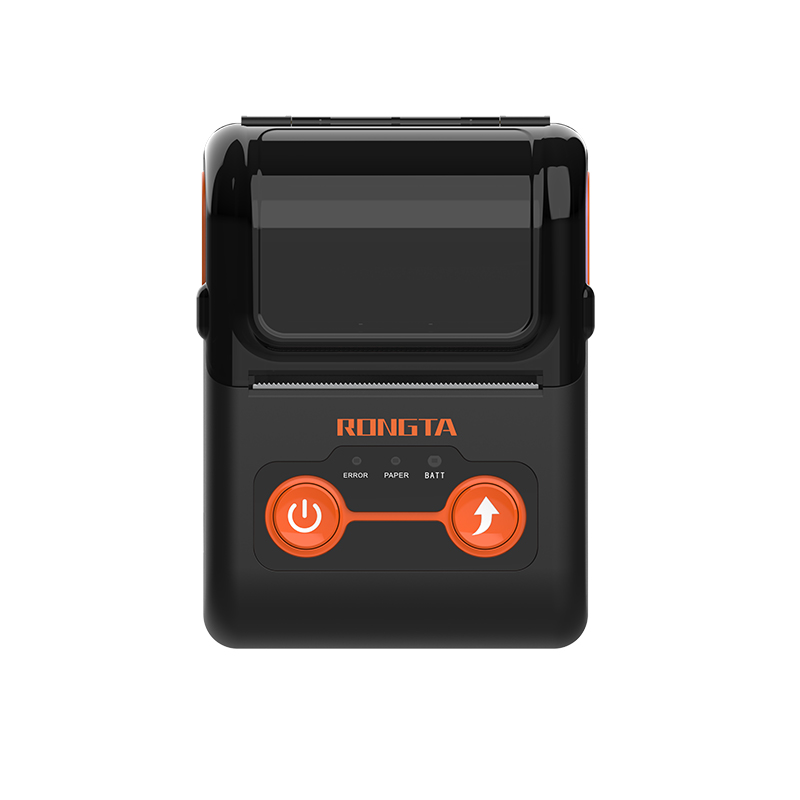 RPP02B Thermal Portable Printer
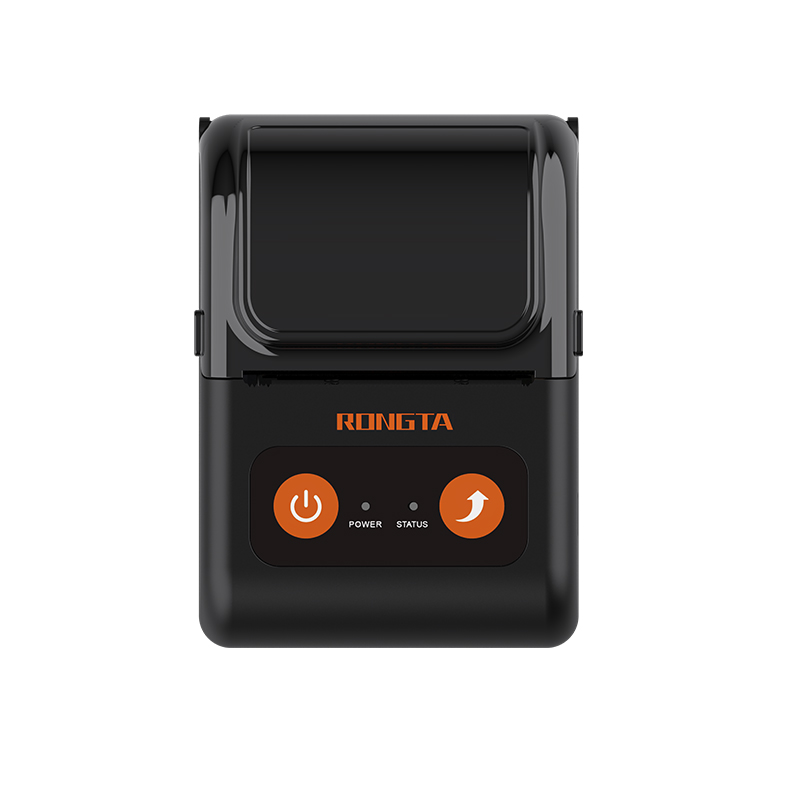 RPP02C Portable Receipt Printer
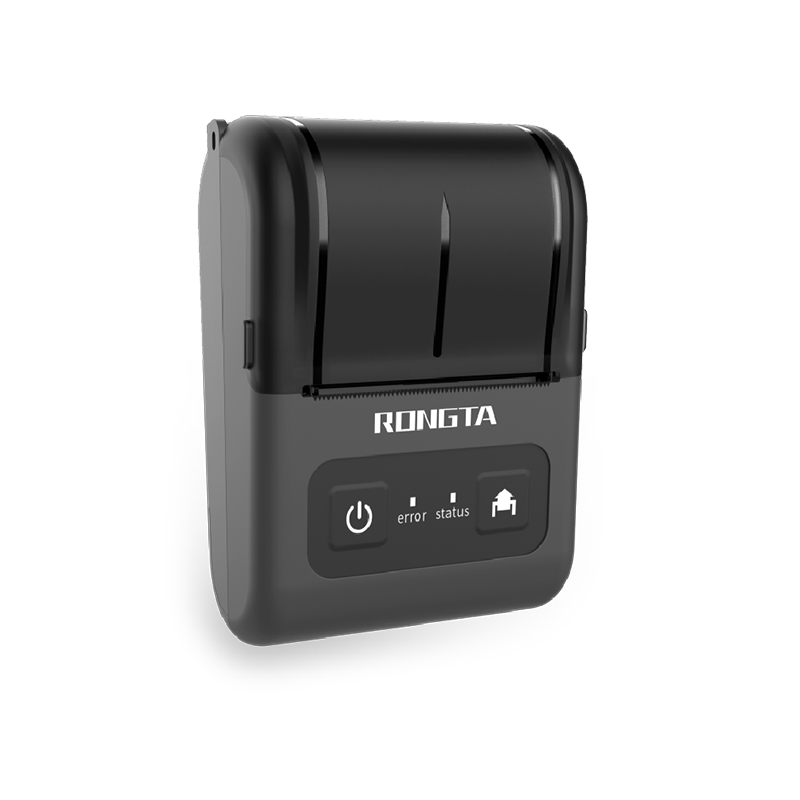 RPP02D Thermal Portable Printer
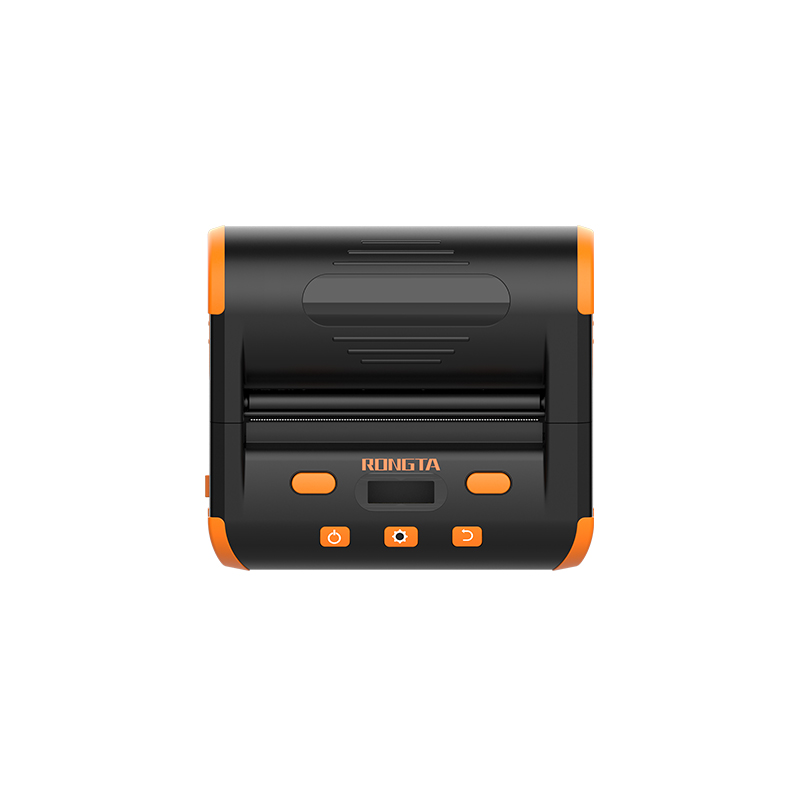 RPP04 4" Portable Label Printer
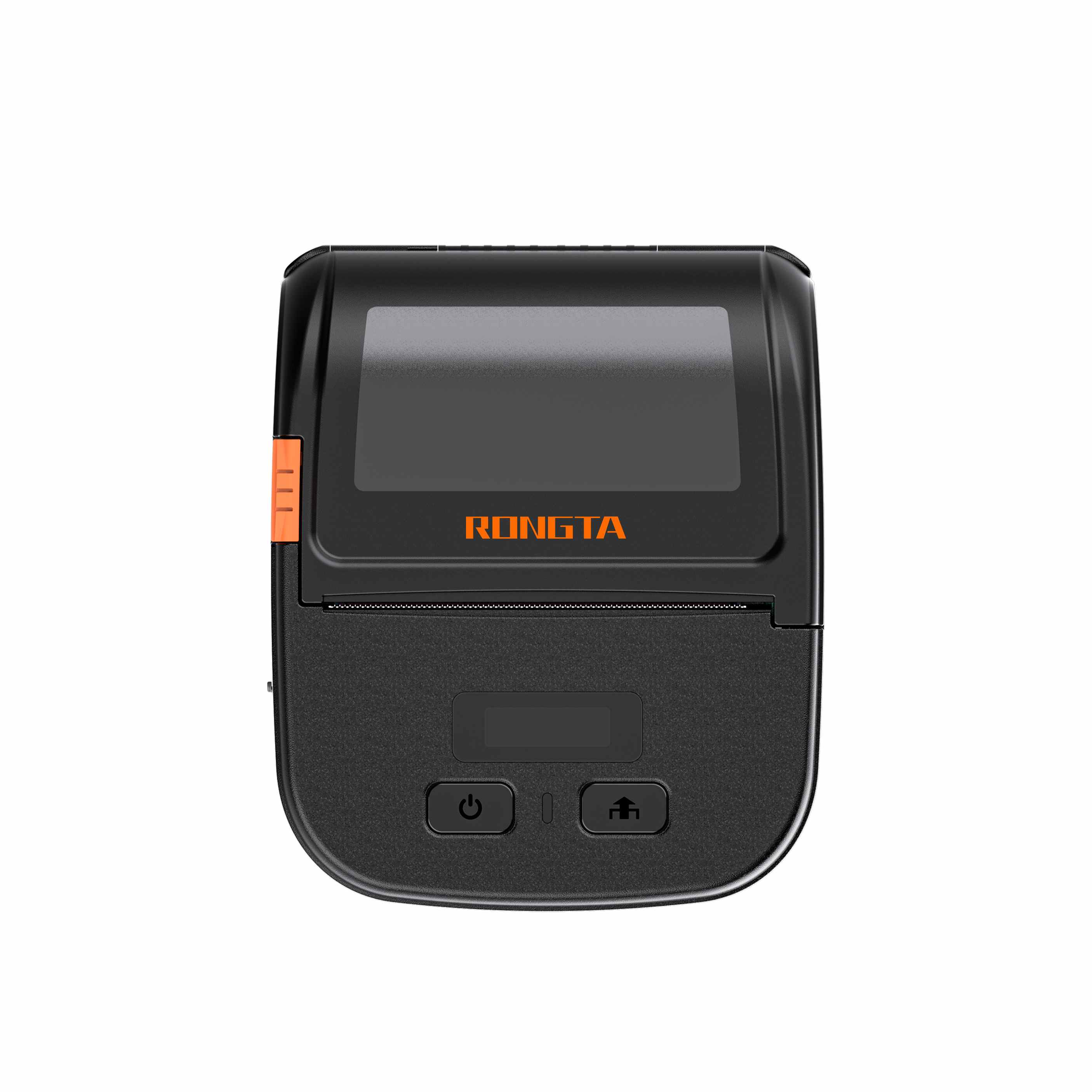 RPP30 3" Portable Label Printer
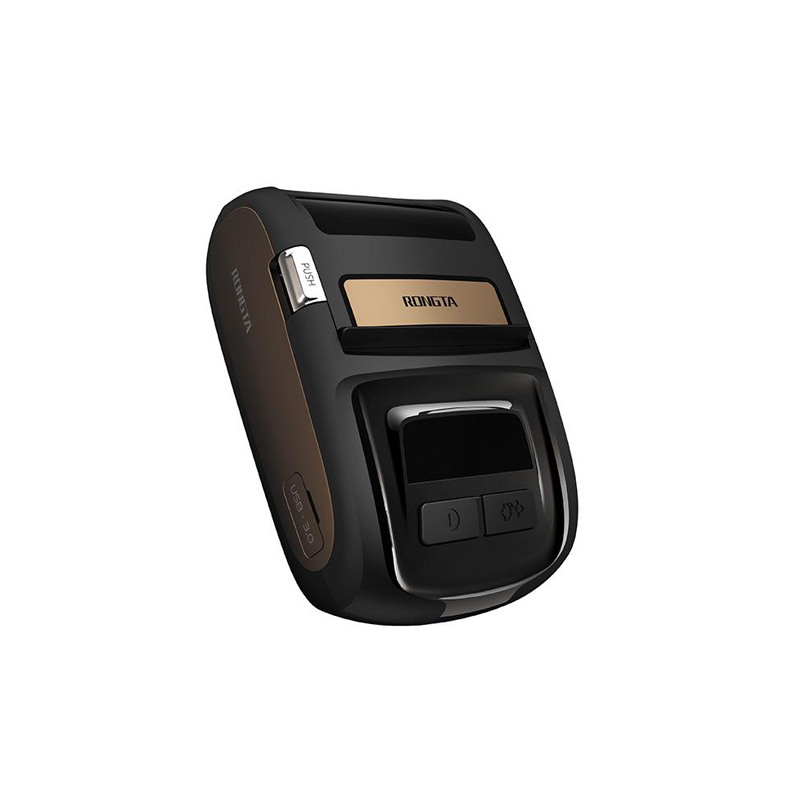 ACE M1 2" Portable Label Printer
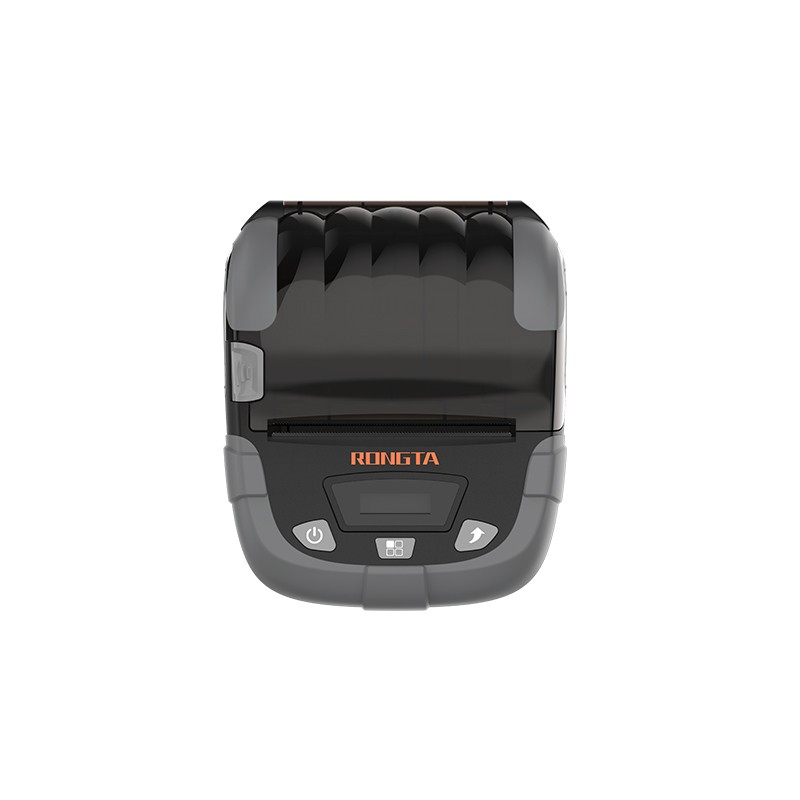 RPP320N 3" Portable Label Printer
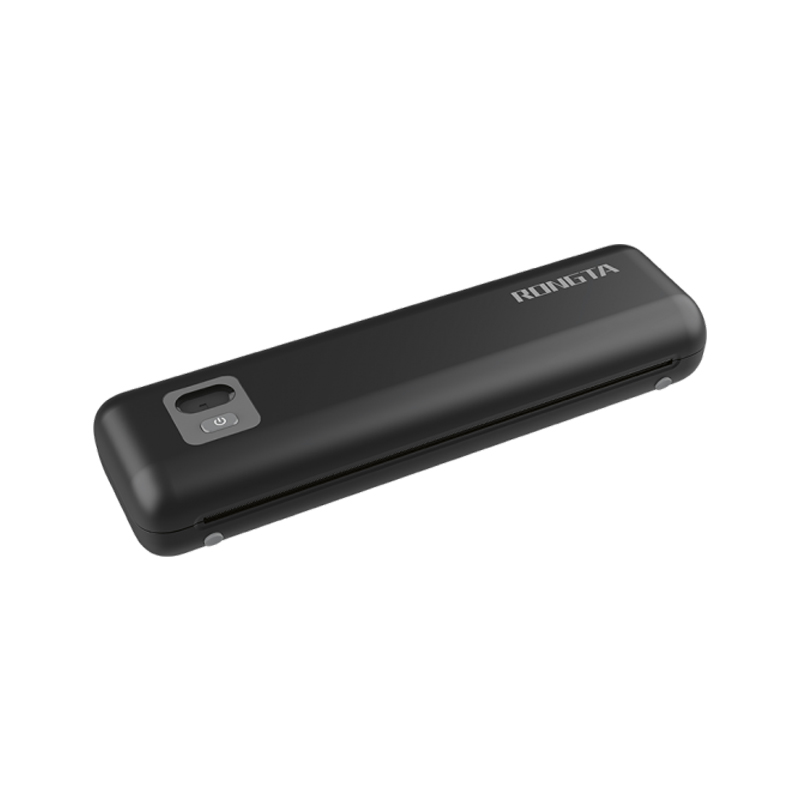 F82A A4 Front-Out Paper Tray Thermal Printer
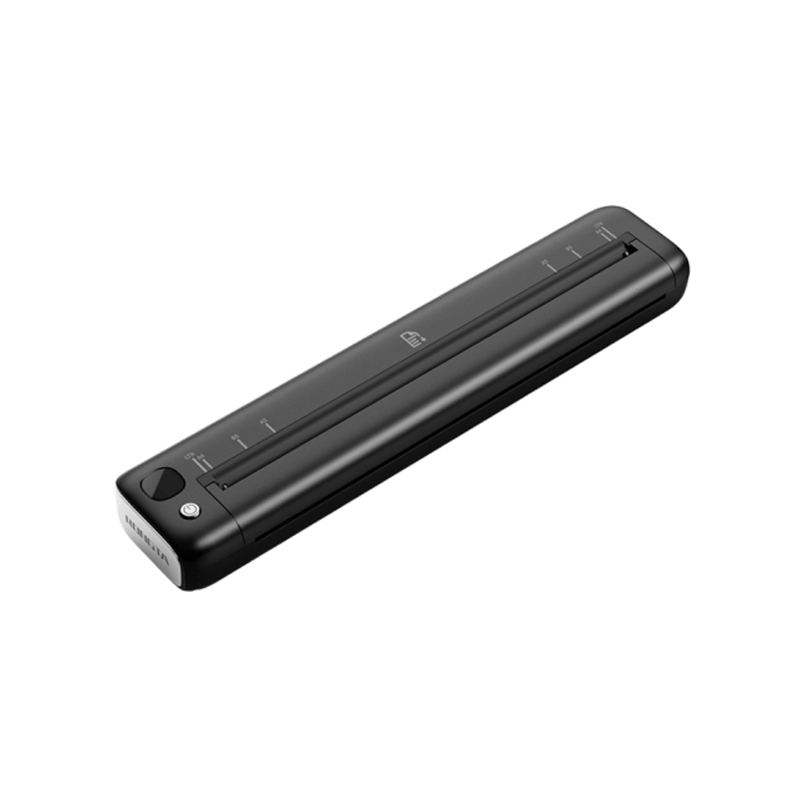 F81A Portable A4 Thermal Printer
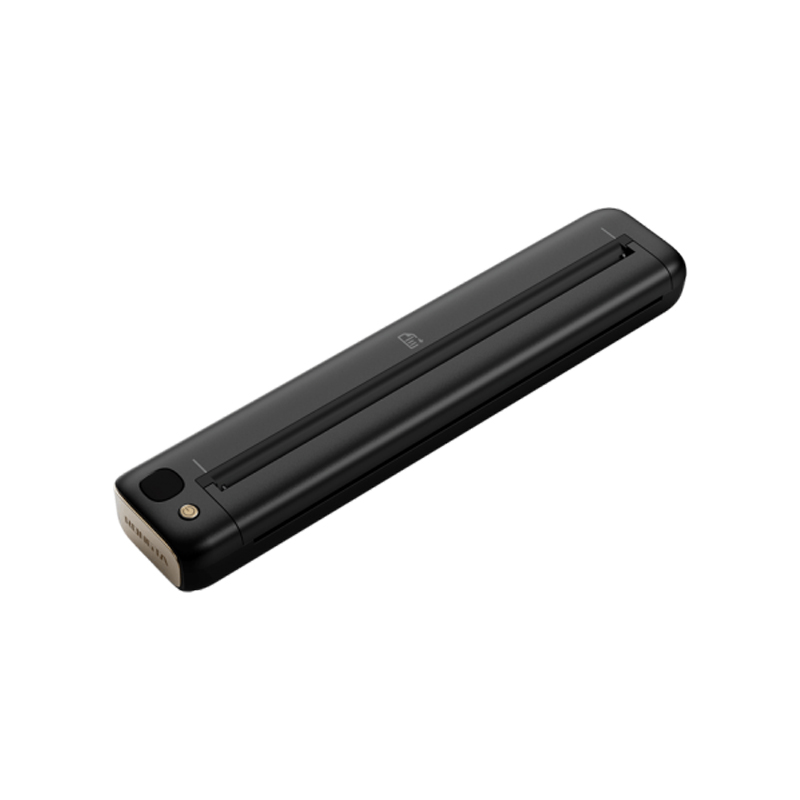 F81S Portable A4 Tattoo Printer
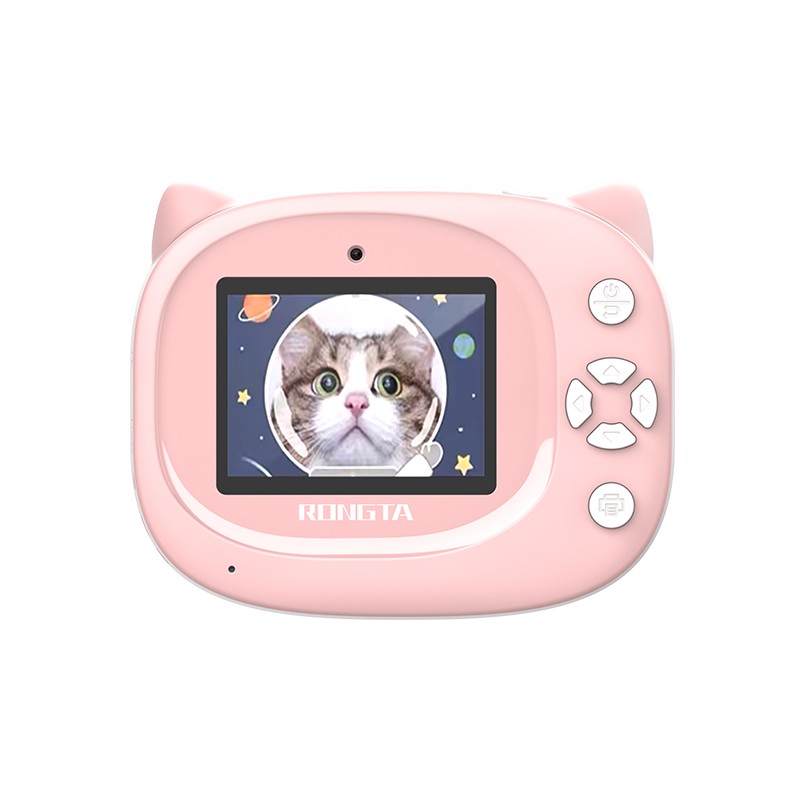 Z1 Children's Educational Photo Printer
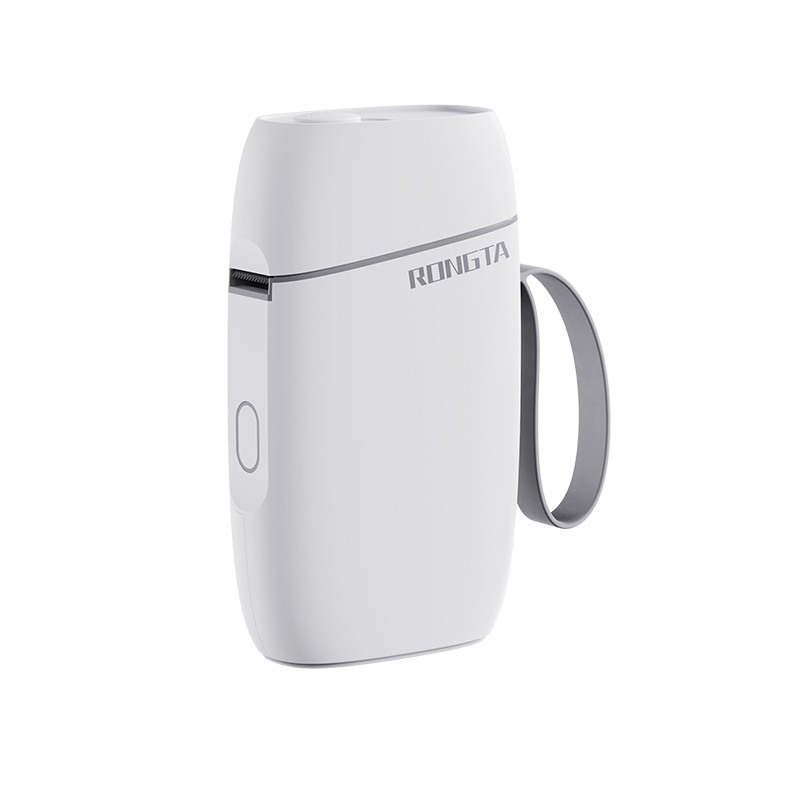 R5 Mini Label Printer
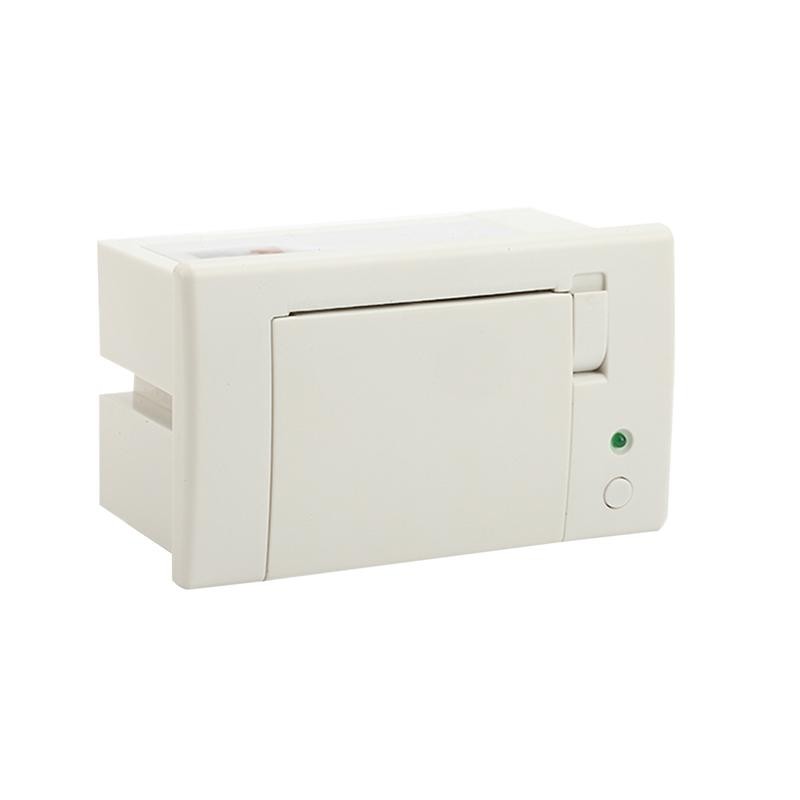 RP07 58mm Embedded Printer
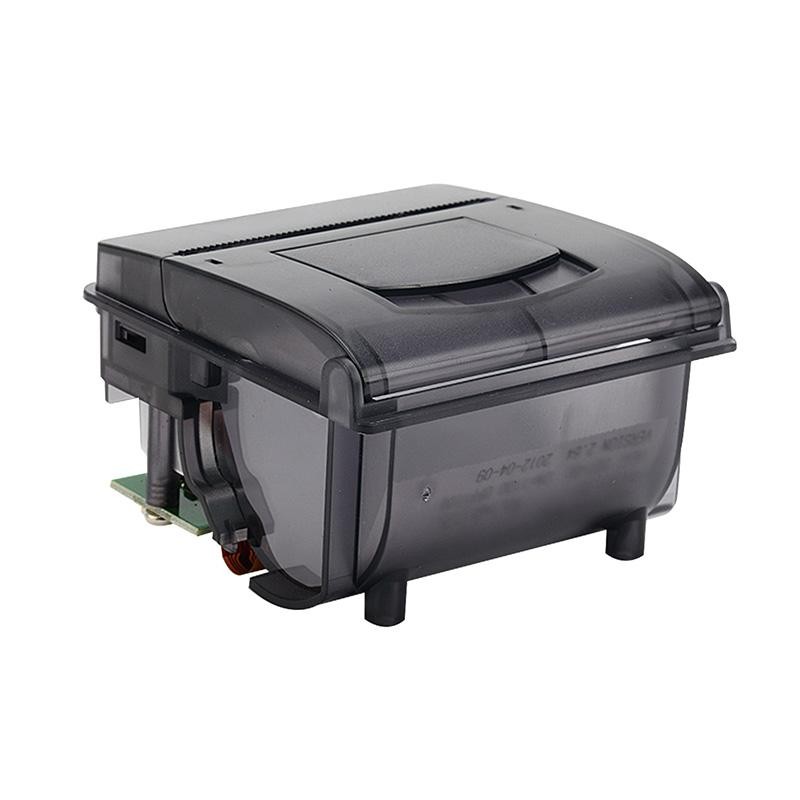 RP203 58mm Embedded Printer
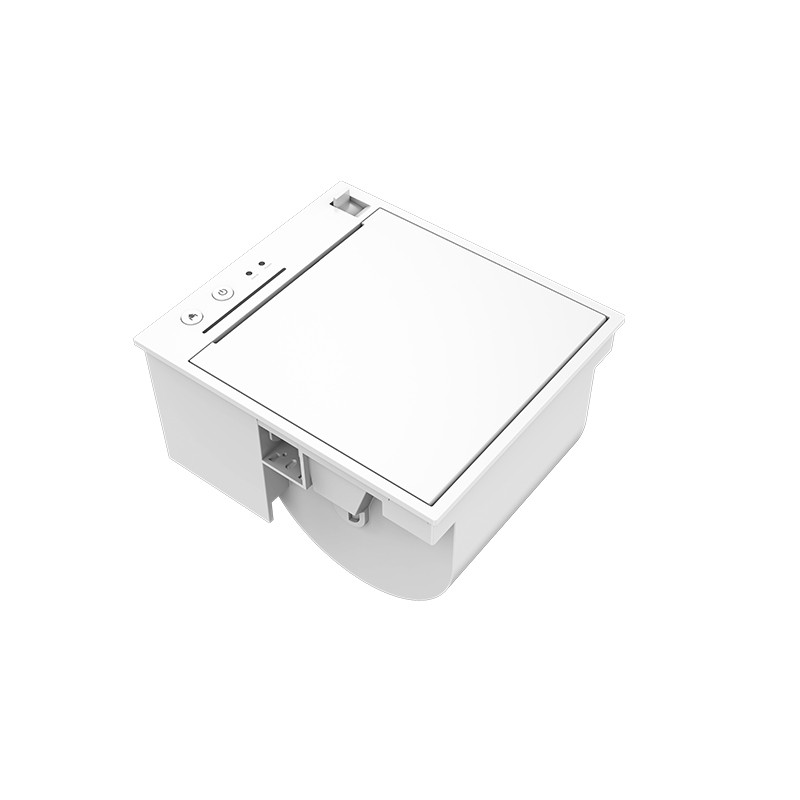 PM315 Embedded Thermal Printer
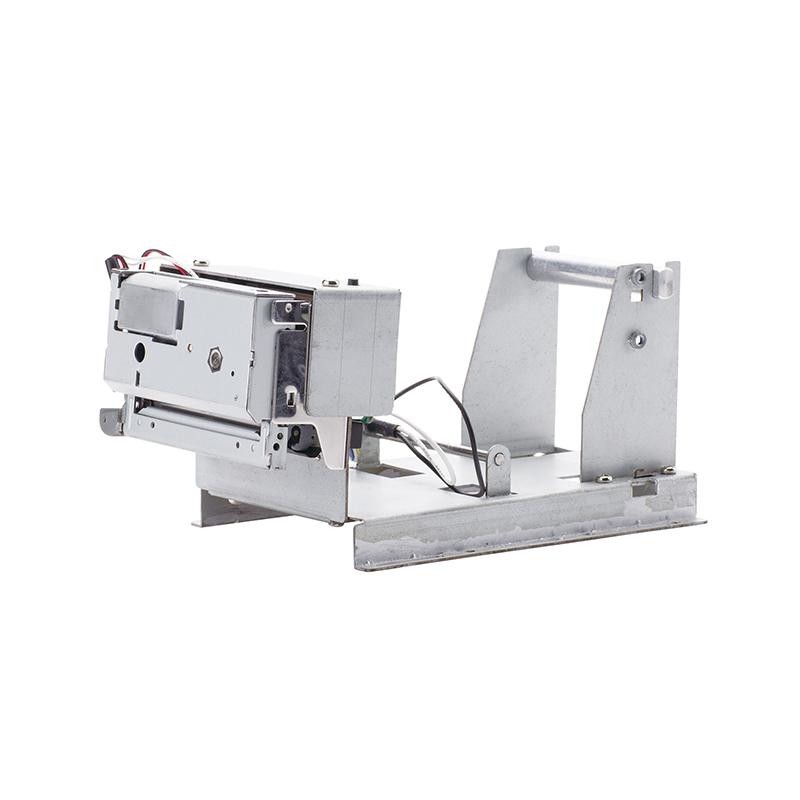 PM201 48mm Printing Module
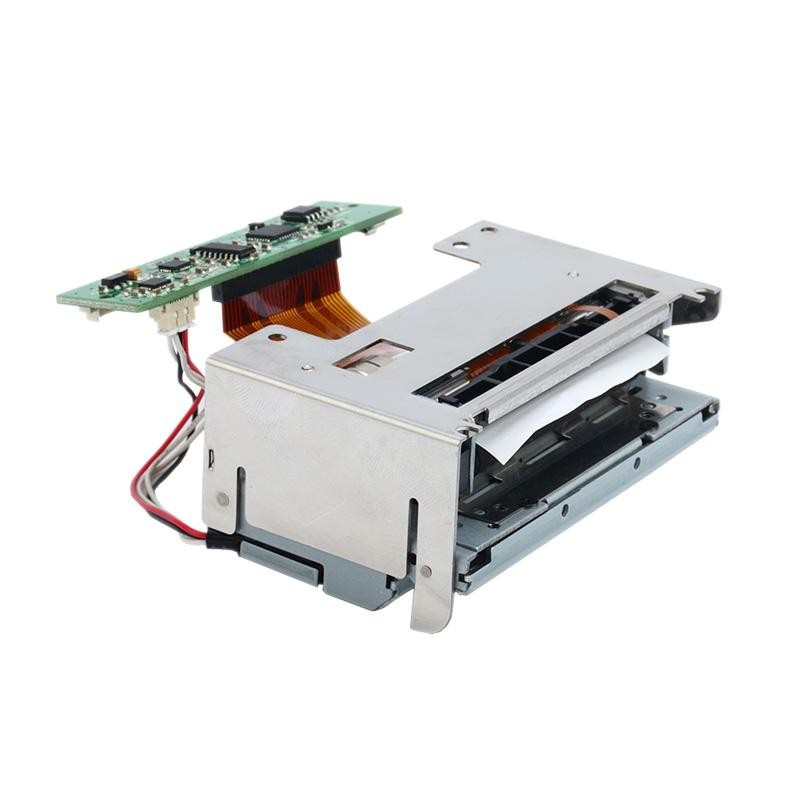 PM628 58mm printing module
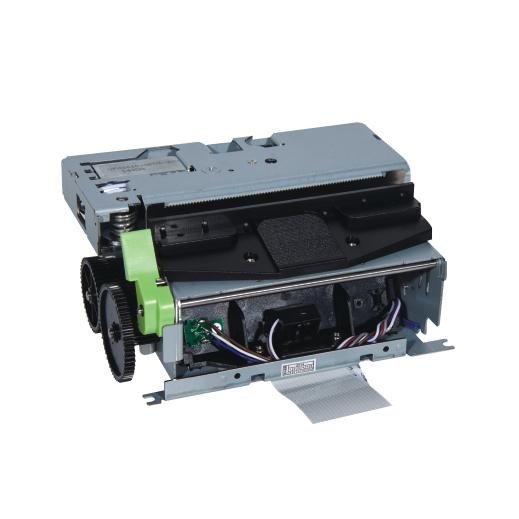 PM532A Printing Module
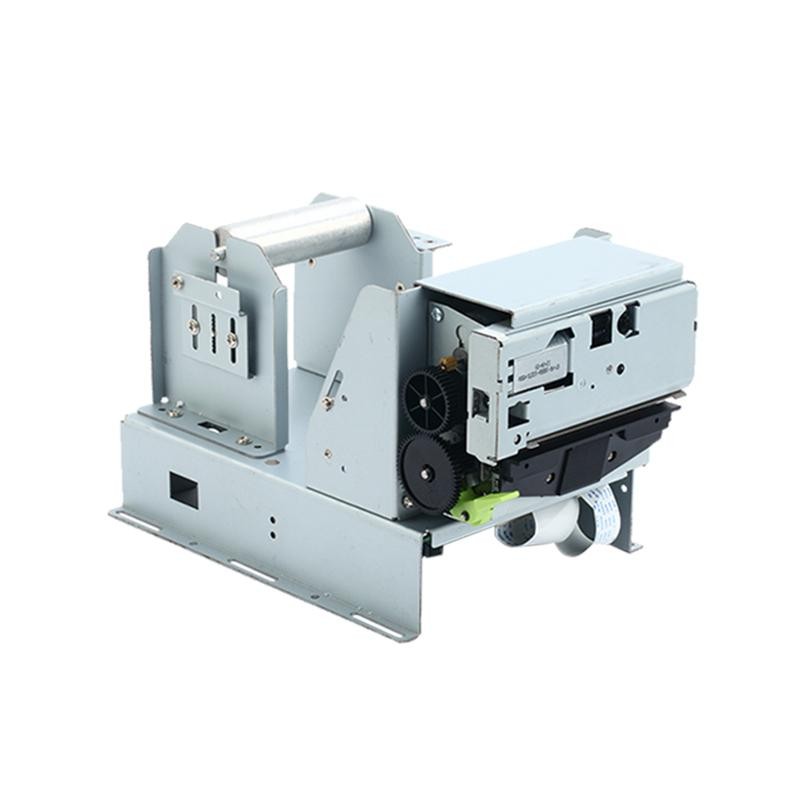 PM532B printer module
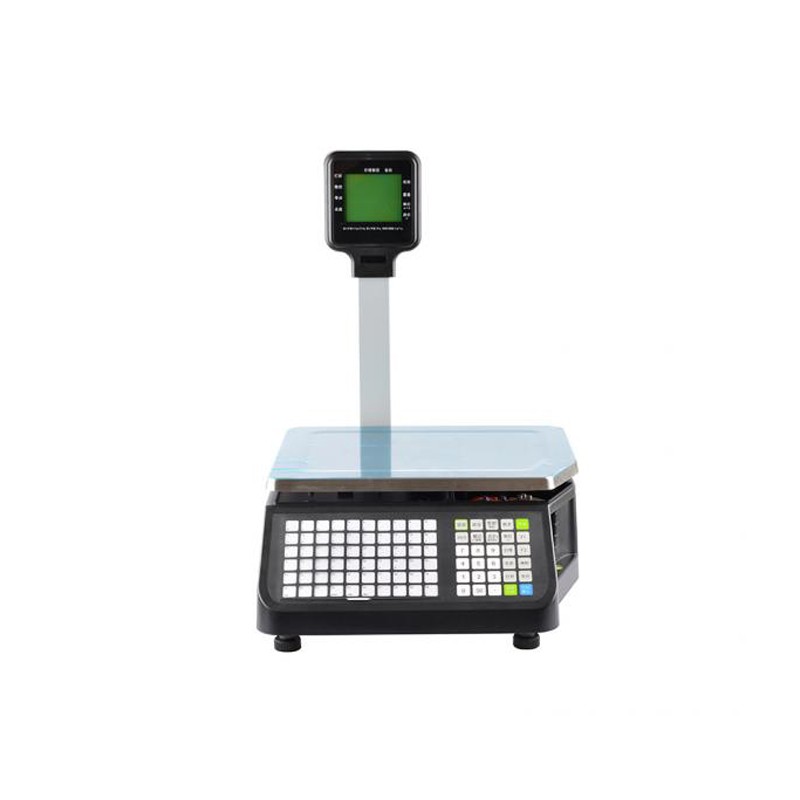 LS015/LS015A Barcode Scale
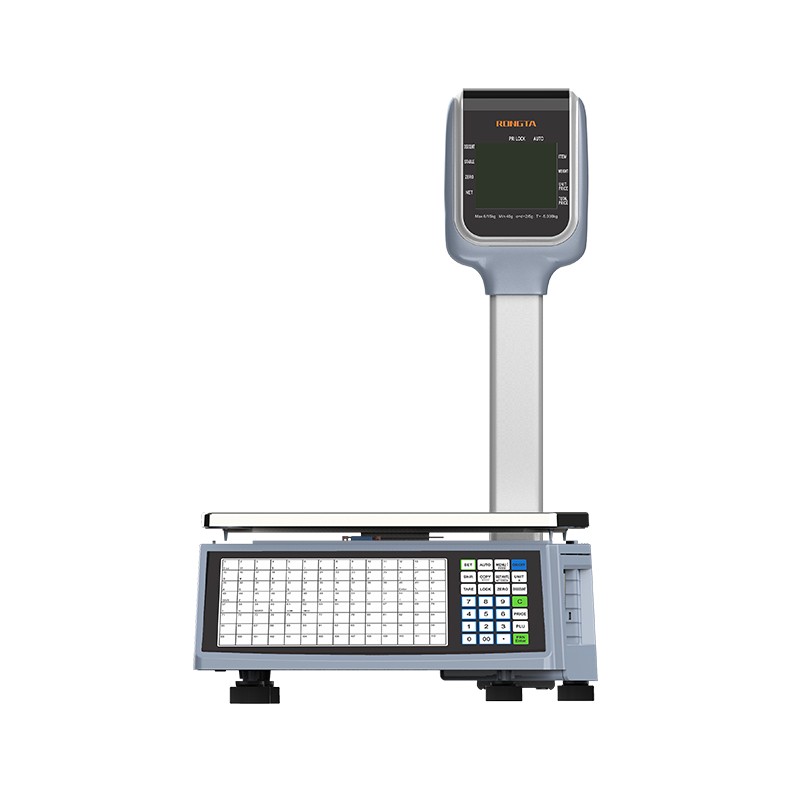 RLS1815D/RLS1830D Barcode Scale
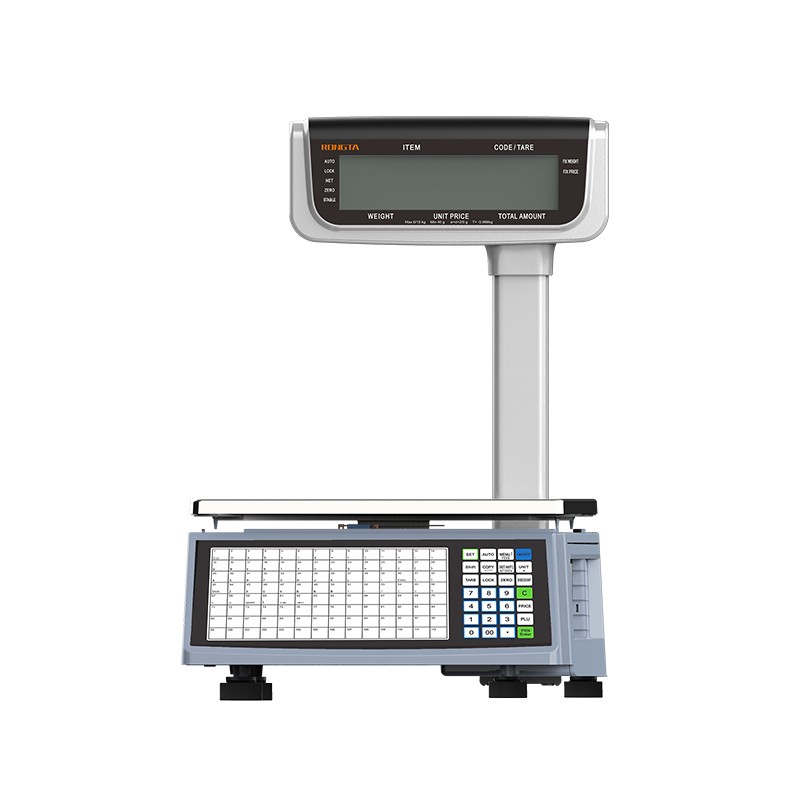 RLS1815C/RLS1830C Barcode Scale
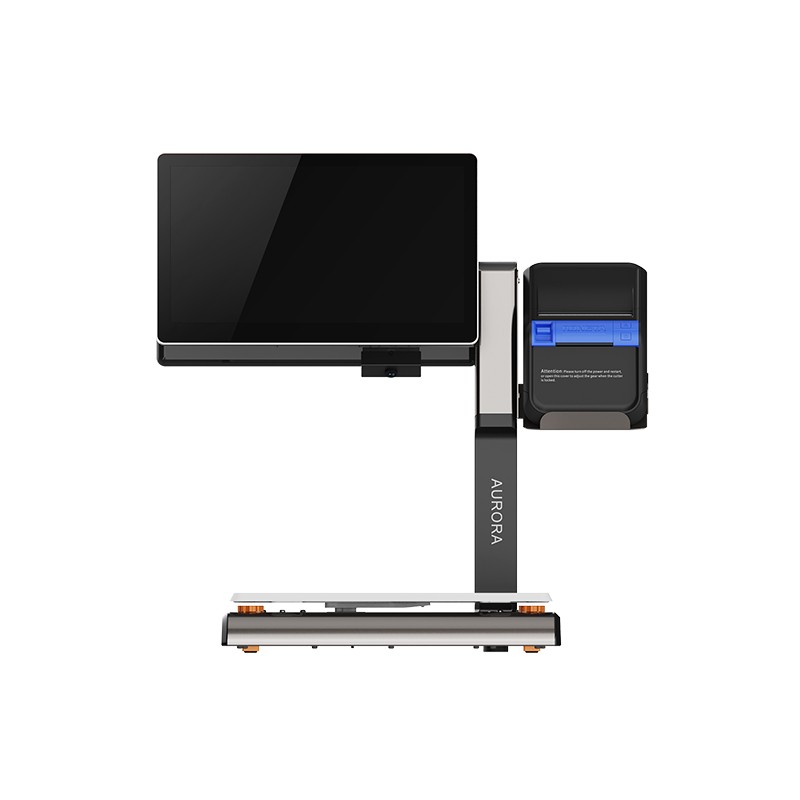 AURORA S2L-S Labelless Scale
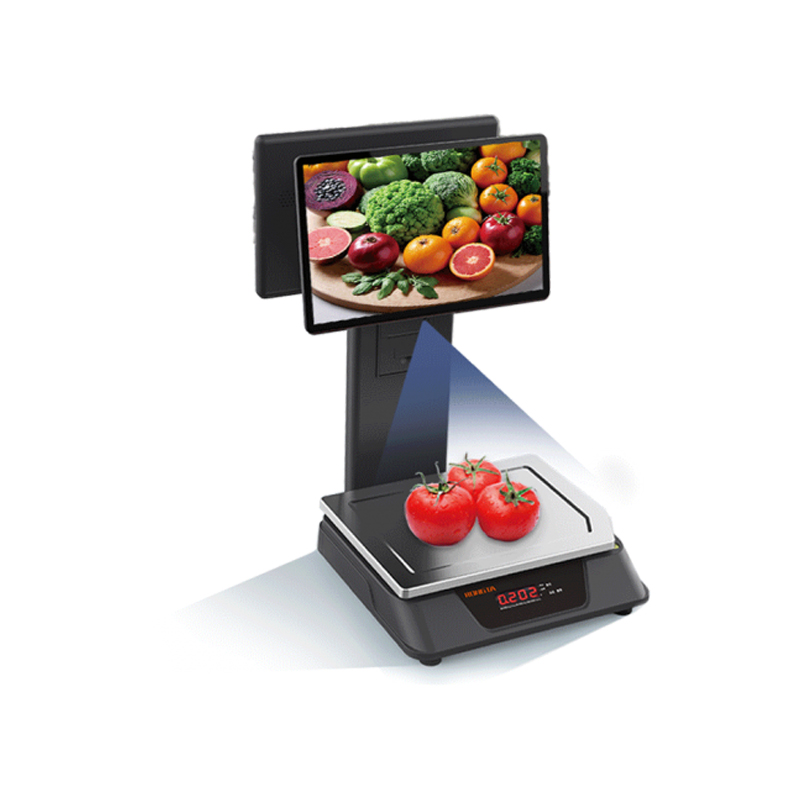 AURORA E1 PRO-AI Cash Register Scale
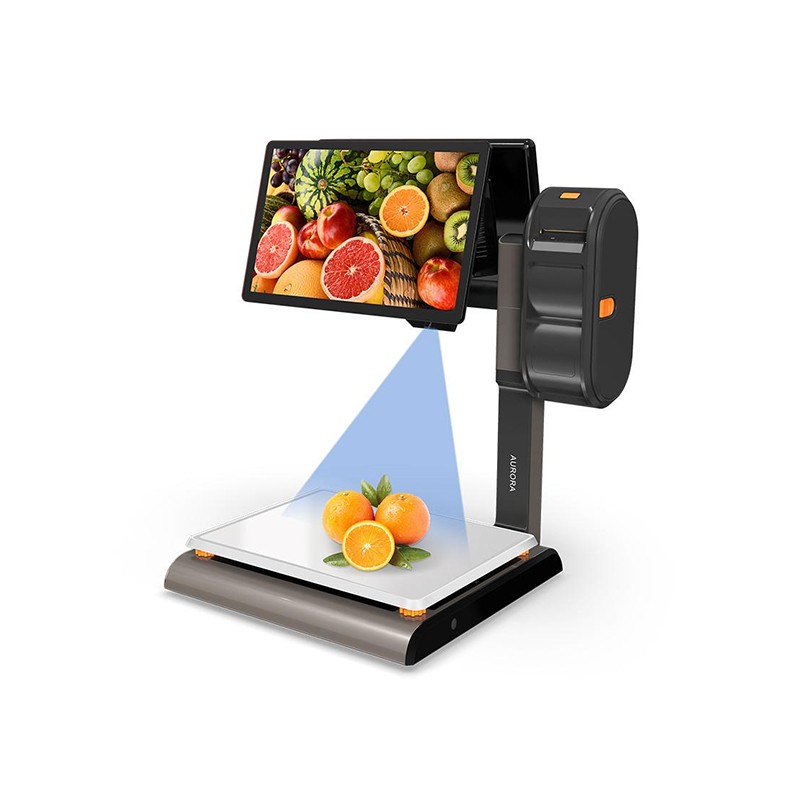 AURORA S2L-AI Label Scale
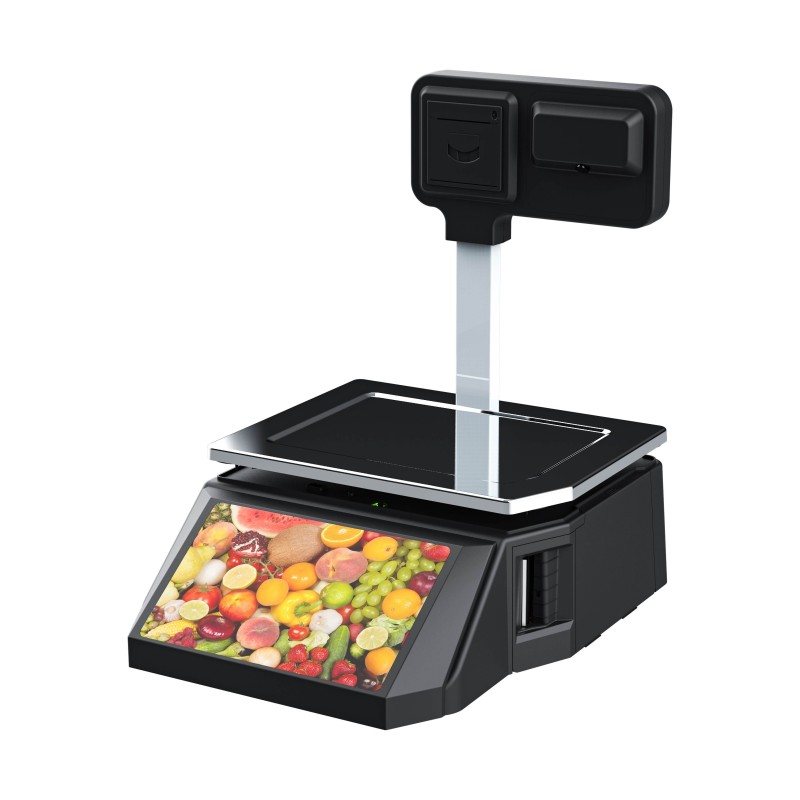 DP01-AI Smart Tag Cashier Dual-Use Scale
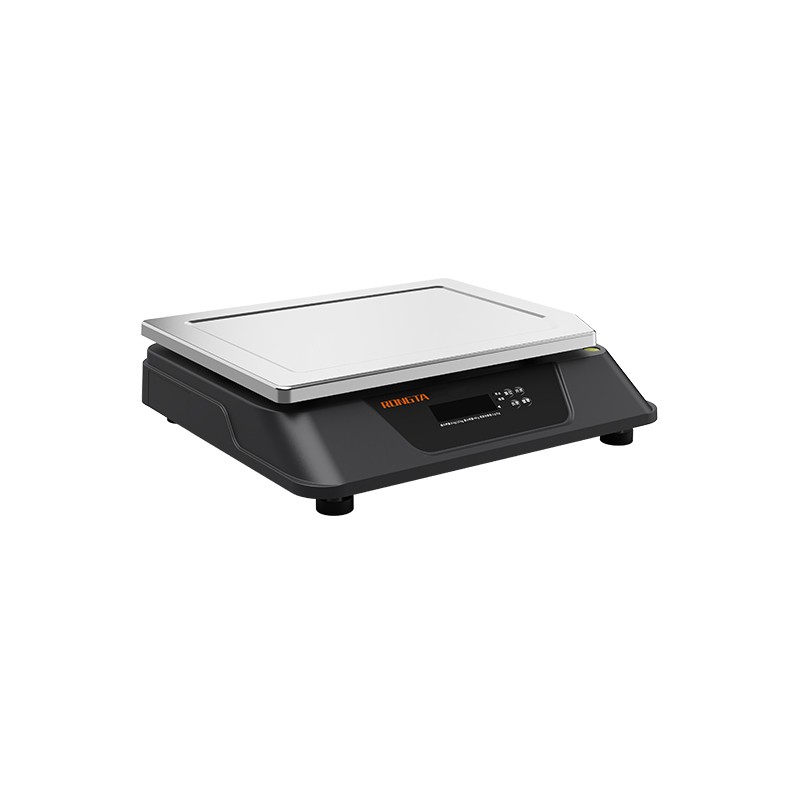 C3 Weighing Scale
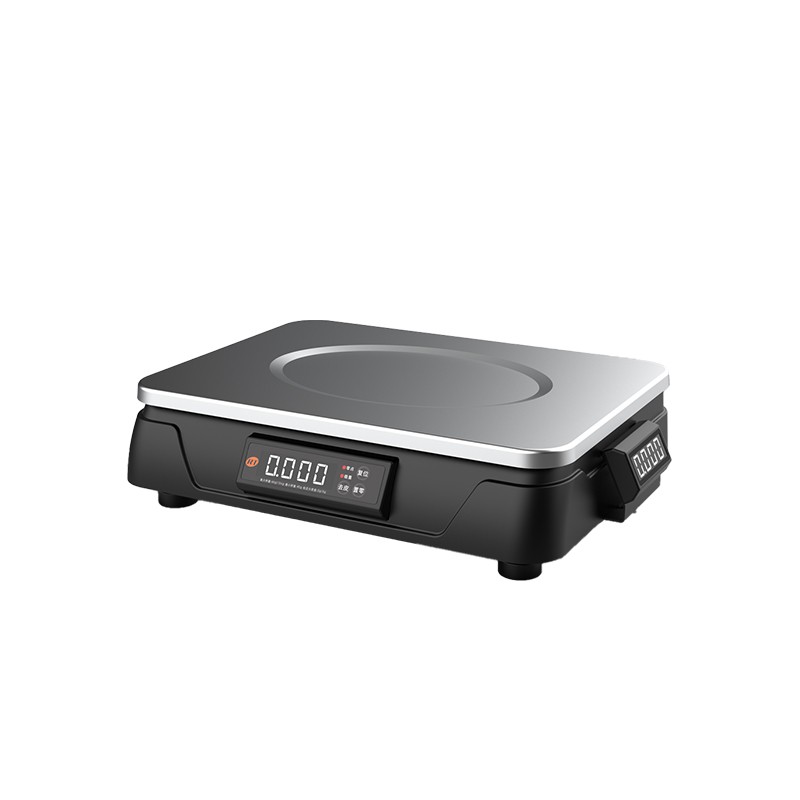 C1 weighing scale
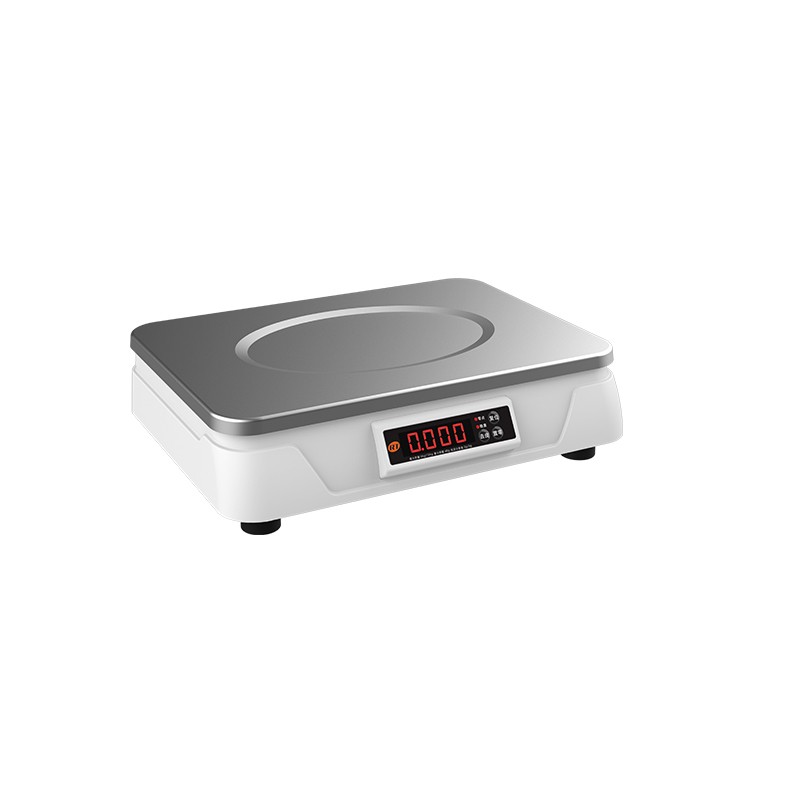 C11 Weighing Scale
 retail
 FOOD
FOOD Medical
 Mobile office/home
 asset Management
 logistics
 Driver download
 User Manual
 Tool Download
 Tag software
 Product Video
 Development Documentation
 Frequently Asked Questions
 User Guide
 Company News
 Exhibition Updates
 Industry Insights
 Product Update
 General situation
 Development history
 Honors and Qualifications
 R&D strength
 Team activities
 Social responsibility




Mixue Ice Cream RP80VI Label Printer User Manual
I. Connection steps for the RP80VI Mixue Ice Cream store label printer:
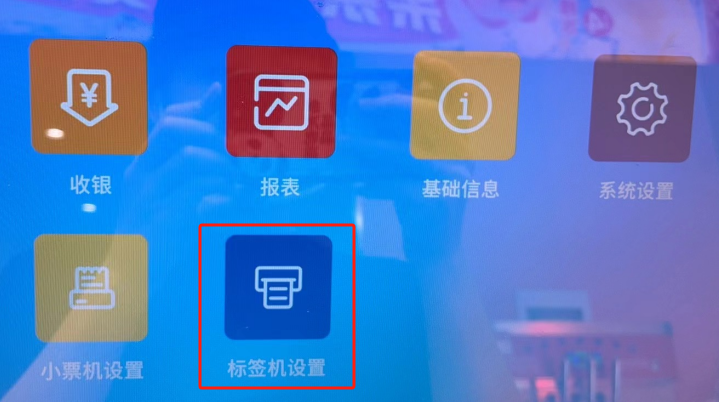
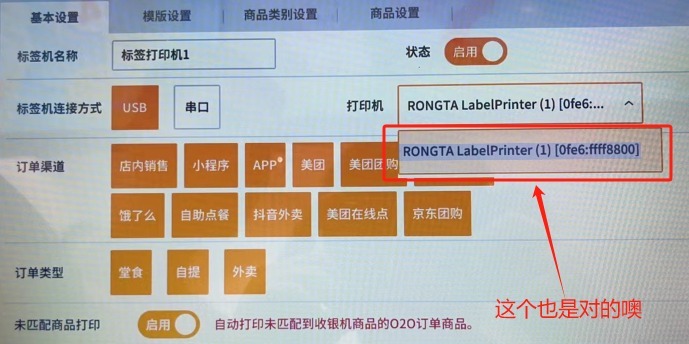
1. InOn the cash register interface, clickLabel printer settings:
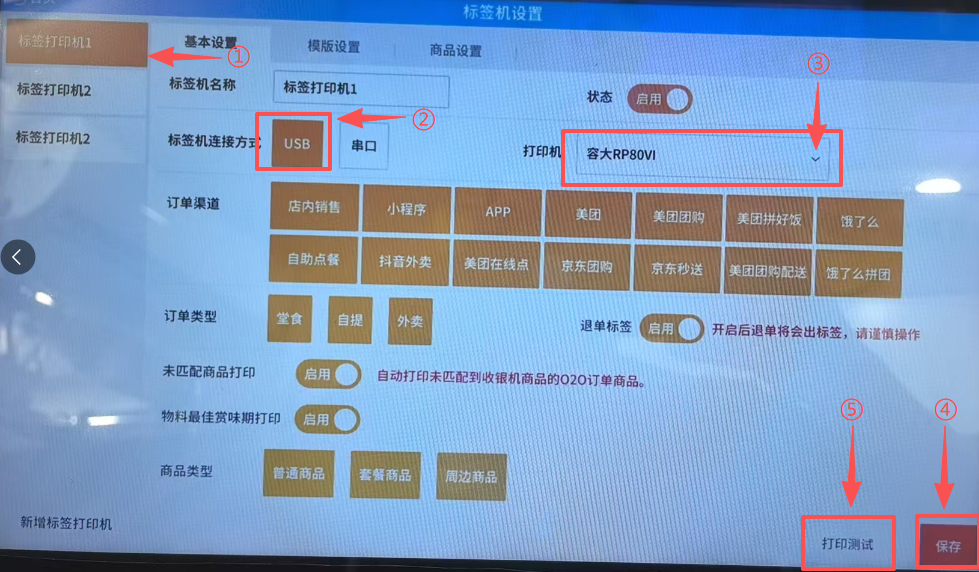
2. SelectLabel printer 1, label machineConnection method selectionUSBClick the printer dropdown menu and select:Rongda RP80VI (displayed on some systems:)RONGTA USB Label Printer)
Click "Save" in the bottom right corner, then print a test label. If a test label appears, the connection is successful. (If label printers 2, 3, 4... are enabled, make sure they are all disabled.)
II. Connection steps for the RP80VI Lucky Coffee store label printer:
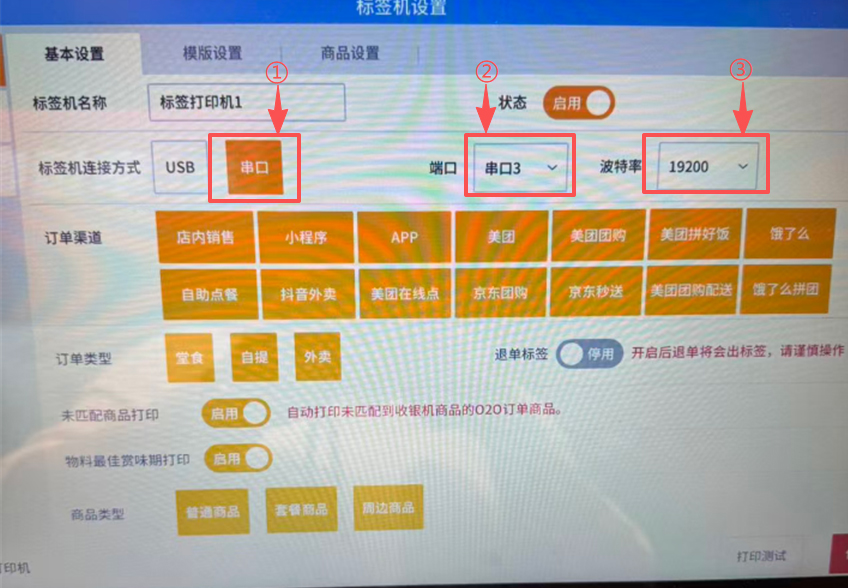
1. InOn the cash register interface, clickLabel printer settings:
2. SelectLabel printer 1, label machineSelect serial port for connection methodThere are 4 serial ports to choose from (each serial port needs to be selected and tested one by one), and the baud rate is 19200.
Click "Save" in the bottom right corner, then print a test label. If a test label appears, the connection is successful. (If label printers 2, 3, 4... are enabled, make sure they are all disabled.)
?
II. Frequently Asked Questions about RP80VI
1. How do I print the self-test page?
Solution: First, turn off the printer, then press and hold the FEED button.If you press and hold the button while turning on the machine, a self-test page will be printed automatically.
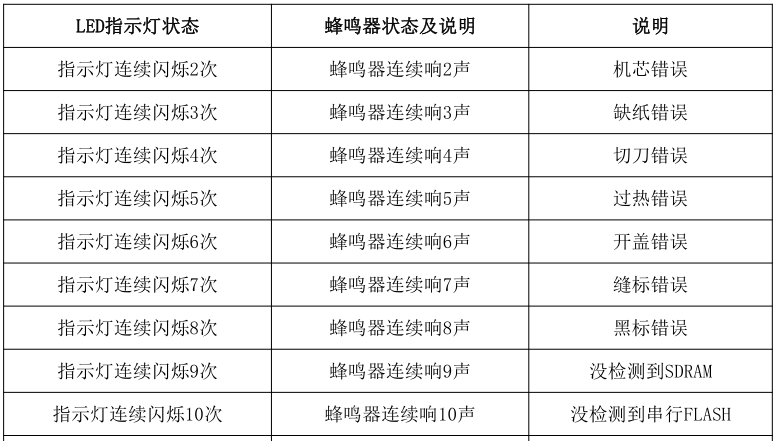
2. Printer paper feed error (printing extra blank labels, paper only extending a short distance, 7 beeps indicating an error)
Solution: Press and hold FEEDHold down the buttonI heard the printer beeping.2Release the sound and proceed with label learning and calibration.
3. The printer only feeds blank paper and does not print any content.
Solution: The printer paper is installed backwards. If it is installed backwards, please try installing it in the correct orientation. Check the printer name in step 2 above.If the character becomesblankor
“??“(You can try printing on the USB cable of the front desk ticket machine. If it prints normally, then it's a USB cable transmission problem and you need to replace the USB data cable.)
4. Printer prints blurry.
Solution: Because the printer has not been cleaned for a long time, the print head has become contaminated with dirt and needs to be cleaned with alcohol.
5. How to determine if there is an abnormality when the printer is beeping?
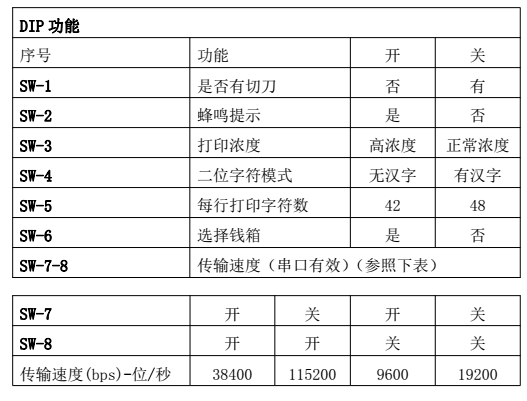
6. Printer DIP switch definition, how to set printer functions using DIP switches?
Solution: Unscrew the small cover screw on the bottom of the printer; you'll see an 8.A DIP switch can be used to configure the printer. For example, to disable the buzzer, the DIP switch can be adjusted.2Adjust to off (OFFThe position is as described.
7. Instructions for using a roll paper printer:
III. Routine Maintenance of RP80VI
1. Routine printer maintenance
1.1 Cleaning the printer exterior and paper trayPlease useWipe gently with a wrung-out damp cloth.PrintCheck the machine exterior and the inside of the paper tray. Note: The damp cloth must be wrung out completely.
1.2 Movement serviceRegular cleaning is essential, especiallyWhen print quality deteriorates, the following method can be used: Gently wipe the print head with anhydrous alcohol soaked in degreasing cotton until it is clean.
1.3 Printer Cleaning Instruction Video:
?
2. Use and daily storage of printer paper
2.1 Newly purchased printing paper should be stored away from direct sunlight or high temperatures. Do not open the packaging when storing it.
2.2 After printing, please store the documents at room temperature (about 20℃) away from light to effectively extend the document's shelf life.
2.3 Paper roll installation and tearing operation:
3. Appendix (After-sales contact information)
Contact number: 4008000596
Customer service contact QQ1: 2896793231 Customer service contact QQ2: 1912942672
After-sales contact information:
Recipient: After-sales Service Department (Recipient)
Telephone: 15359340780
Address: Rongda Science and Technology Park, No. 88 Tonghui South Road, Tongan Industrial Concentration Zone, Xiamen City, Fujian Province
Return/Repair Instructions: When returning the device for repair, please include the return address, contact information, a list of all items packed in the box, and a detailed description of the malfunction in the package. This will help improve the efficiency of the return process. Thank you for your support! If no information is provided or the item is sent cash on delivery, it will be returned according to the sender's information!