

 80mm Receipt Printer
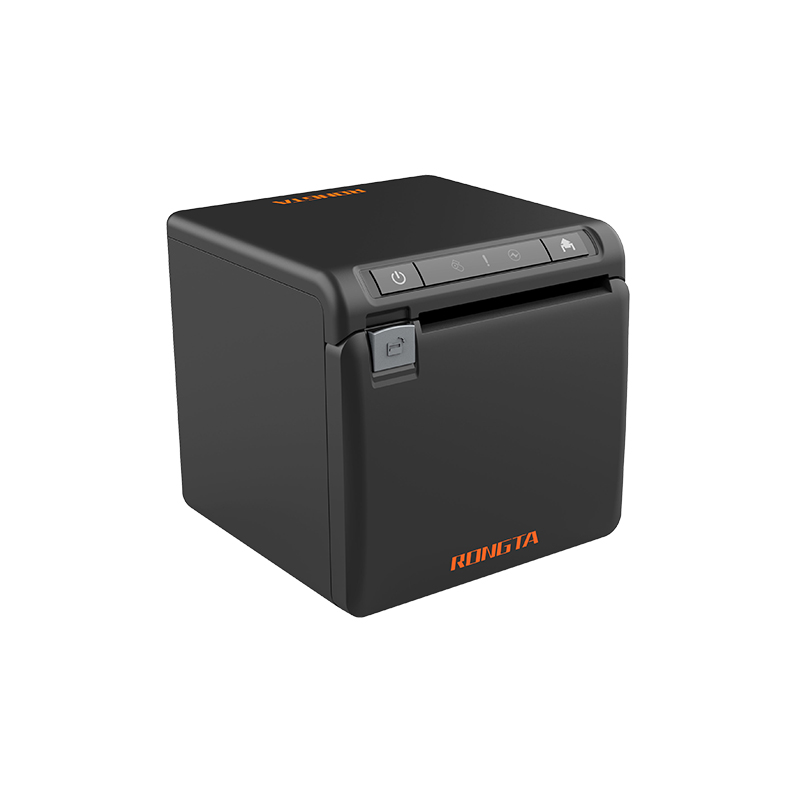 ACE H2 Receipt Printer
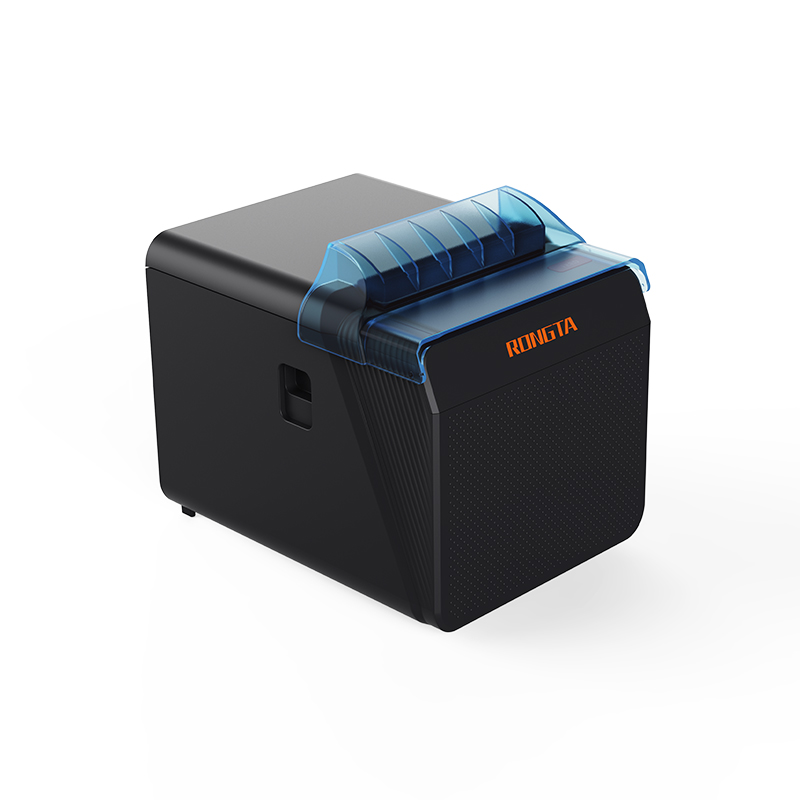 RP337 Receipt Printer
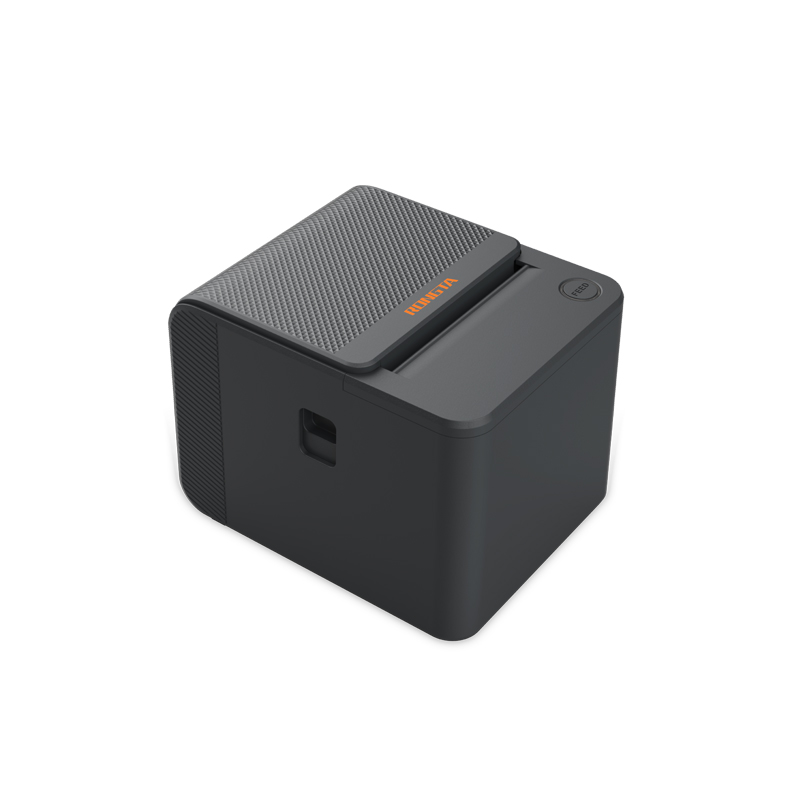 RP336S Dual-Color Receipt Printer
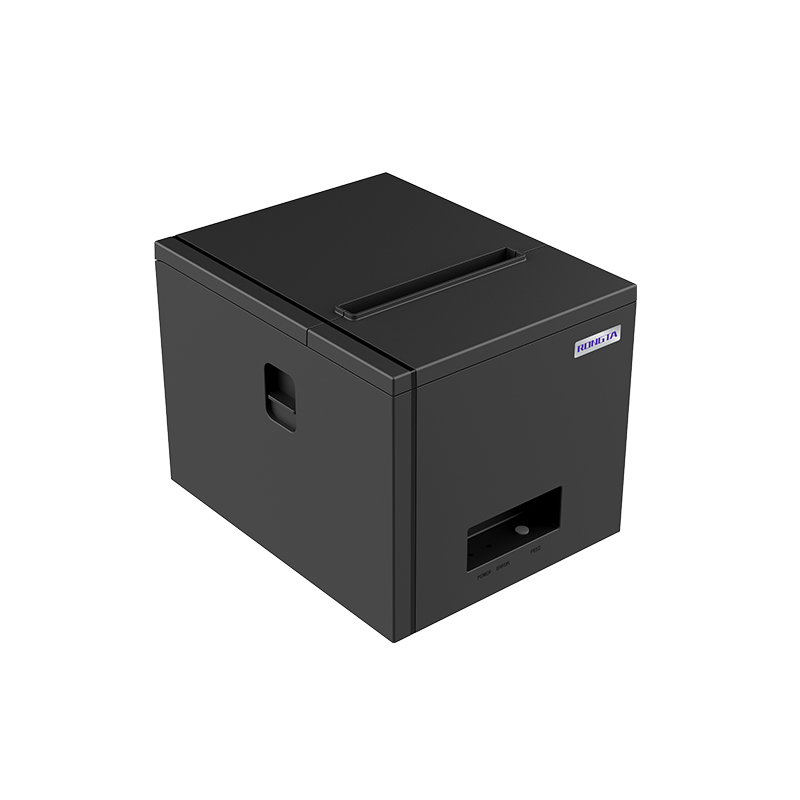 RP350 Receipt Printer
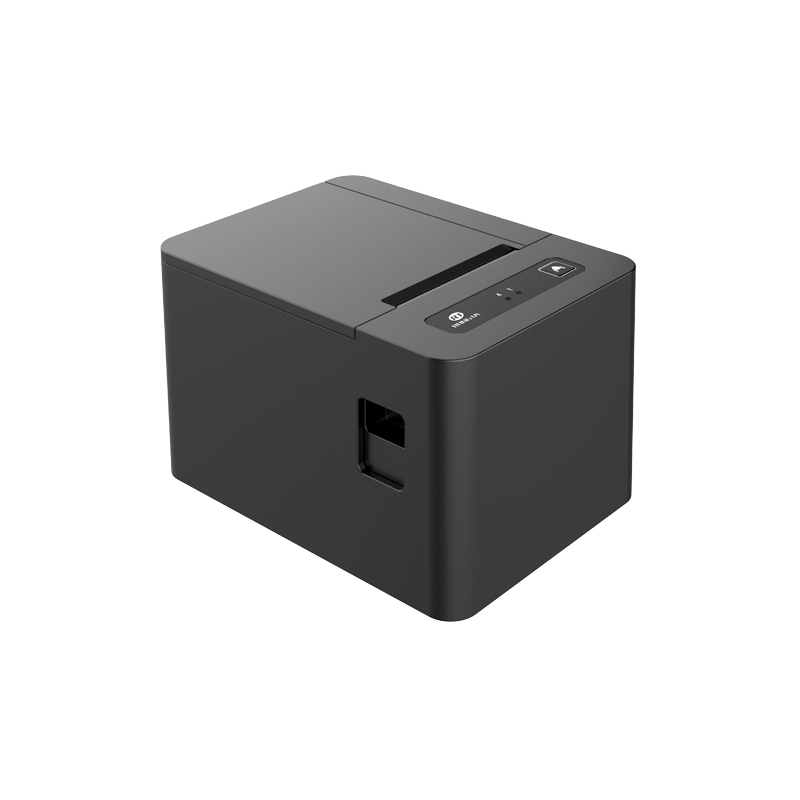 RP582 Receipt Printer
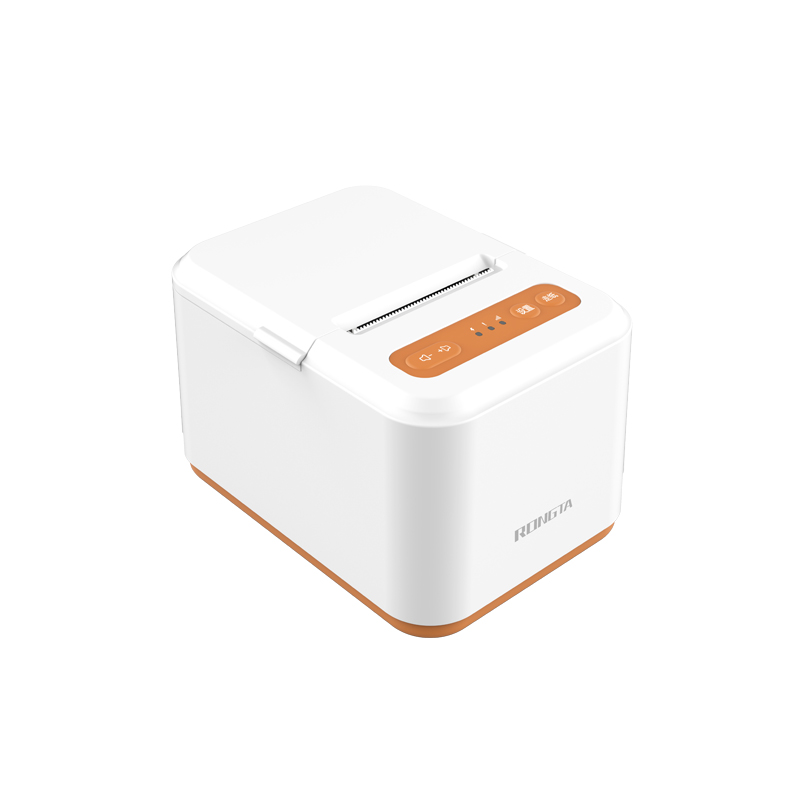 RP581 Receipt Printer
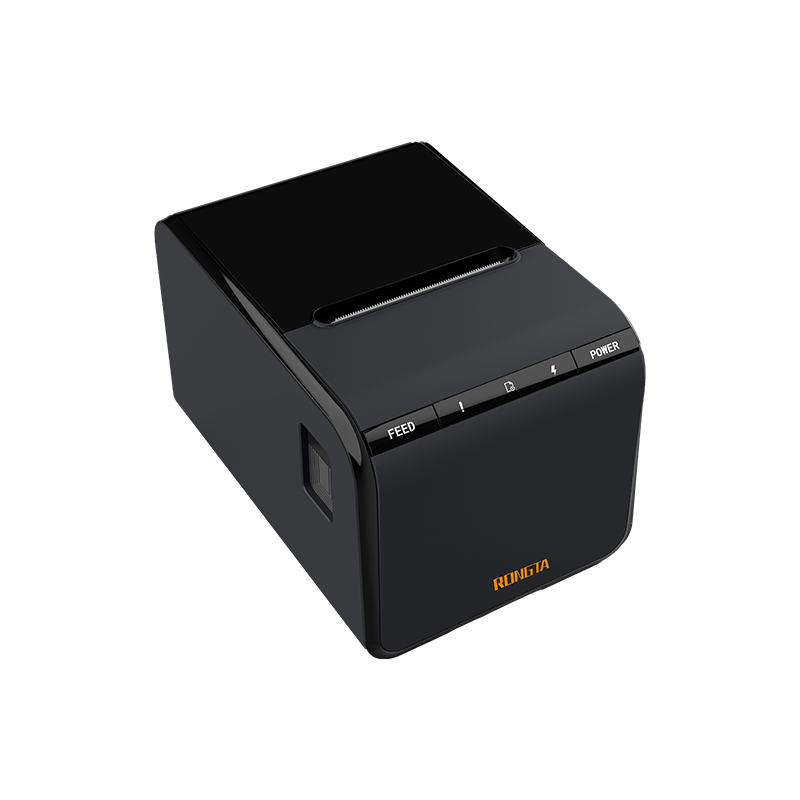 ACE G1Y Receipt Printer
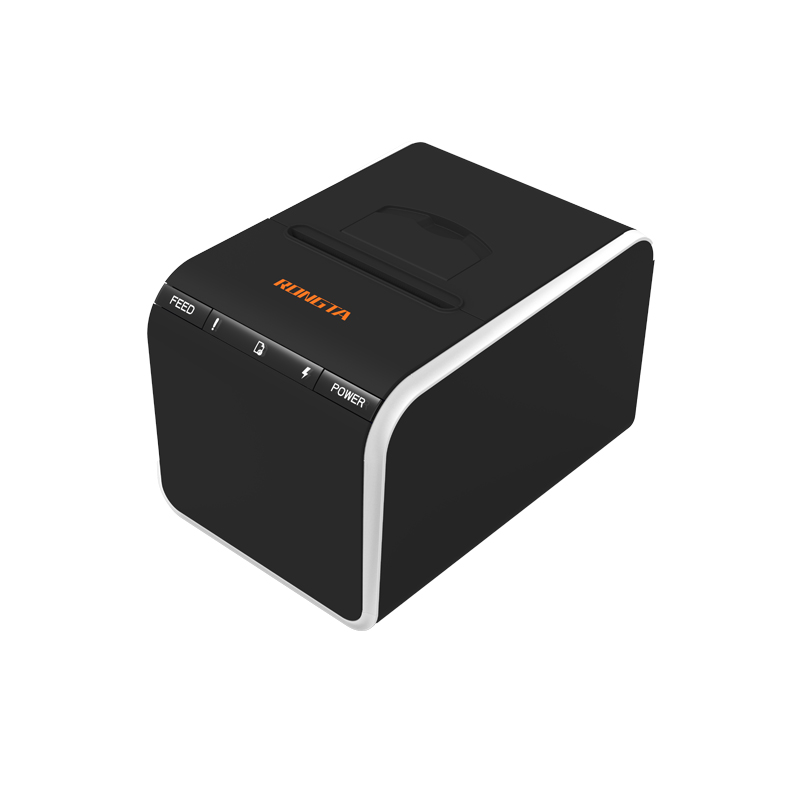 ACE G1YP Cloud Printer
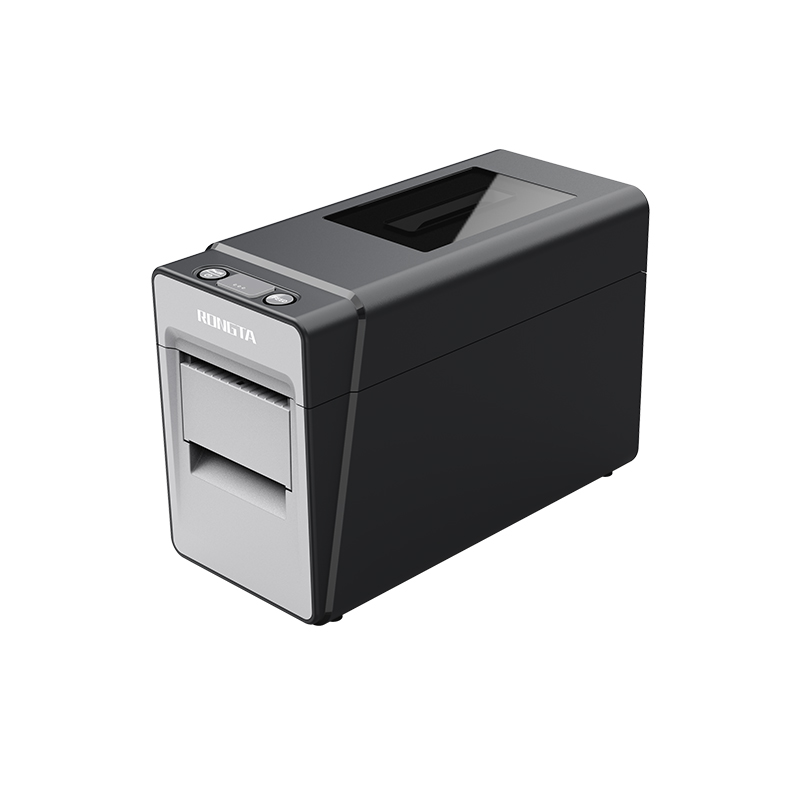 RP216 2'' Dual-color High-definition Label Printer
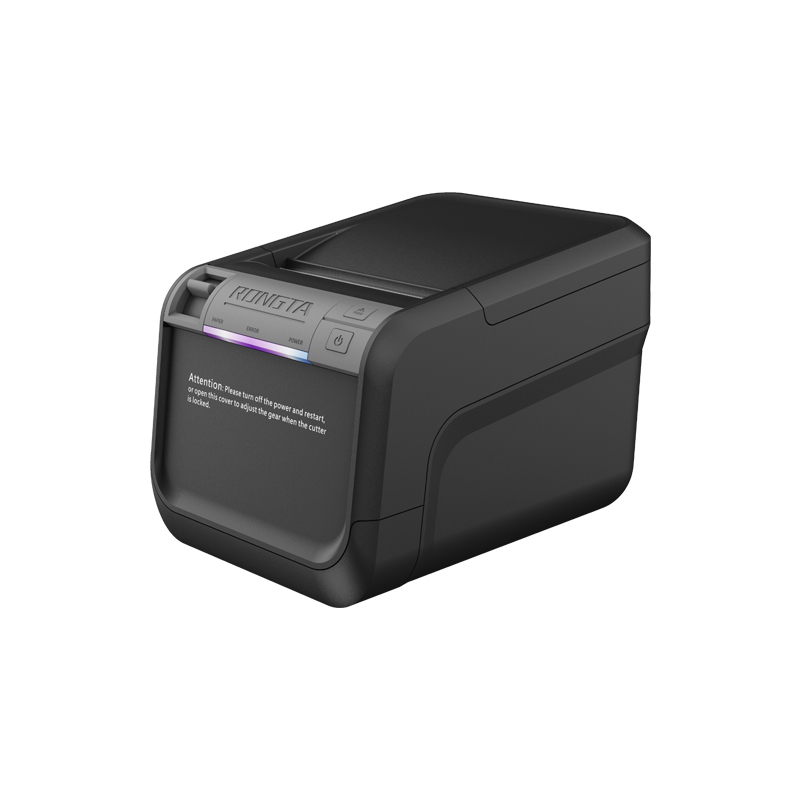 ACE V1S 3'' Backless Label Printer
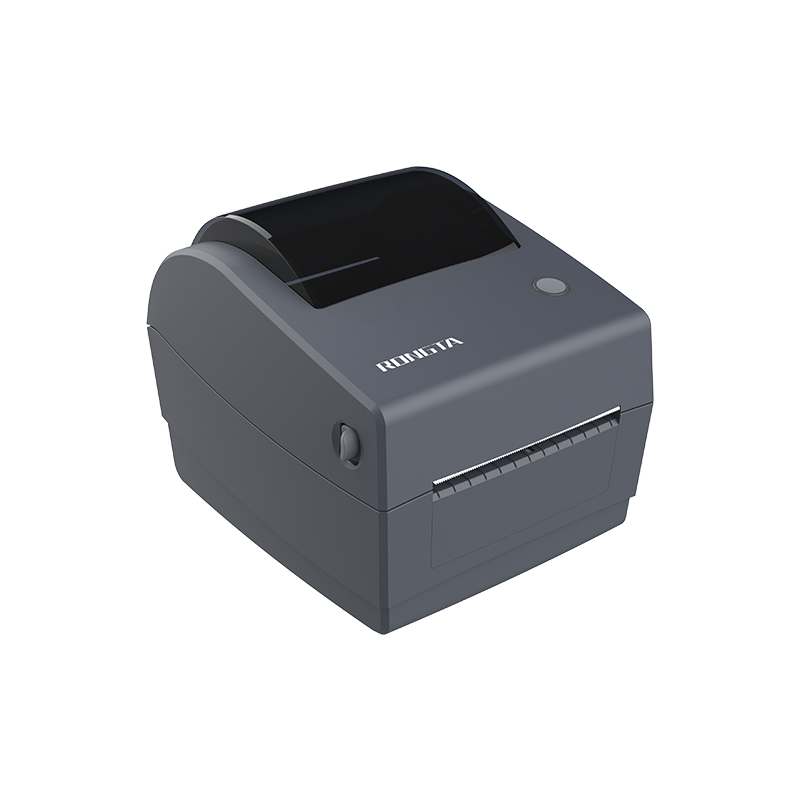 RP310D 3'' Dual-color Label Printer
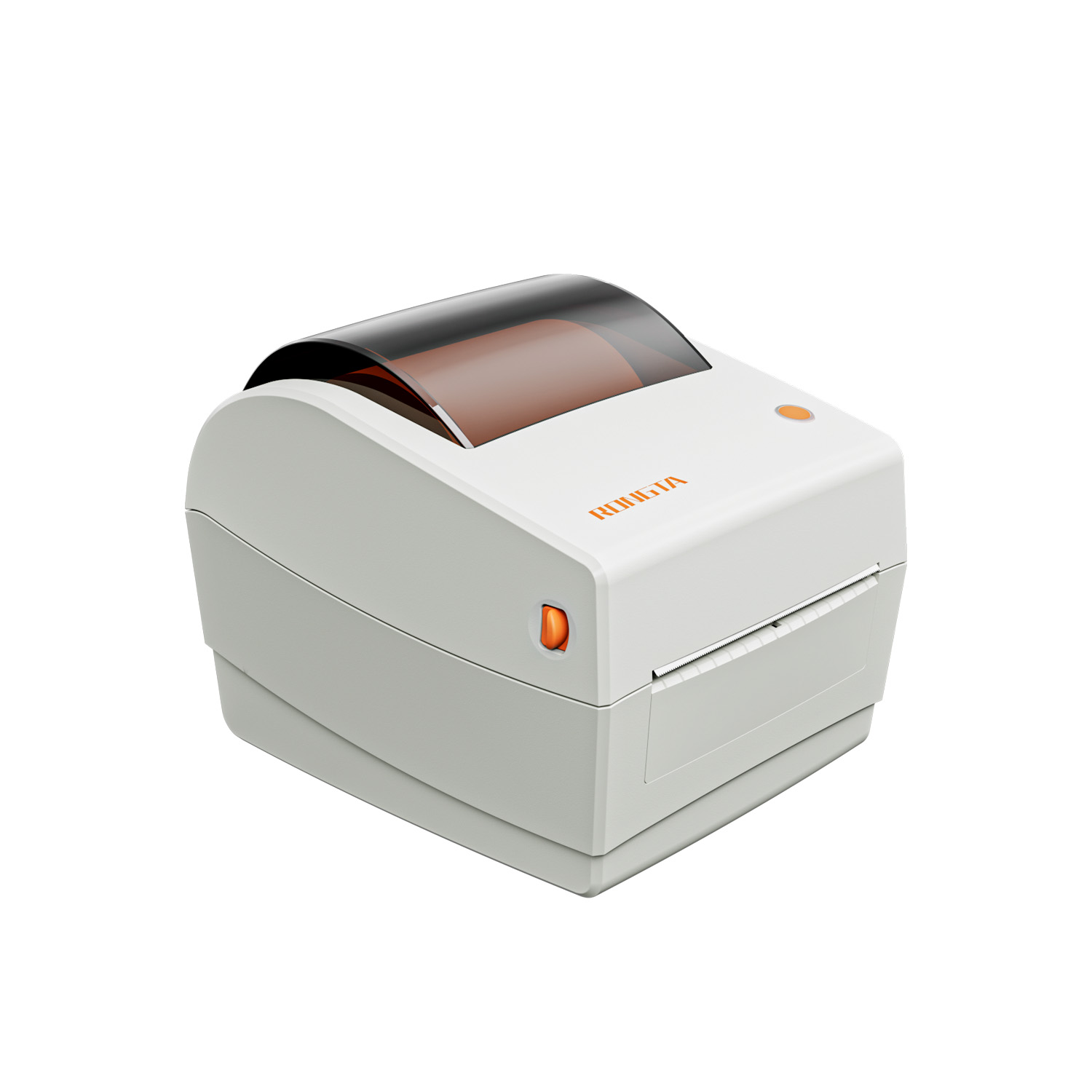 RP410N 4'' Thermal Label Printer
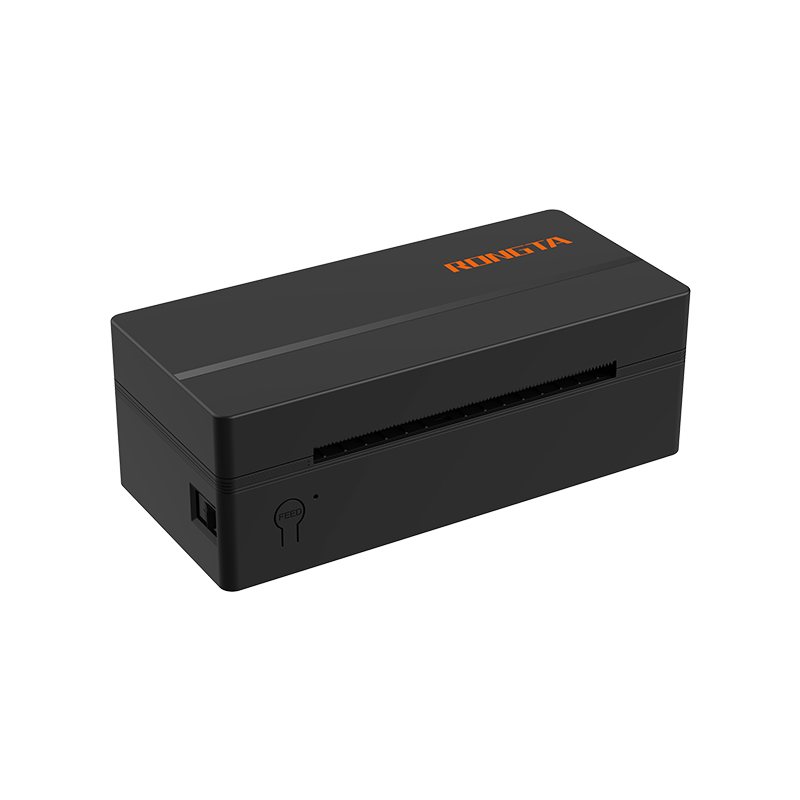 RP425 4'' Electronic Waybill Printer
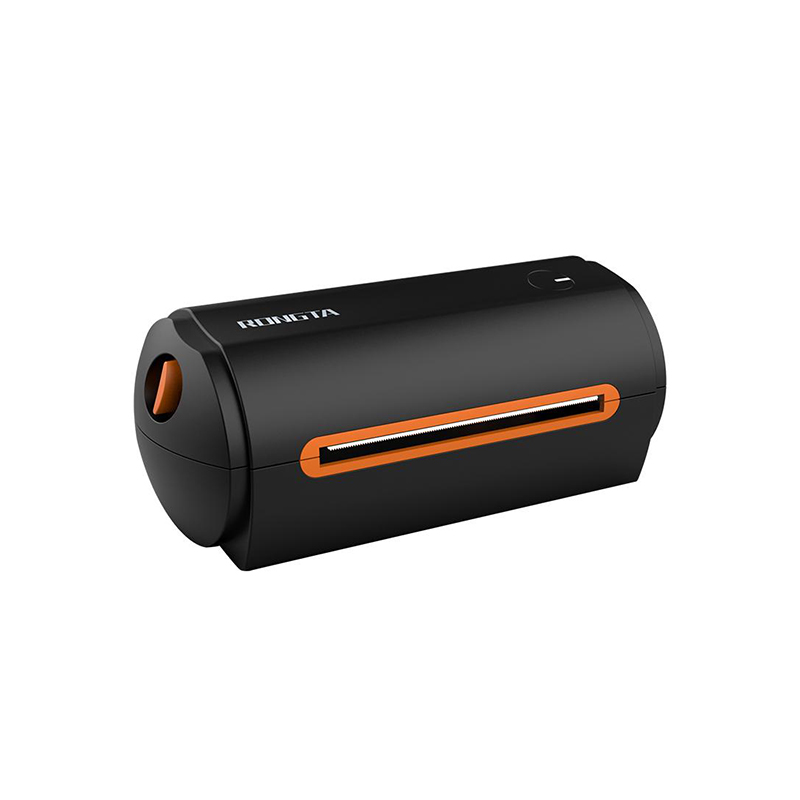 RP422 4'' Electronic Waybill Printer
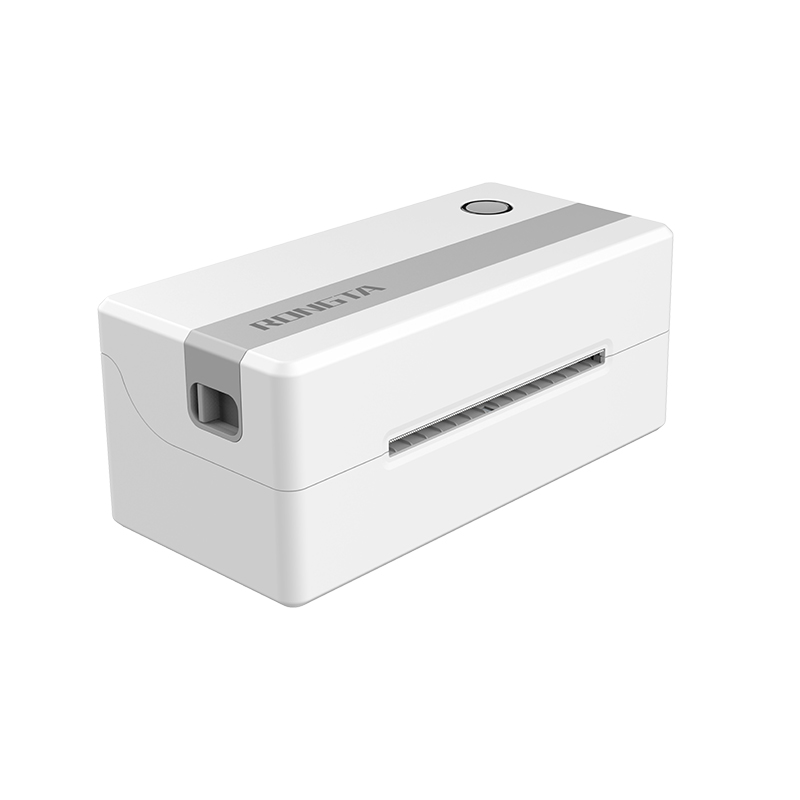 RP421A 4'' Electronic Waybill Printer
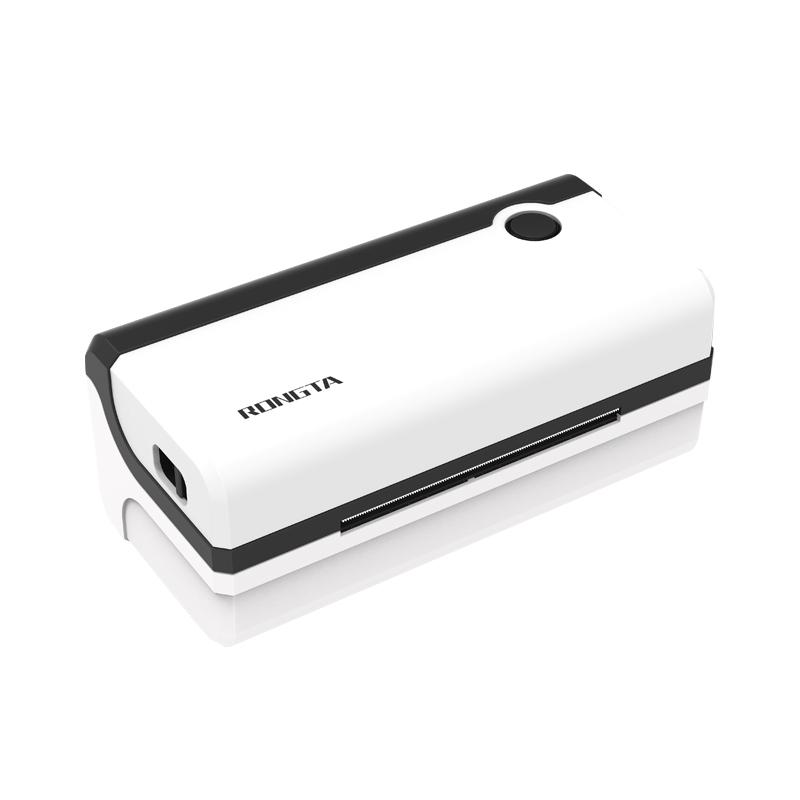 RP420 4'' Electronic Waybill Printer
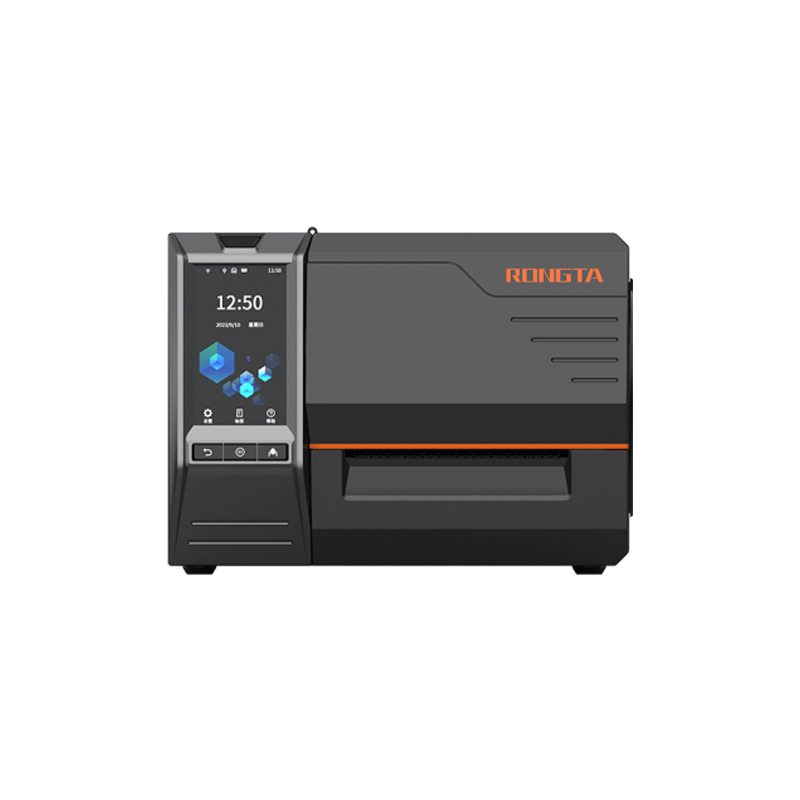 RI463 Series Barcode Printers
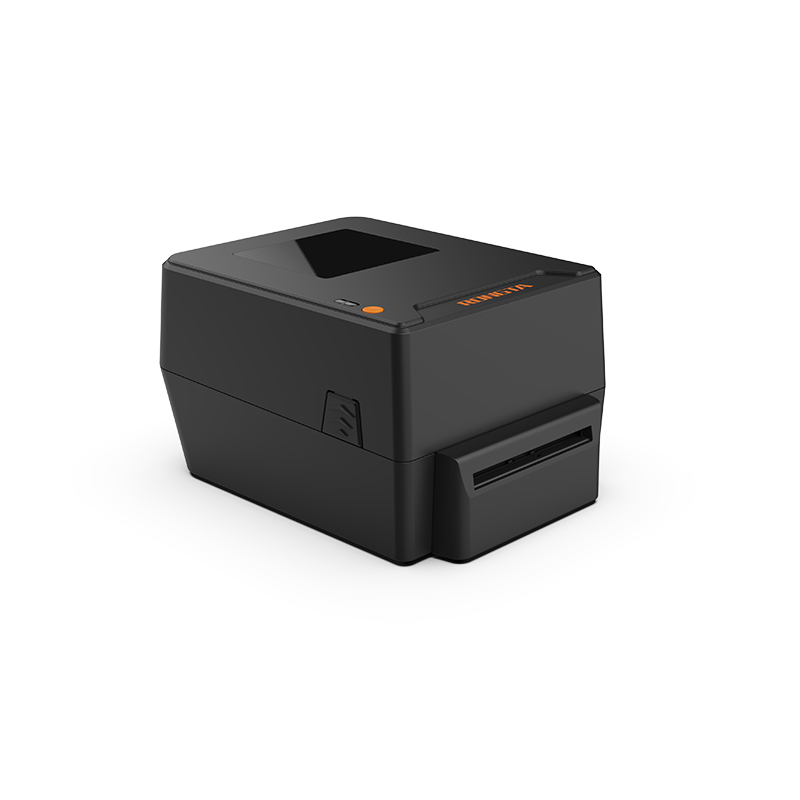 RP400A 4'' Thermal Transfer Tape Cutter Printer
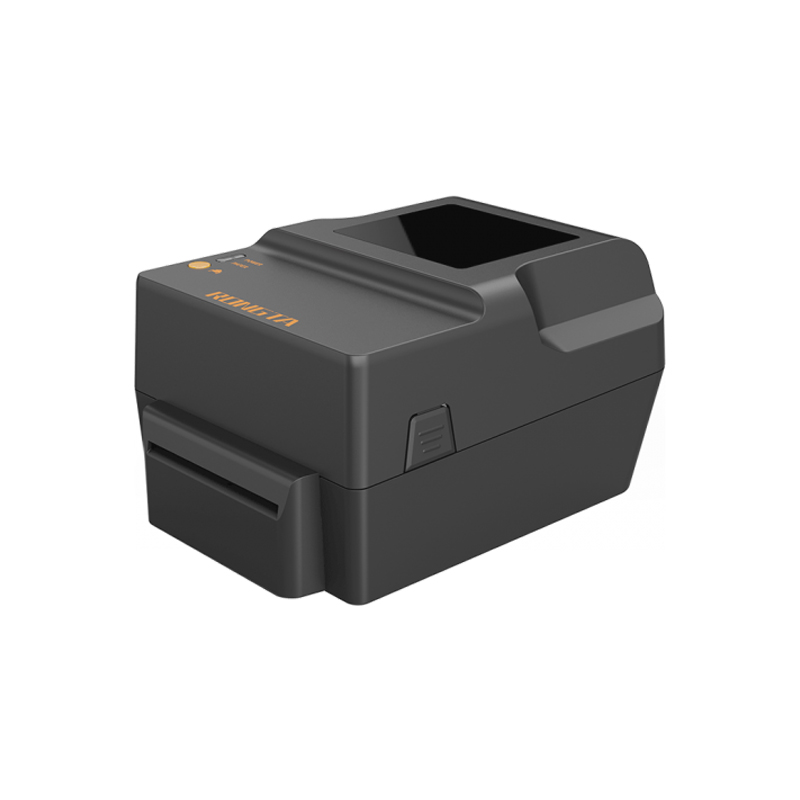 RP400H 4'' Thermal Transfer Tape Cutter Printer
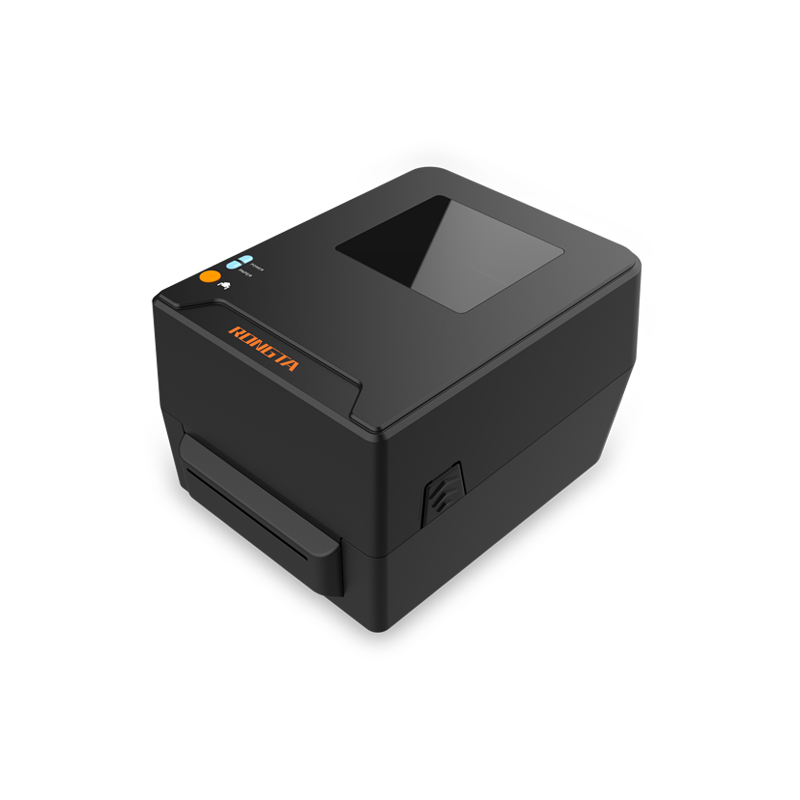 RPF413 300dpi RFID barcode label printer
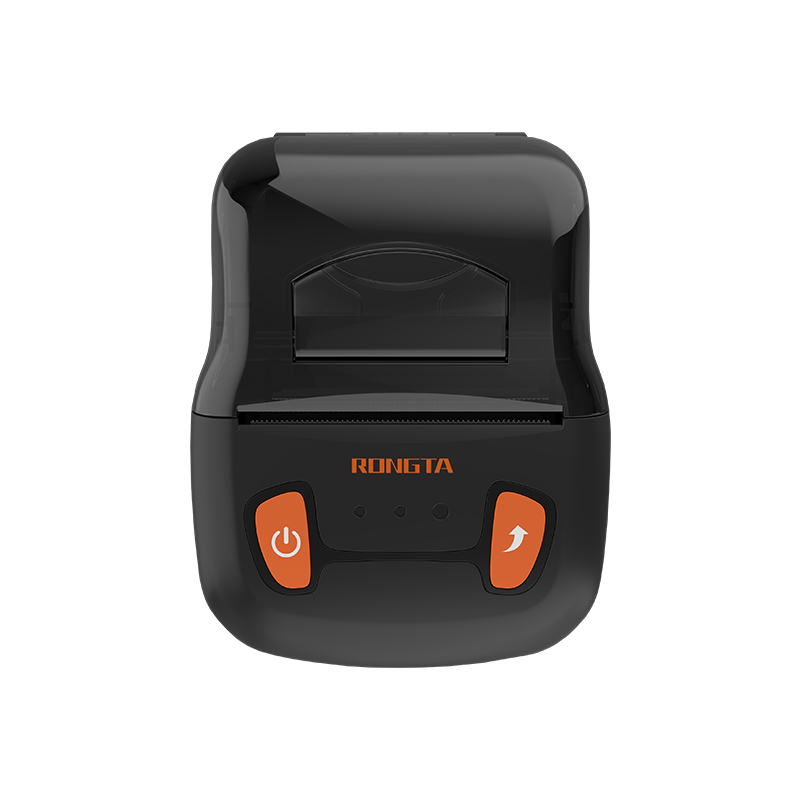 RPP02A Portable Receipt Printer
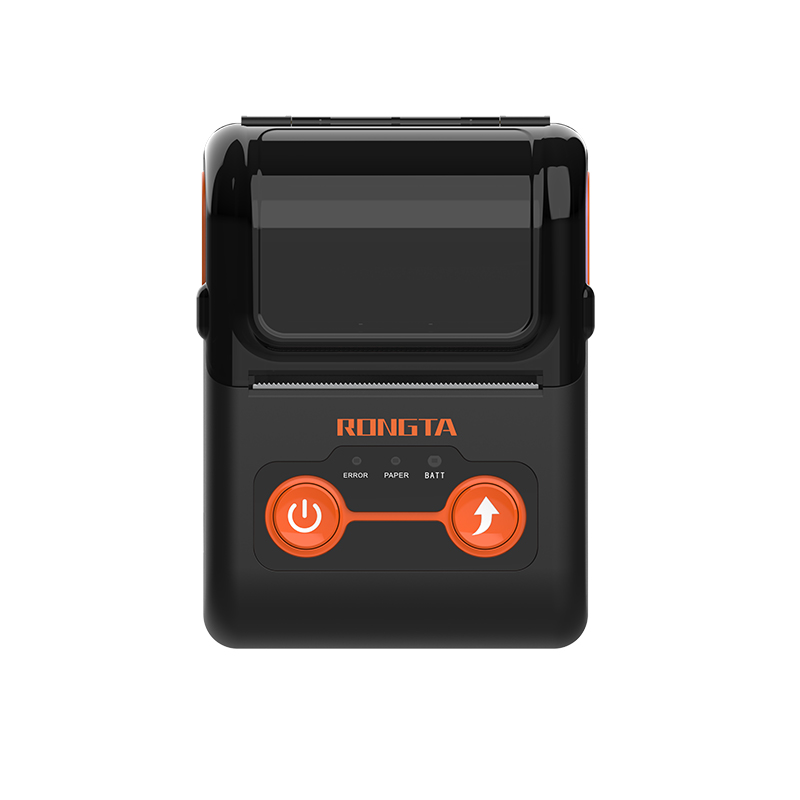 RPP02B Thermal Portable Printer
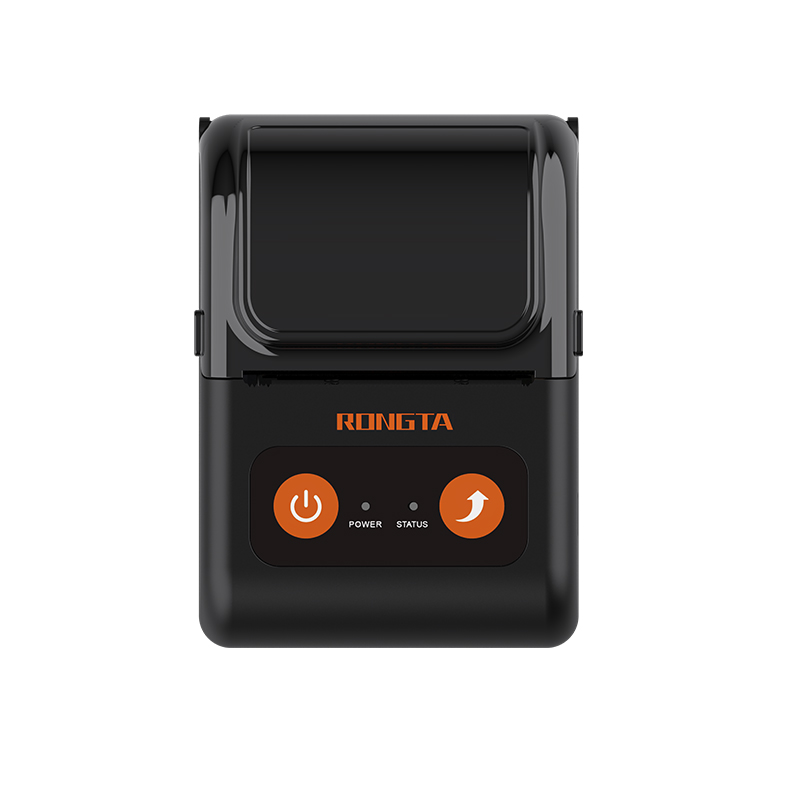 RPP02C Portable Receipt Printer
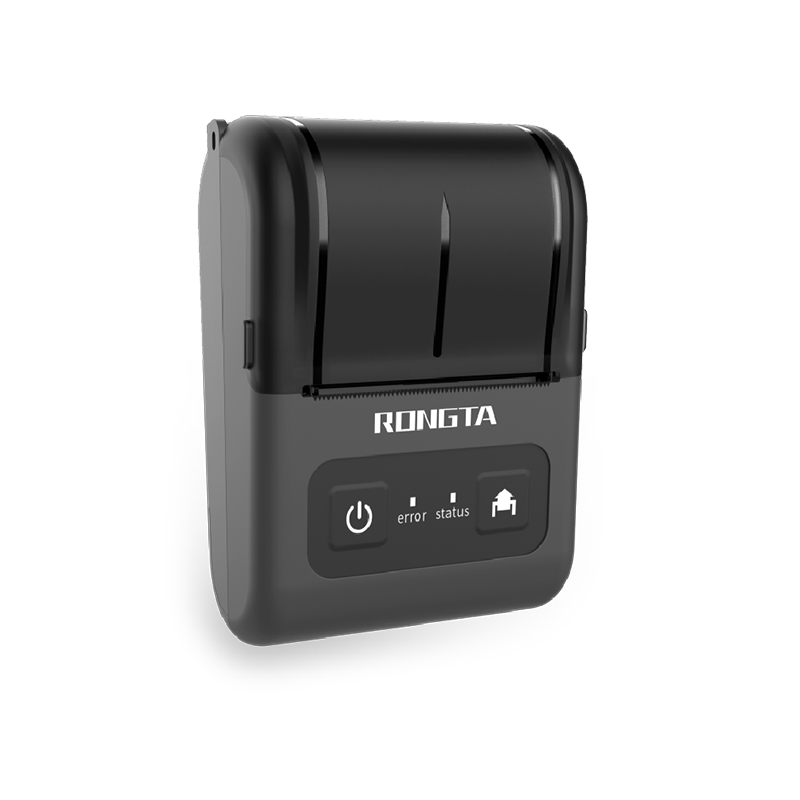 RPP02D Thermal Portable Printer
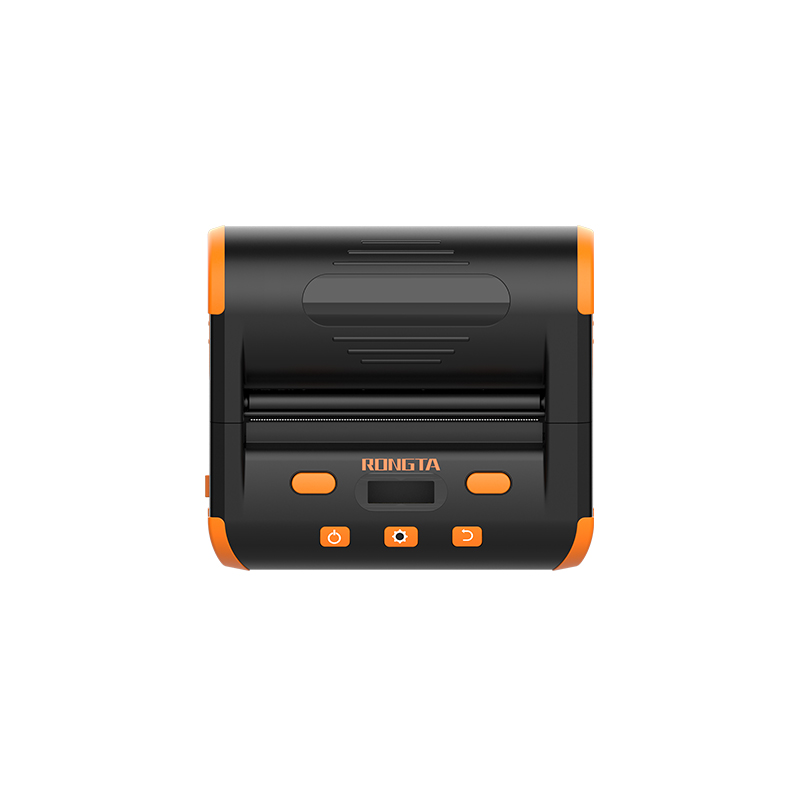 RPP04 4" Portable Label Printer
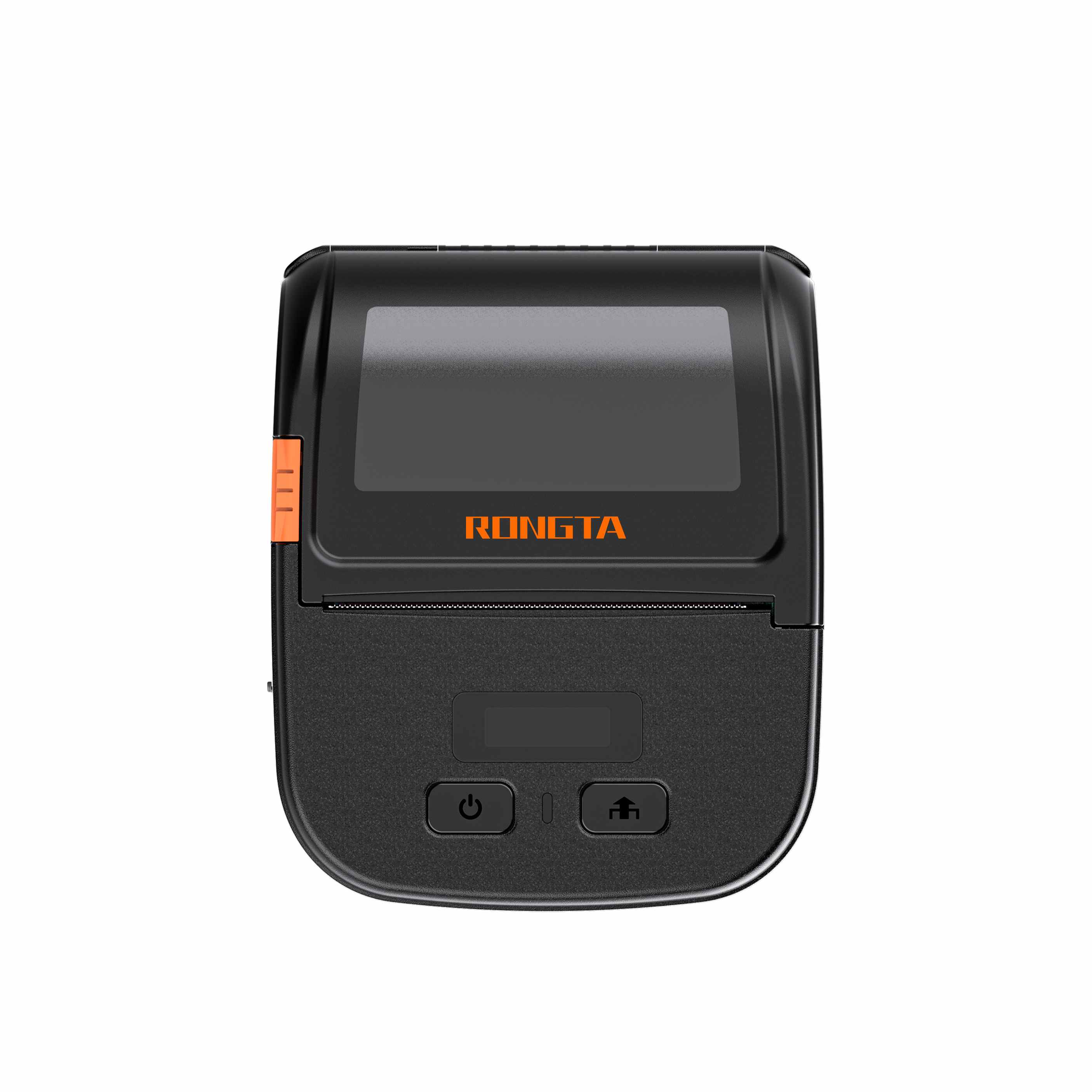 RPP30 3" Portable Label Printer
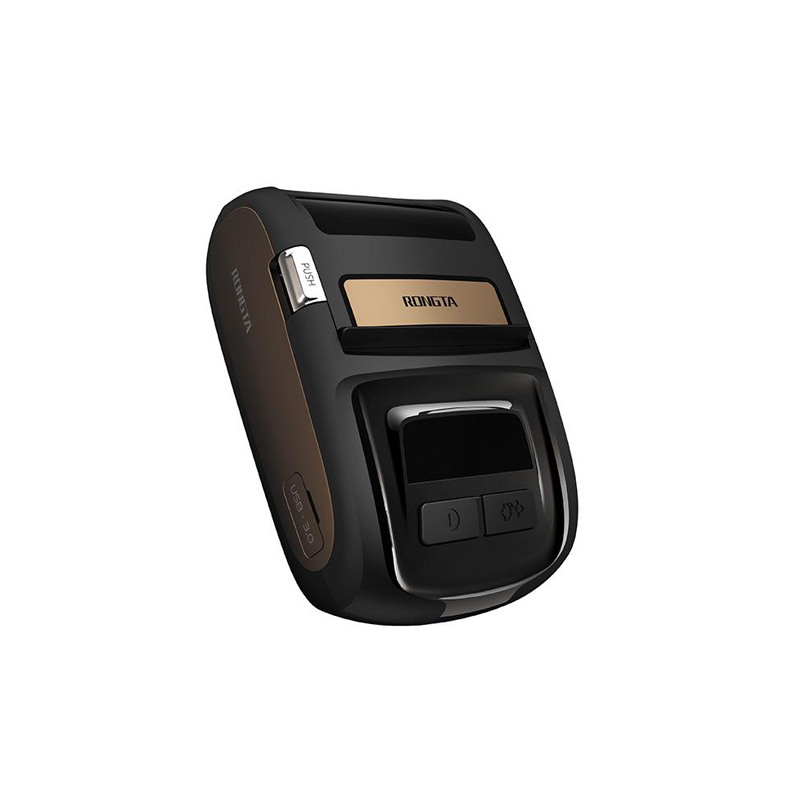 ACE M1 2" Portable Label Printer
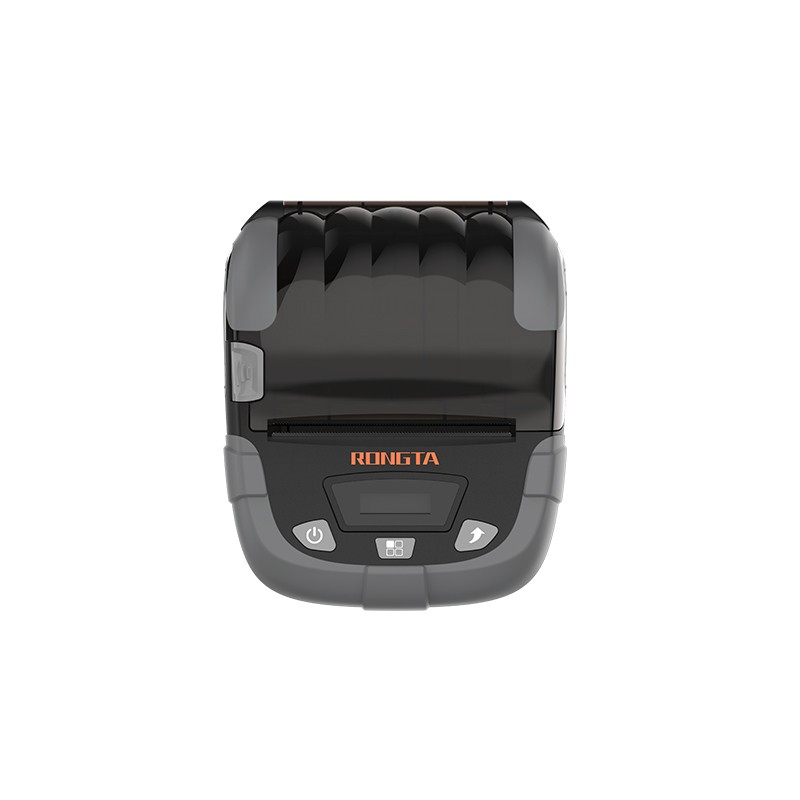 RPP320N 3" Portable Label Printer
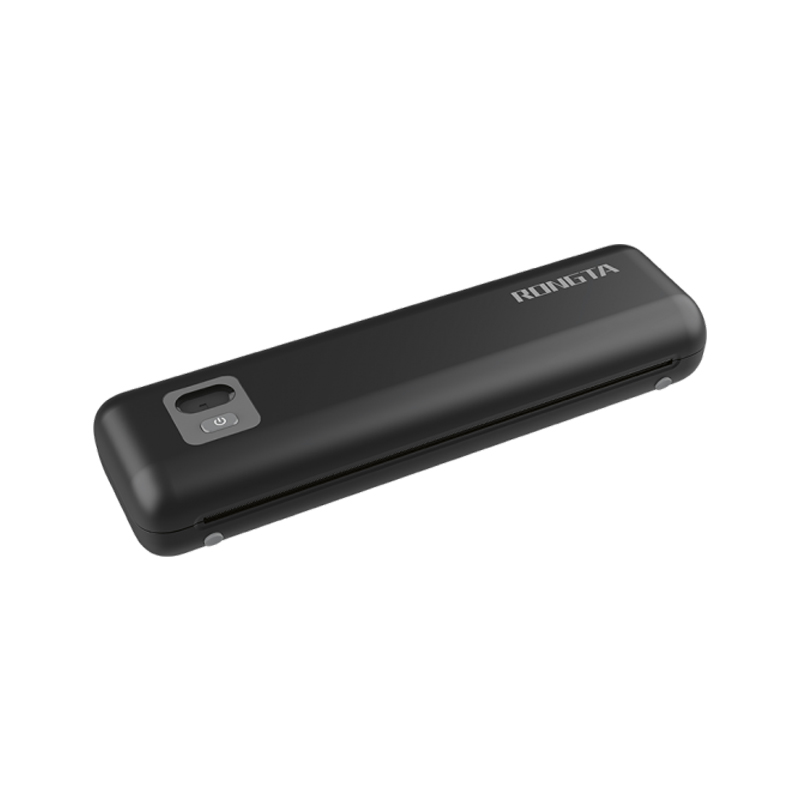 F82A A4 Front-Out Paper Tray Thermal Printer
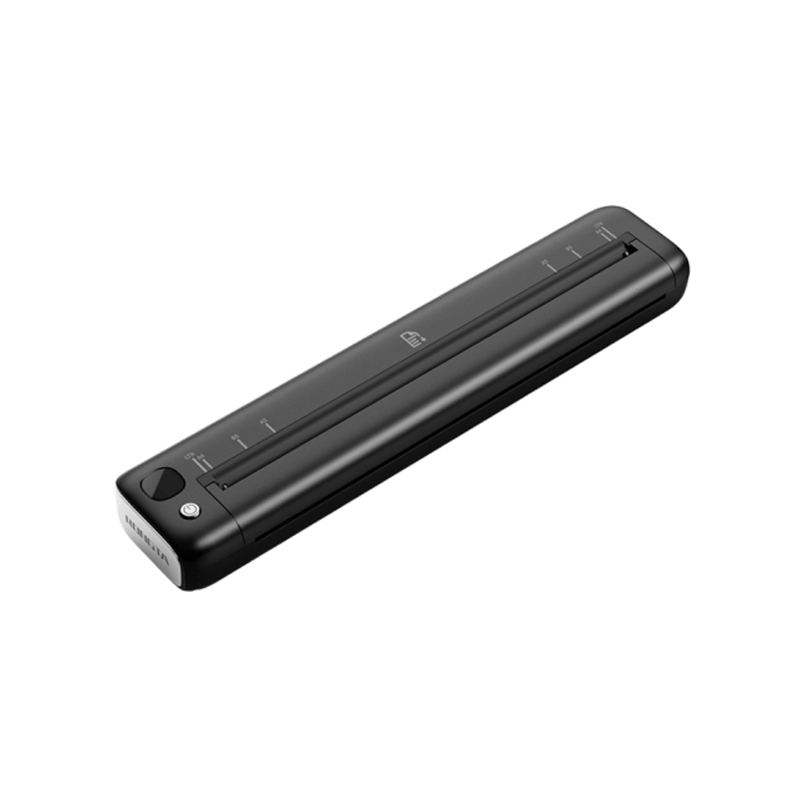 F81A Portable A4 Thermal Printer
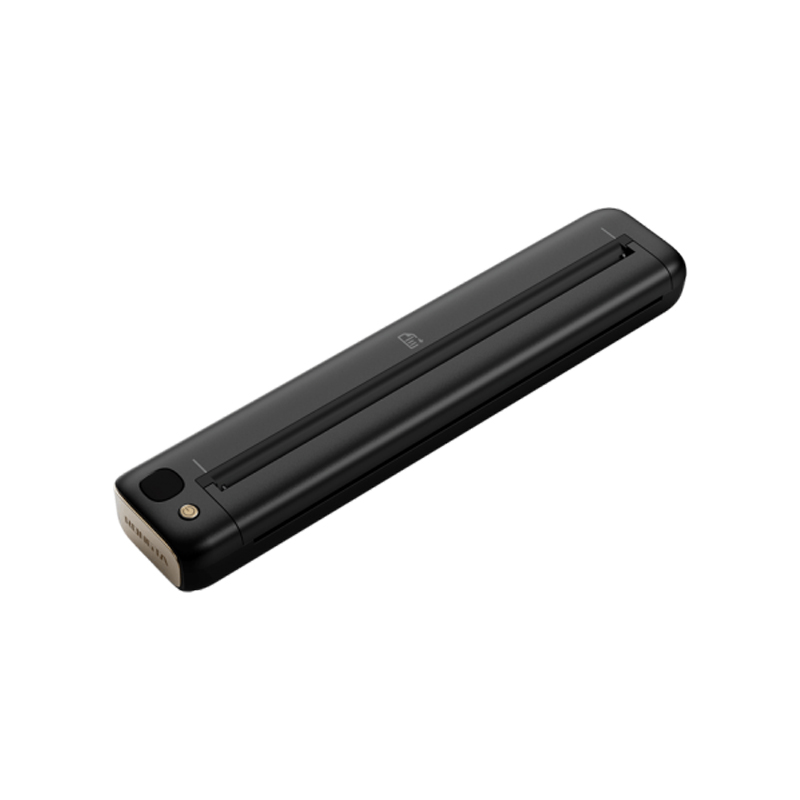 F81S Portable A4 Tattoo Printer
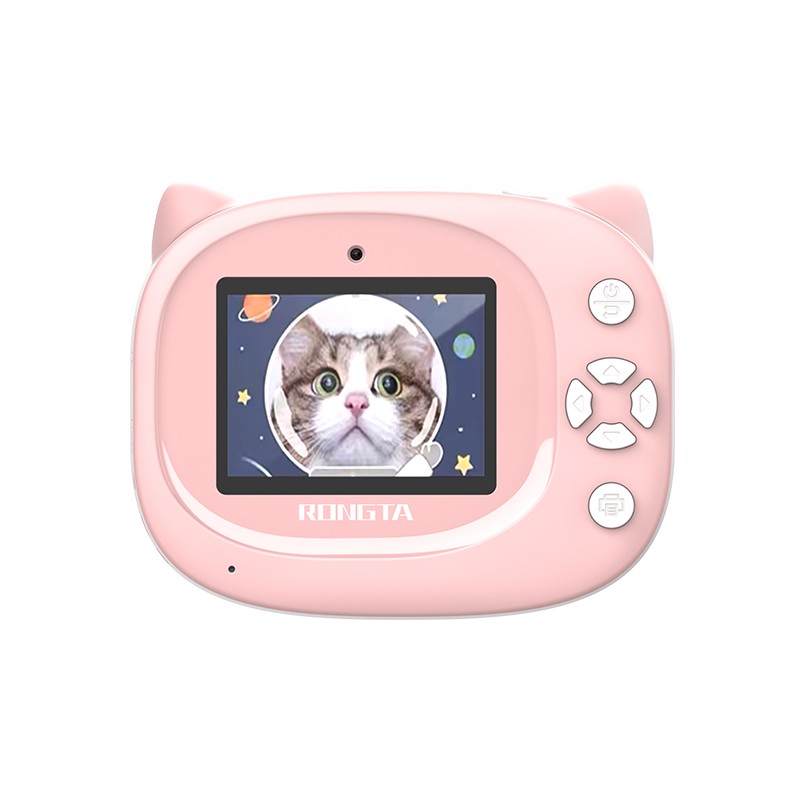 Z1 Children's Educational Photo Printer
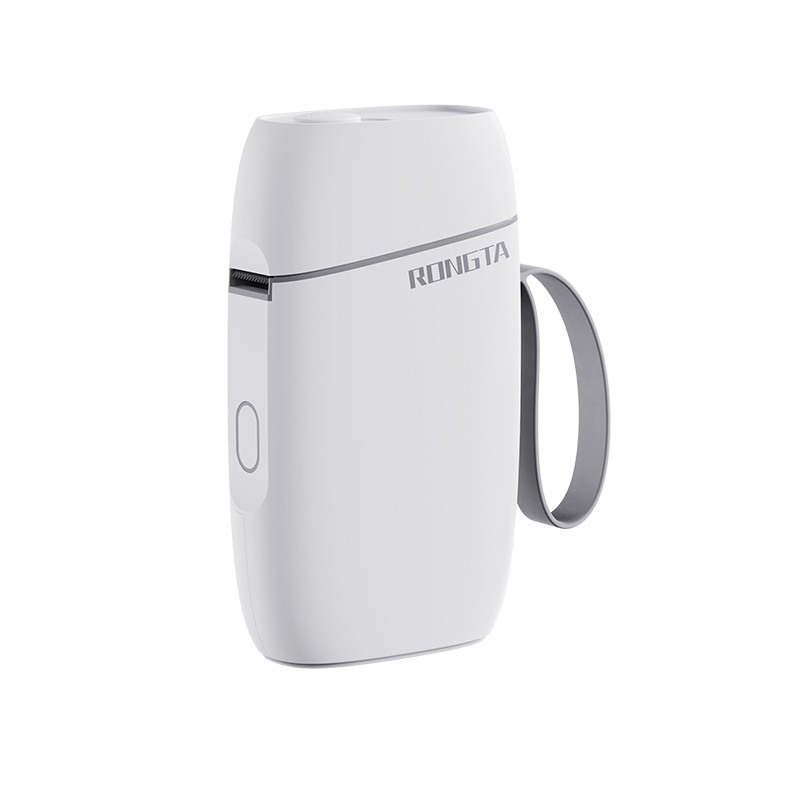 R5 Mini Label Printer
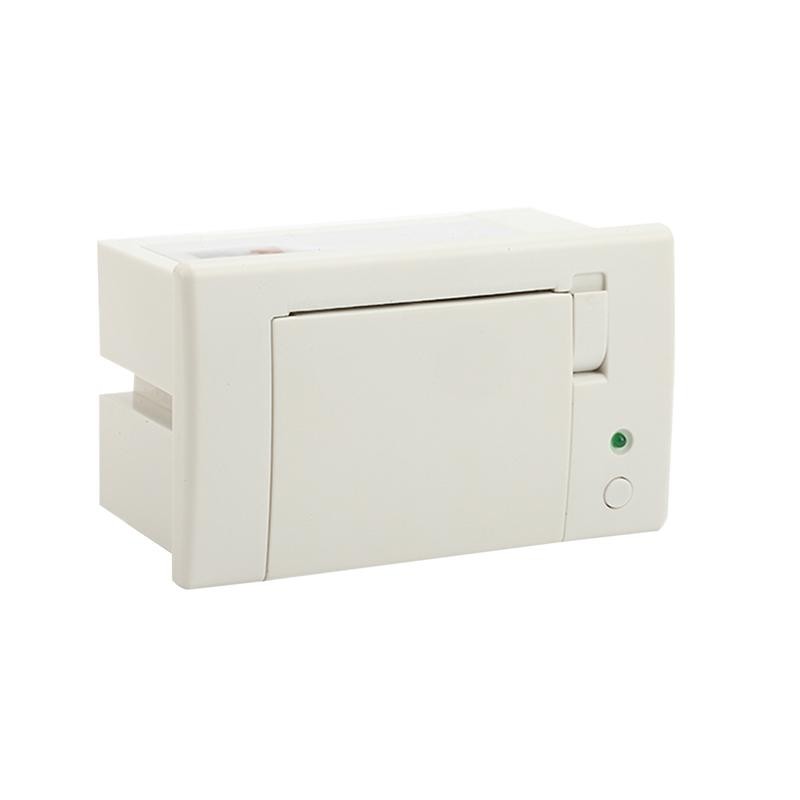 RP07 58mm Embedded Printer
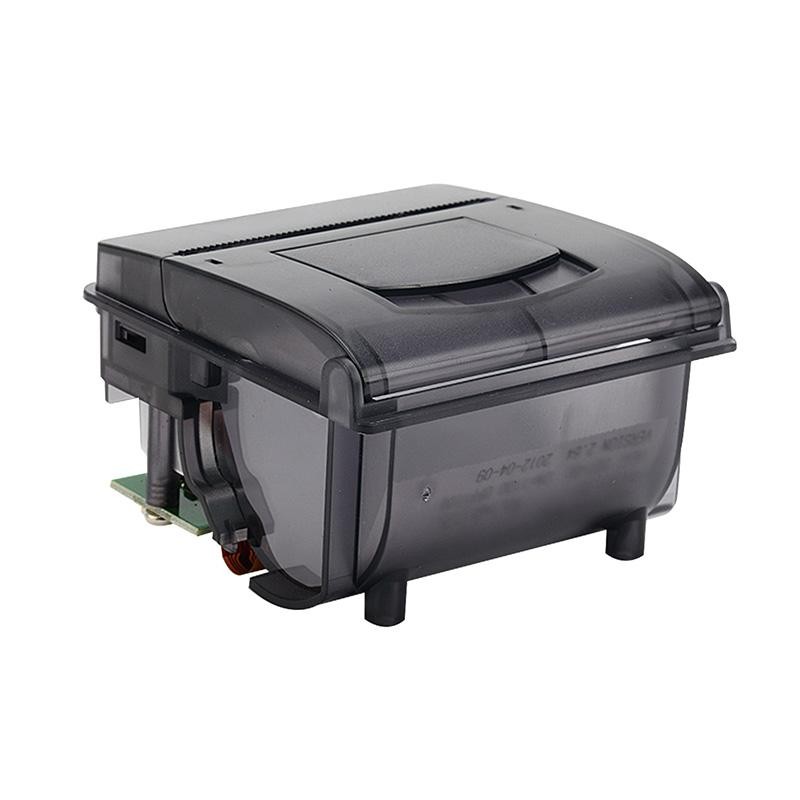 RP203 58mm Embedded Printer
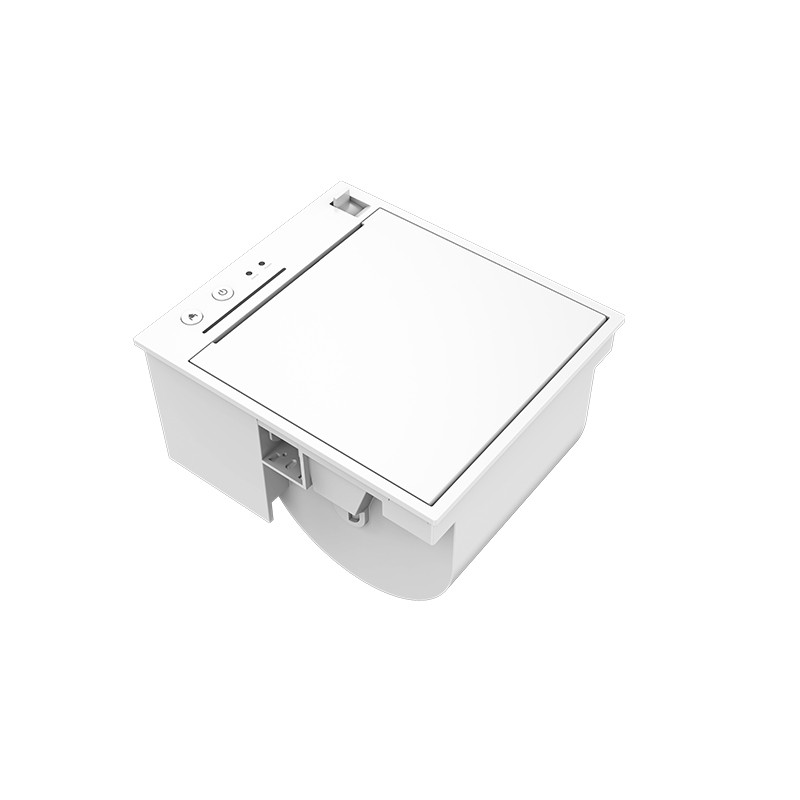 PM315 Embedded Thermal Printer
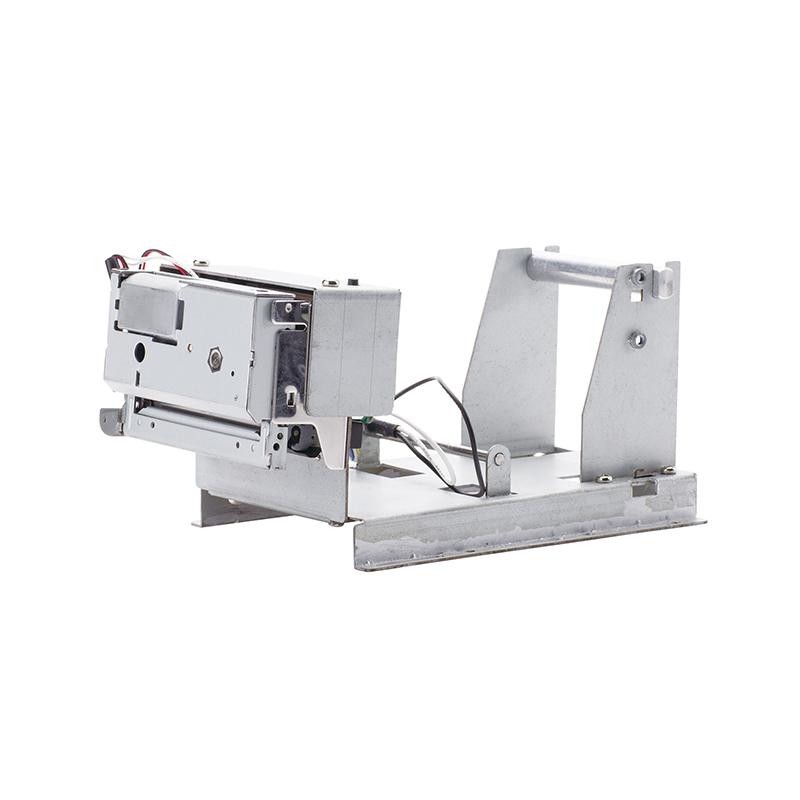 PM201 48mm Printing Module
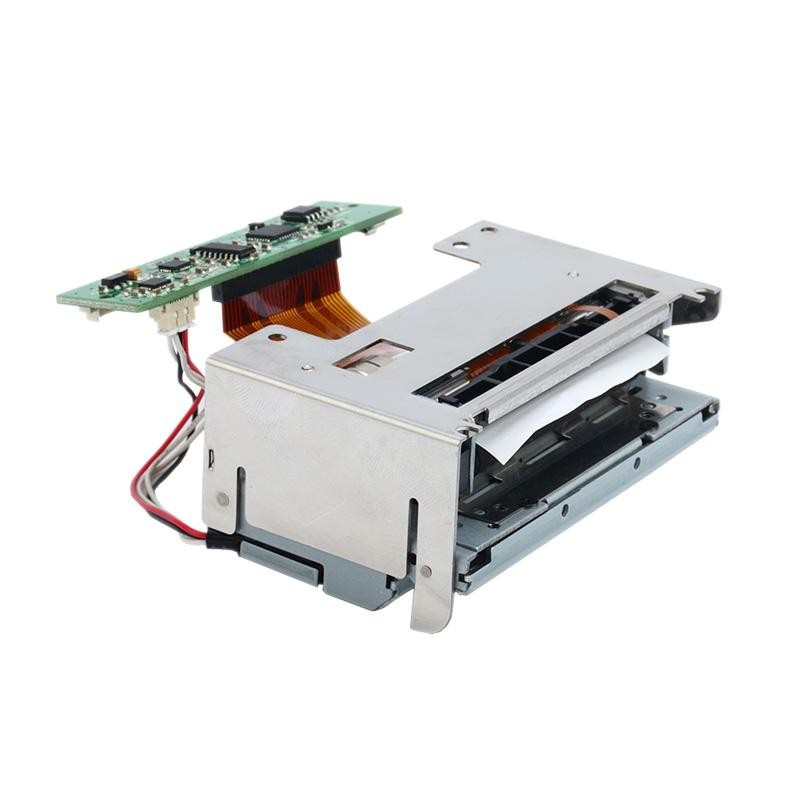 PM628 58mm printing module
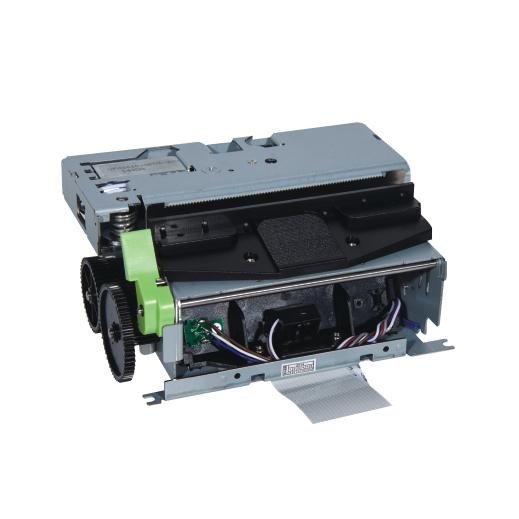 PM532A Printing Module
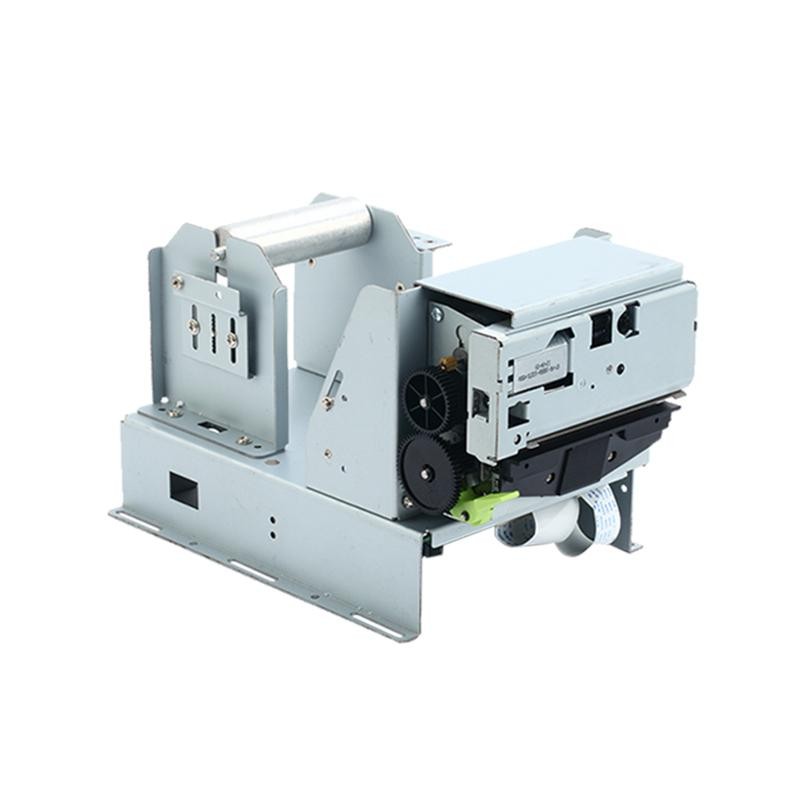 PM532B printer module
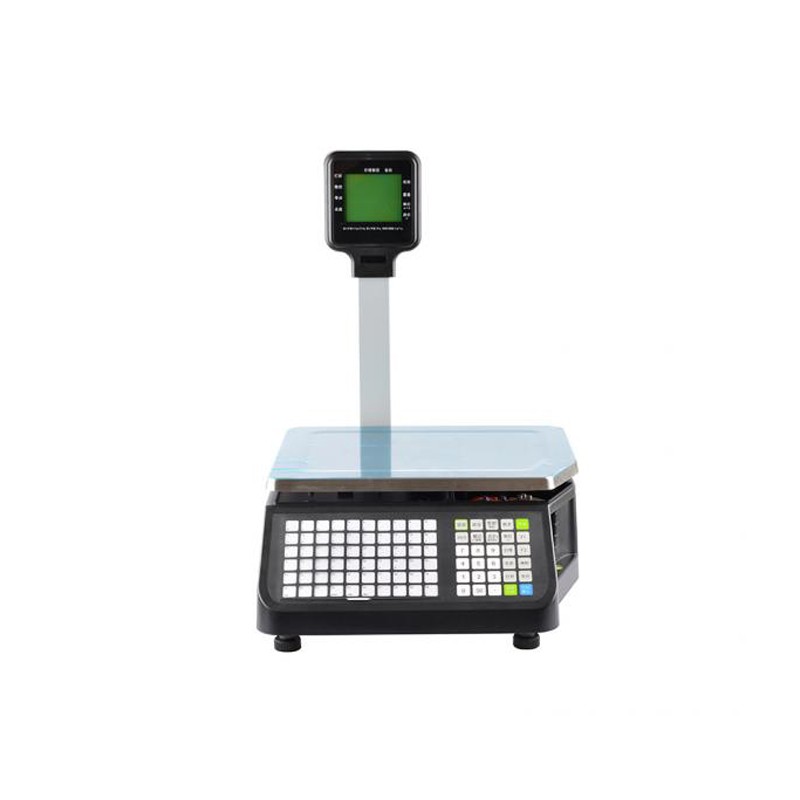 LS015/LS015A Barcode Scale
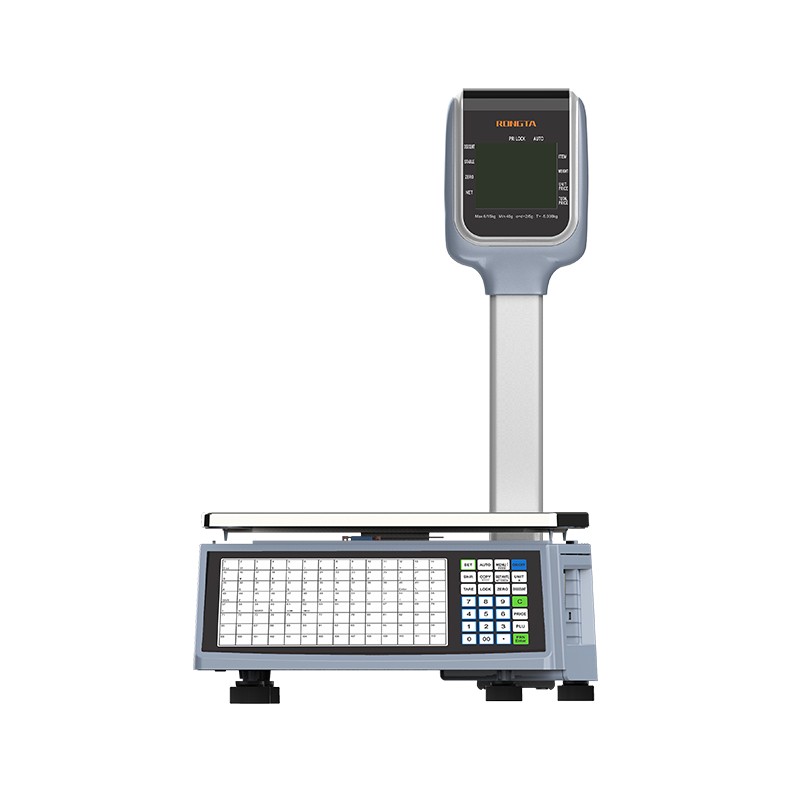 RLS1815D/RLS1830D Barcode Scale
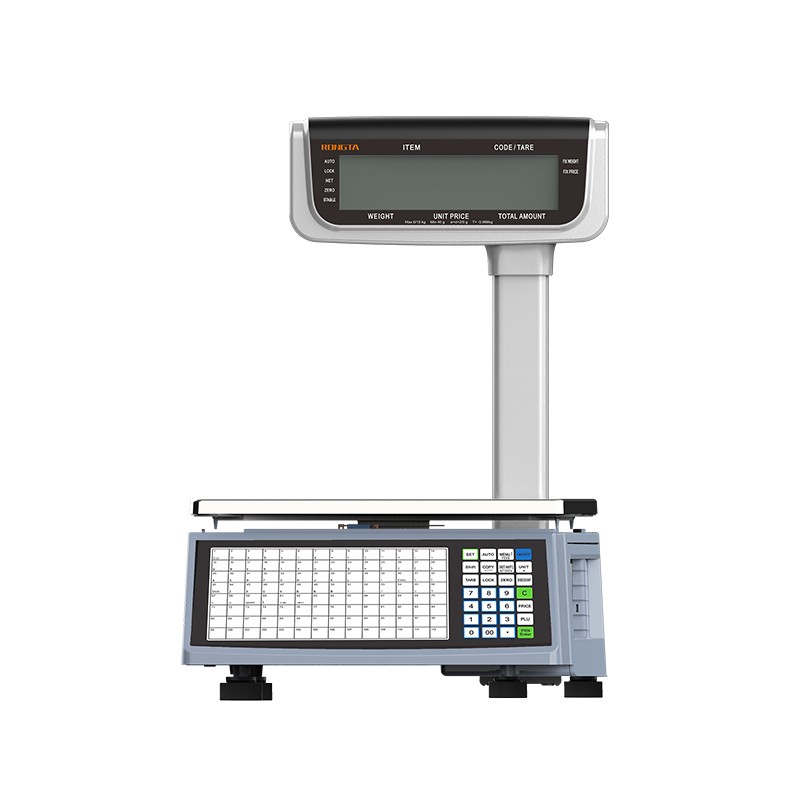 RLS1815C/RLS1830C Barcode Scale
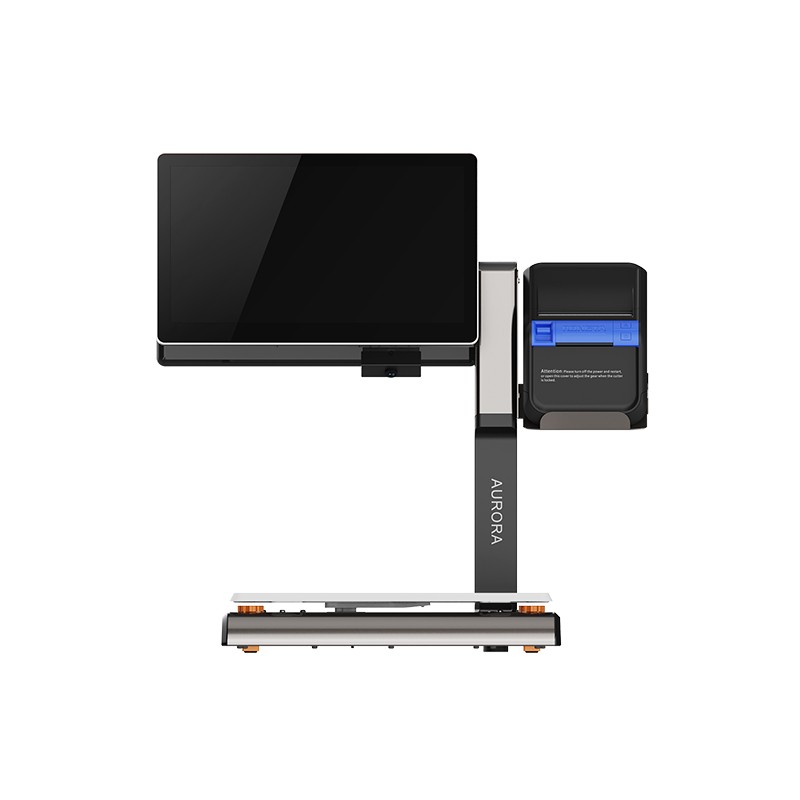 AURORA S2L-S Labelless Scale
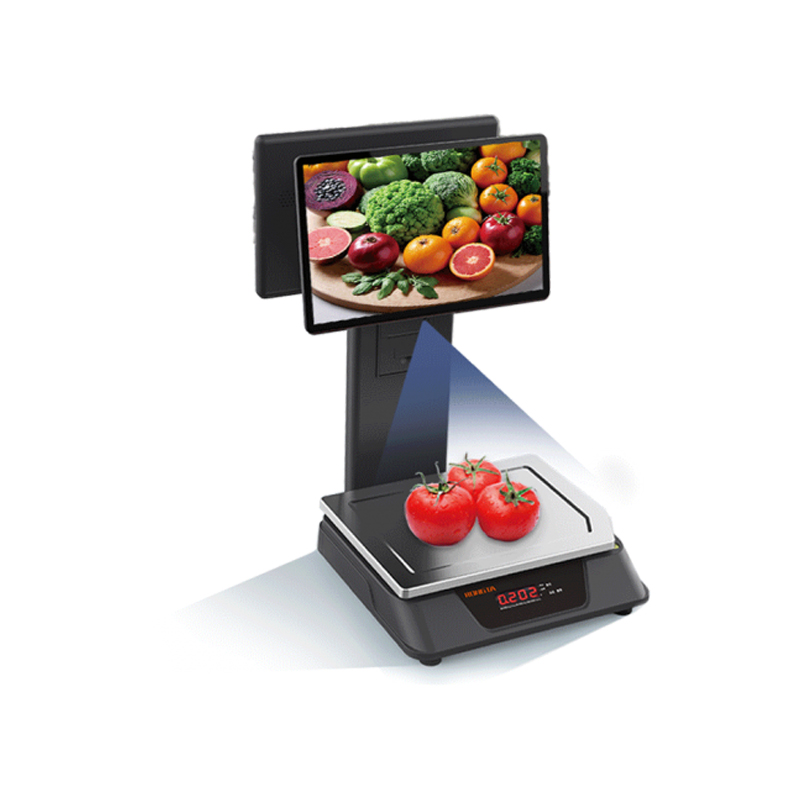 AURORA E1 PRO-AI Cash Register Scale
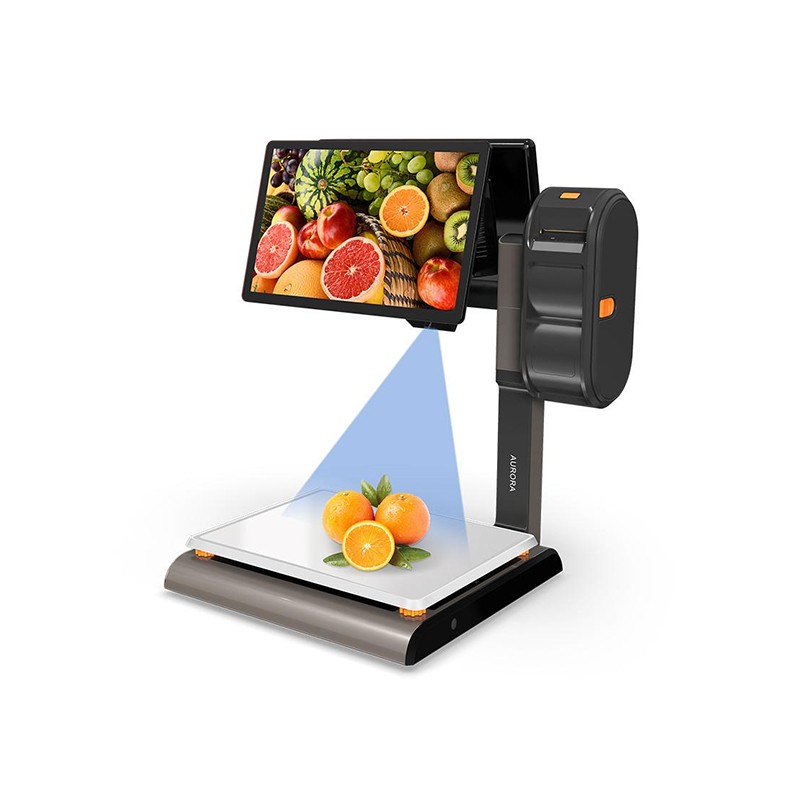 AURORA S2L-AI Label Scale
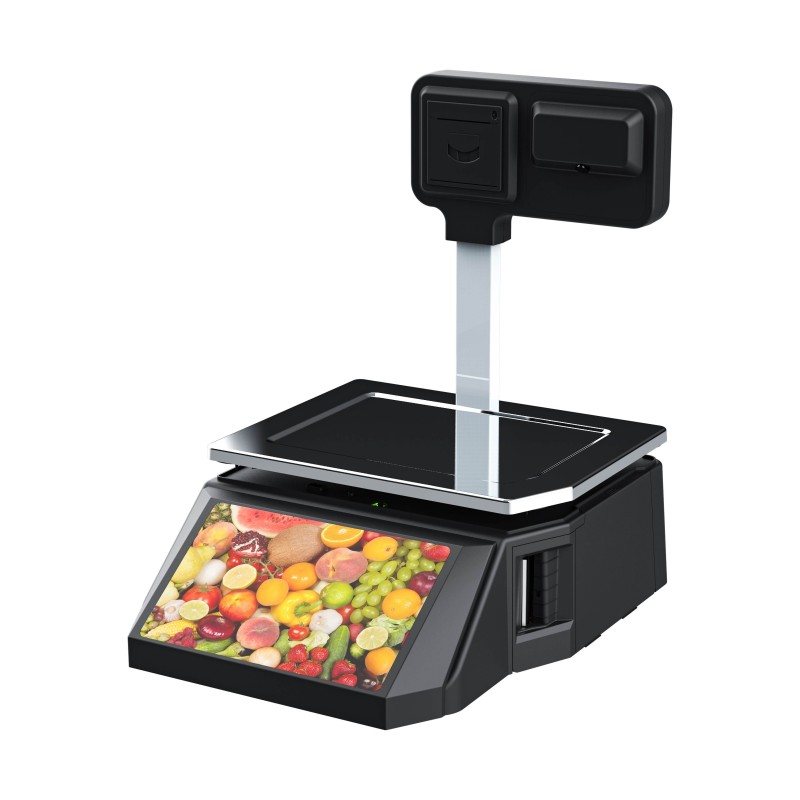 DP01-AI Smart Tag Cashier Dual-Use Scale
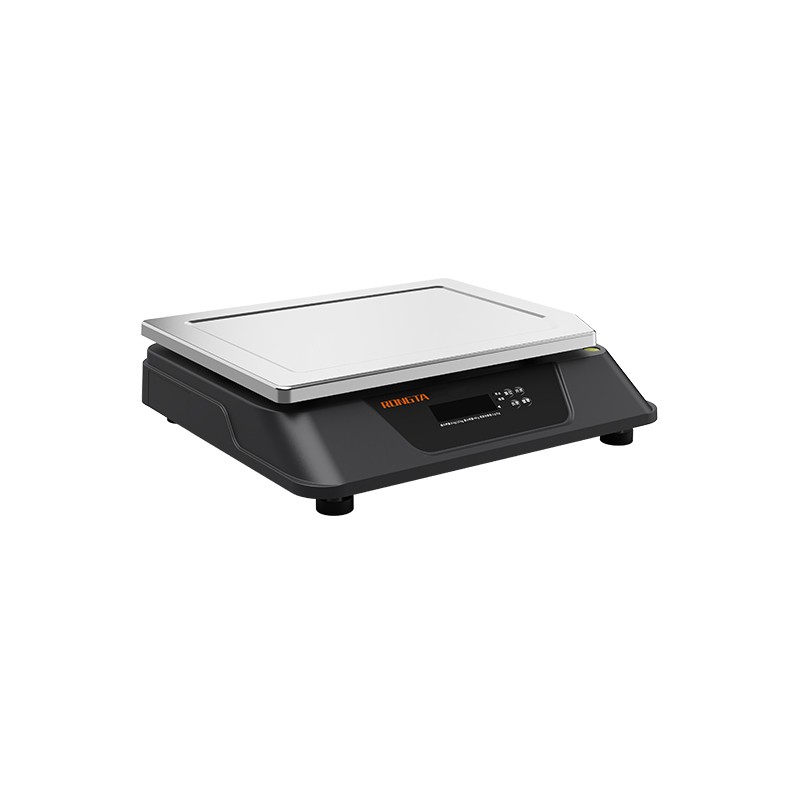 C3 Weighing Scale
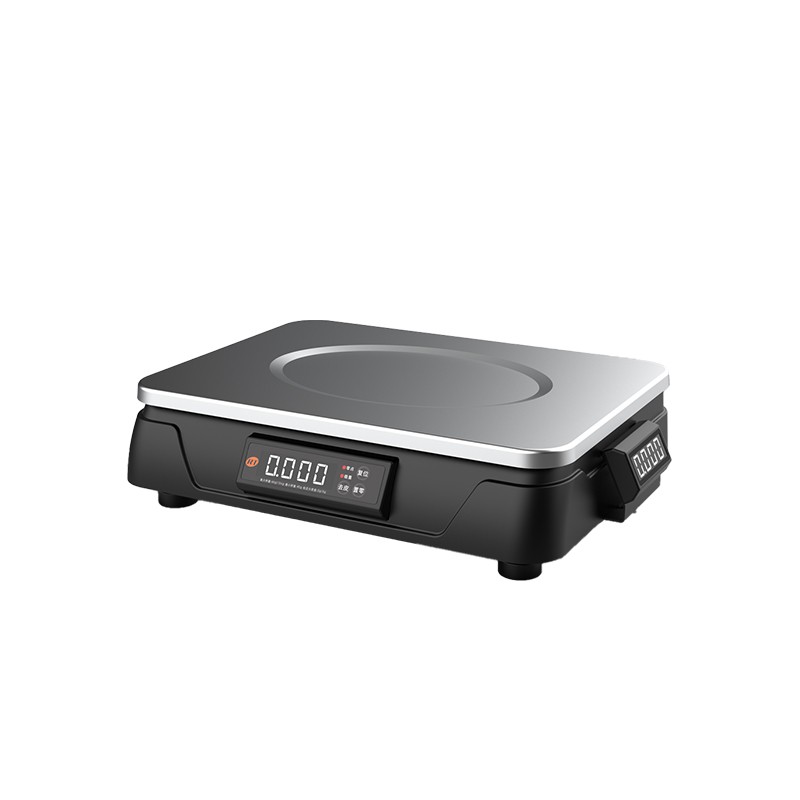 C1 weighing scale
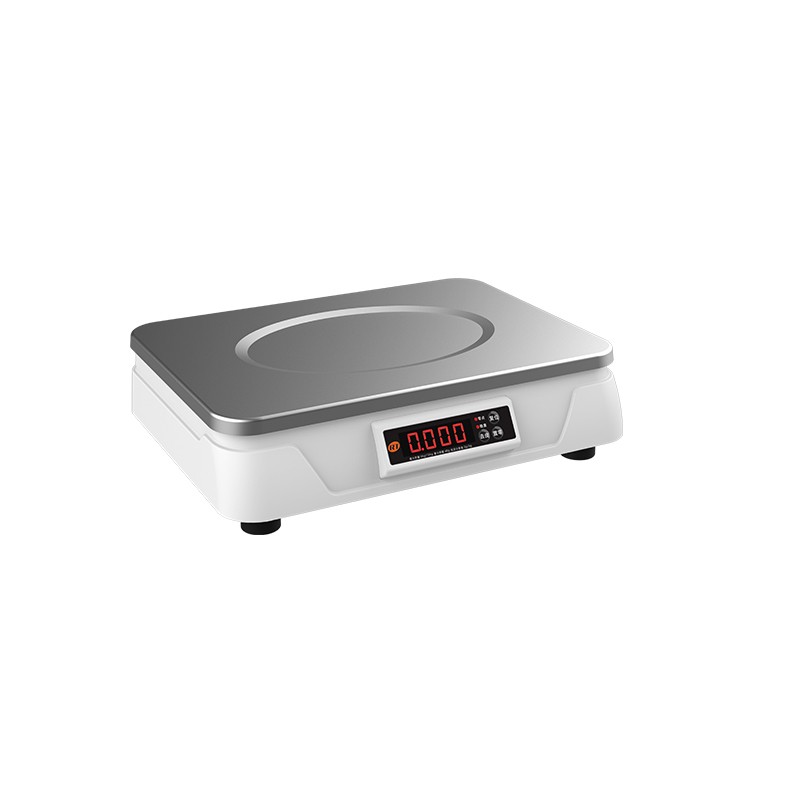 C11 Weighing Scale
 retail
 FOOD
FOOD Medical
 Mobile office/home
 asset Management
 logistics
 Driver download
 User Manual
 Tool Download
 Tag software
 Product Video
 Development Documentation
 Frequently Asked Questions
 User Guide
 Company News
 Exhibition Updates
 Industry Insights
 Product Update
 General situation
 Development history
 Honors and Qualifications
 R&D strength
 Team activities
 Social responsibility




Mixue Ice Cream RP850 Thermal Receipt Printer User Manual
one,RP850-US Mixue Cash Register Setup
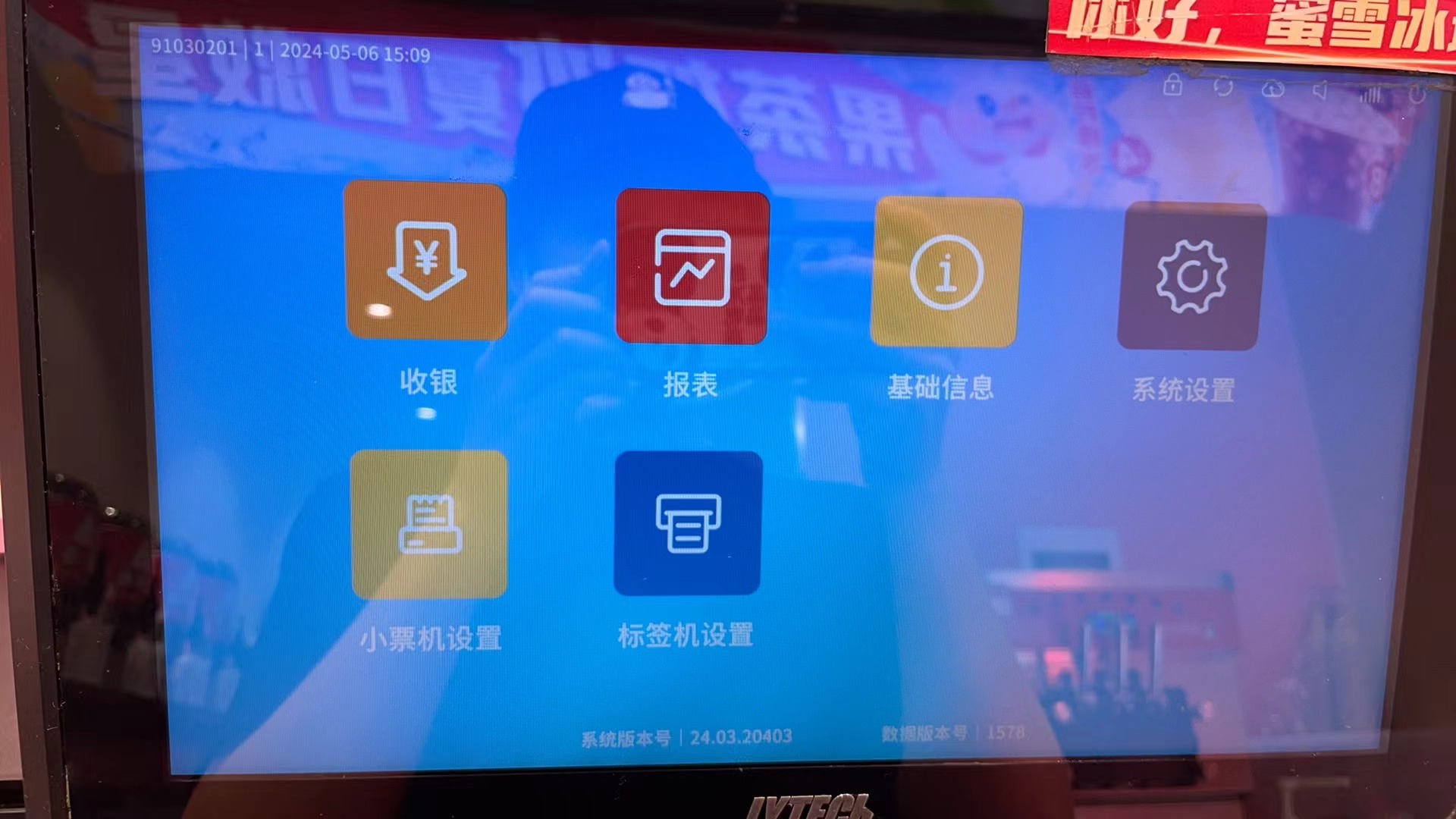
11. Open the Mixue cash register and click...[Ticket Machine Settings]。
?
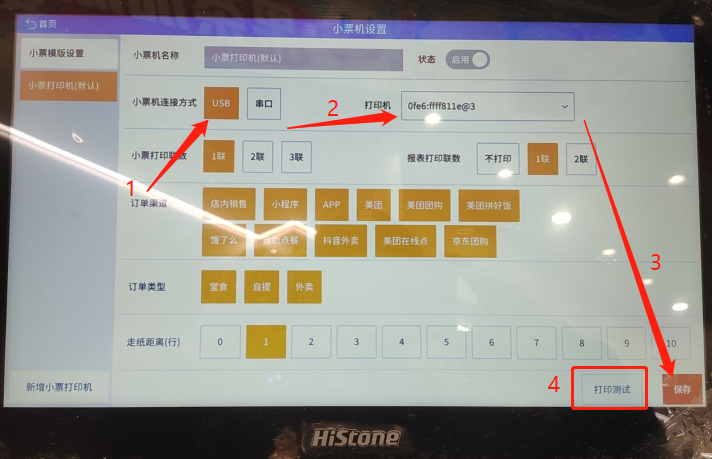
2If using a USB connection: Follow the steps shown in the image above. Click...[Default Receipt Printer]Ticket machine connection method selection【USB】。Select the printer in the printer selection bar on the right.【0fe6:ffff811e@3】Choose the printer with your name on it, then click save. Print a test print.
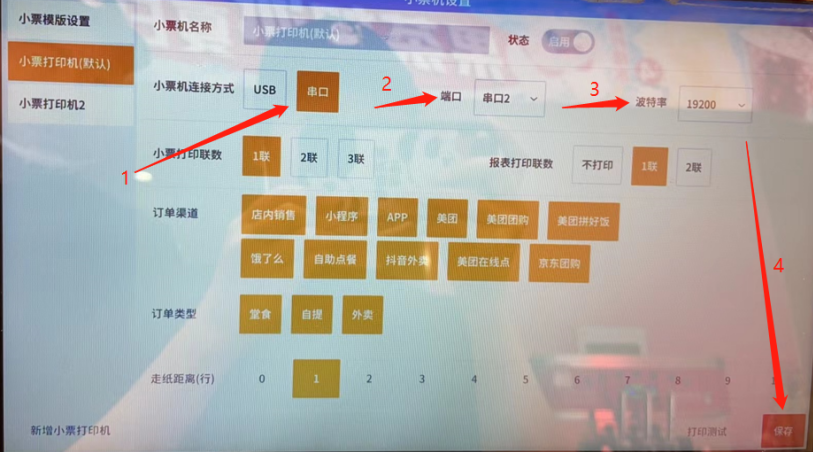
3If using a serial port connection: follow the steps shown in the image above.Click[Default Receipt Printer]Ticket machine connection method selection[Serial Port]. Select the correct serial port number (you can see the port numbers COM1, COM2, etc. on the Mixue POS machine interface; make sure to select the correct one).Then click save. Print a test print.
II. Frequently Asked Questions about RP850-US
askquestion1:How do I print the self-test page?
Solution: Turn off the printer, press and hold the FEED button while turning it back on, and it will automatically print a self-test page.
question2:The serial port connection is established but no printing is being done; the printer is unresponsive.
Solution: Print the self-test page and check the baud rate information. The normal factory baud rate is 19200, and the POS software needs to be set to 19200 accordingly.
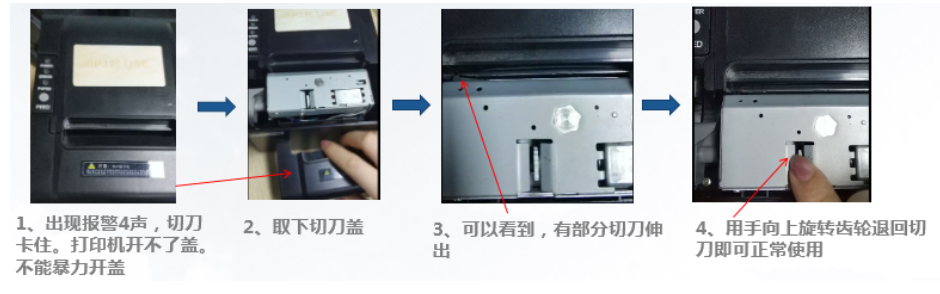
question3:Printer card cutter alarm4 voices.
Solution:

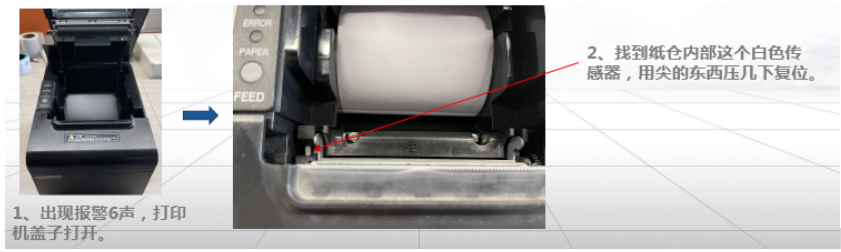
question4Printer cover opening error, alarm triggered.6 voices.
Solution:

question5The printer prints blurry prints.
Solution: 1. The printer mechanism has become contaminated with dirt due to long-term lack of cleaning, so the printer printhead needs to be cleaned.
2. If the printing paper has poor color rendering, you need to set a higher print density or use printing paper with better display quality.
?
question6How can I determine if my printer is beeping?
Judgment rules:


?
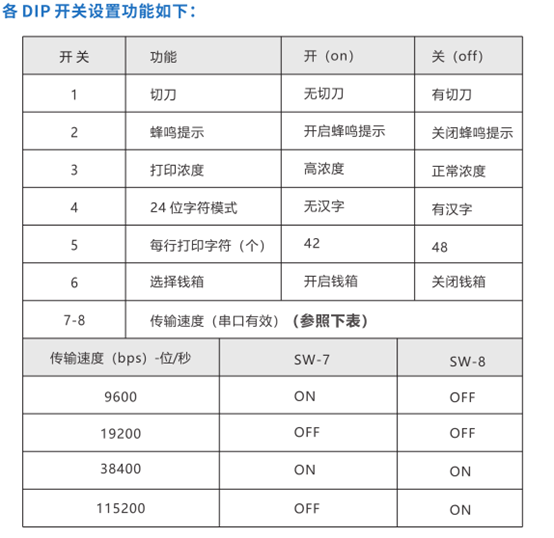
question7How do I set printer functions using DIP switches?
Solution: On some printer models, there's a small cover screw on the bottom; unscrew it to see an 8.A DIP switch can be used to configure the printer. For example, to disable the buzzer, the DIP switch can be adjusted.2Adjust to off (OFFThe position is as described.
?

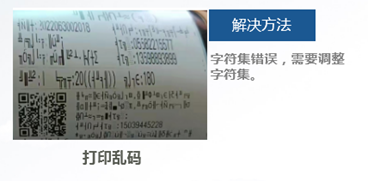
question8The printed text is garbled and Chinese characters are not displayed.
Solution: The printer is not displaying Chinese characters; you need to change the printer's character set.
?

Printer repair and maintenance and receipt integration tool usage
1. Daily maintenance of printers
1. Ensure the power is turned off during routine maintenance;
2、Do not touch the printhead surface with your hands or metal objects, and do not scratch the printhead, rollers, or sensor surface with tweezers or other tools;
3. Do not allow contact with gasoline, acetone, or other organic fluxes;
4. After cleaning the printer, wait for the anhydrous ethanol to completely evaporate before printing.
Part Two: Use and Storage of Printing Paper
1. Newly purchased printing paper should be stored away from direct sunlight or high temperatures. Do not tear open the packaging when storing it.
2. After printing, please store the documents at room temperature (about 20℃) away from light to effectively extend their shelf life.
3. If customers need to keep documents for a long time, please use long-lasting thermal printing paper.
IV: Appendix
If you encounter any issues that you are unable to resolve, please contact us promptly.
(a) Customer service contact information:
400 Hotline: 400-800-0596
customer serviceQQ: 2896793231
Telephone:15359867250 / Technical Support - Li Phone: 13395022371 / Technical Support - Wu
(II) After-sales contact information:
Receipt: After-sales Service Department
Telephone:15359340780
Address: Tonghui South Road, Industrial Concentration Zone, Tongan District, Xiamen City, Fujian Province Rongda Science and Technology Park, No. 88
Return Repair Instructions: When returning the device for repair, please include the return address, contact information, a list of all items packed in the box, and a detailed description of the malfunction in the package. This will help improve the efficiency of the repair process. Thank you for your support! If you require collect on delivery (COD), please communicate with us in advance. Otherwise, the device will be returned via the original shipping method as per the sender's information.
?