

 80mm Receipt Printer
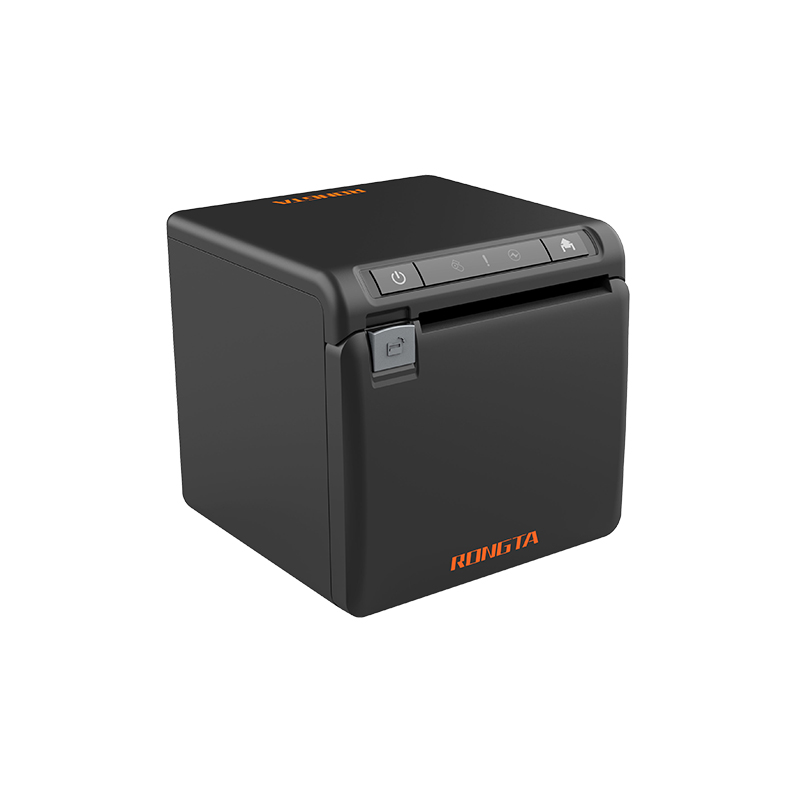 ACE H2 Receipt Printer
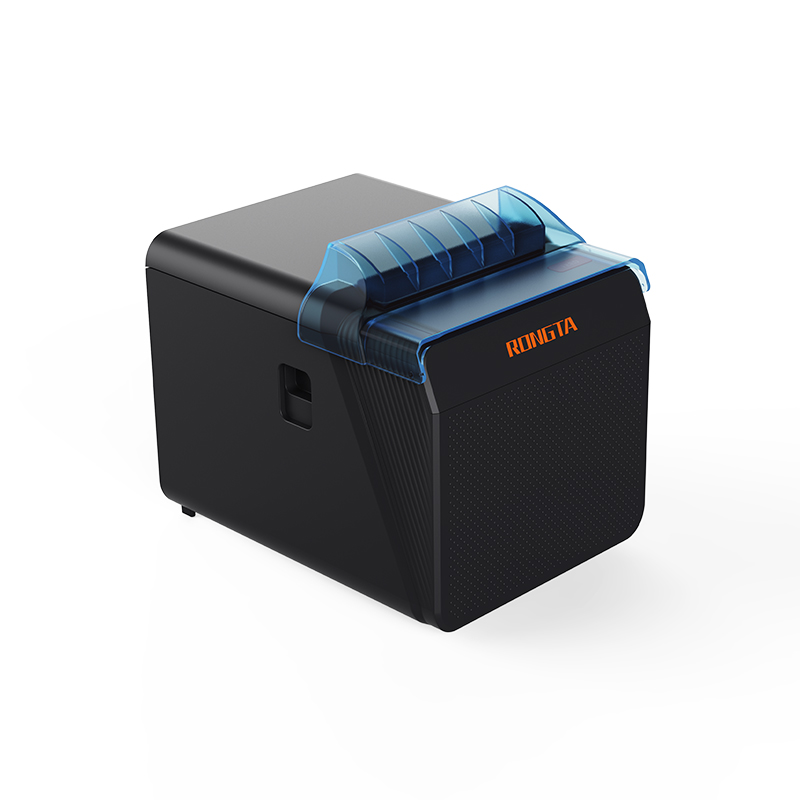 RP337 Receipt Printer
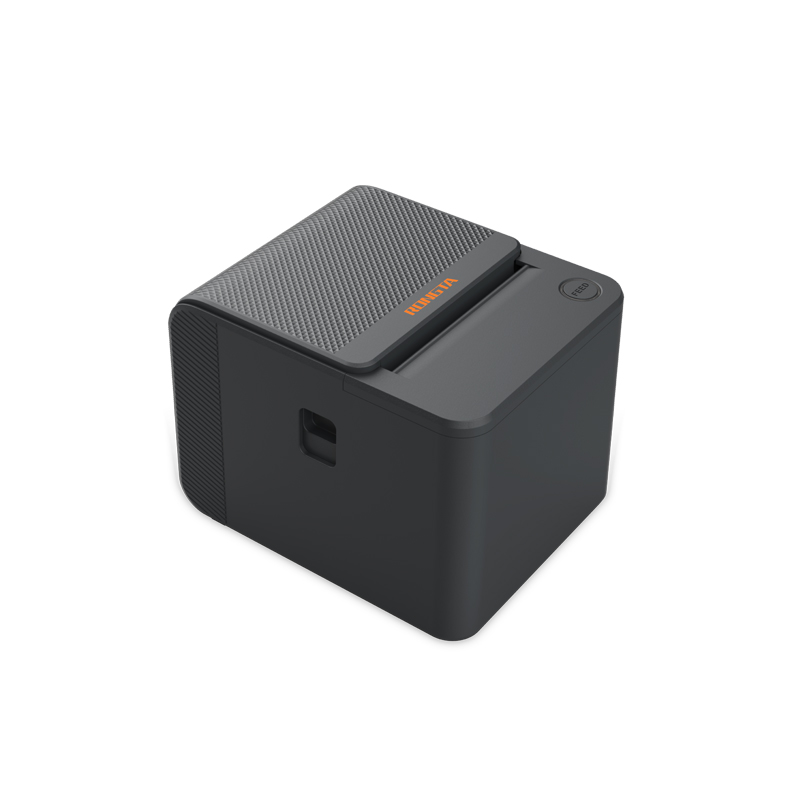 RP336S Dual-Color Receipt Printer
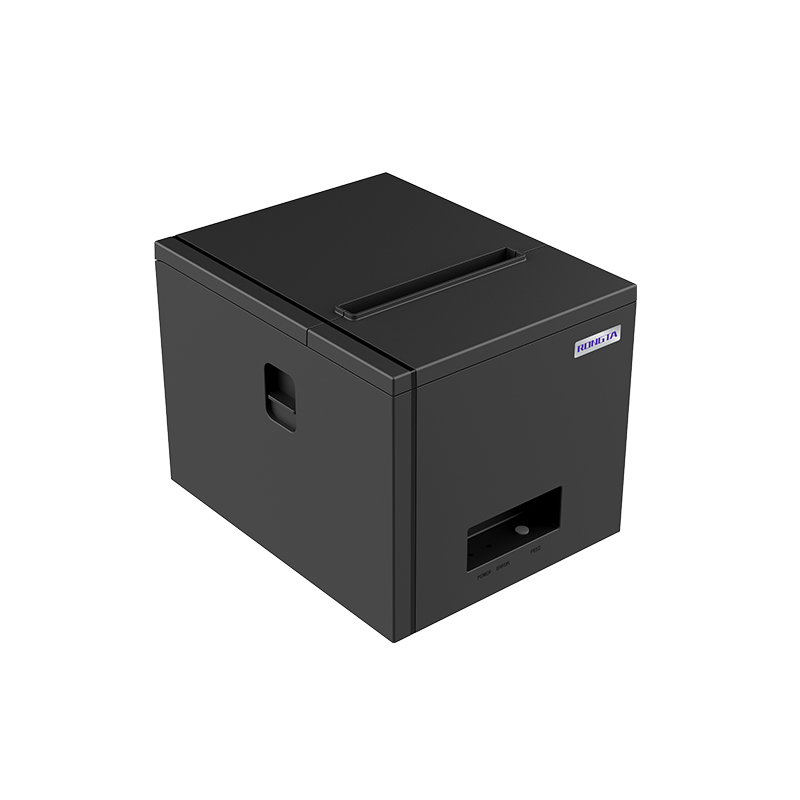 RP350 Receipt Printer
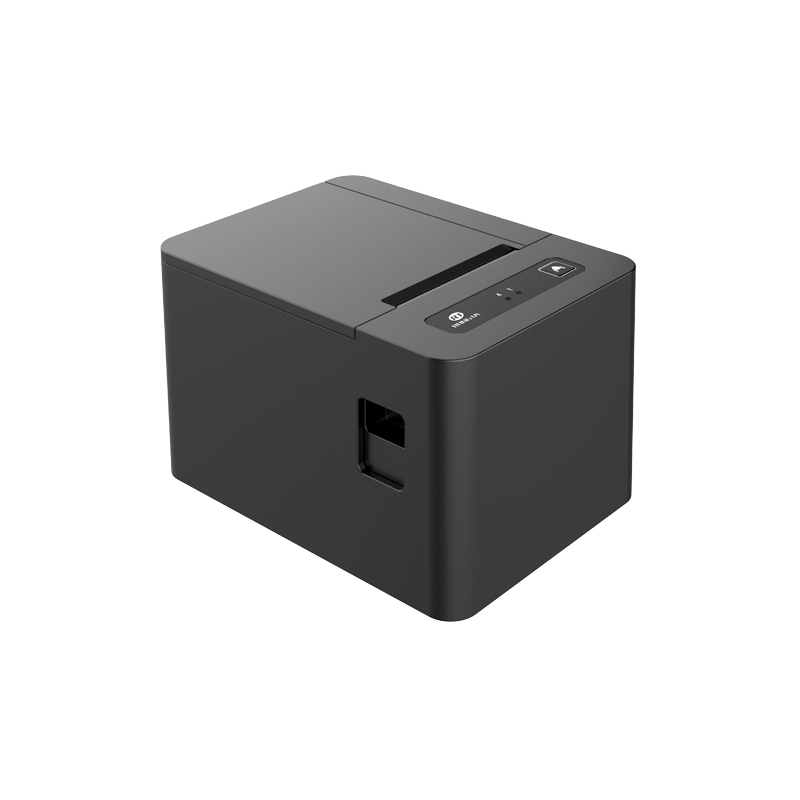 RP582 Receipt Printer
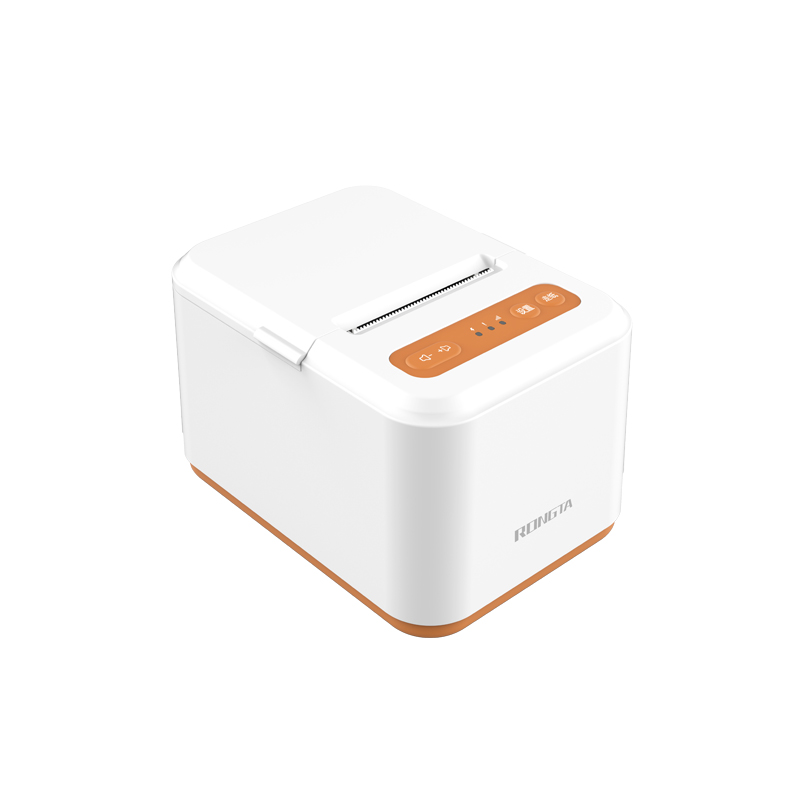 RP581 Receipt Printer
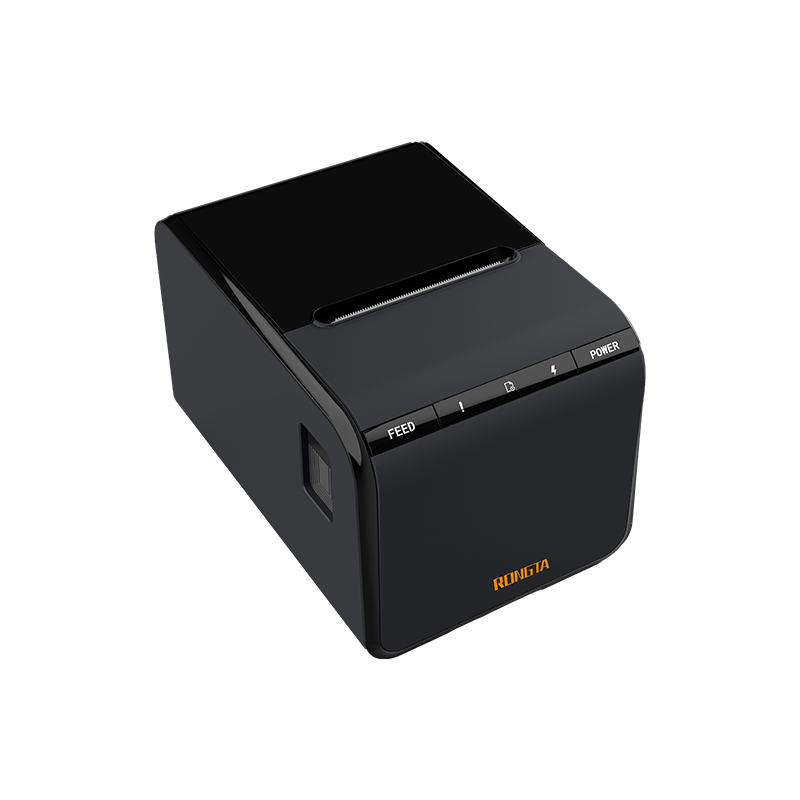 ACE G1Y Receipt Printer
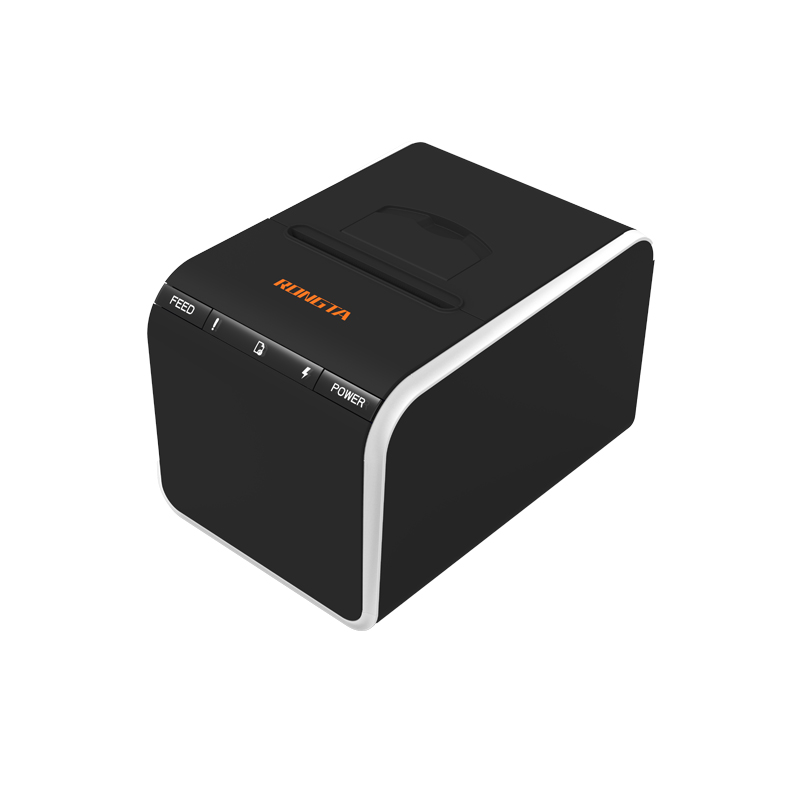 ACE G1YP Cloud Printer
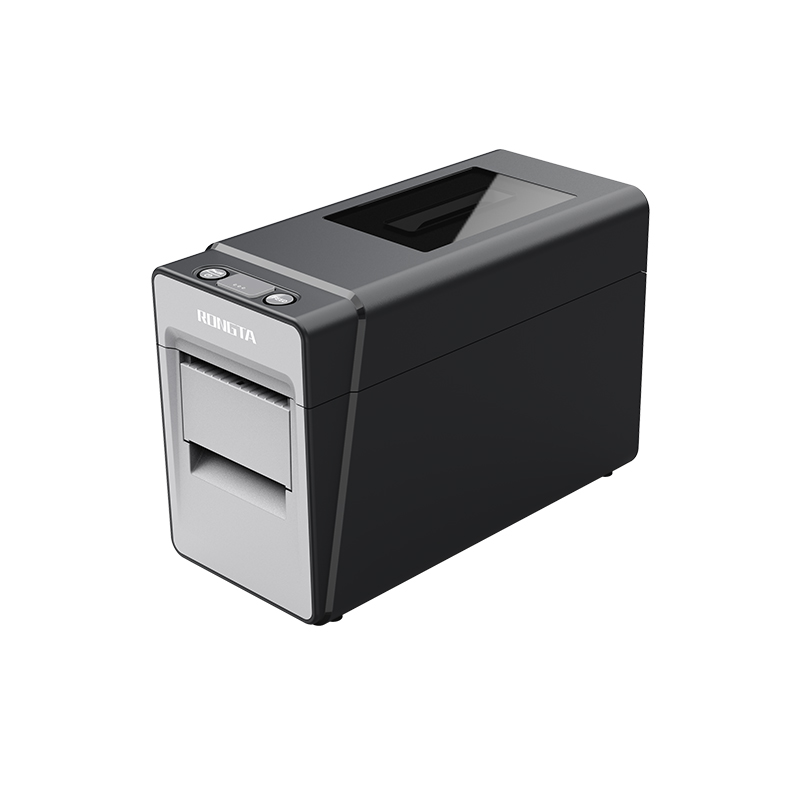 RP216 2'' Dual-color High-definition Label Printer
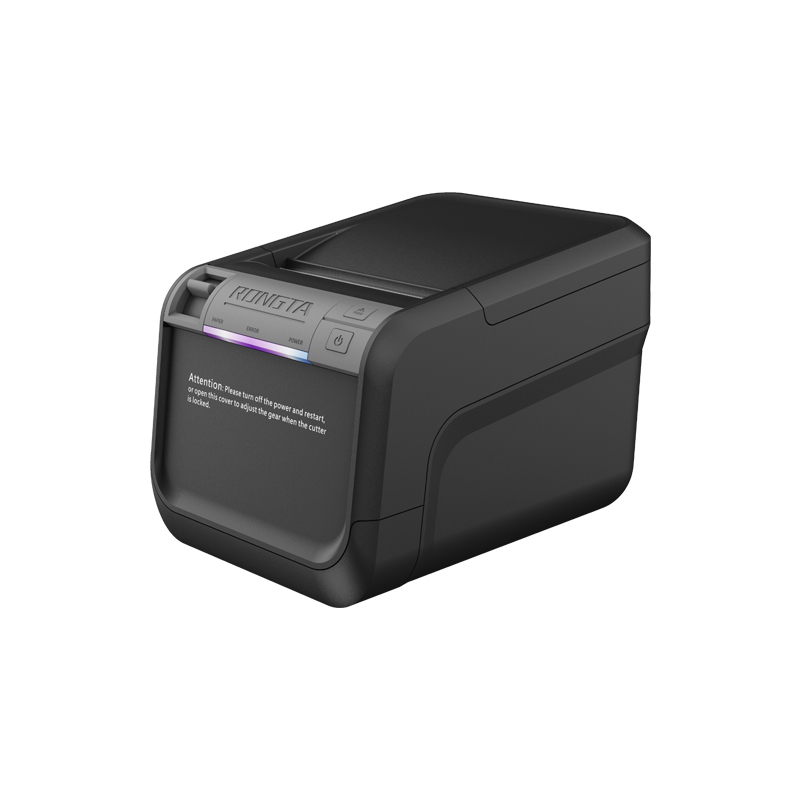 ACE V1S 3'' Backless Label Printer
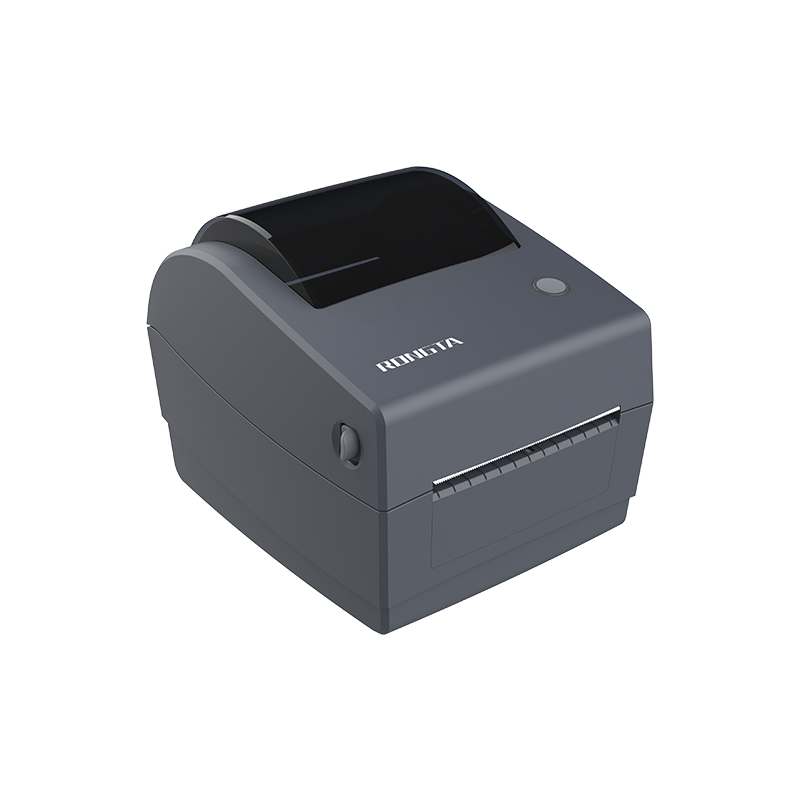 RP310D 3'' Dual-color Label Printer
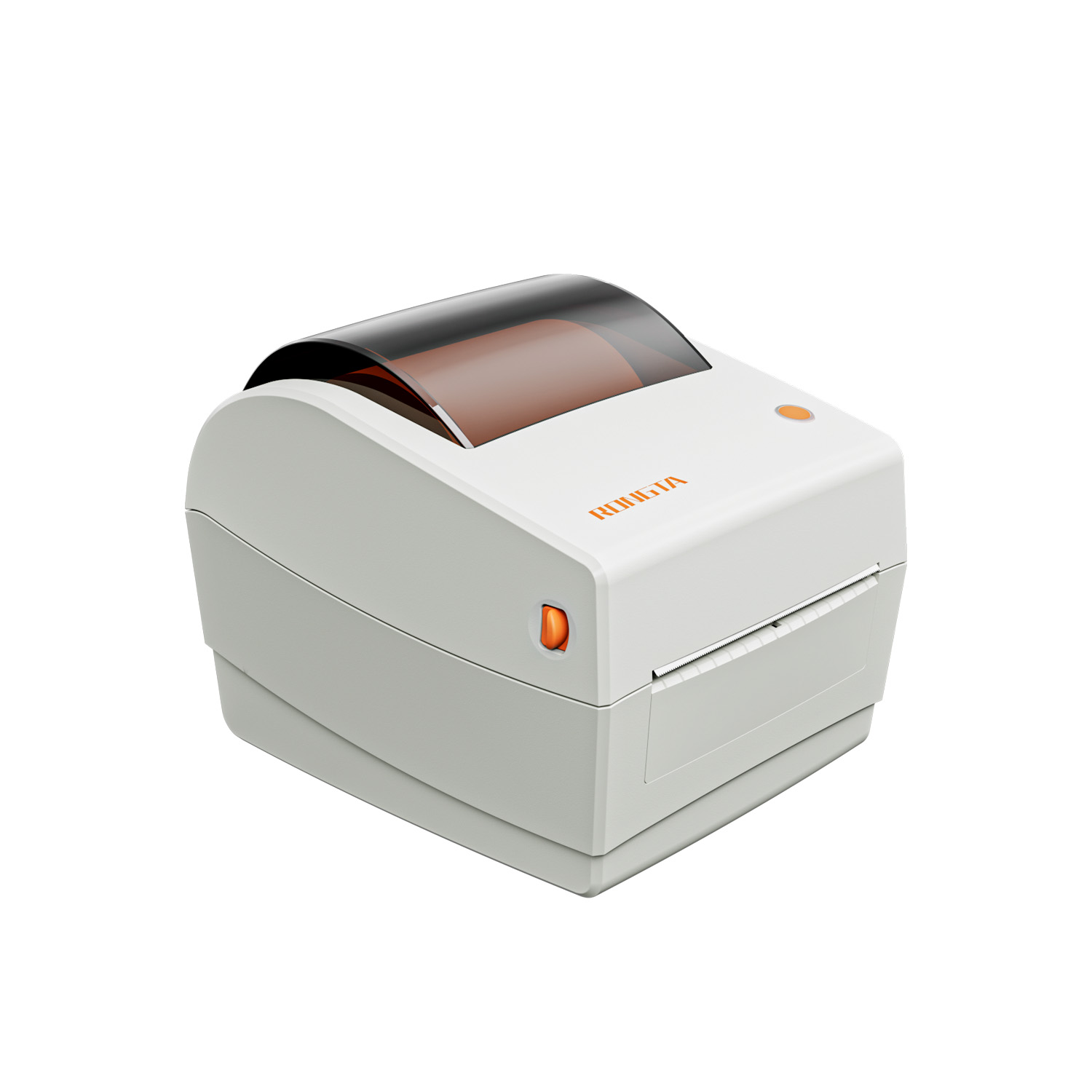 RP410N 4'' Thermal Label Printer
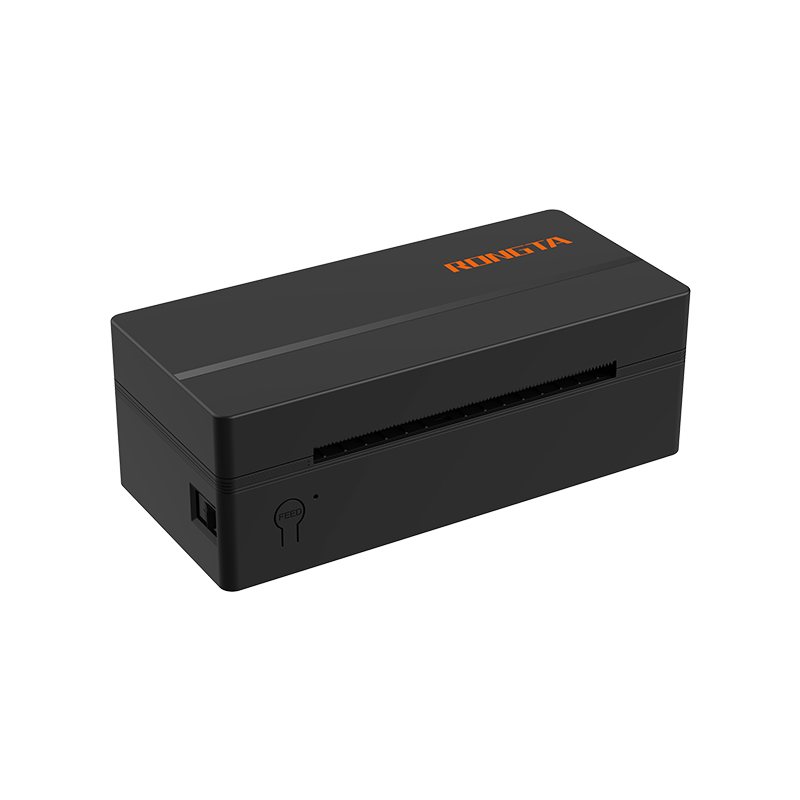 RP425 4'' Electronic Waybill Printer
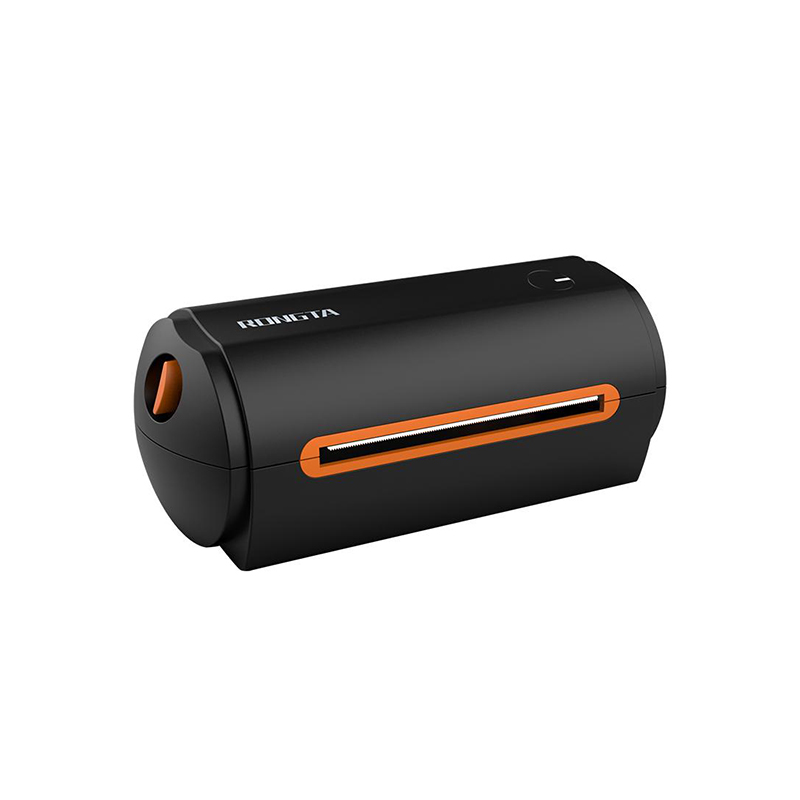 RP422 4'' Electronic Waybill Printer
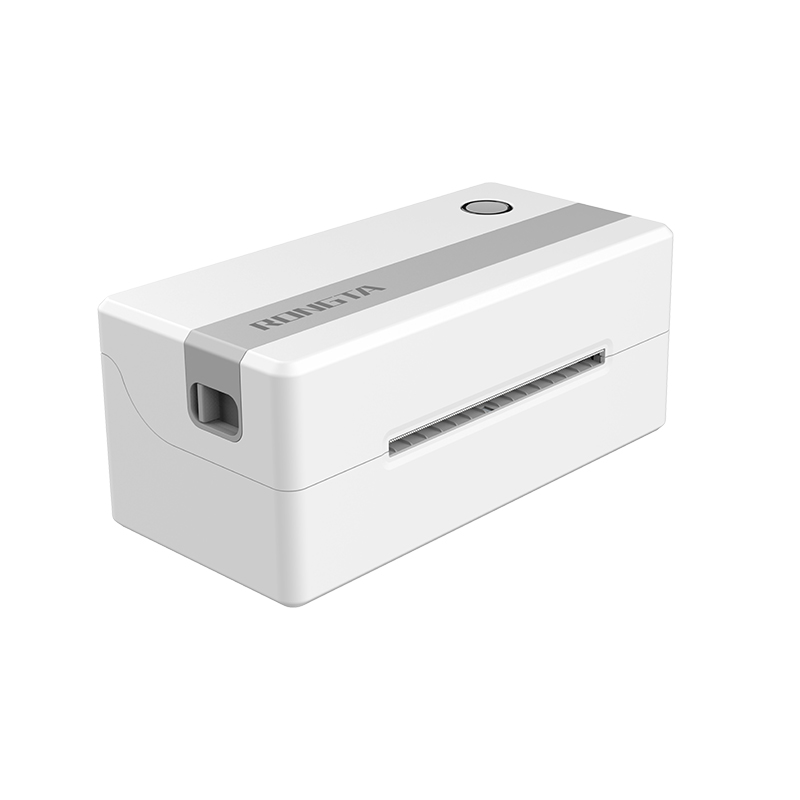 RP421A 4'' Electronic Waybill Printer
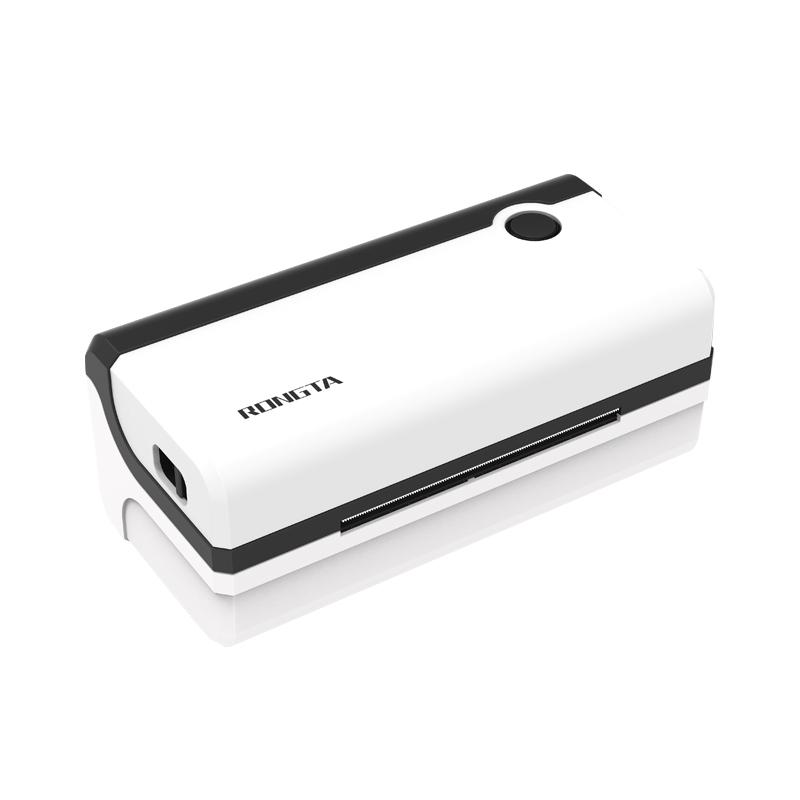 RP420 4'' Electronic Waybill Printer
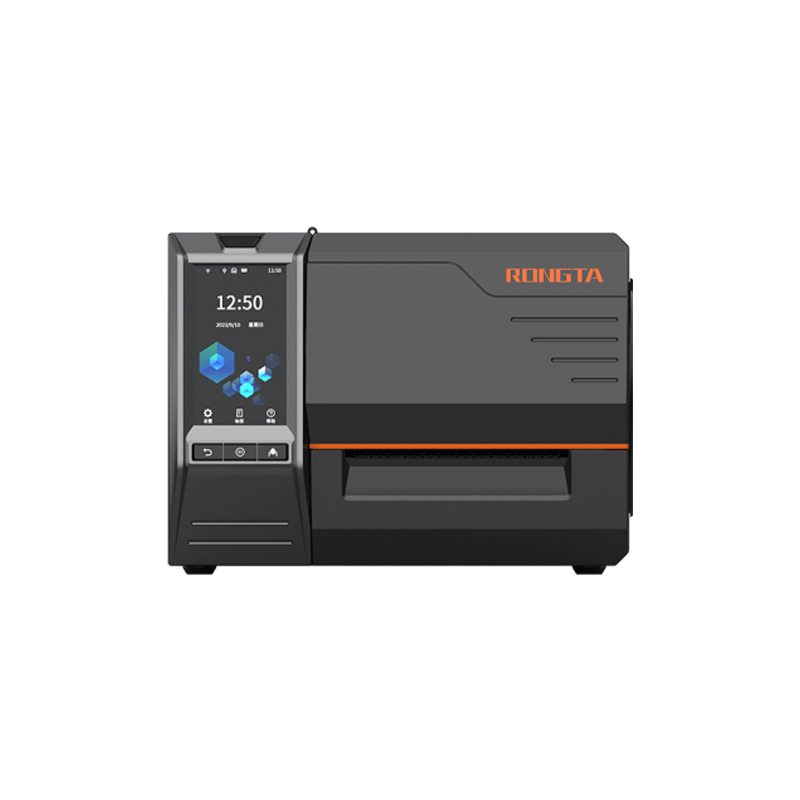 RI463 Series Barcode Printers
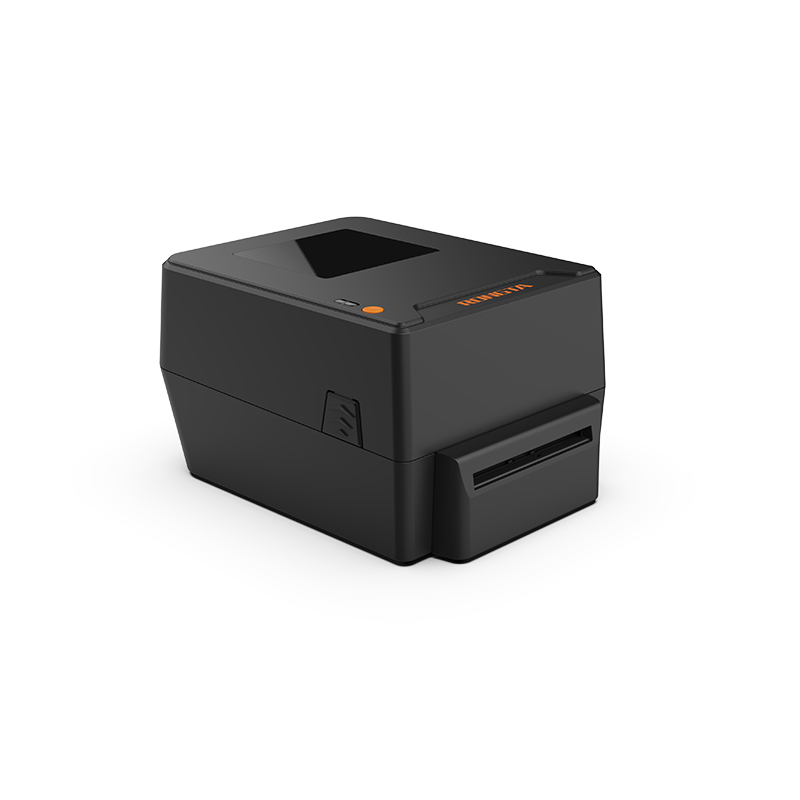 RP400A 4'' Thermal Transfer Tape Cutter Printer
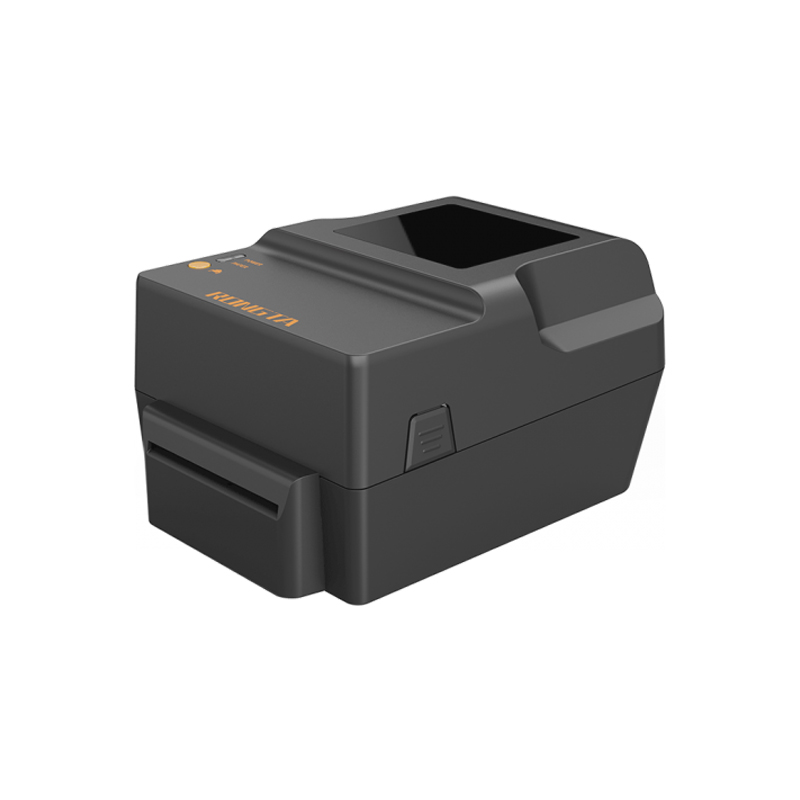 RP400H 4'' Thermal Transfer Tape Cutter Printer
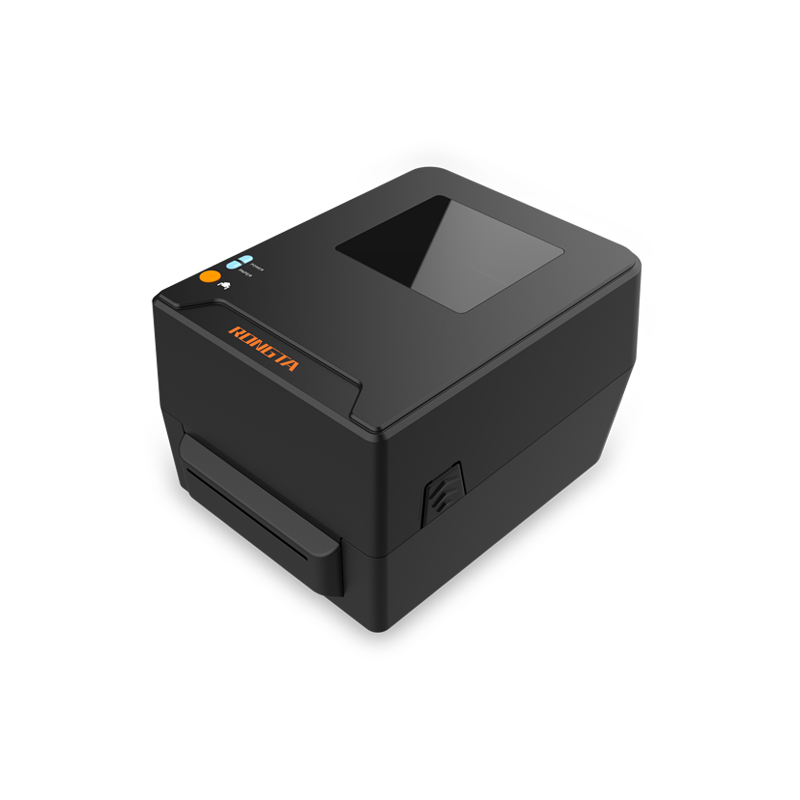 RPF413 300dpi RFID barcode label printer
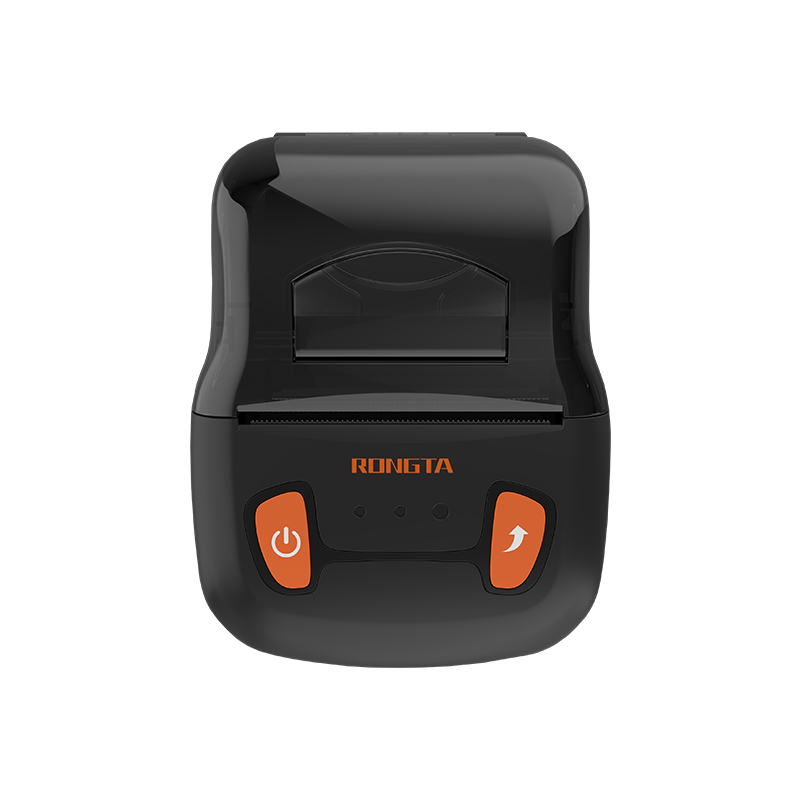 RPP02A Portable Receipt Printer
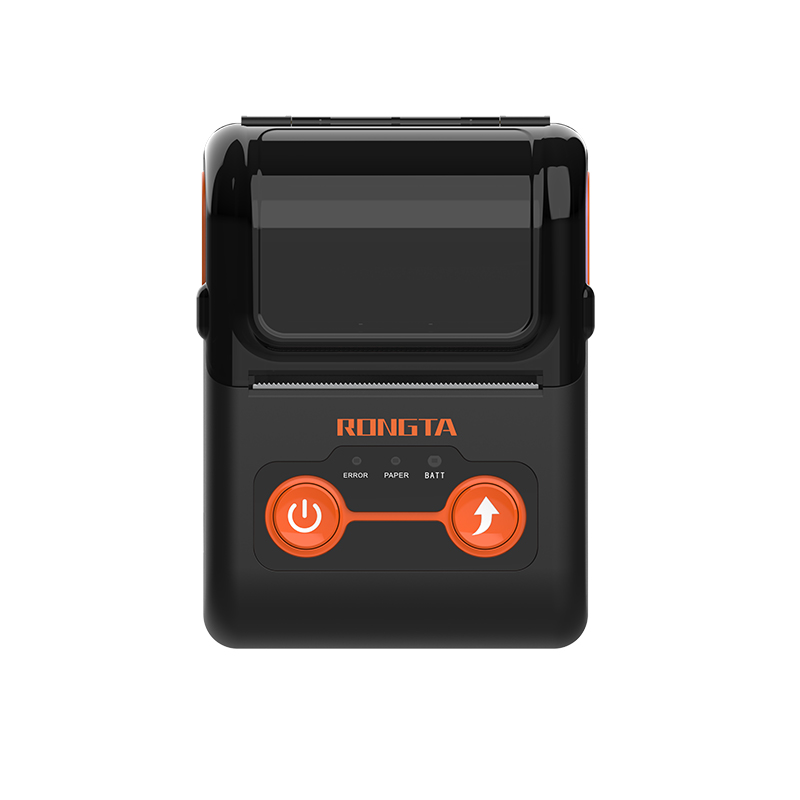 RPP02B Thermal Portable Printer
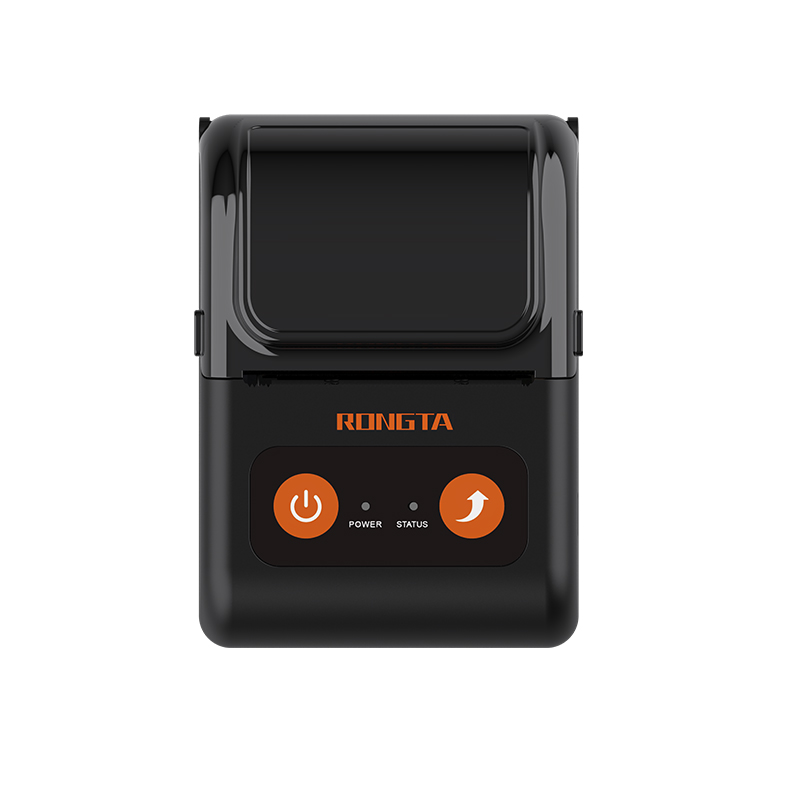 RPP02C Portable Receipt Printer
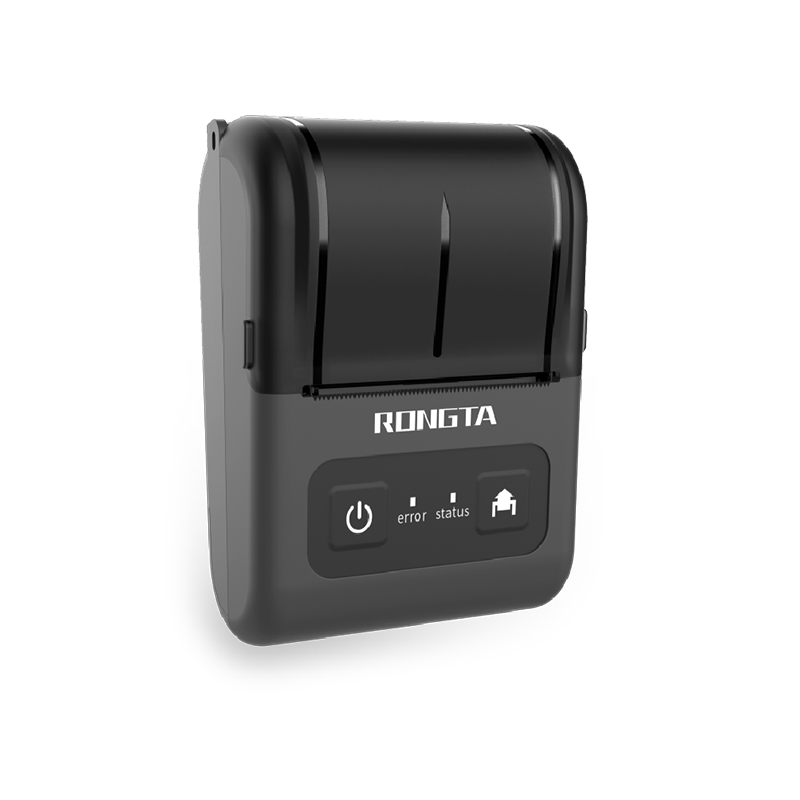 RPP02D Thermal Portable Printer
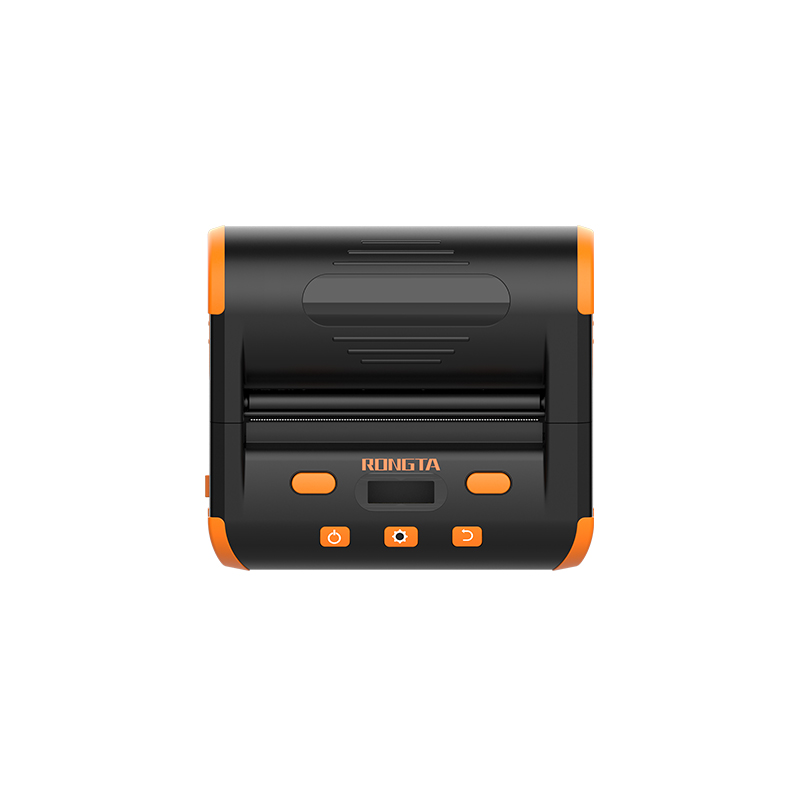 RPP04 4" Portable Label Printer
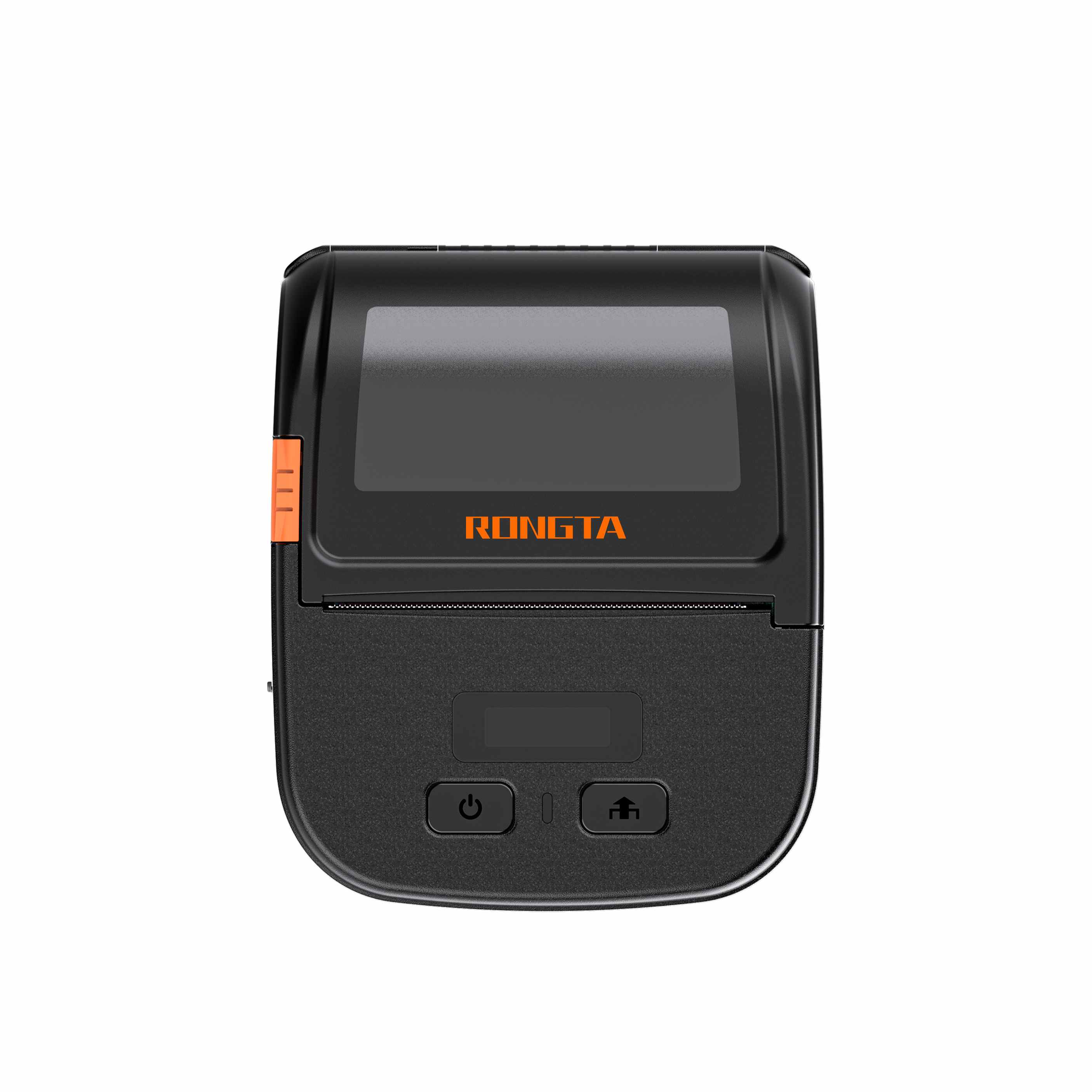 RPP30 3" Portable Label Printer
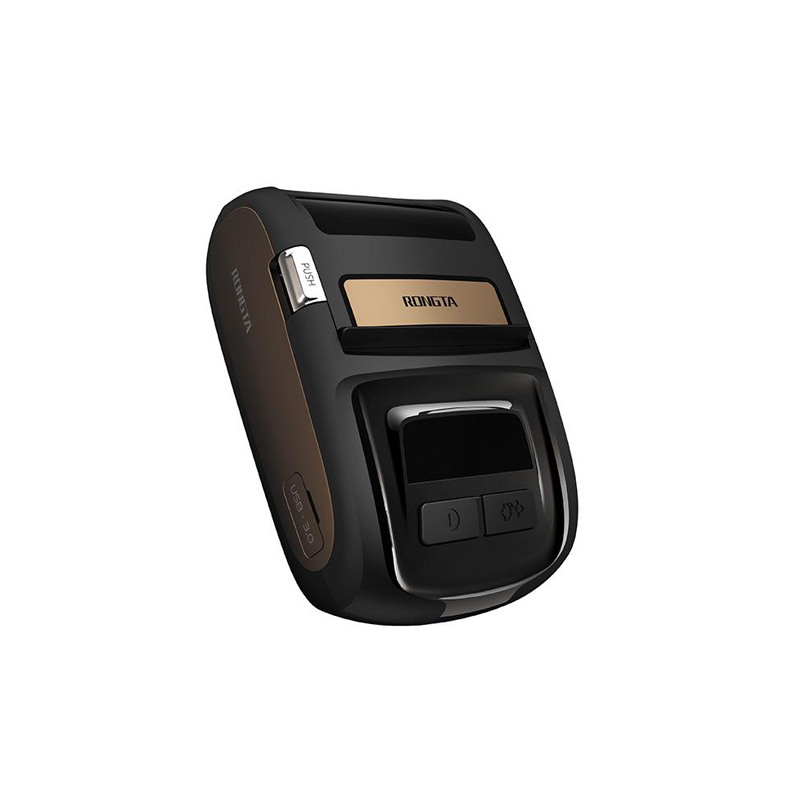 ACE M1 2" Portable Label Printer
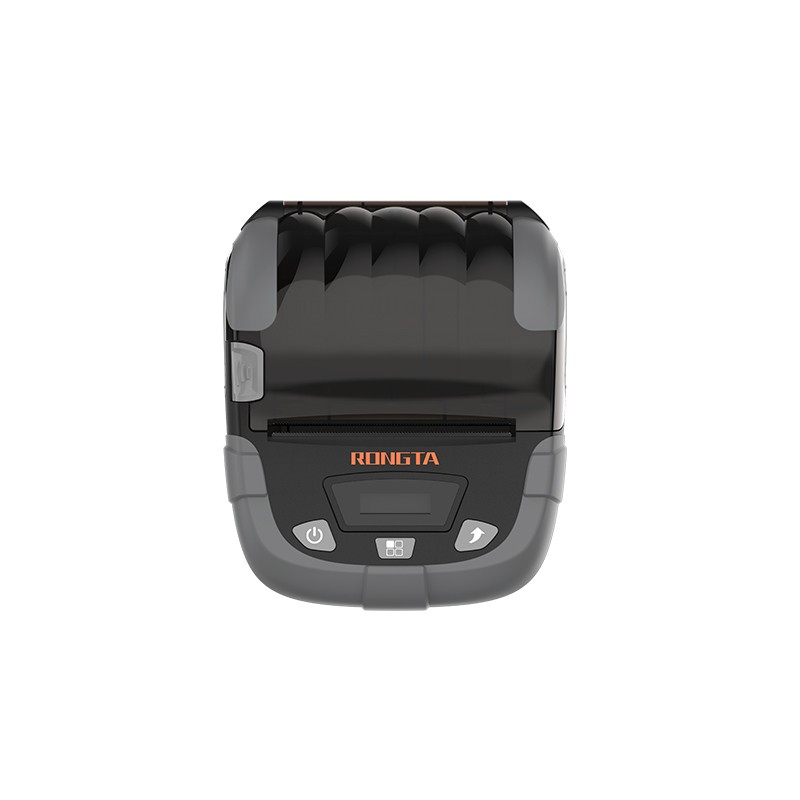 RPP320N 3" Portable Label Printer
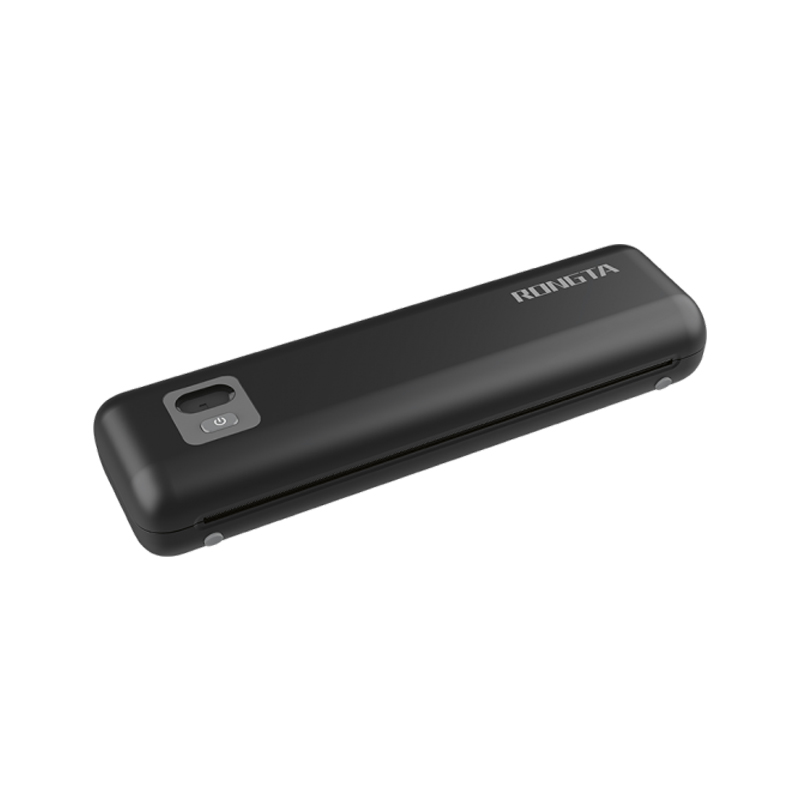 F82A A4 Front-Out Paper Tray Thermal Printer
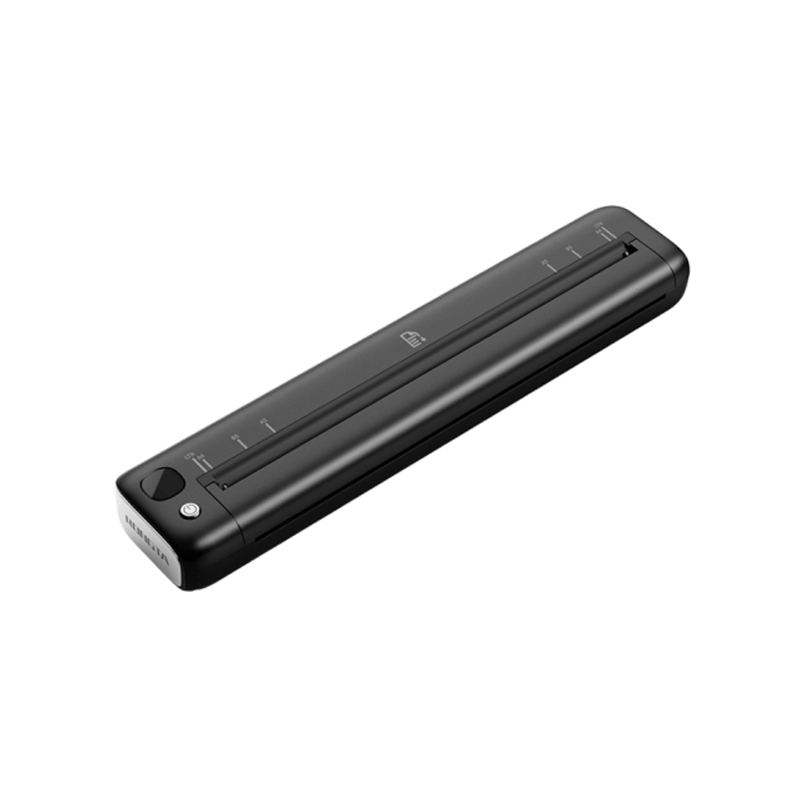 F81A Portable A4 Thermal Printer
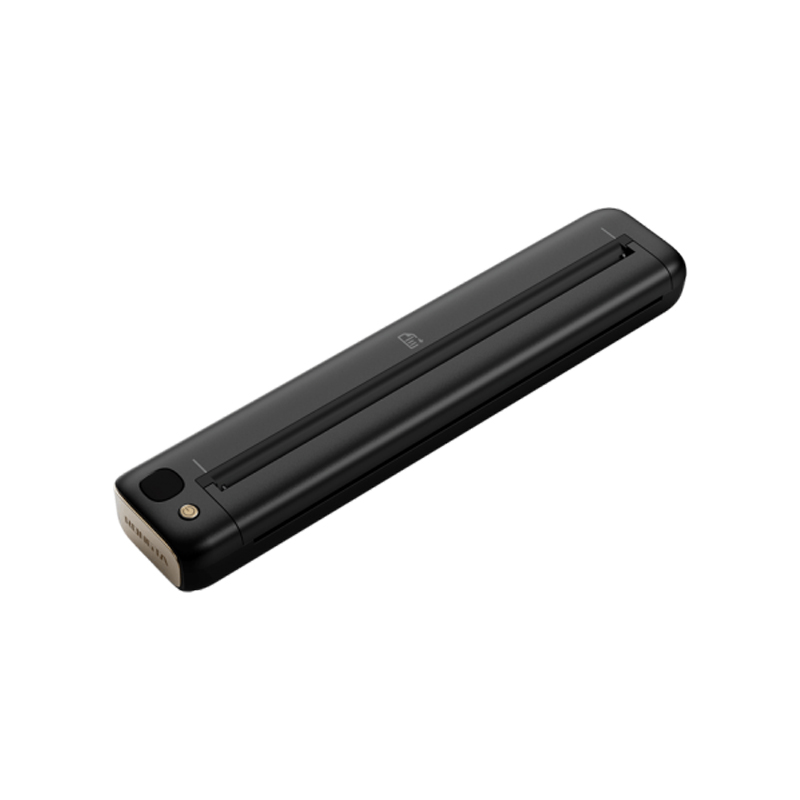 F81S Portable A4 Tattoo Printer
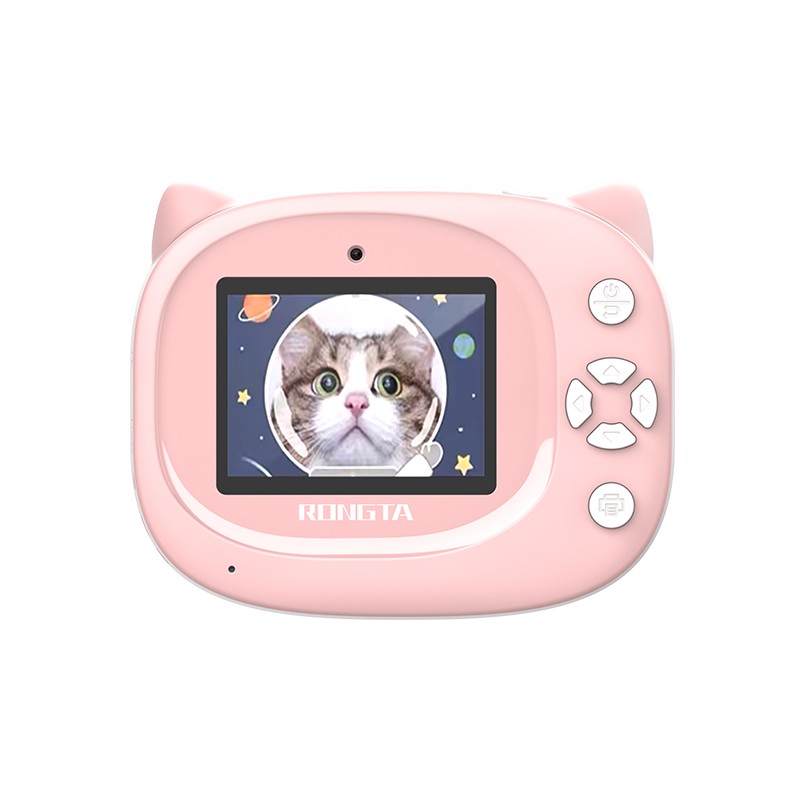 Z1 Children's Educational Photo Printer
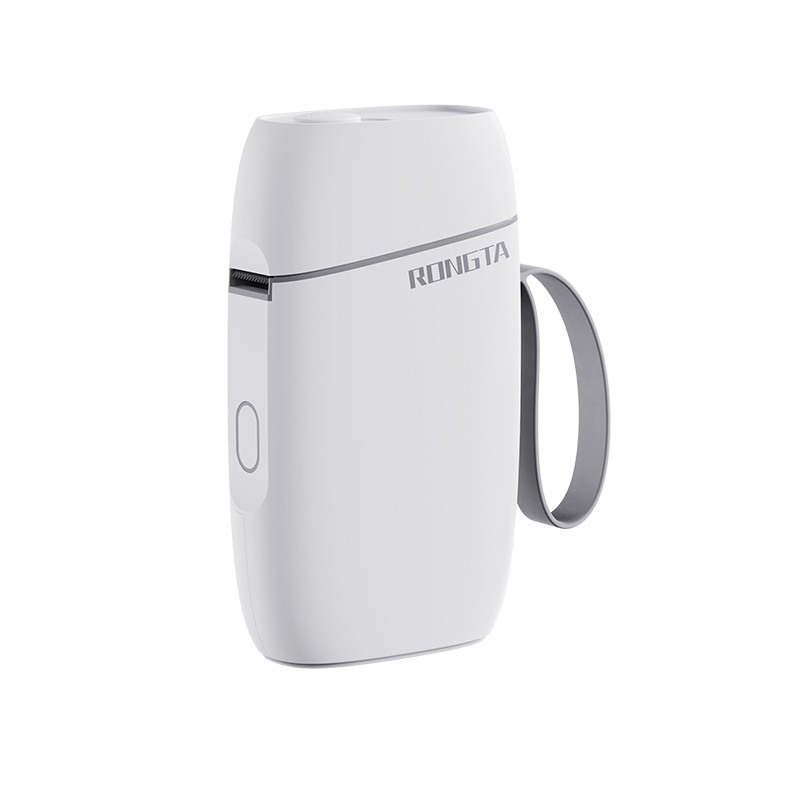 R5 Mini Label Printer
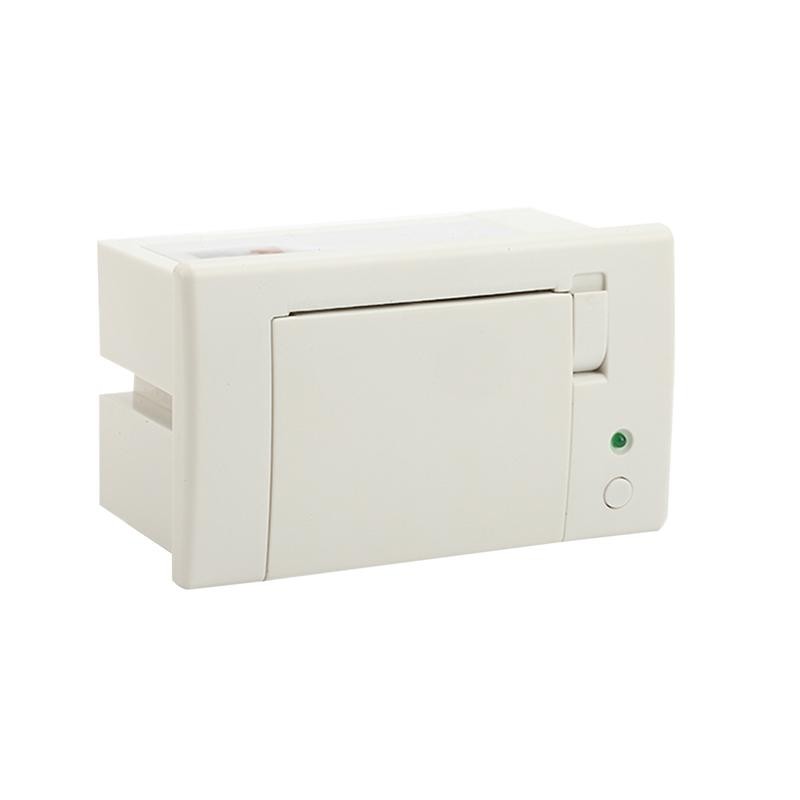 RP07 58mm Embedded Printer
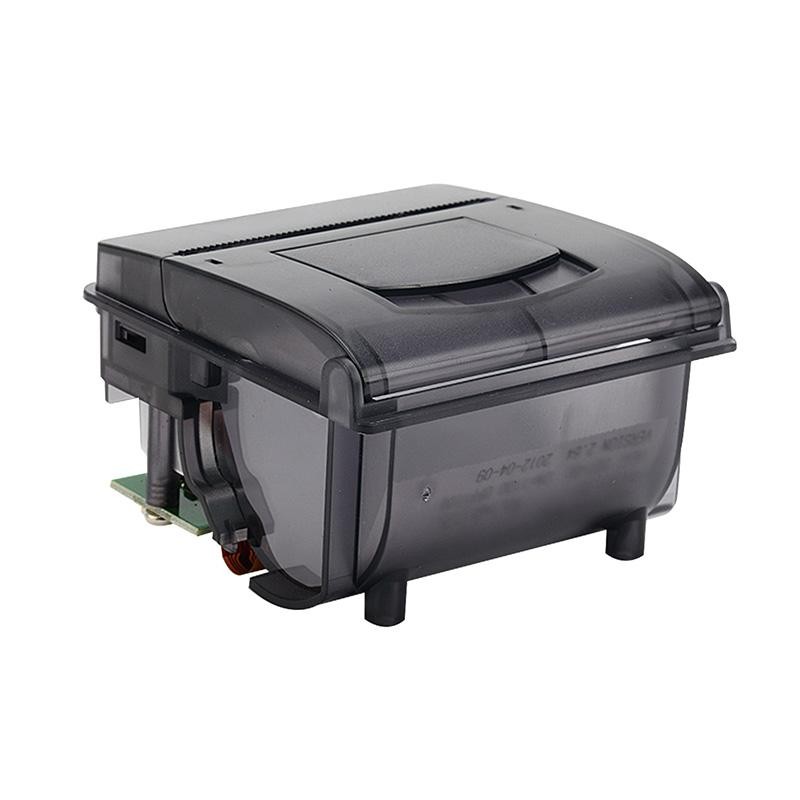 RP203 58mm Embedded Printer
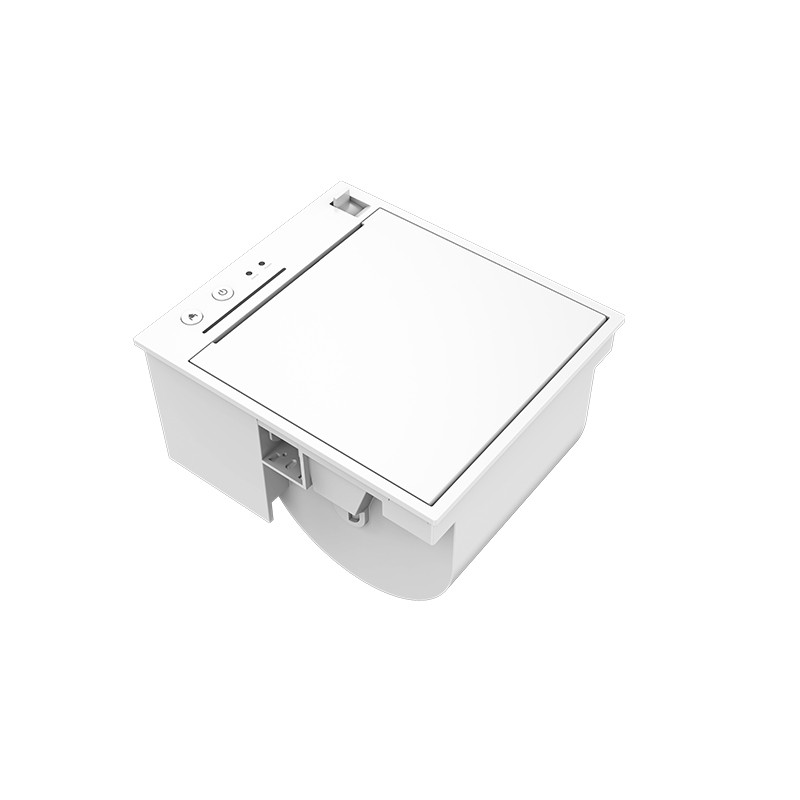 PM315 Embedded Thermal Printer
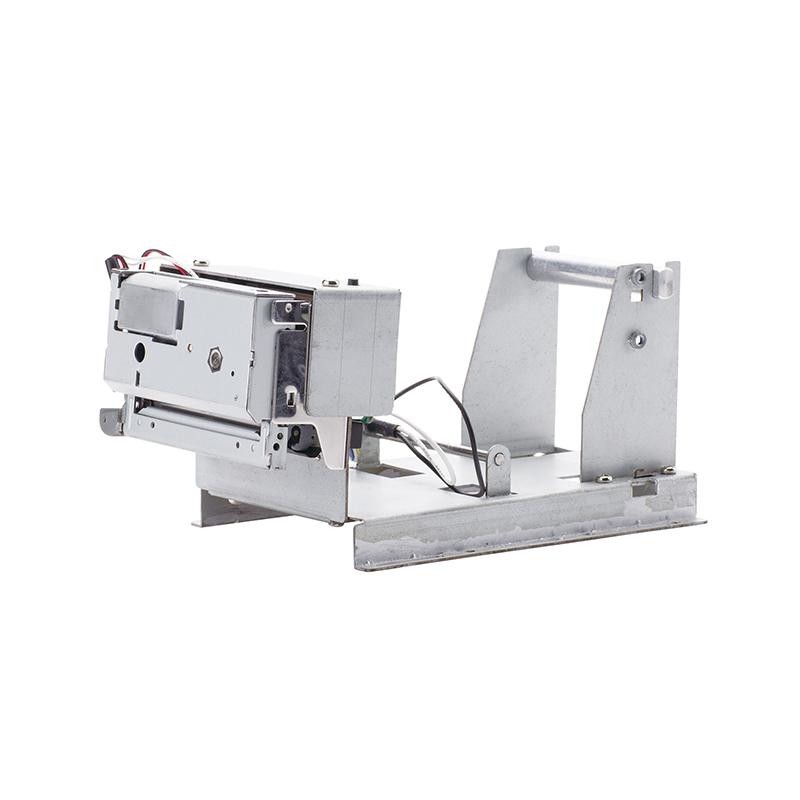 PM201 48mm Printing Module
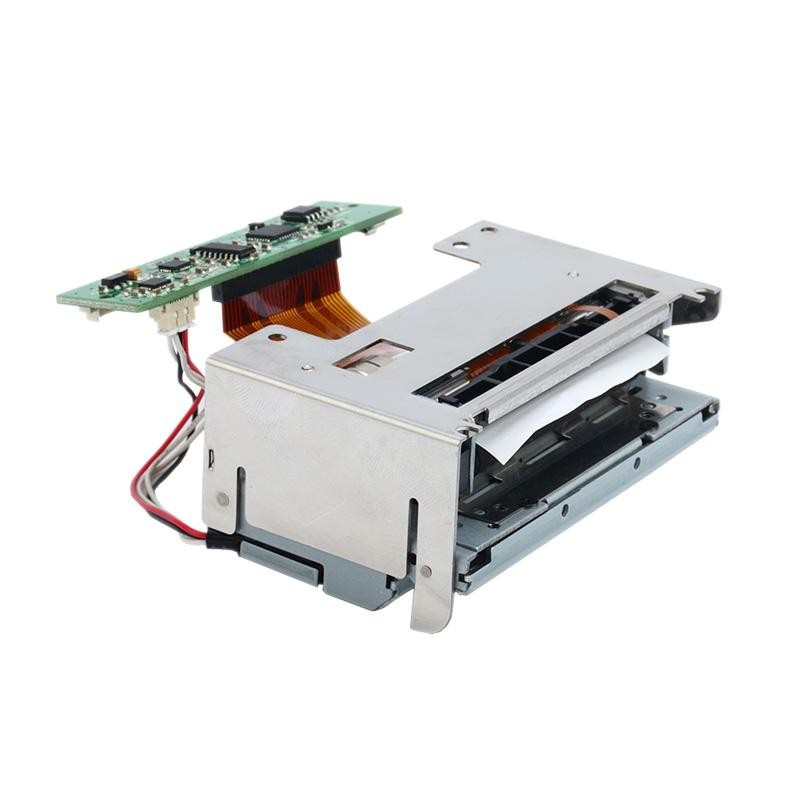 PM628 58mm printing module
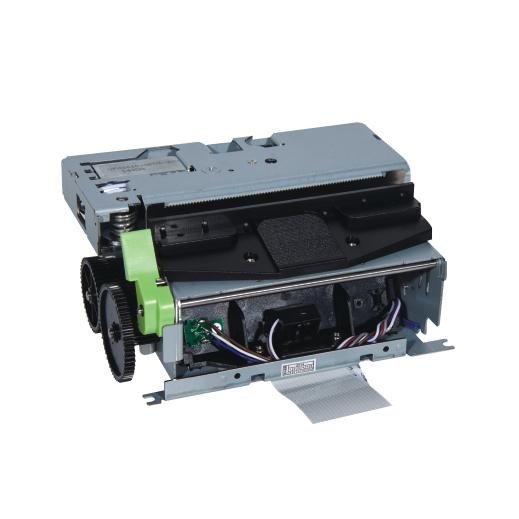 PM532A Printing Module
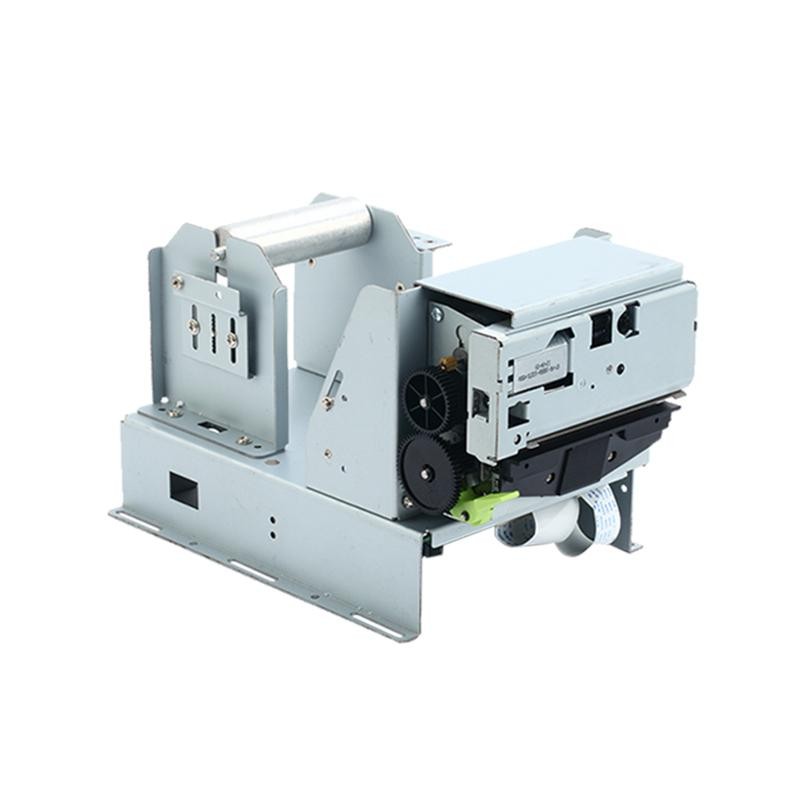 PM532B printer module
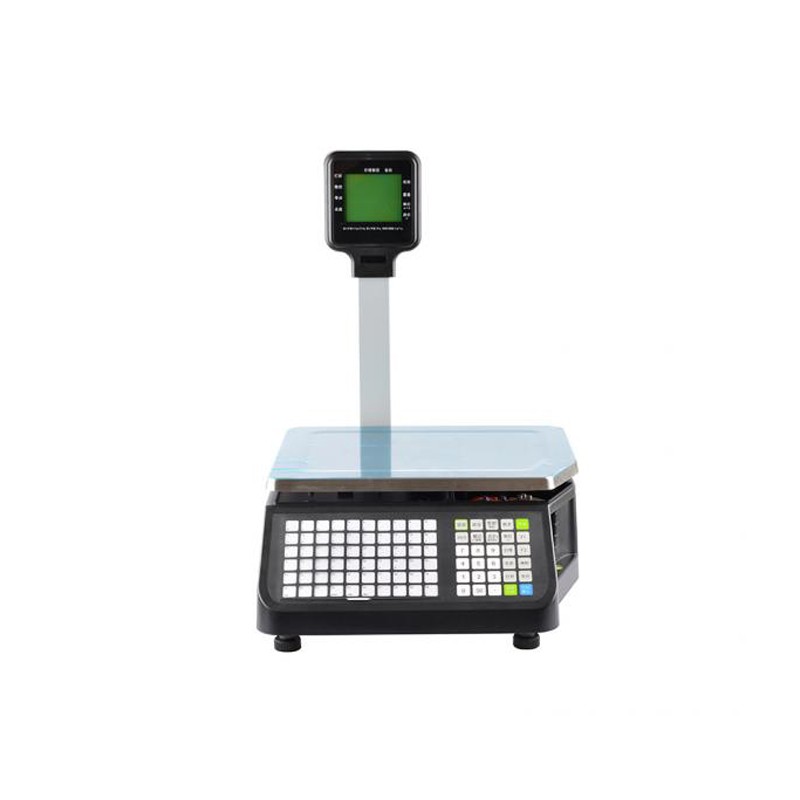 LS015/LS015A Barcode Scale
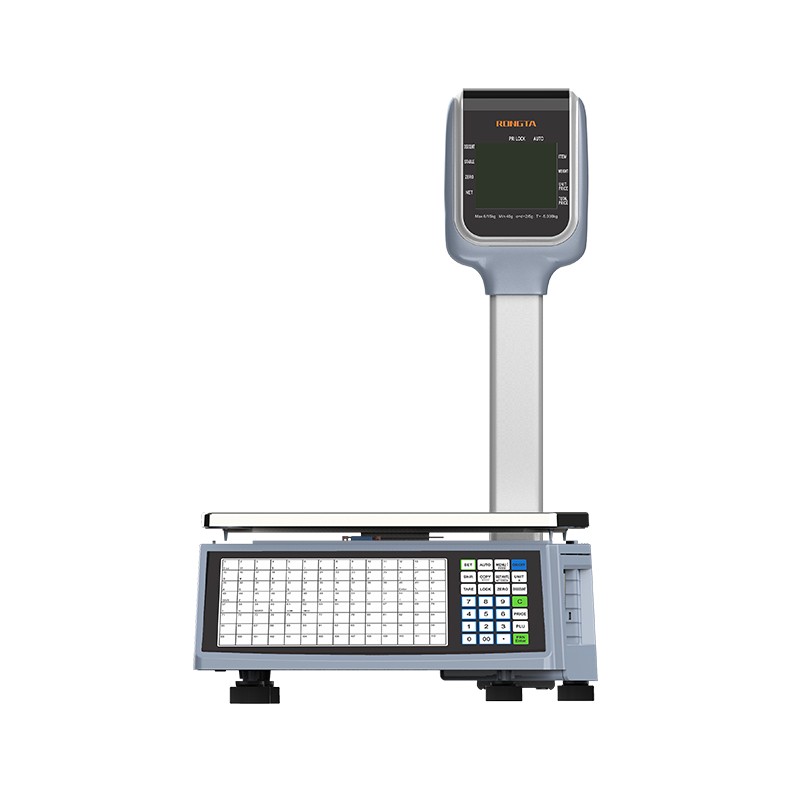 RLS1815D/RLS1830D Barcode Scale
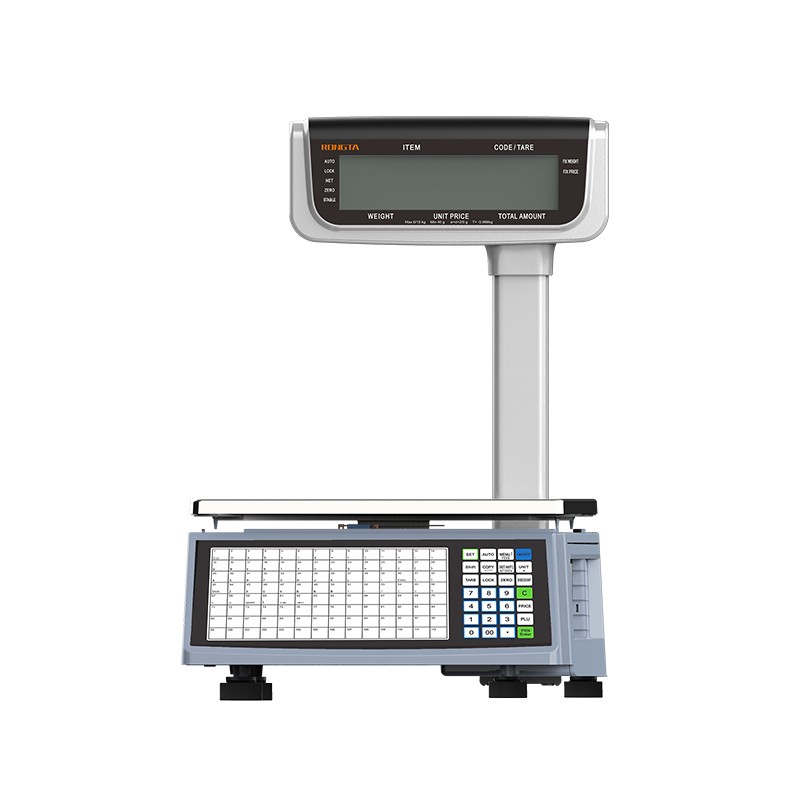 RLS1815C/RLS1830C Barcode Scale
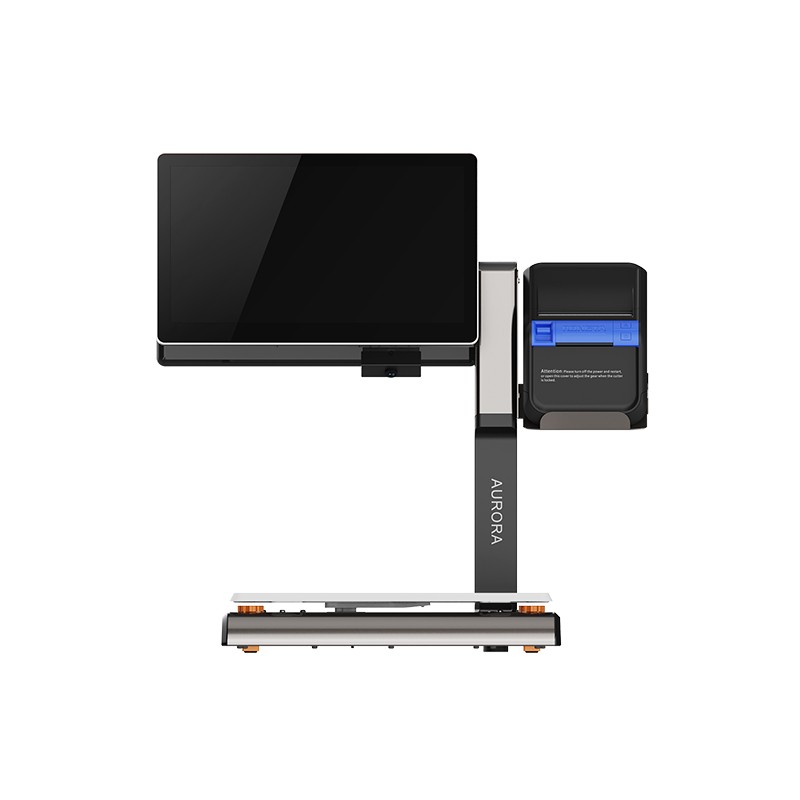 AURORA S2L-S Labelless Scale
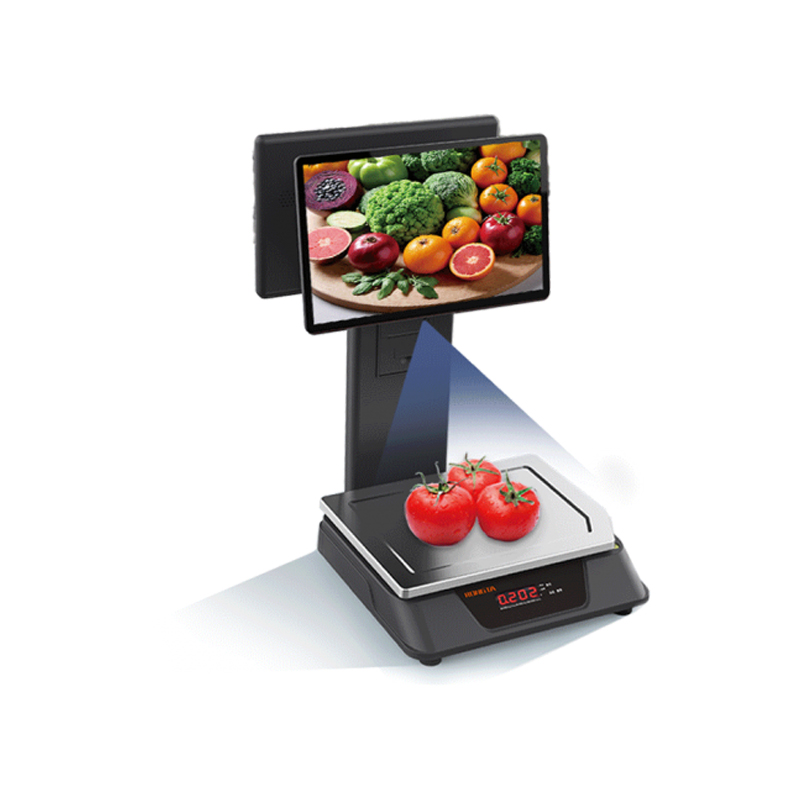 AURORA E1 PRO-AI Cash Register Scale
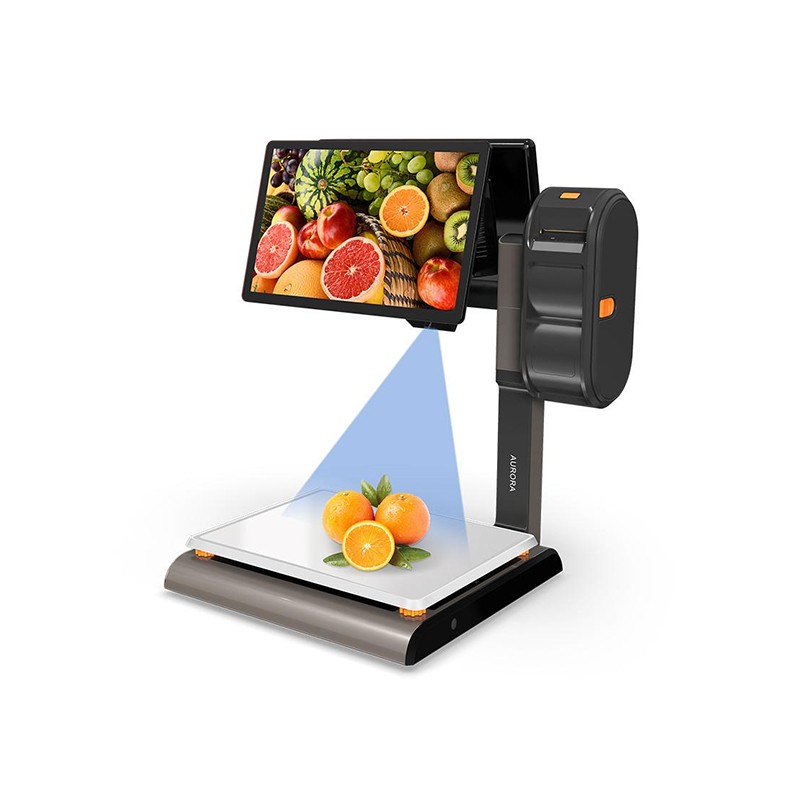 AURORA S2L-AI Label Scale
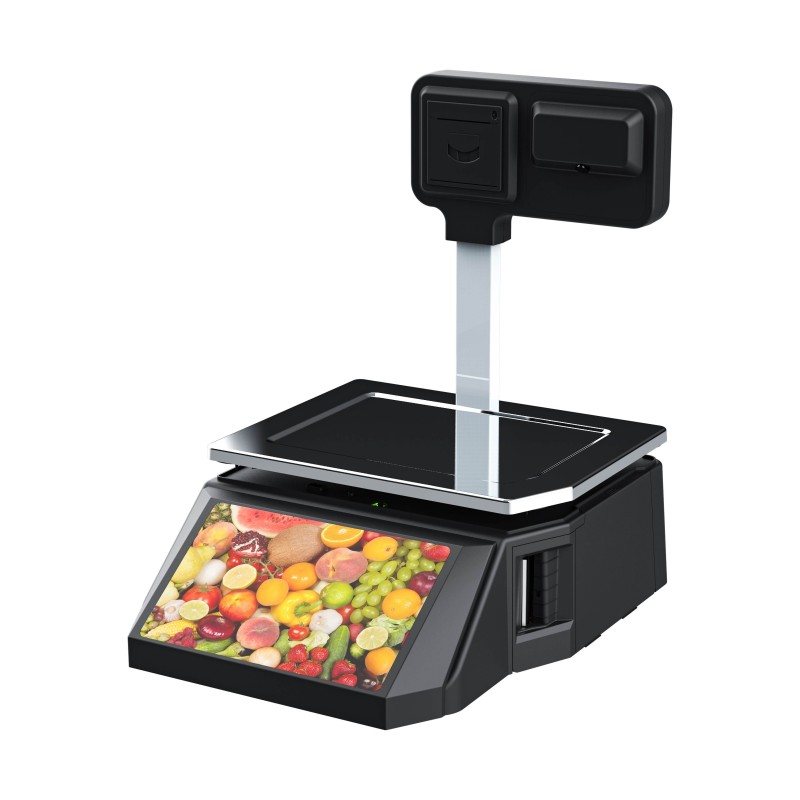 DP01-AI Smart Tag Cashier Dual-Use Scale
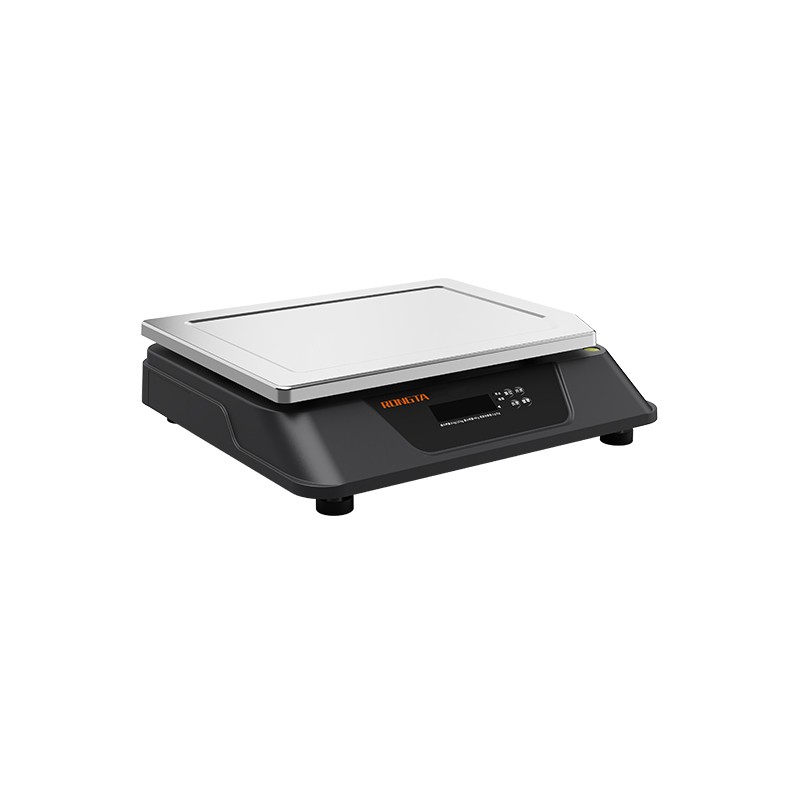 C3 Weighing Scale
 C1 weighing scale
 C11 Weighing Scale
 retail
 FOOD
FOOD Medical
 Mobile office/home
 asset Management
 logistics
 Driver download
 User Manual
 Tool Download
 Tag software
 Product Video
 Development Documentation
 Frequently Asked Questions
 User Guide
 Company News
 Exhibition Updates
 Industry Insights
 Product Update
 General situation
 Development history
 Honors and Qualifications
 R&D strength
 Team activities
 Social responsibility




RPP31(SF-FAQ)
SF ExpressRPP31Common Problem Troubleshooting Guide
1. Basic Function Descriptionbright
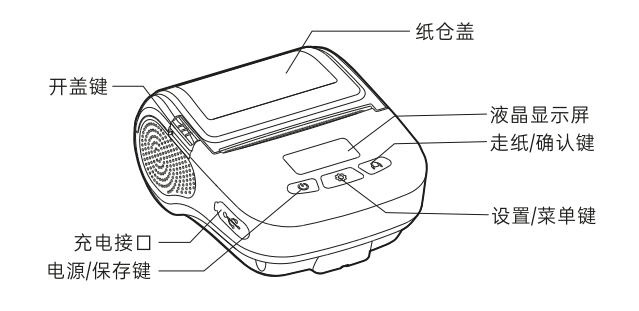
1.1 Appearance and Component Description
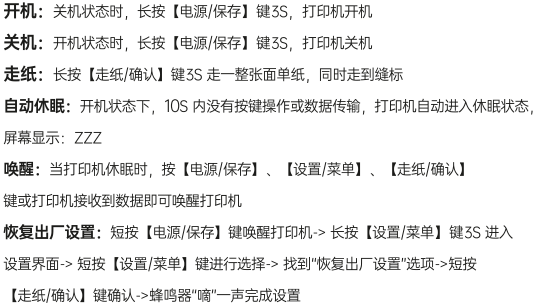
1.2 System Operation Instructions
?
1.3 Menu Function Description
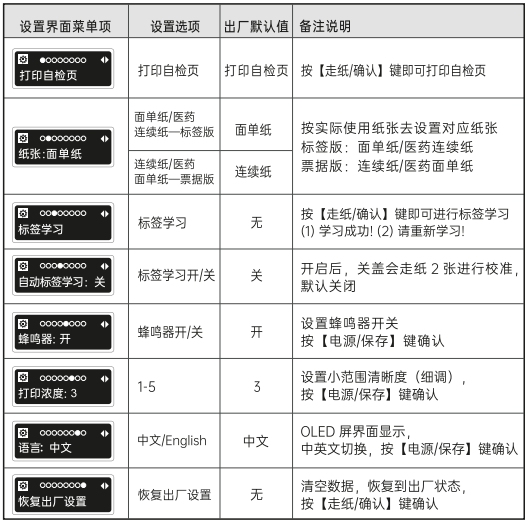
Short press the [Power/Save] button to wake up the printer → Long press the [Settings/Menu] button for 3 seconds to enter the settings interface → Short press the [Settings/Menu] button to make a selection → Switch to the corresponding menu interface, and use the [Power/Save] button and [Paper Feed/Confirm] button to switch and confirm;
Menu functioninterface:
2. Daily Operation Instructions
2.1PrintSelf-test page
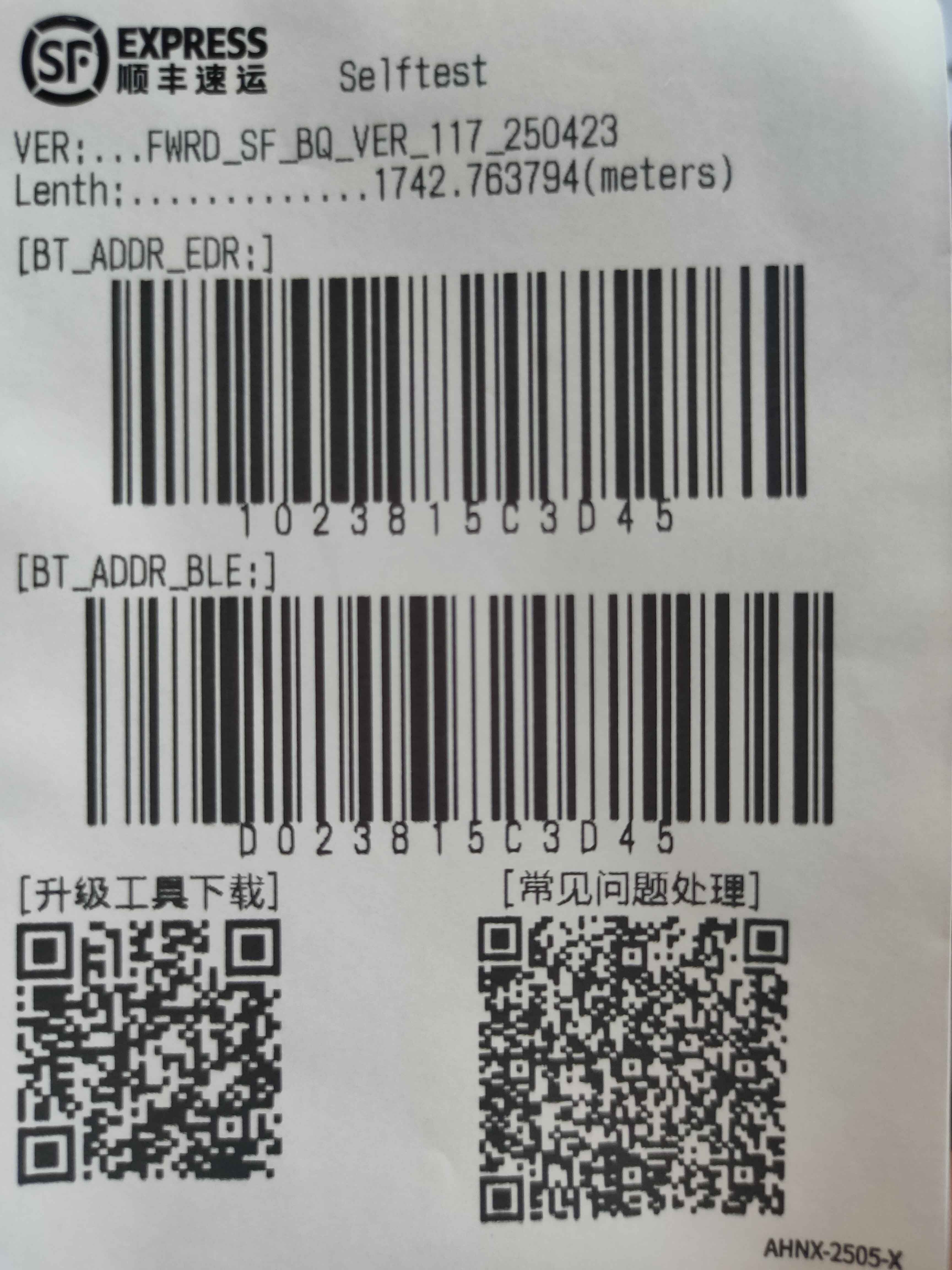
Press and hold the [Settings/Menu] button to switch to the "Print Self-Test Page" interface, then press the [Paper Feed/Confirm] button briefly to print the self-test page. You can view the printer firmware version, printing mileage (meters), Bluetooth connection barcode, and Bluetooth MAC address information through the self-test page.
?
2.2 Printer Firmware OTA Upgrade (Android/iOS)
①APP download tool:
Scan the QR code on the printer's front cover or visit:http://www.rongtayun.com/cp/api/download/OTATools

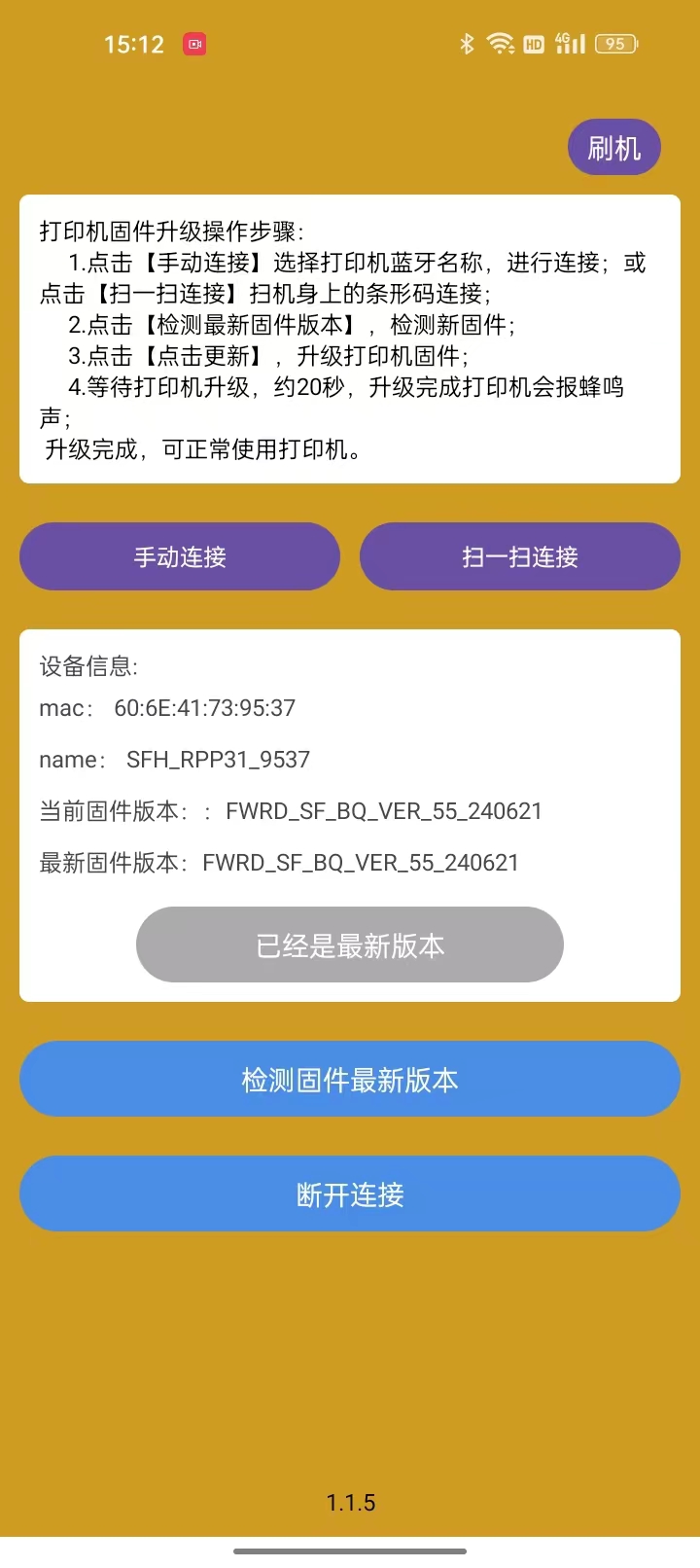
②Printer firmware upgrade operation steps:
a.Click on "Manual Connection," select the printer's Bluetooth name, and begin the connection process.Or click "Scan to Connect" to scan the barcode on the device.catch;
b.Click "Check for Latest Firmware Version" to check for the latest firmware.;
c.Click "Update" to upgrade the printer firmware.;
d.Waiting for printer upgrade, approximatelyThe printer will beep after the upgrade is complete in 20 seconds.;
Upgrade complete, printer is now usable.;
③ Upgrade operation video:
?
2.3 Tag Learning
Tag learning steps:
a. Briefly press the [Power/Save] button to wake up the printer;
b. Press and hold the [Settings/Menu] button for 3 seconds to enter the settings interface;
c. Briefly press the [Settings/Menu] button to select and switch to the "Tag Learning" interface;
d. Short press[Paper Feed/Confirm Button] Perform label learning; screen displaySimply say "successfully completed the learning process".
?
2.4 Setting Print Density
Button setup method:
a. Briefly press the [Power/Save] button to wake up the printer;
b. Press and hold the [Settings/Menu] button for 3 seconds to enter the settings interface;
c. Briefly press the [Settings/Menu] button to select and switch to the "Print Density" interface;
d. Briefly press the [Paper Feed/Confirm] button to adjust the density value;
e. Press the [Power/Save] button briefly again to confirm. You will hear a "beep" sound from the buzzer to complete the setup.
?
3. Common Problems and Solutions
3.1 Blurry printing, missing content, and loud paper output noise
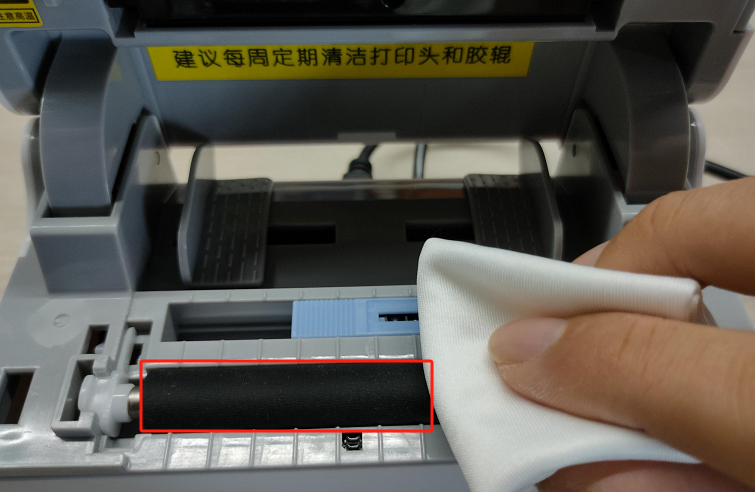
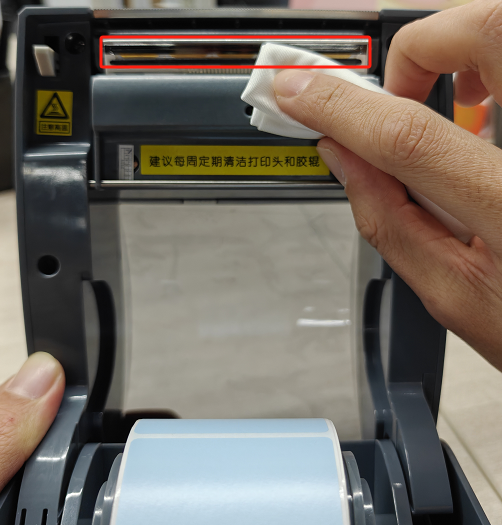
Clean the print head and rollers:First, turn off the printer. Use a cotton cloth soaked in alcohol to wipe away any foreign matter from the print head and roller surface. After the alcohol has completely evaporated, close the cover and print again for a test.
?
3.2 Print blank
① The paper roll is installed backwards; please install the printer paper in the correct orientation.
② Foreign matter stuck to the printhead; First, turn off the printer, use a cotton cloth soaked in alcohol to wipe away the foreign matter on the surface of the printhead, and after the alcohol has completely evaporated, close the cover and print again for testing.
?
3.3 Continuous feeding of white paper results in the display screen showing "No sewing label detected".
Tag learning:
Long press the [Settings/Menu] button to display the print self-test page, then short press...[Settings/Menu Key] Switch to "Tag learning”Press briefly after pressing[Paper feed]/Confirm button]Automatic tag learning, the screen prompts "Learning successThat's it.
?
3.4 Unable to power on, screen not lit
①The battery is low. Please connect the power cord to charge.
②If the device still cannot be turned on after charging, please contact Rongda 400 technical support.。
?
3.5 Printing issues include paper jams, extra blank paper feeds after printing, and paper not feeding to the seam label.
For this type of issue, please scan the "Upgrade Tool Download" QR code on the top cover of the device to download the OTA upgrade tool and perform an OTA upgrade. Detailed steps can be found here.2.2 Printer firmware OTA upgrade.
?
3.6 Bluetooth connection is unstable and frequently disconnects.
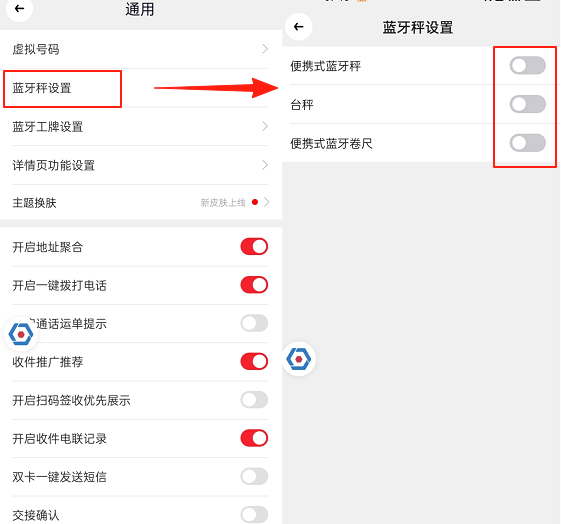
To disable the Bluetooth scale setting in the SF Express delivery app: Click [link] in the SF Express delivery app.[My] Click[Avatar] Click[General] Locate the Bluetooth scale settings, turn off the three Bluetooth scale settings, and then observe the printer's Bluetooth connection status.
?
4.After-sales serviceContact method
4.1 400 Technical Support:
If the above methods fail to resolve the equipment malfunction, please call the after-sales service hotline for assistance.
Hotline: 400-800-0596. After dialing 400, press dial 2 for label printer service support.
Working hours: 9:00 AM - 8:30 PM (6:00 PM on weekends/holidays)
?
4.2 After-sales repair method:
Recipient: After-sales Service Department
Telephone: 15359340780
Address: Rongda Science and Technology Park, No. 88 Tonghui South Road, Tongan Industrial Concentration Zone, Xiamen City, Fujian Province
Return Repair Instructions: When returning the device for repair, please include the return address, contact information, a list of all items packed in the box, and a detailed description of the malfunction in the package. This will help improve the efficiency of the return process. Thank you for your support! If no information is provided, the device will be returned according to the sender's information.