

 80mm Receipt Printer
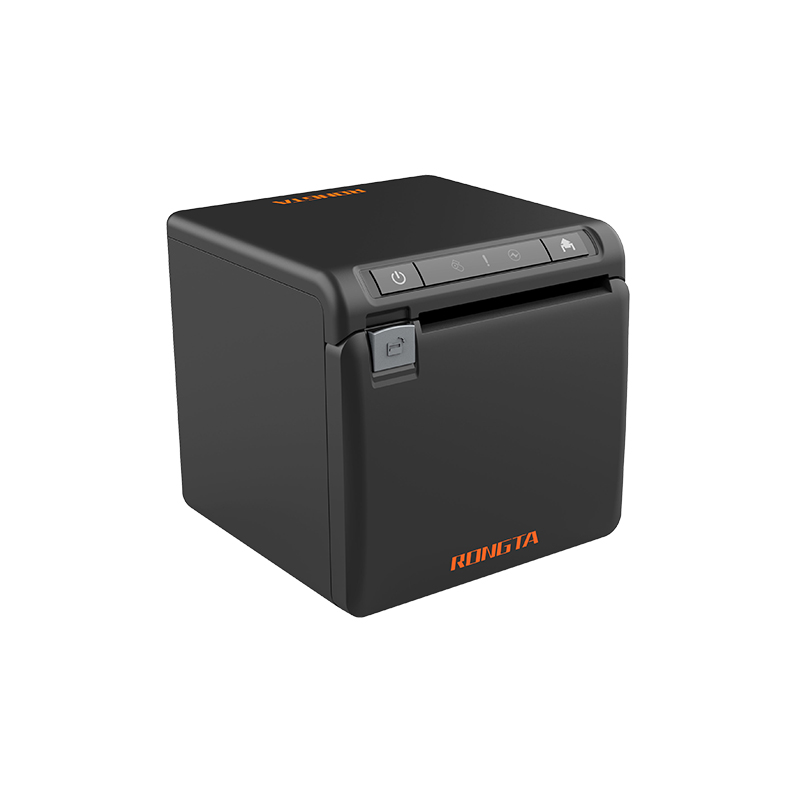 ACE H2 Receipt Printer
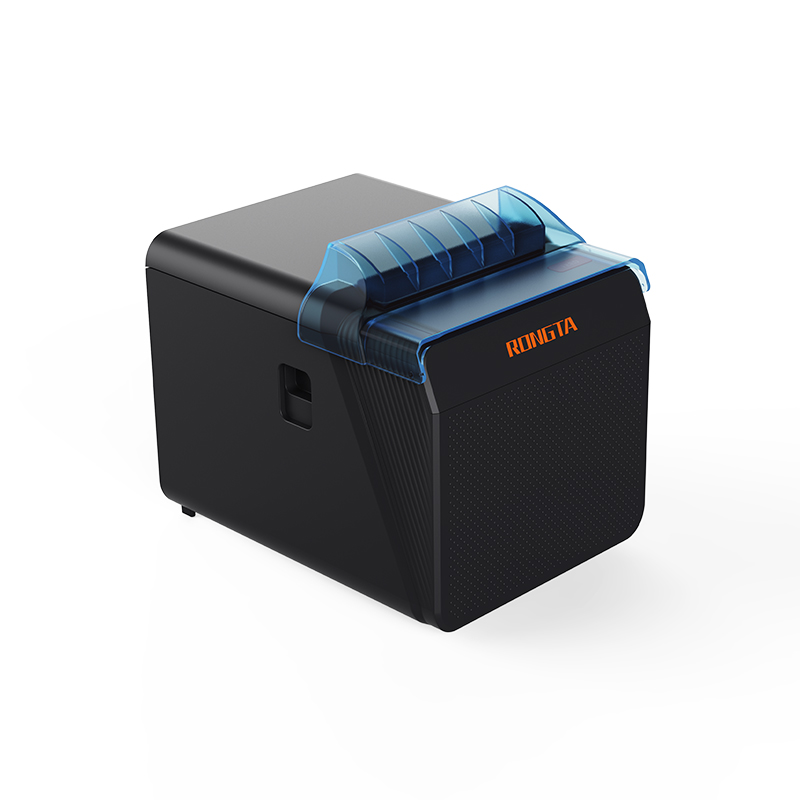 RP337 Receipt Printer
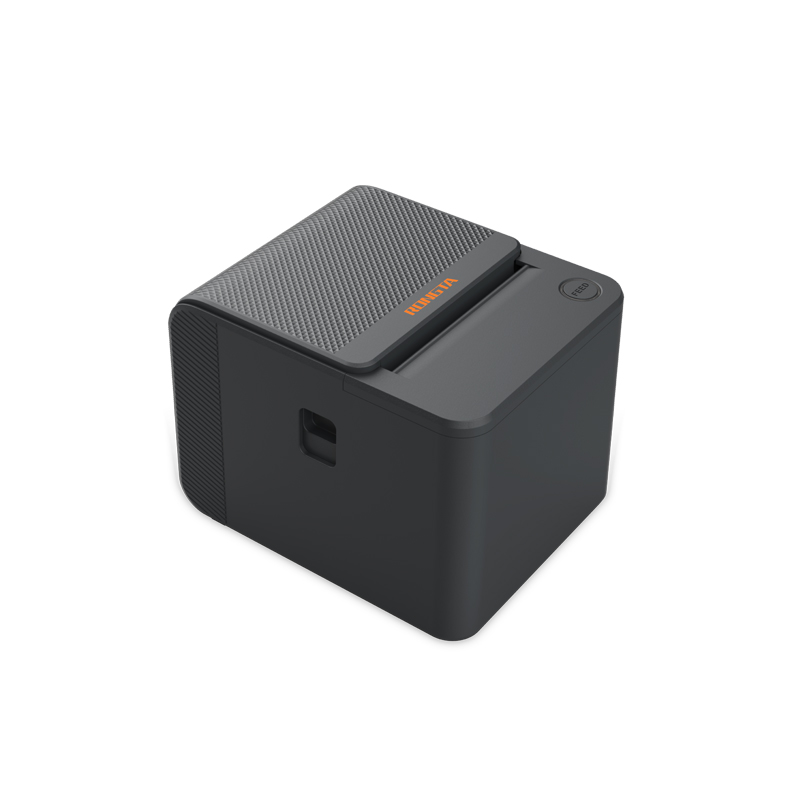 RP336S Dual-Color Receipt Printer
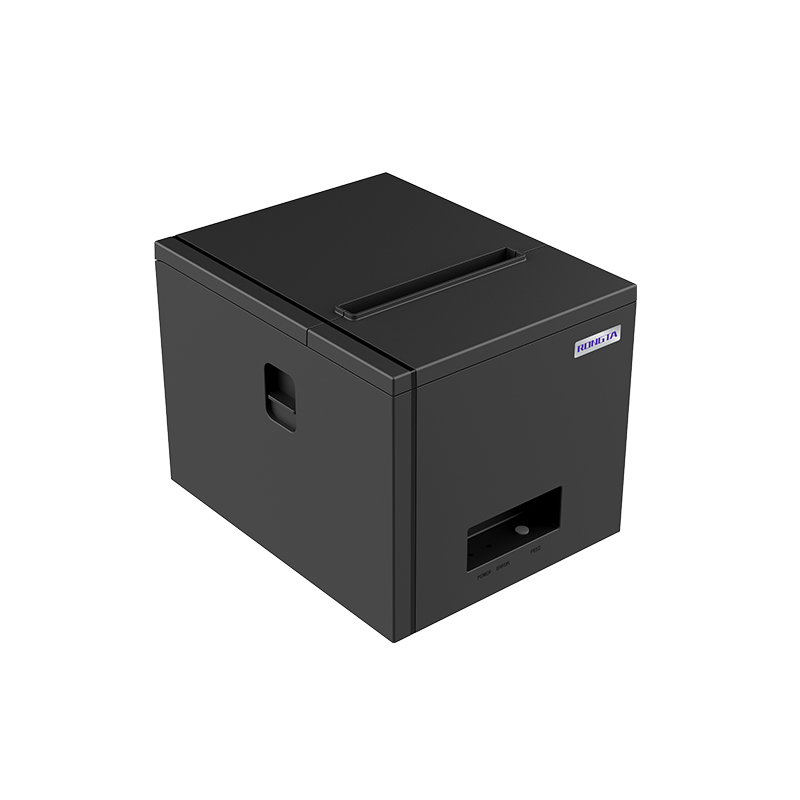 RP350 Receipt Printer
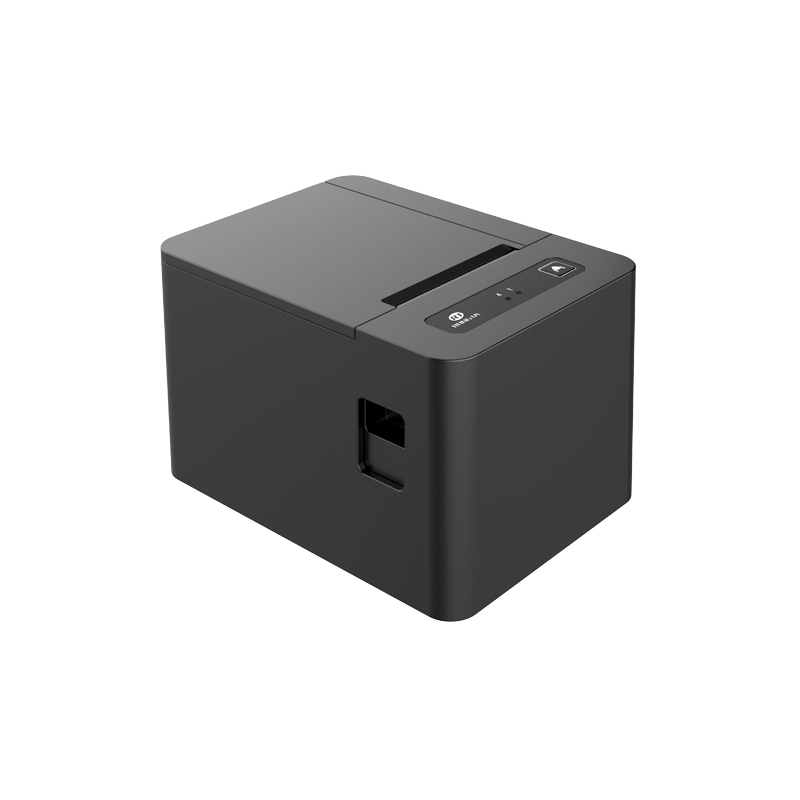 RP582 Receipt Printer
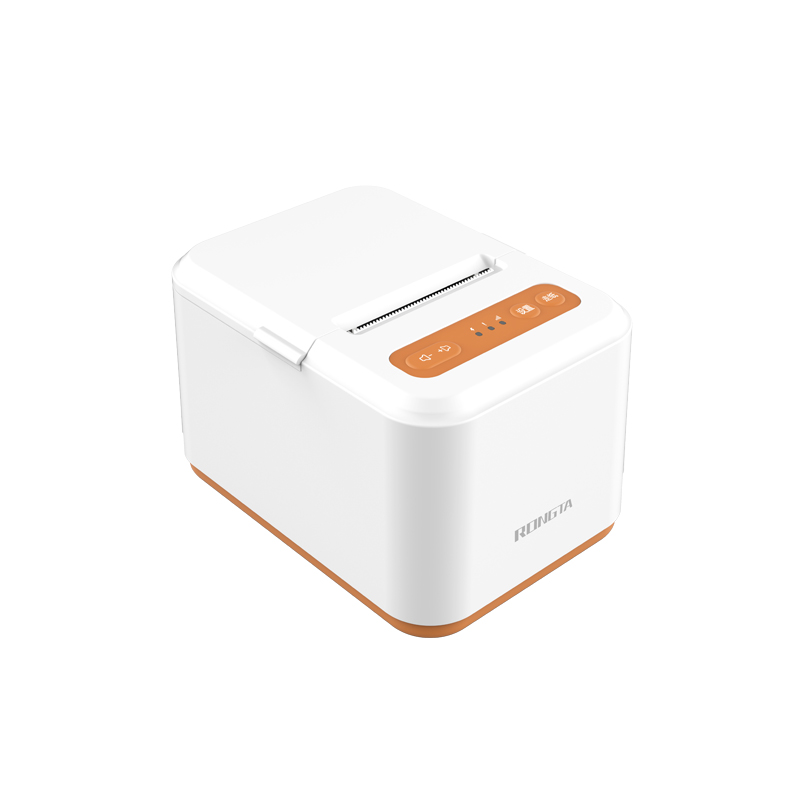 RP581 Receipt Printer
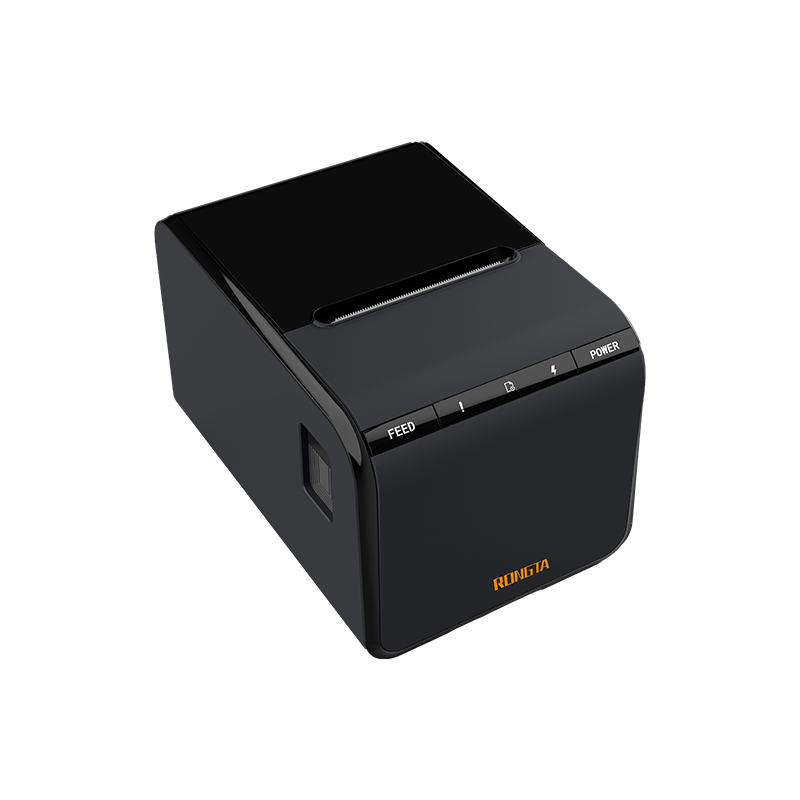 ACE G1Y Receipt Printer
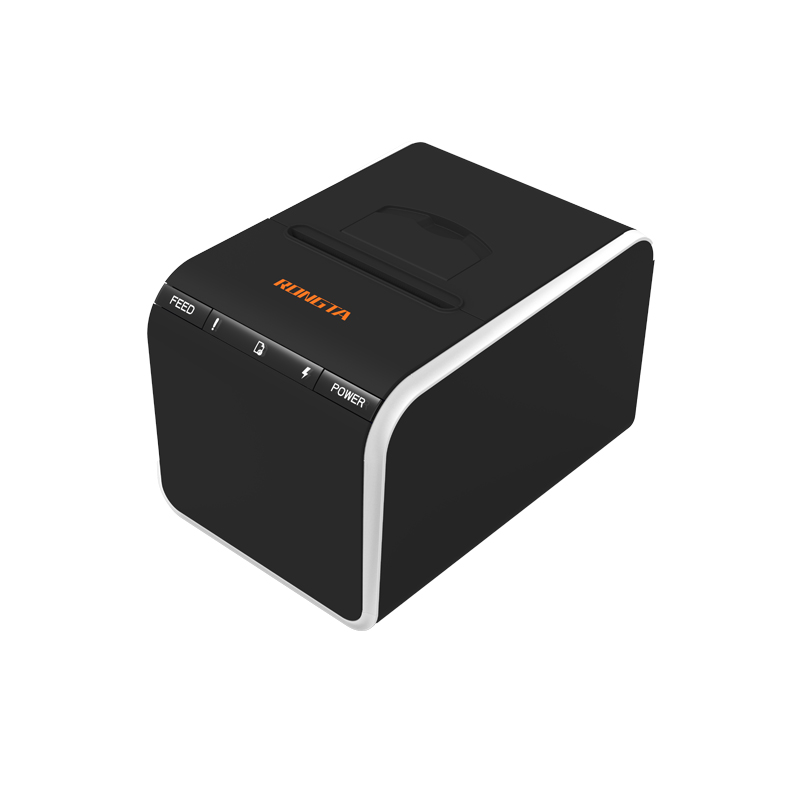 ACE G1YP Cloud Printer
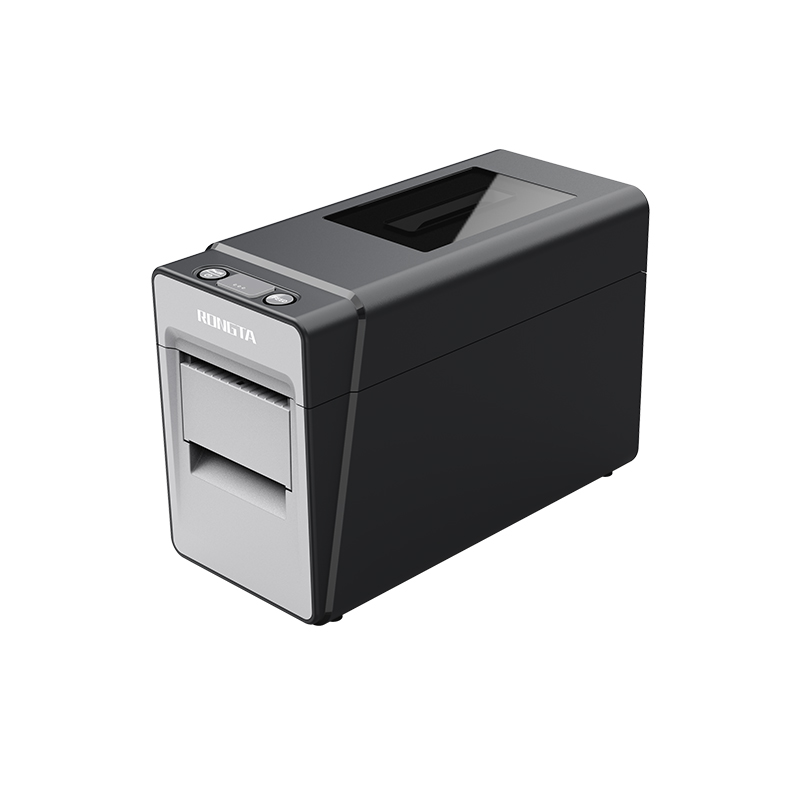 RP216 2'' Dual-color High-definition Label Printer
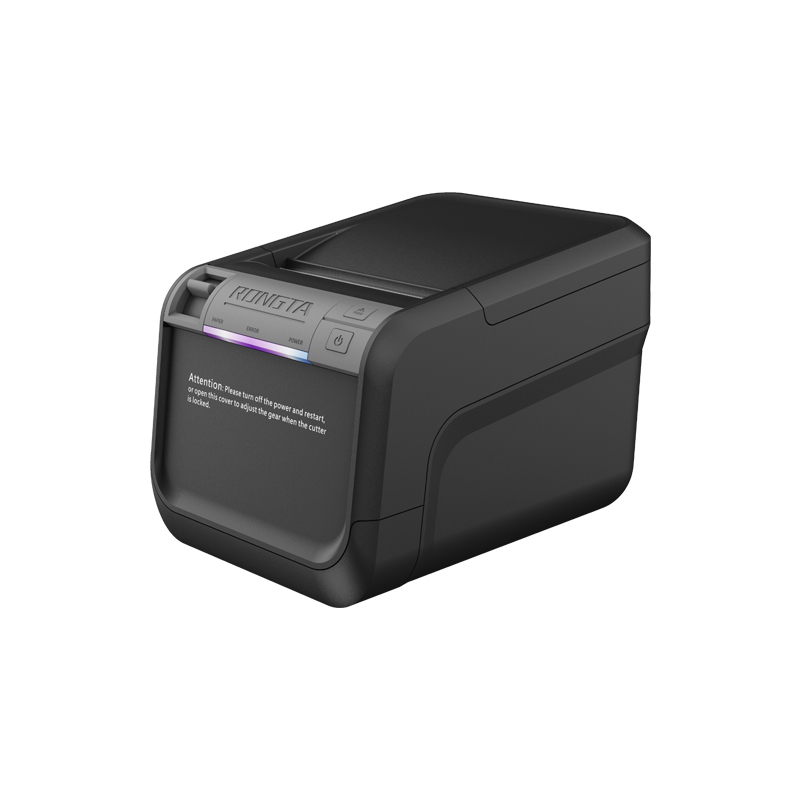 ACE V1S 3'' Backless Label Printer
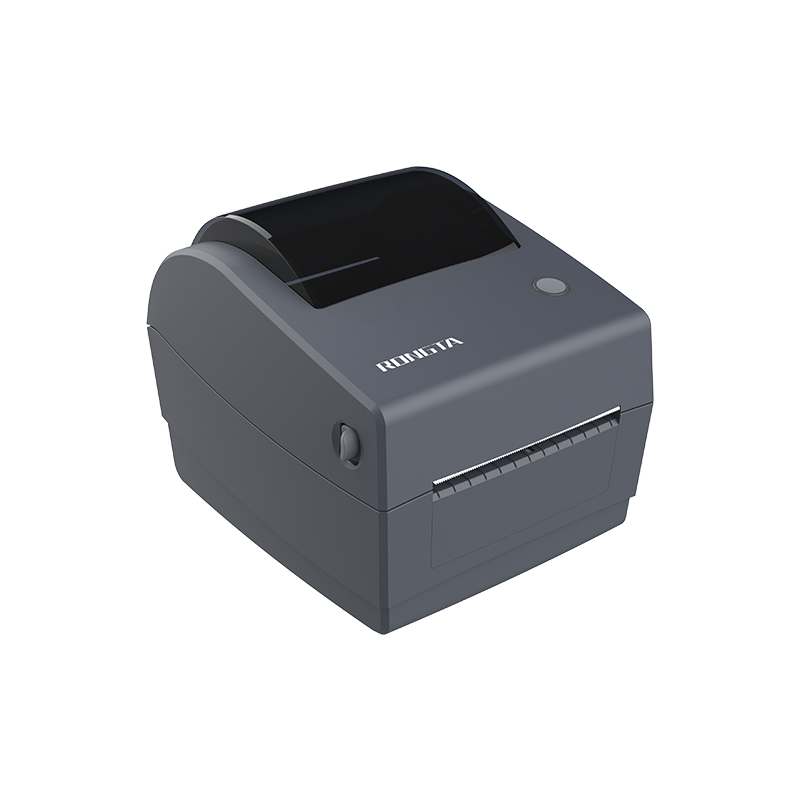 RP310D 3'' Dual-color Label Printer
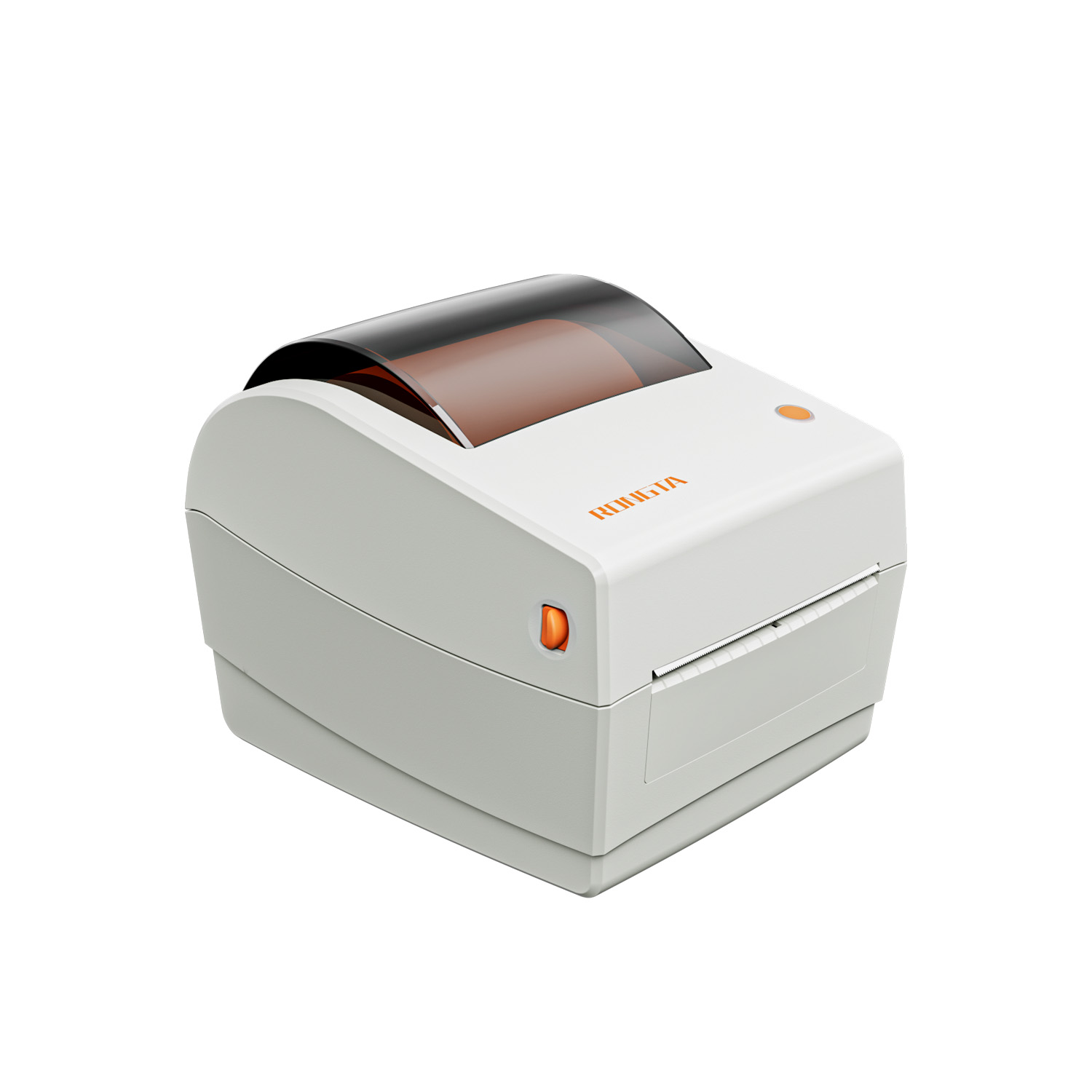 RP410N 4'' Thermal Label Printer
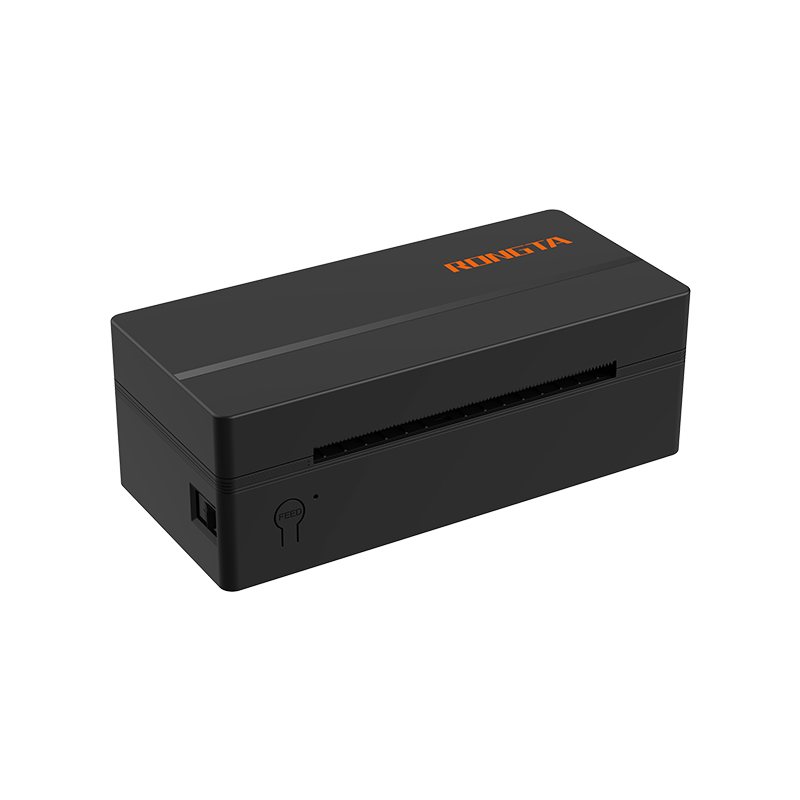 RP425 4'' Electronic Waybill Printer
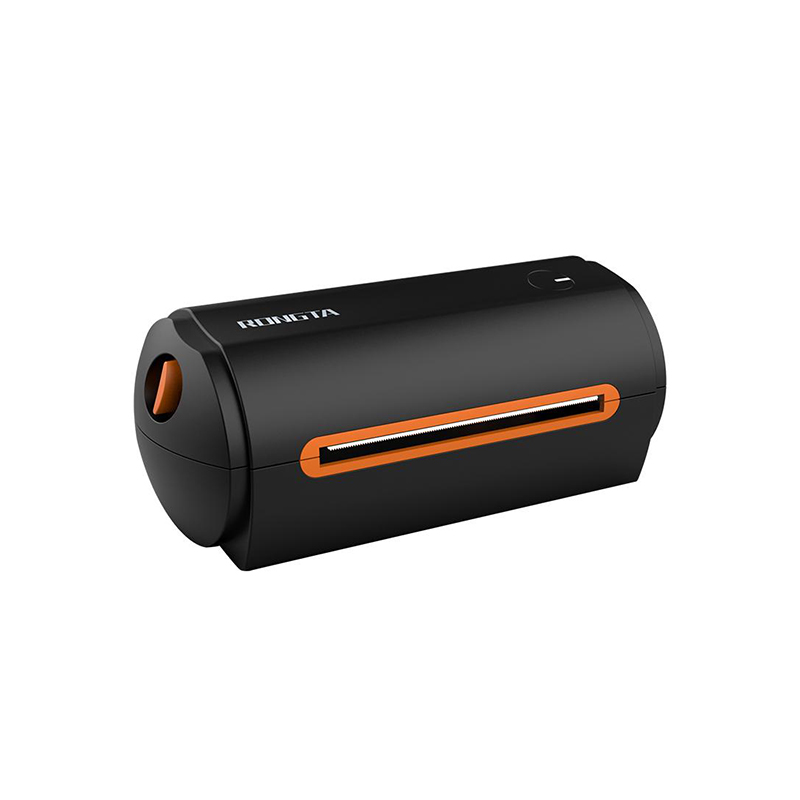 RP422 4'' Electronic Waybill Printer
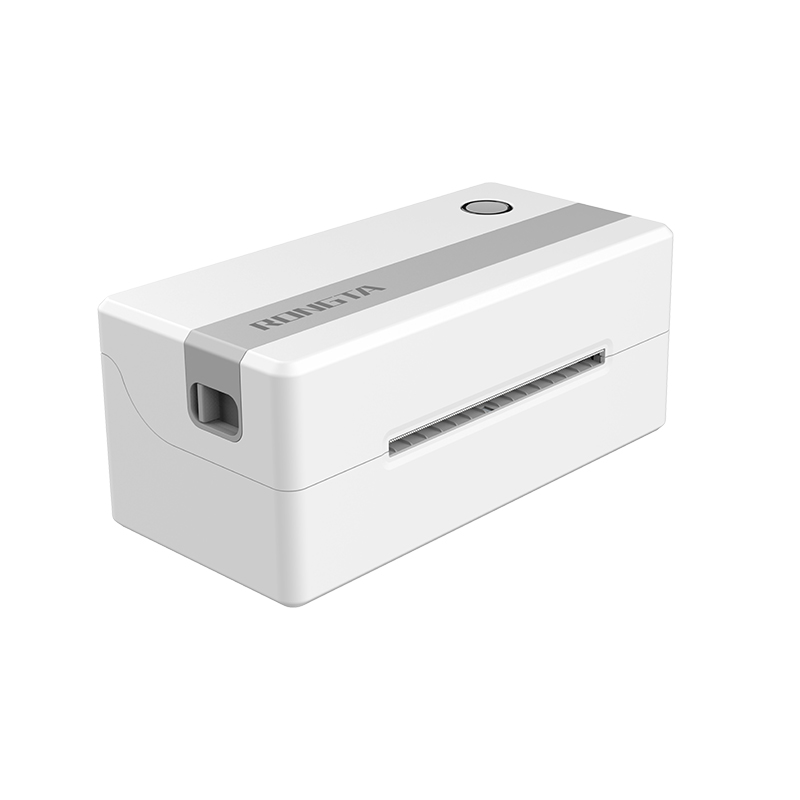 RP421A 4'' Electronic Waybill Printer
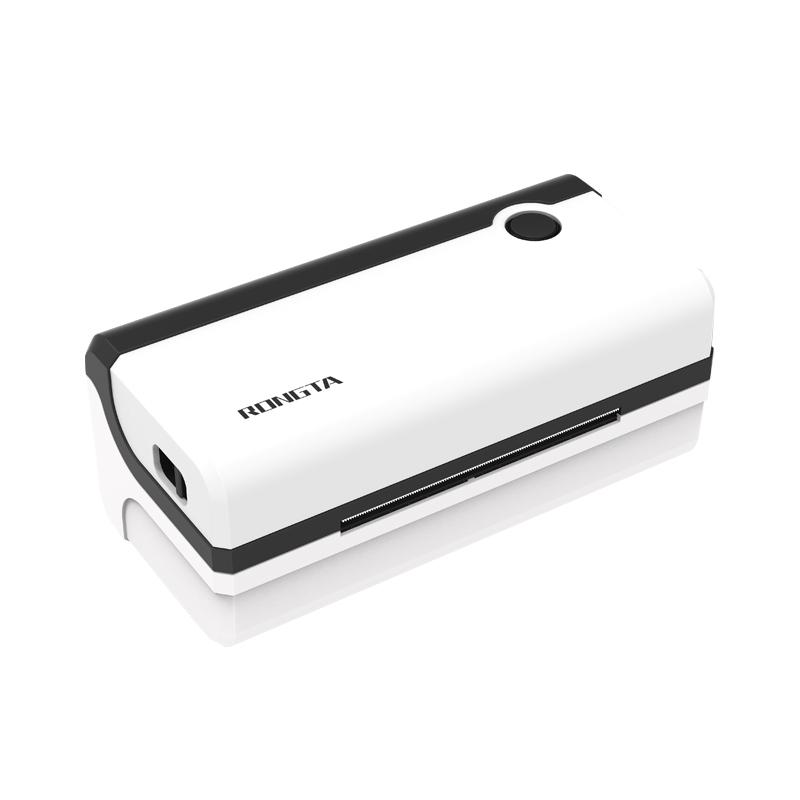 RP420 4'' Electronic Waybill Printer
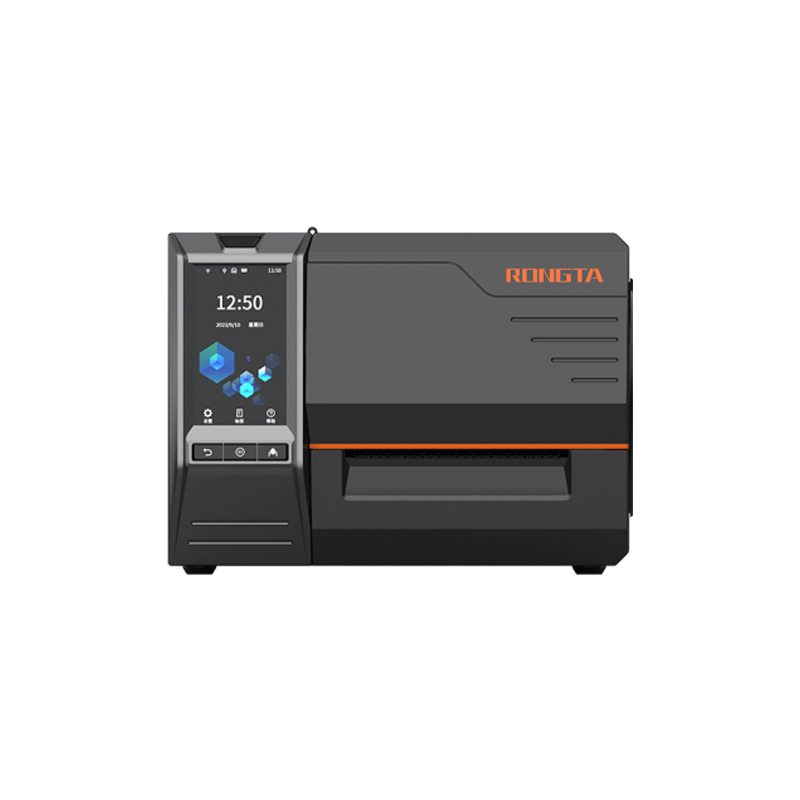 RI463 Series Barcode Printers
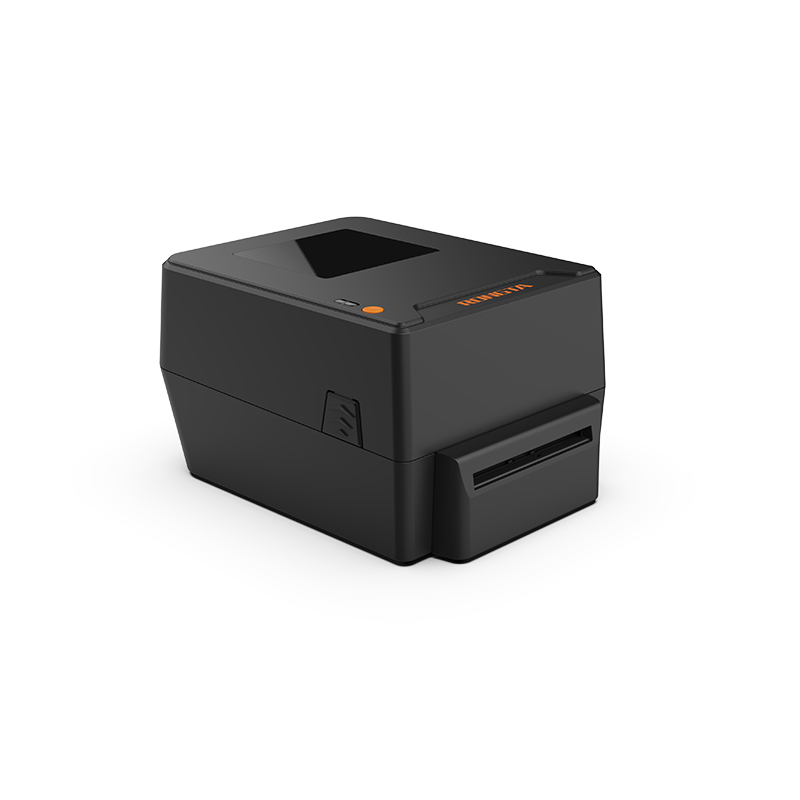 RP400A 4'' Thermal Transfer Tape Cutter Printer
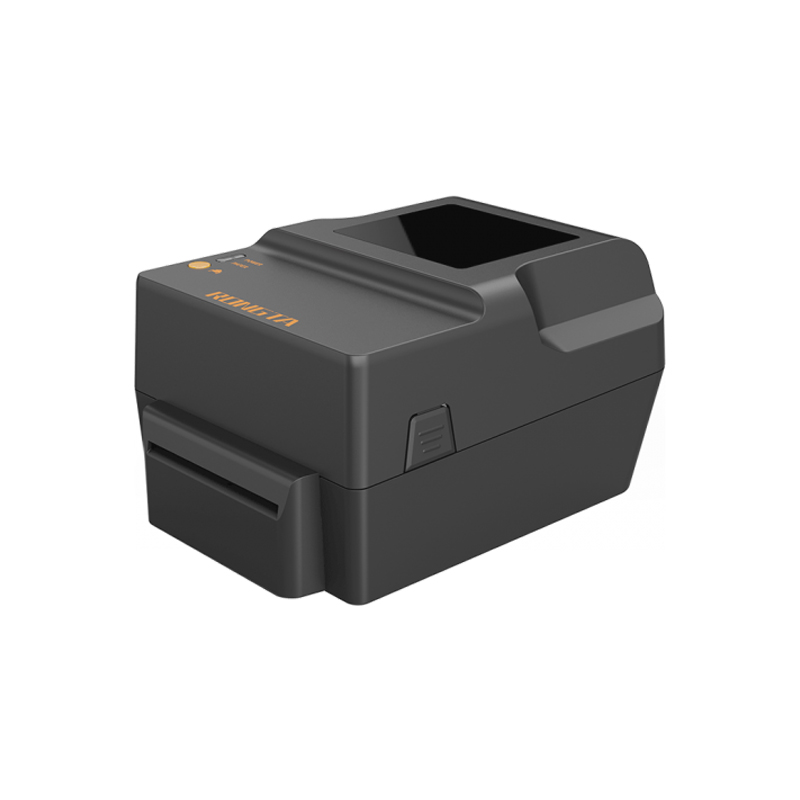 RP400H 4'' Thermal Transfer Tape Cutter Printer
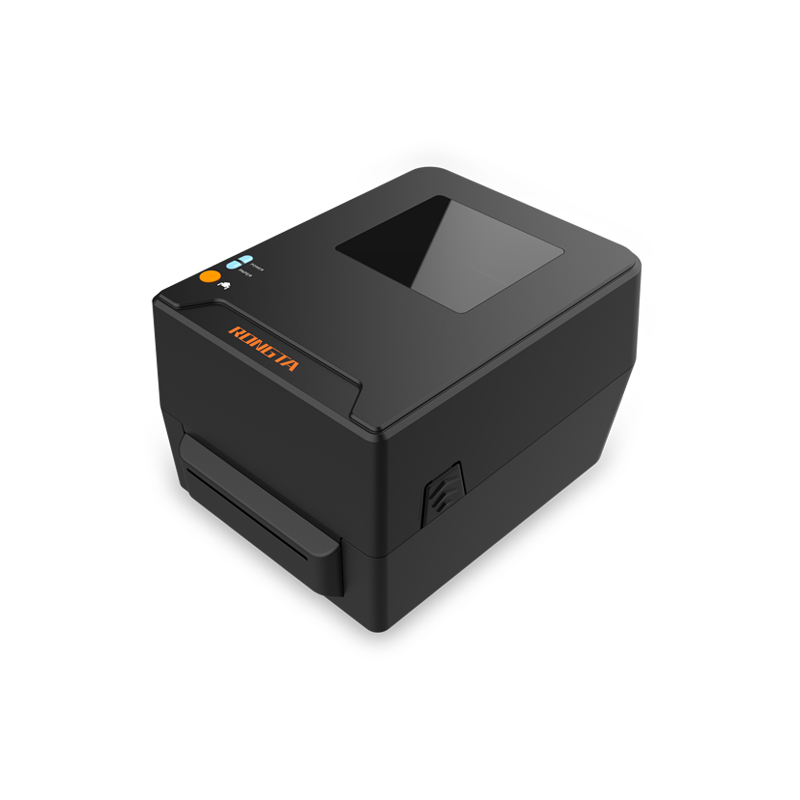 RPF413 300dpi RFID barcode label printer
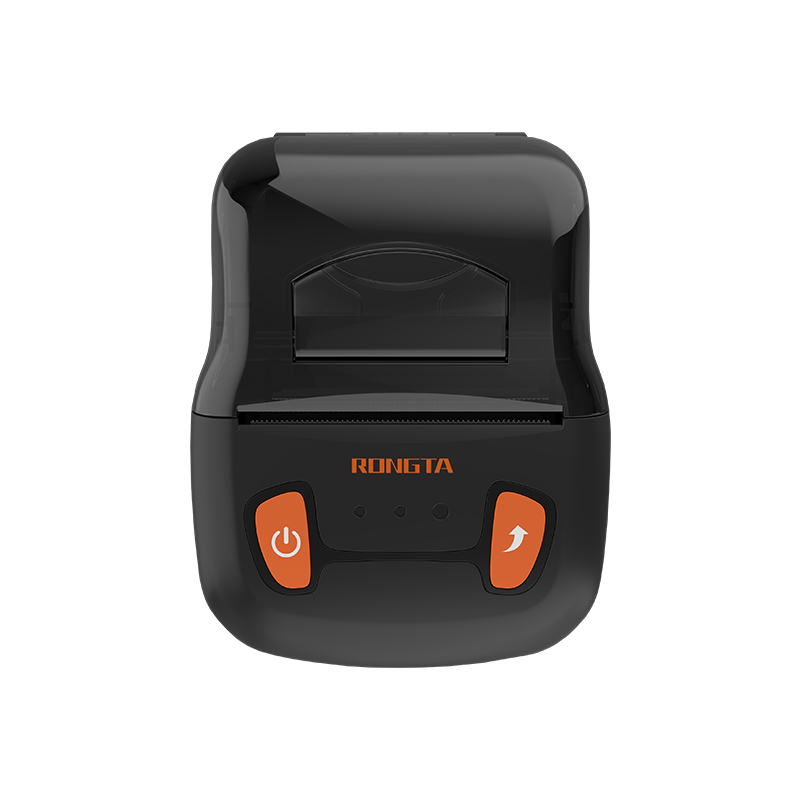 RPP02A Portable Receipt Printer
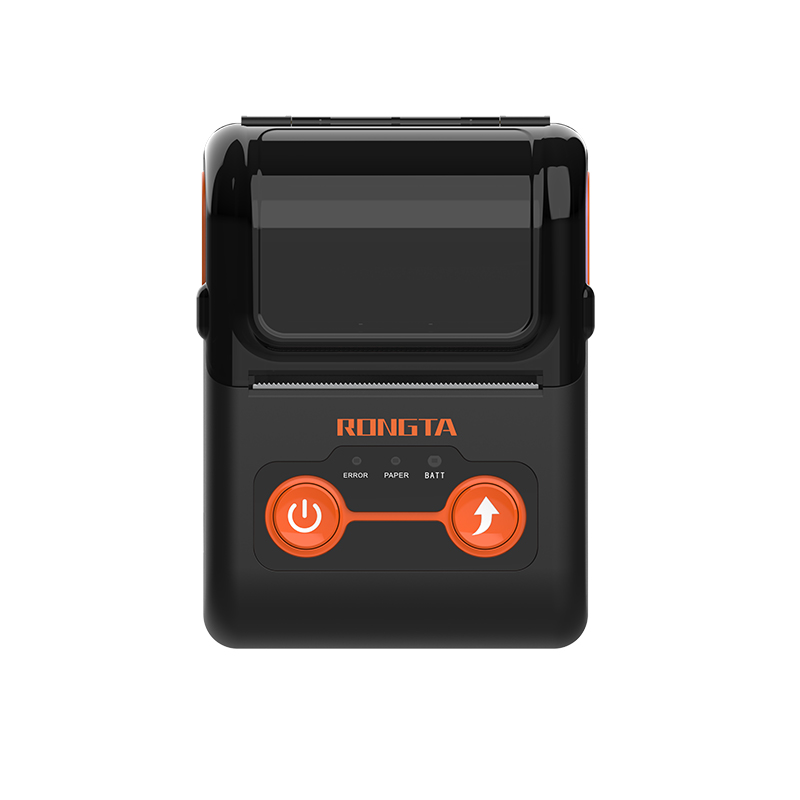 RPP02B Thermal Portable Printer
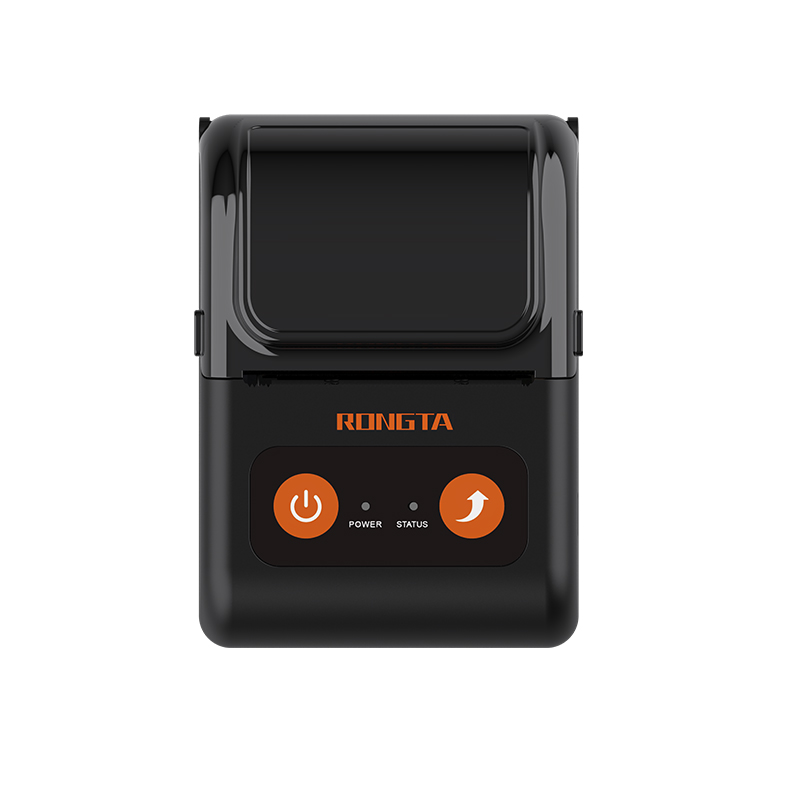 RPP02C Portable Receipt Printer
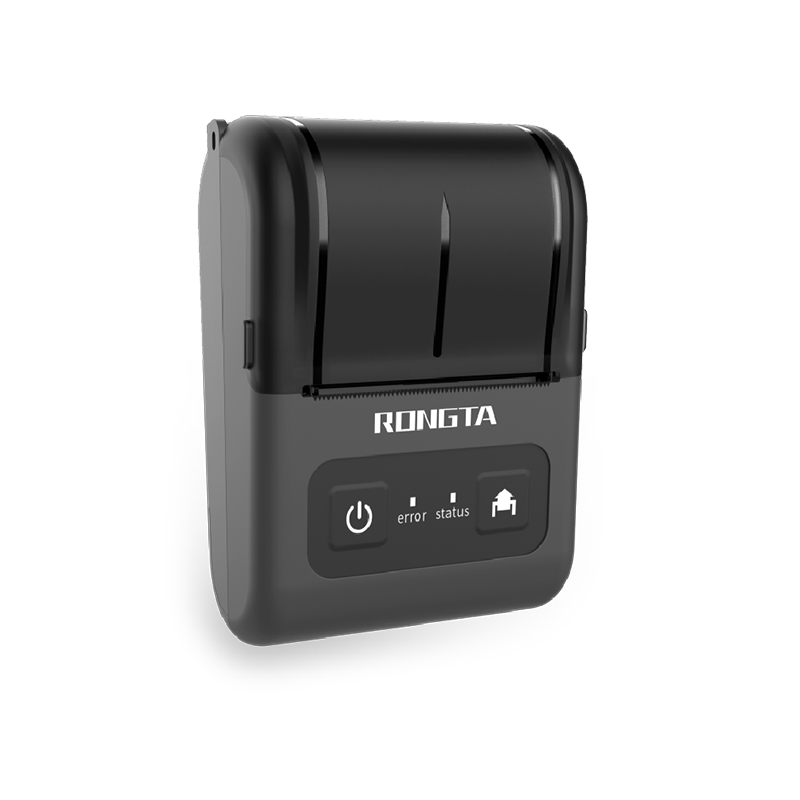 RPP02D Thermal Portable Printer
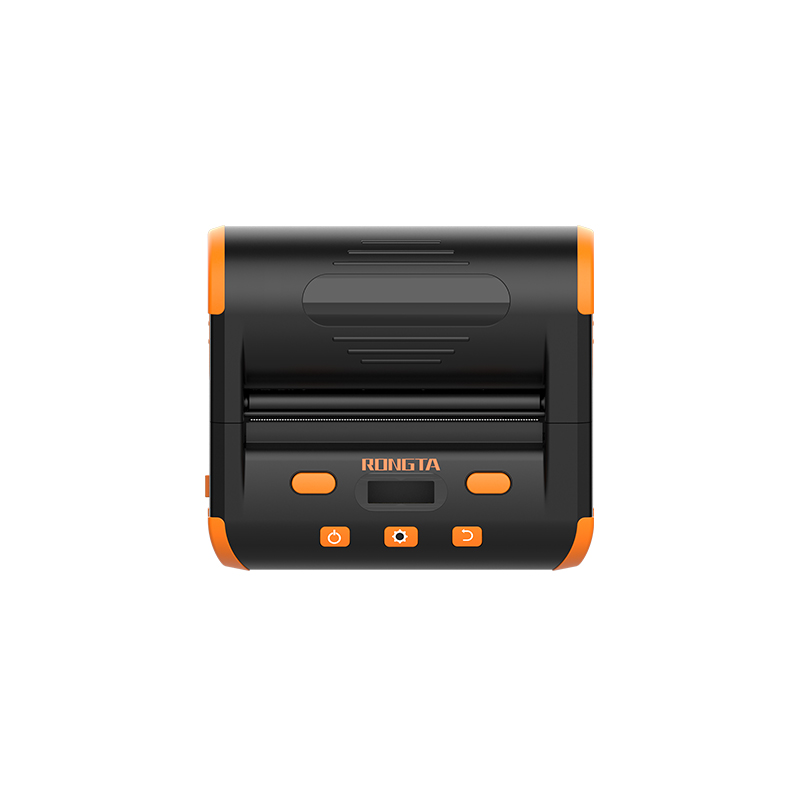 RPP04 4" Portable Label Printer
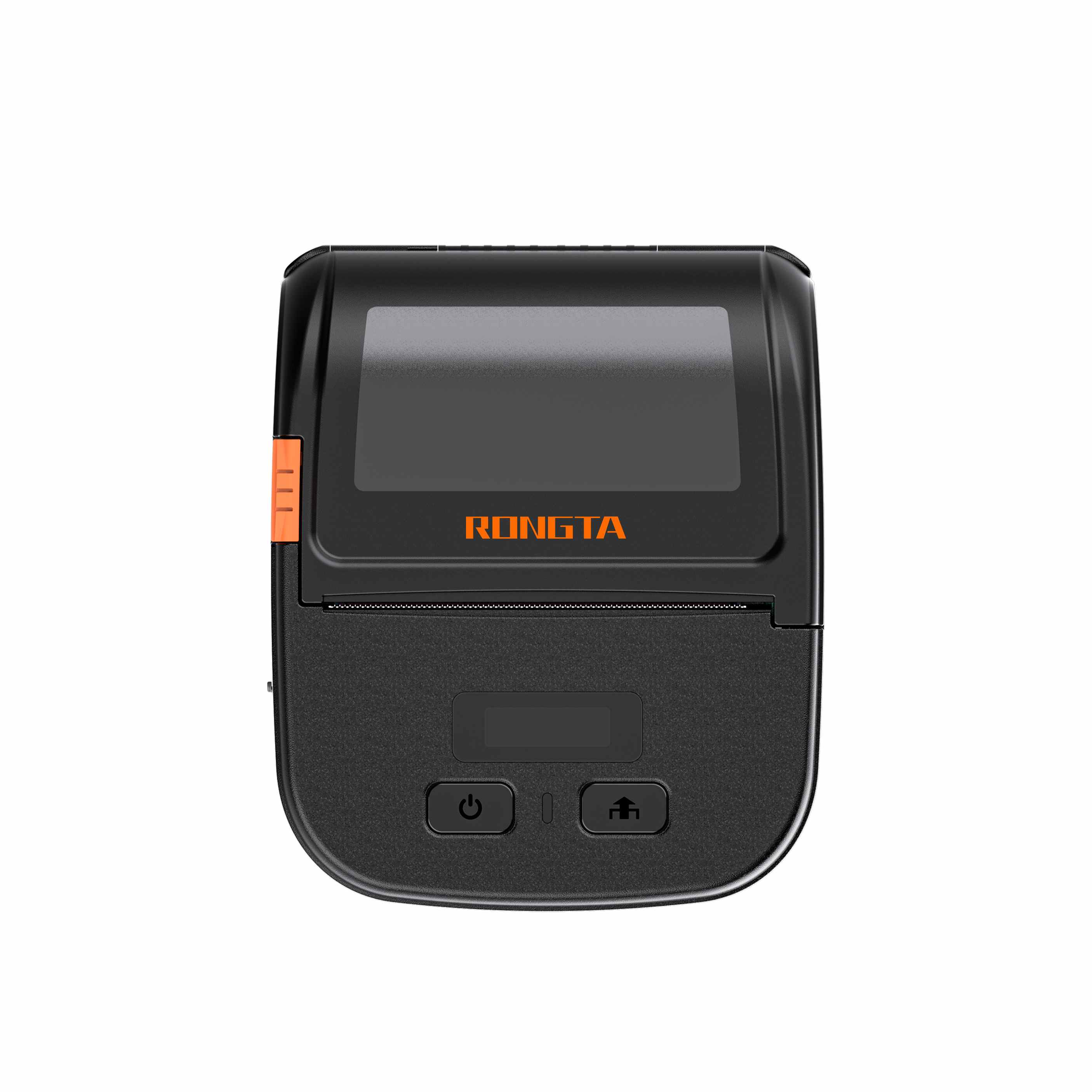 RPP30 3" Portable Label Printer
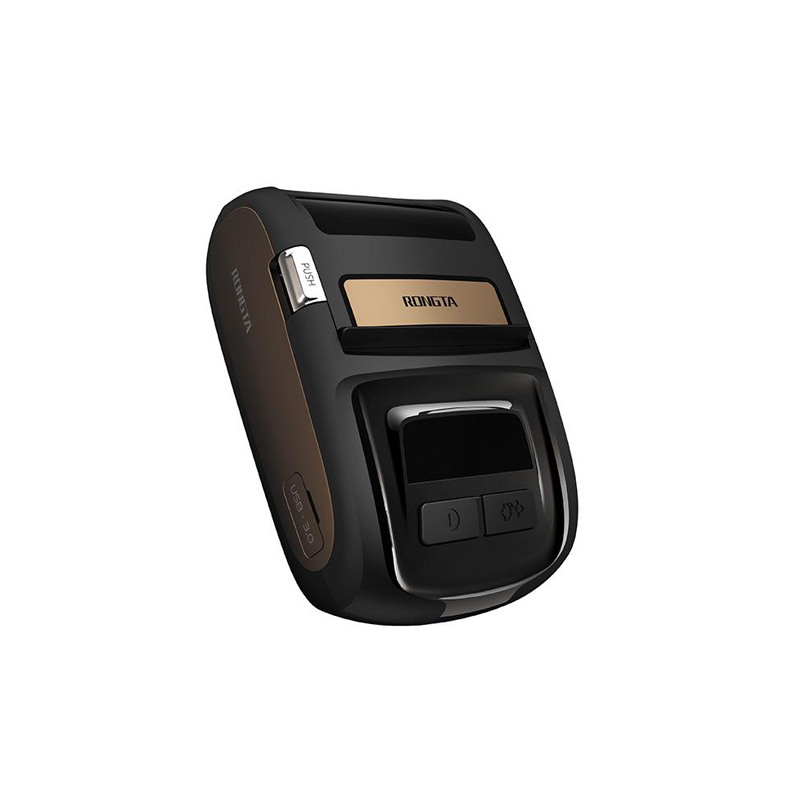 ACE M1 2" Portable Label Printer
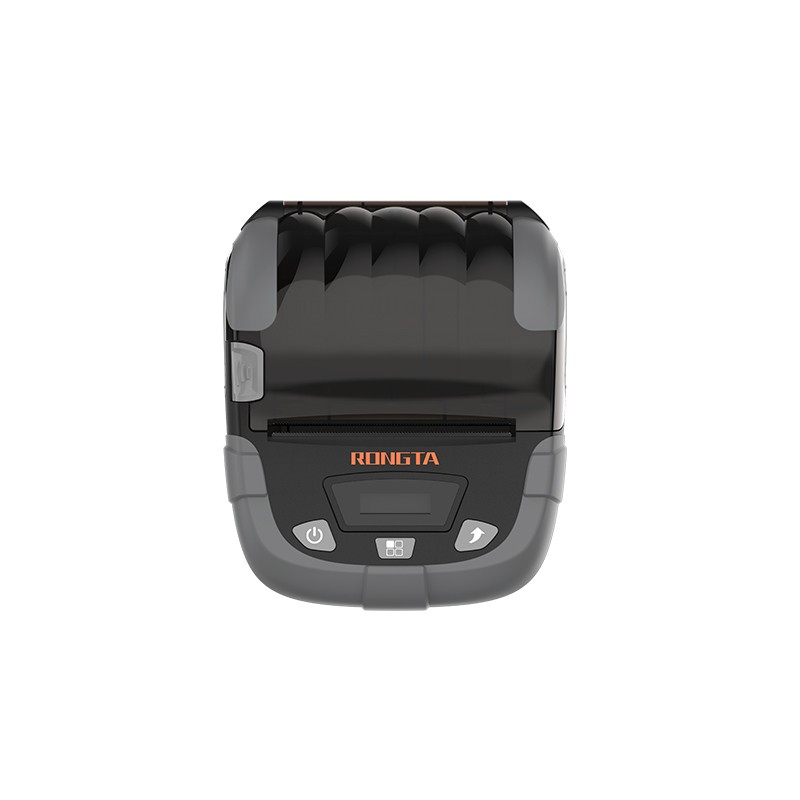 RPP320N 3" Portable Label Printer
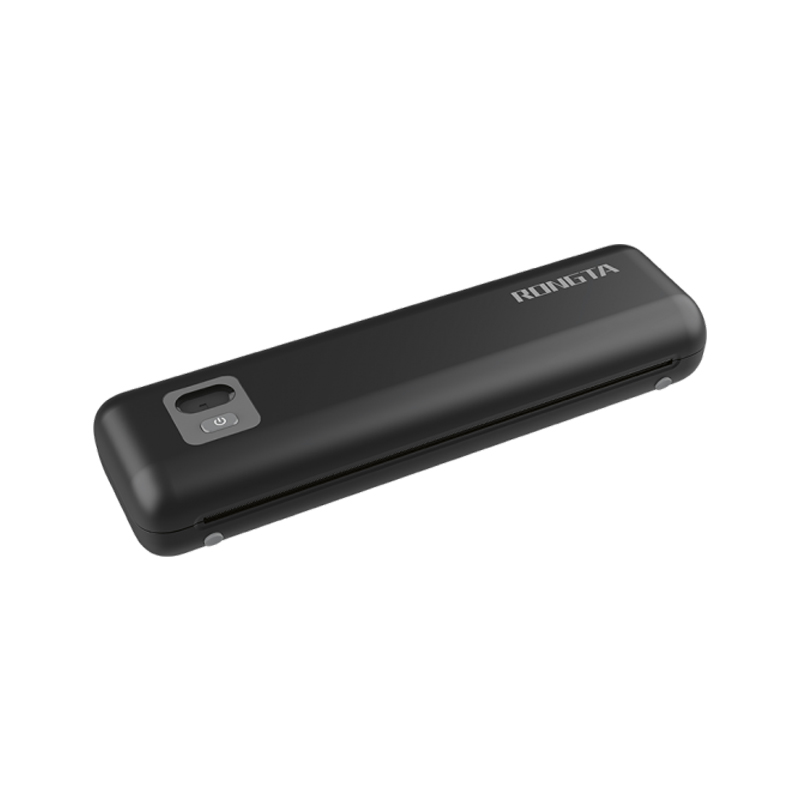 F82A A4 Front-Out Paper Tray Thermal Printer
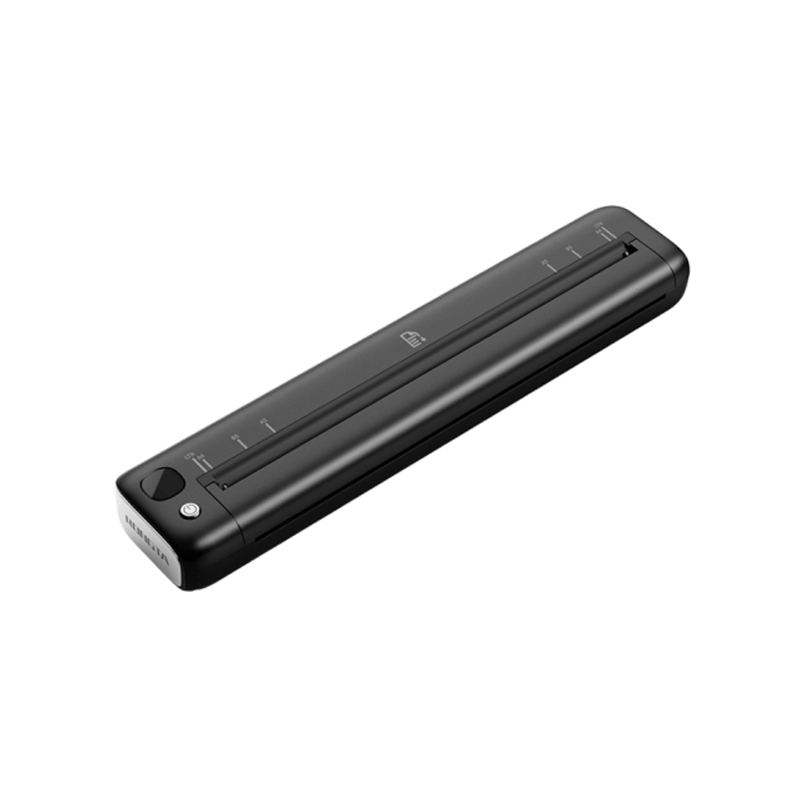 F81A Portable A4 Thermal Printer
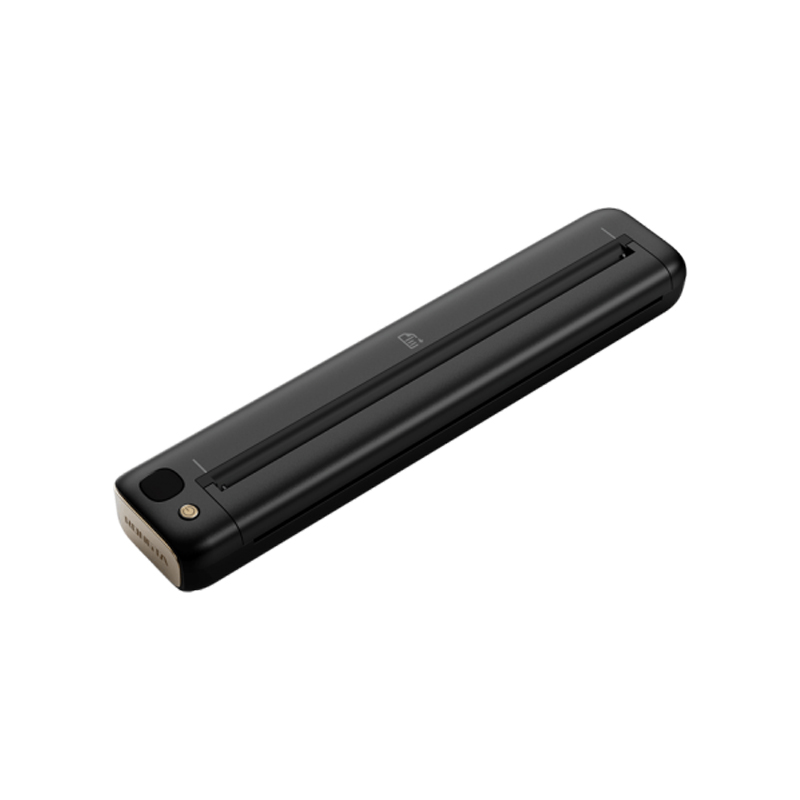 F81S Portable A4 Tattoo Printer
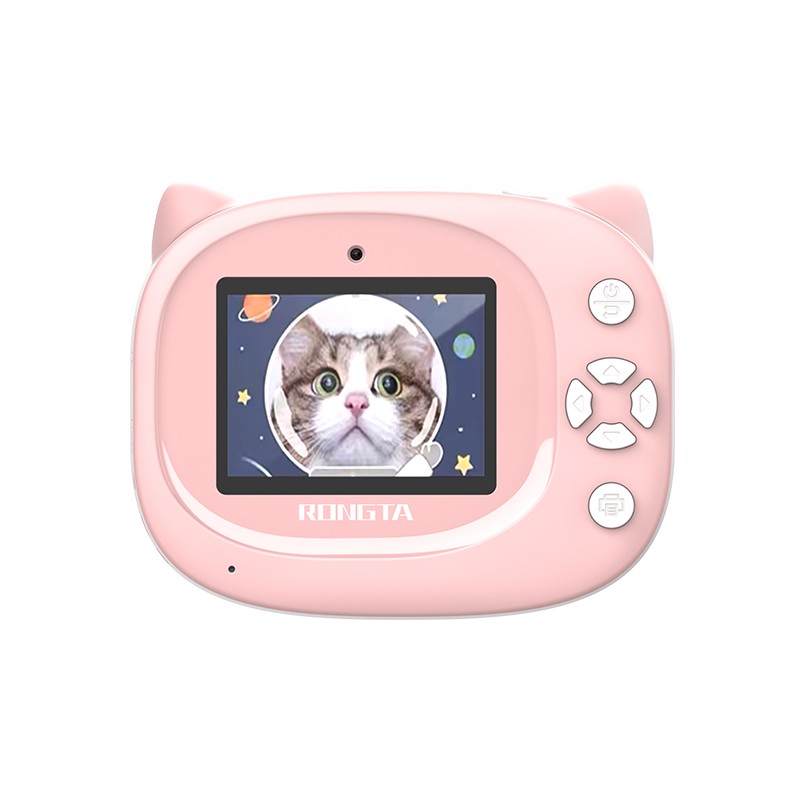 Z1 Children's Educational Photo Printer
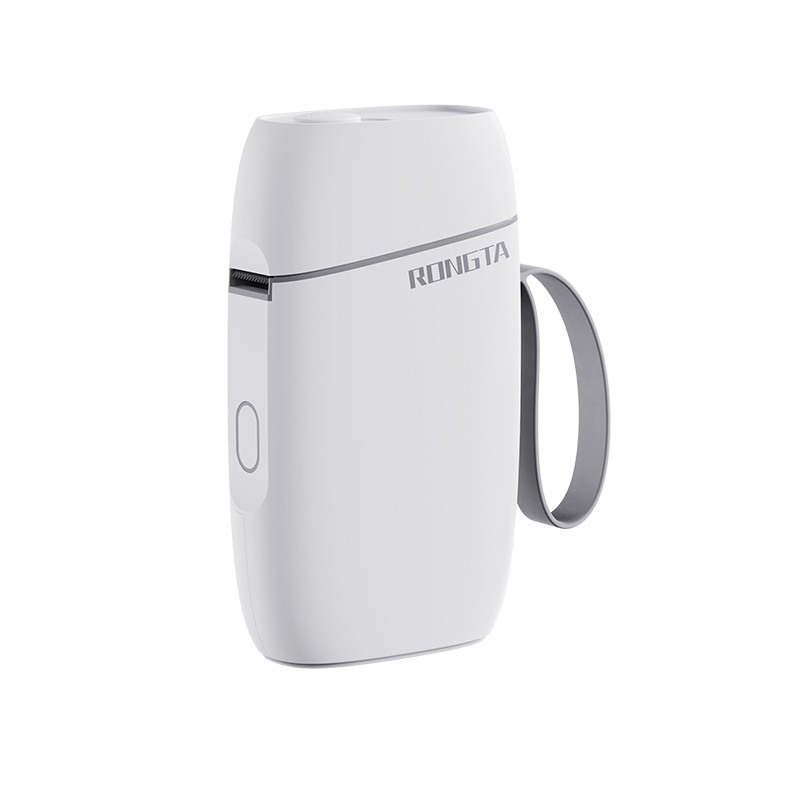 R5 Mini Label Printer
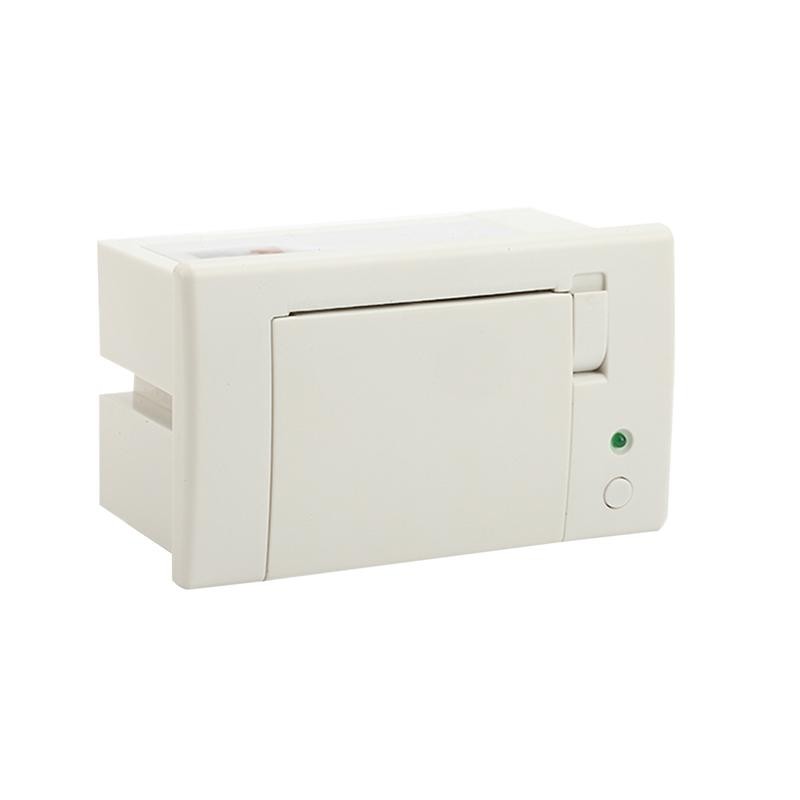 RP07 58mm Embedded Printer
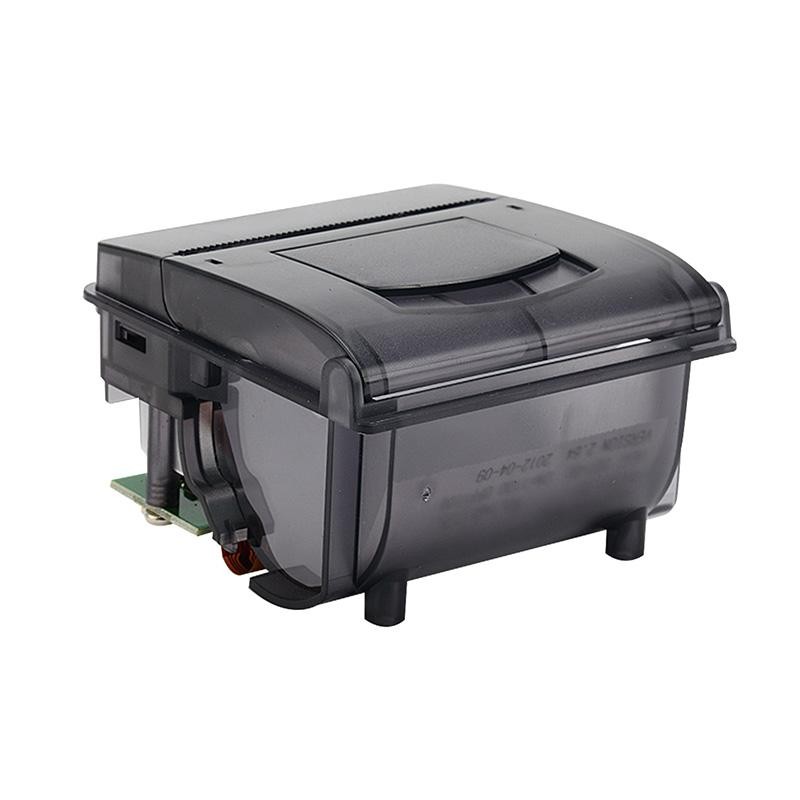 RP203 58mm Embedded Printer
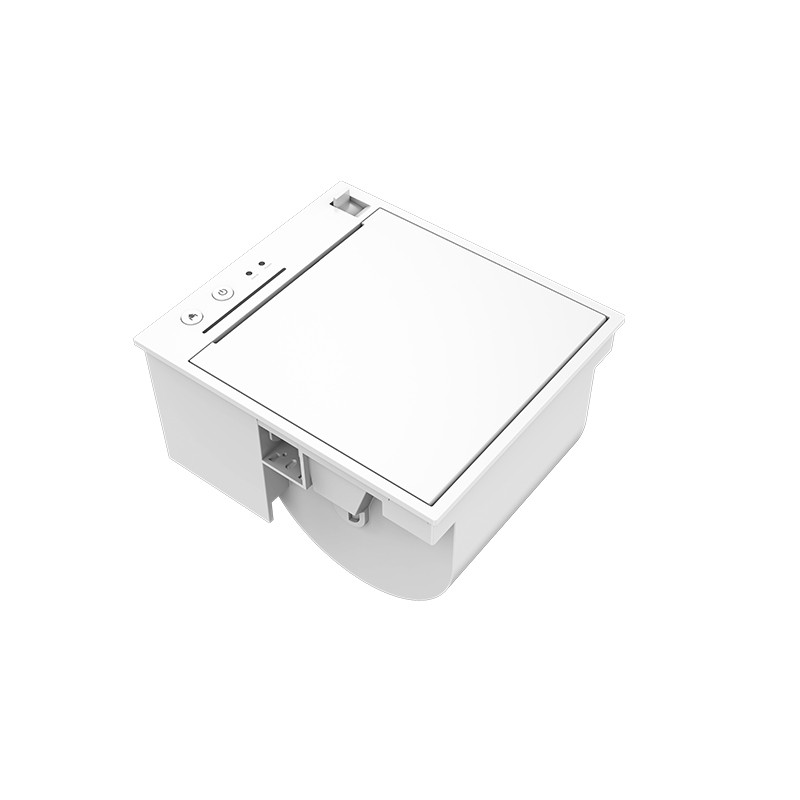 PM315 Embedded Thermal Printer
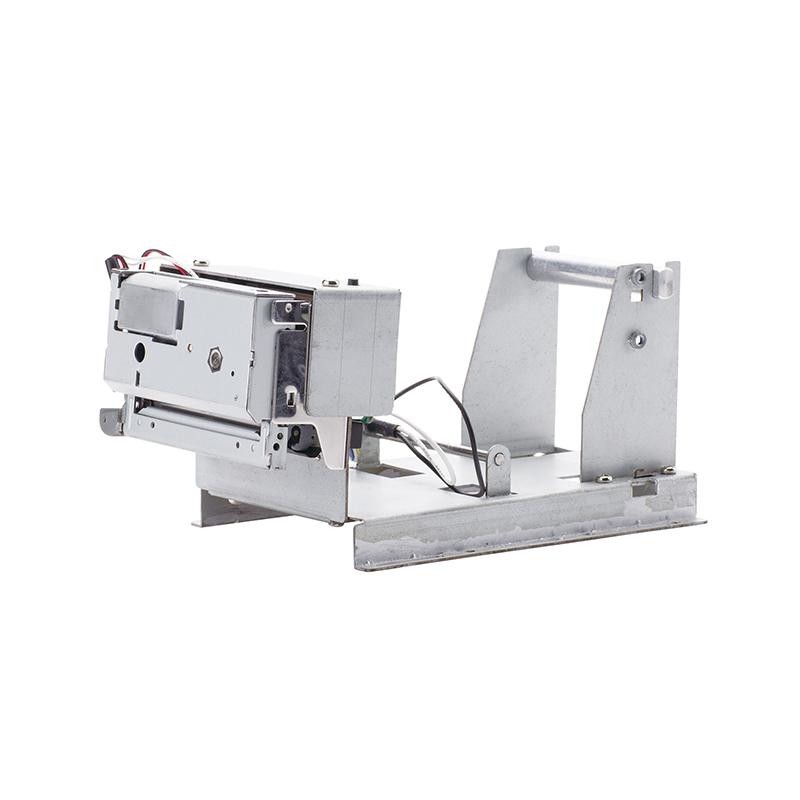 PM201 48mm Printing Module
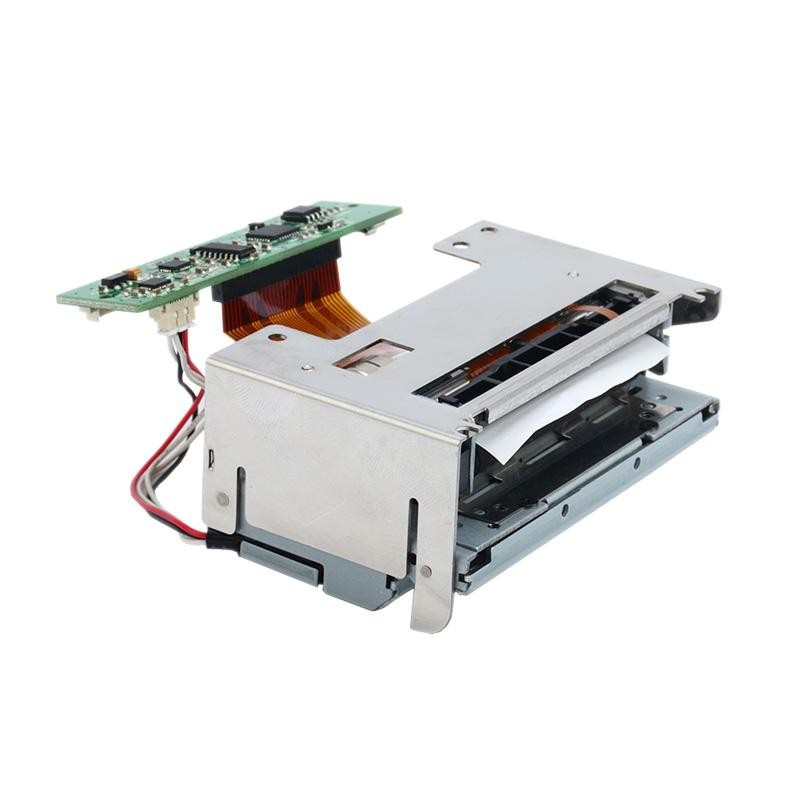 PM628 58mm printing module
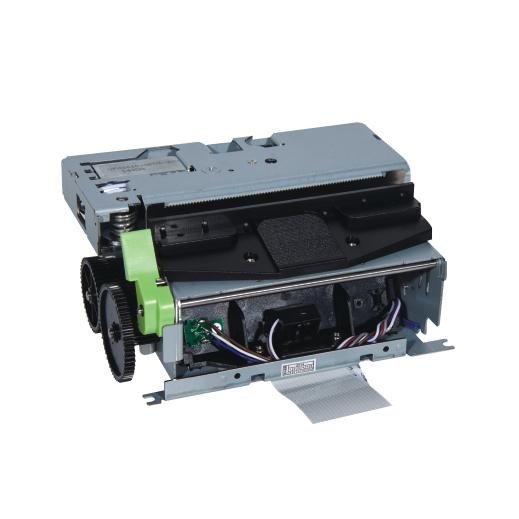 PM532A Printing Module
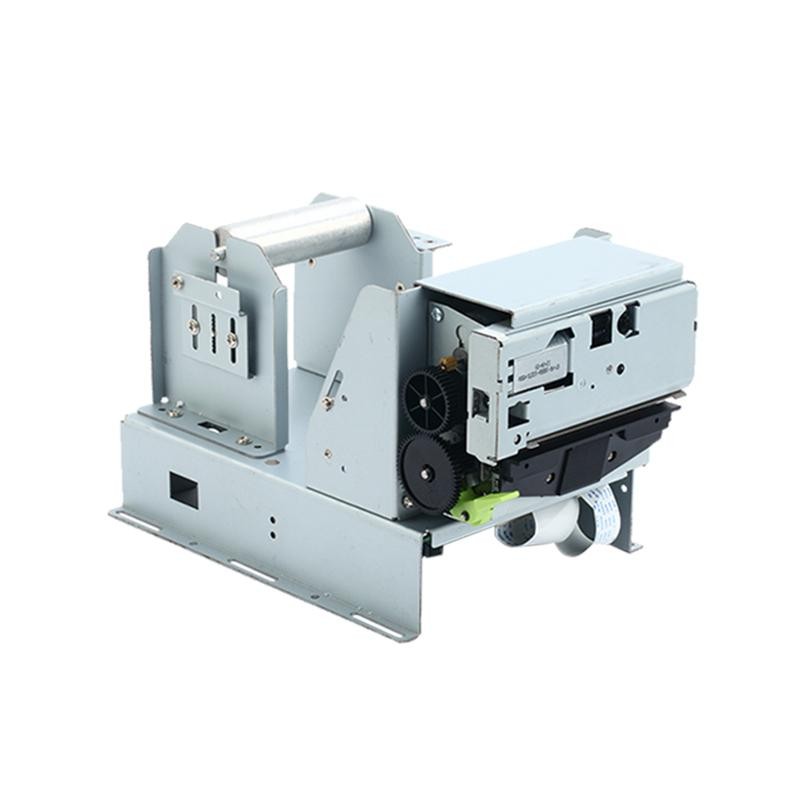 PM532B printer module
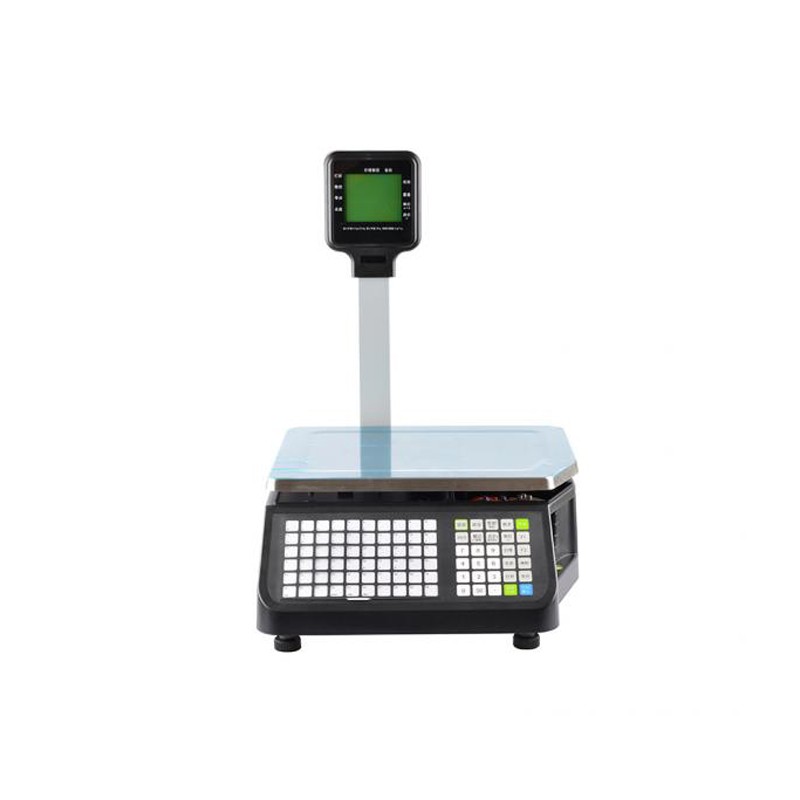 LS015/LS015A Barcode Scale
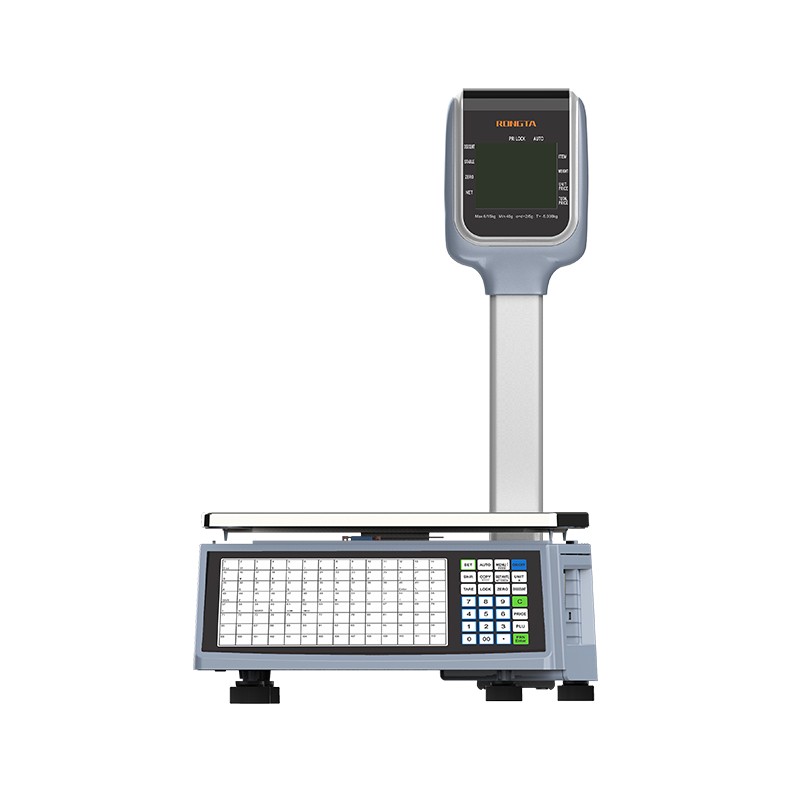 RLS1815D/RLS1830D Barcode Scale
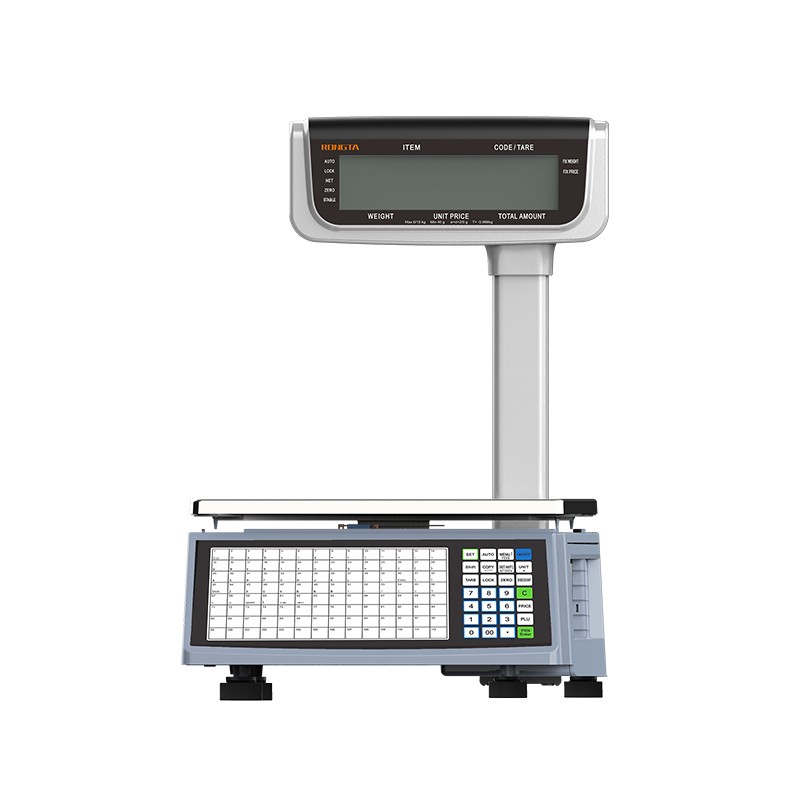 RLS1815C/RLS1830C Barcode Scale
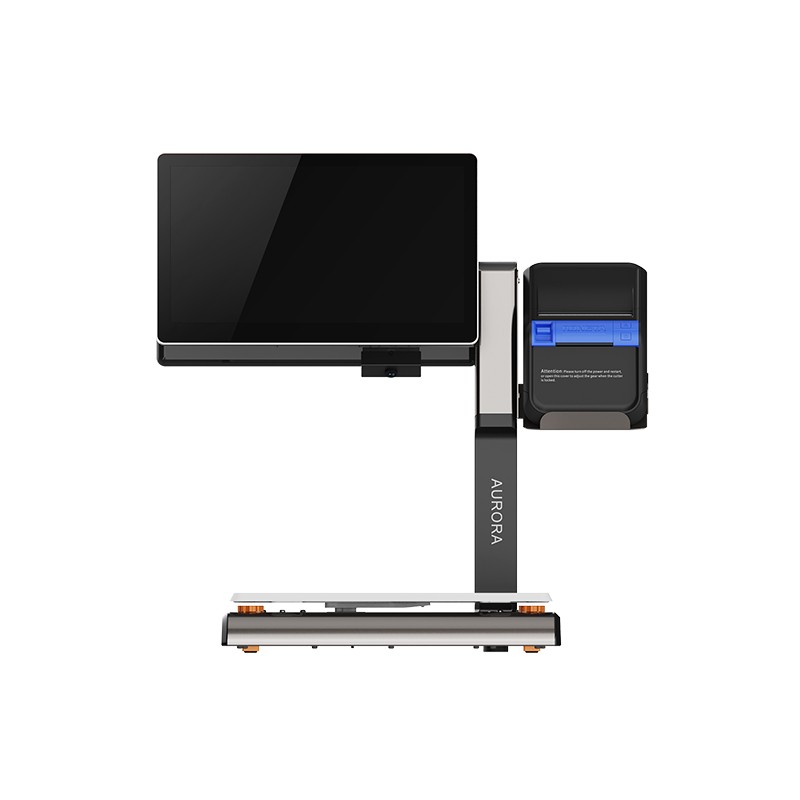 AURORA S2L-S Labelless Scale
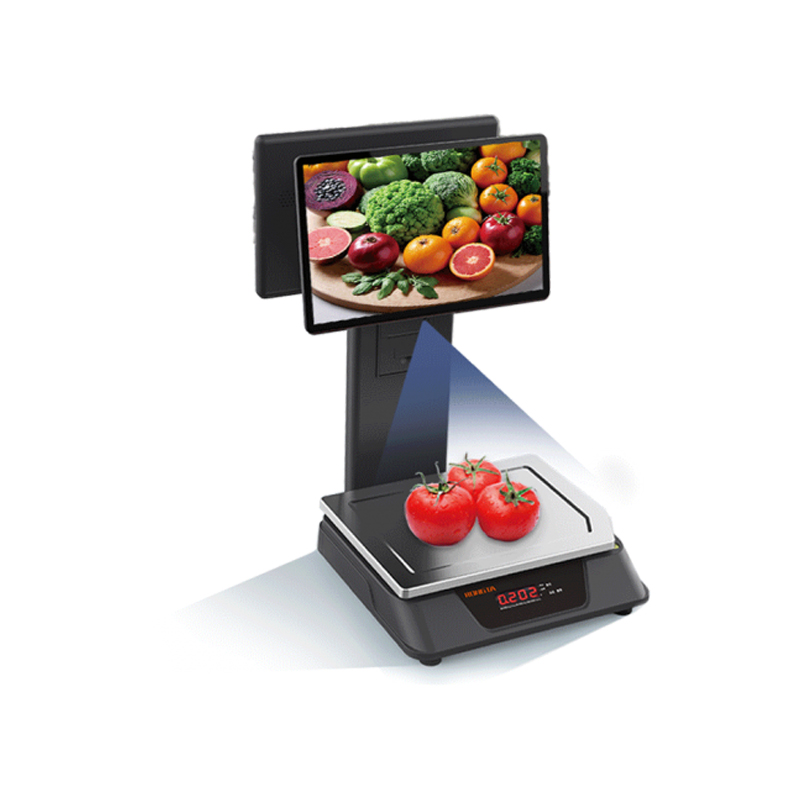 AURORA E1 PRO-AI Cash Register Scale
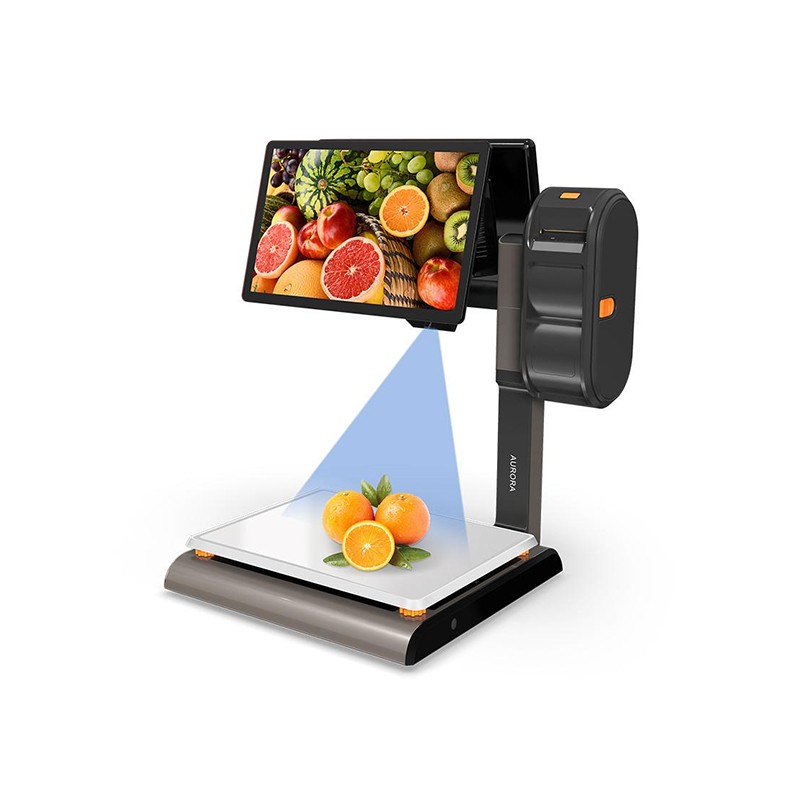 AURORA S2L-AI Label Scale
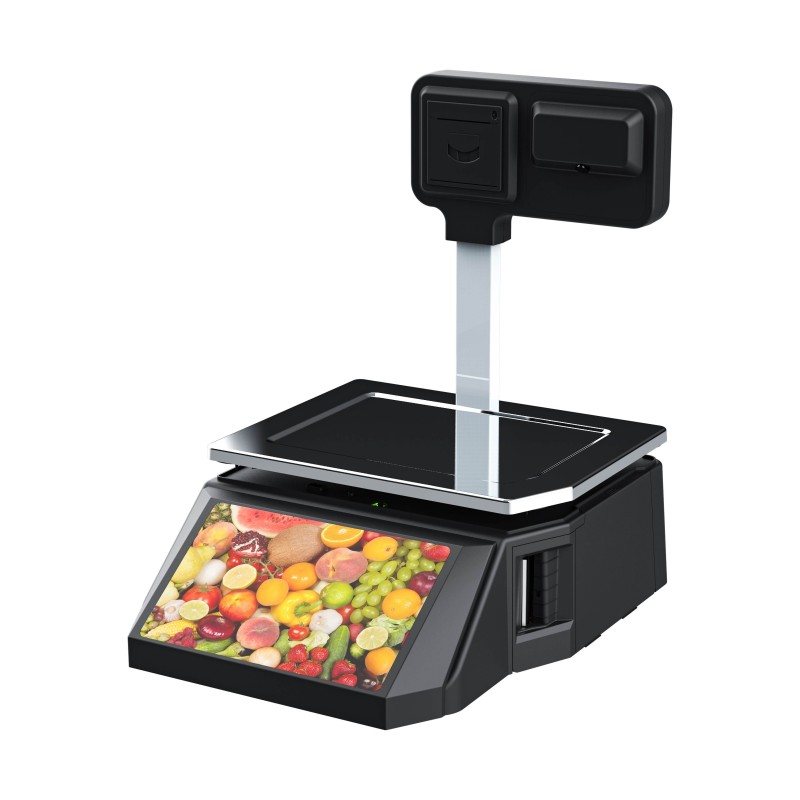 DP01-AI Smart Tag Cashier Dual-Use Scale
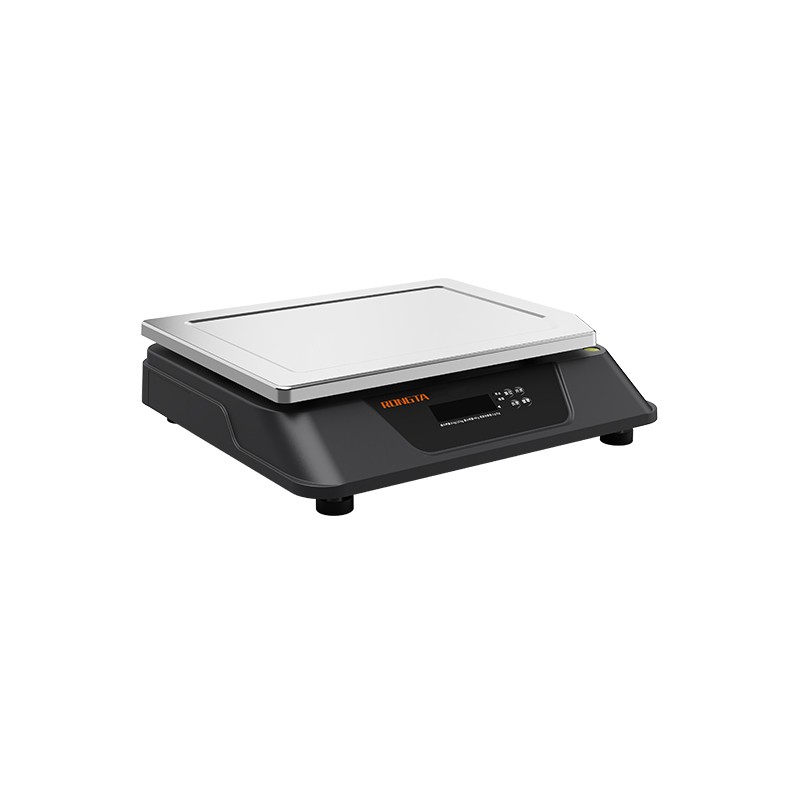 C3 Weighing Scale
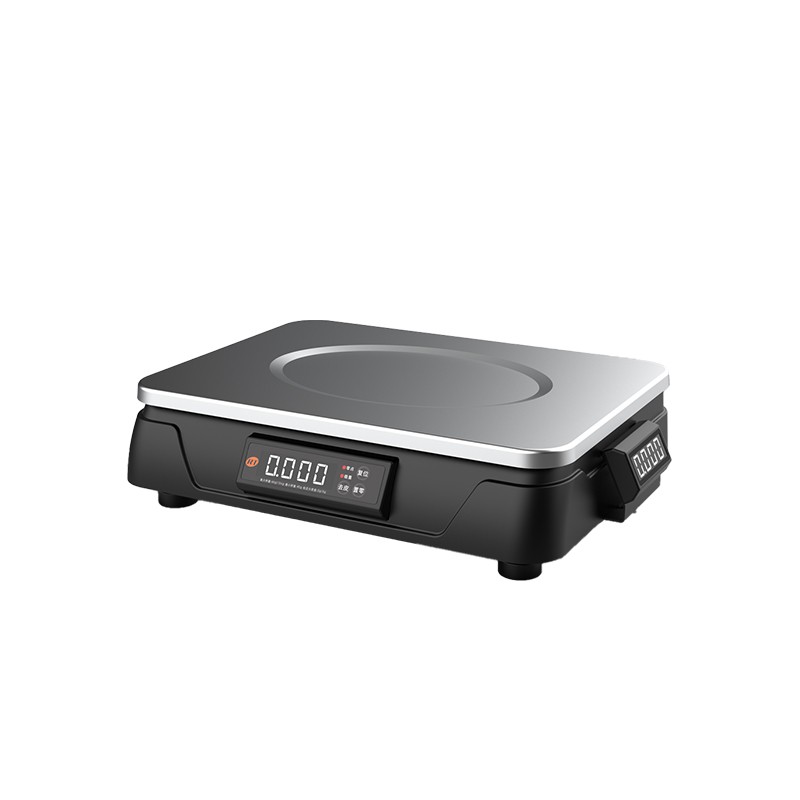 C1 weighing scale
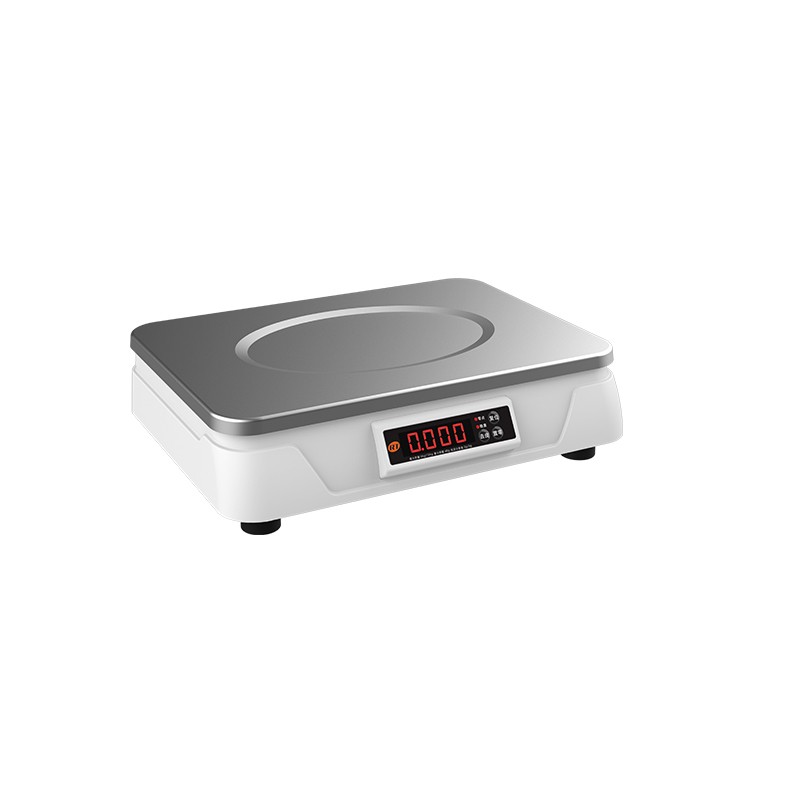 C11 Weighing Scale
 retail
 FOOD
FOOD Medical
 Mobile office/home
 asset Management
 logistics
 Driver download
 User Manual
 Tool Download
 Tag software
 Product Video
 Development Documentation
 Frequently Asked Questions
 User Guide
 Company News
 Exhibition Updates
 Industry Insights
 Product Update
 General situation
 Development history
 Honors and Qualifications
 R&D strength
 Team activities
 Social responsibility




Service Support
search

RP410/RP410H/RP410K(SF-FAQ)
Rongda RP410/RP410H/RP410K Frequently Asked Questions Guide 1. Button, Status Light, and Buzzer Descriptions 2. Daily Operation Instructions 2.1 How to Install the Driver Note: The first time the printer is connected to the computer, the driver needs to be installed on the computer before the printer can be connected. ① Installation Steps: a. Connect the printer's USB cable to the computer; the computer will automatically recognize the USB drive. b. Open the USB drive folder and double-click to open the driver program to install it. c. After the driver installation is complete, you can check if the RP4xx Ser... is recognized by clicking the Windows key in the lower left corner of the computer → Settings → Devices → Printers and Scanners.
SFH-RPP322N-FAQ
SF RPP322N Frequently Asked Questions Troubleshooting Manual 1. Basic Function Description 1.1 Appearance and Component Description 1.2 System Operation Instructions | No. | Operation Name | System Function | |---|---|---|---| | 1. Power On: When the printer is off, press and hold the [Power] button for 3 seconds to power on the printer. | | 2. Power Off: When the printer is on, press and hold the [Power] button for 3 seconds to power off the printer. | | 3. Paper Feed: Press and hold the [Paper Feed] button for 3 seconds to feed a full sheet of single-sided paper, simultaneously feeding it to the gap...
Label printer FAQ document
Table of Contents I. Basic Printer Operations: 1. Printing a Self-Test Page 2. Restore Factory Settings 3. Label Learning 4. Paper Out Learning 5. Density/Speed ??Settings 6. Command Switching (if supported) 7. Firmware Upgrade 8. Font Upgrade 9. Windows Driver Installation Driver Installation Steps 10. Driver Settings Functions Printing Driver Test Page Steps Driver Port Settings Steps Driver Settings Collect Print Data Driver Modify Label Size Driver Halftone Function Adjusting Driver Density/Speed/Data Compression/Media Adjustment 11. Setting Network Port IP II. Common Problems and Solutions: 1. Driver Cannot Be Installed 2. Abnormal Paper Feed 3. Garbled Printing Problem 4. ...
RP58B-FAQ
I. Basic Introduction II. Printing via USB Port using the driver http://m.tjhq.cc/category/downloads/1 (Download Link) 1. Driver Installation Steps: After downloading the driver, click to open the integrated driver. Select the displayed language and click Install. Select the corresponding "Model" and "Port," then click Install. Select the 58mm series model; the port number should be based on your actual port number. Click Finish; the driver installation is complete. A computer restart is not required. 2. Printer Port Setup Steps (USB Port): ...
Intelligent weighing instruments are indispensable for improving operational efficiency in smart retail, food processing, and modern logistics.
With the booming development of commerce and technology, the technology and application of weighing instruments have entered a new stage of development. Currently, intelligent weighing instruments are widely used in industries such as manufacturing, retail, agricultural product processing, and logistics. The trend towards intelligence and precision is constantly driving innovation in intelligent electronic scales. In industries such as food processing, fresh produce sorting, hotel canteens, farmers' markets, and chain supermarkets, intelligent weighing instruments with printing and identification functions can meet multiple needs in warehousing, transaction settlement, and quality inspection. They can directly print barcodes or QR codes without a computer, with customizable printing formats. They can also use barcode scanners to complete barcode scanning for outbound delivery and cashier settlement, significantly improving operational efficiency and achieving accurate data transmission. Rongda Technology's PC...
What are the differences between thermal printers and thermal transfer printers, and how should you choose between them?
Receipt and label printers are increasingly widely used in retail, logistics, warehousing, banking tax control, and food delivery industries, becoming a powerful guarantee for improving operational efficiency and ensuring accurate product information in various sectors. Depending on the printing method, receipt and label printers come in two technologies: thermal printing and thermal transfer printing. Both methods use a thermal printhead to heat the printing surface. The main difference is that thermal transfer uses a heated ribbon to print a durable pattern on paper; while thermal printing does not rely on a ribbon but uses thermal paper. The heated printhead activates the chemical substances on the thermal paper, applying pressure and heat directly to the surface. The heated thermal paper then emits...
Label printer RP310-UE
RP310-UE Old Firmware Version User Guide RP310-UE Old Firmware Version User Guide__ 1 RP310 Basic Operation Instructions__ 2 (I) Network Port Configuration Instructions__ 2 (II) Setup Tool Instructions__ 2 1. Setting the Printer IP Address;__ 2 2. Paper Out Learning;__ 3 3. Printer Firmware Upgrade;__ 4 4. Setting Print Speed ??and Density;__ 5 (III) Button Operation Instructions__ 5 1. Printing Self-Test Page:__ 5 2. Manual Label Learning:...
Troubleshooting and Simple Maintenance of Rongda Technology's 4-inch Thermal Transfer Label Printer
Rongda Technology 4-inch Thermal Transfer Label Printer Troubleshooting and Simple Maintenance Thermal Transfer Label Printer Troubleshooting 1. Common Problems The table below lists common problems encountered by general operators and their solutions. If you have followed our simple troubleshooting methods and the printer is still not working properly, please contact your manufacturer's customer service department for further assistance. Simple Maintenance of Thermal Transfer Label Printers Performing this simple printer maintenance procedure ensures print quality and extends the printer's lifespan. Here are some maintenance recommendations: 1. Please use the tools listed below to clean and maintain your printer: ● Cotton swabs ● Cotton cloth ● Vacuum cleaner or air brush ● 10...
Rongda RP400 Thermal Transfer Label Printer LED Indicator Lights and Button Function Description
Rongda RP400 Thermal Transfer Label Printer LED Indicator and Button Function Description This printer has one button and one indicator light. Pressing the button or using it in conjunction with the power switch, depending on the indicator light's status, will activate multiple printer functions, such as: paper feed, pause printing, print self-test page, and initialize the printer. See below for details. 1. LED Indicator Light The LED indicator light is matched to the buzzer, as shown below: 2. General Button Functions 1) Paper Feed When the printer is ready (LED is fixed in blue), press the button once, and the label paper will be fed to the front of the next label sheet. 2) Pause Printing While printing, lightly press the button...
Paper Installation Instructions for the RP400 4-inch Thermal Transfer Label Printer
Paper Installation Instructions for the RP400 4-inch Thermal Transfer Label Printer: 1. Press the switches on both sides of the top cover with both hands to open the printer top cover. 2. Load the paper roll into the label supply shaft and use the paper roll retainer to secure the paper roll in the center of the supply shaft. (If using a 3″ wide paper roll, you can remove the retainer and use the paper roll shaft directly.) 3. Place the paper roll upright on the paper roll holder. 4. Press the printhead switch to turn on the printhead. 5. Pull out the front end of the paper (printing side up), pass it under the paper guide and paper sensor, and adjust the paper guide to be the same width as the paper and make slight contact. 6. Press down with both hands at the arrow in the left image to close the printhead. Ensure the printhead is completely closed to ensure print quality. ...
Rongda RP4X Thermal Transfer Label Printer Installation Instructions
Rongda RP4X Thermal Transfer Label Printer Installation Instructions 1. Installing the Printer 1) Place the printer on a stable surface. 2) Ensure the power is off. 3) Insert one end of the serial or USB cable into the slot at the back of the printer, and then insert the other end into the corresponding slot on your computer. 4) Insert the power cord into the power socket at the back of the printer, and then plug the other end into an AC outlet. Note: 1) Please turn off the printer's power switch before inserting the power cord into the printer's power socket. 2) The printer's transmission interface shown in the picture may vary depending on the model you purchased. Please refer to your product model and specifications for the actual transmission interface. 2. Installing the Ribbon 1) Press down on both sides of the top cover...