

 80mm Receipt Printer
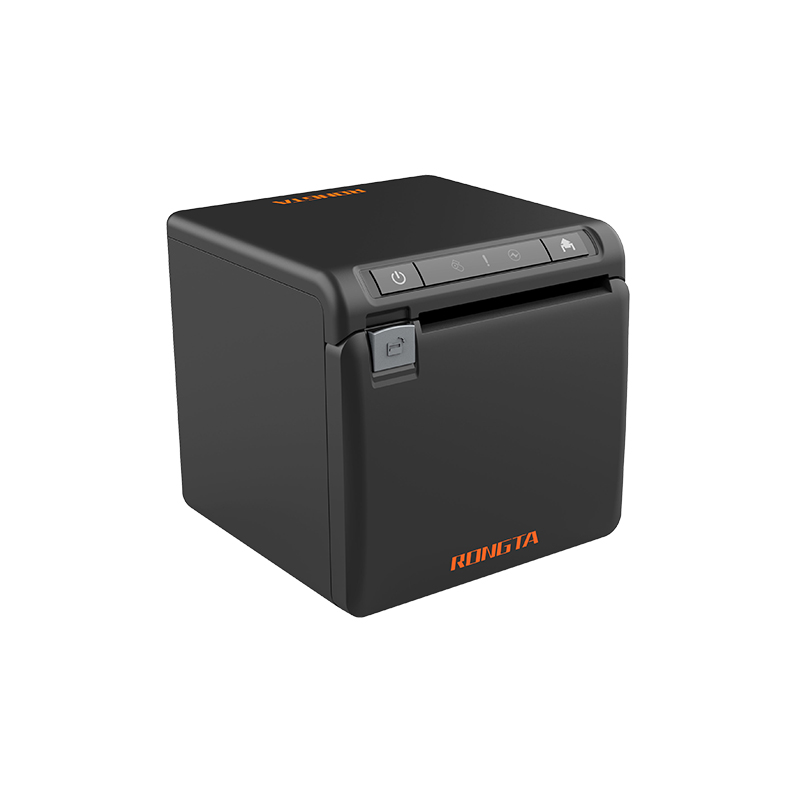 ACE H2 Receipt Printer
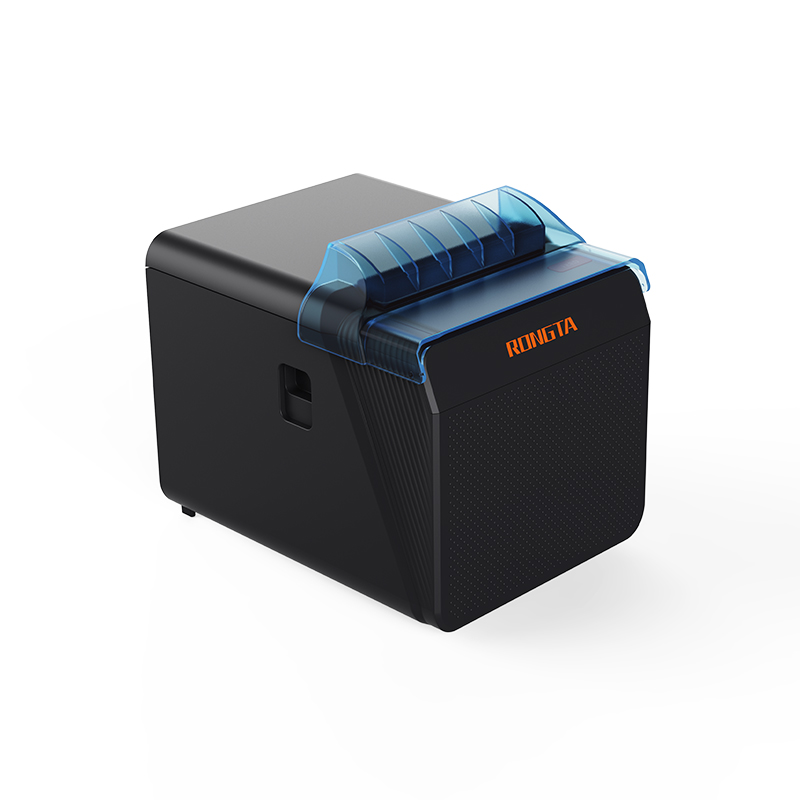 RP337 Receipt Printer
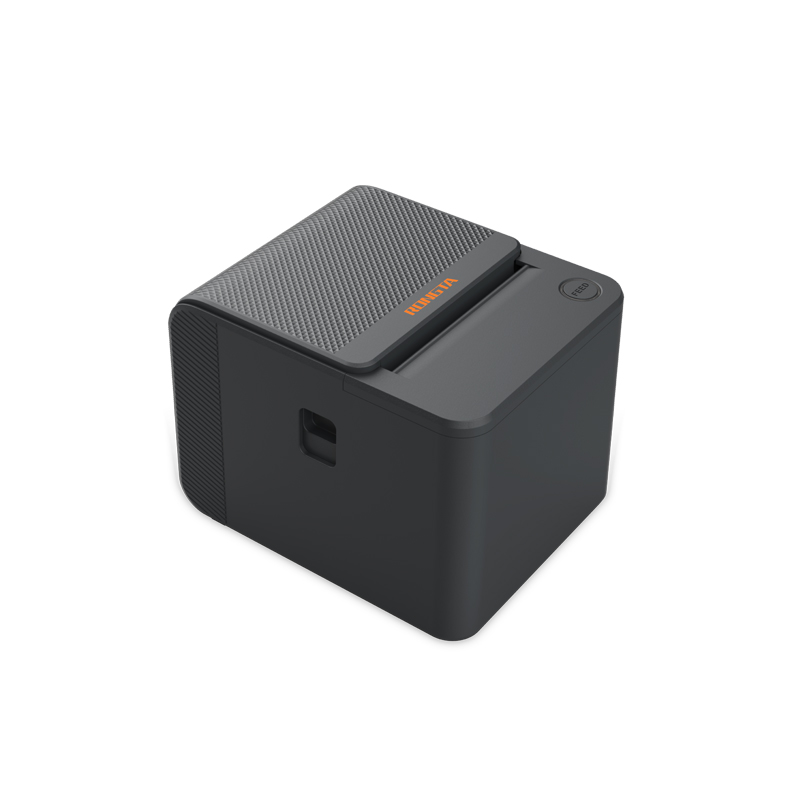 RP336S Dual-Color Receipt Printer
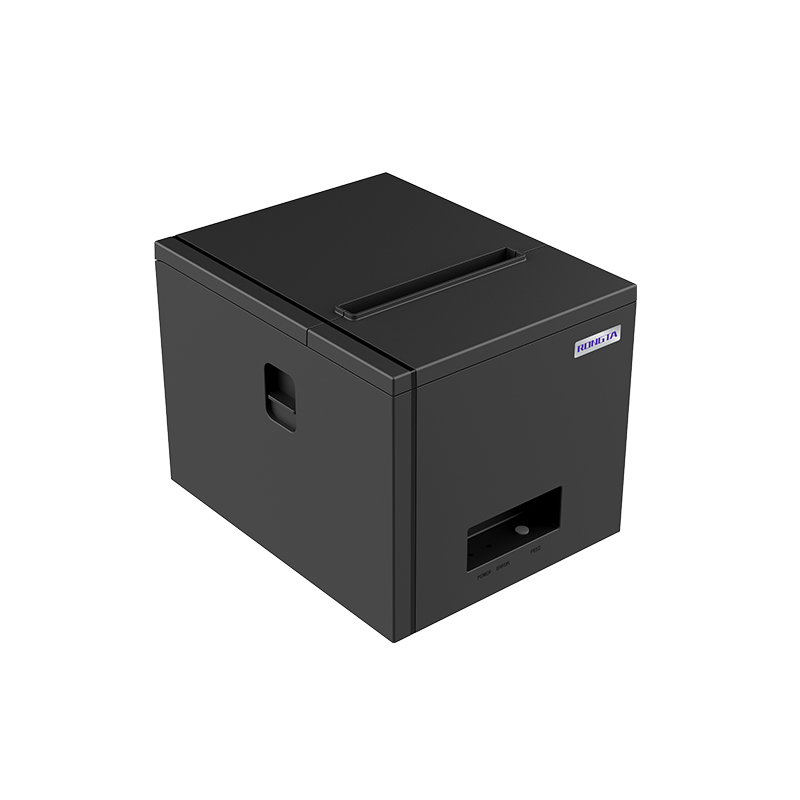 RP350 Receipt Printer
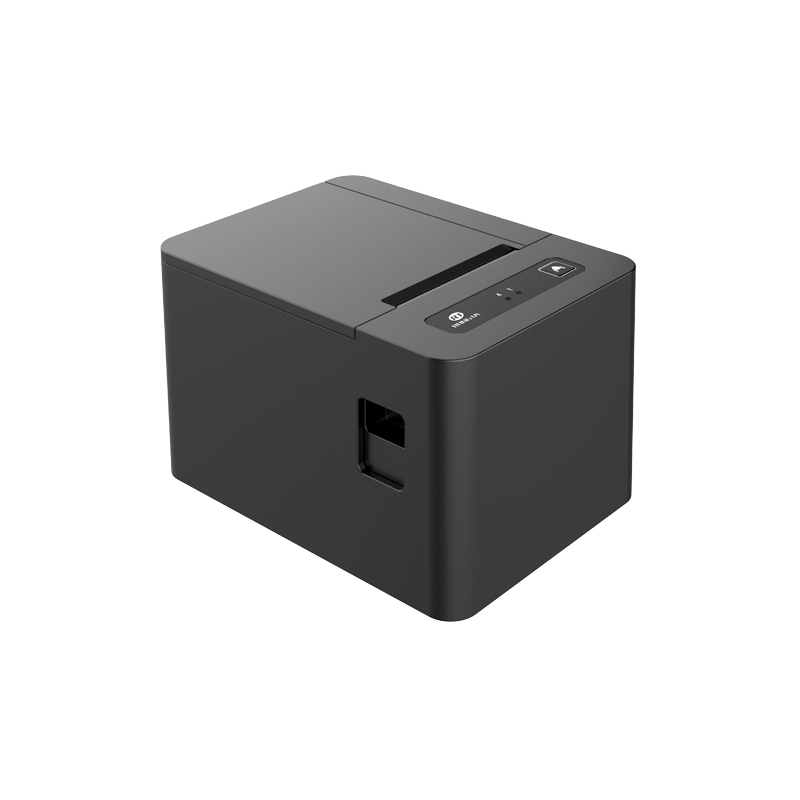 RP582 Receipt Printer
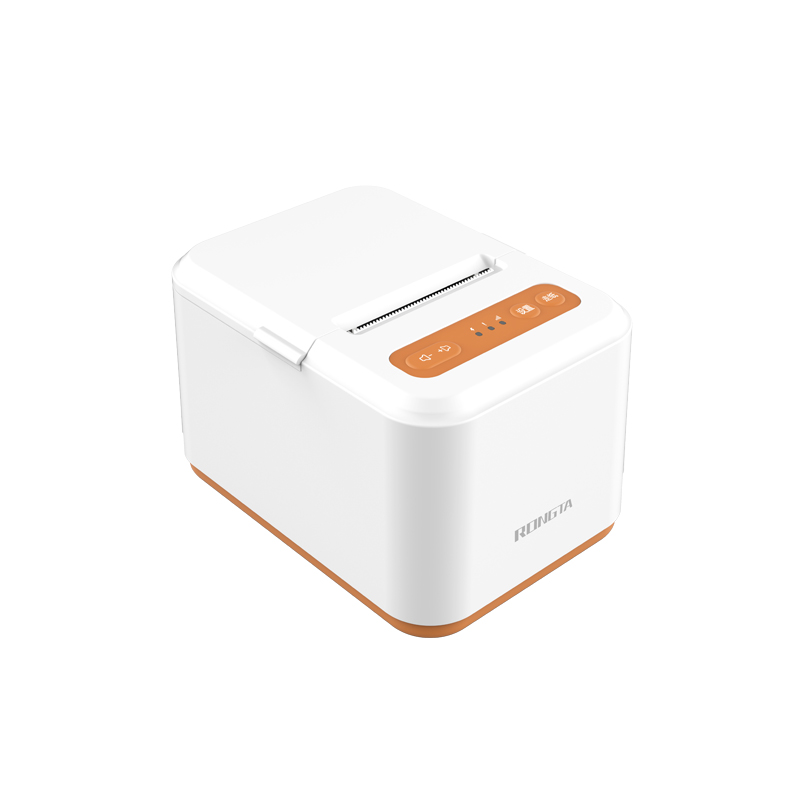 RP581 Receipt Printer
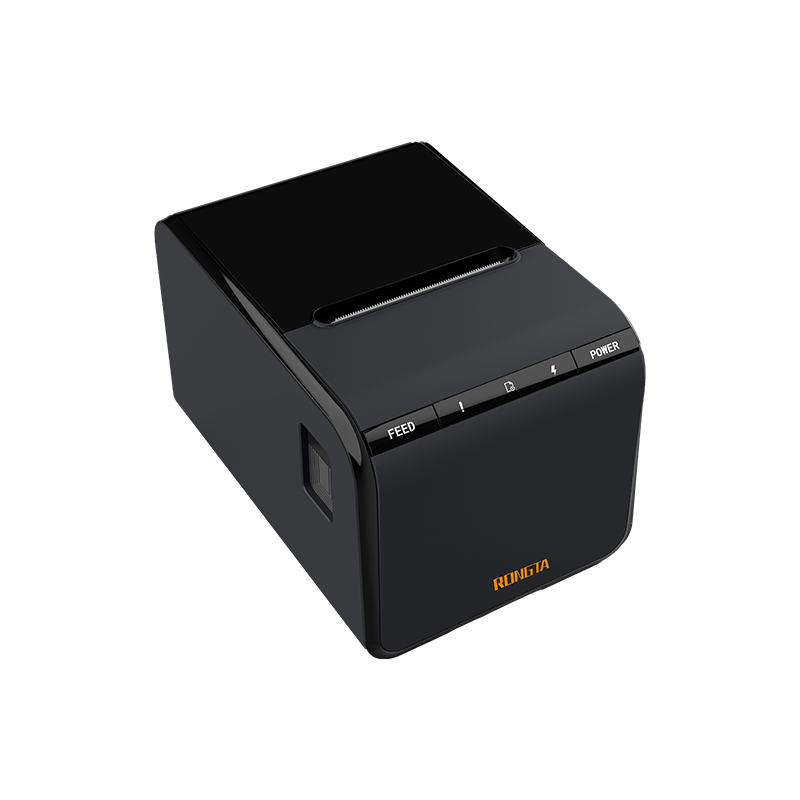 ACE G1Y Receipt Printer
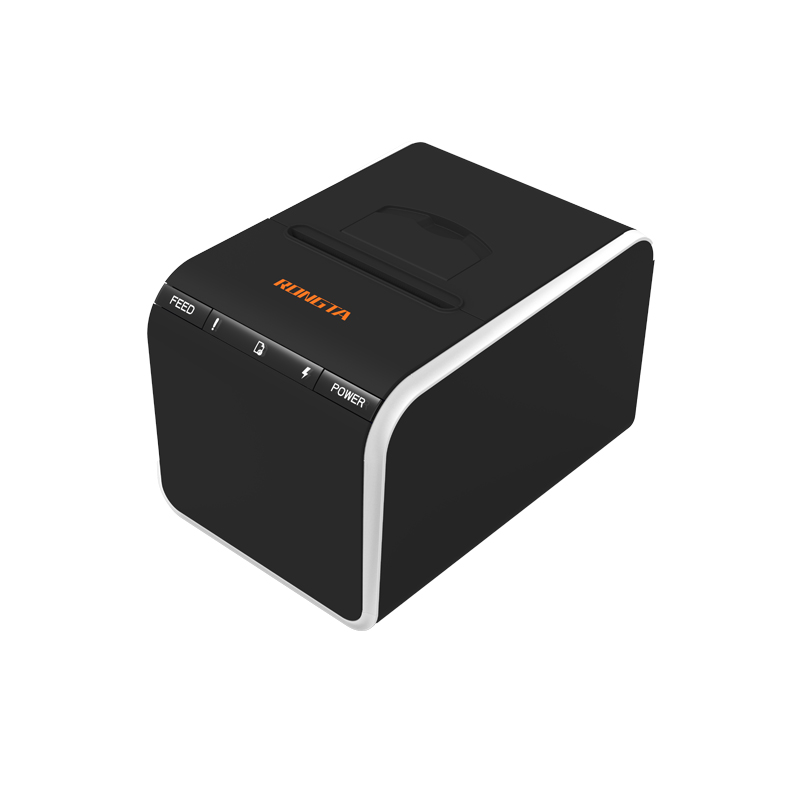 ACE G1YP Cloud Printer
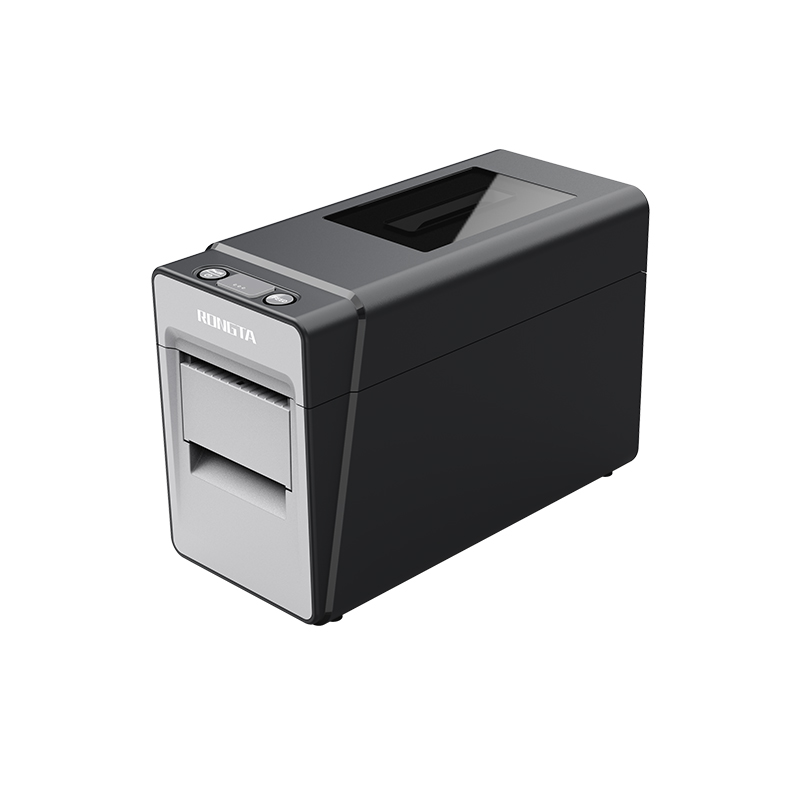 RP216 2'' Dual-color High-definition Label Printer
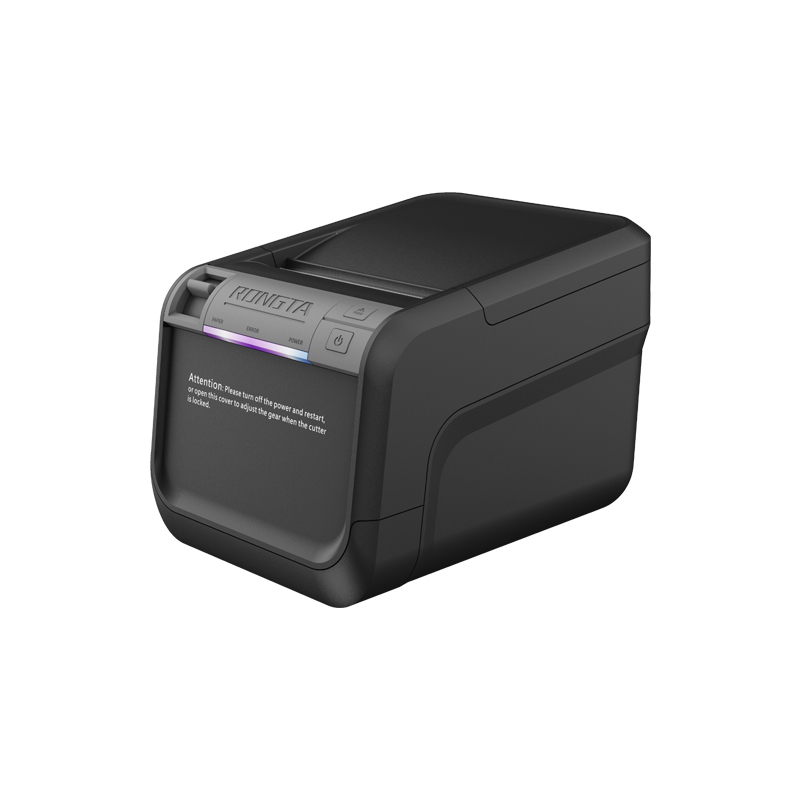 ACE V1S 3'' Backless Label Printer
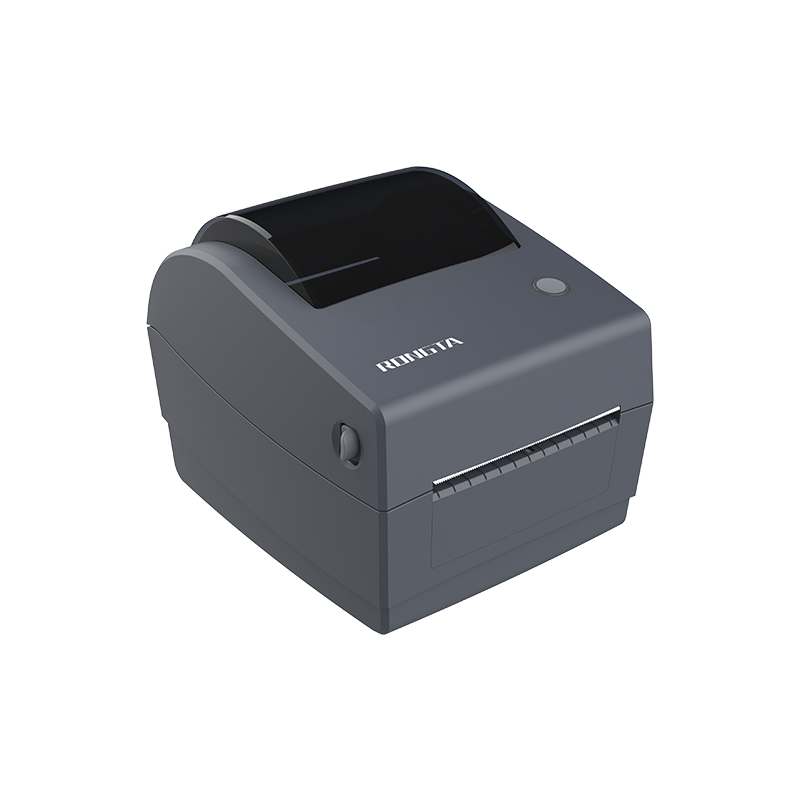 RP310D 3'' Dual-color Label Printer
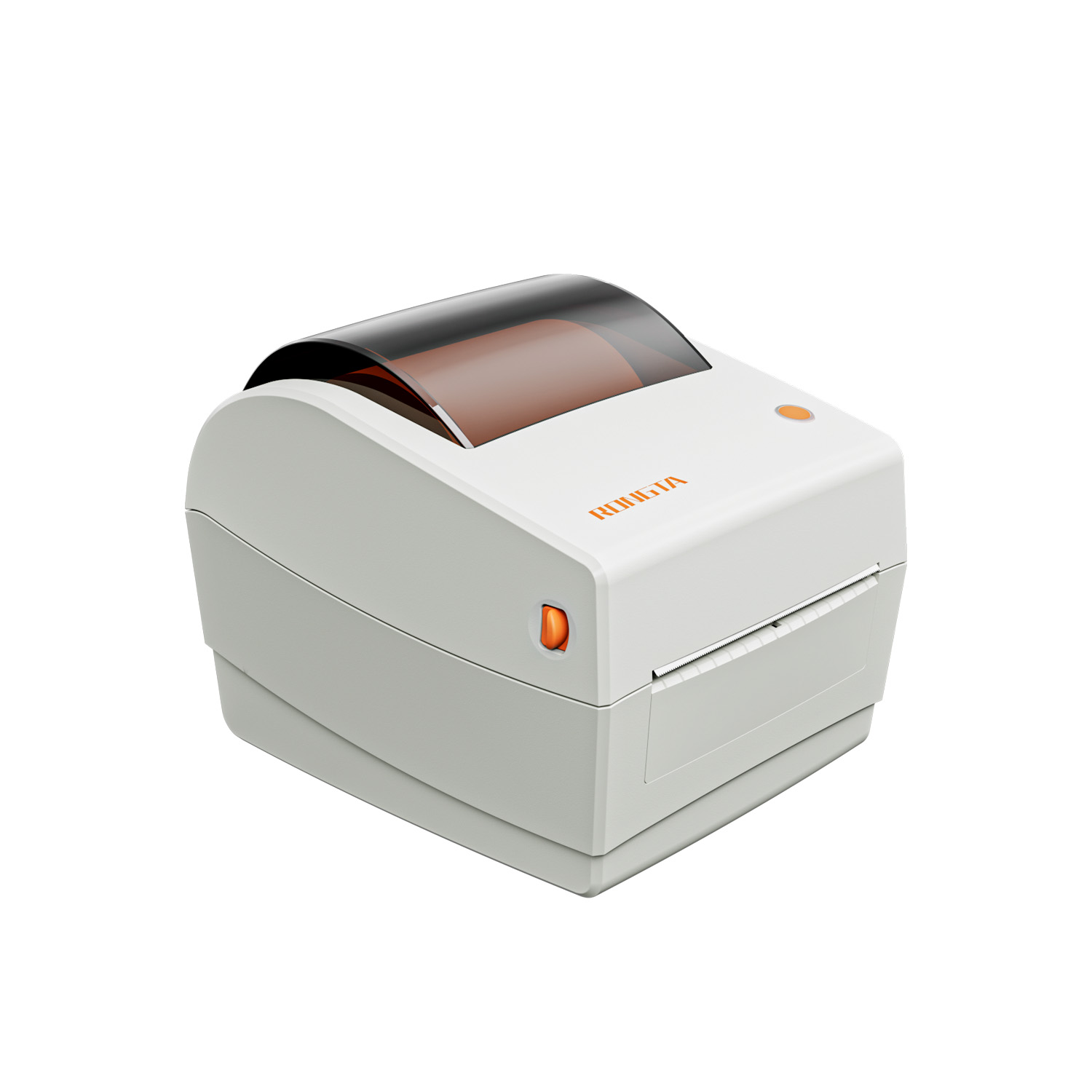 RP410N 4'' Thermal Label Printer
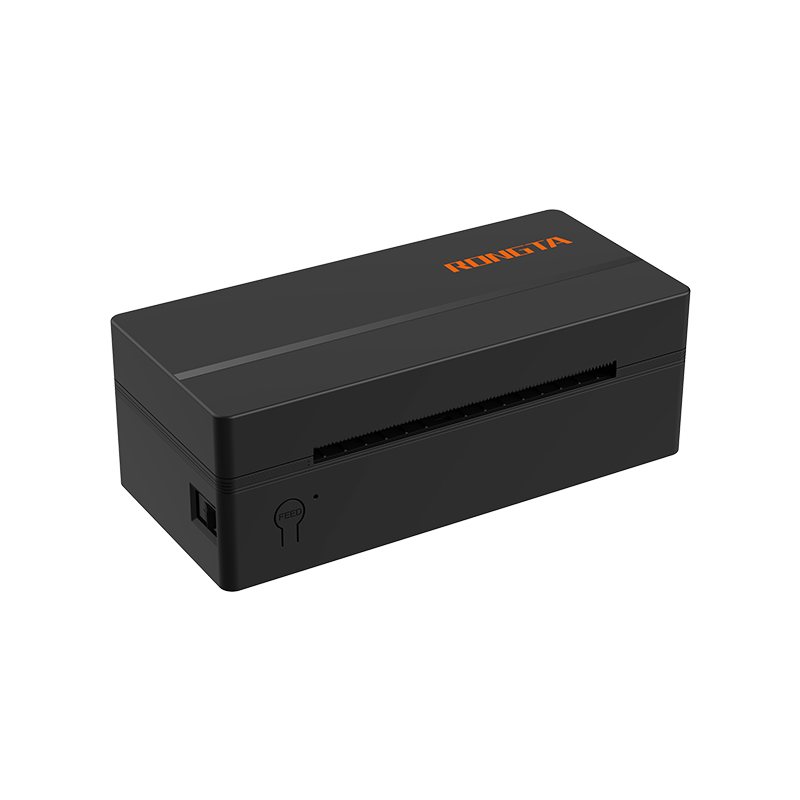 RP425 4'' Electronic Waybill Printer
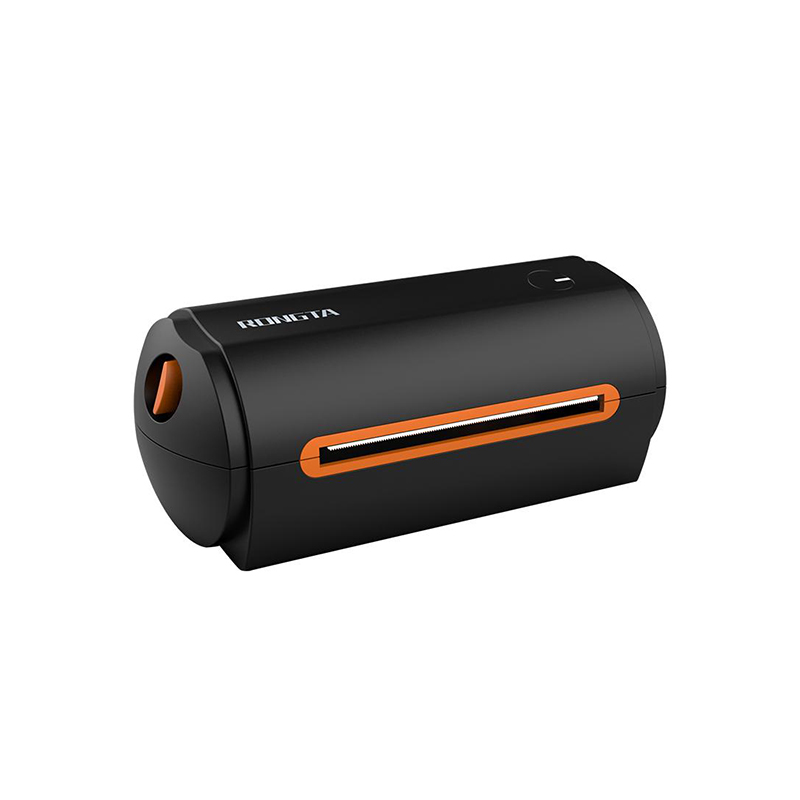 RP422 4'' Electronic Waybill Printer
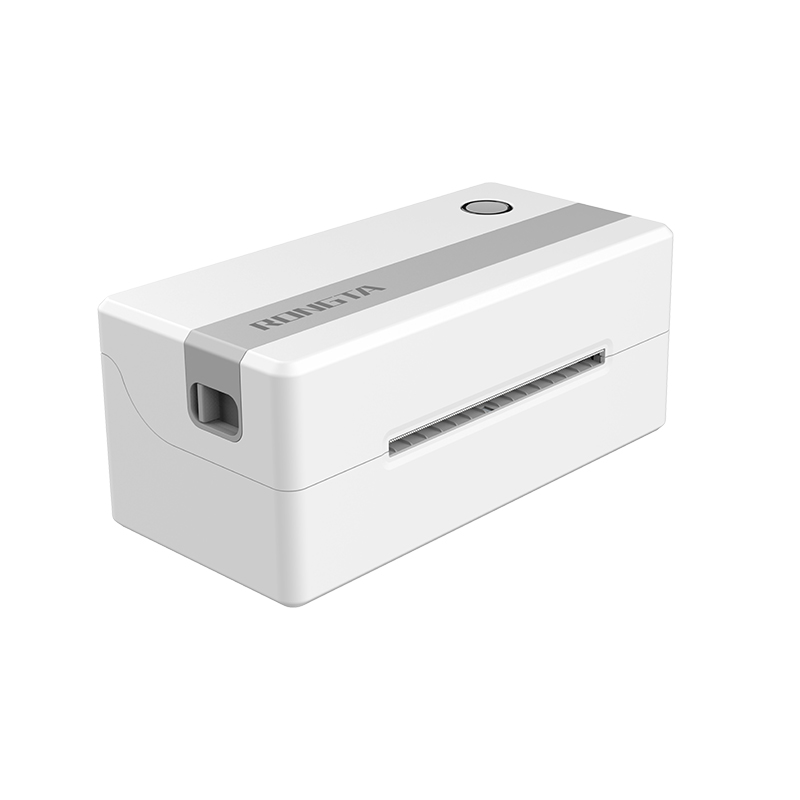 RP421A 4'' Electronic Waybill Printer
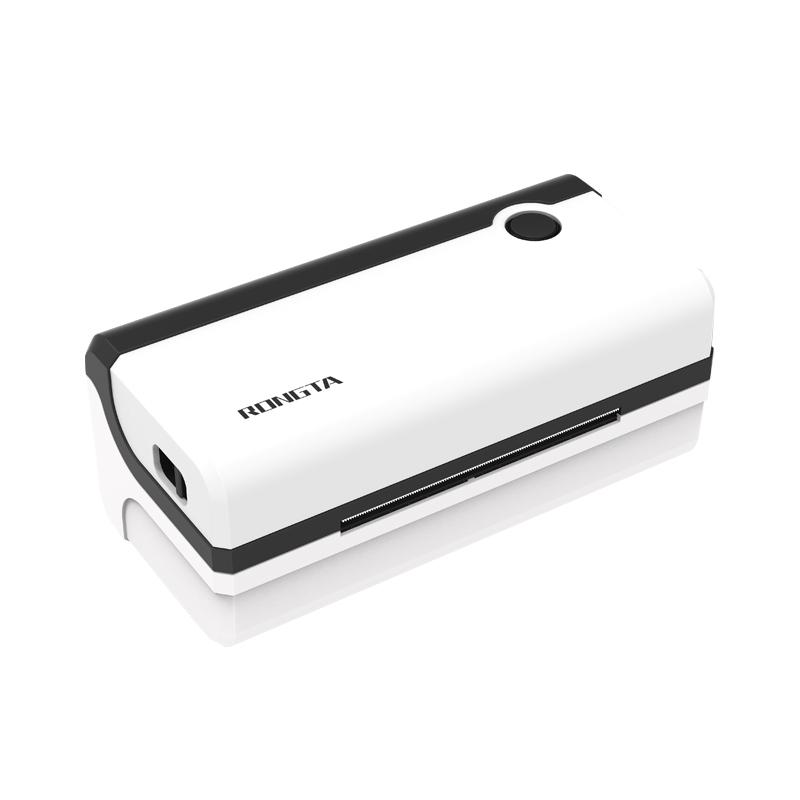 RP420 4'' Electronic Waybill Printer
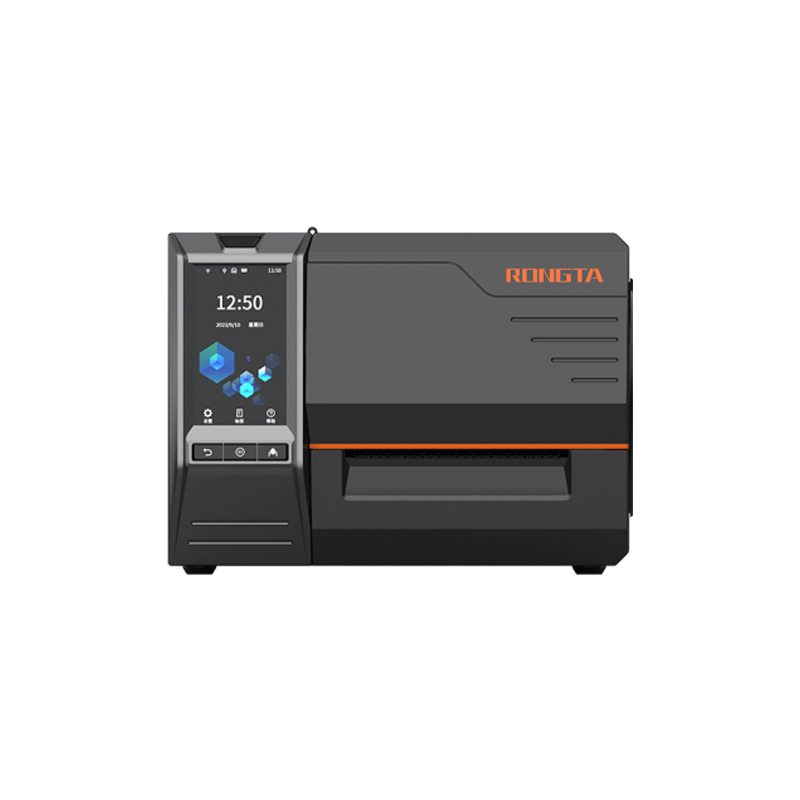 RI463 Series Barcode Printers
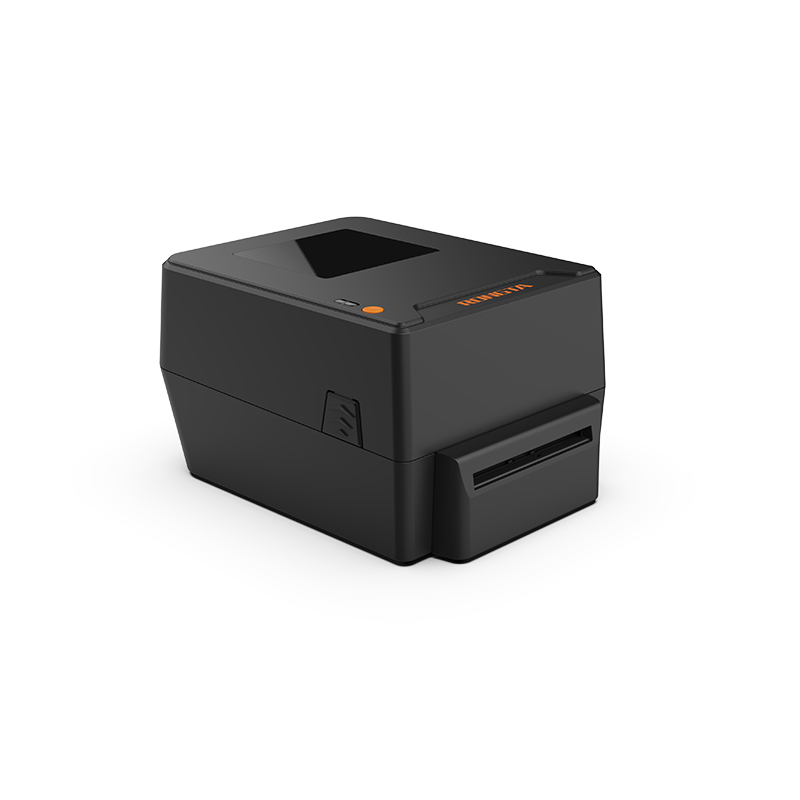 RP400A 4'' Thermal Transfer Tape Cutter Printer
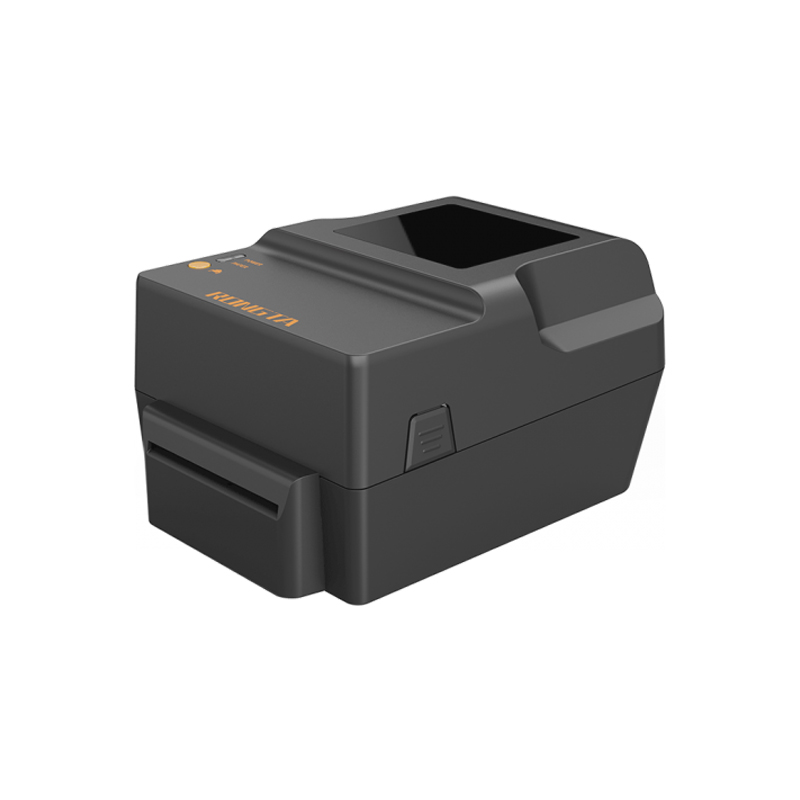 RP400H 4'' Thermal Transfer Tape Cutter Printer
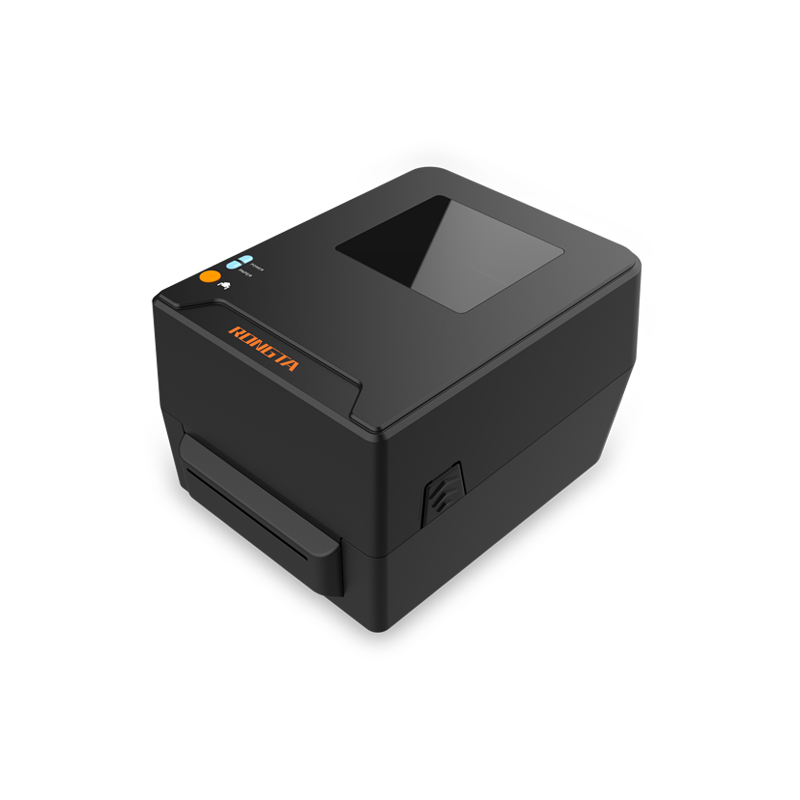 RPF413 300dpi RFID barcode label printer
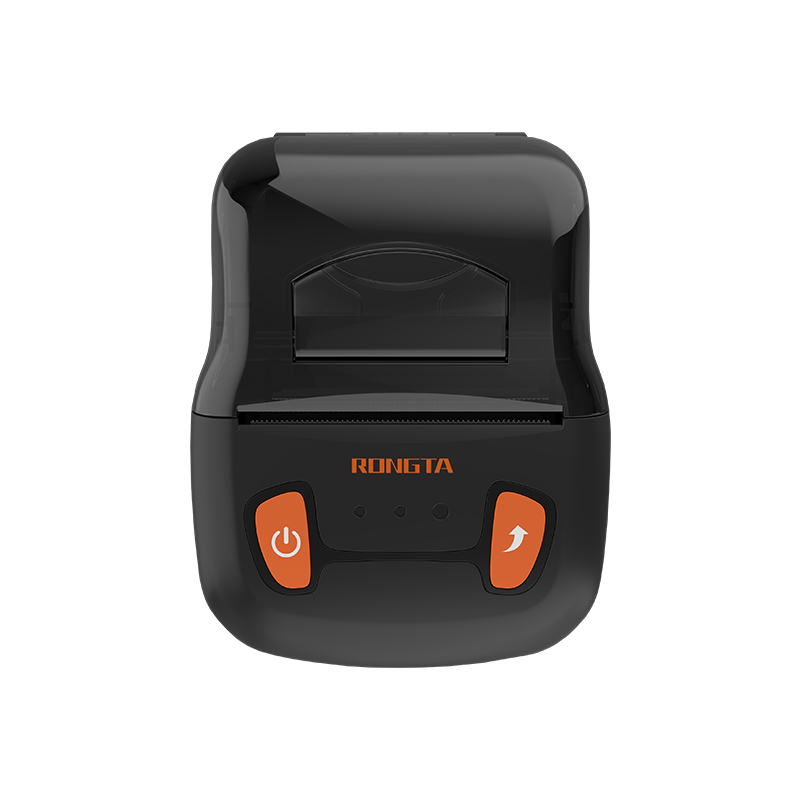 RPP02A Portable Receipt Printer
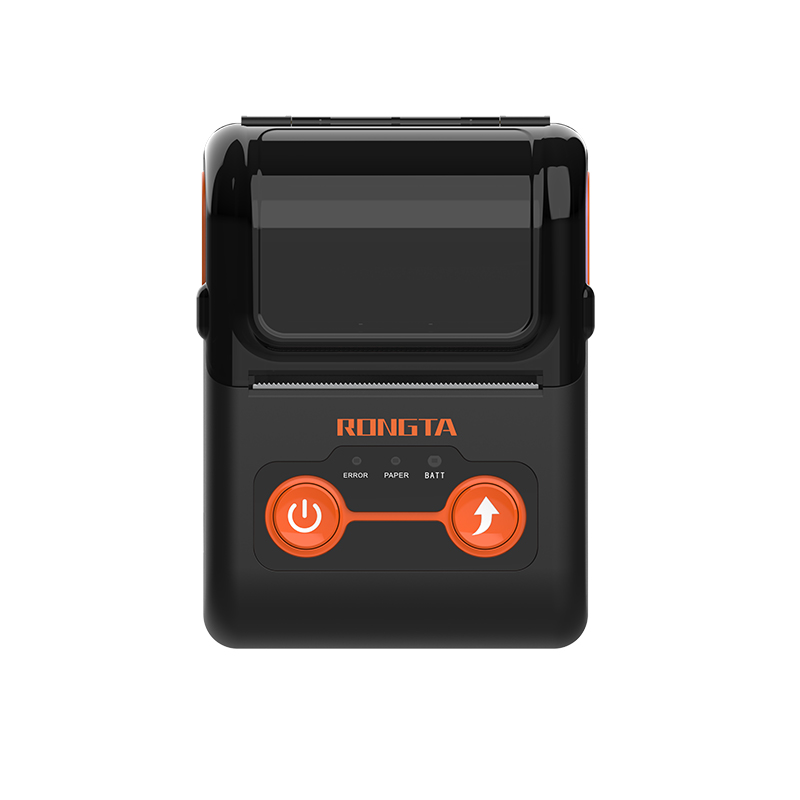 RPP02B Thermal Portable Printer
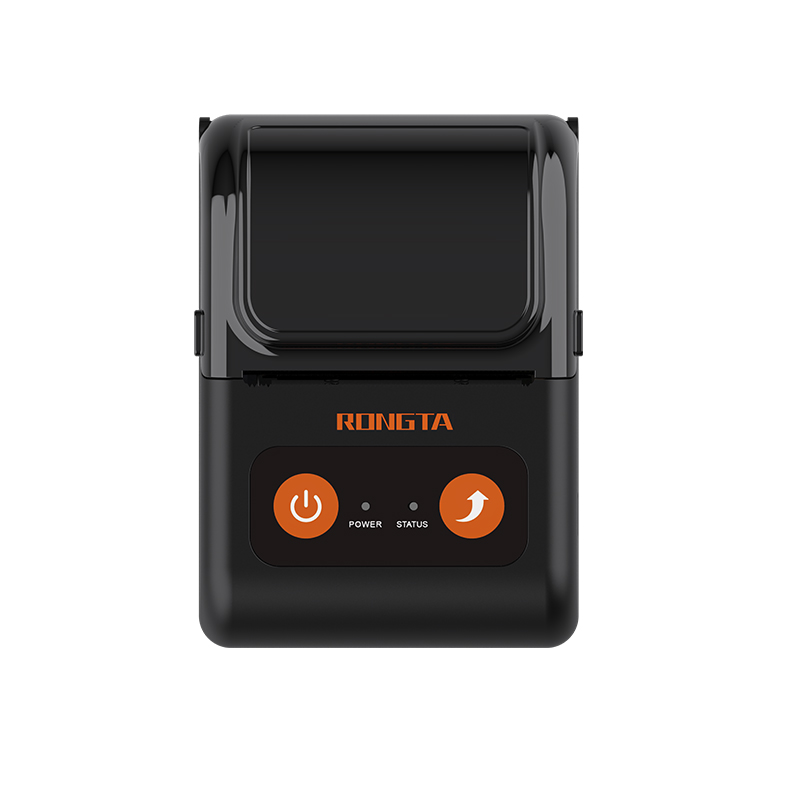 RPP02C Portable Receipt Printer
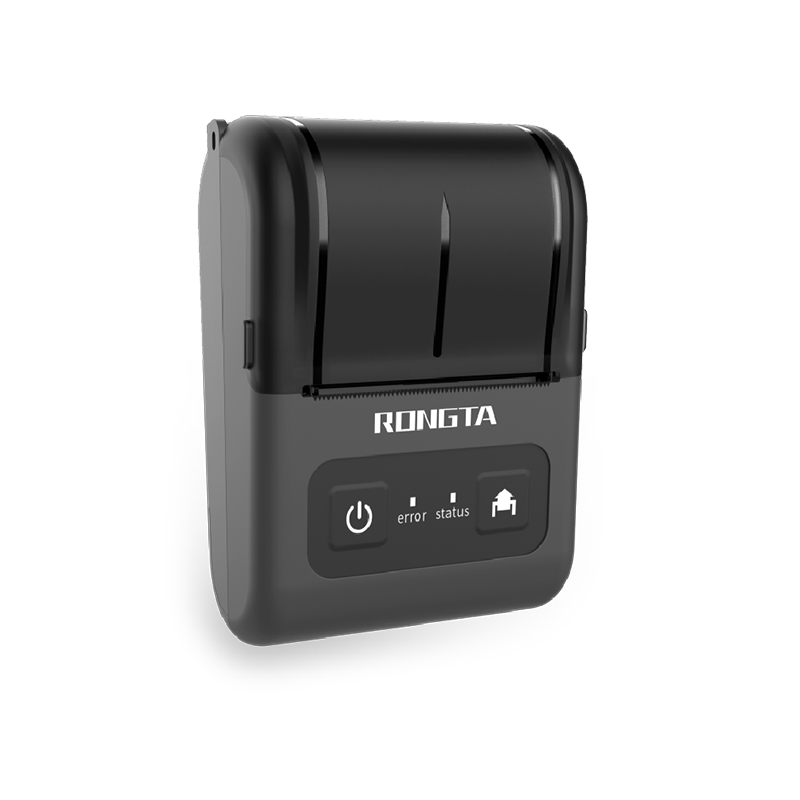 RPP02D Thermal Portable Printer
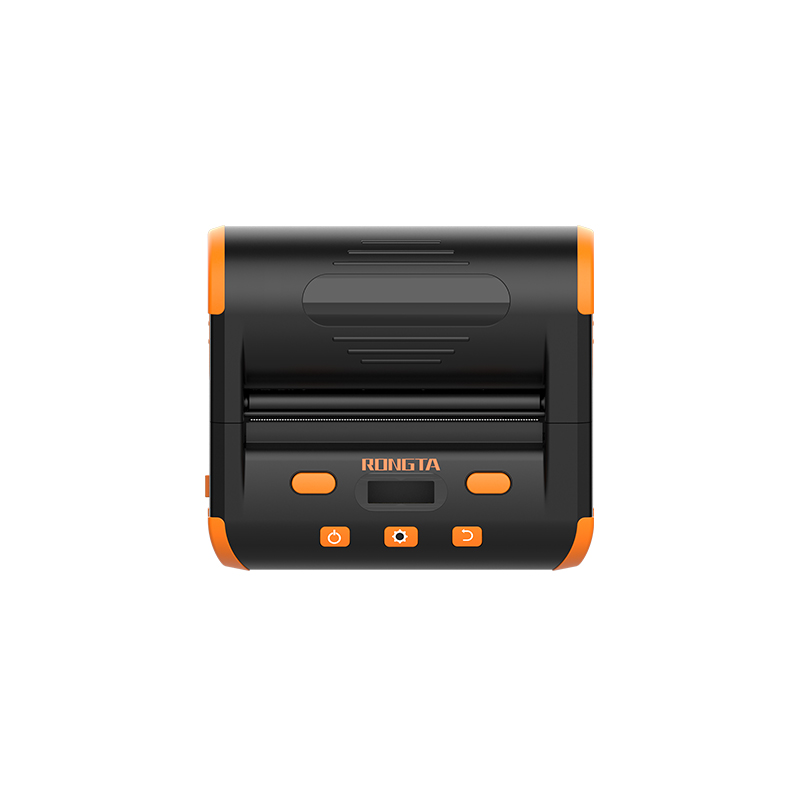 RPP04 4" Portable Label Printer
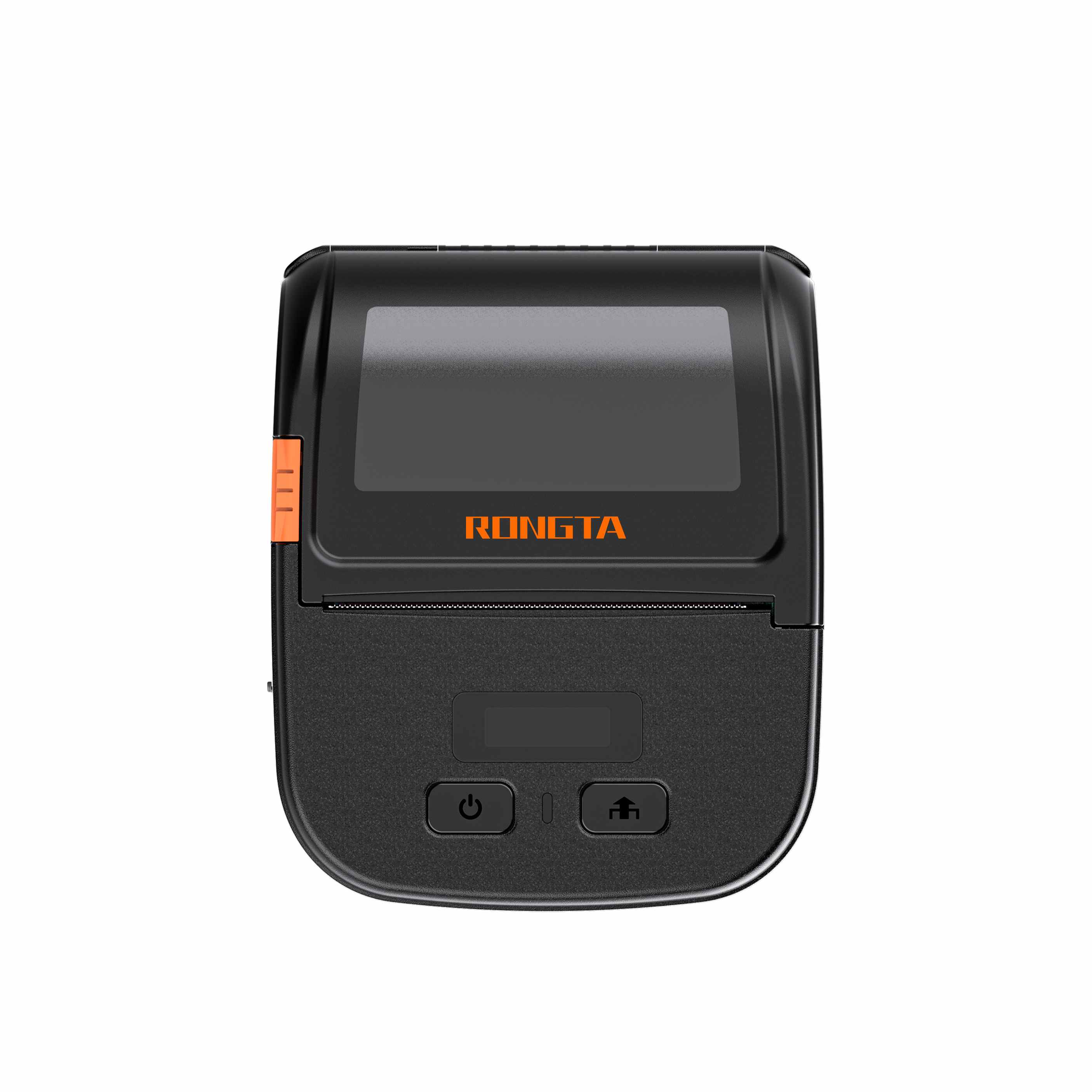 RPP30 3" Portable Label Printer
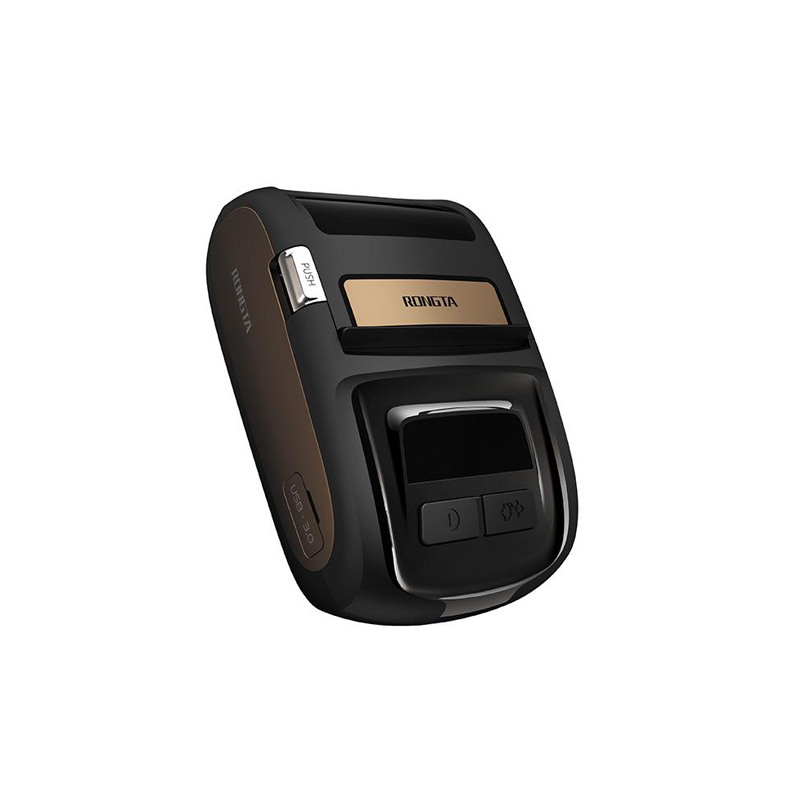 ACE M1 2" Portable Label Printer
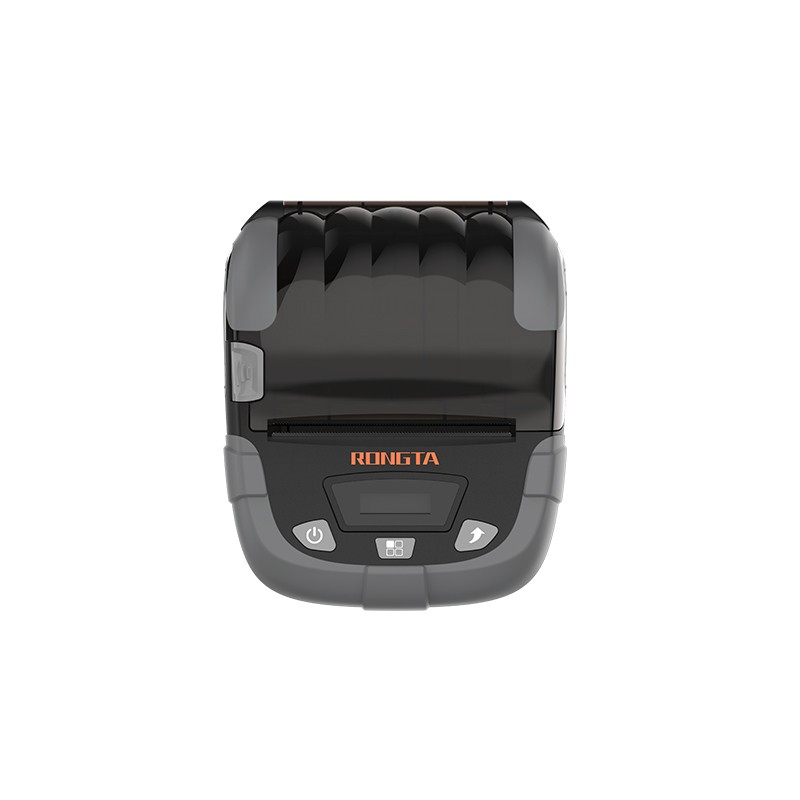 RPP320N 3" Portable Label Printer
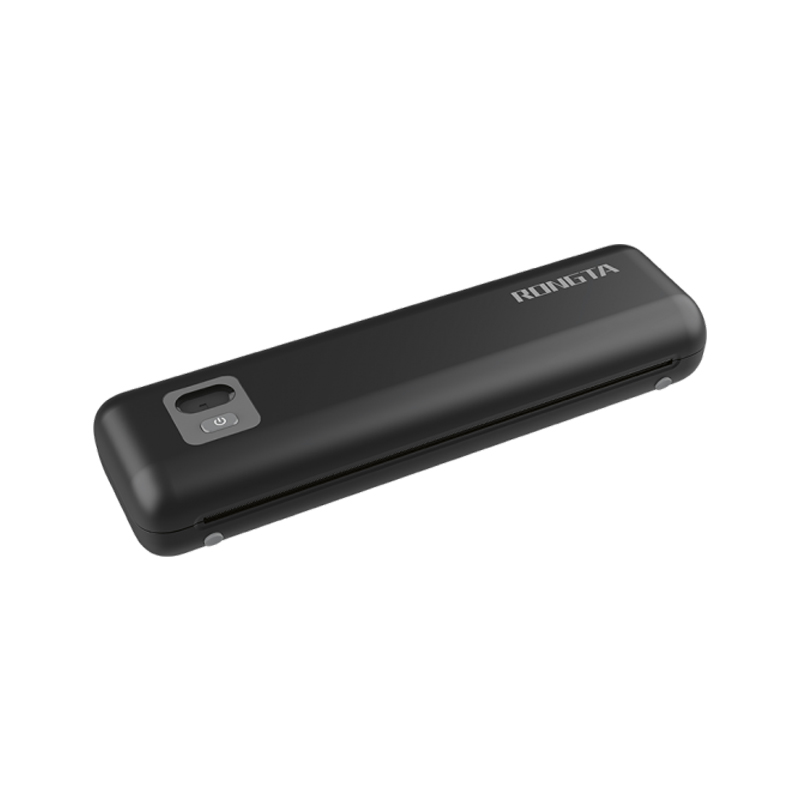 F82A A4 Front-Out Paper Tray Thermal Printer
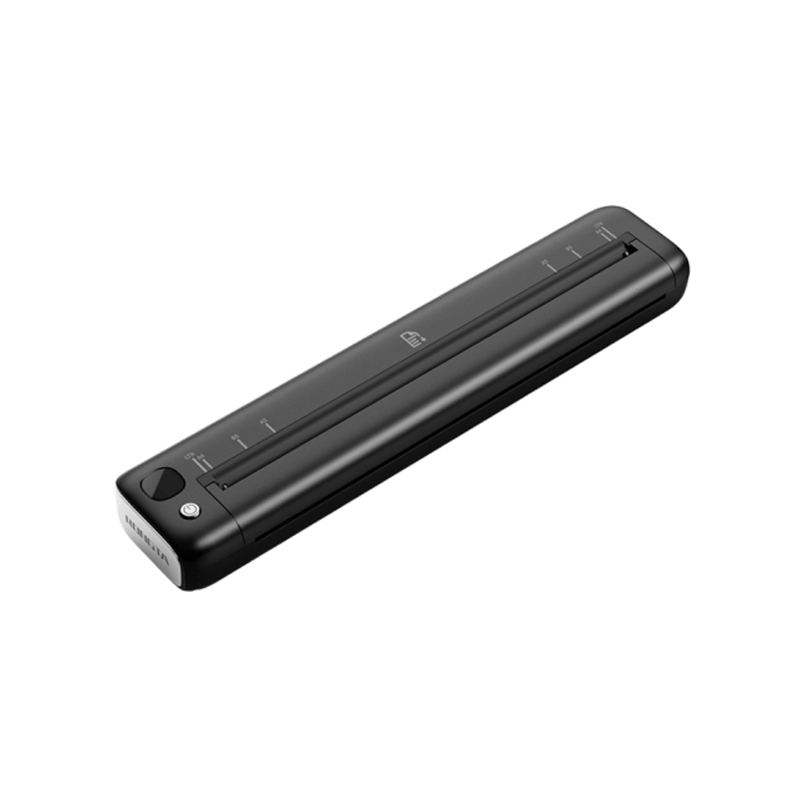 F81A Portable A4 Thermal Printer
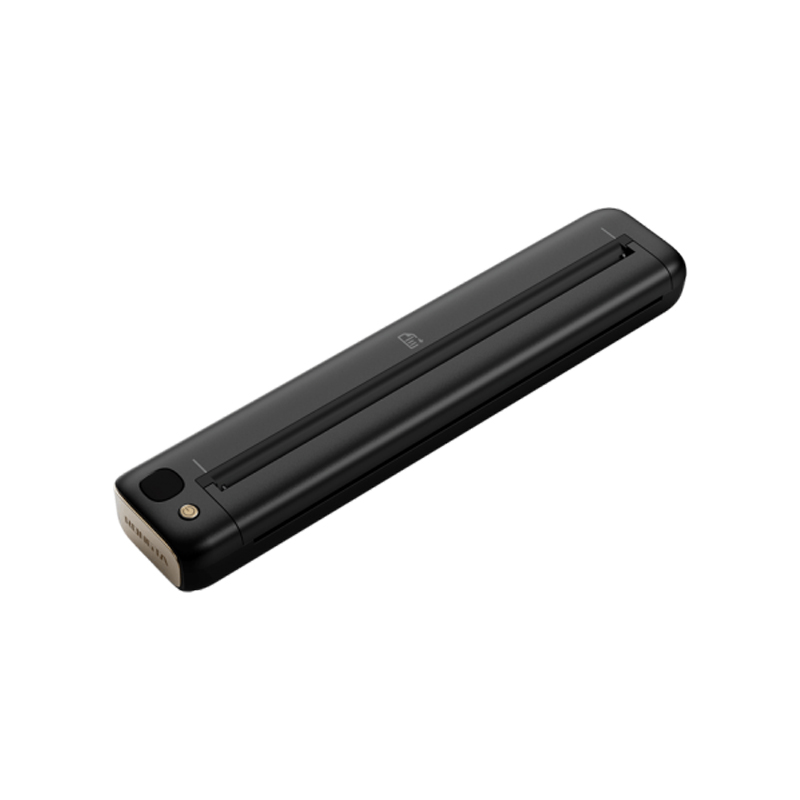 F81S Portable A4 Tattoo Printer
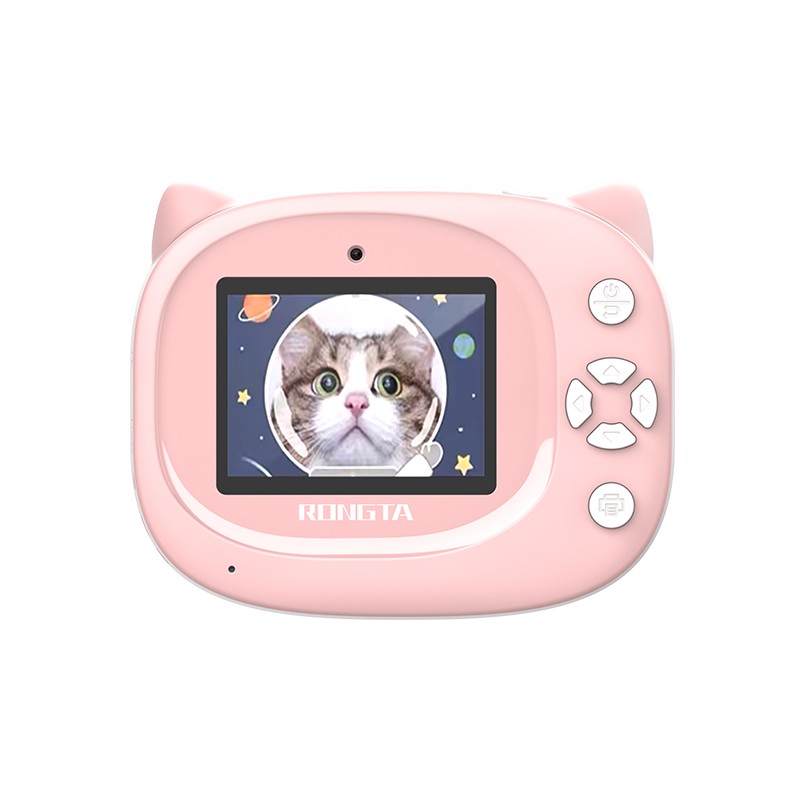 Z1 Children's Educational Photo Printer
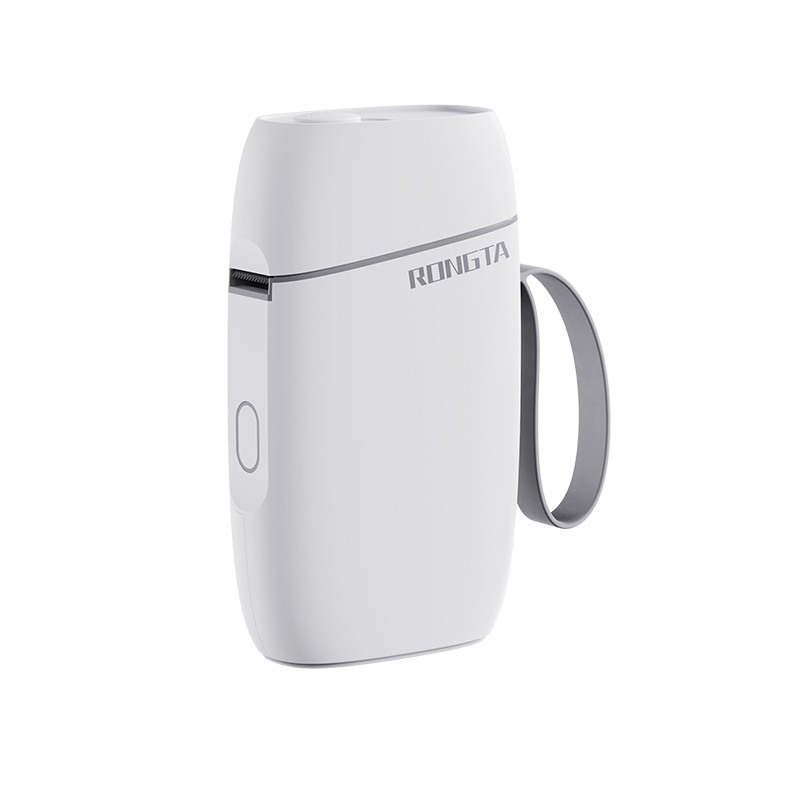 R5 Mini Label Printer
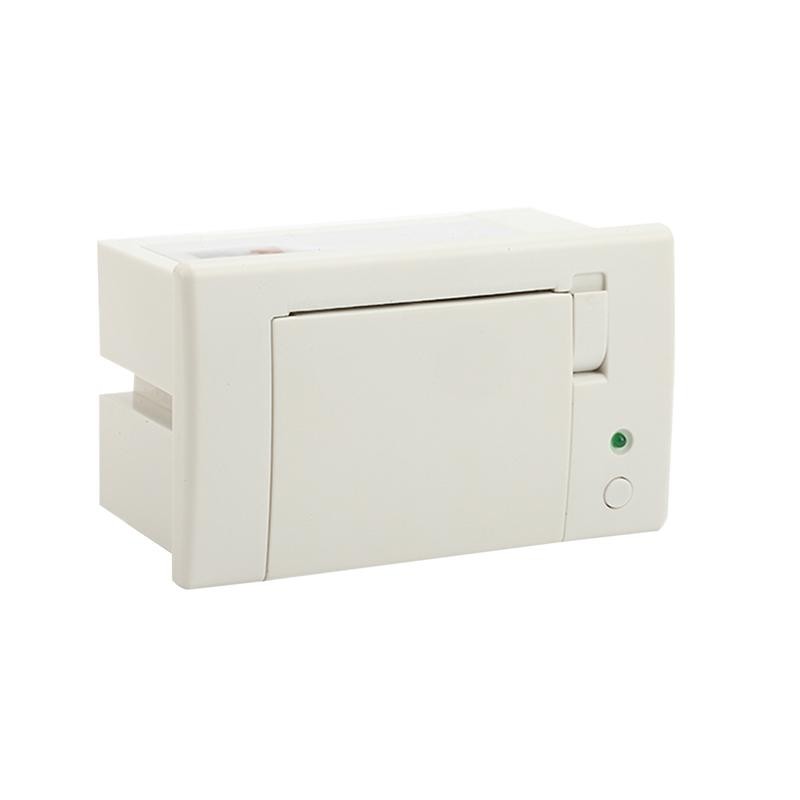 RP07 58mm Embedded Printer
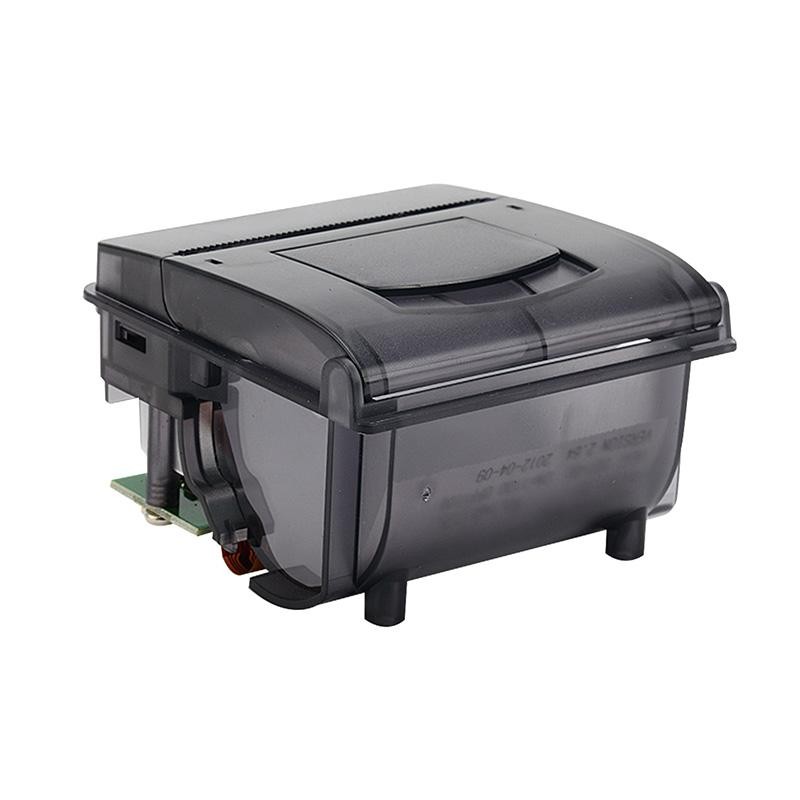 RP203 58mm Embedded Printer
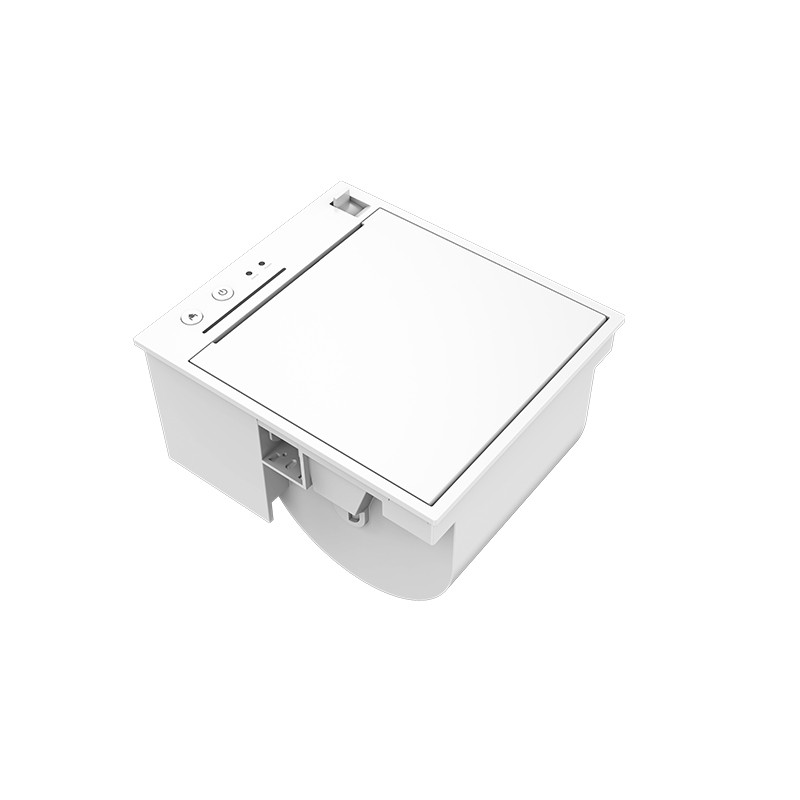 PM315 Embedded Thermal Printer
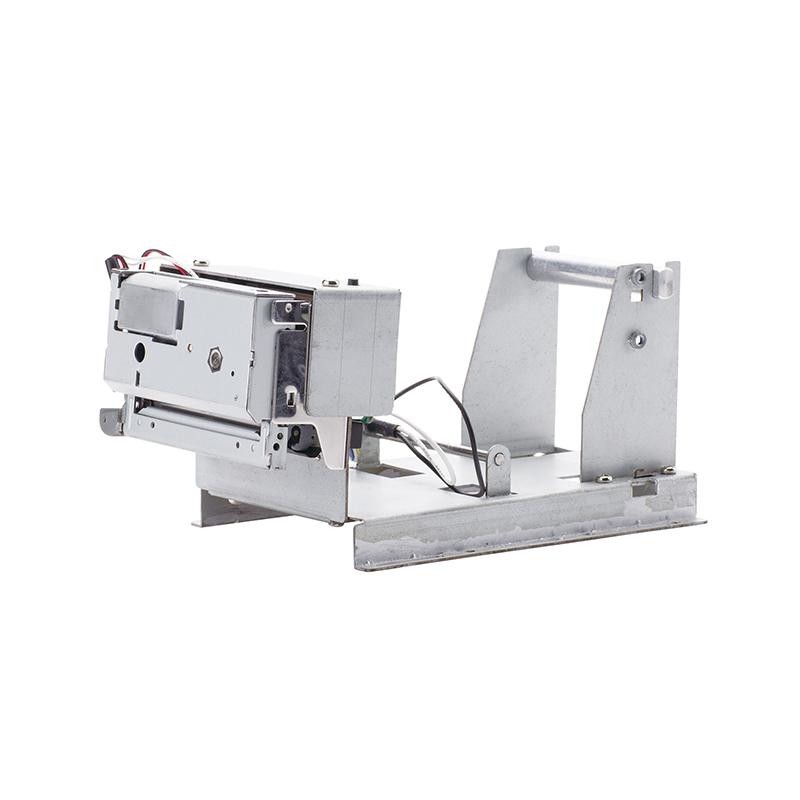 PM201 48mm Printing Module
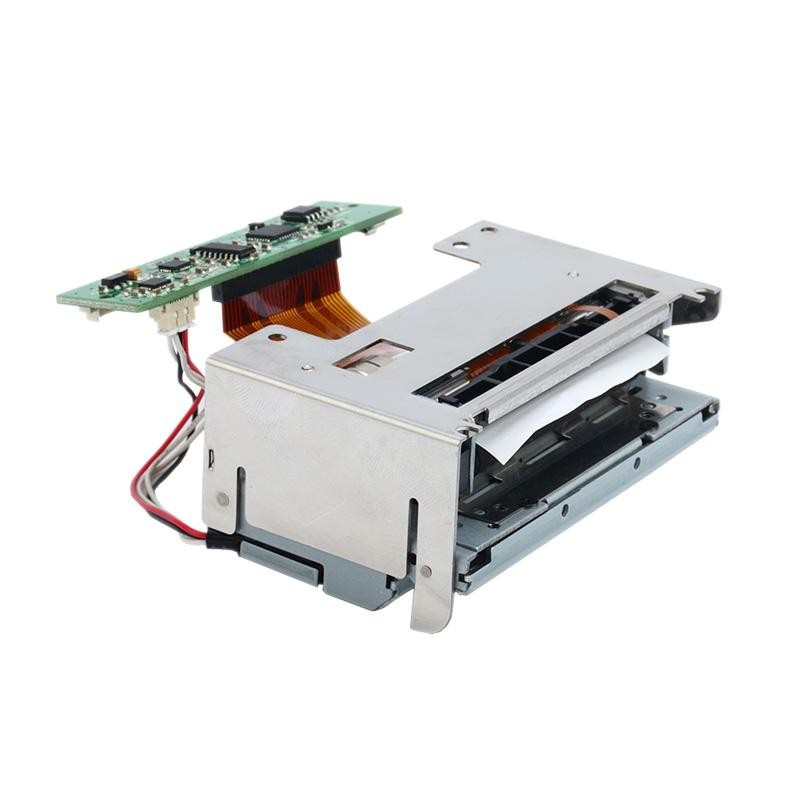 PM628 58mm printing module
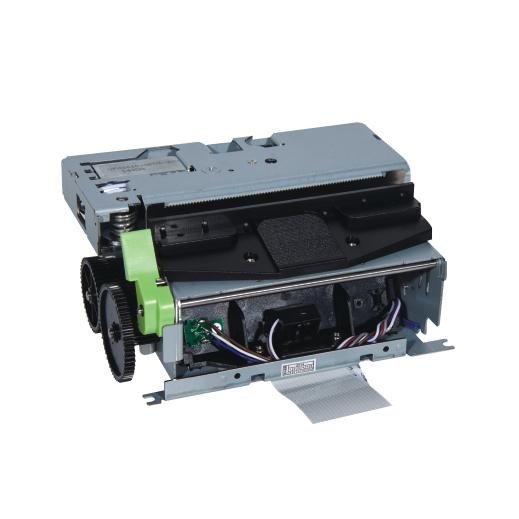 PM532A Printing Module
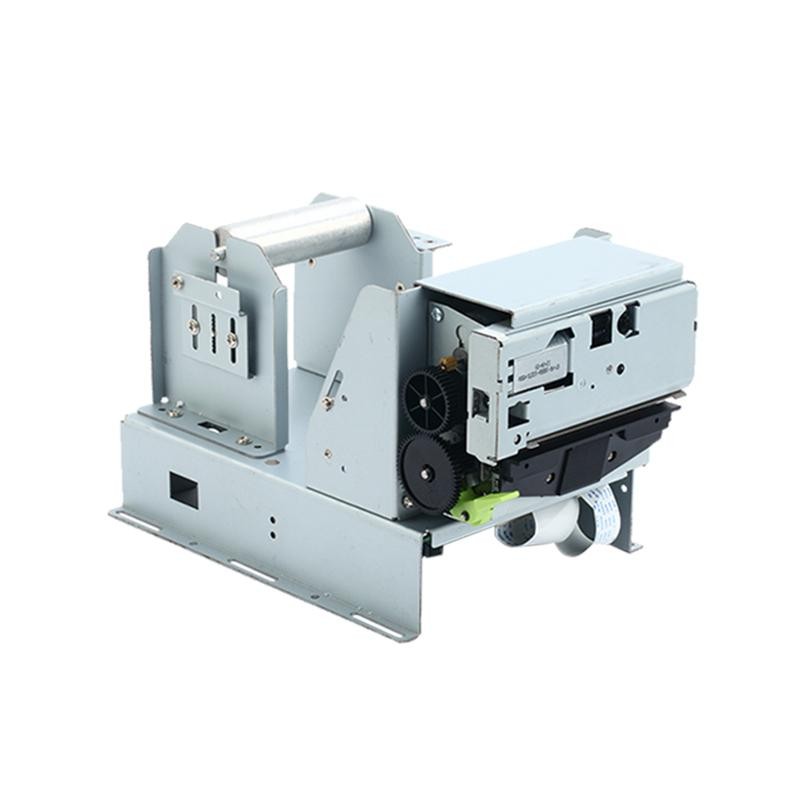 PM532B printer module
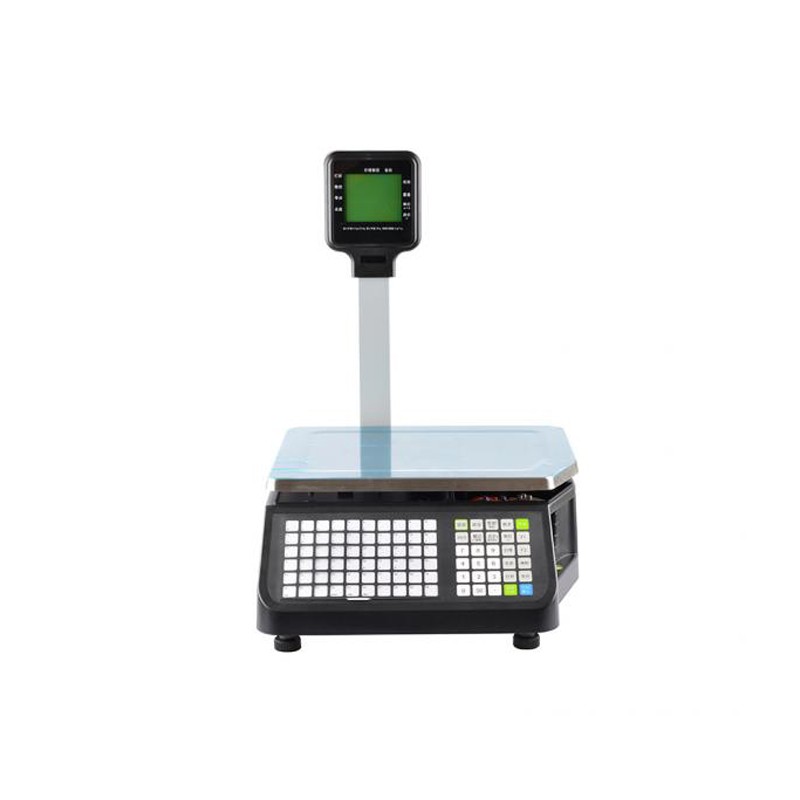 LS015/LS015A Barcode Scale
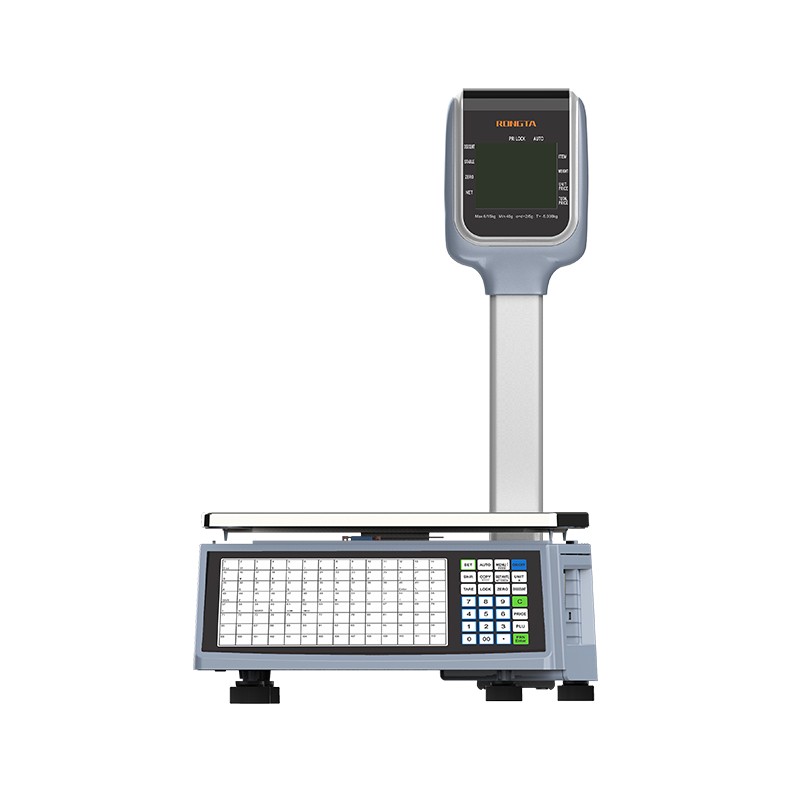 RLS1815D/RLS1830D Barcode Scale
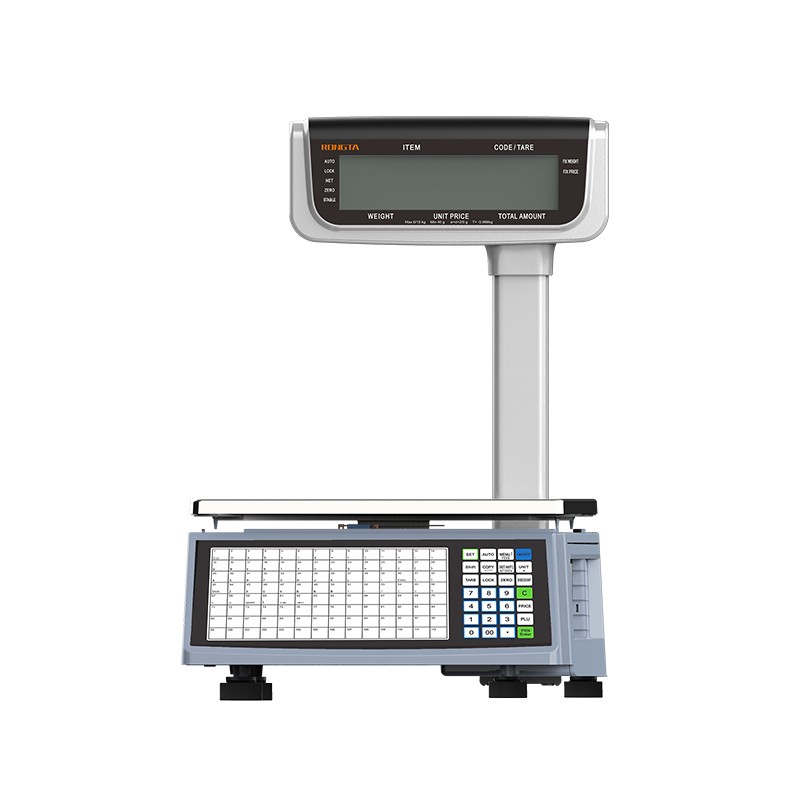 RLS1815C/RLS1830C Barcode Scale
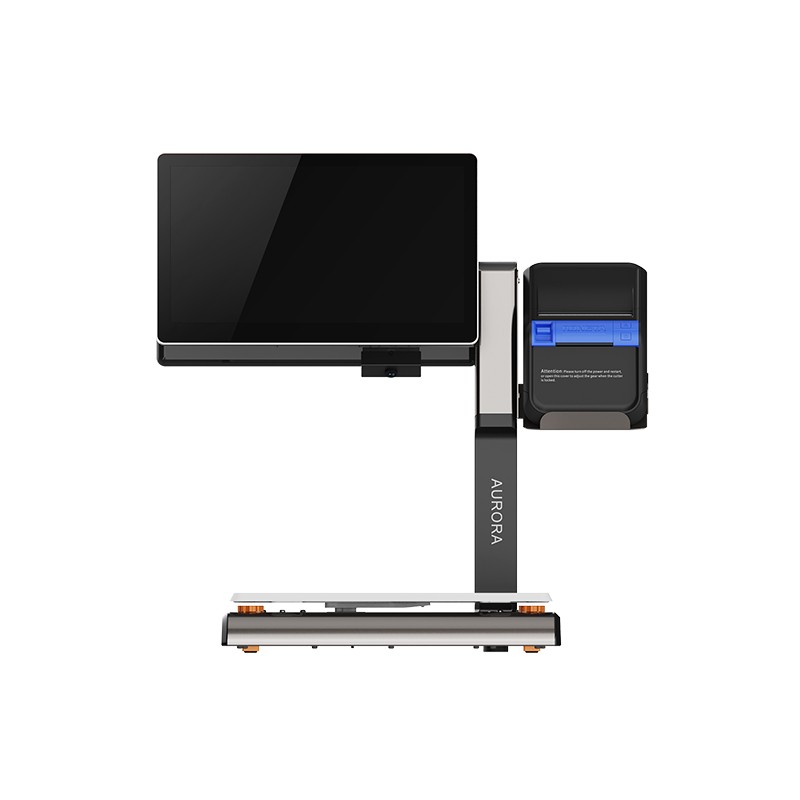 AURORA S2L-S Labelless Scale
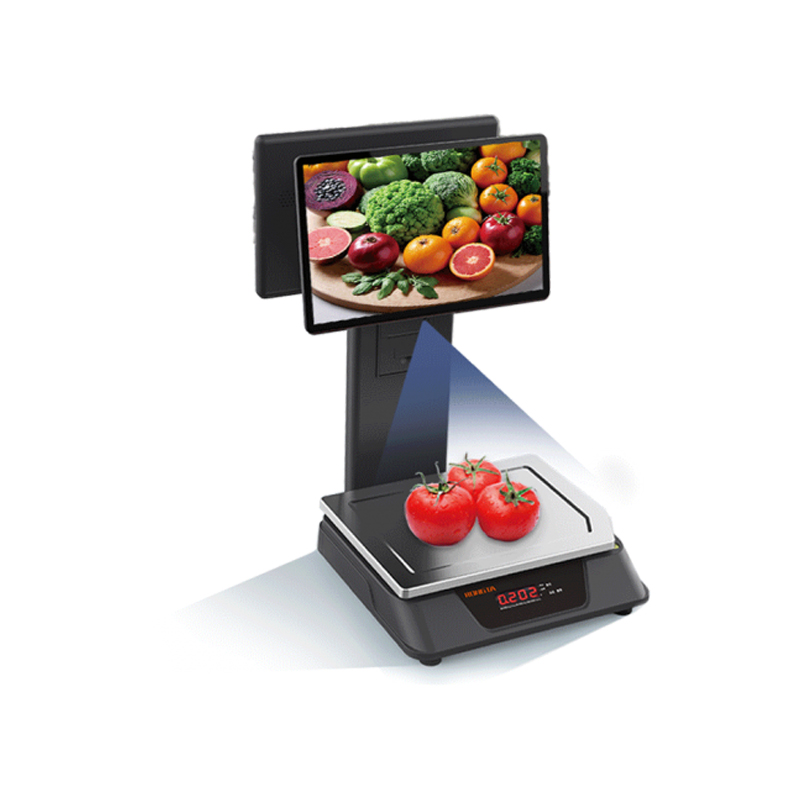 AURORA E1 PRO-AI Cash Register Scale
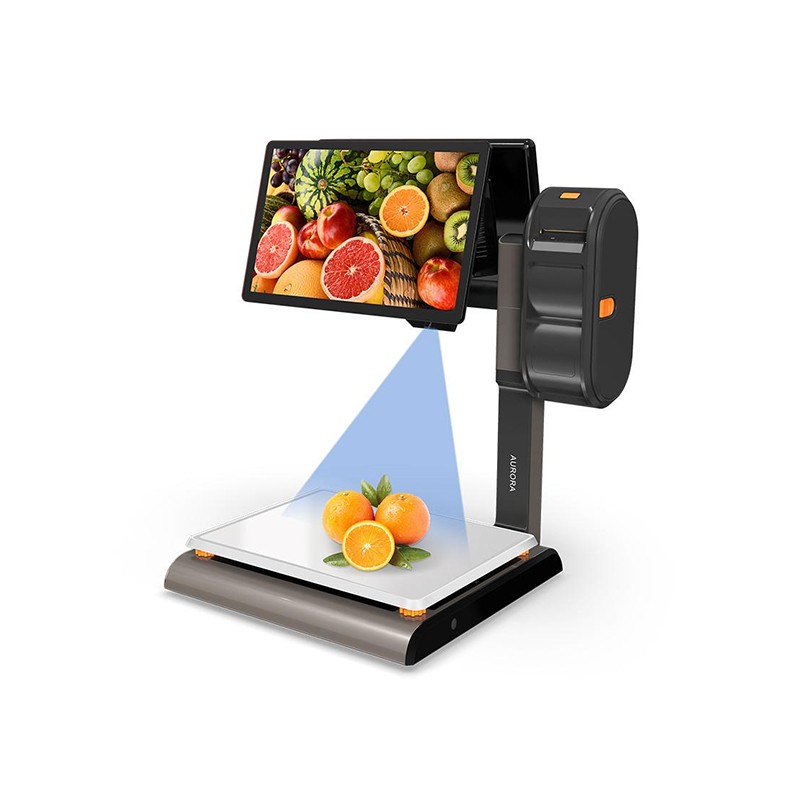 AURORA S2L-AI Label Scale
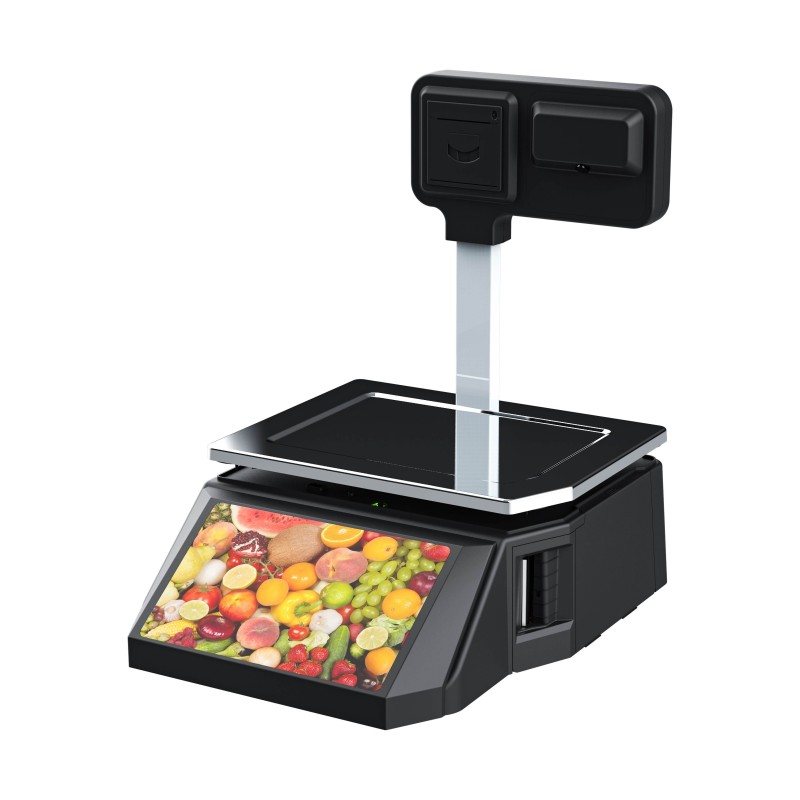 DP01-AI Smart Tag Cashier Dual-Use Scale
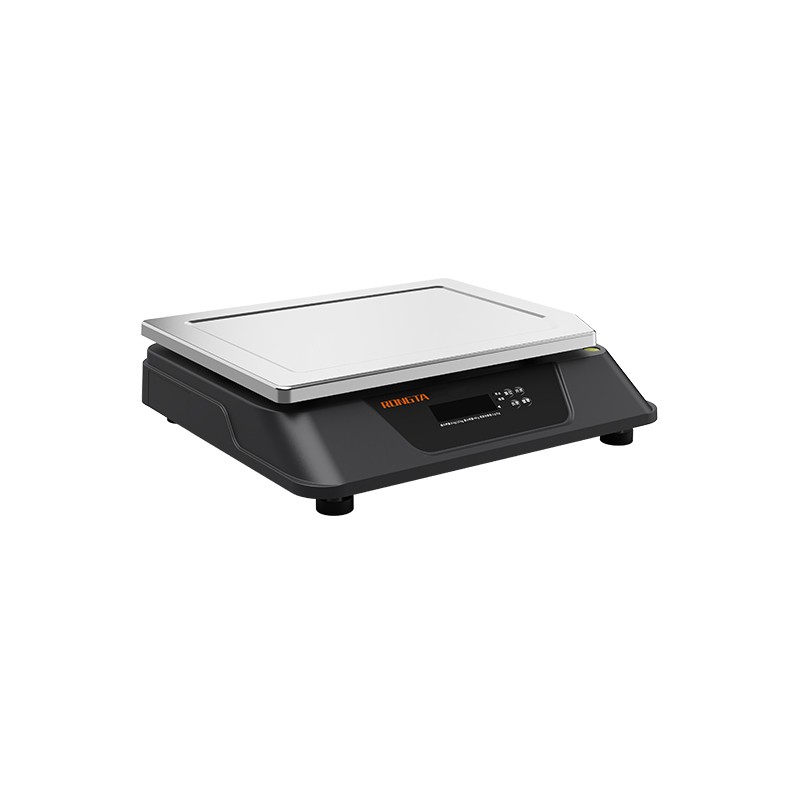 C3 Weighing Scale
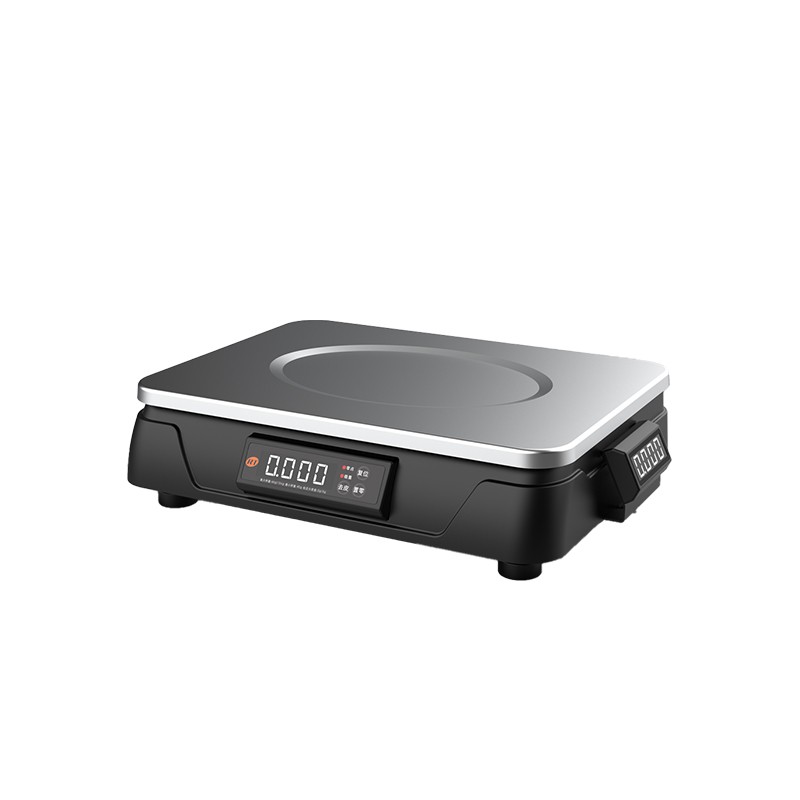 C1 weighing scale
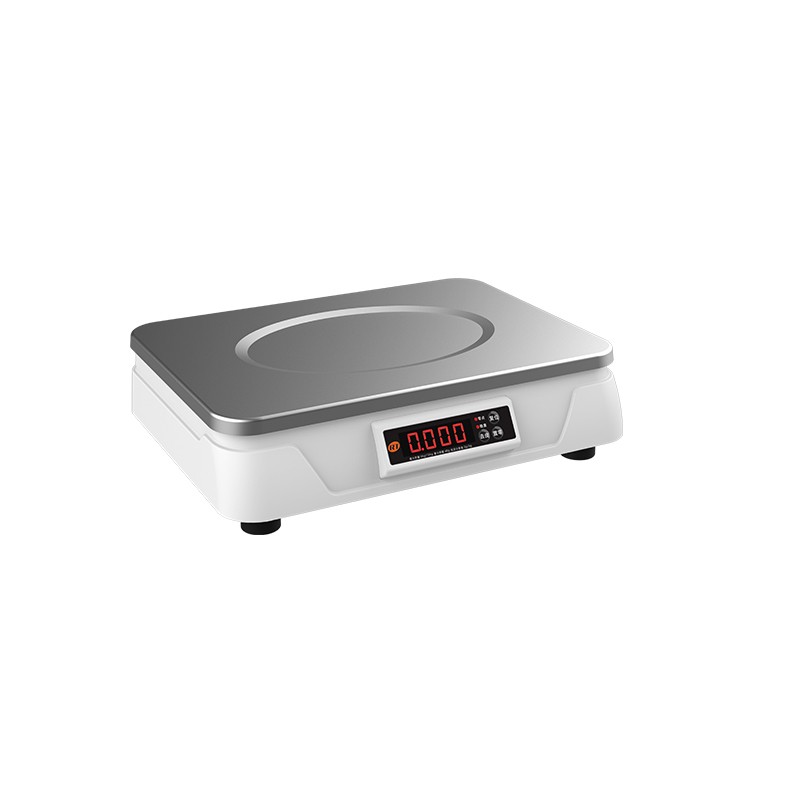 C11 Weighing Scale
 retail
 FOOD
FOOD Medical
 Mobile office/home
 asset Management
 logistics
 Driver download
 User Manual
 Tool Download
 Tag software
 Product Video
 Development Documentation
 Frequently Asked Questions
 User Guide
 Company News
 Exhibition Updates
 Industry Insights
 Product Update
 General situation
 Development history
 Honors and Qualifications
 R&D strength
 Team activities
 Social responsibility




Label printer RP310-UE
RP310-UE Old Firmware Version User Assistant
RP310-UE?Helper for older firmware versions__ 1
RP310 Basic Operating Instructions - Part 2
(one)?Network port configuration instructions__2
(two)?Setup Tool Instructions__2
1、?Set the printer's IP address; __ 2
2、?Learning without paper; __ 3
3、?Printer firmware upgrade; __ 4
4、?Set the printing speed and density; __ 5
(three)?Button Operation Instructions__ 5
1、?Print self-test page: __ 5
2、?Manual tag learning: __ 5
3、?Factory reset: __ 5
4、?Receipt 80 mode/Receipt 58 mode/Label mode switching: __ 6
RP310 Common Problems and Solutions: __ 6
(one)?Paper feed error__ 6
(two)?Unable to print from network port__ 6
(three)?Printer error message __ 8
(Four)?USB?The mouth cannot be recognized__ 8
(five)?USB port printing resulted in incorrect printing order. __ 8
(six)?Network port printing is experiencing delays in issuing orders - 8
(seven)?No power__ 8
(eight)?Label reversed and misaligned when printing via USB port__ 9
(Nine)?Printing error: Garbled characters - 9
(ten)?Printer paper feed error__ 10
Appendix: __ 10
(one)?Customer service contact information: __ 10
(two)?After-sales contact information: __ 10
RP310 Basic Operation Instructions
(one)?Network port configuration instructions
By default, printers are set to DHCP enabled at the factory. During installation, simply connect the printer to a network environment with DHCP enabled, and then manually print a test page to automatically obtain an IP address on the same local area network.
| router (Enable DHCP) |
| Network printer (Enable DHCP) |
| The printer is enabled by default at the factory. Manual printing is required. After checking the pagesIt can automatically obtain a local area network IP address.?And print out Corresponding IP address |
| Keruyun Equipment |
1、?Set the printer's IP address;
Operating steps:
- Printer USBConnect the cable to the Windows computer, and connect the printer to a power source and turn it on.
- OpenLabelPrinterToo.exe?tool
- USBPort displayOnce everything is normal, click the printer settings option.
- Select the Ethernet page, enter the IP address you want to modify, and click Set to complete the IP change.set up
Operating steps:
- Printer USBConnect the cable to a Windows computer and the printer to a power source. (You need to remove the paper roll from the paper tray and replace the top cover.)
- Open LabelPrinterTool.exetool
- USBPort displayAfter a successful connection, click "Set up printer".
- Select the label calibration interface and click "Paper Shortage Learning".
- Re-label the paperPut it in the paper trayPack the paper roll, then click the "Learn" tab in the tool (or manually).Press and go(The paper button beeps twice to initiate label learning.)
- Printer USBConnect the printer to the computer and turn it on, then select the USB port.
- Click the download button
- Select Program Page
- Click "Open File" and select the firmware package ".bin" file provided by the manufacturer.
- Click "Update," then wait for the printer to update successfully and restart automatically.
4、?Set the printing speed and density;
Steps: Follow the connection steps above, select the print settings interface, set the speed and density you need to modify, and click the settings option at the bottom.
(three)?Button Operation Instructions
Operating instructions: Turn off the printer.Press and goPress the paper button to turn on the machine, and after the paper is dispensed...Let goSimply press the paper button;
Note: (Because the self-test page contains a lot of content, it is recommended not to use small tags.)Printed fromCheck the pages; otherwise, incomplete content may occur.
Operating method: LongPress and goPress the paper button, and the printer will beep twice before releasing it. The printer will then automatically...Feed paper and rewindstudy
Note: (Because the buttons have multiple combination functions, please refer to the tags.)Just press and hold for two secondsRelease the button after two beeps (otherwise it will switch to other functions and cause unnecessary trouble).
Operating instructions: The printer needs to be turned off, the top cover opened, and then...Press and goTurn on the machine while pressing the paper button.Press and goRelease the paper button after about 15 seconds, then close the top cover.
Note: (This operation requires opening the top cover; timing is crucial. If the operation fails, you may need to adjust accordingly.)Long press(Paper feed button timing)
4、?Switch between Receipt 80 Mode/Receipt 58 Mode/Label Mode:
Operating instructions: With the printer in normal standby mode, long...Press and goPress the paper button, beep eight times, and release to complete the switch.
Note: (The printer mode switching order is Receipt 80 mode / Receipt 58 mode / Label mode. If you switch to Receipt mode when printing labels, it may cause problems such as not printing or printing garbled characters.)
Troubleshooting common problems with RP310:
Problem description: Paper feed deviation occurs during the printing process.Jump Zhang etc.abnormal
Investigation steps:
A、?Check if the printer's sensor position is accurate.
B、?Check if the paper type is label paper.
C、?Long press to learnPress the button to learn tags
D. MissingPaper learningThen proceed with tag learning.
AND,?You can contact the manufacturer for guidance on troubleshooting.
F、?If the problem is determined to be beyond repair, it can be sent for repair through the after-sales service process.
(two)?Unable to print from network port
Problem description: The printer cannot obtain an IP address after being connected to the network cable.
Investigation steps:
A、?Check printer self-test page DHCP?Is the option enabled? (If the printer is DHCP enabled)?If it is set to Disable, a manual factory reset is required.
B、?Router DHCP?Is it already enabled?
C、?Check if the network is working properly and if the network port indicator lights are on correctly; (Under normal circumstances, the printer, network cable, and...)Customers flocked to the cloudsPOS?The devices need to be connected to the same router to ensure they are on the same local area network.
D. Try printing a self-test page while the network cable is connected, and wait about 10 seconds to see if the IP address can be printed normally.?Address slip
AND,?If the above steps fail to obtain an IP address?For the address, you can try connecting Windows using a USB cable.?Use a label setting tool to set a static IP address for your computer.?set up
Problem description: The printer IP is set correctly, but the POS terminal cannot print.
Investigation steps:
A、?Check POS?Is the printer IP address in the print service of the device correct?
B、?Is the IP server address in Keruyun POS printing service the same as the local machine's IP address?
C、?Does the printer IP exist??Conflicts can occur because the network configuration method is automatic. If the customer's environment is relatively open, IP address conflicts are likely to occur.?Conflict, printer obtains IP address?After that, you need to change the printer's IP address to an uncommon address.
D. Inspection
Abnormal phenomenon: The printer emits 2 error beeps and 7 error beeps.
Investigation steps:
A、?Check if the printer loads paper correctly and closes the cover properly.
B、?Try long pressPress the paper feed button, and release after two beeps to see if the paper feed resumes.
C、?Check if the printer sensor position is adjusted to the far left.
D. Requires connection to a PC for testing.Paper learningoperate
AND,?If the problem is determined to be beyond repair, it can be sent for repair through the after-sales service process.
Abnormal phenomenon: The printer beeps 3 times in error.Paper shortage error report
Investigation steps:
A、?Check if the paper is installed correctly.
B、?Check if the printer sensor position is adjusted to the far left.
C. Requires connection to a PC for testing.Paper learningoperate
(Four)?USB?Unable to speakIdentification
Investigation steps:
A、?Check if the printer mode is label mode.
B、?Check Keruyun POS?Device APP?Is this the latest version?
C、?Check USB?Is the cable working properly? You can try replacing it with a different USB cable.?Let's test it with a line.
D. Contact the manufacturer's customer service for assistance in troubleshooting.
C、?If the problem is determined to be beyond repair, it can be sent for repair through the after-sales service process.
(five)?USB printer prints out of order.
Investigation steps:
A、?Upgrade to the latest firmware provided by the manufacturer.
(six)?Network port printing is experiencing delays in issuing orders.
Investigation steps:
A、?Check if there are any IP conflicts or anomalies with the printer.
B、?Is the printer in good working order?
C、?You could try changing the printer model to a universal label model.
D. Contact the manufacturer to confirm the printer firmware version and update to the latest version.
Investigation steps:
A、?Check if the power adapter light is on when the device is powered on.
B、?Check if the printer's key lights are on normally.
C、?If the problem is determined to be beyond repair, it can be sent for repair through the after-sales service process.
(eight)?Label reversed and misaligned when printing via USB port.
Investigation steps:
A、?Keruyun devices enter the catering settings
B、?Find the peripheral cash drawer settings option
C、?Change the connection interface of the cash drawer to another location (do not select the printer's USB port).?mouth)
(Nine)?Printing garbled characters error
Investigation steps:
Switch the printer to label mode by toggling between receipt 80 mode, receipt 58 mode, and label mode.
Operating instructions: With the printer in normal standby mode, long...Press and goPress the paper button, beep eight times, and release to complete the switch.
Note: (The printer mode switching order is Receipt 80 mode / Receipt 58 mode / Label mode. If you switch to Receipt mode when printing labels, it may cause problems such as not printing or printing garbled characters.)
(ten)?Printer paper feed error
A、?Open the top cover and check if the rubber roller is normal.
B、?If gluerollerIf any abnormality occurs, you can follow the after-sales process for repair.
C、?Check if the adapter is the standard factory-installed accessory.
appendix:
(one)?CustomerService ContactWay:
DingTalk Group: Asheng (Zhang Zaisheng) Phone: 18030296657Fang Fengquan?Telephone: 15359299843
Rongda400 hotline: 4005000596
(two)?After-sales contact information:
Rongda printerRepair address:
Recipient: After-sales Service Department?Phone number: 15359340780?Address: Warehouse 3, Building A, No. 889 Xinmin Avenue, Tongan District, Xiamen City, Fujian ProvinceBuilding Quality Control Office?Repair Instructions: When returning the device for repair,PleasePlease include the return address, contact information, a list of all items packed in the box, and a detailed description of the malfunction inside the box to improve repair efficiency. Thank you for your support! If no information is provided, then...According to the senderThe information will be returned!