

 80mm Receipt Printer
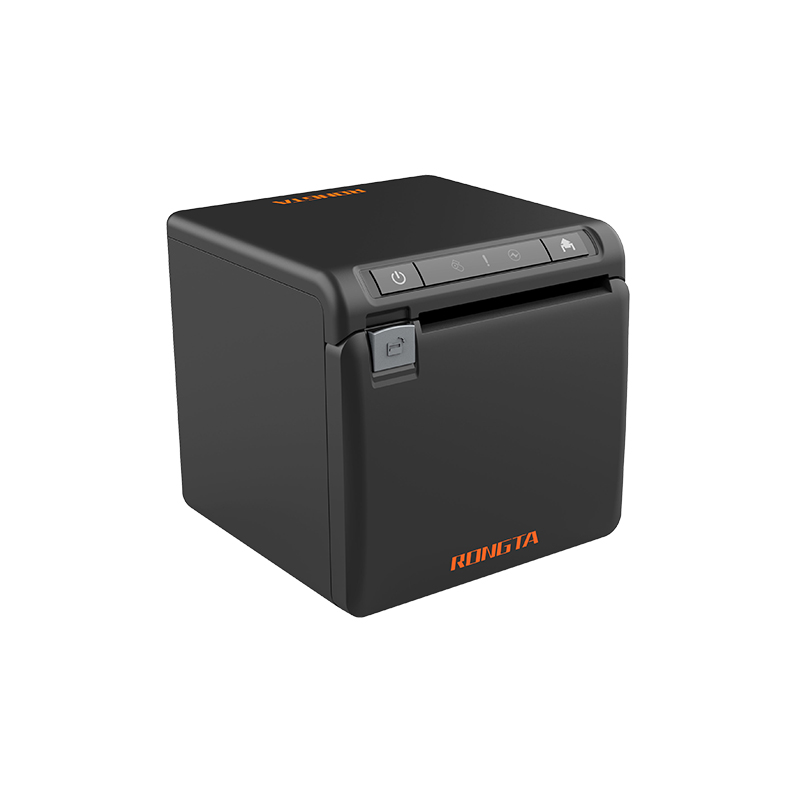 ACE H2 Receipt Printer
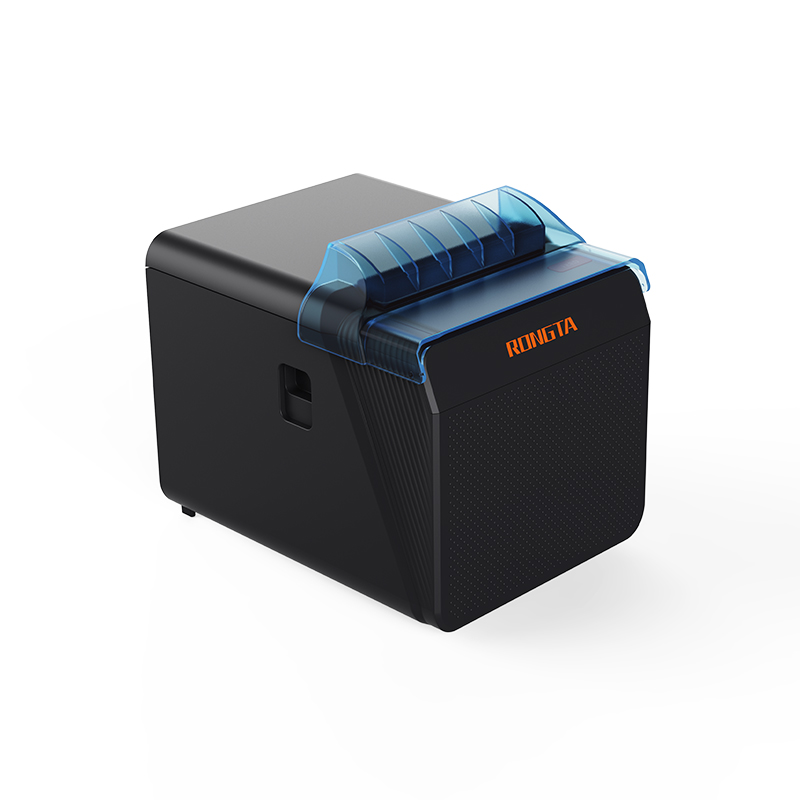 RP337 Receipt Printer
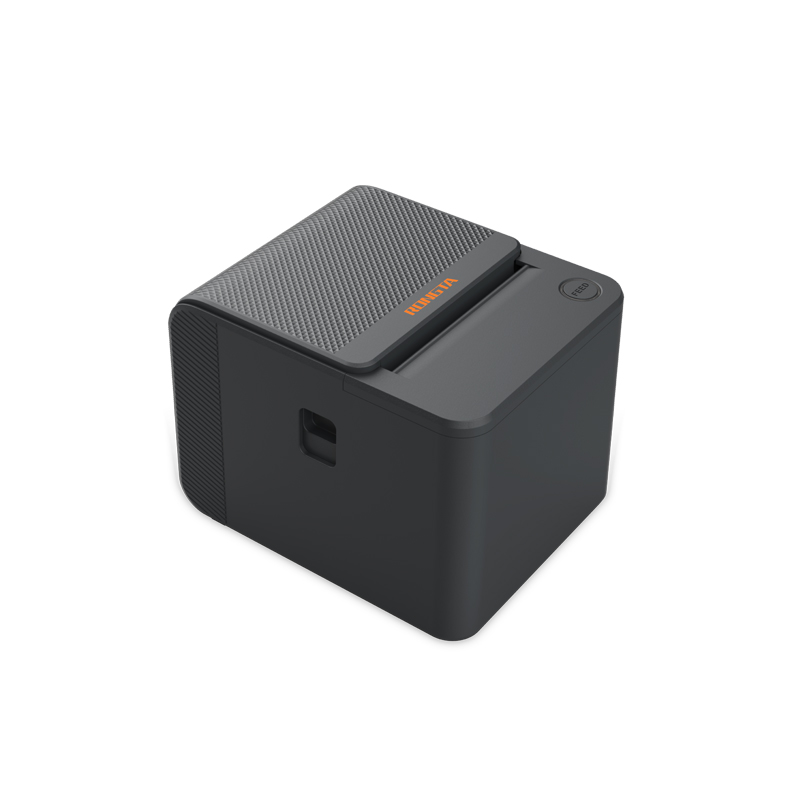 RP336S Dual-Color Receipt Printer
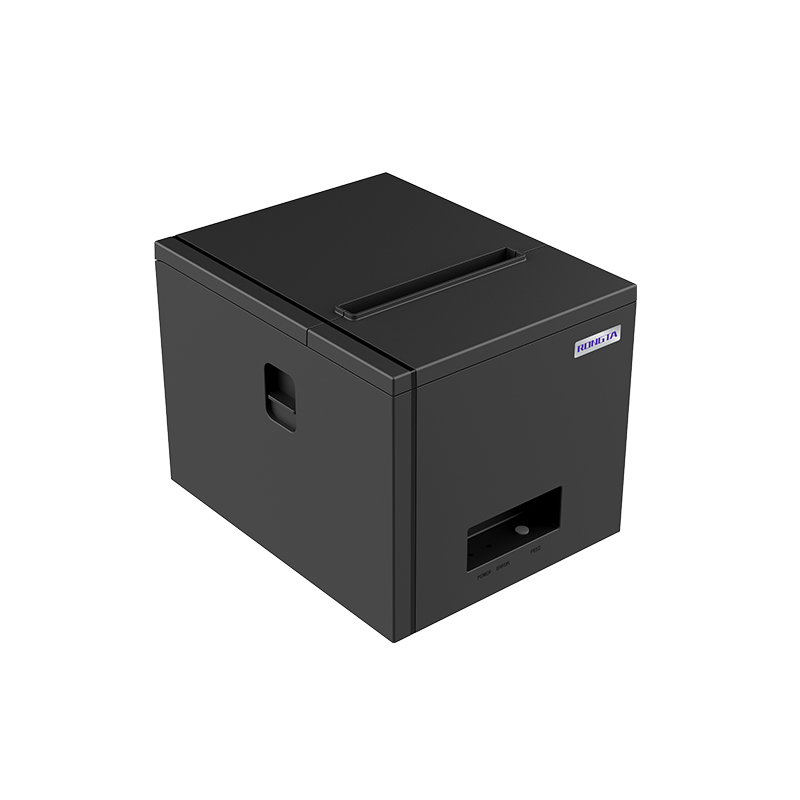 RP350 Receipt Printer
 RP582 Receipt Printer
 RP581 Receipt Printer
 ACE G1Y Receipt Printer
 ACE G1YP Cloud Printer
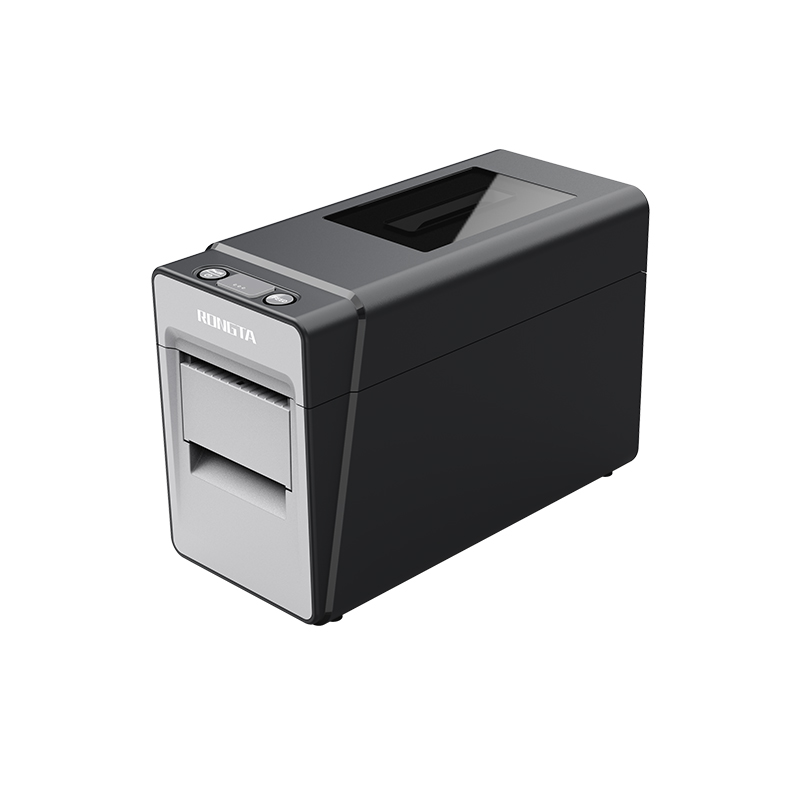 RP216 2'' Dual-color High-definition Label Printer
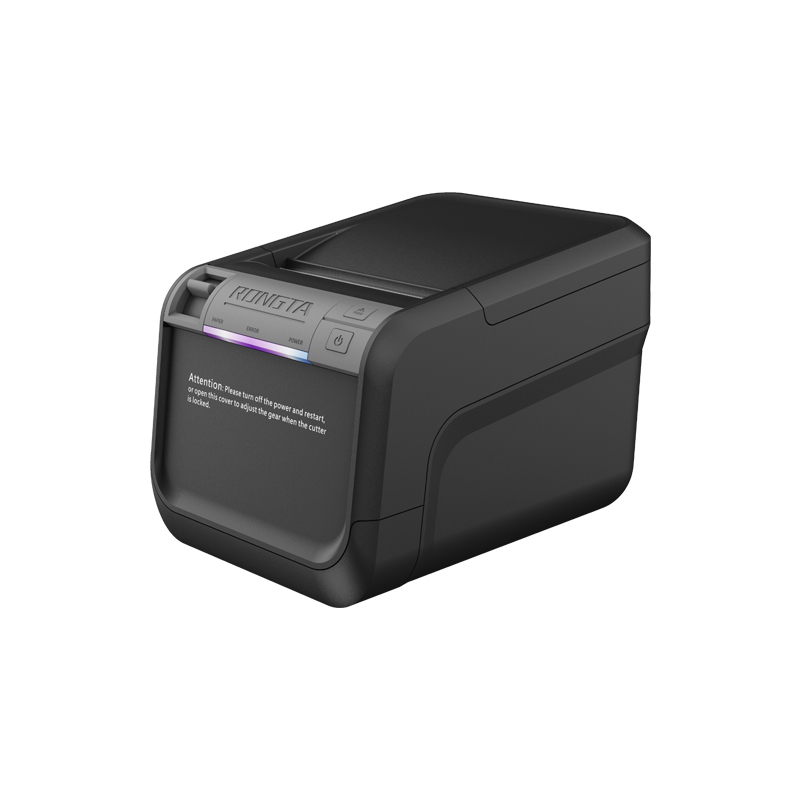 ACE V1S 3'' Backless Label Printer
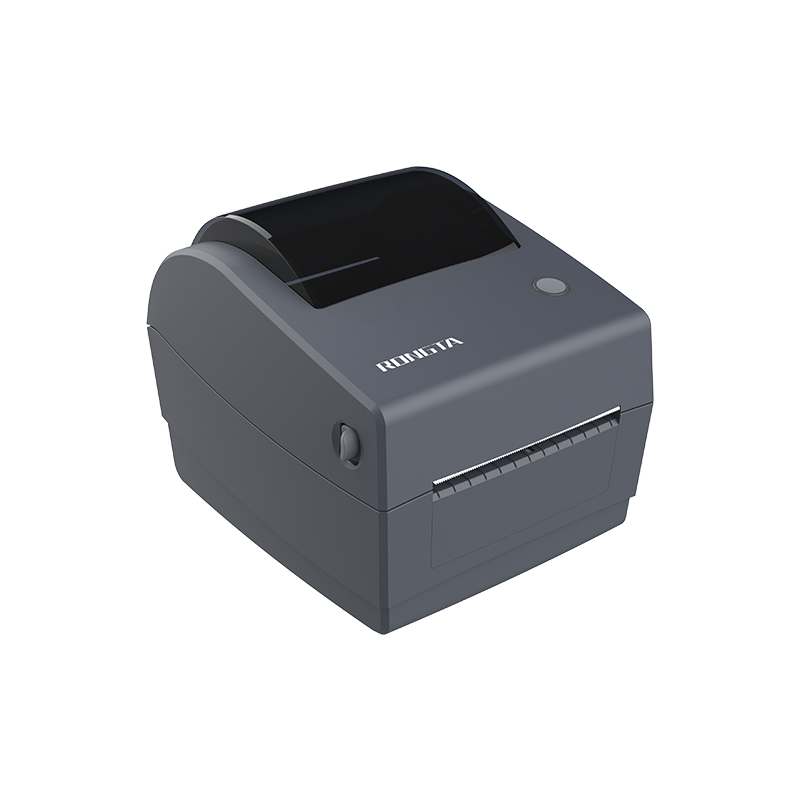 RP310D 3'' Dual-color Label Printer
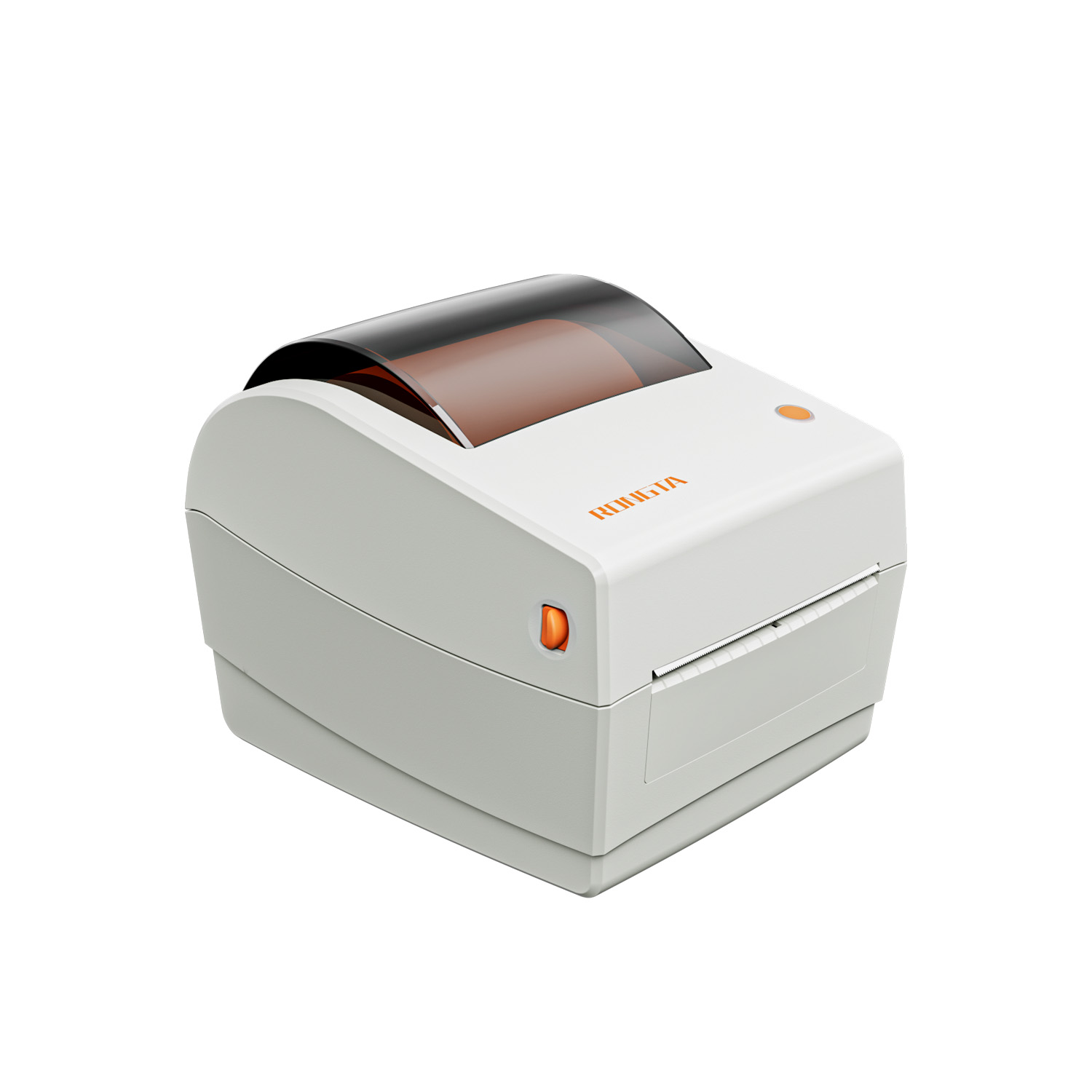 RP410N 4'' Thermal Label Printer
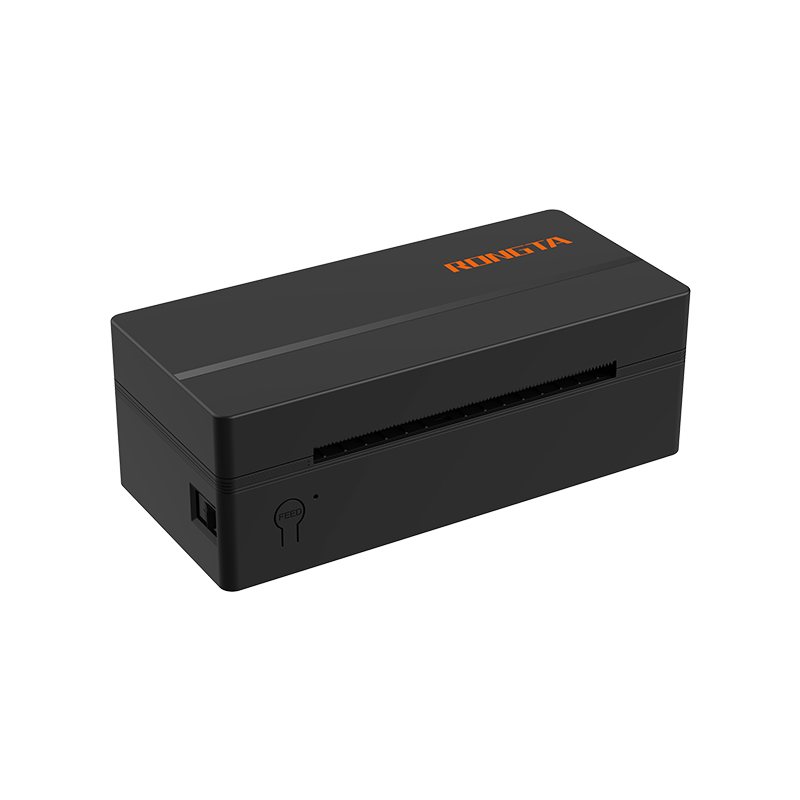 RP425 4'' Electronic Waybill Printer
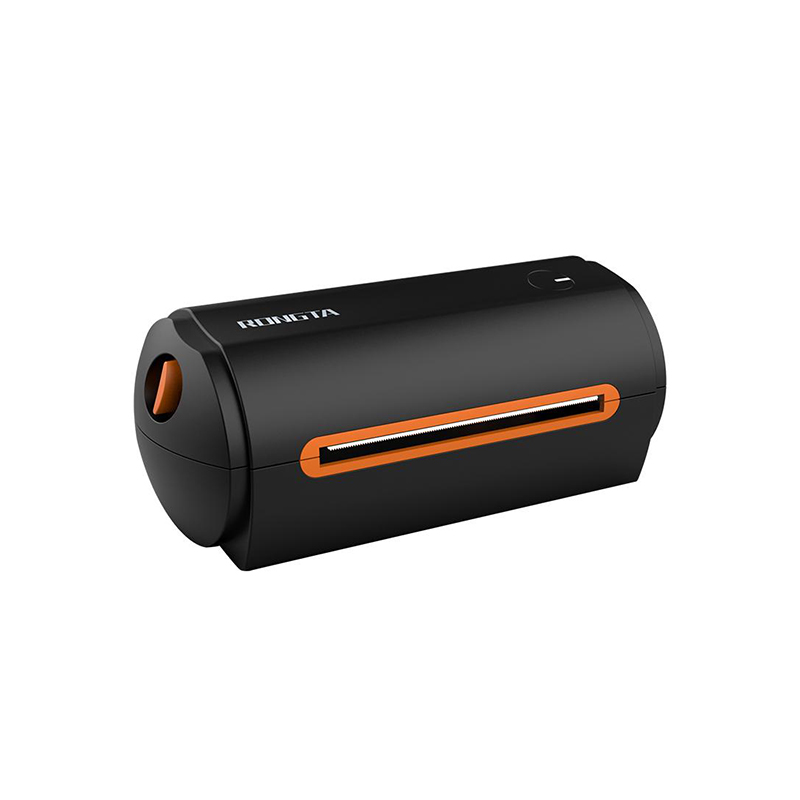 RP422 4'' Electronic Waybill Printer
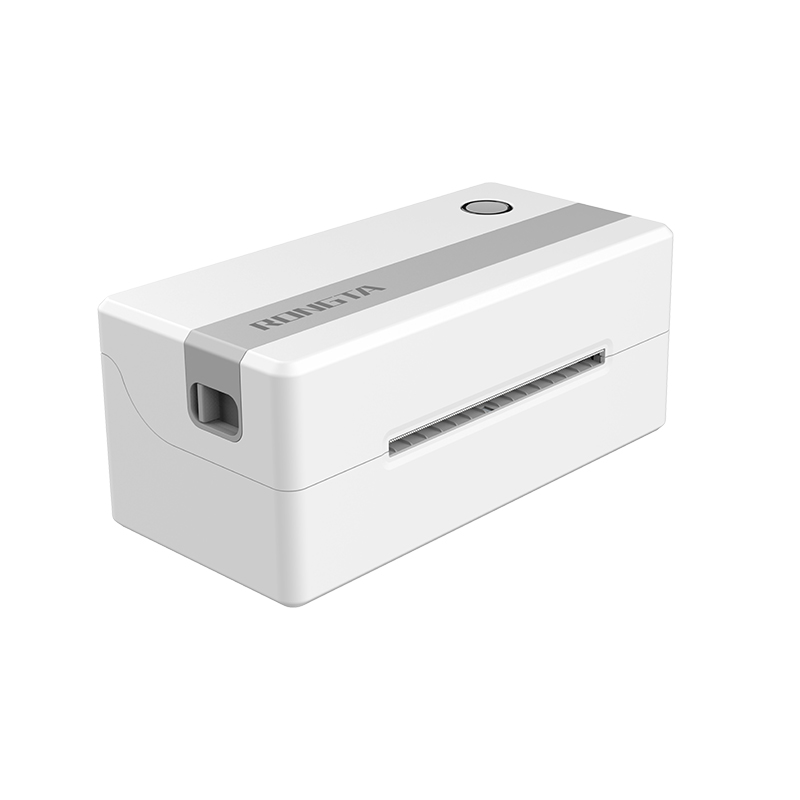 RP421A 4'' Electronic Waybill Printer
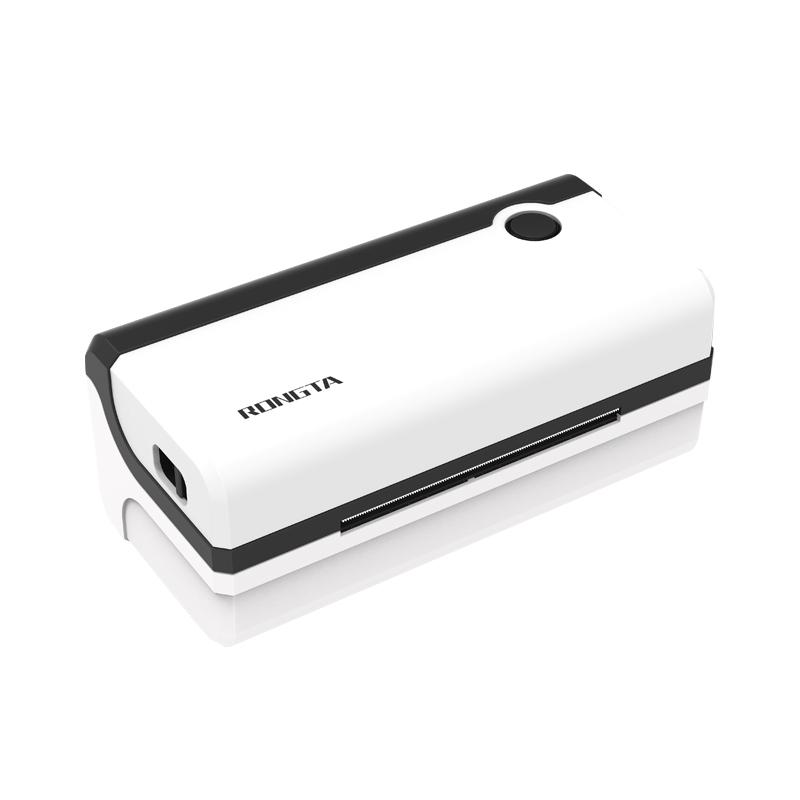 RP420 4'' Electronic Waybill Printer
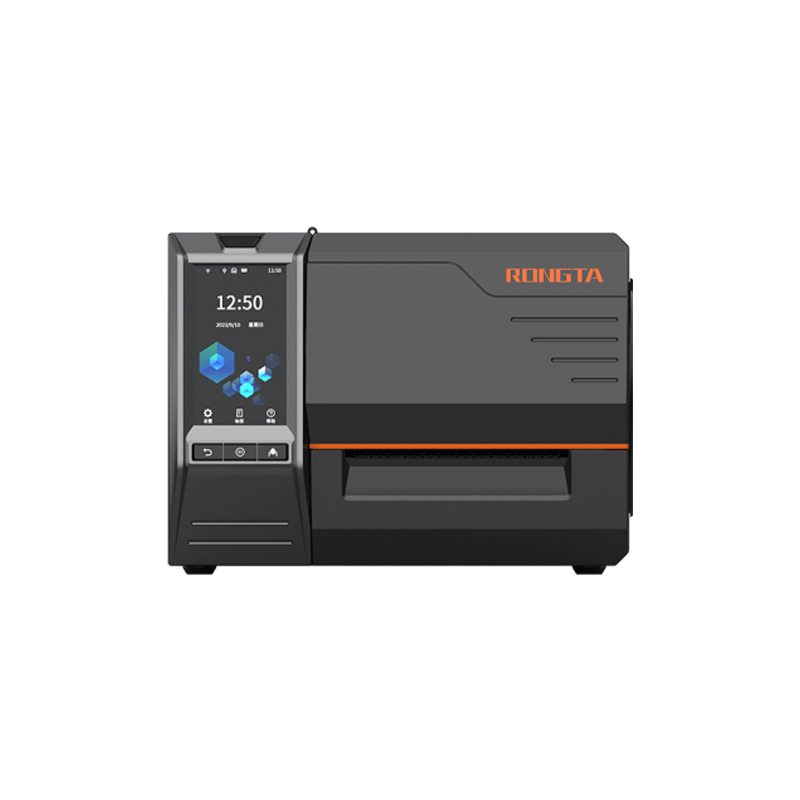 RI463 Series Barcode Printers
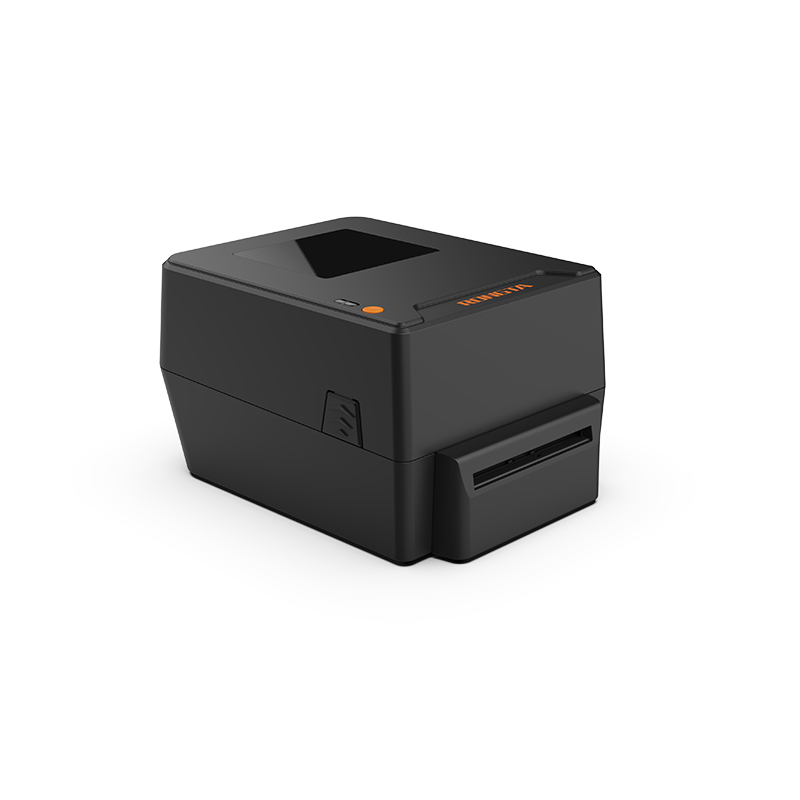 RP400A 4'' Thermal Transfer Tape Cutter Printer
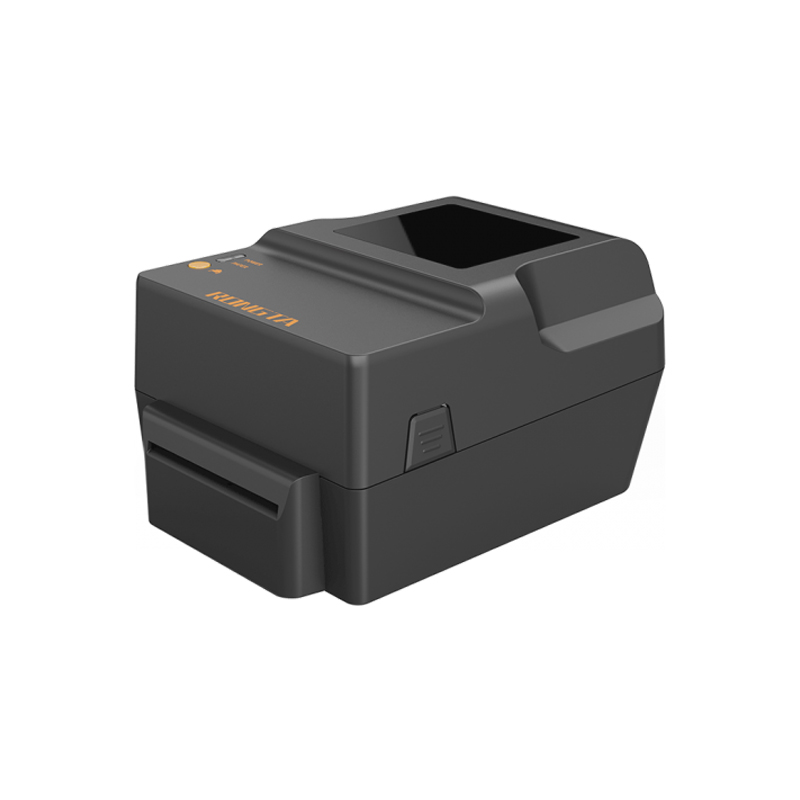 RP400H 4'' Thermal Transfer Tape Cutter Printer
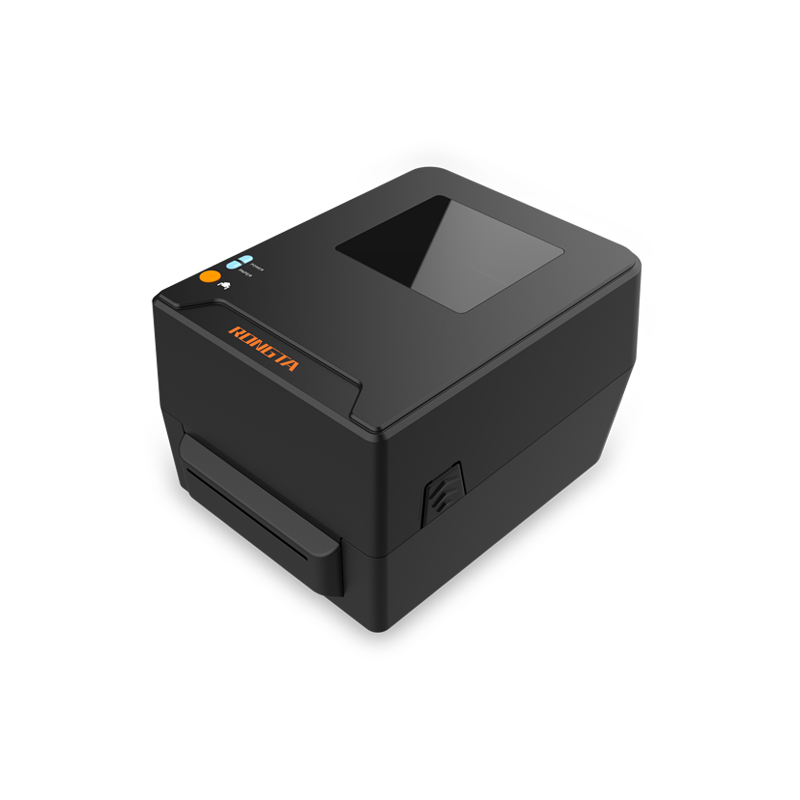 RPF413 300dpi RFID barcode label printer
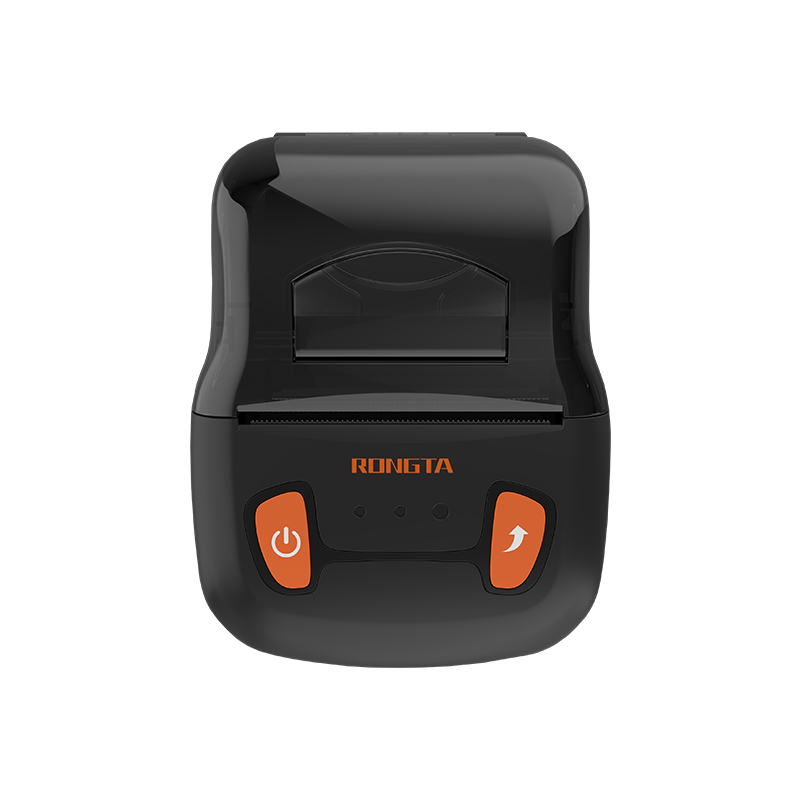 RPP02A Portable Receipt Printer
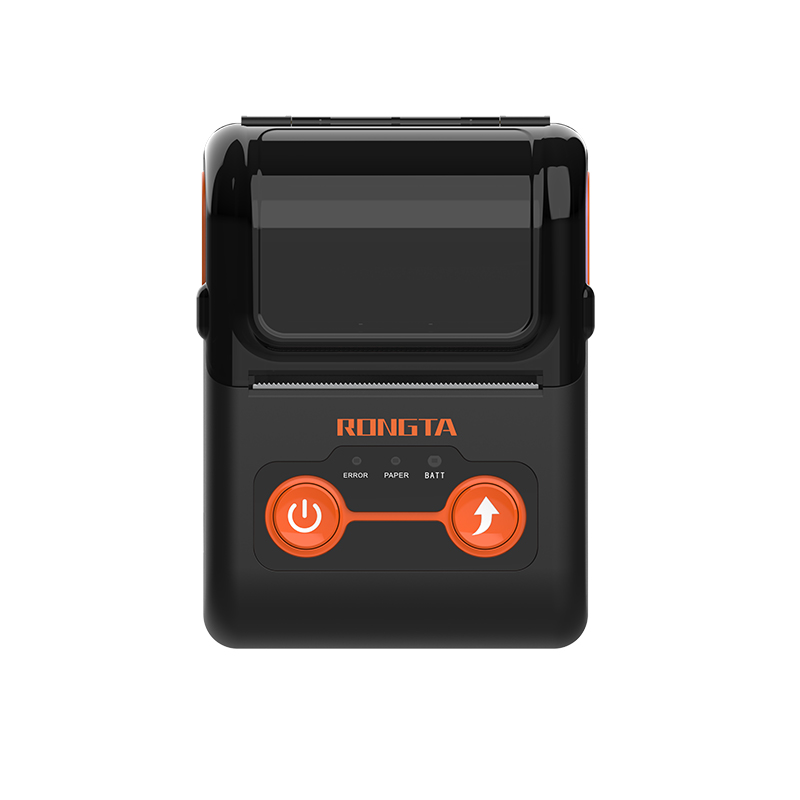 RPP02B Thermal Portable Printer
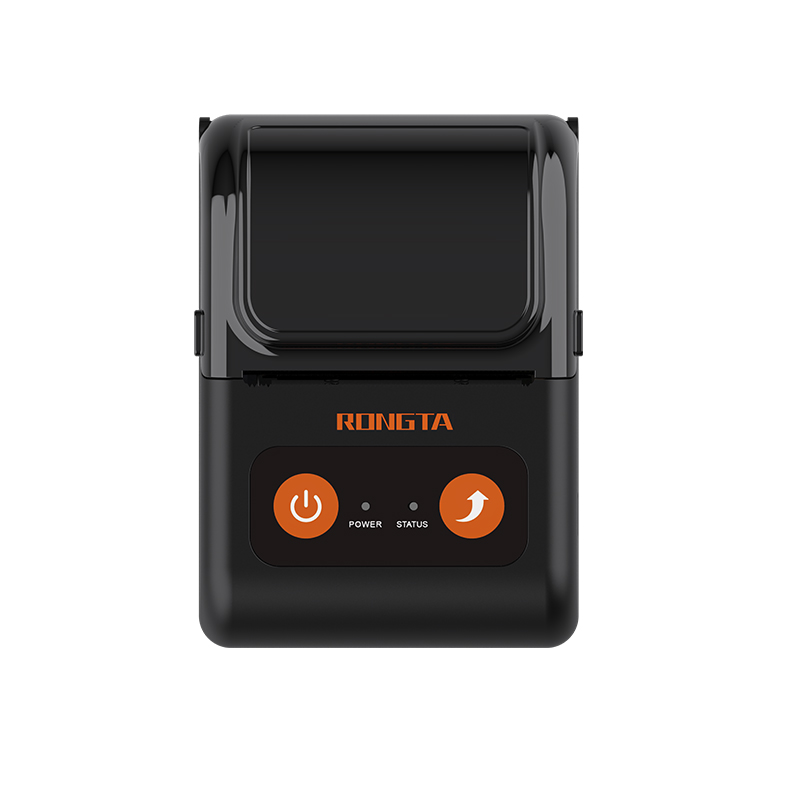 RPP02C Portable Receipt Printer
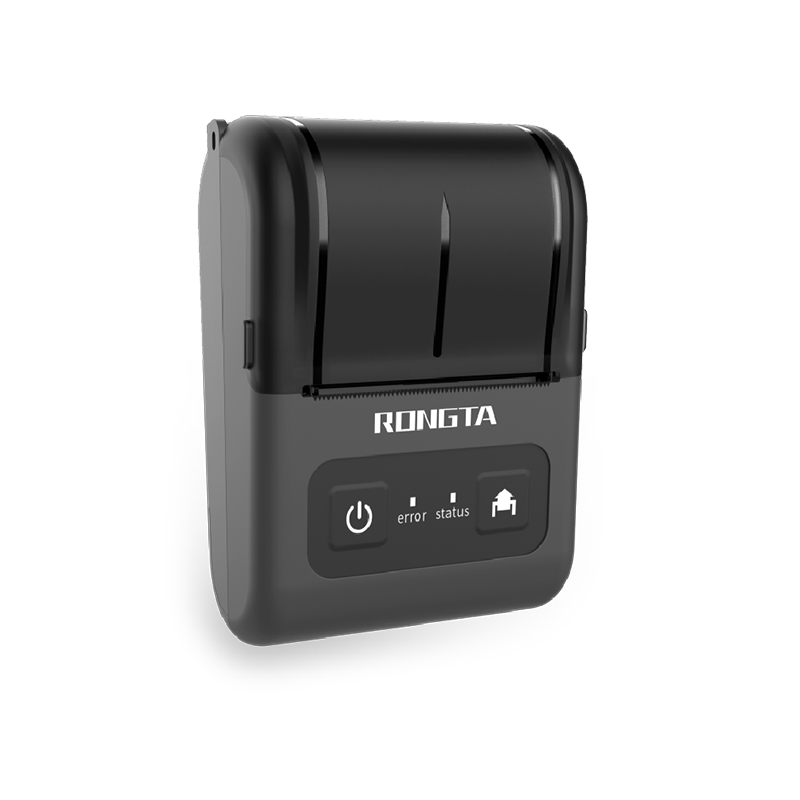 RPP02D Thermal Portable Printer
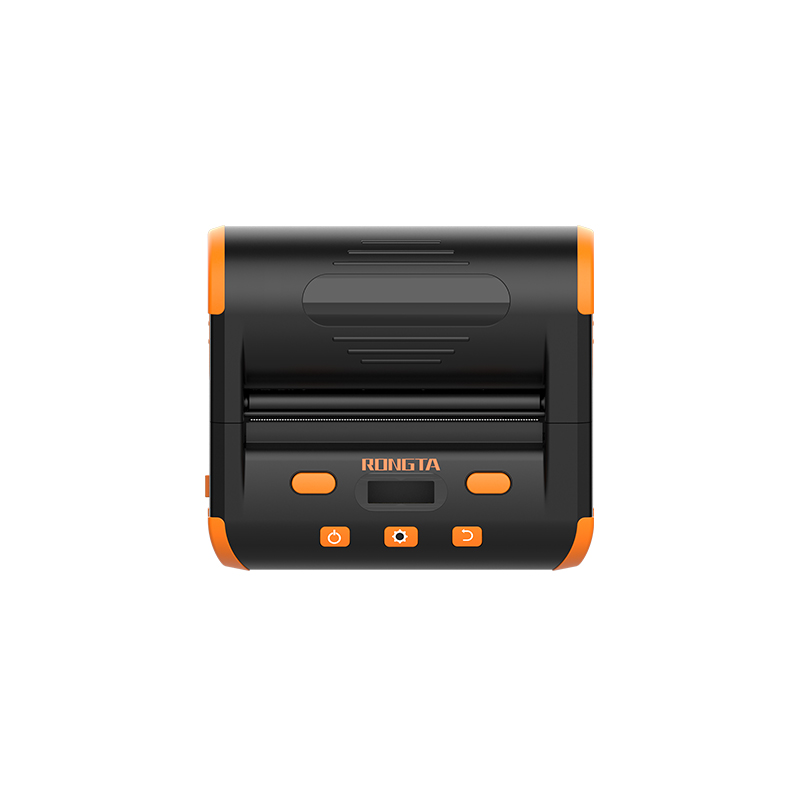 RPP04 4" Portable Label Printer
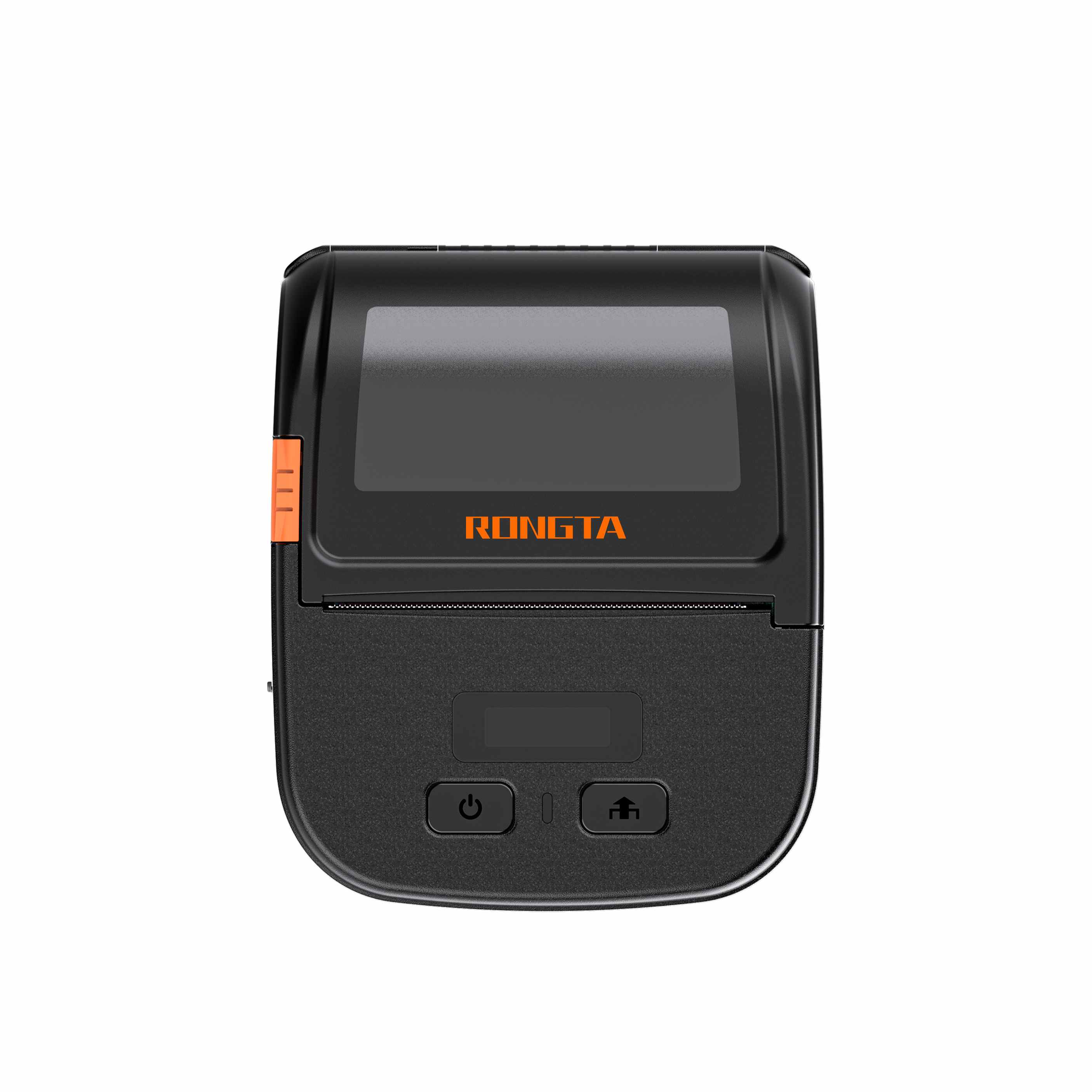 RPP30 3" Portable Label Printer
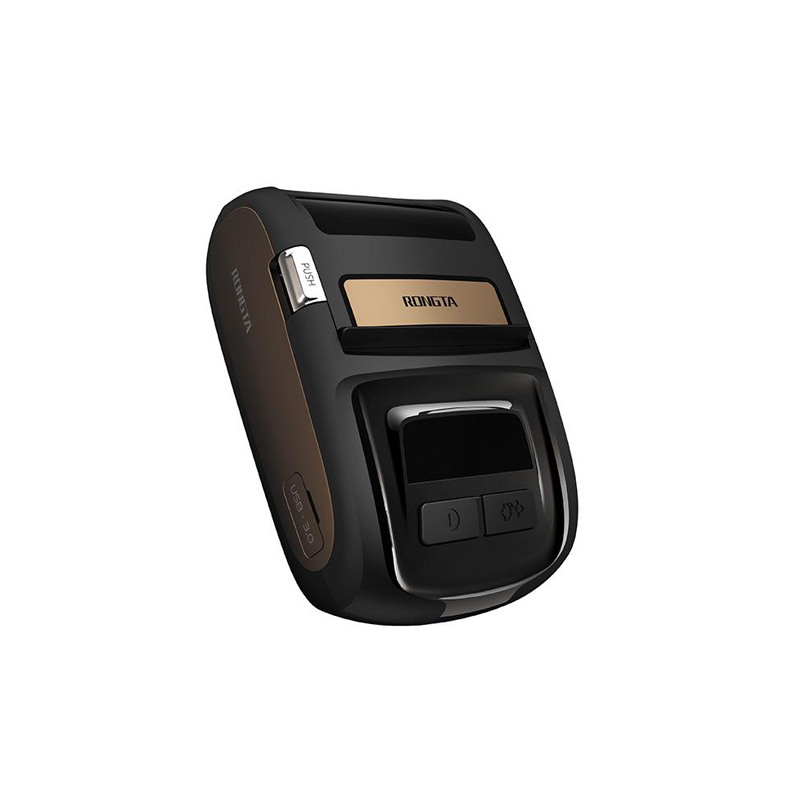 ACE M1 2" Portable Label Printer
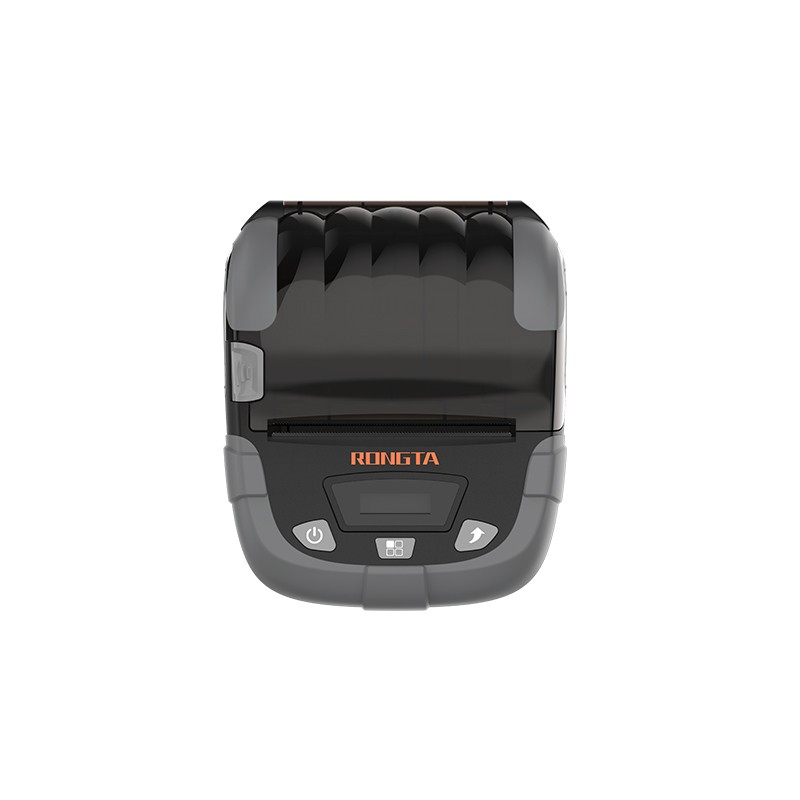 RPP320N 3" Portable Label Printer
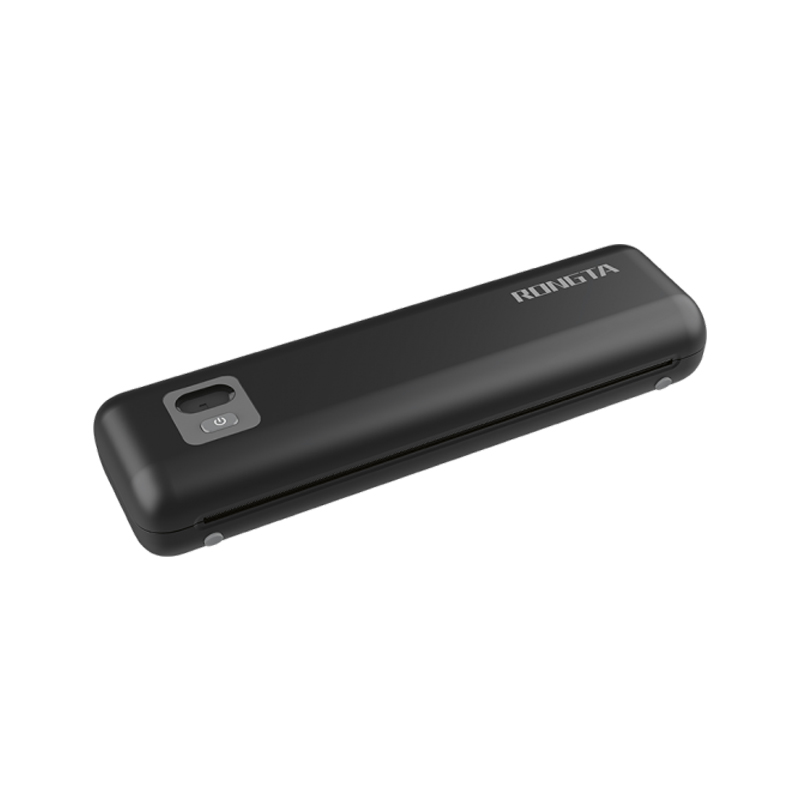 F82A A4 Front-Out Paper Tray Thermal Printer
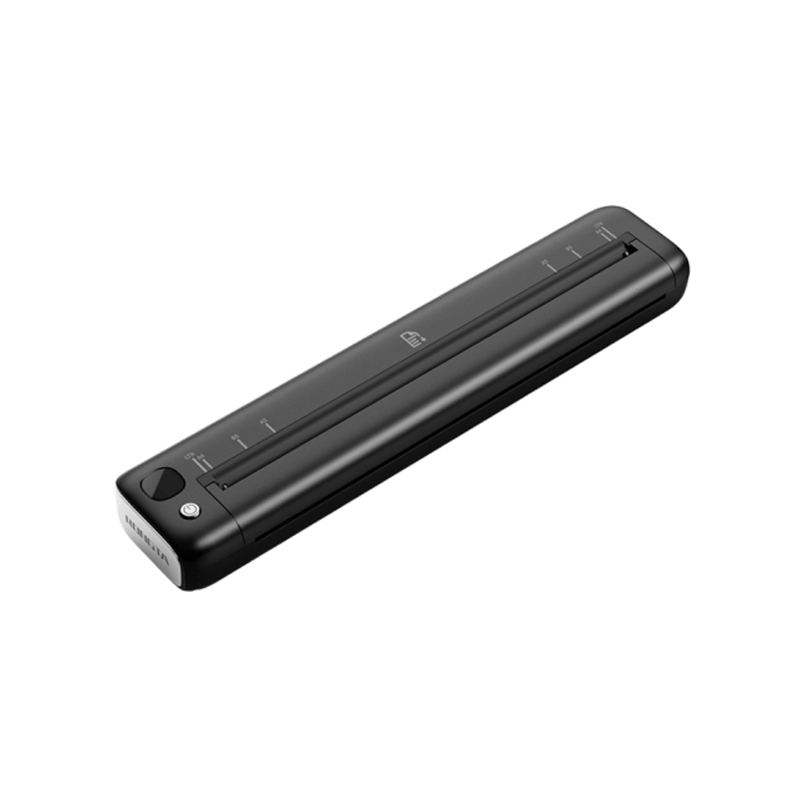 F81A Portable A4 Thermal Printer
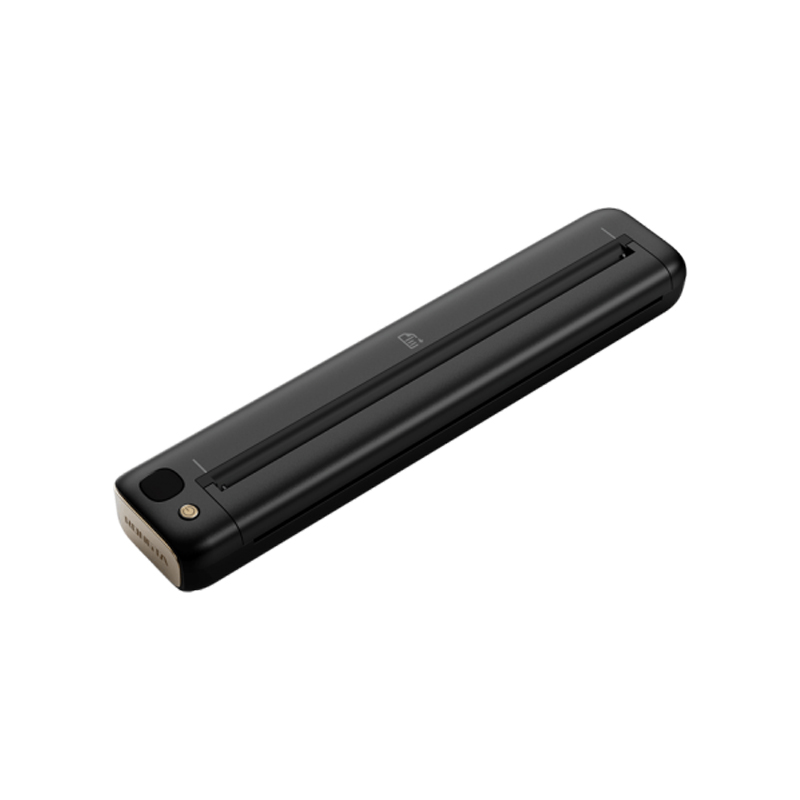 F81S Portable A4 Tattoo Printer
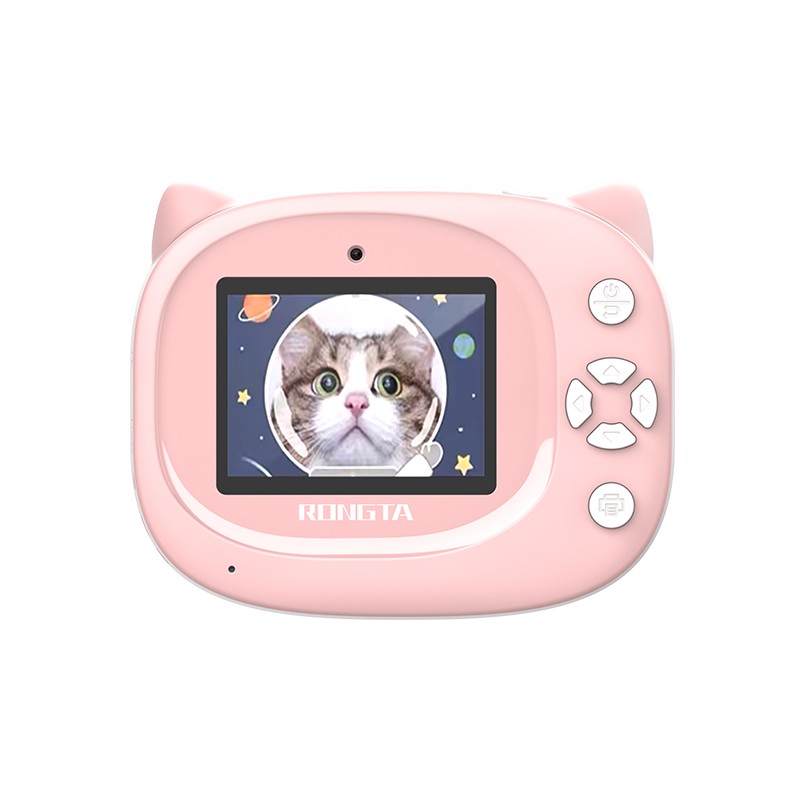 Z1 Children's Educational Photo Printer
 R5 Mini Label Printer
 RP07 58mm Embedded Printer
 RP203 58mm Embedded Printer
 PM315 Embedded Thermal Printer
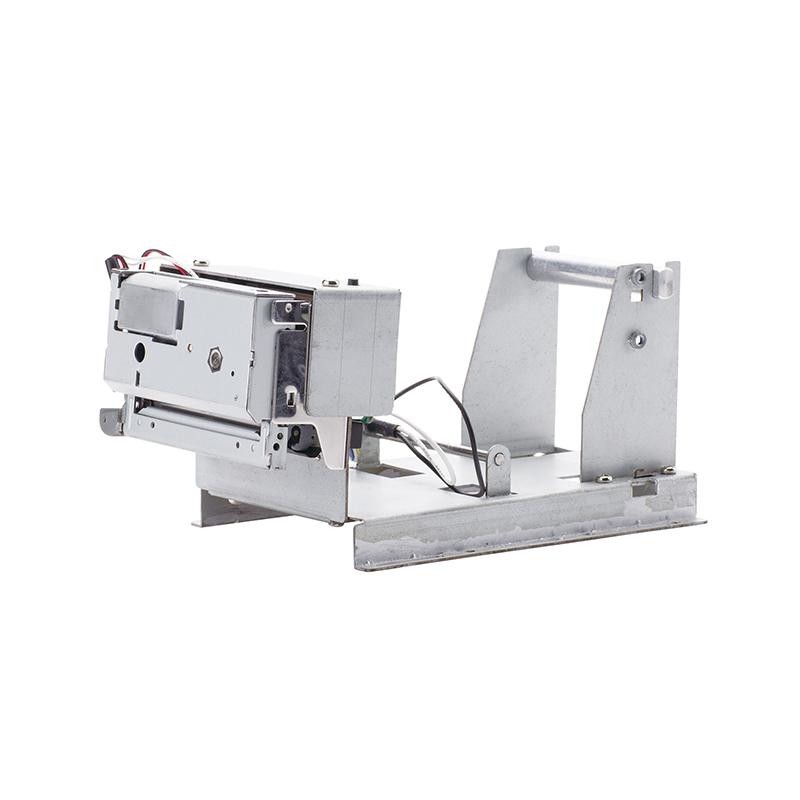 PM201 48mm Printing Module
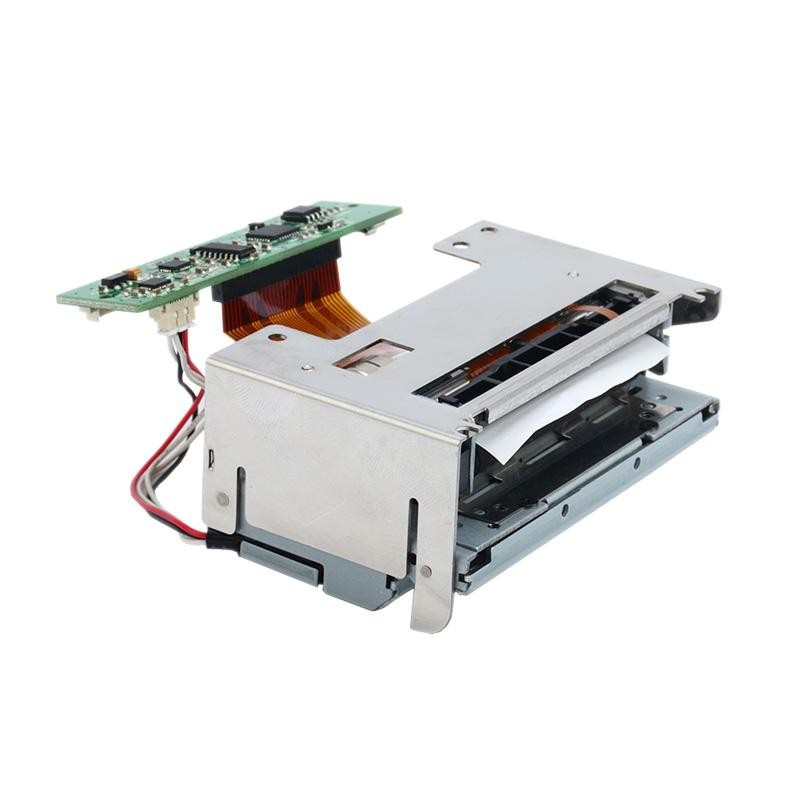 PM628 58mm printing module
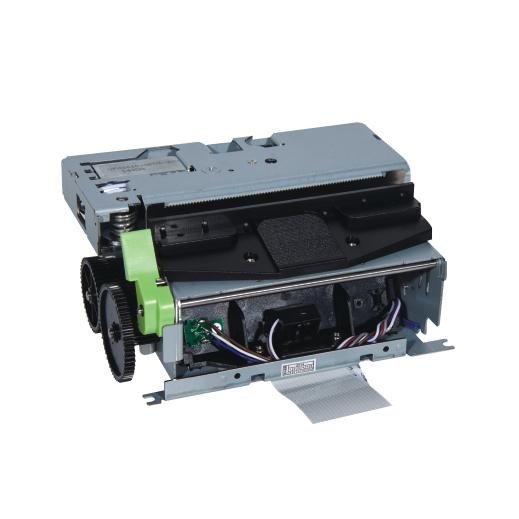 PM532A Printing Module
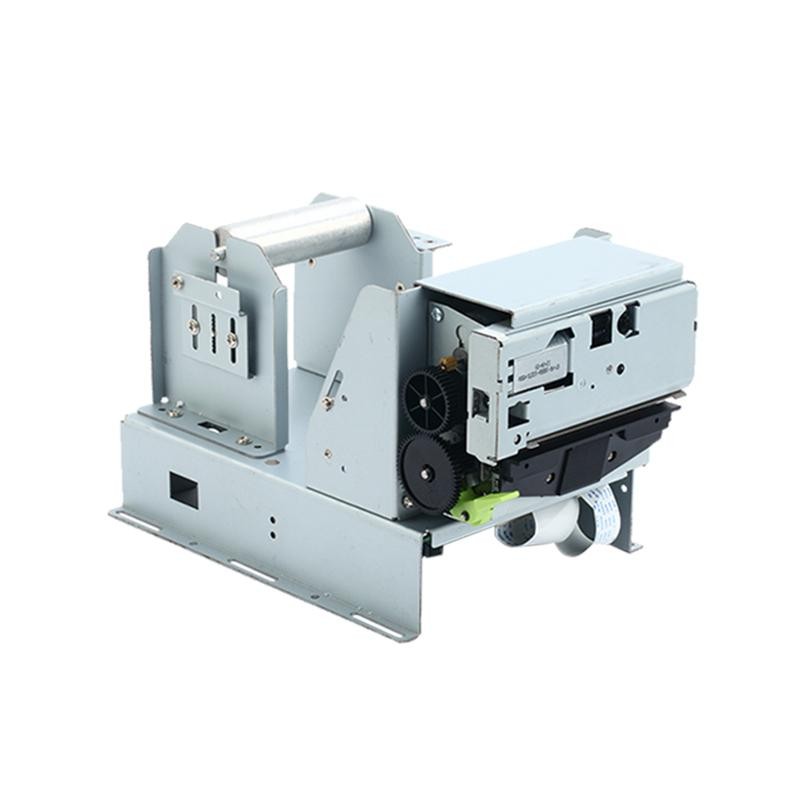 PM532B printer module
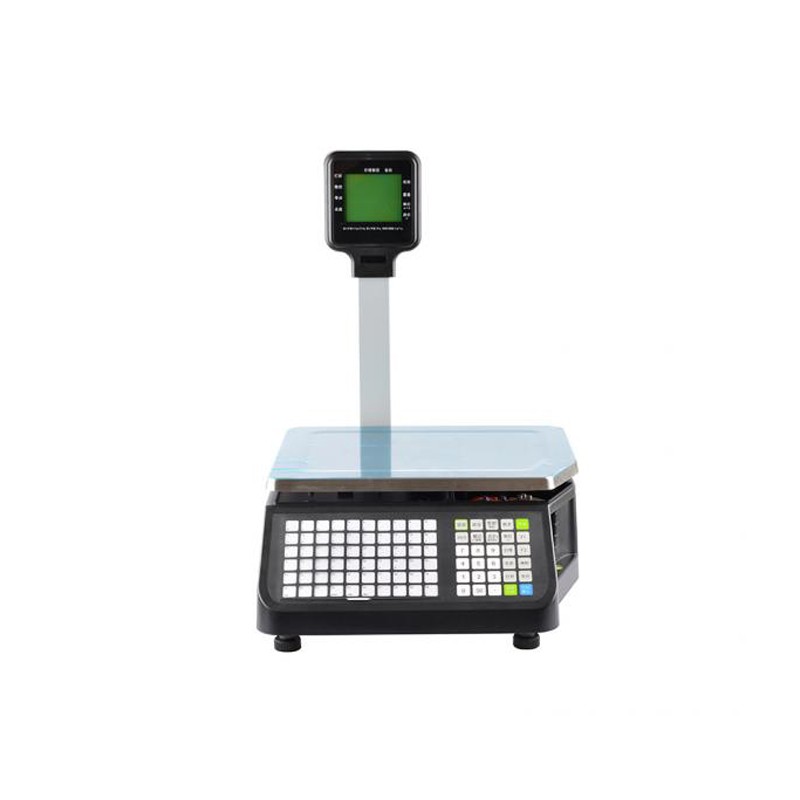 LS015/LS015A Barcode Scale
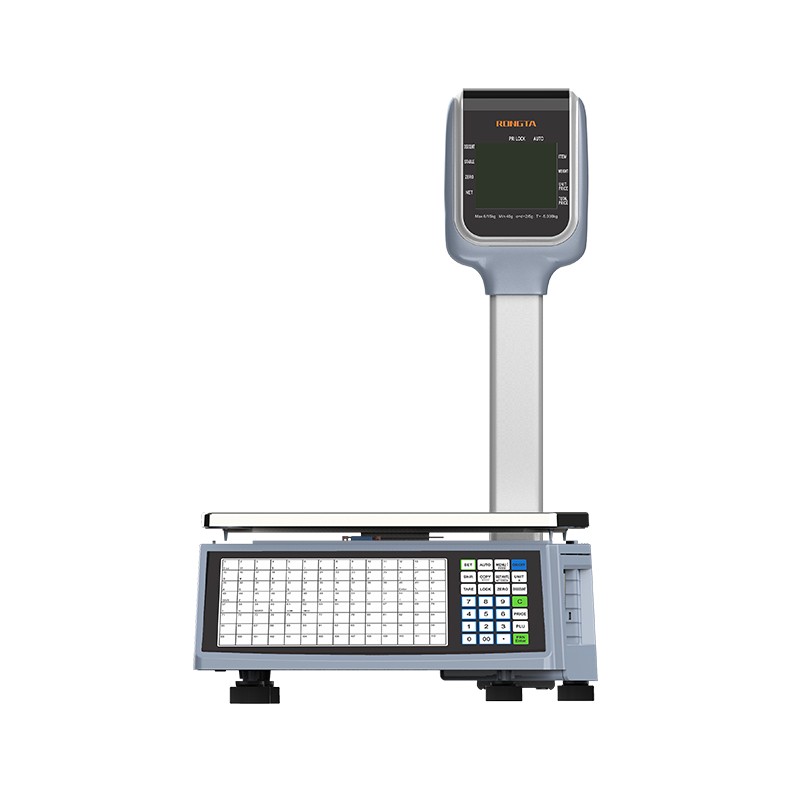 RLS1815D/RLS1830D Barcode Scale
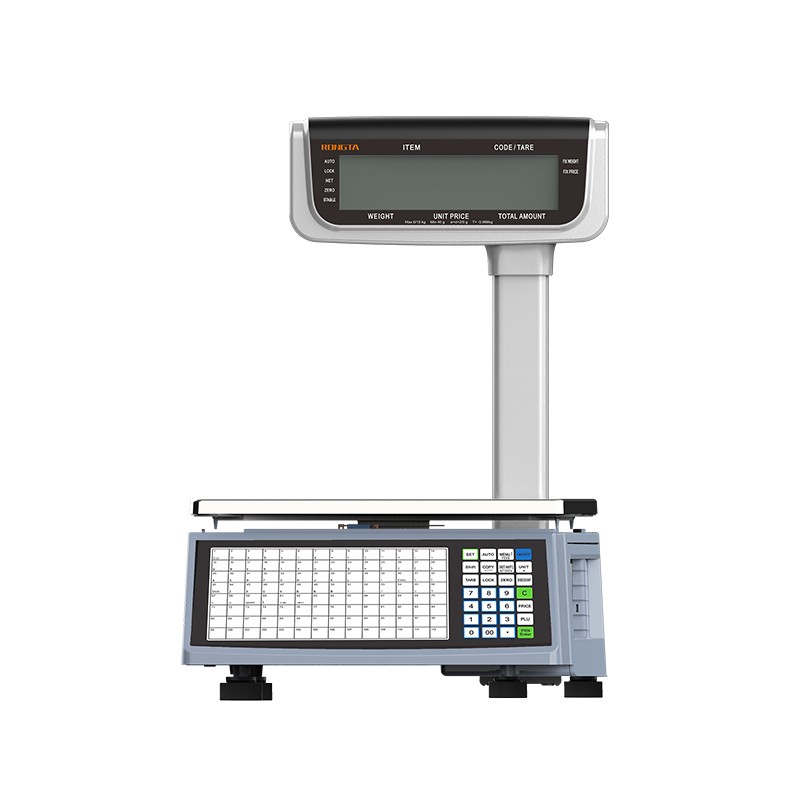 RLS1815C/RLS1830C Barcode Scale
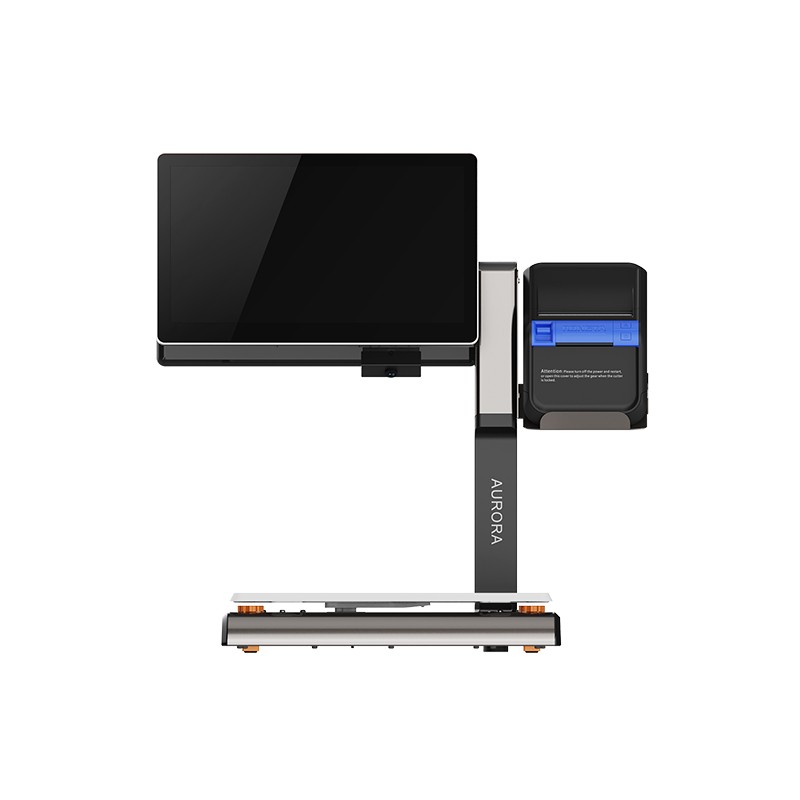 AURORA S2L-S Labelless Scale
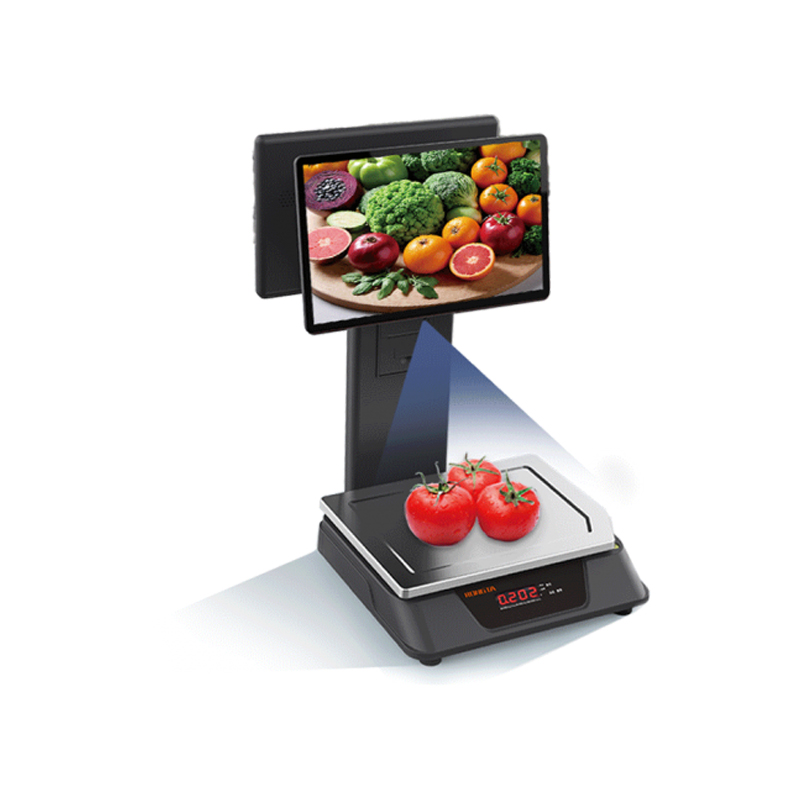 AURORA E1 PRO-AI Cash Register Scale
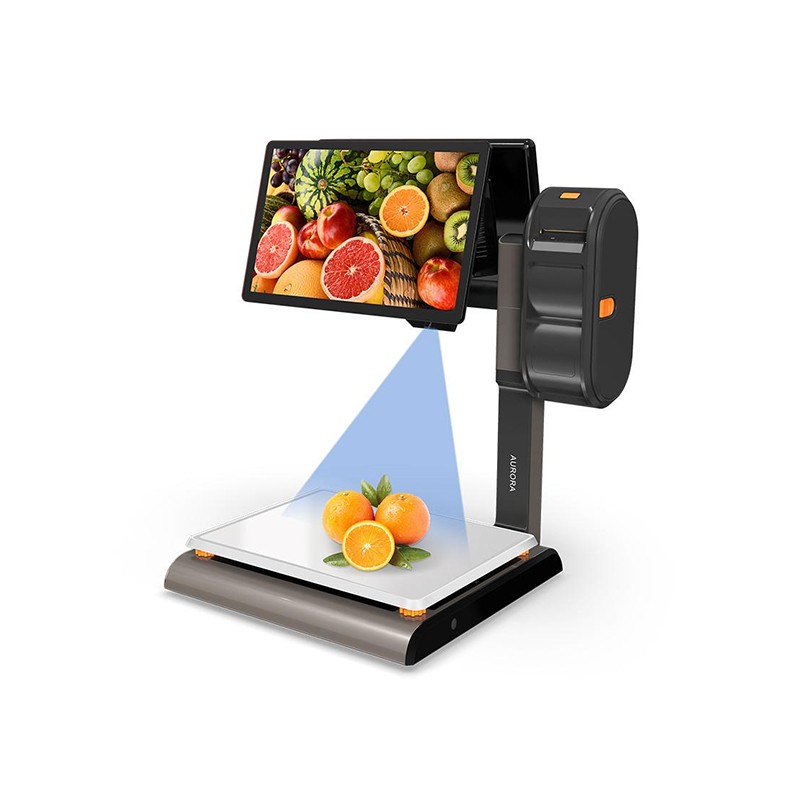 AURORA S2L-AI Label Scale
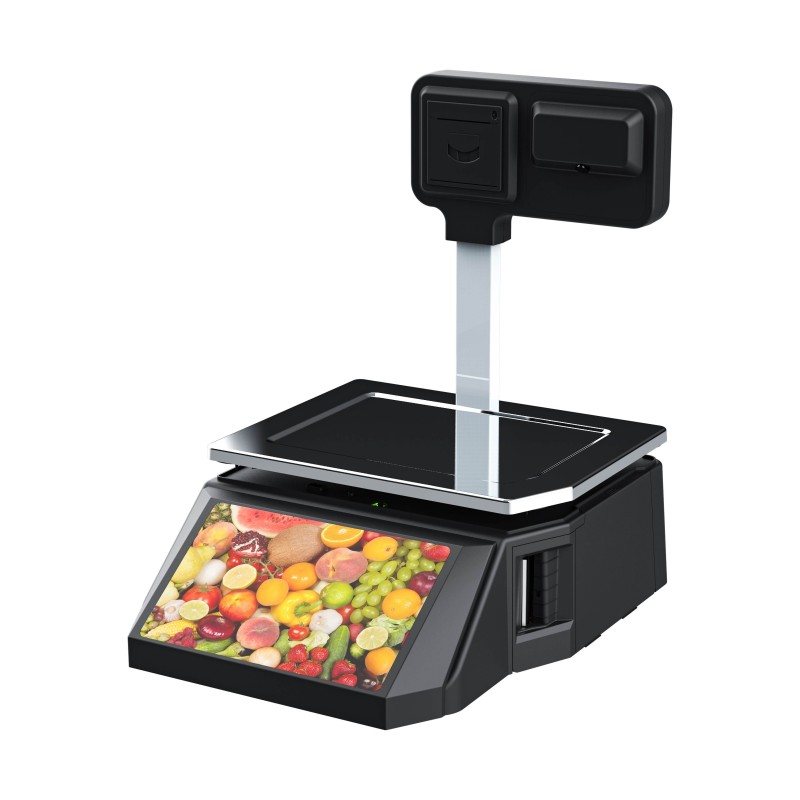 DP01-AI Smart Tag Cashier Dual-Use Scale
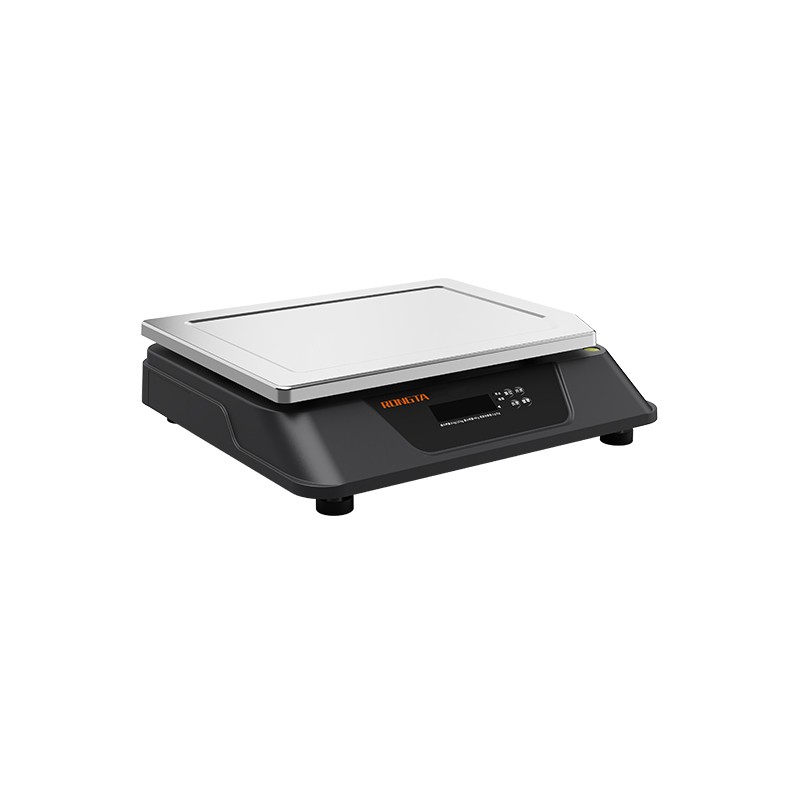 C3 Weighing Scale
 C1 weighing scale
 C11 Weighing Scale
 retail
 FOOD
FOOD Medical
 Mobile office/home
 asset Management
 logistics
 Driver download
 User Manual
 Tool Download
 Tag software
 Product Video
 Development Documentation
 Frequently Asked Questions
 User Guide
 Company News
 Exhibition Updates
 Industry Insights
 Product Update
 General situation
 Development history
 Honors and Qualifications
 R&D strength
 Team activities
 Social responsibility




Service Support
RP325 80mm Thermal Receipt Printer: Paper Jam Clearing and Troubleshooting
2026-01-13
RP32580mm thermal receipt printerPaper jam clearing and troubleshooting
1. Methods for clearing paper jams
When a printer jams, first turn off the printer, open the printer cover, and after the print head has cooled down, carefully remove the jammed paper. Then, feed the correct paper and close the cover. Using recommended or equivalent quality paper that meets the specified width will reduce the likelihood of paper jams.

2. Troubleshooting
If your printer malfunctions, please refer to this section for troubleshooting. If the problem persists, please contact your dealer or manufacturer.
2.1 The indicator lights on the control panel are not lit.
Check that the power cord is correctly plugged into the printer, power adapter, and power outlet. Check that the printer's power switch is on.
2.2 The indicator lights are normal, but the printer is not printing.
Run a self-test to check if the printer is working properly. If the self-test fails, contact your dealer or technical support.
If the self-test proceeds normally, check the following:
(1) Check the interfaces at both ends of the cable connecting the printer and the computer. Also confirm that the cable meets the specifications of both the printer and the computer.
(2) The data transfer settings between the printer and the computer may differ. You can use the self-test printout to see the printer's interface settings. If the printer fails to print, please contact your dealer or technical support.
3. Printer driver
There are two ways to drive the 325 series printers: one is to install the driver directly under Windows 9x/ME/2000/XP, and the other is to drive it directly using the network port.
(1) Installing drivers under Windows
In Windows, you add a printer and specify the driver file from the driver disk to Windows. Then, you can start printing simply by calling the print command in the program. In this method, the Windows printer driver actually converts the characters into graphic dot matrices for printing.
(2) Direct network port driver
In this method, no driver is needed; characters are simply output directly to the port, and the printer's internal hardware font library handles the character conversion and printing. Using the port-driven direct-drive method also changes the printing mode from page-based to line-based, making print control more convenient.
If the port direct driver method is used, an instruction set is required to control the printer's printing, and the 325 series printers have integrated the ESC/POS command set.