

 80mm Receipt Printer
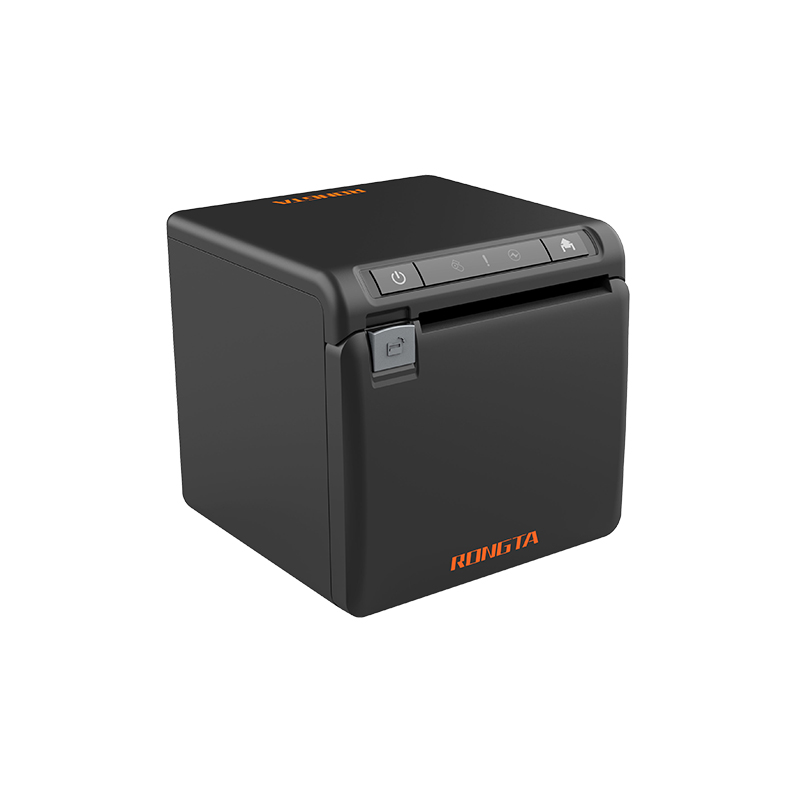 ACE H2 Receipt Printer
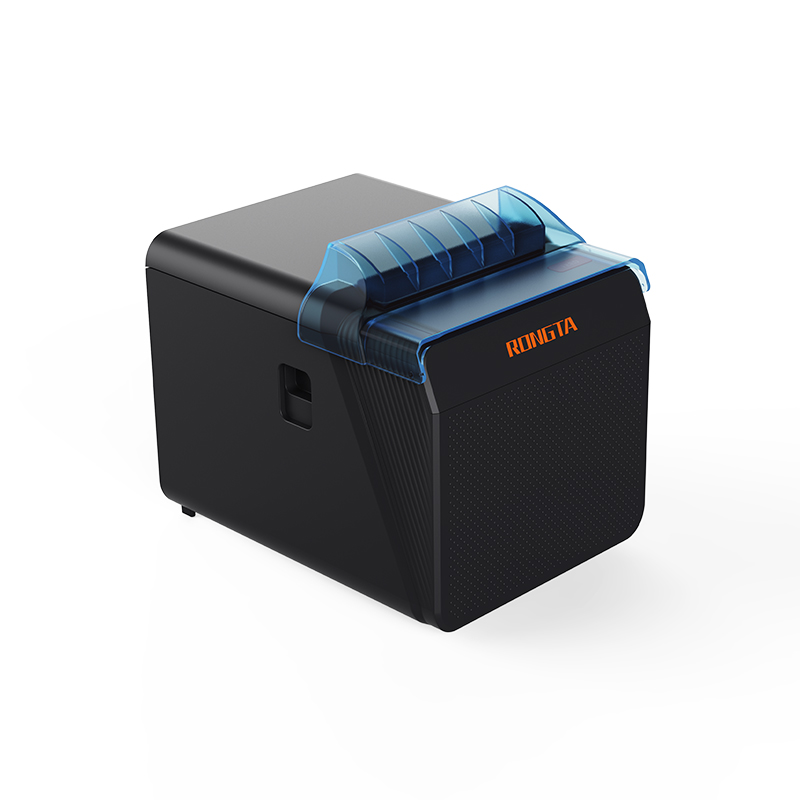 RP337 Receipt Printer
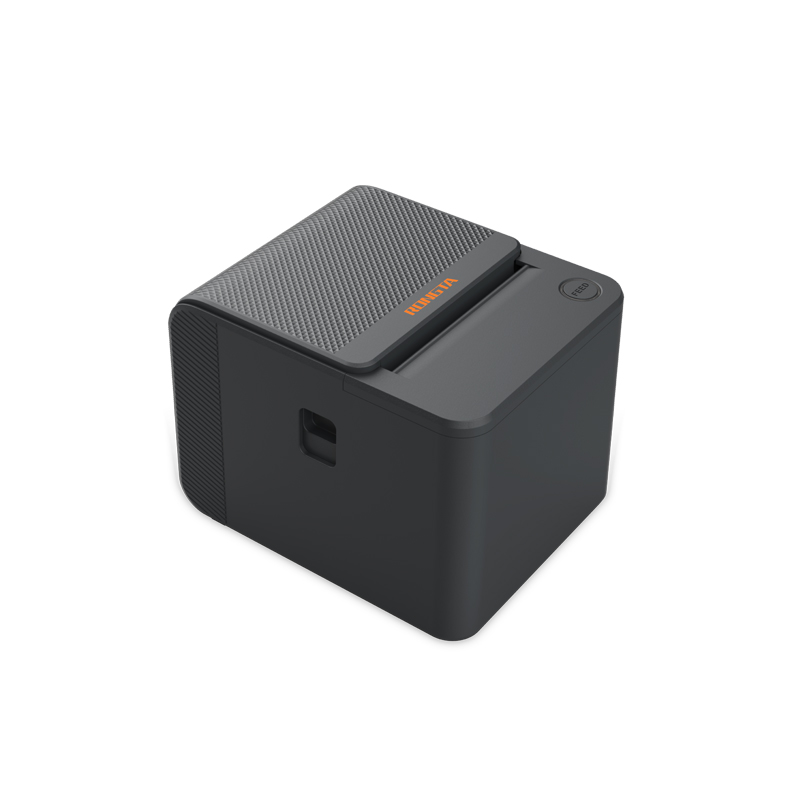 RP336S Dual-Color Receipt Printer
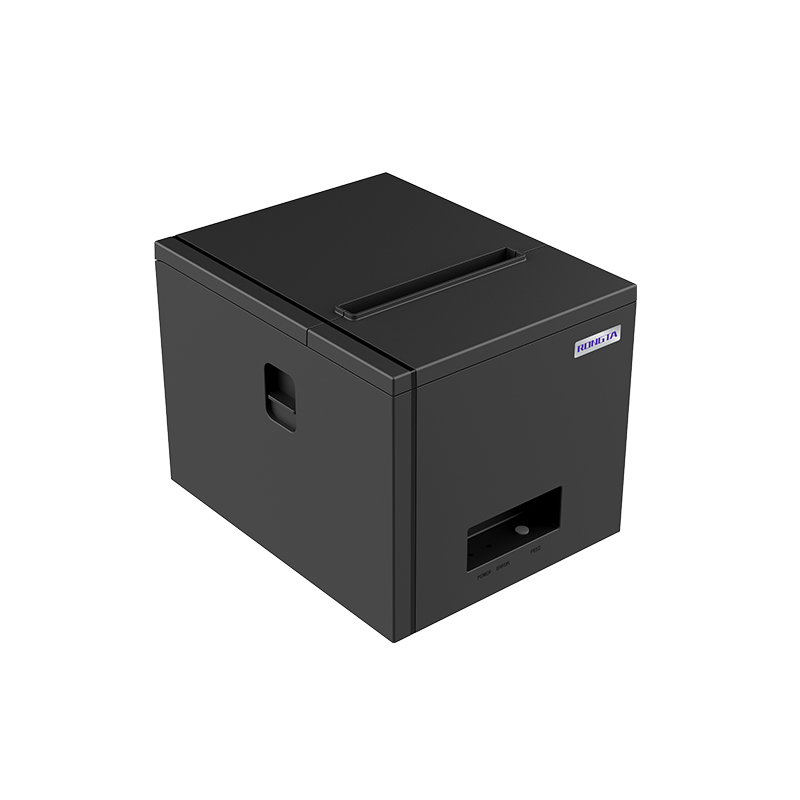 RP350 Receipt Printer
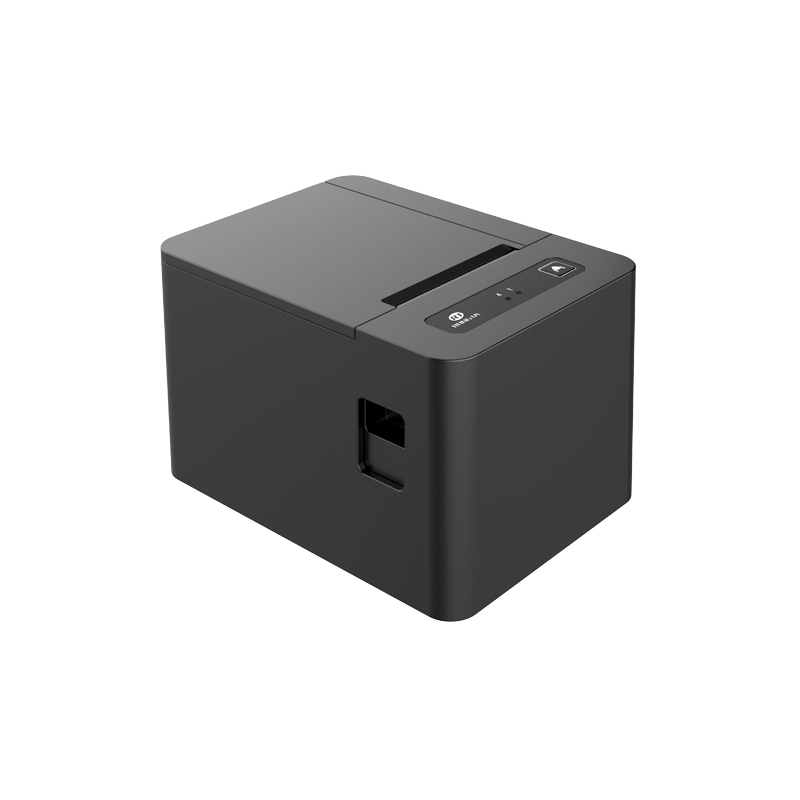 RP582 Receipt Printer
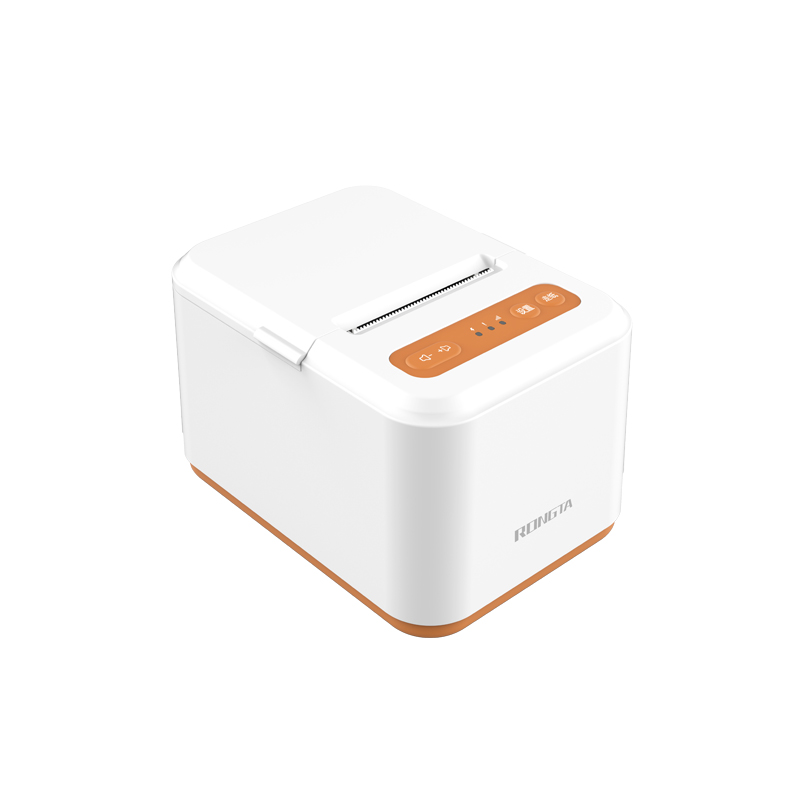 RP581 Receipt Printer
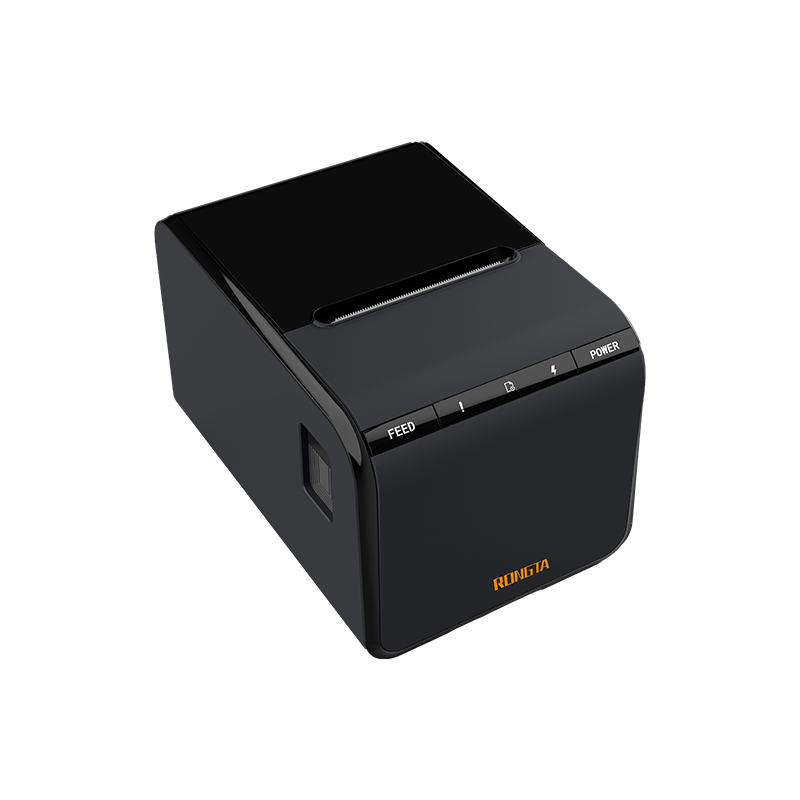 ACE G1Y Receipt Printer
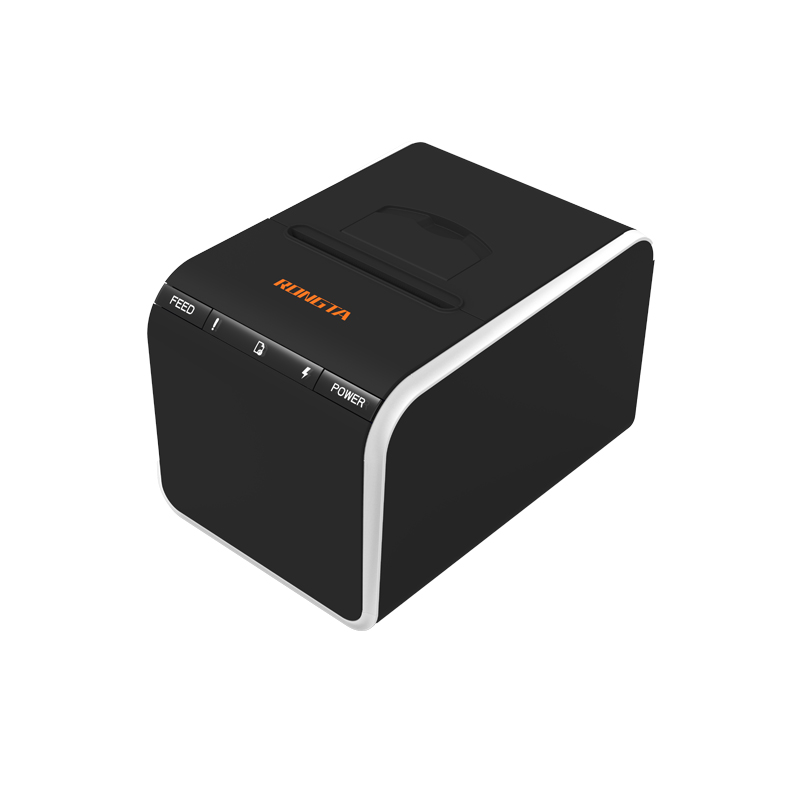 ACE G1YP Cloud Printer
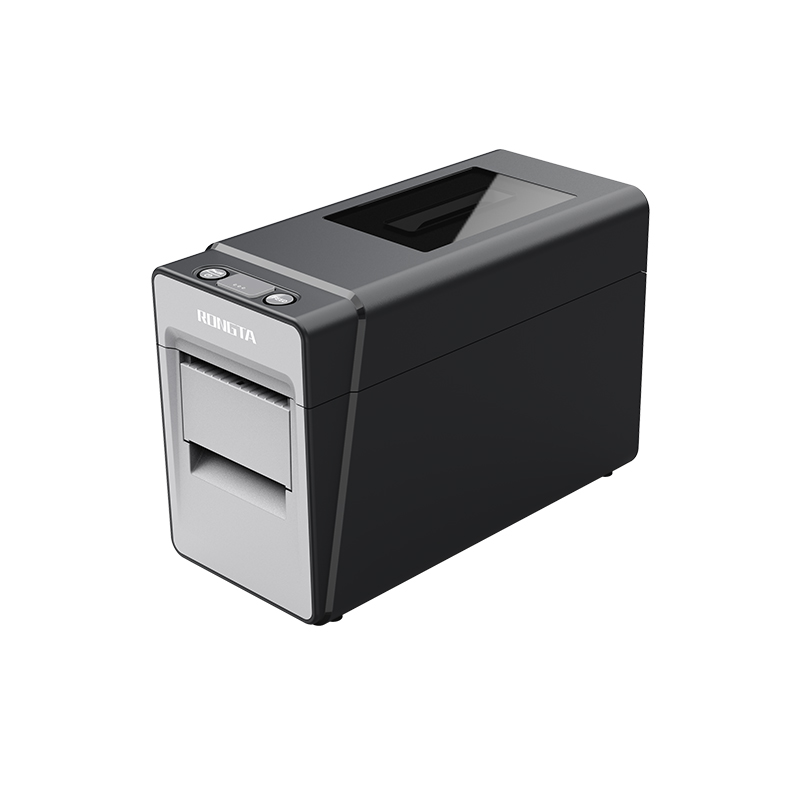 RP216 2'' Dual-color High-definition Label Printer
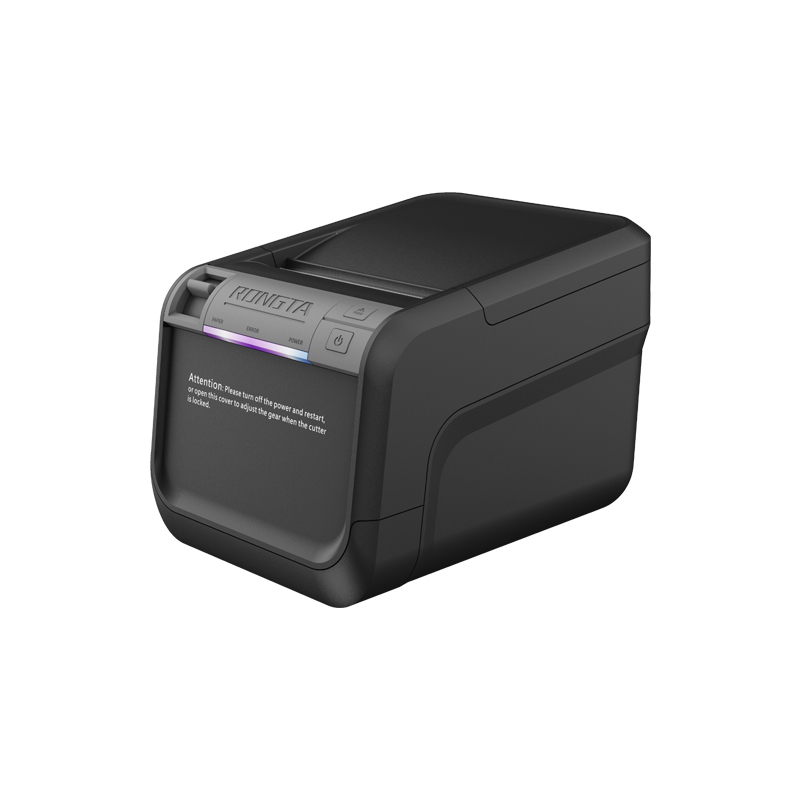 ACE V1S 3'' Backless Label Printer
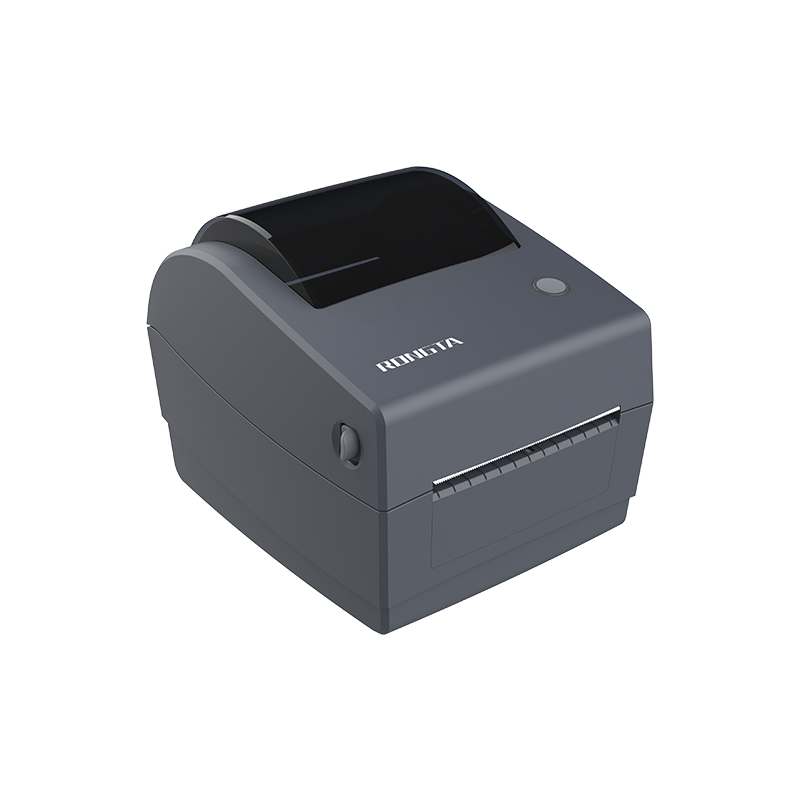 RP310D 3'' Dual-color Label Printer
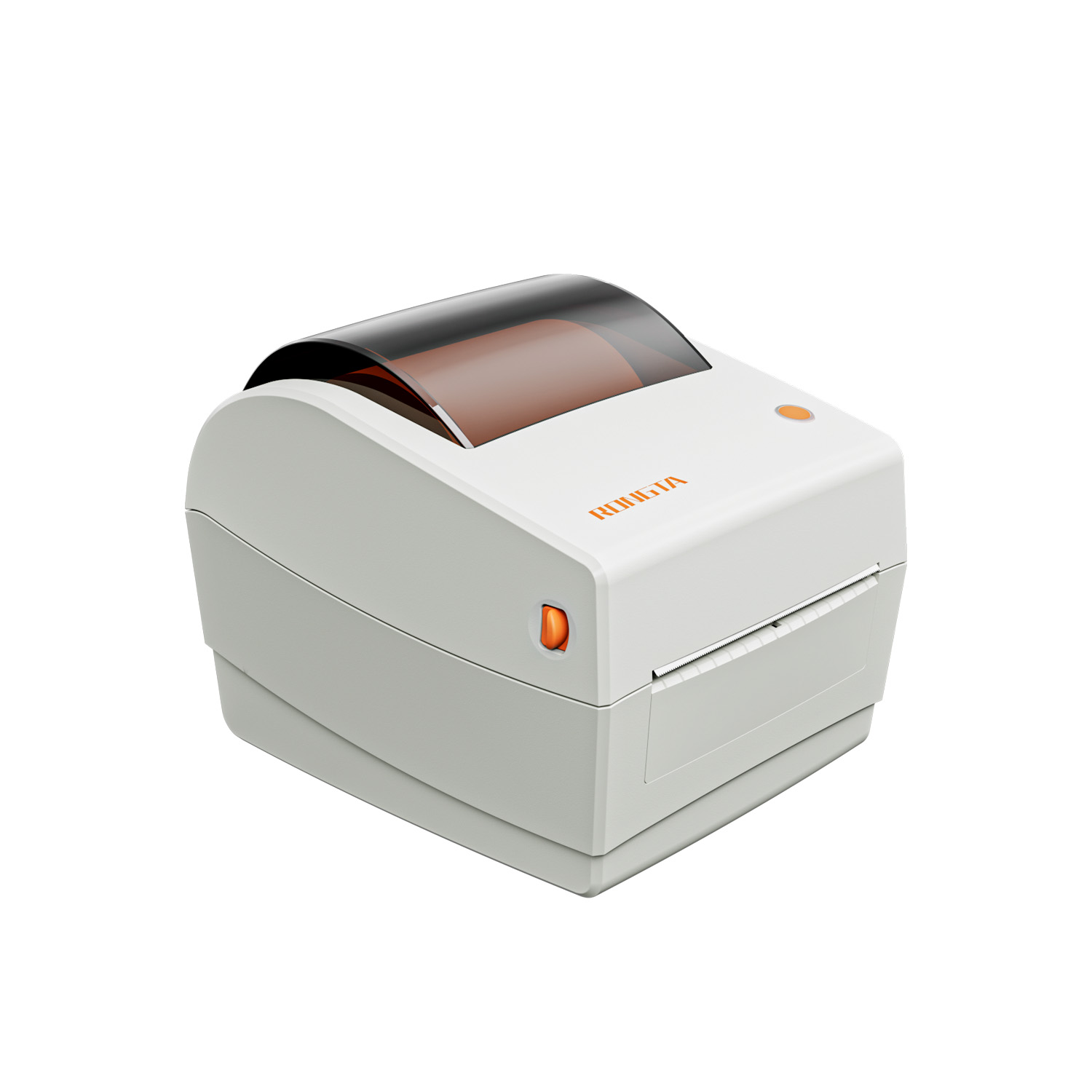 RP410N 4'' Thermal Label Printer
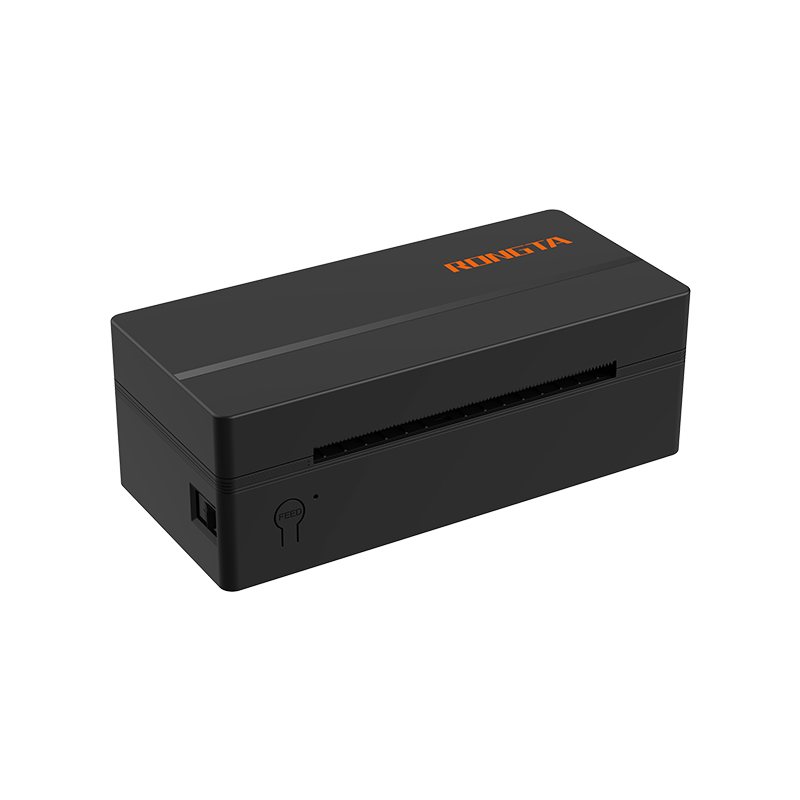 RP425 4'' Electronic Waybill Printer
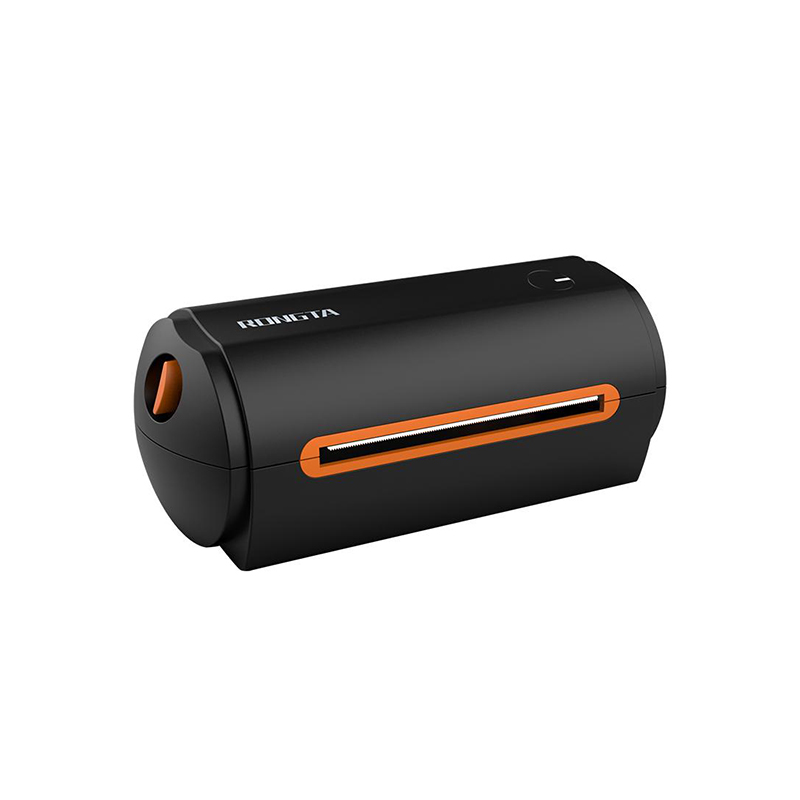 RP422 4'' Electronic Waybill Printer
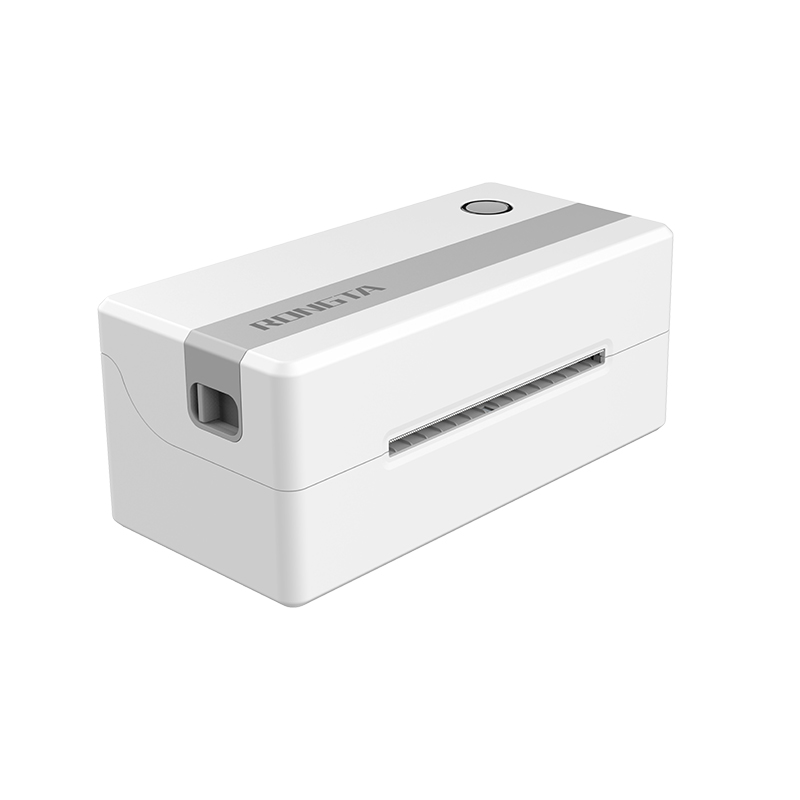 RP421A 4'' Electronic Waybill Printer
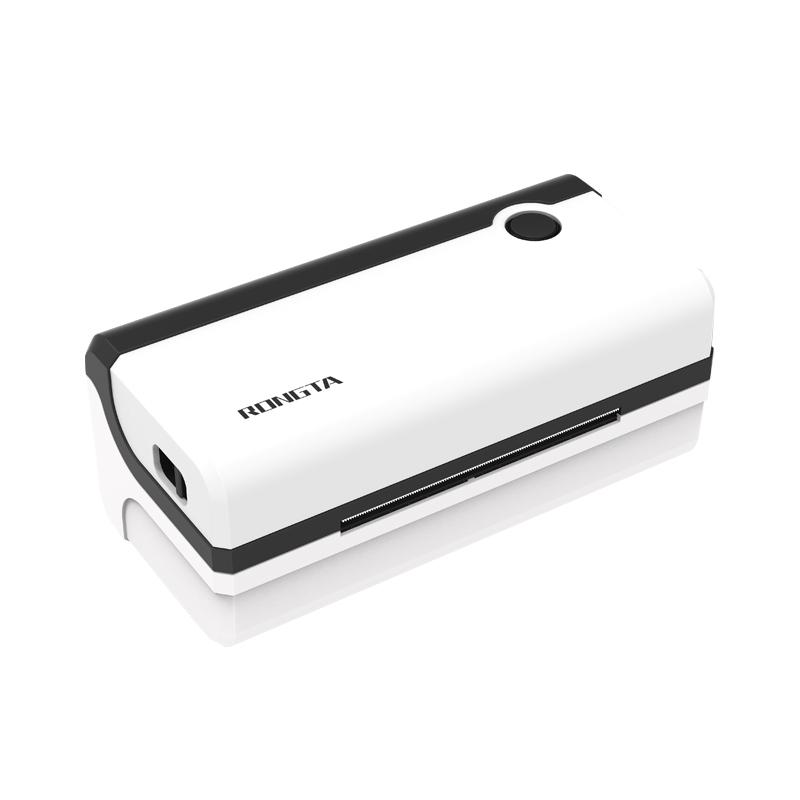 RP420 4'' Electronic Waybill Printer
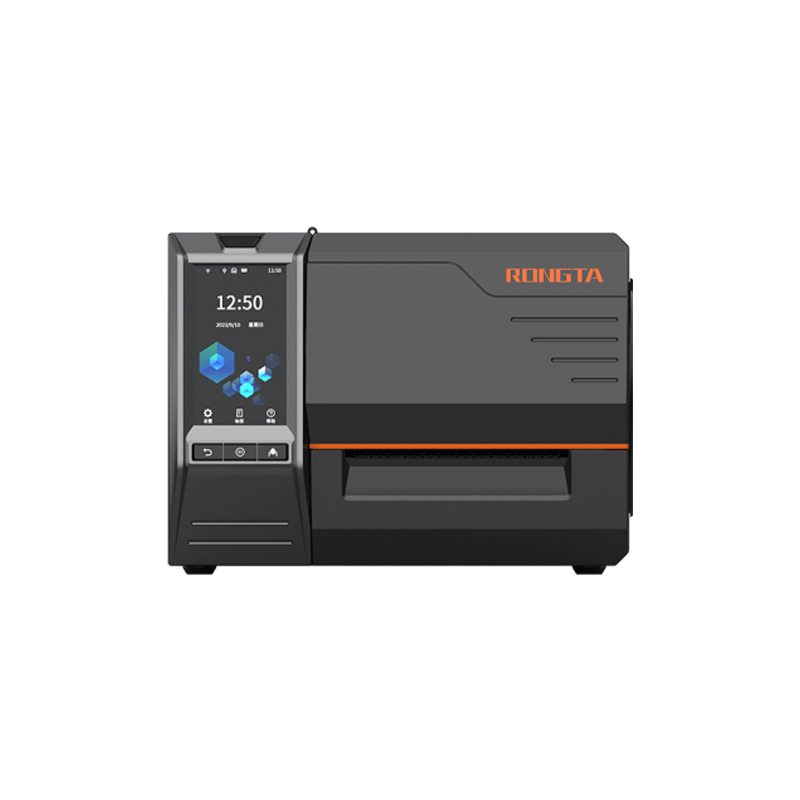 RI463 Series Barcode Printers
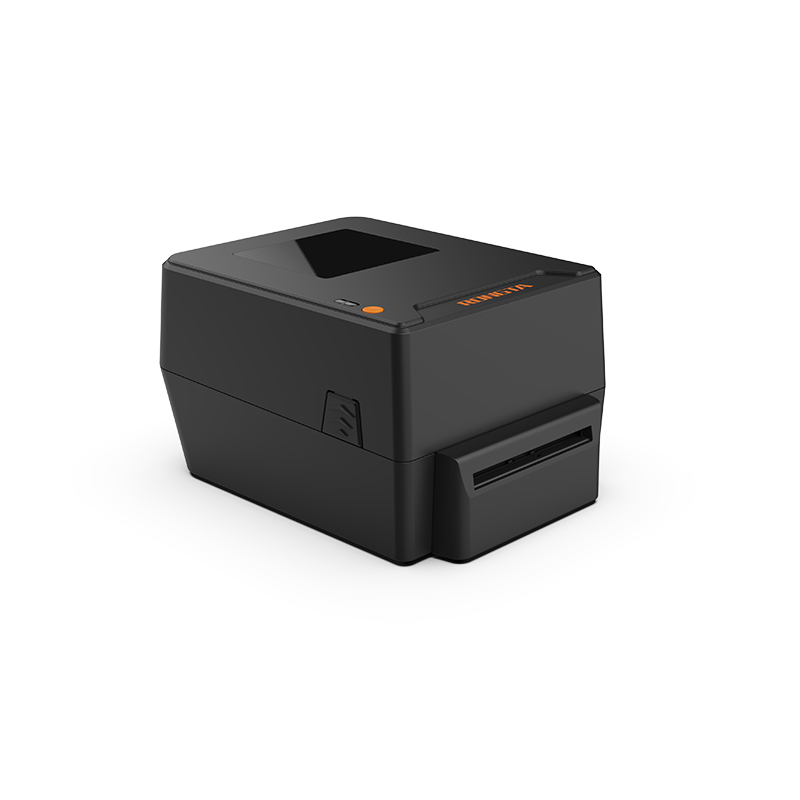 RP400A 4'' Thermal Transfer Tape Cutter Printer
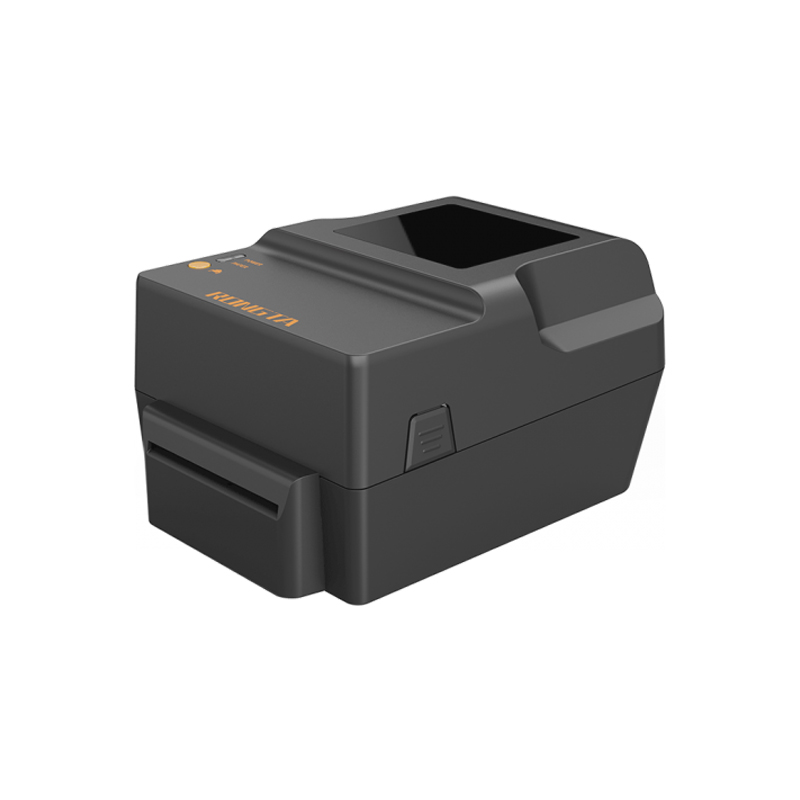 RP400H 4'' Thermal Transfer Tape Cutter Printer
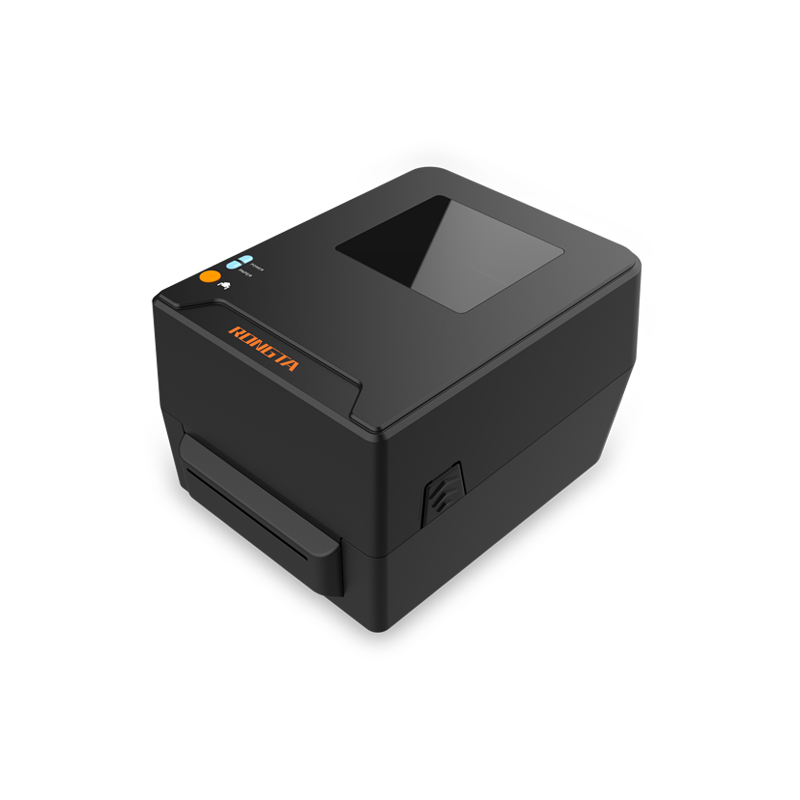 RPF413 300dpi RFID barcode label printer
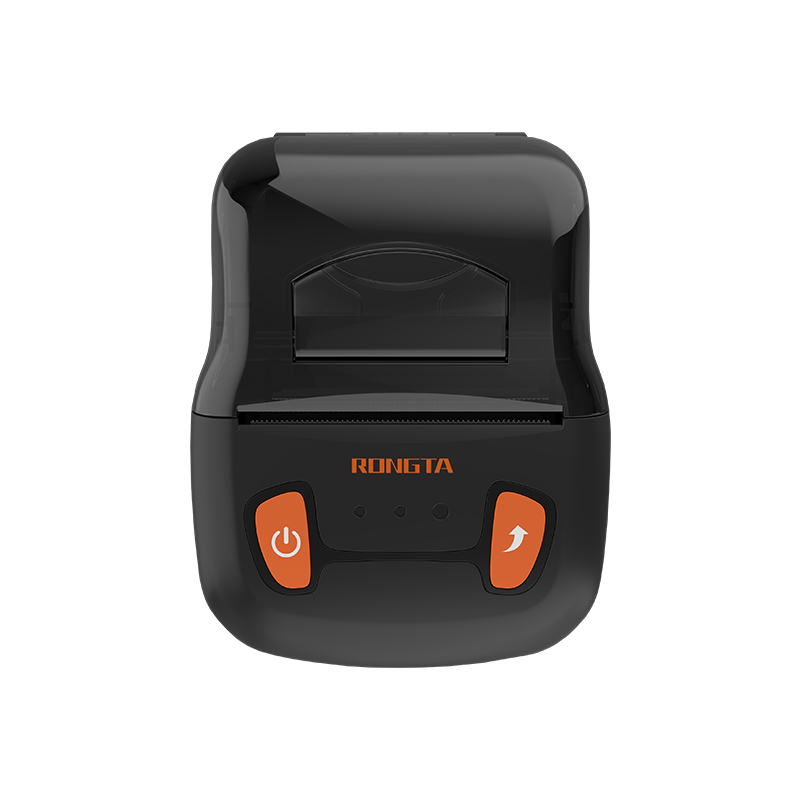 RPP02A Portable Receipt Printer
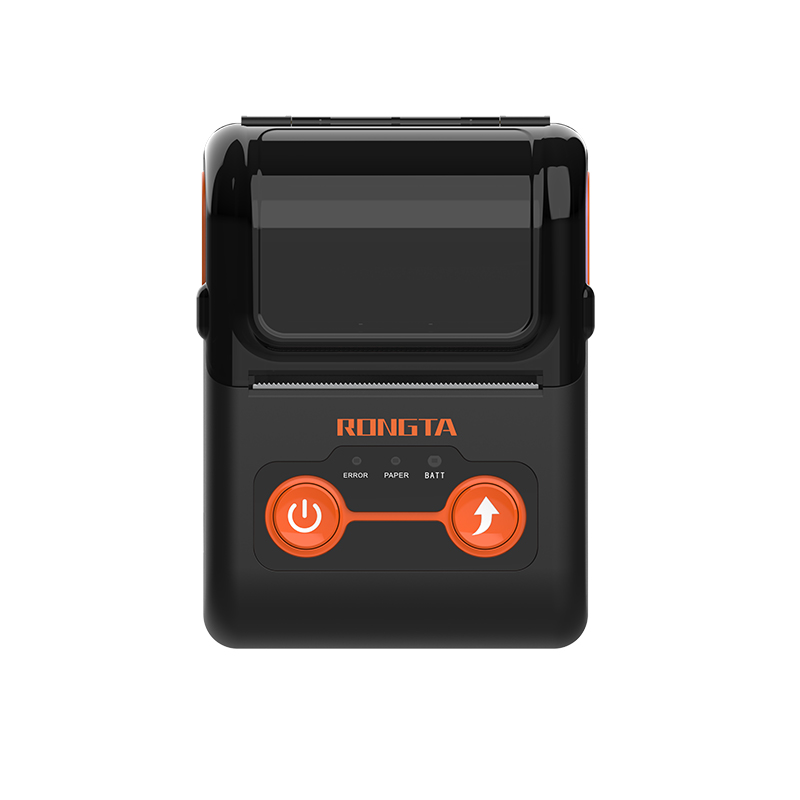 RPP02B Thermal Portable Printer
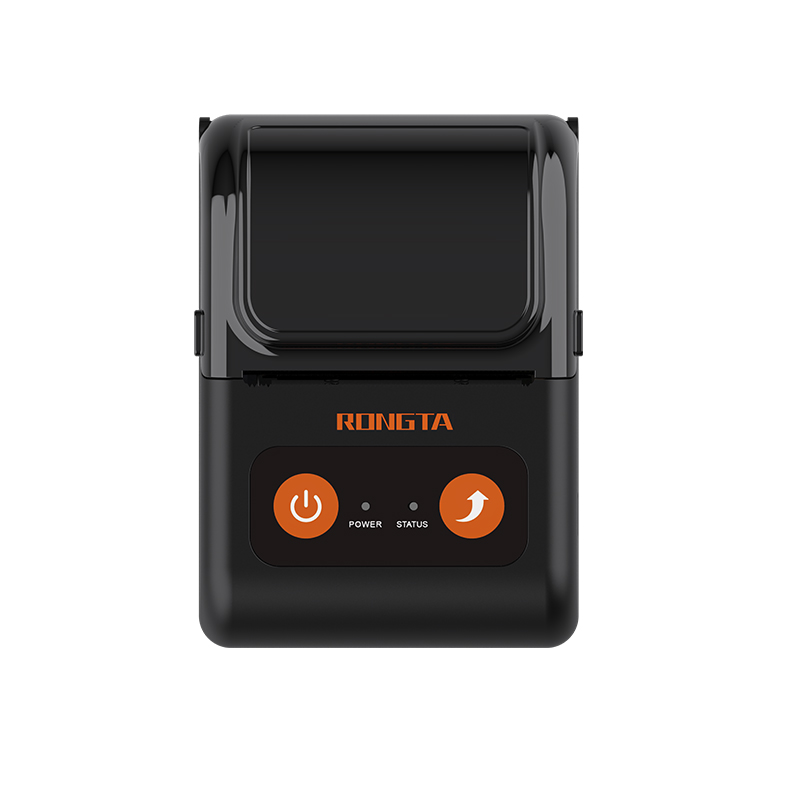 RPP02C Portable Receipt Printer
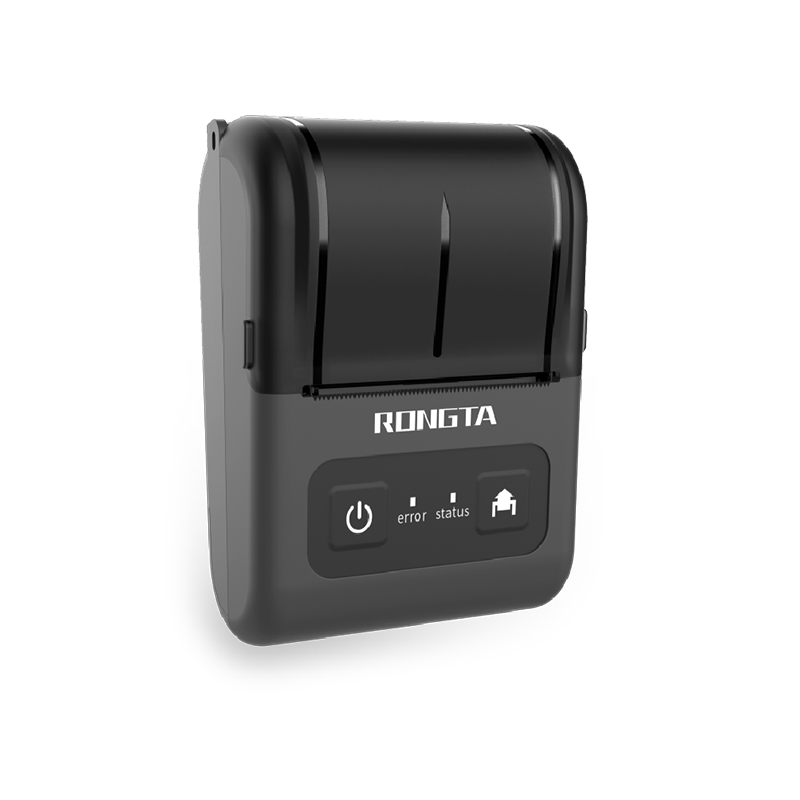 RPP02D Thermal Portable Printer
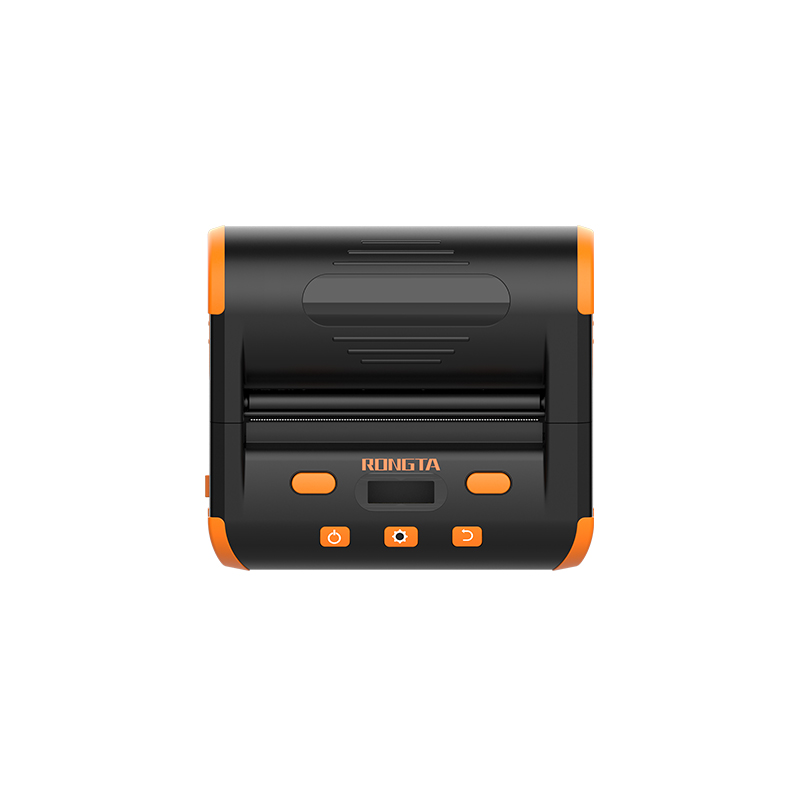 RPP04 4" Portable Label Printer
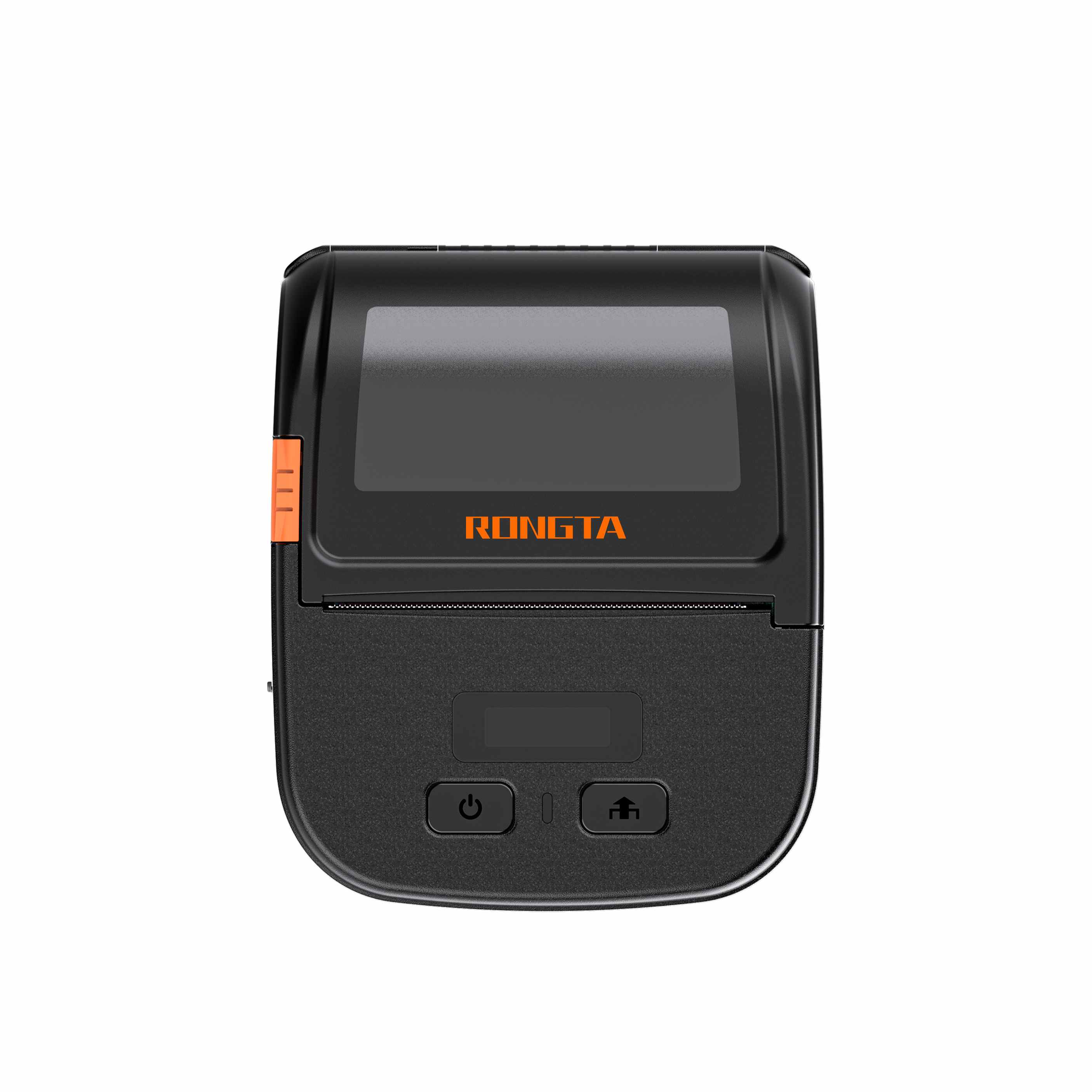 RPP30 3" Portable Label Printer
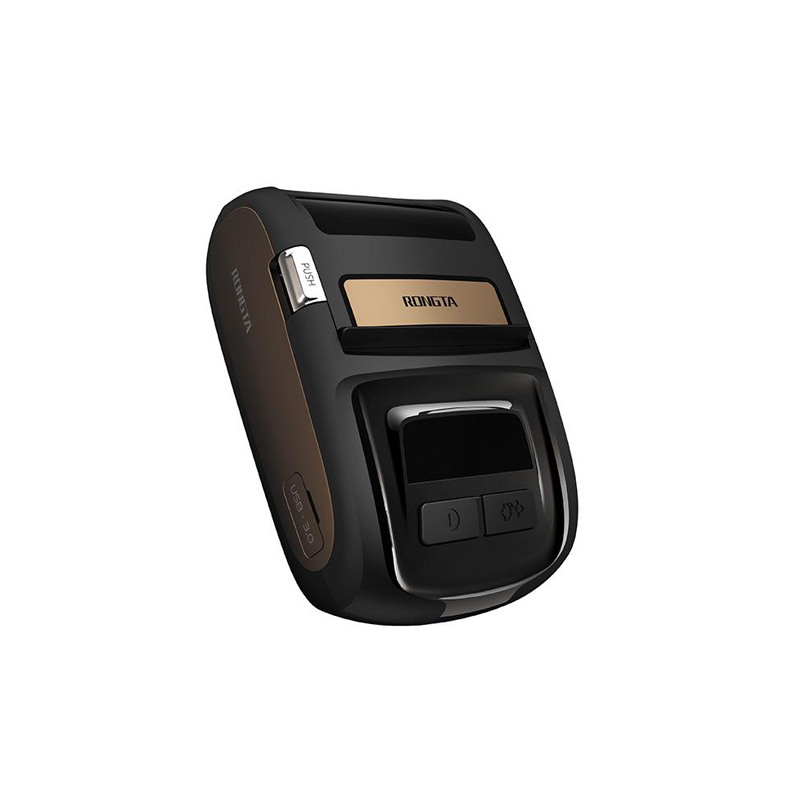 ACE M1 2" Portable Label Printer
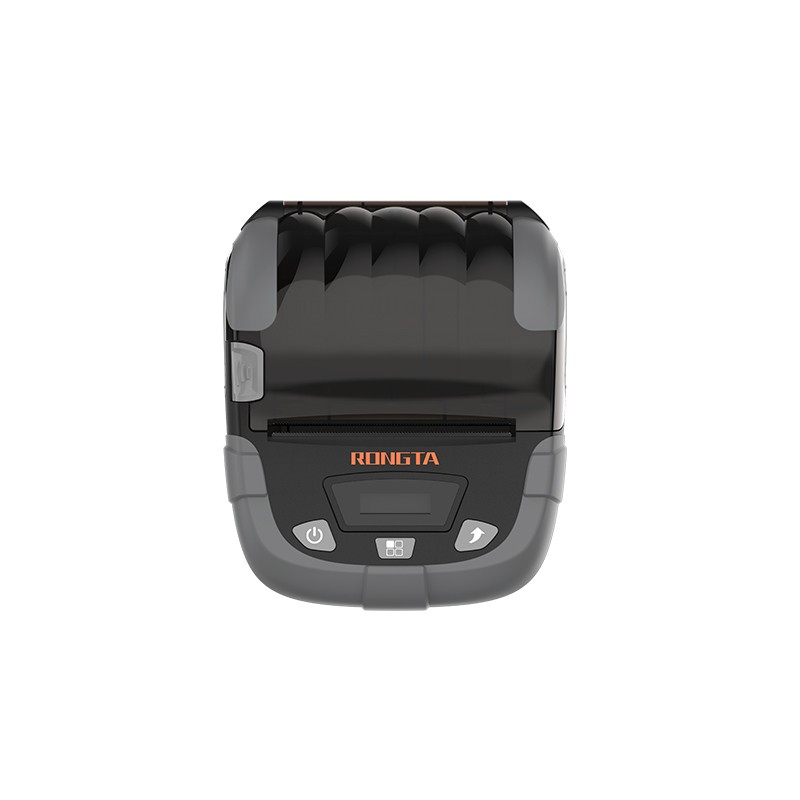 RPP320N 3" Portable Label Printer
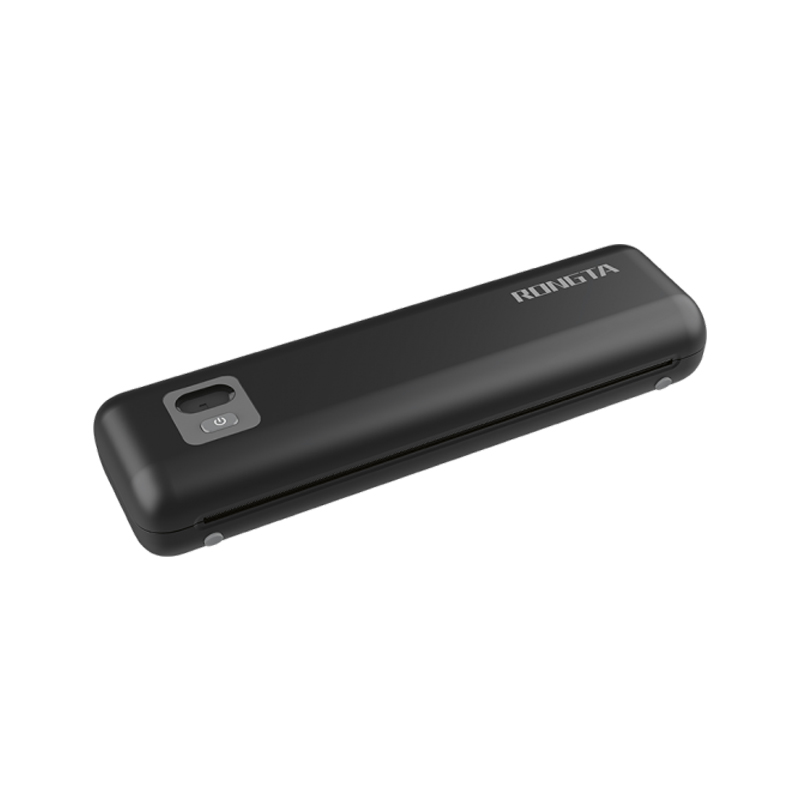 F82A A4 Front-Out Paper Tray Thermal Printer
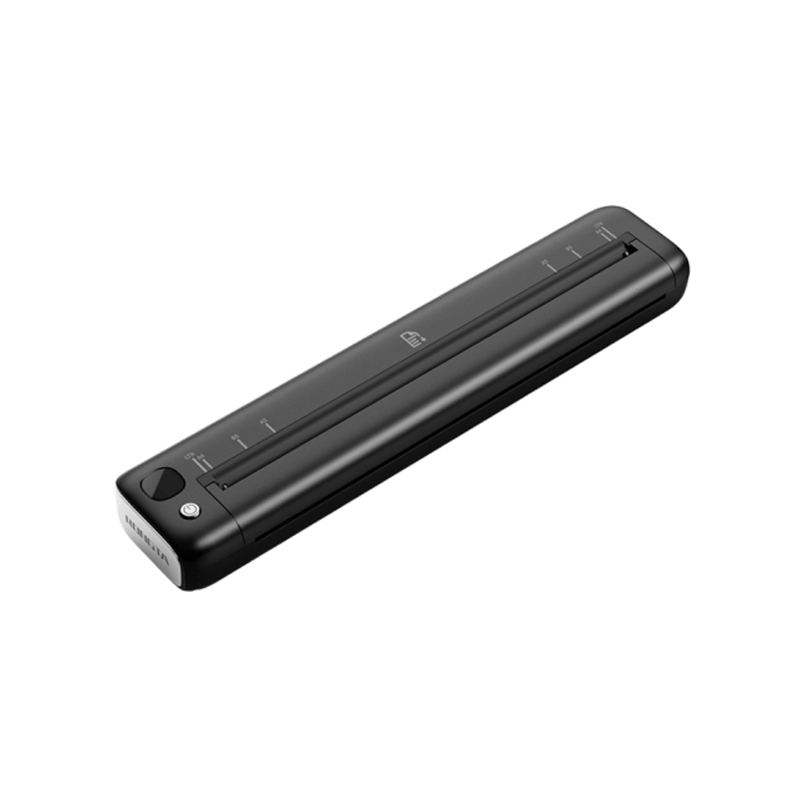 F81A Portable A4 Thermal Printer
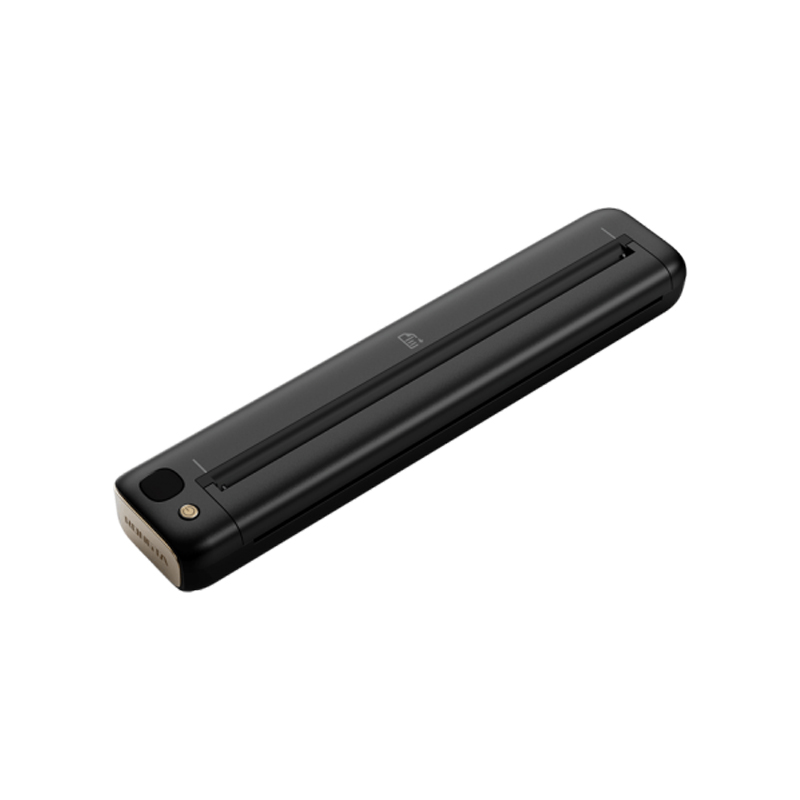 F81S Portable A4 Tattoo Printer
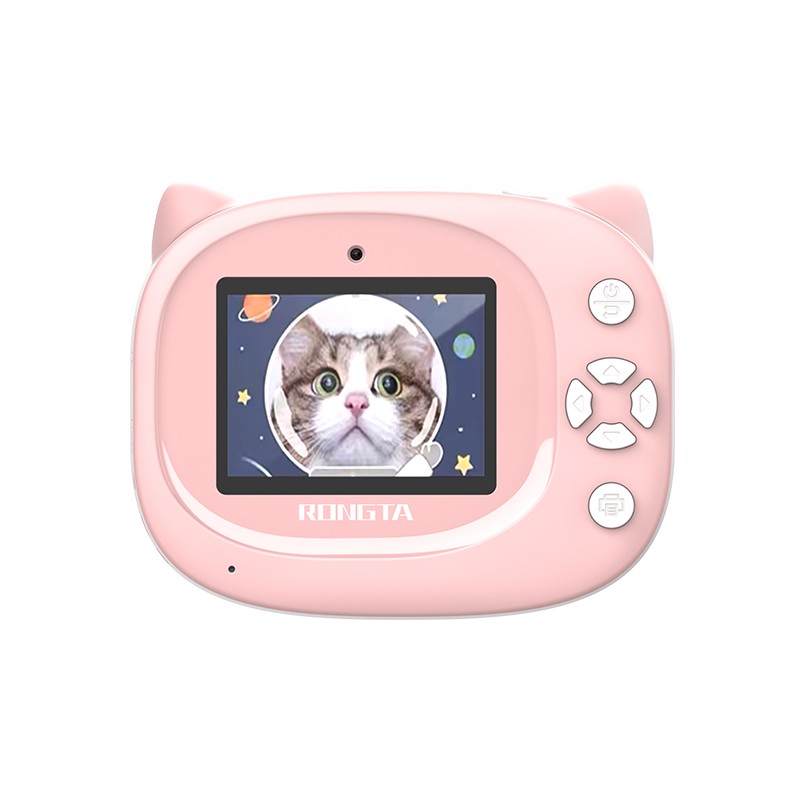 Z1 Children's Educational Photo Printer
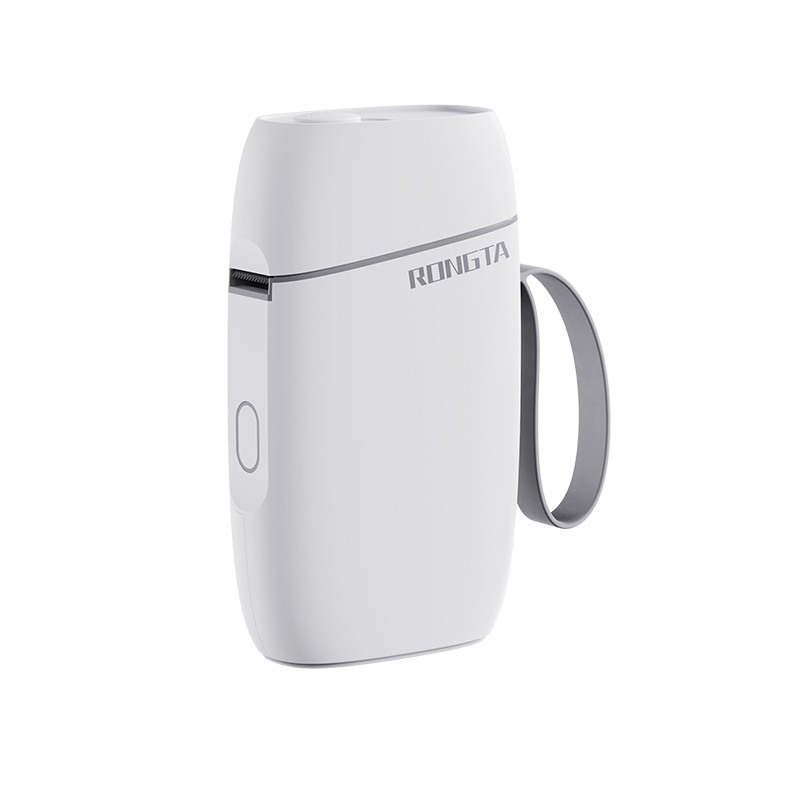 R5 Mini Label Printer
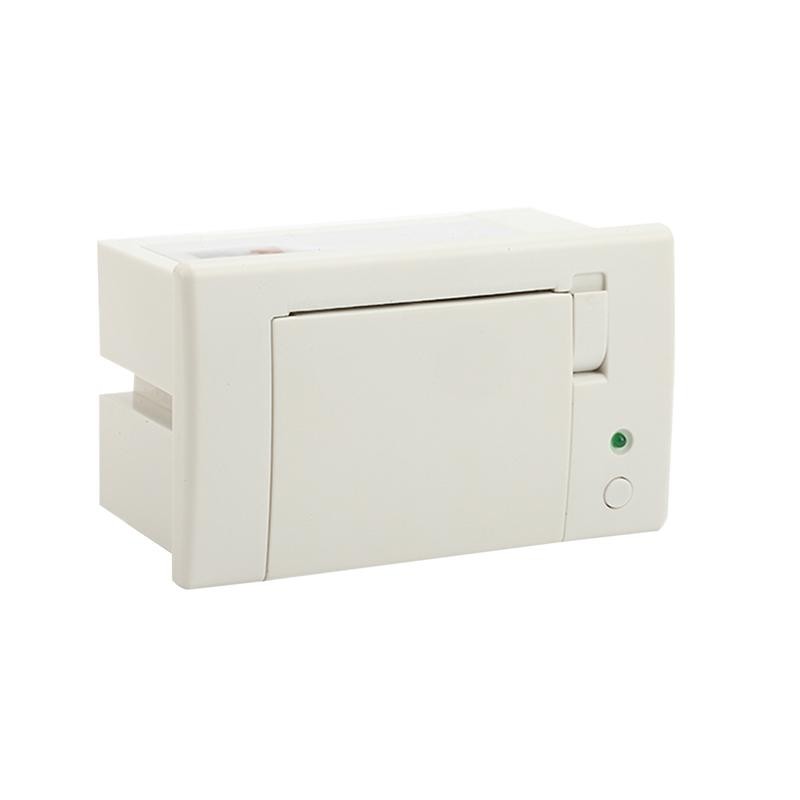 RP07 58mm Embedded Printer
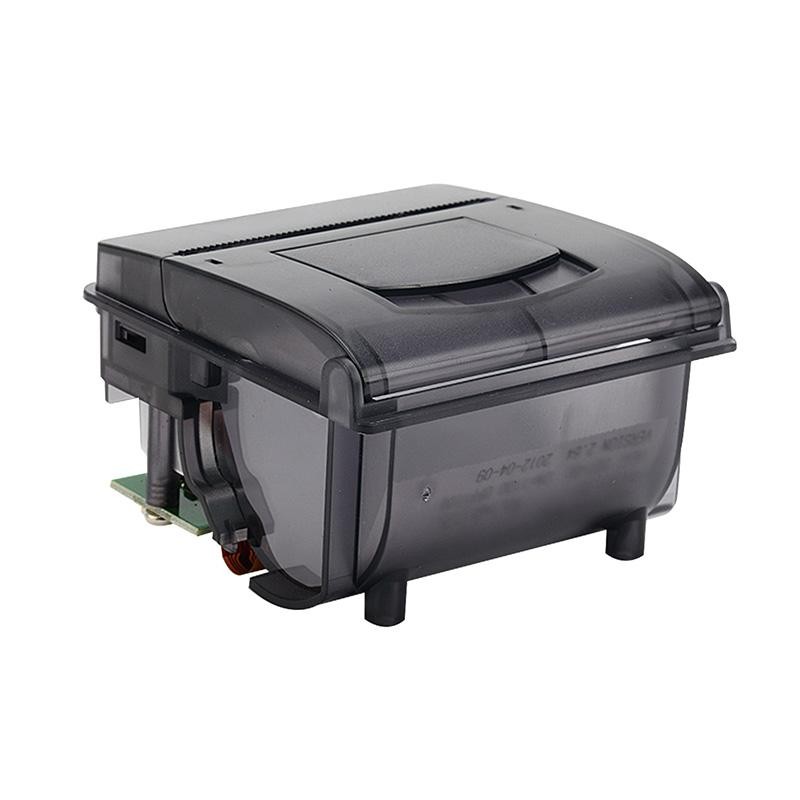 RP203 58mm Embedded Printer
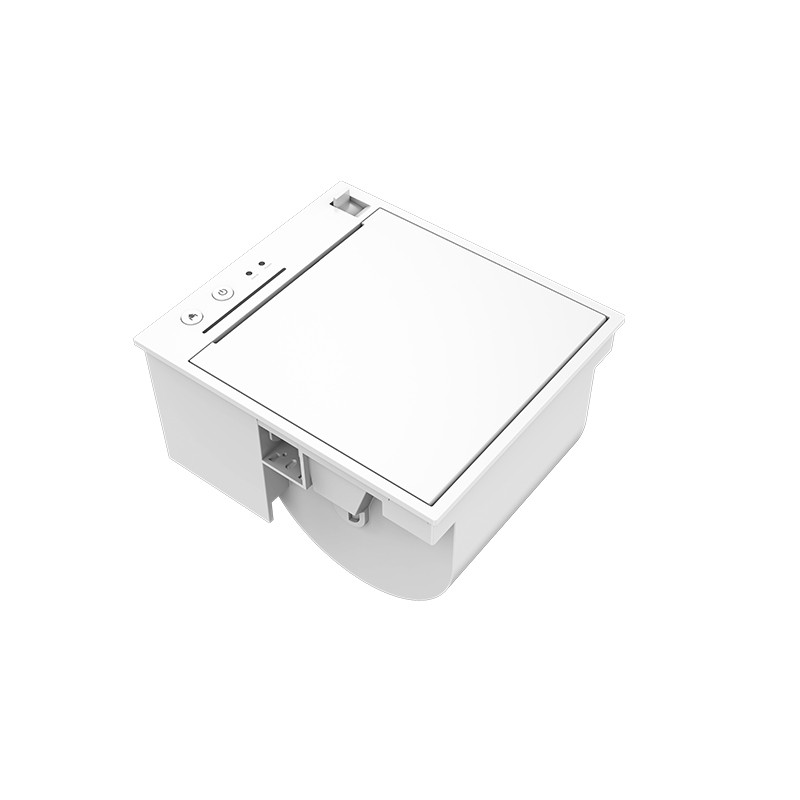 PM315 Embedded Thermal Printer
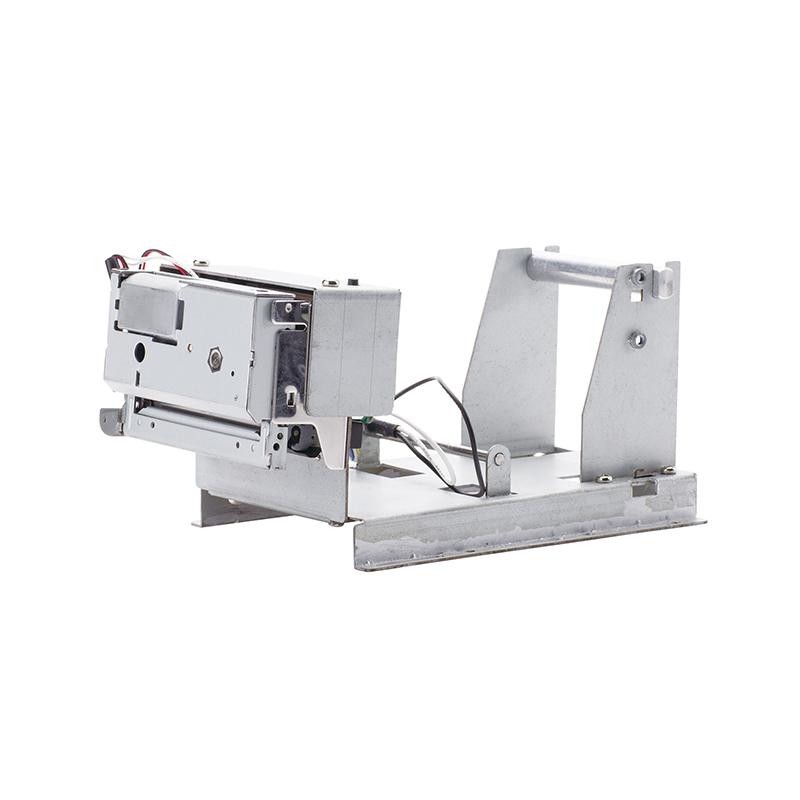 PM201 48mm Printing Module
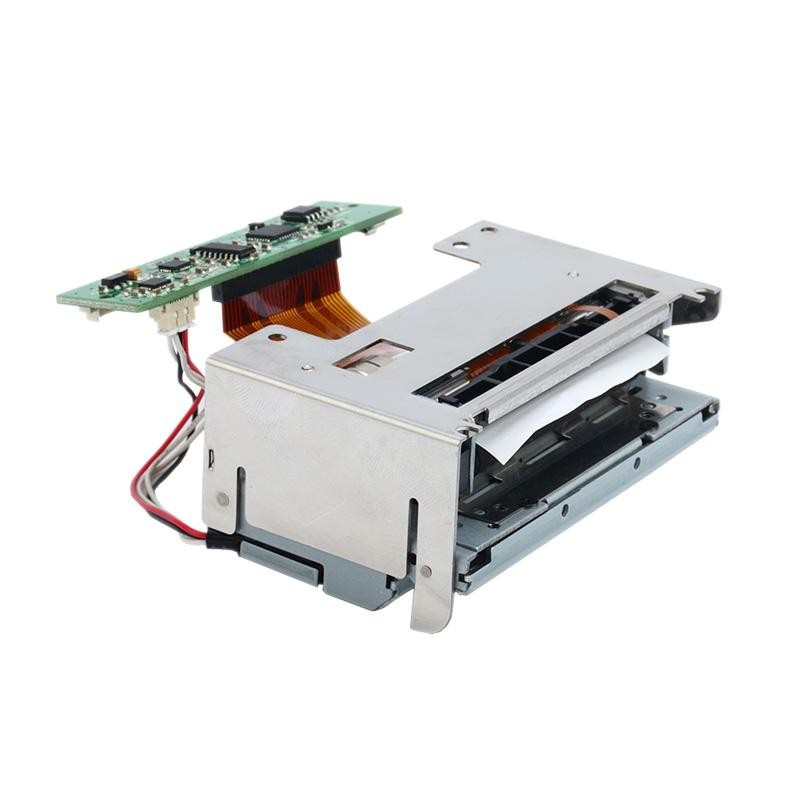 PM628 58mm printing module
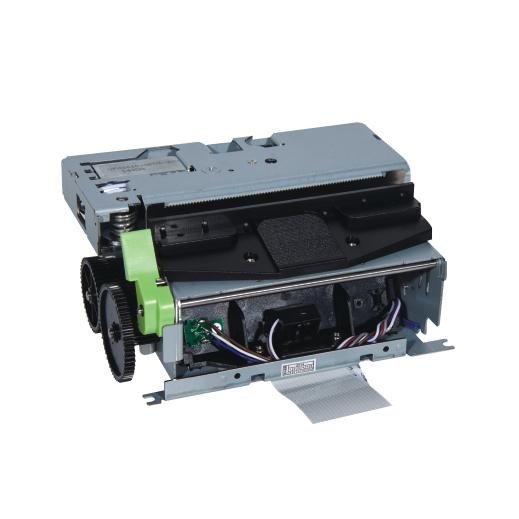 PM532A Printing Module
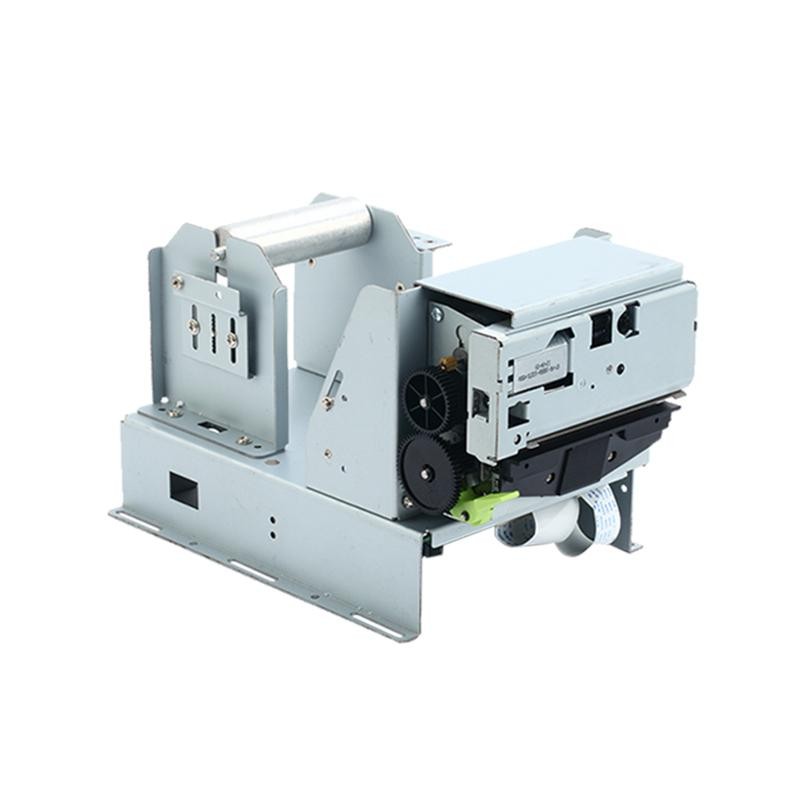 PM532B printer module
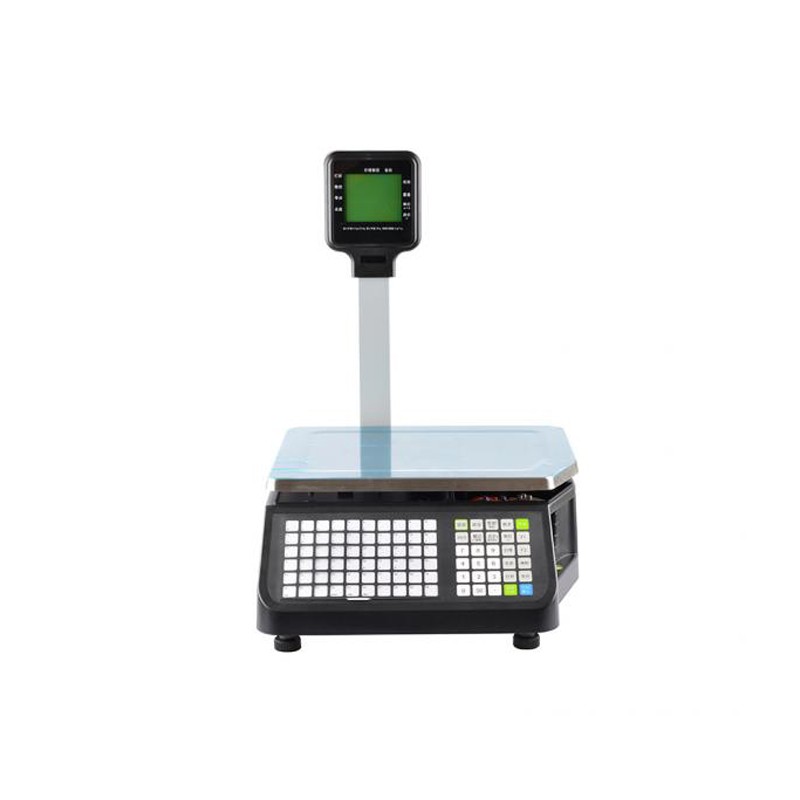 LS015/LS015A Barcode Scale
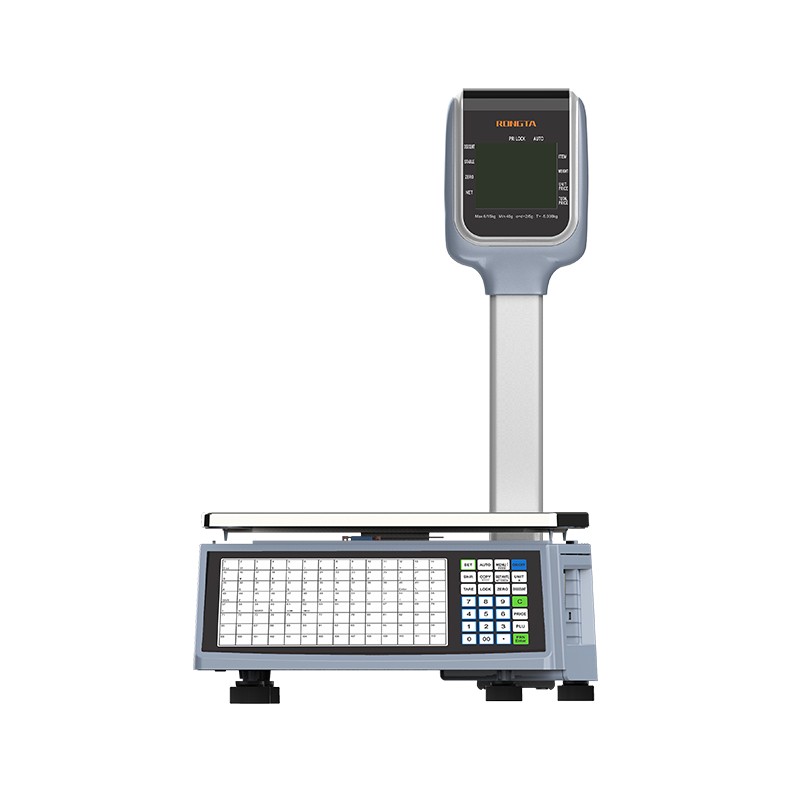 RLS1815D/RLS1830D Barcode Scale
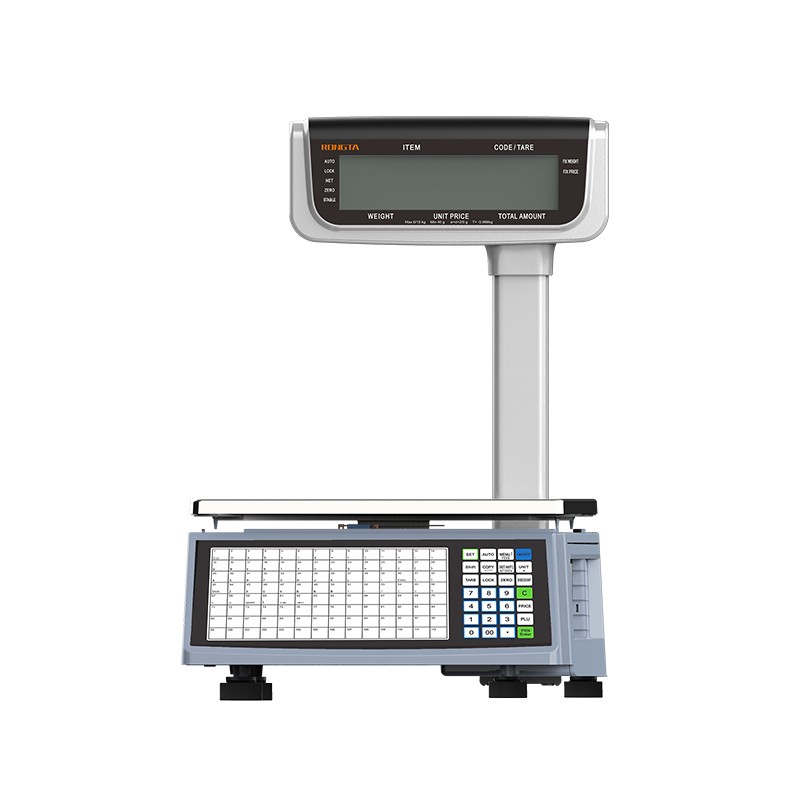 RLS1815C/RLS1830C Barcode Scale
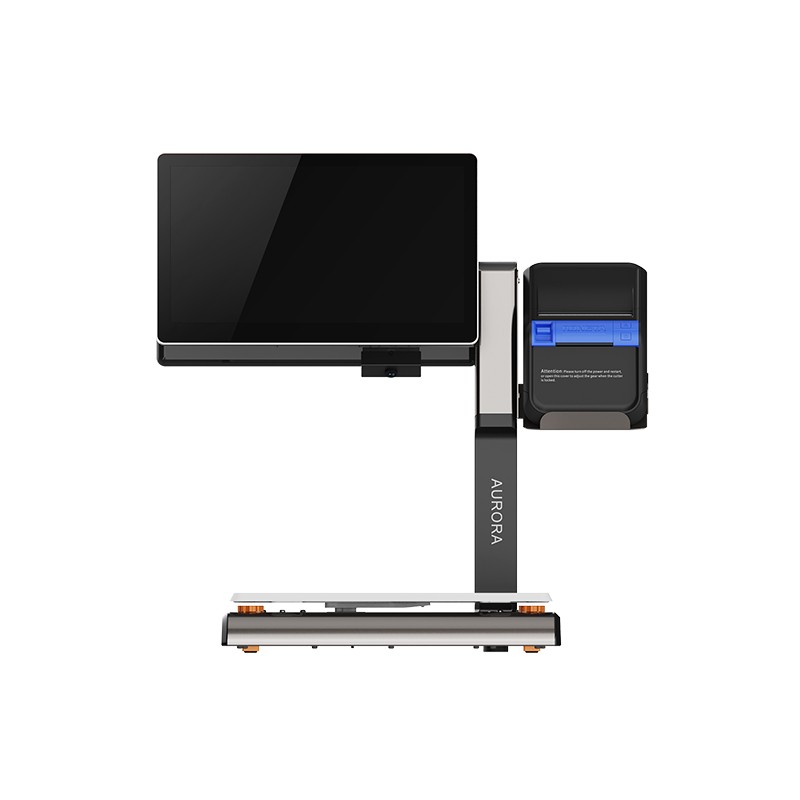 AURORA S2L-S Labelless Scale
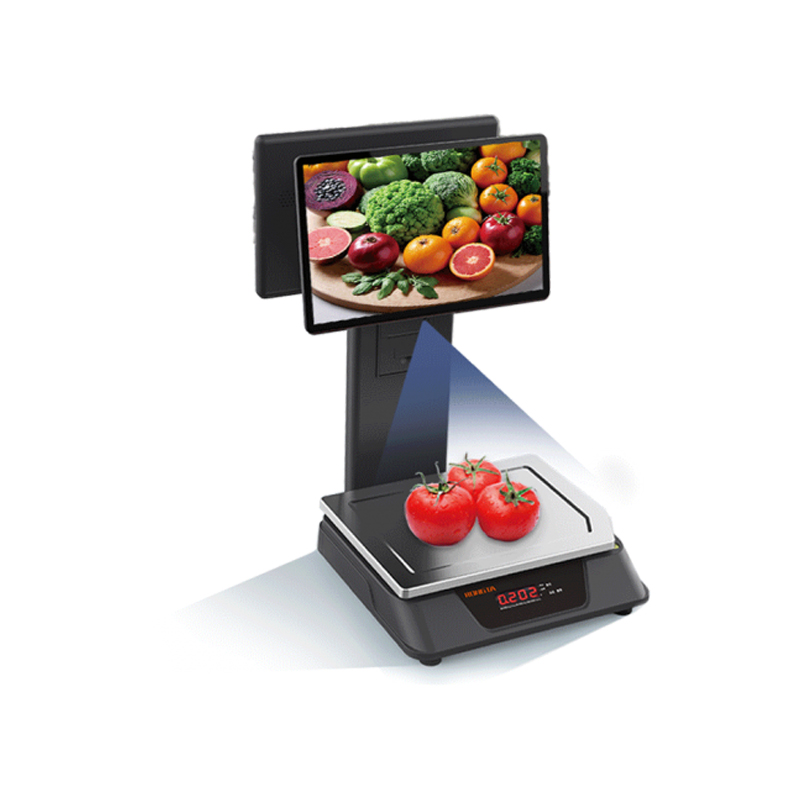 AURORA E1 PRO-AI Cash Register Scale
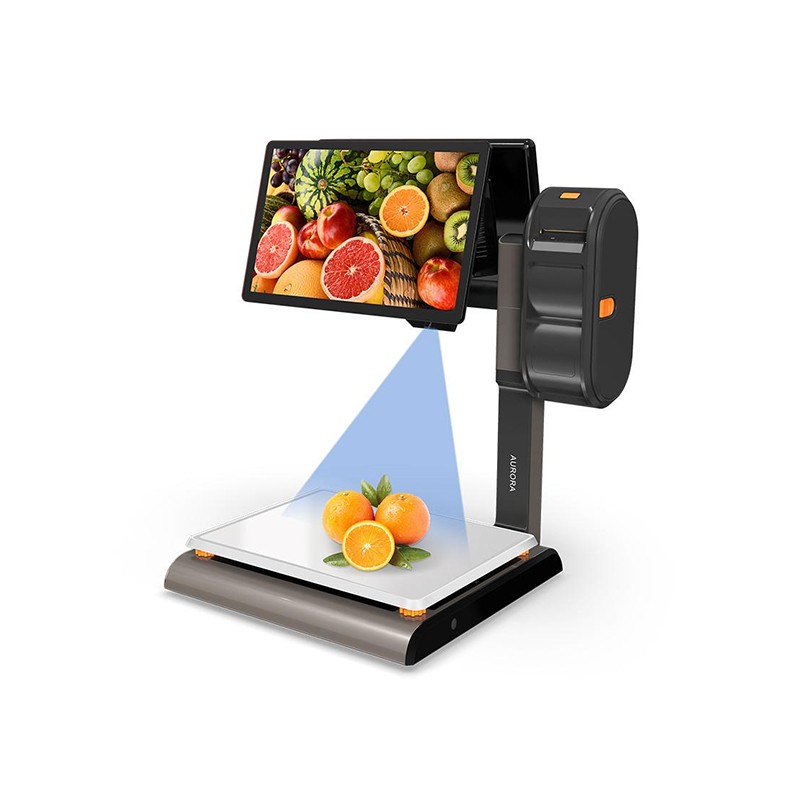 AURORA S2L-AI Label Scale
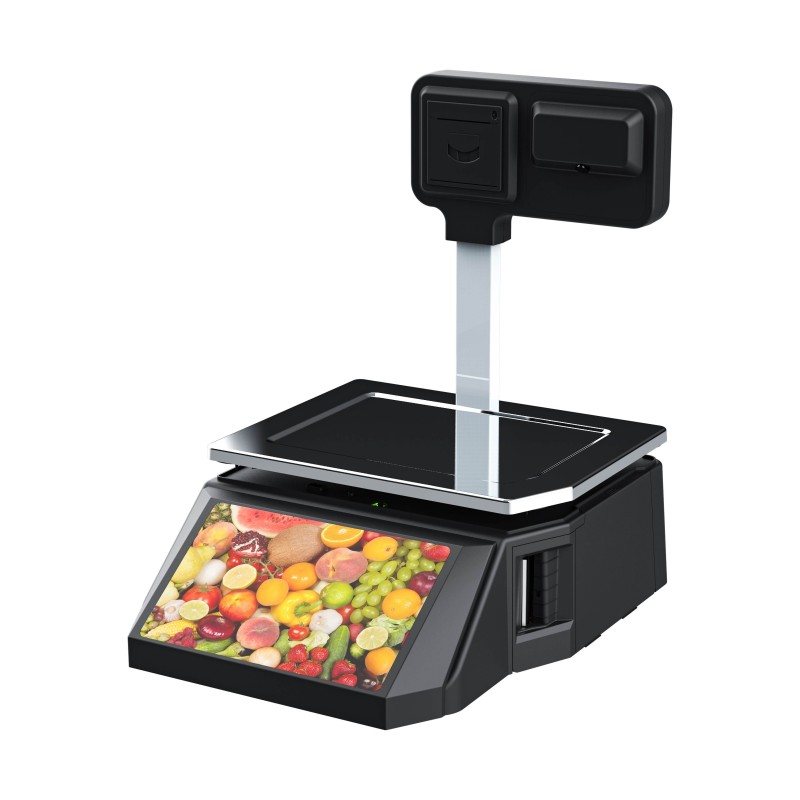 DP01-AI Smart Tag Cashier Dual-Use Scale
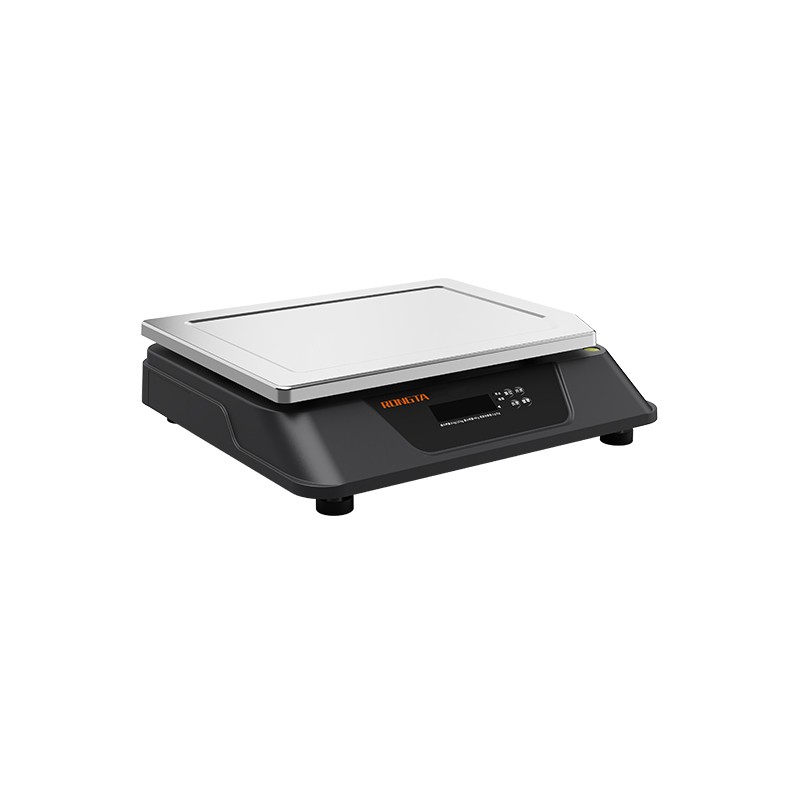 C3 Weighing Scale
 C1 weighing scale
 C11 Weighing Scale
 retail
 FOOD
FOOD Medical
 Mobile office/home
 asset Management
 logistics
 Driver download
 User Manual
 Tool Download
 Tag software
 Product Video
 Development Documentation
 Frequently Asked Questions
 User Guide
 Company News
 Exhibition Updates
 Industry Insights
 Product Update
 General situation
 Development history
 Honors and Qualifications
 R&D strength
 Team activities
 Social responsibility




RP311N(SF-FAQ)
SF Express RP311N Frequently Asked Questions Guide
?
1.Basic functionsillustrate
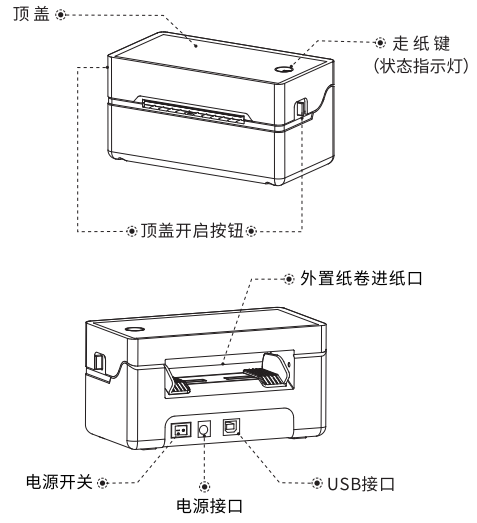
1.1buttonOperation Function Description
?
?
①Power onkey:
Press "1" to turn on the printer power, and press "0" to turn off the printer power.
②Paper feed key:
a. Pause printing:
Press briefly during printingThe "Paper Feed" button will pause printing;
b. Tag Learning:
Press and hold[Paper feed]keyDon't let goI heard a beep.Release the button after the sound is heard to begin tag learning;
c. Print the self-test page:
Press and hold [Faster]keyI didn't let go, I heard a beep.- Release the button after three beeps, and a self-test page will be printed automatically;
d. Restore factory settings:
Press and hold [Faster]keyI didn't let go, I heard a beep.-Beep beep-Beep beep six times, then release the button to complete the factory reset.
?

2. Daily Operation Instructions
2.1 Driver Installation
① Installation stepsSuddenly:
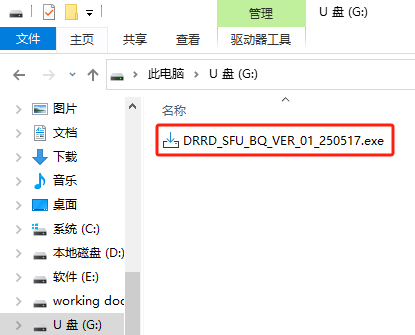
a. The printer is turned on, and the computer automatically recognizes the USB cable after connecting it.RT-RP311NUSB flash drive;
b.OpenOpen the USB drive folder, double-click to open the driver with the .exe extension, and install it.
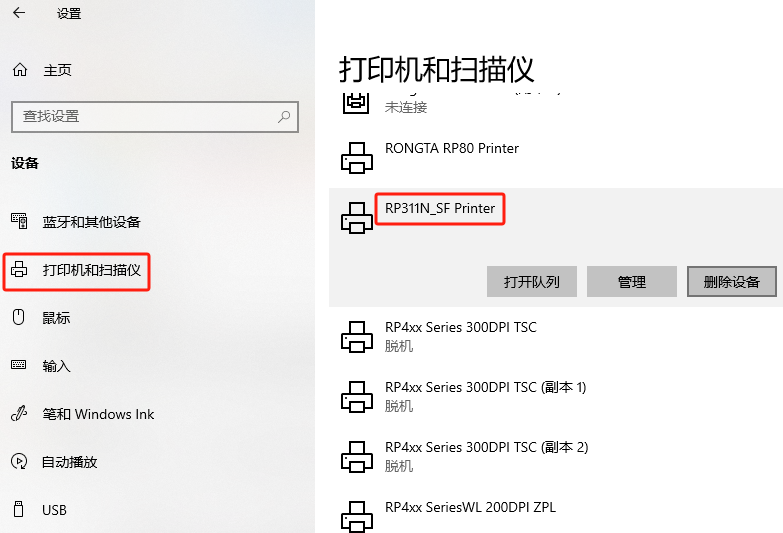
c. After the driver installation is complete, you can click the Windows key in the lower left corner of your computer → Settings → Devices → Printers and Scanners to check if the printer/scanner is recognized.RP311N_SF PrinterIf the printer name is displayed, select that printer in the printing software to print.If the print is not displayed, please restart your computer and check again.

② Driver download:
Visit: m.tjhq.cc Click on 【Service & Support】
Search for: SF Express RP311N, select Windows driver to download and install;?
2.2 Paper Mounting
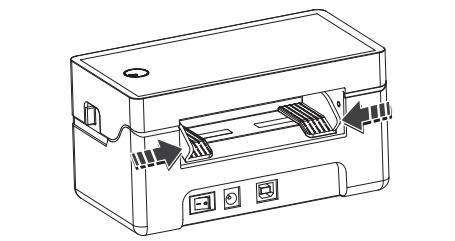
①Facing the back of the machine, press down on the paper feed guide with both hands simultaneously, and adjust the distance between the guides left and right according to the size of the paper.
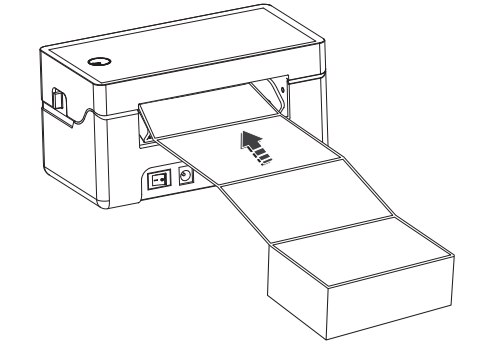
②Insert the label into the paper feed rail, and the paper will be automatically sucked in.
3. Common problems and their solutions
3.1 The printed content is unclear (uneven color development or missing barcode).
Solution: Clean and sprayPrinthead +cleanrubber rollers
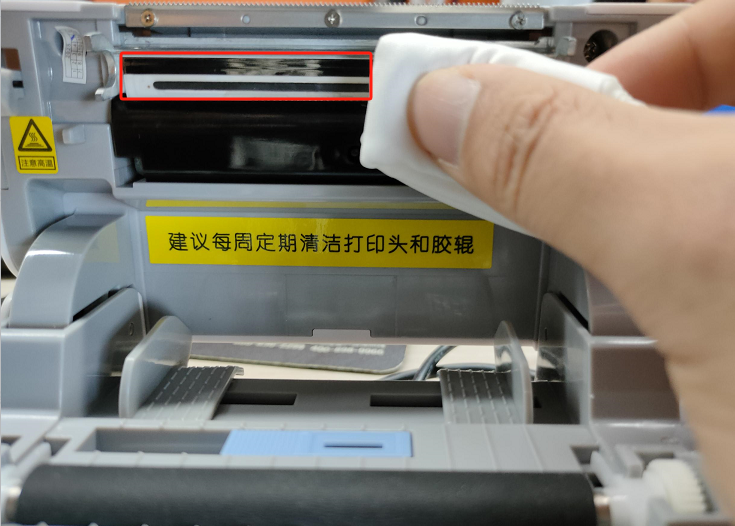
① Clean the print head
a. Turn off the printer power, open the top cover, and remove the paper if it is on.
b. If you have just finished printing, please wait for the print head to cool completely before cleaning.
c. Use a soft cotton cloth dampened with alcohol to wipe away dust and stains from the surface of the print head;
d. After the alcohol has completely evaporated, close the top cover and try printing again.
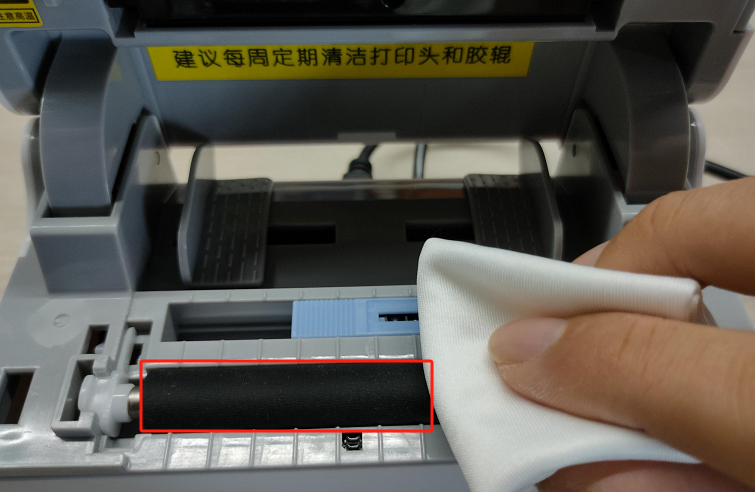
② Cleaning the rubber rollers
a. Use tweezers or other small screwdrivers to rotate the positioning buckle of the rubber roller bushing;
b. Remove the rubber roller bushings on both sides of the rubber roller and take out the rubber roller assembly;
c. Clean the label residue off the rubber roller and use a cotton cloth dampened with alcohol to clean the surface of the rubber roller;
?
?
3.2 Inaccurate paper feed position (printing misalignment or skipped sheets, or red error light flashing 7 times)
Solution: Check the position of the optocoupler slider.+【Tag Learning】
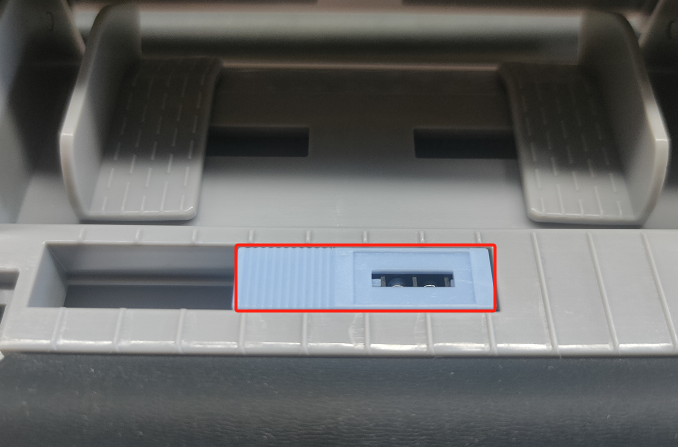
① Check the position of the optocoupler slider:
a. Turn off the printer and open the printer cover;
b. Locate the rectangular optical coupler slider and confirm that the slider has been moved to the far right;
②Button [Tag Learning]
a. Install the label paper into the printer and keep it powered on;
b.Press and hold[Paper Feed] Press and hold the button until you hear a beep.Release the button after the sound to begin tag learning., markThe paper feed and position check will be automatic.
c. When the label stops at the tear position, it indicates that the label learning process has been successful;
?
?
3.3 Blank printout (paper feed is normal, but no content is printed)
Solution: Check the paper.+Restore factory settings
① Check the paper:
a. Check that the paper is installed backwards; the printed side should be facing upwards when loading the paper.
b. To check if the paper is thermal paper, you can scratch the surface of the paper with a hard object to see if there are any black scratches.
② Restore factory settings:
Press and hold the [Paper Feed] button until you hear a beep.-Beep-Beep-Beep-Beep six times, then release the paper feed button to resume and complete the process.
?
3.4 Printer alarm, red light flashes twice
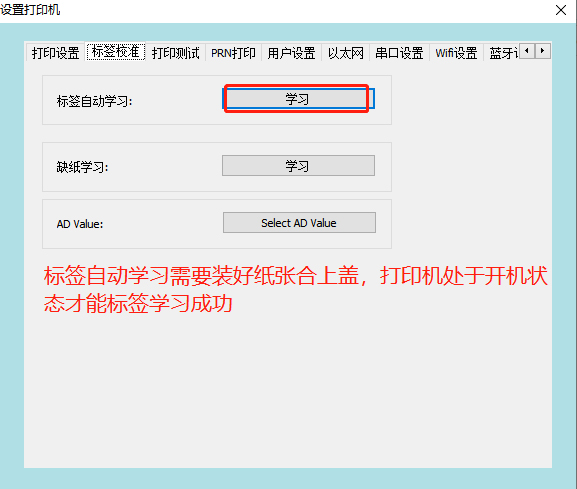
Solution: UseWindows tools for "paperless learning"
a. The printer needs to have the paper removed and the top cover closed, and the printer kept powered on;
b. Open the label settings tool and select "Set up printer";
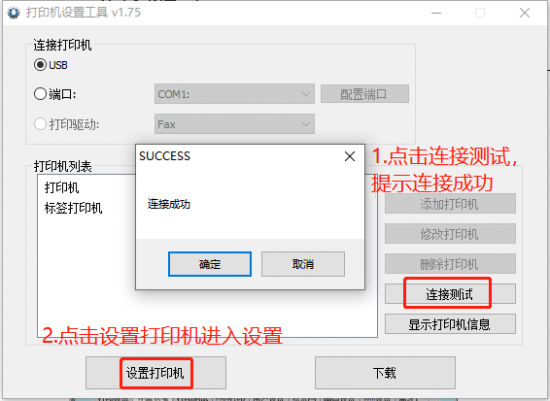
c.Switch to the [Label Calibration] interface, select [Paper Out Learning], and click [Learn]. The printer will then maintain the calibration as normal.Three beeps indicate a paper shortage;
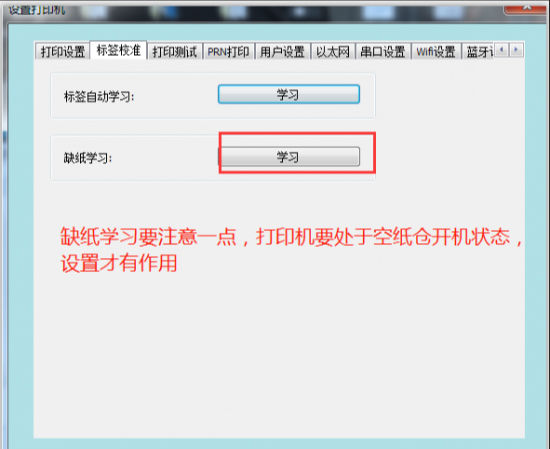
d. After completing the paper shortage learning, put the paper back in, close the lid, and perform another "label learning" session.
?
?
?
?
3.5 Abnormal print density (blurred print or too faint content)
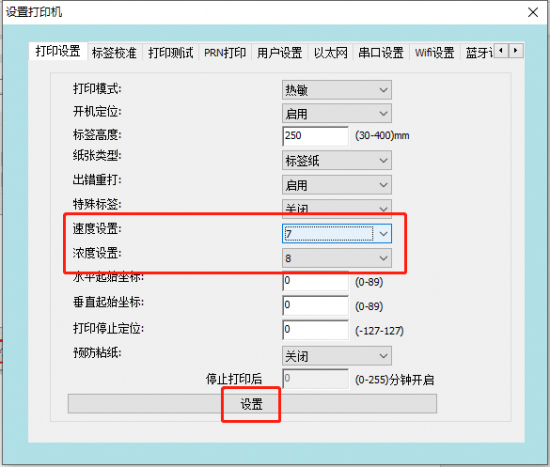
Solution: Adjust the print density (the higher the value, the higher the density).
a. Open the label settings tool and select "Set up printer";
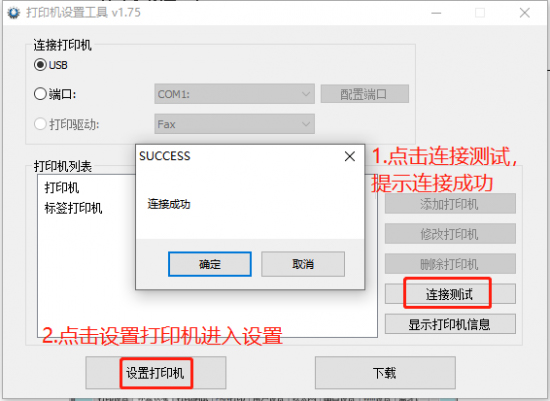
b. Switch to the 【Print Settings】 interface, select the desired speed and density from the drop-down menus in the speed setting/density setting options, and then click the "Settings" item at the bottom of the interface. If a 【Settings Successful】 message or a beep from the printer indicates that the settings have been changed successfully.
?
4. After-sales service and repair methods
4.1 400 Technical Support
If the above methods fail to resolve the equipment malfunction, please call the after-sales service hotline for assistance.
Hotline: 400-800-0596. After dialing 400, press dial 2 for label printer service support.
Working hours: 9:00 AM - 8:30 PM (6:00 PM on weekends/holidays)
?
4.2 After-sales repair methods
Recipient: After-sales Service Departmentreceive
Telephone:15359340780
Address: Tonghui South Road, Industrial Concentration Zone, Tongan District, Xiamen City, Fujian ProvinceRongda Science and Technology Park, No. 88
Return Repair Instructions: When returning the device for repair, please include the return address, contact information, a list of all items packed in the box, and a detailed description of the malfunction in the package. This will help improve the efficiency of the return process. Thank you for your support! If you require collect on delivery, please communicate with us in advance. Otherwise, the device will be returned according to the sender's information.