80mm Receipt Printer
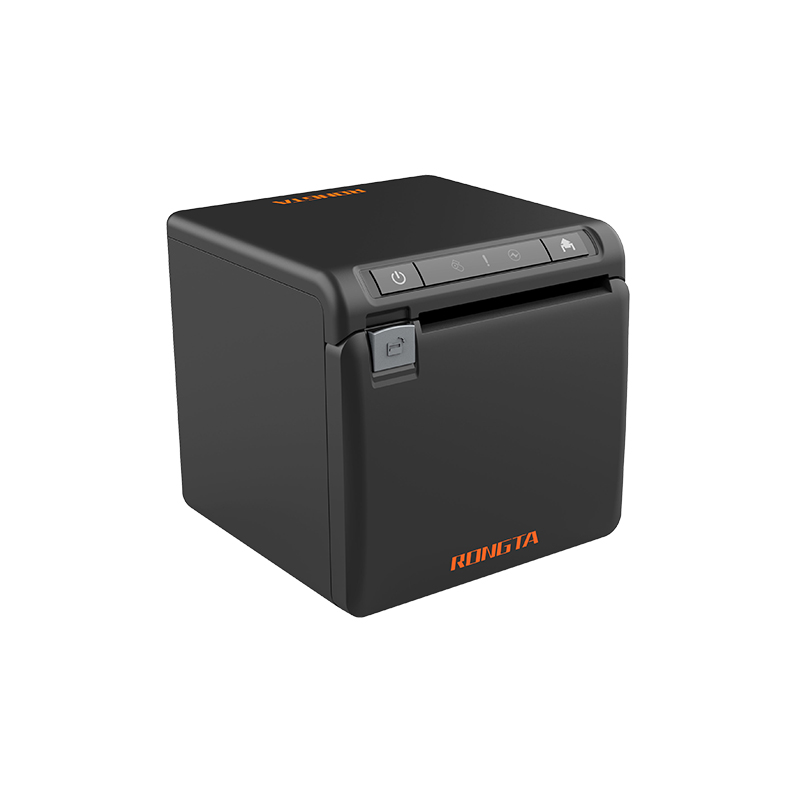 ACE H2 Receipt Printer
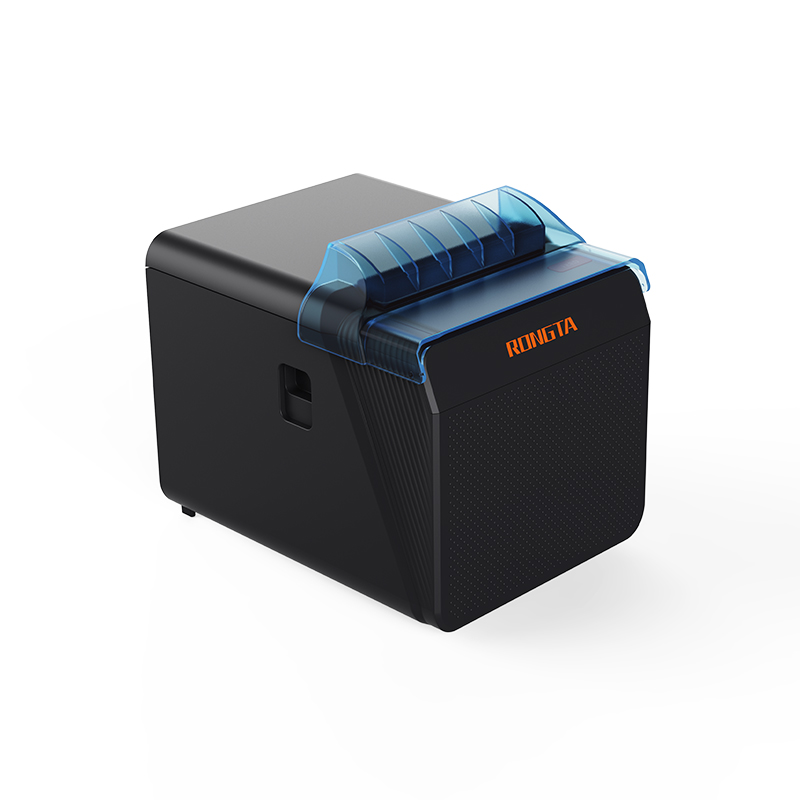 RP337 Receipt Printer
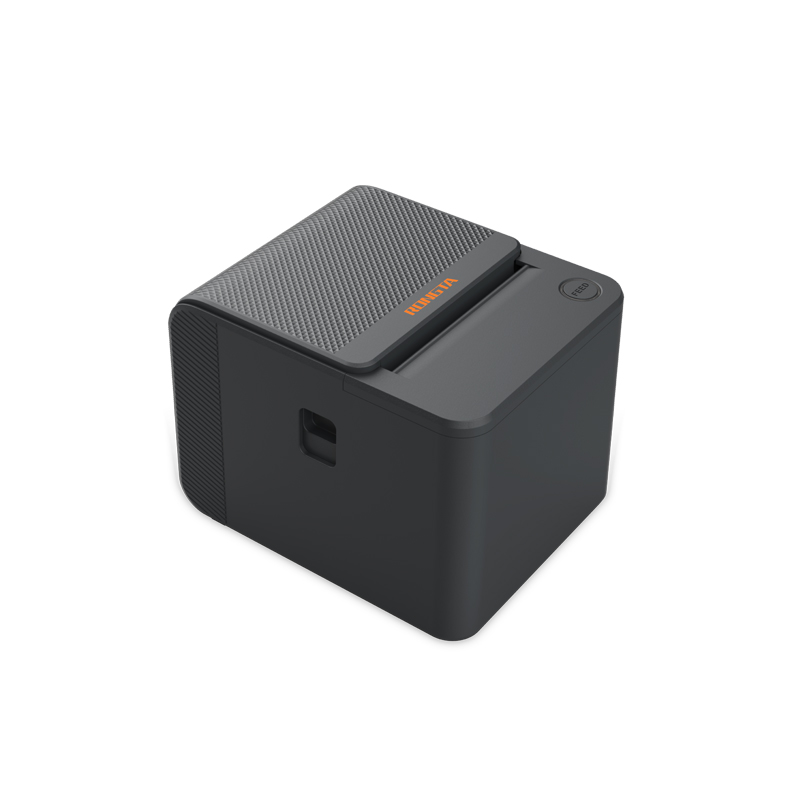 RP336S Dual-Color Receipt Printer
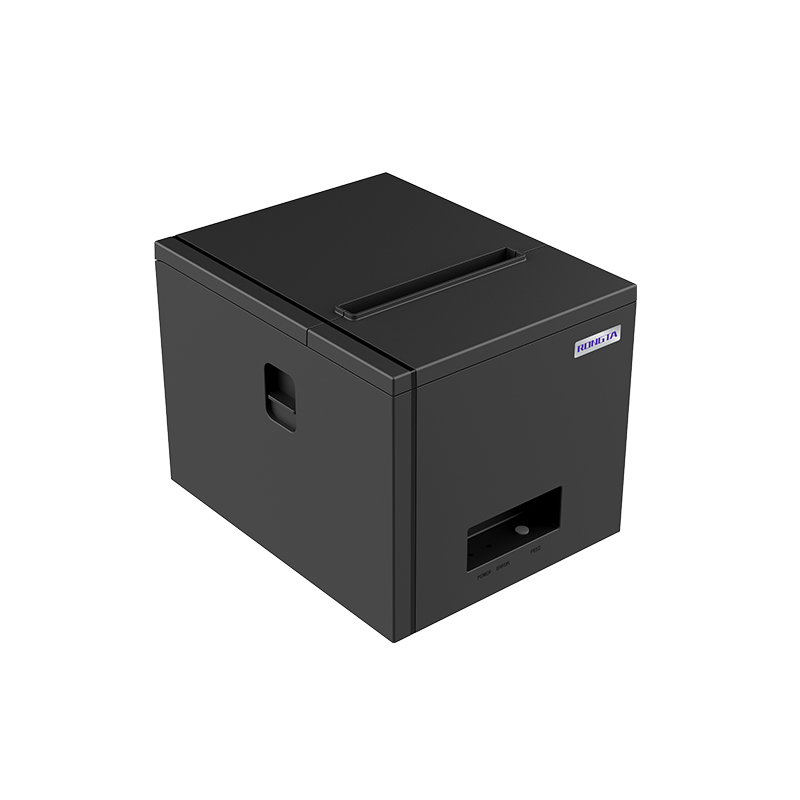 RP350 Receipt Printer
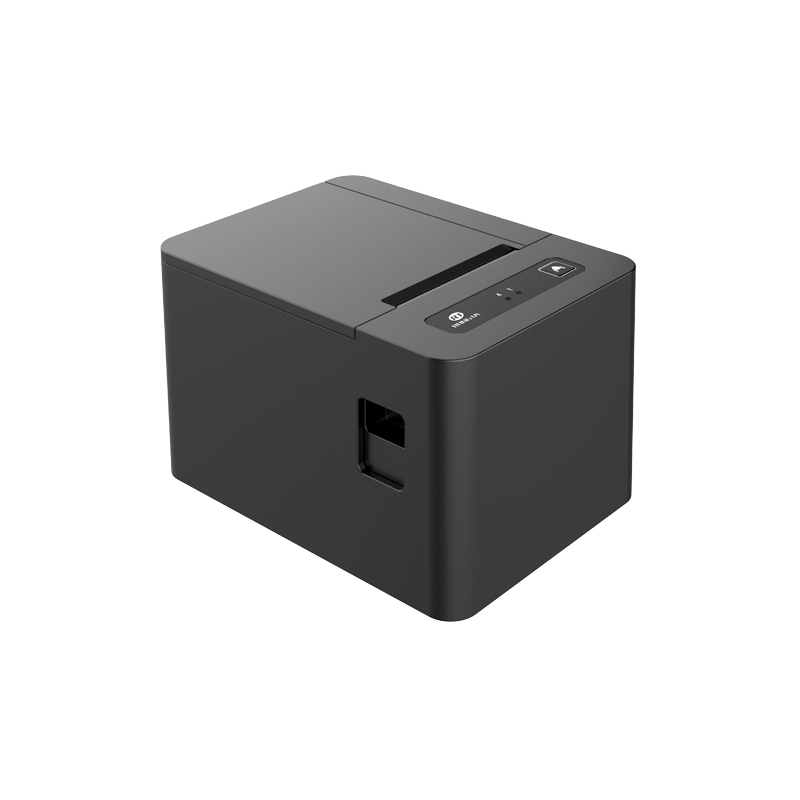 RP582 Receipt Printer
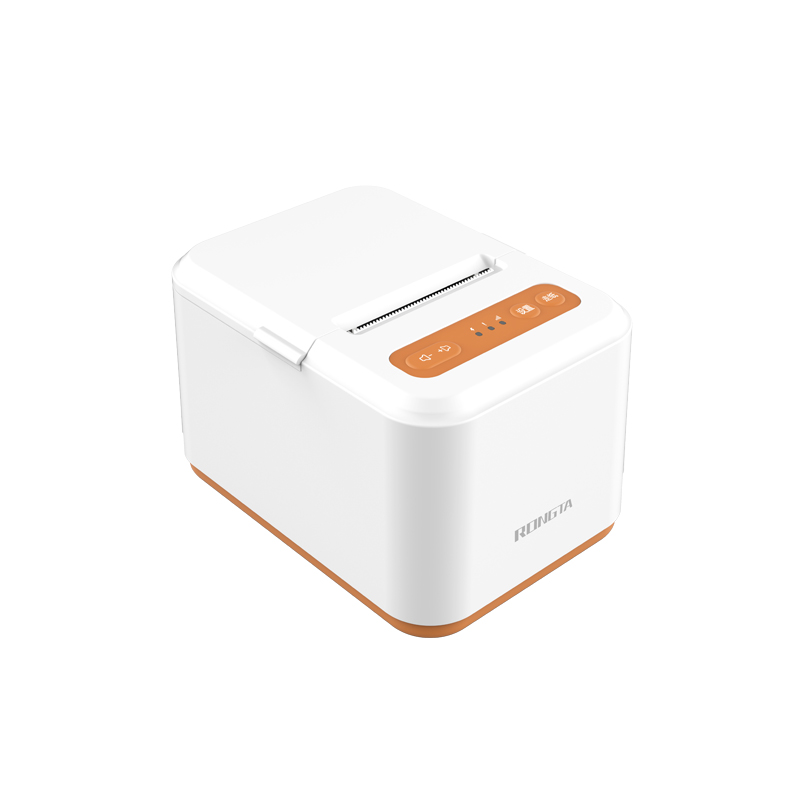 RP581 Receipt Printer
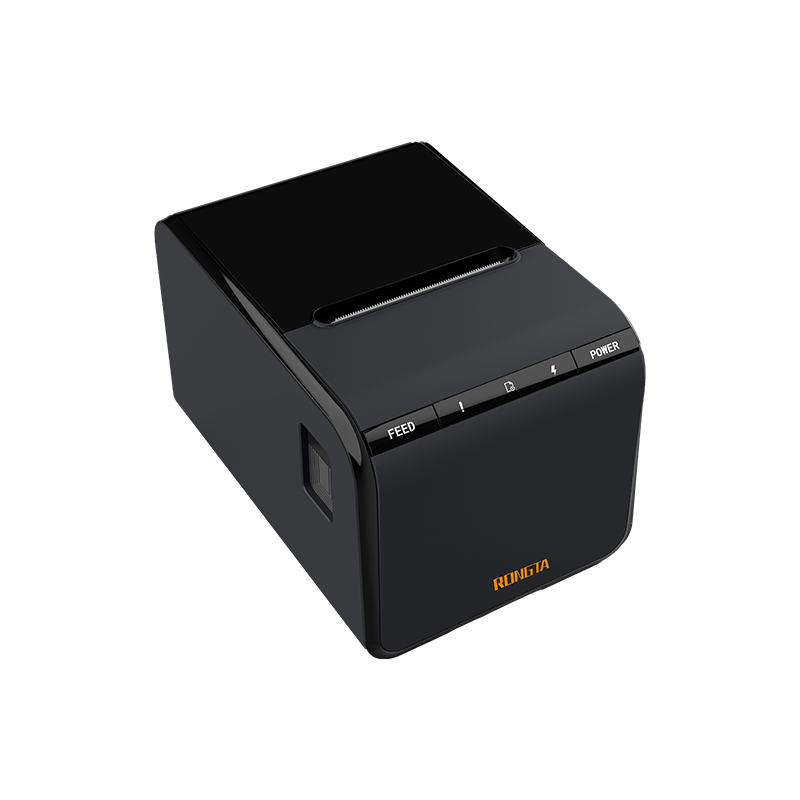 ACE G1Y Receipt Printer
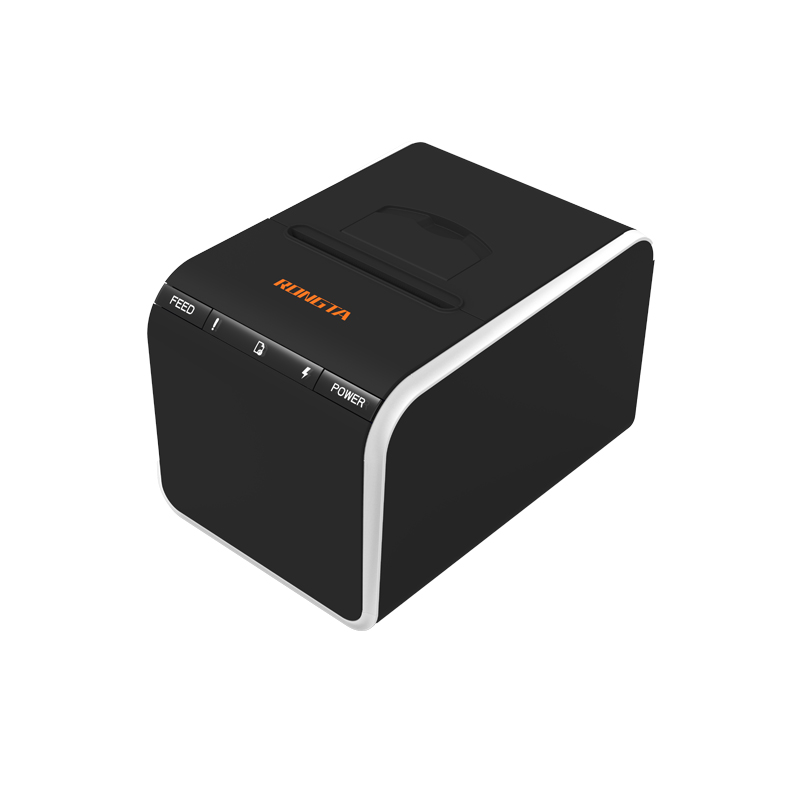 ACE G1YP Cloud Printer
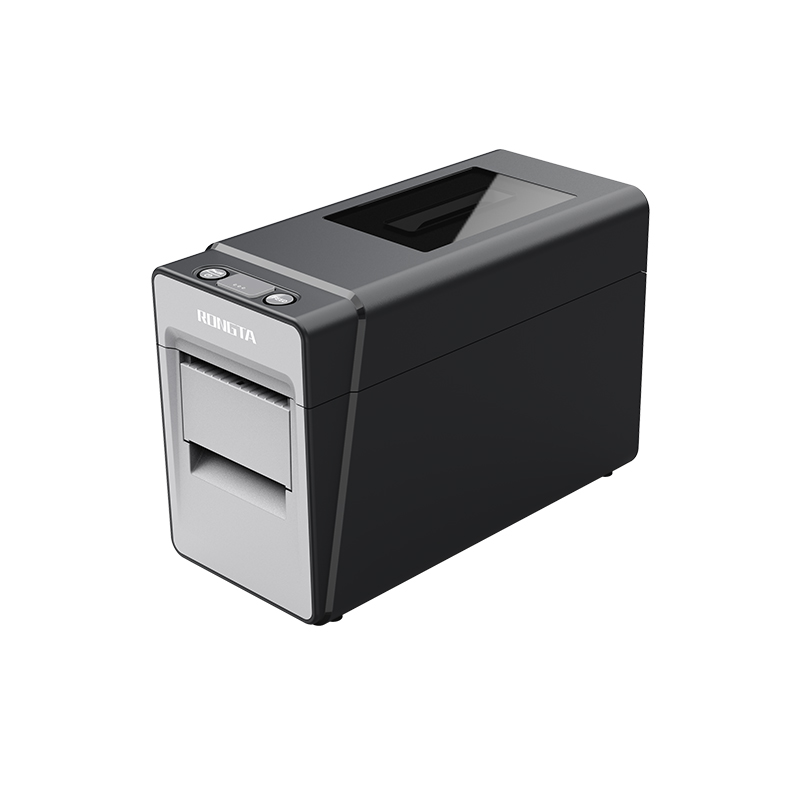 RP216 2'' Dual-color High-definition Label Printer
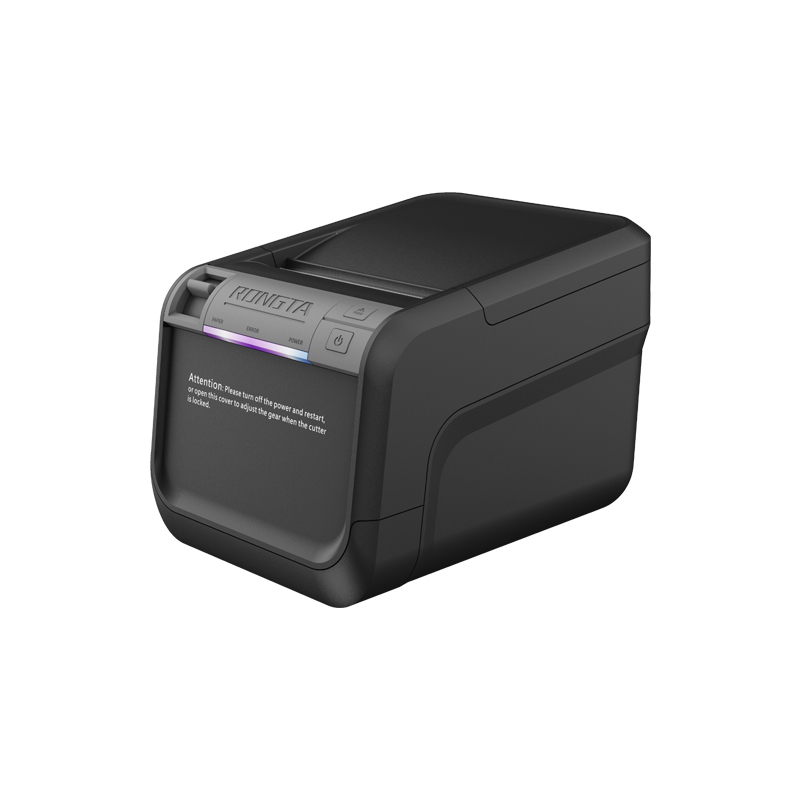 ACE V1S 3'' Backless Label Printer
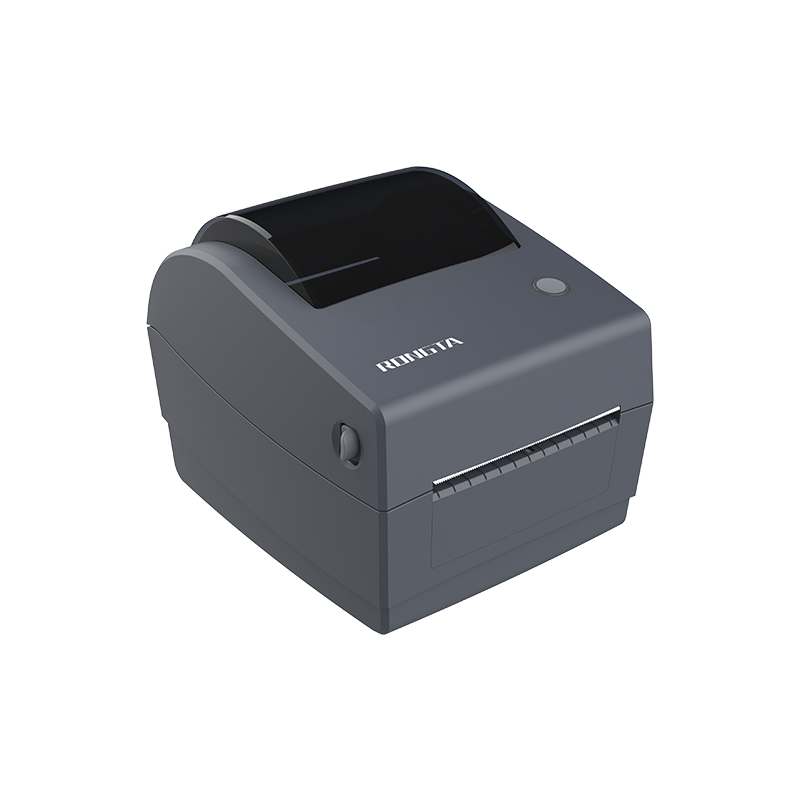 RP310D 3'' Dual-color Label Printer
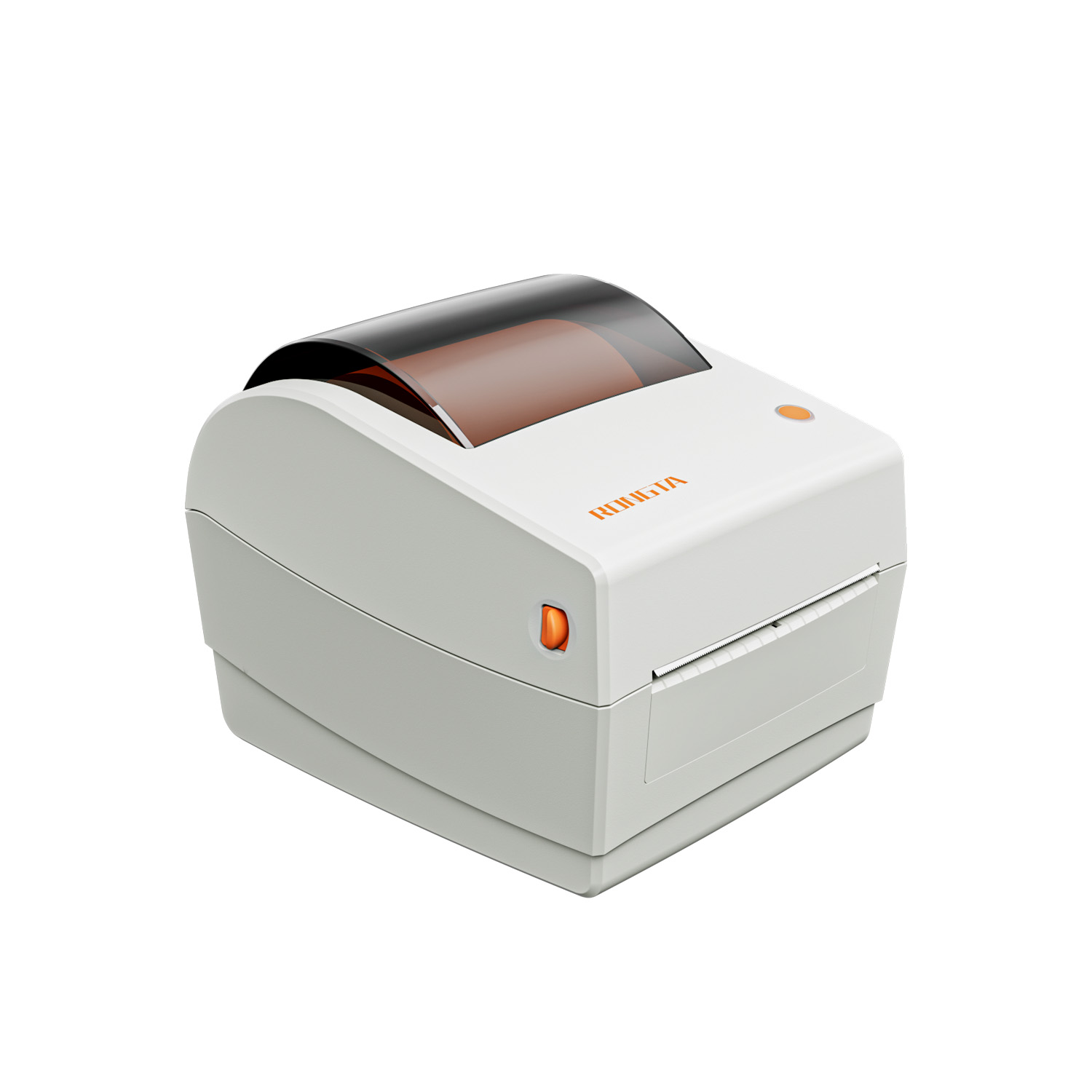 RP410N 4'' Thermal Label Printer
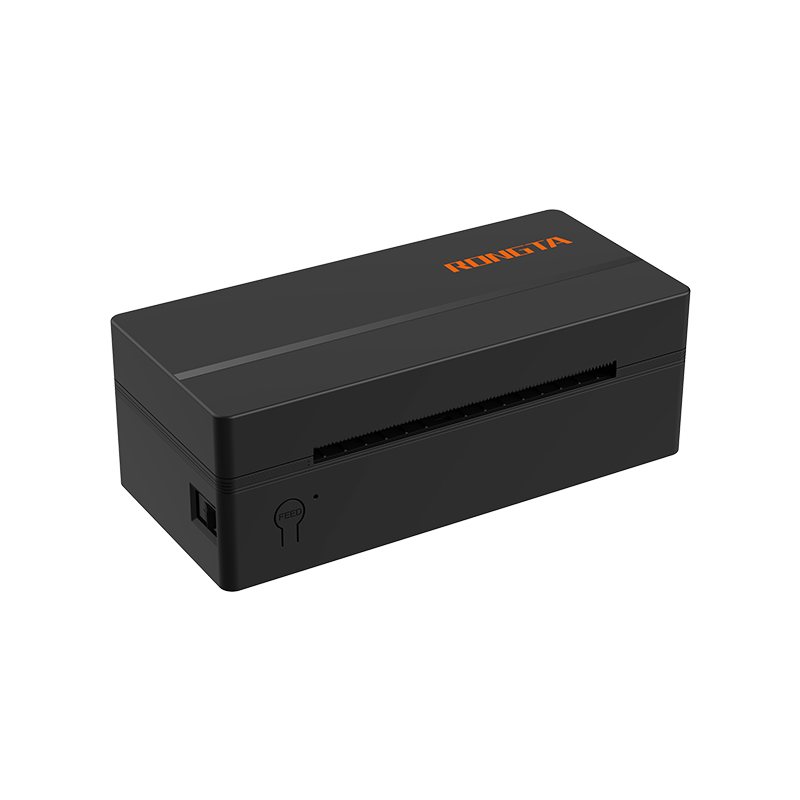 RP425 4'' Electronic Waybill Printer
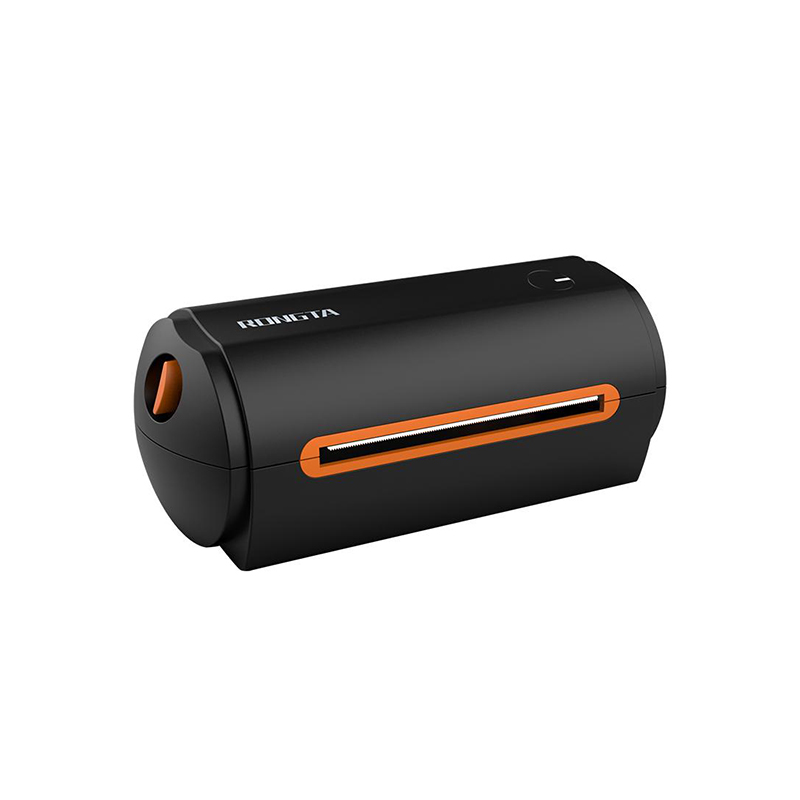 RP422 4'' Electronic Waybill Printer
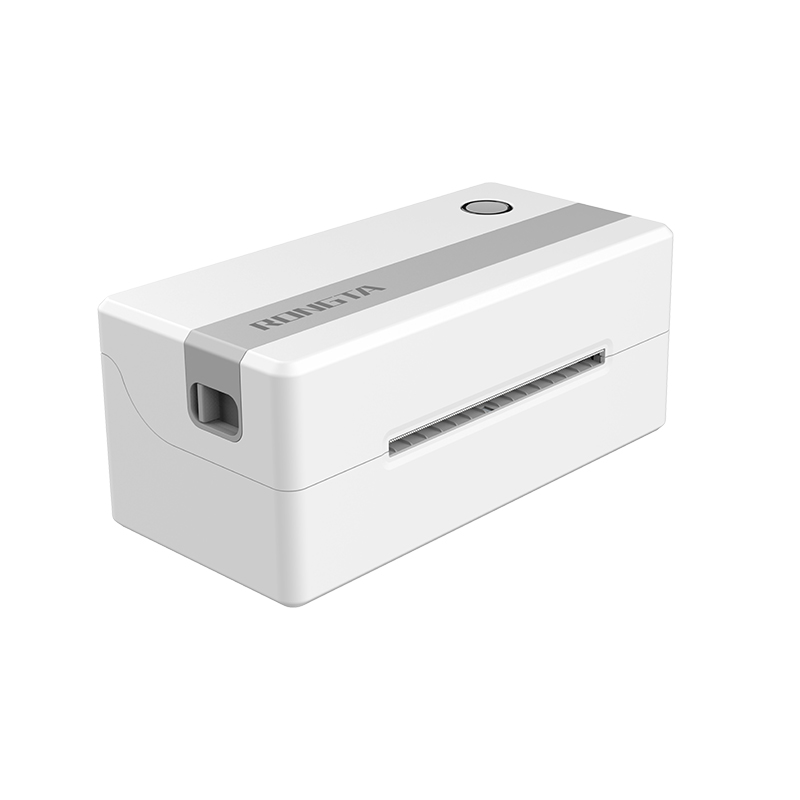 RP421A 4'' Electronic Waybill Printer
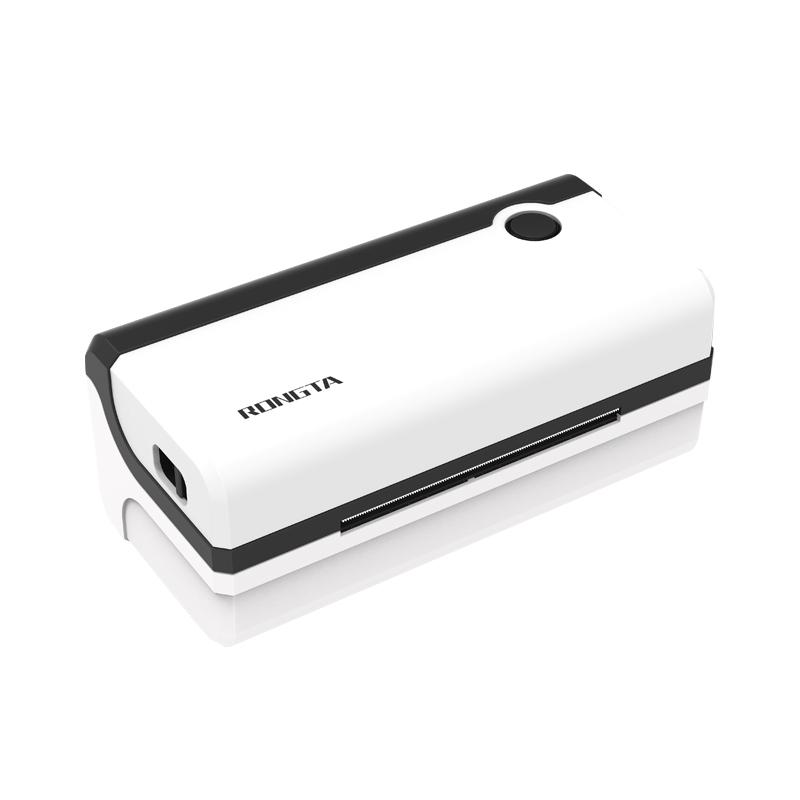 RP420 4'' Electronic Waybill Printer
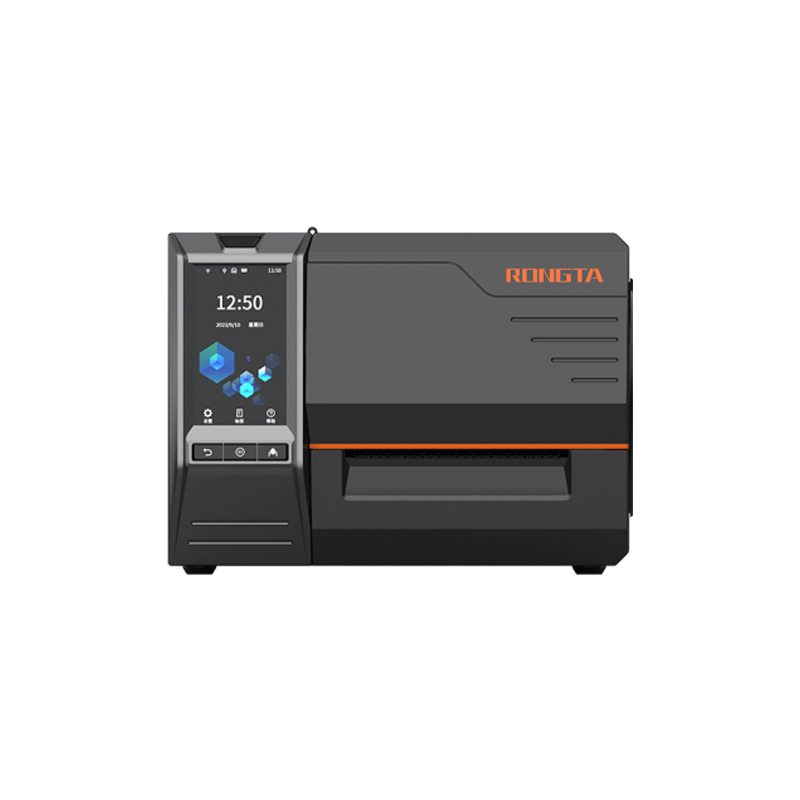 RI463 Series Barcode Printers
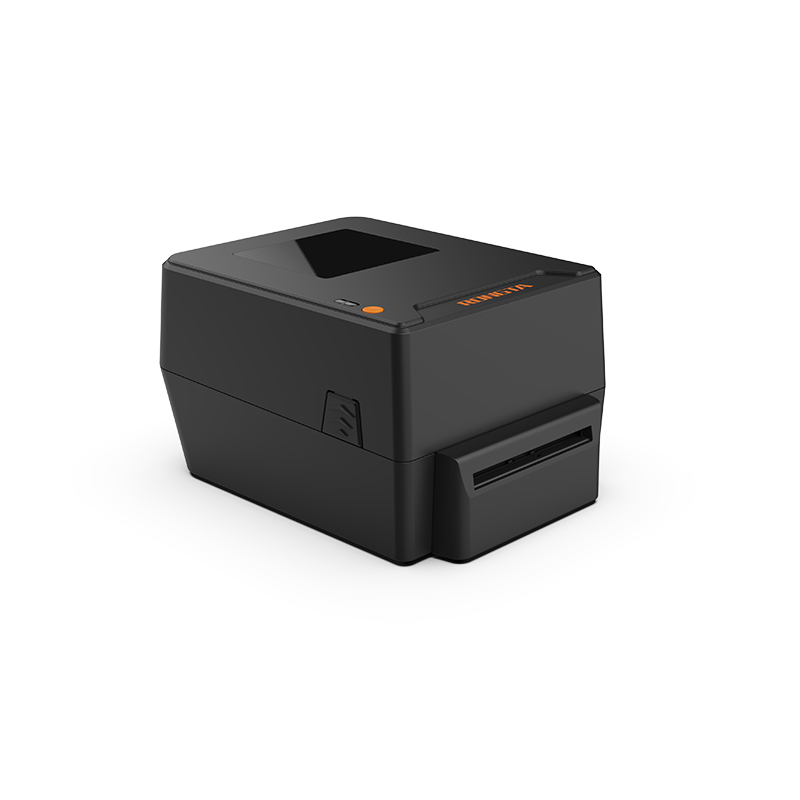 RP400A 4'' Thermal Transfer Tape Cutter Printer
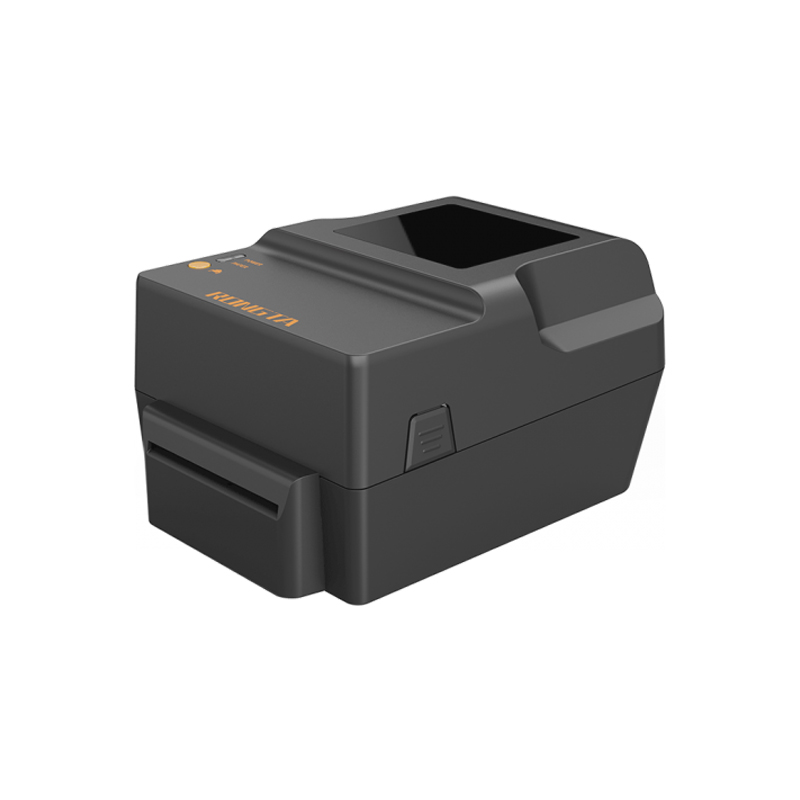 RP400H 4'' Thermal Transfer Tape Cutter Printer
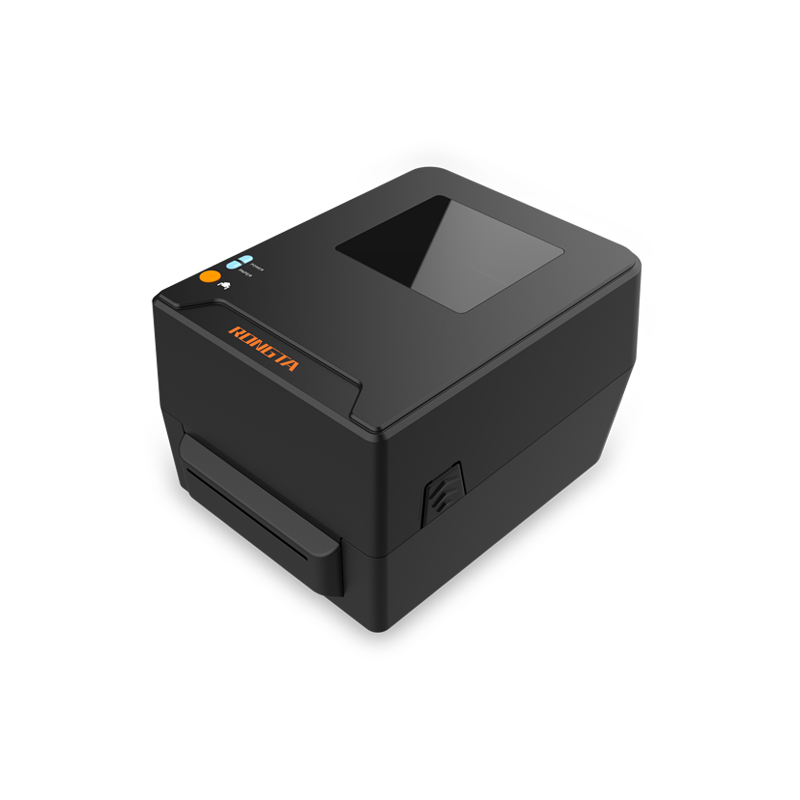 RPF413 300dpi RFID barcode label printer
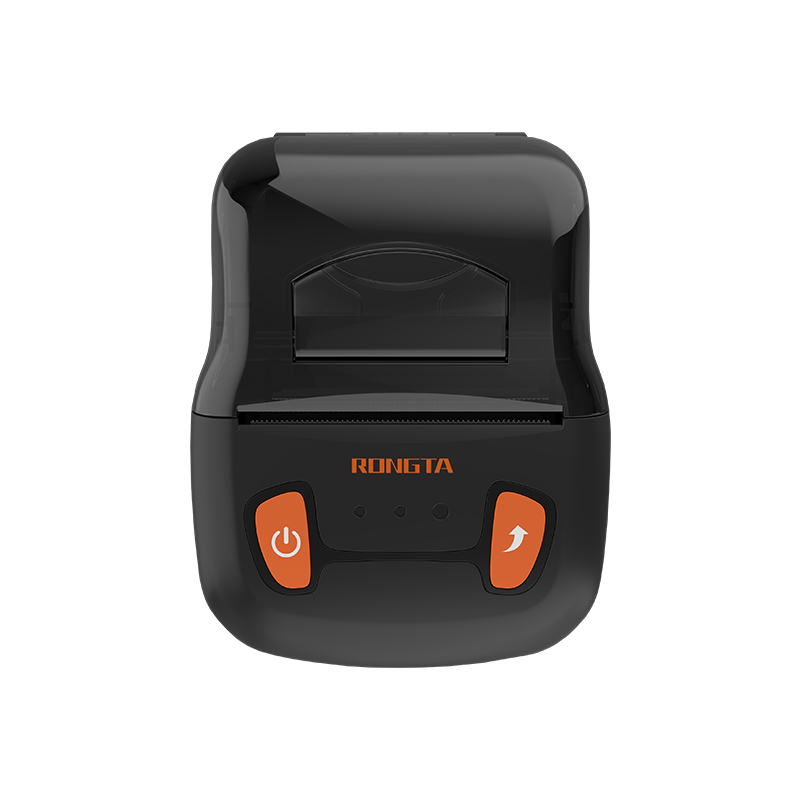 RPP02A Portable Receipt Printer
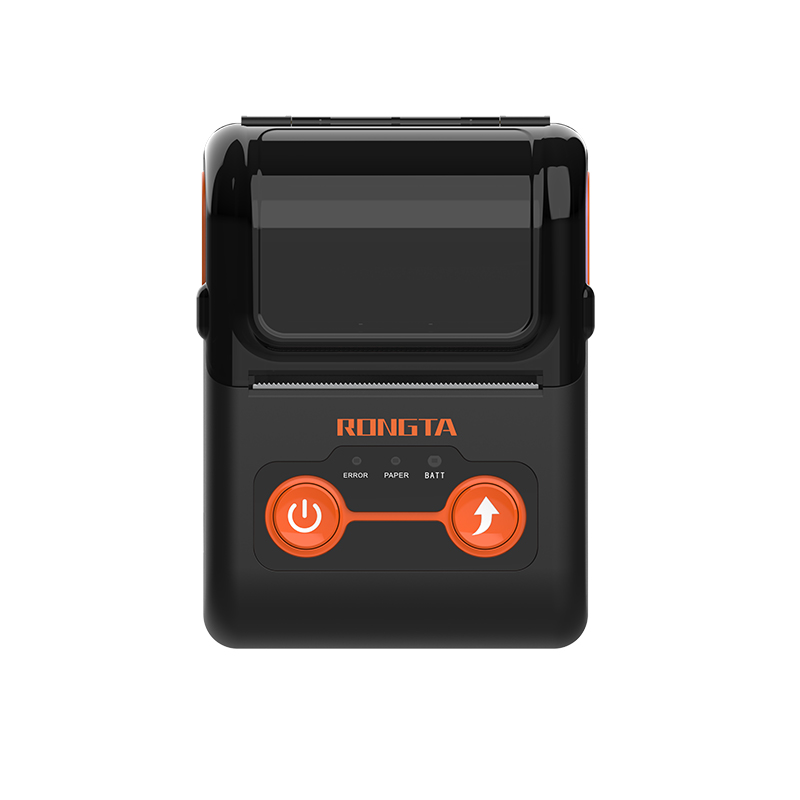 RPP02B Thermal Portable Printer
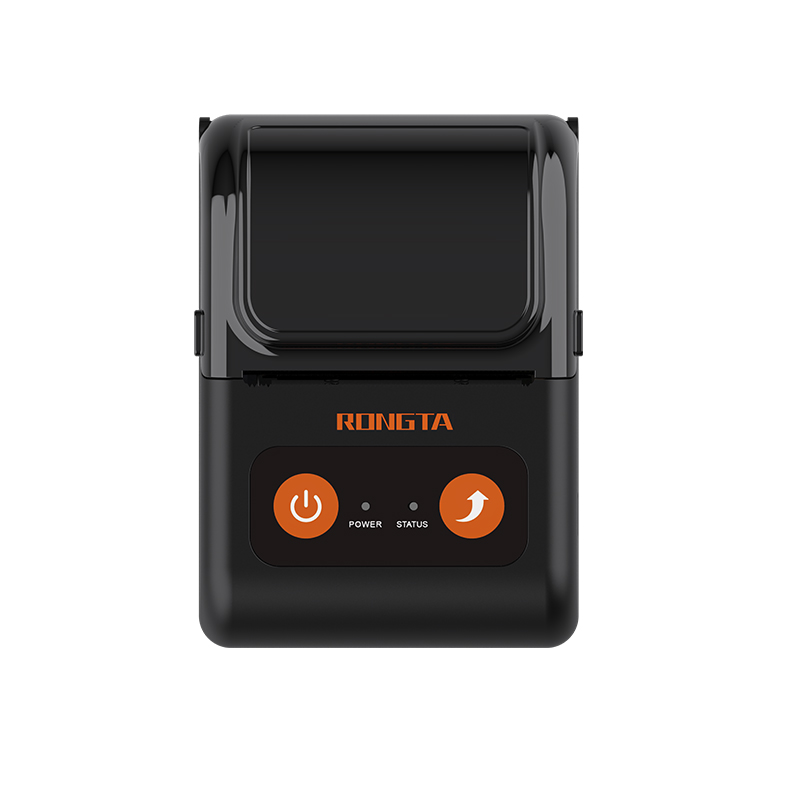 RPP02C Portable Receipt Printer
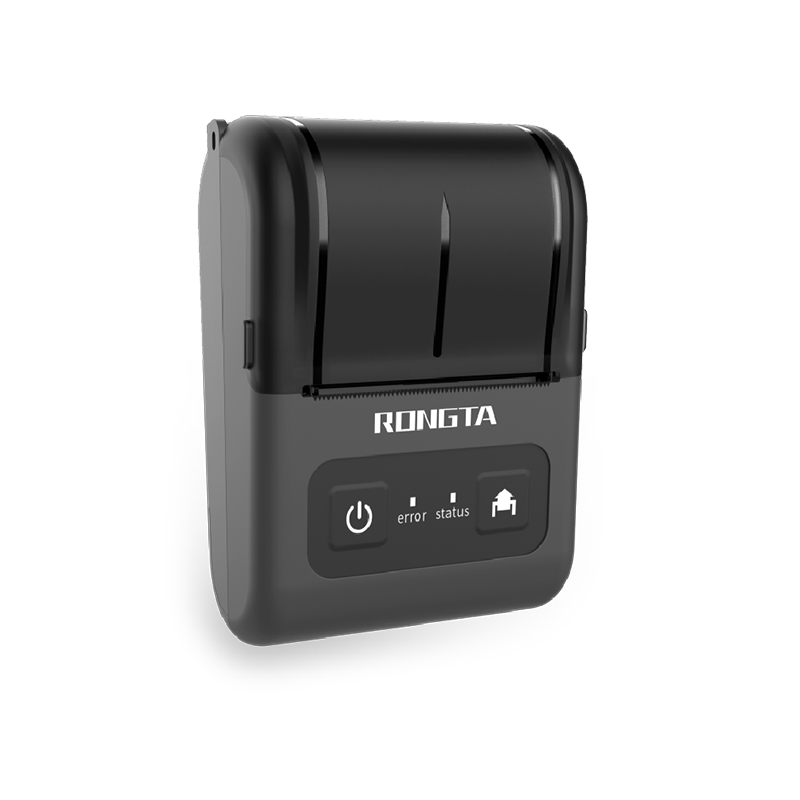 RPP02D Thermal Portable Printer
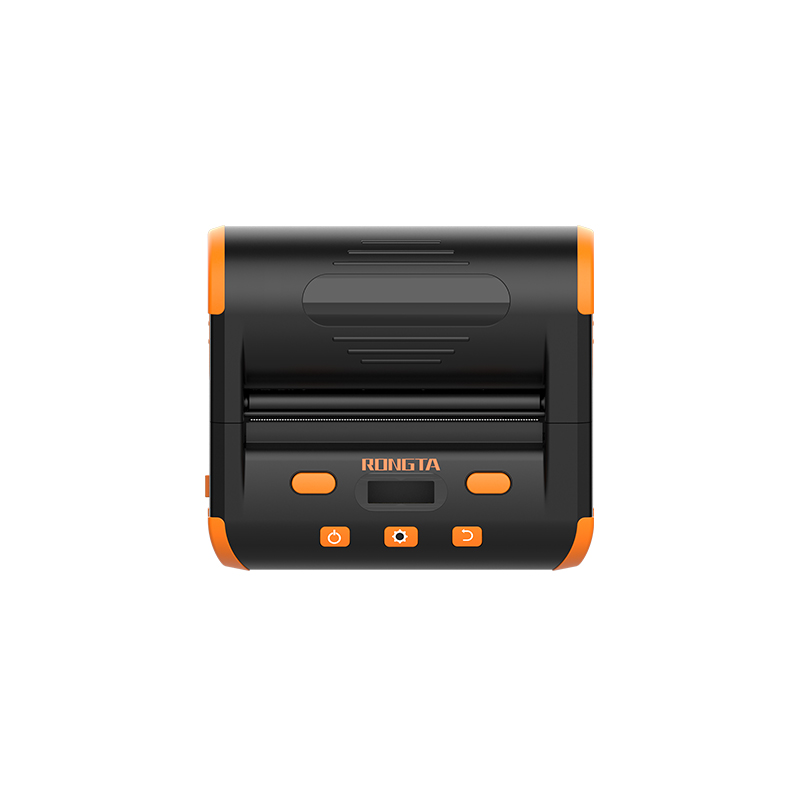 RPP04 4" Portable Label Printer
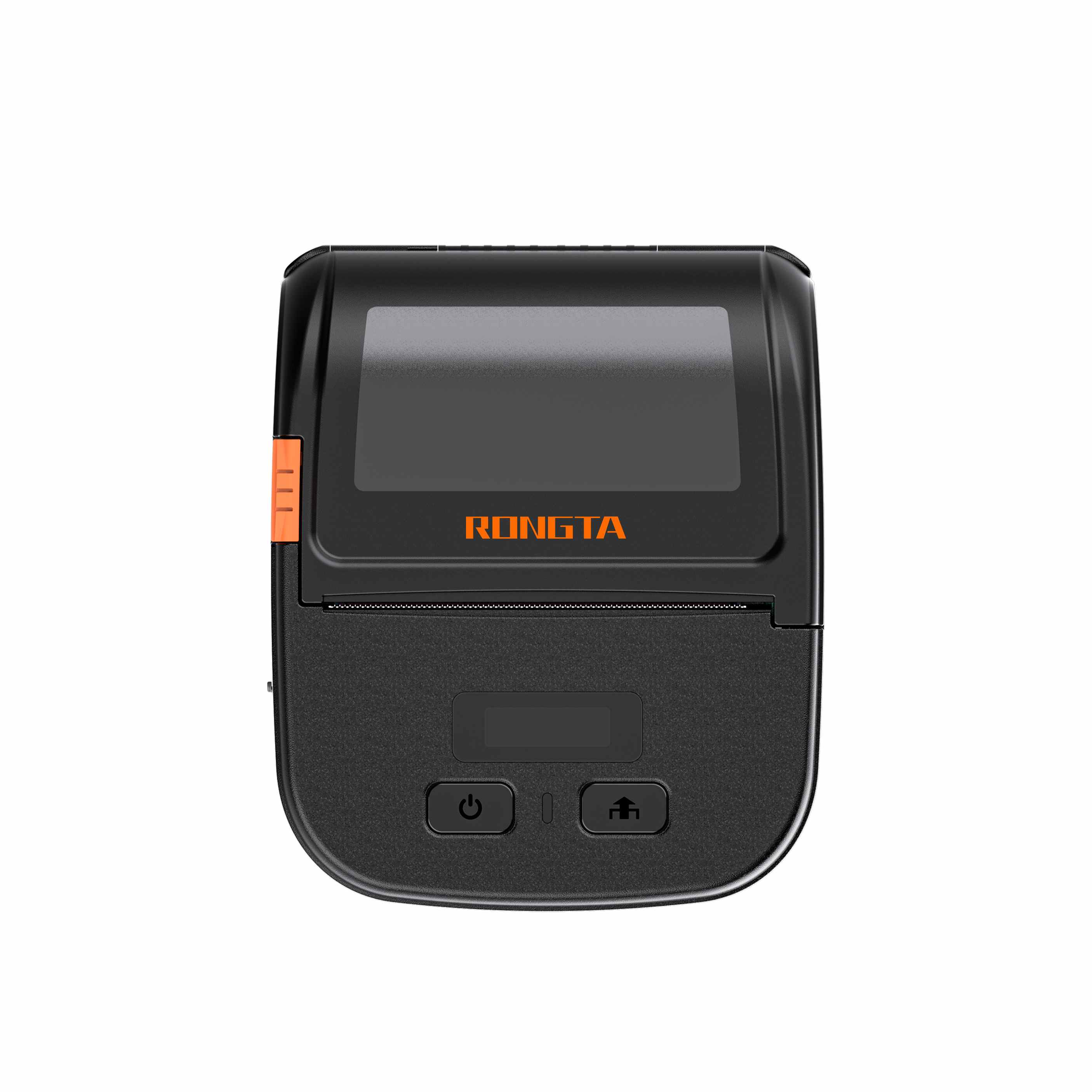 RPP30 3" Portable Label Printer
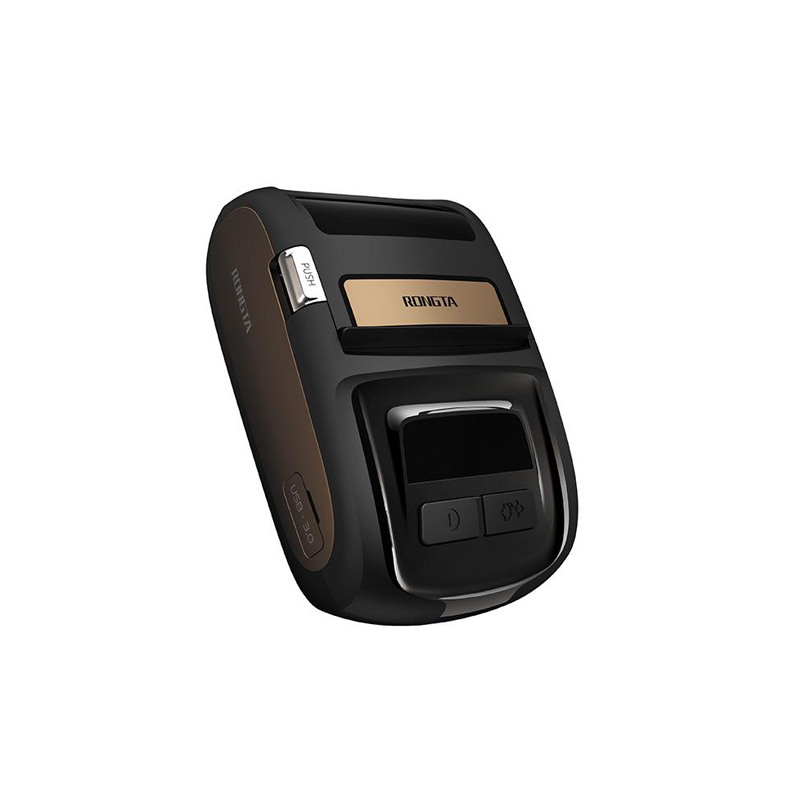 ACE M1 2" Portable Label Printer
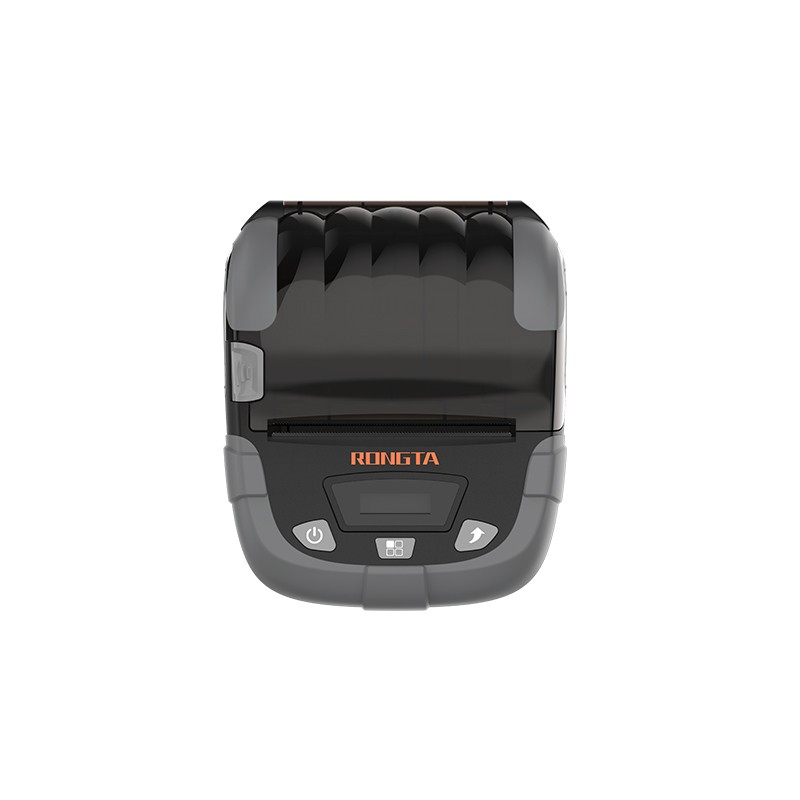 RPP320N 3" Portable Label Printer
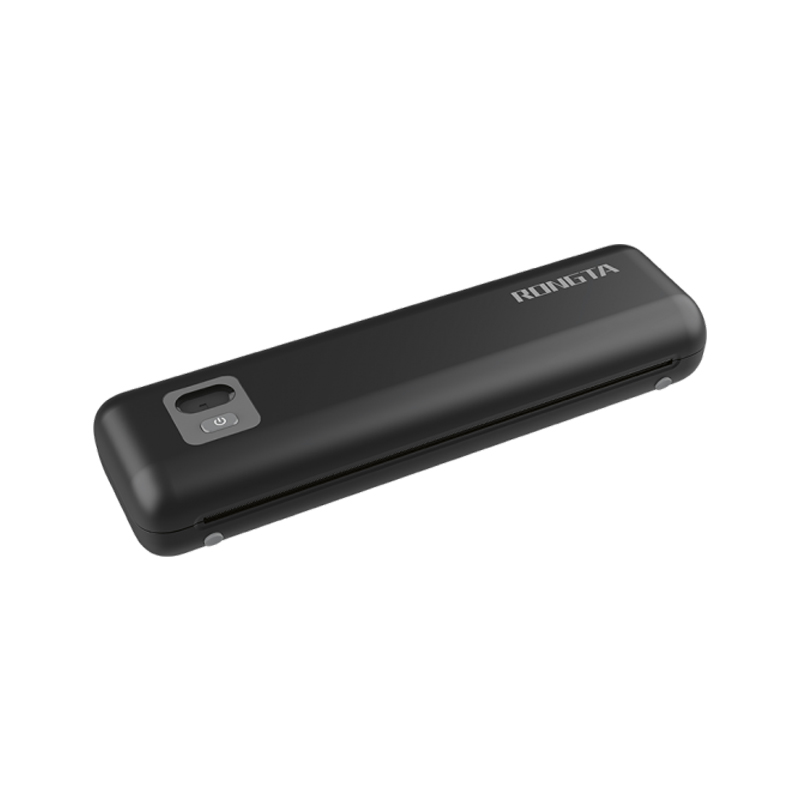 F82A A4 Front-Out Paper Tray Thermal Printer
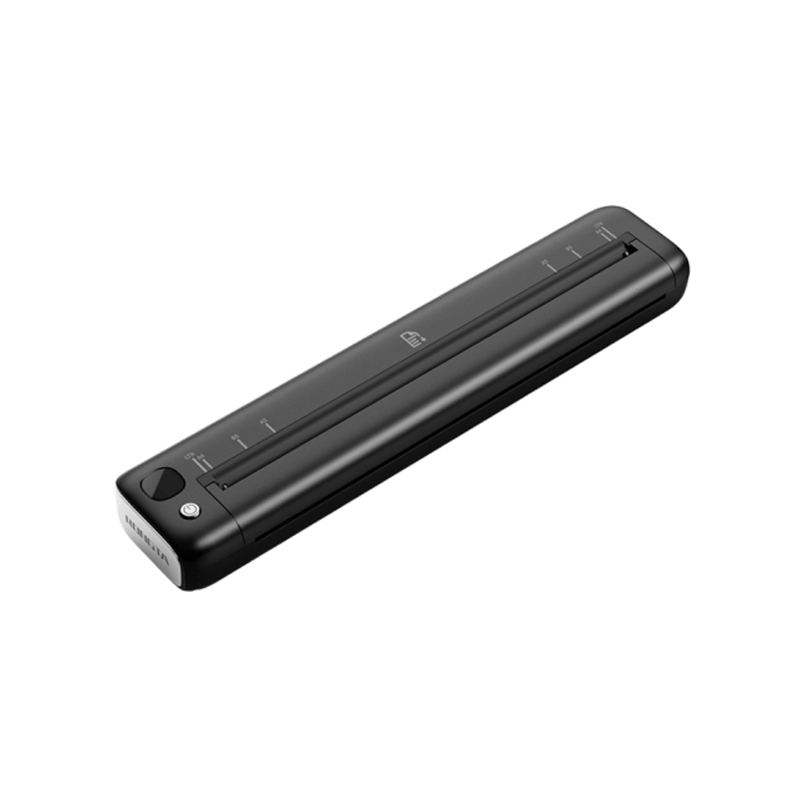 F81A Portable A4 Thermal Printer
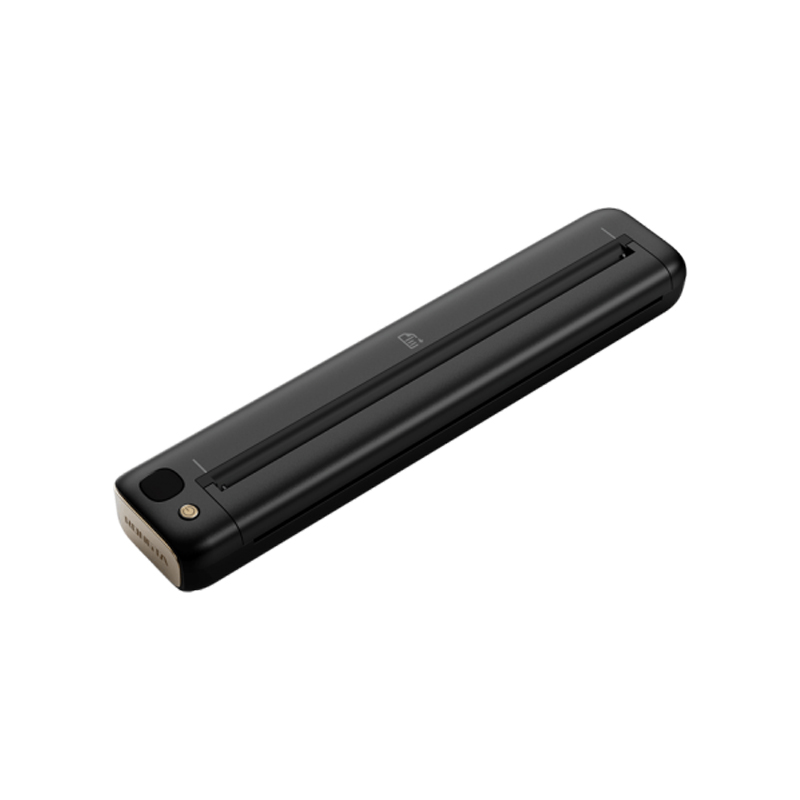 F81S Portable A4 Tattoo Printer
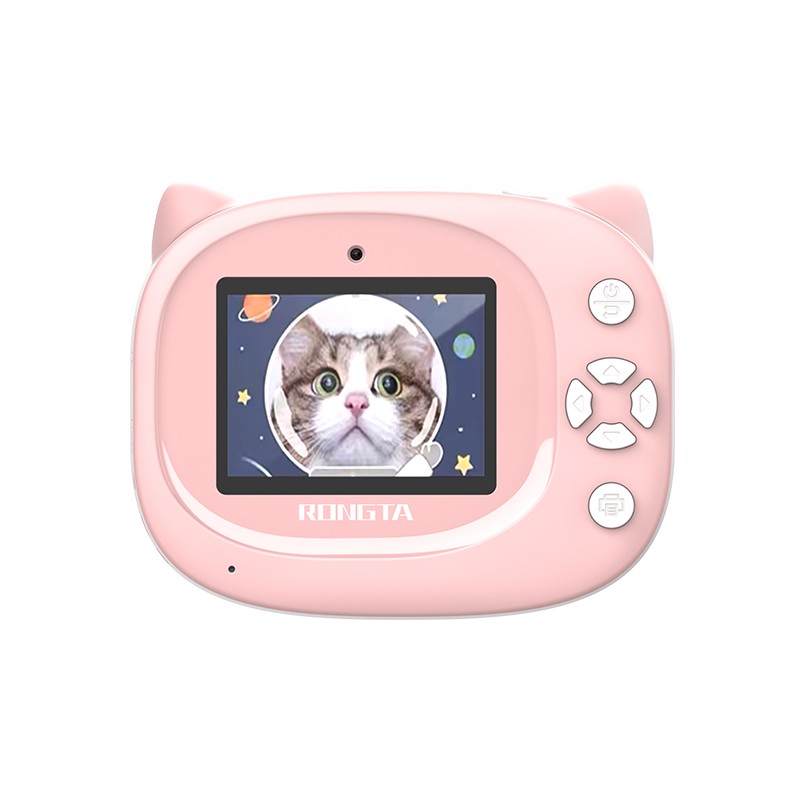 Z1 Children's Educational Photo Printer
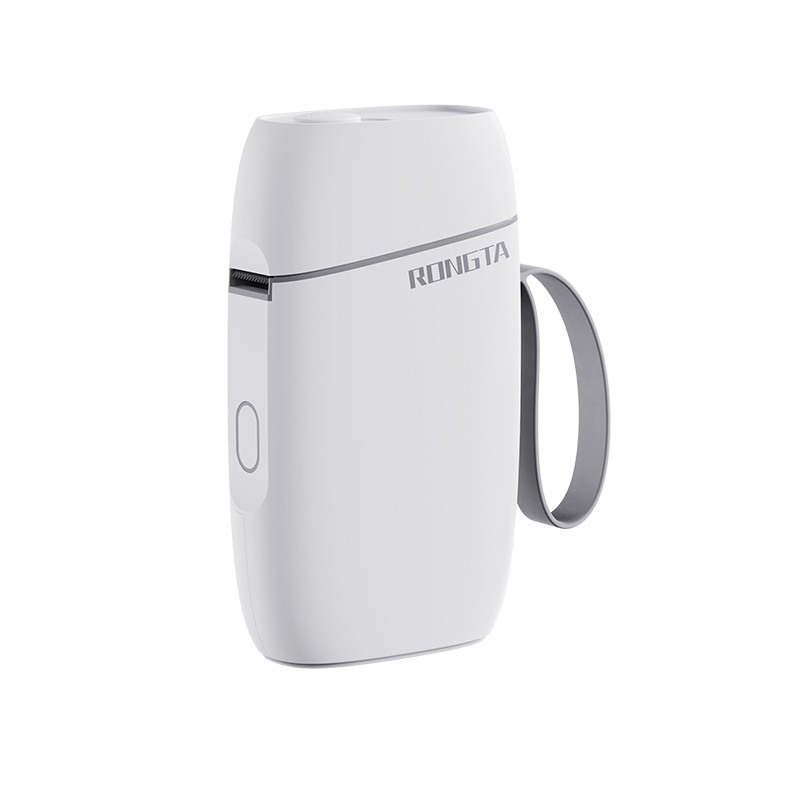 R5 Mini Label Printer
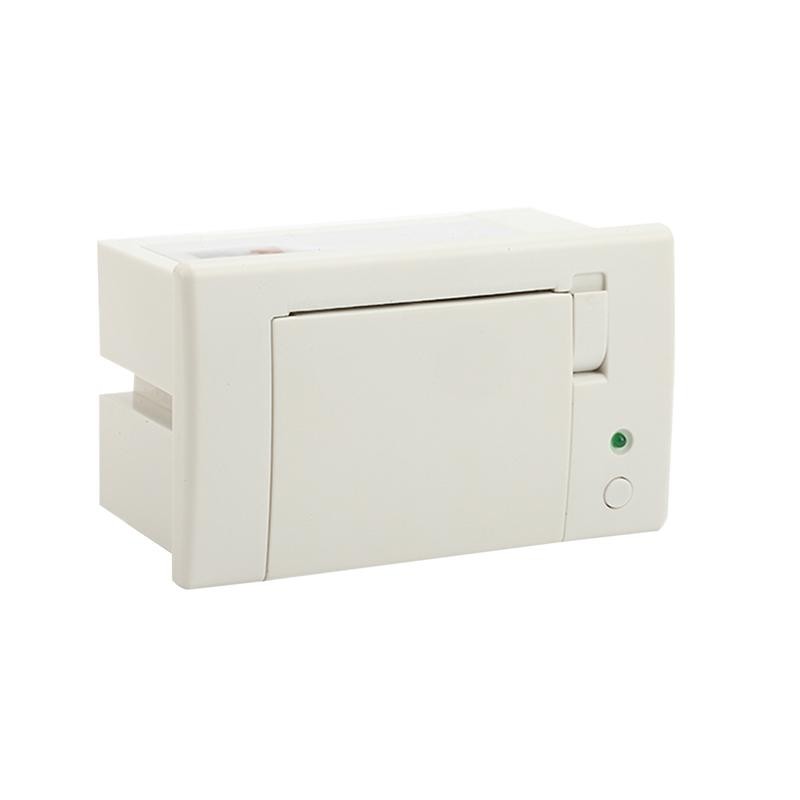 RP07 58mm Embedded Printer
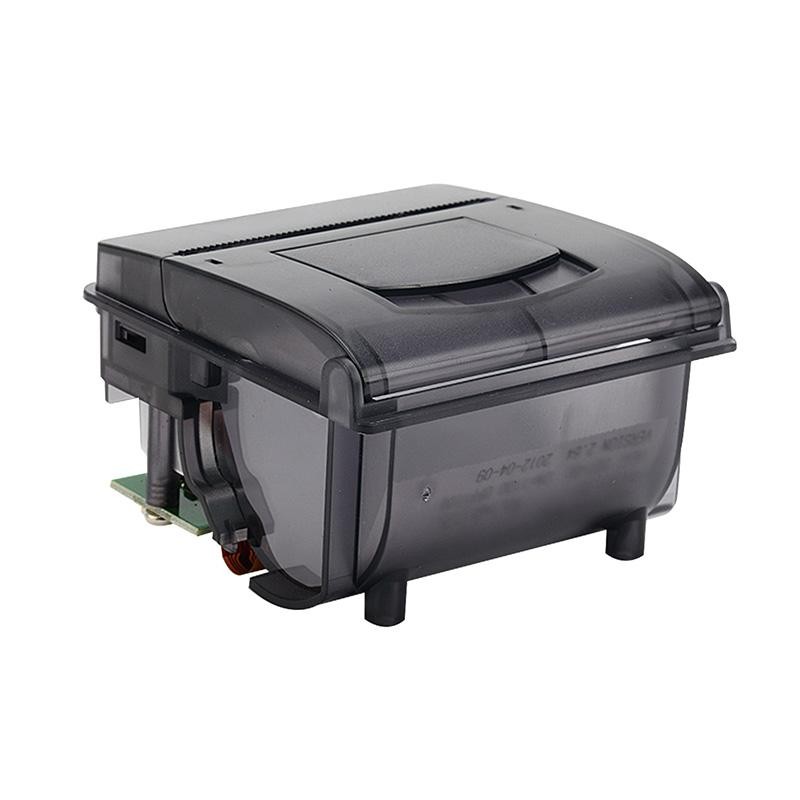 RP203 58mm Embedded Printer
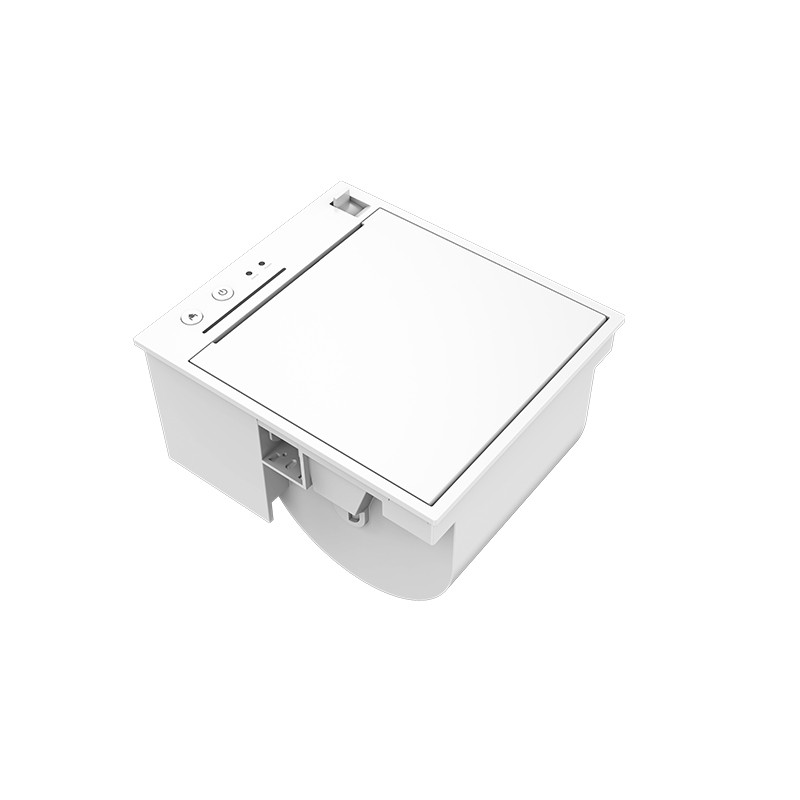 PM315 Embedded Thermal Printer
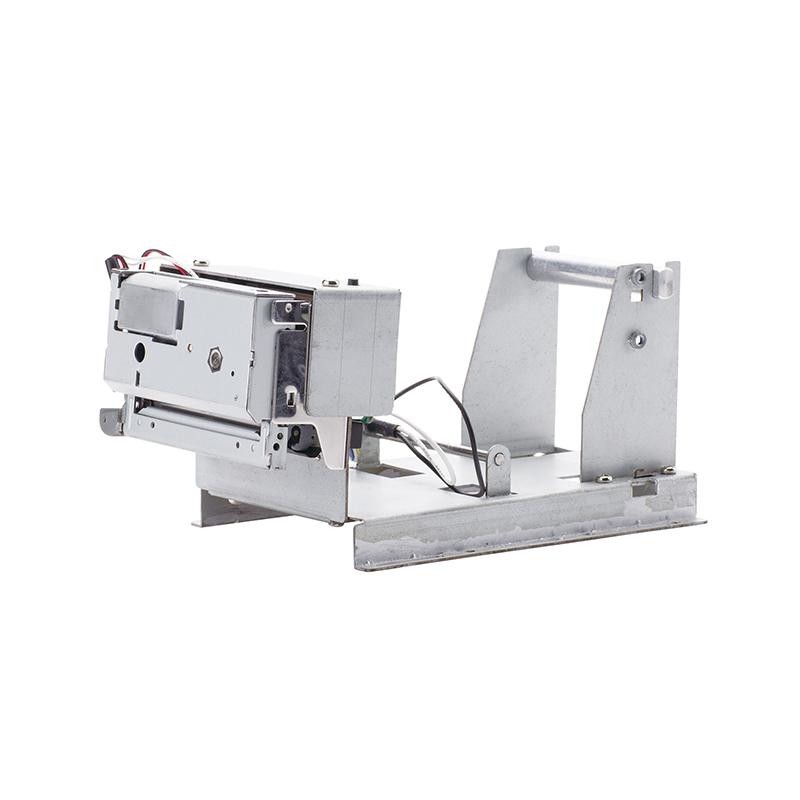 PM201 48mm Printing Module
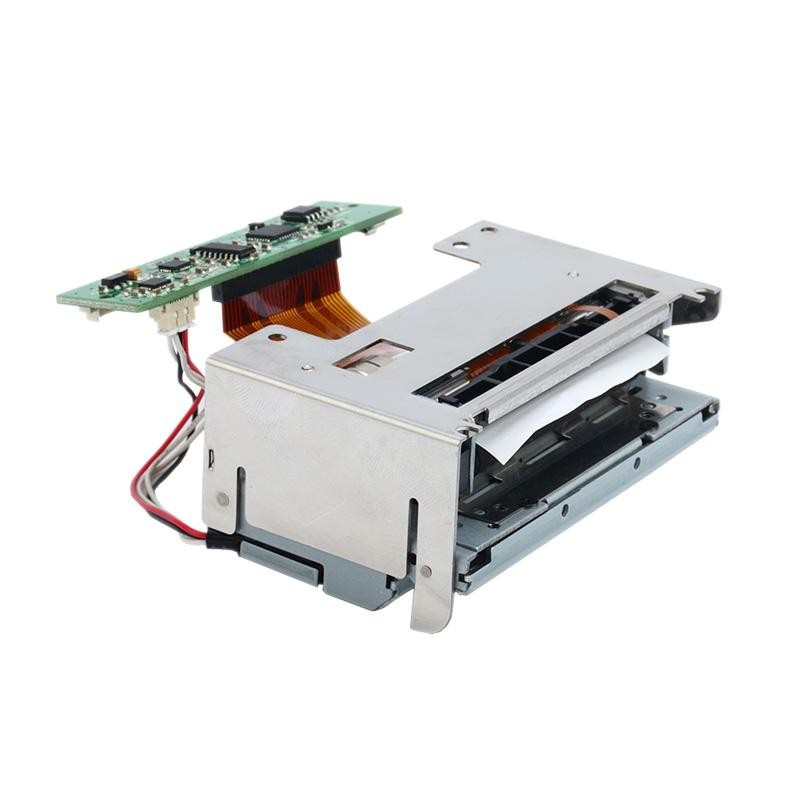 PM628 58mm printing module
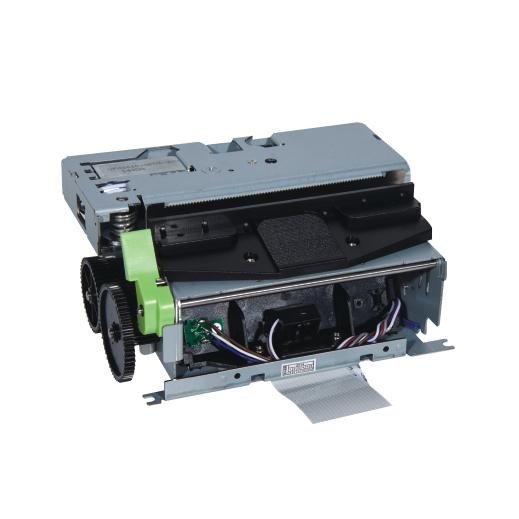 PM532A Printing Module
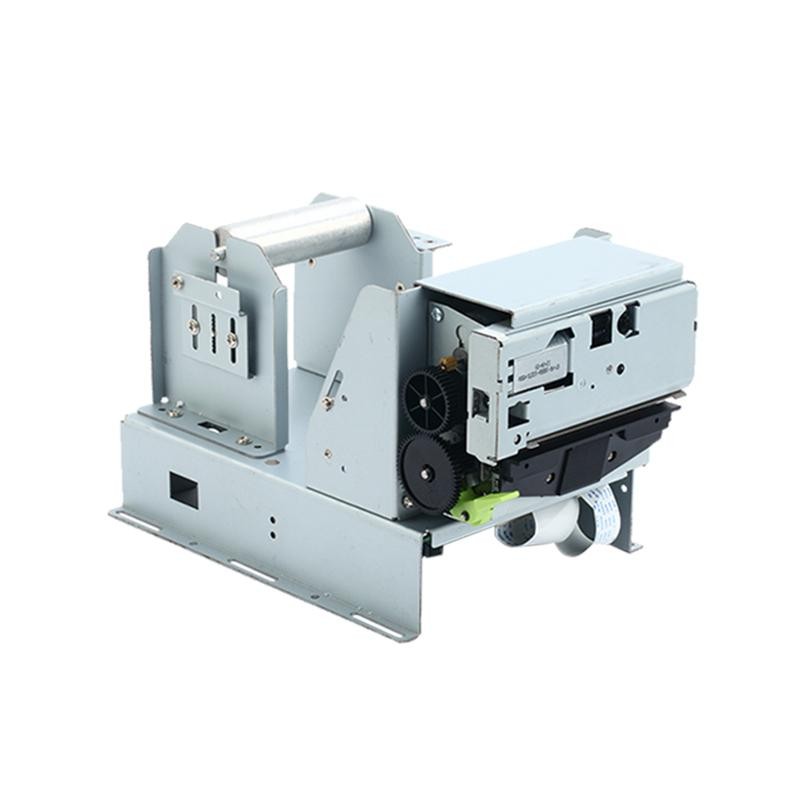 PM532B printer module
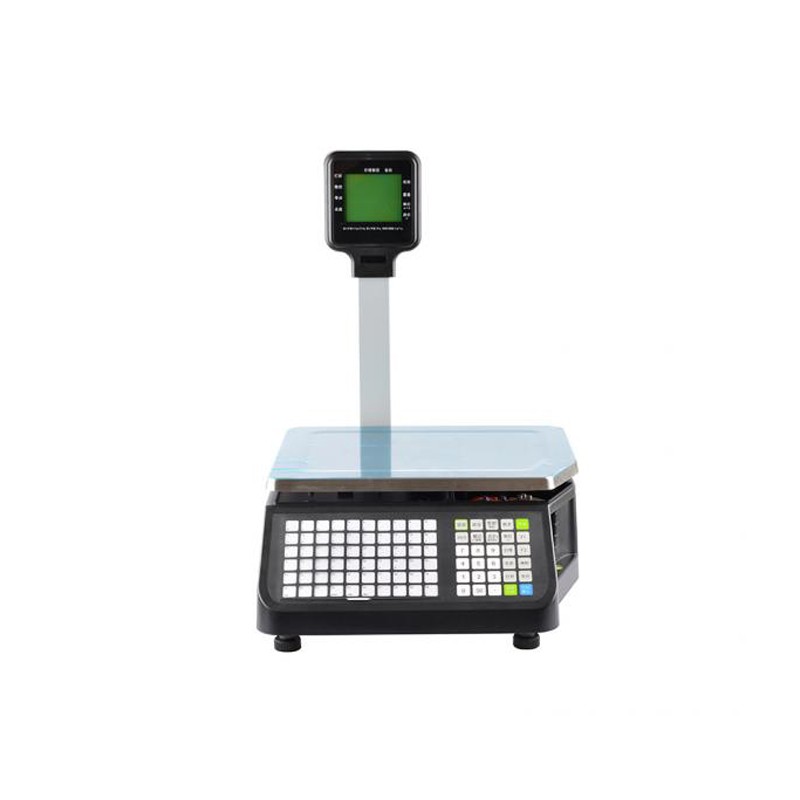 LS015/LS015A Barcode Scale
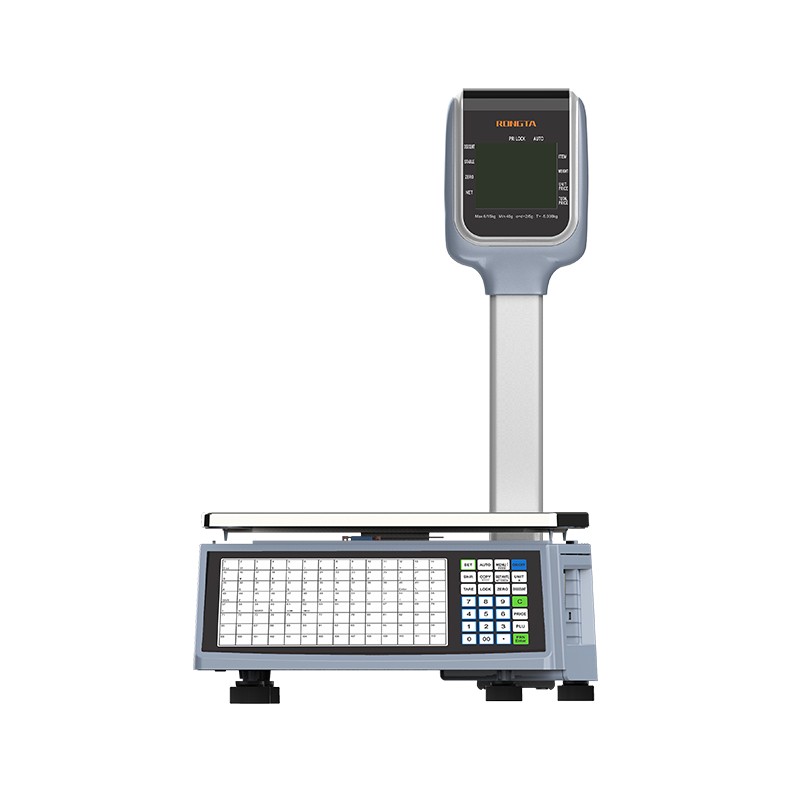 RLS1815D/RLS1830D Barcode Scale
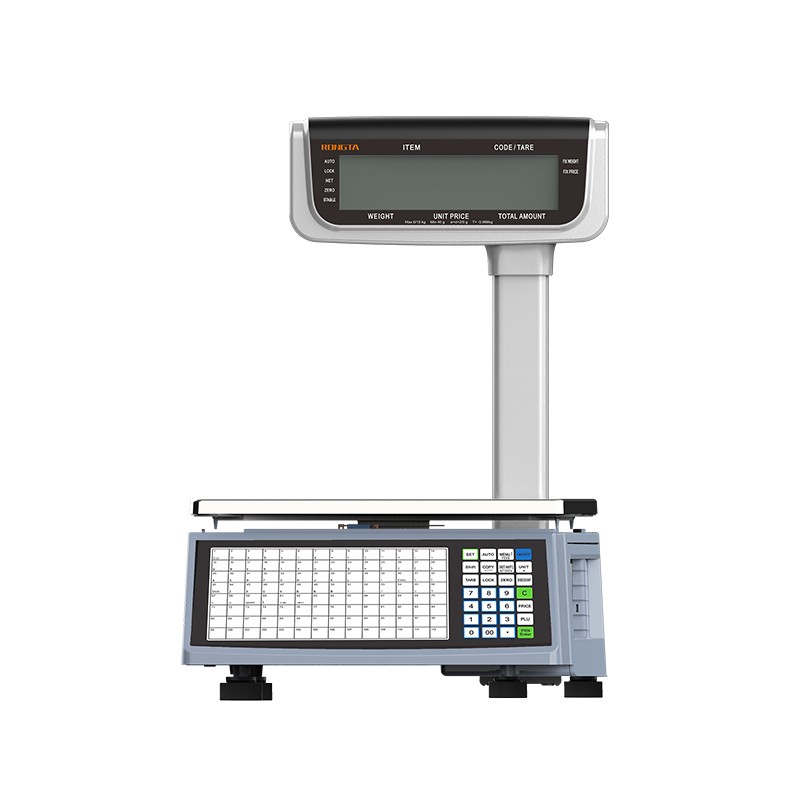 RLS1815C/RLS1830C Barcode Scale
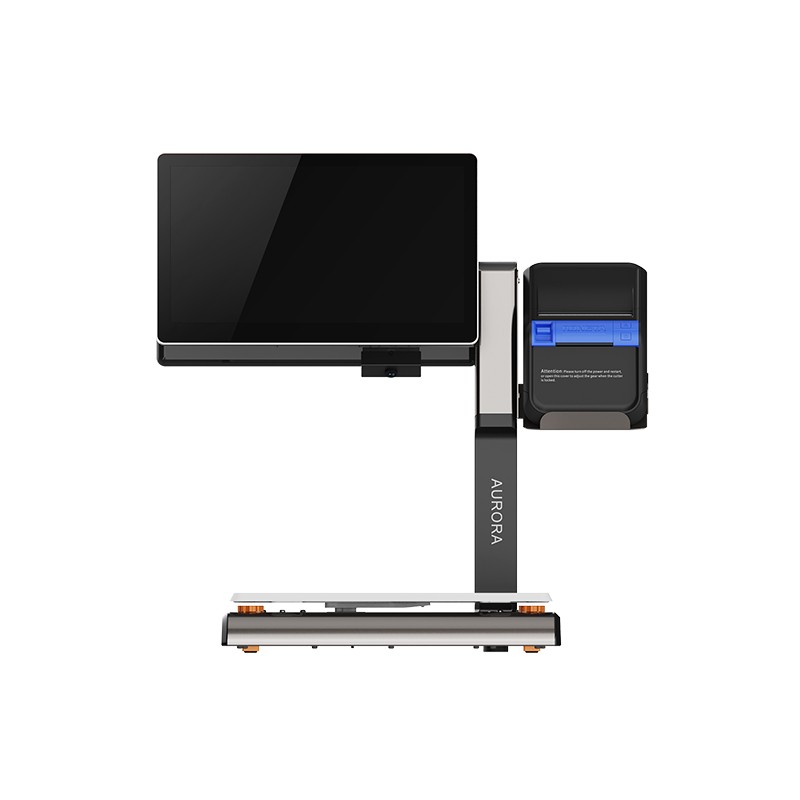 AURORA S2L-S Labelless Scale
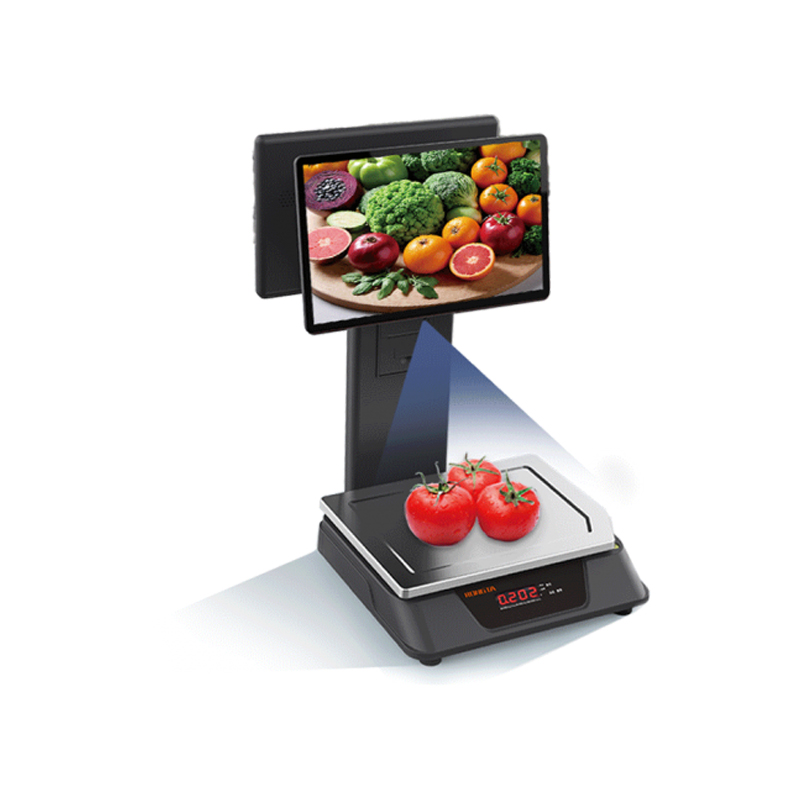 AURORA E1 PRO-AI Cash Register Scale
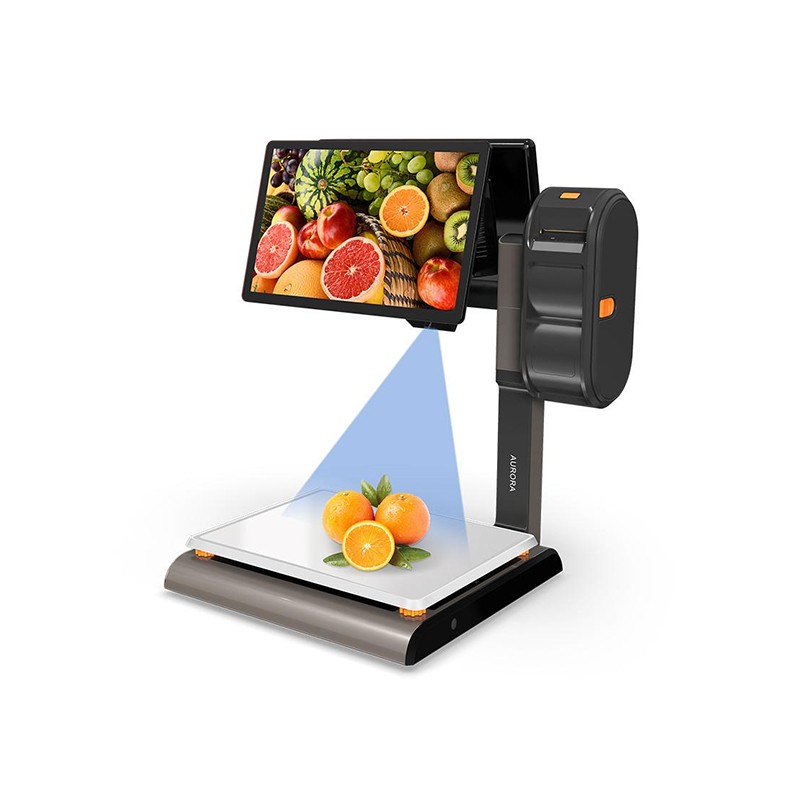 AURORA S2L-AI Label Scale
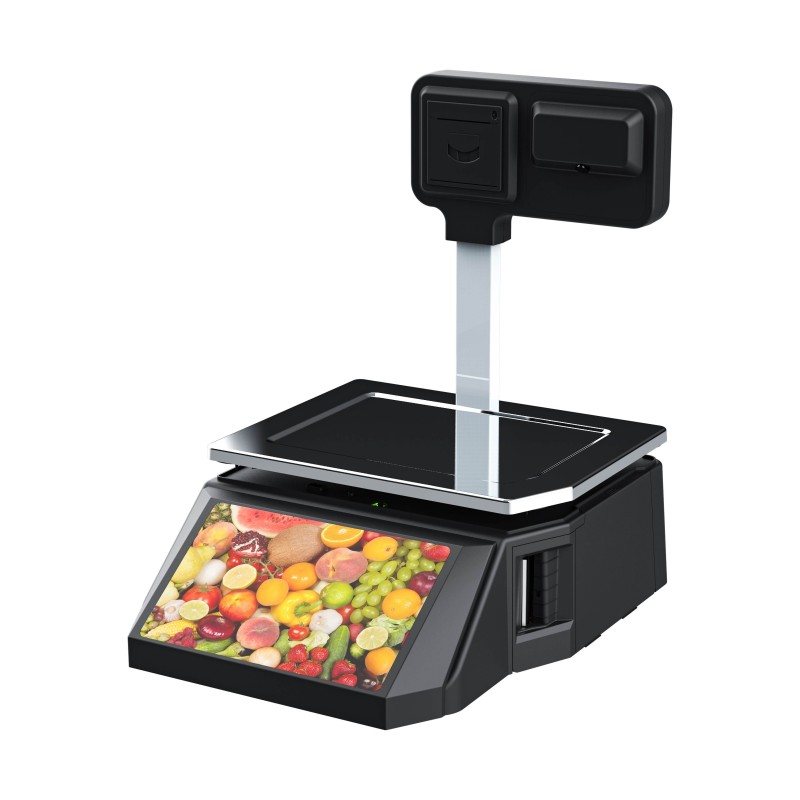 DP01-AI Smart Tag Cashier Dual-Use Scale
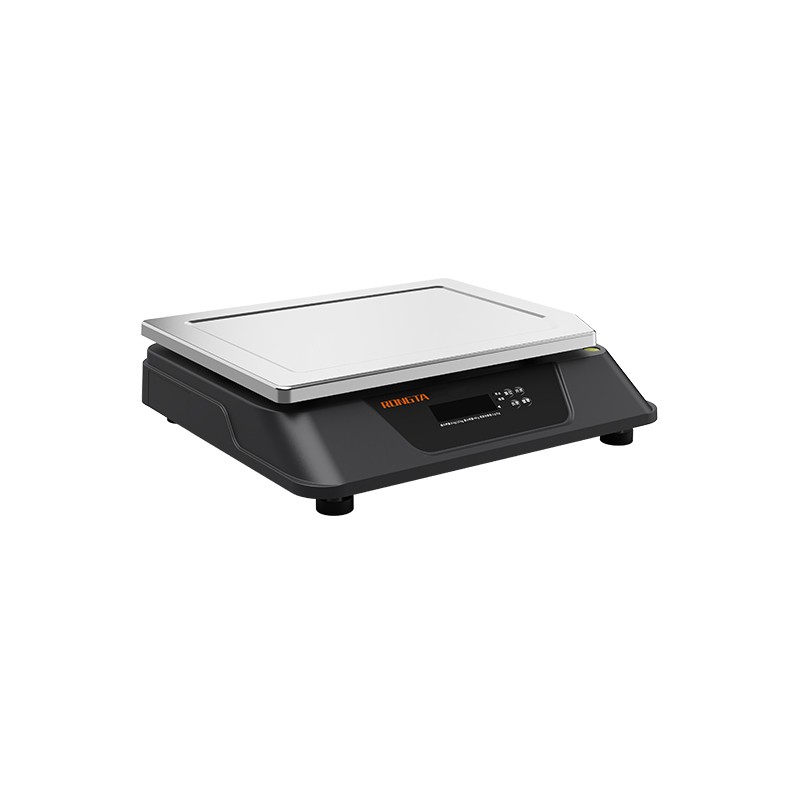 C3 Weighing Scale
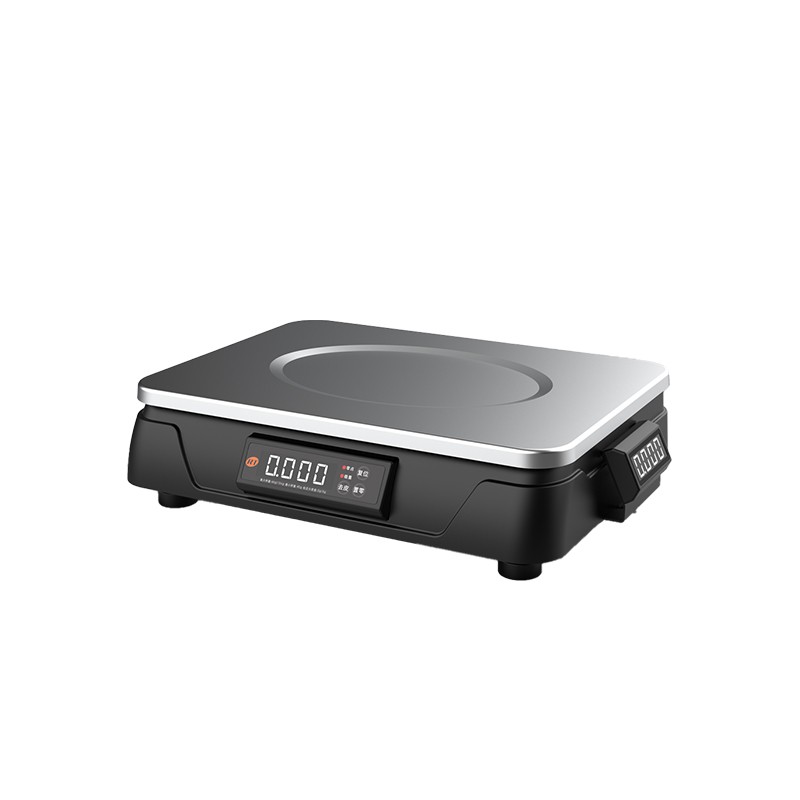 C1 weighing scale
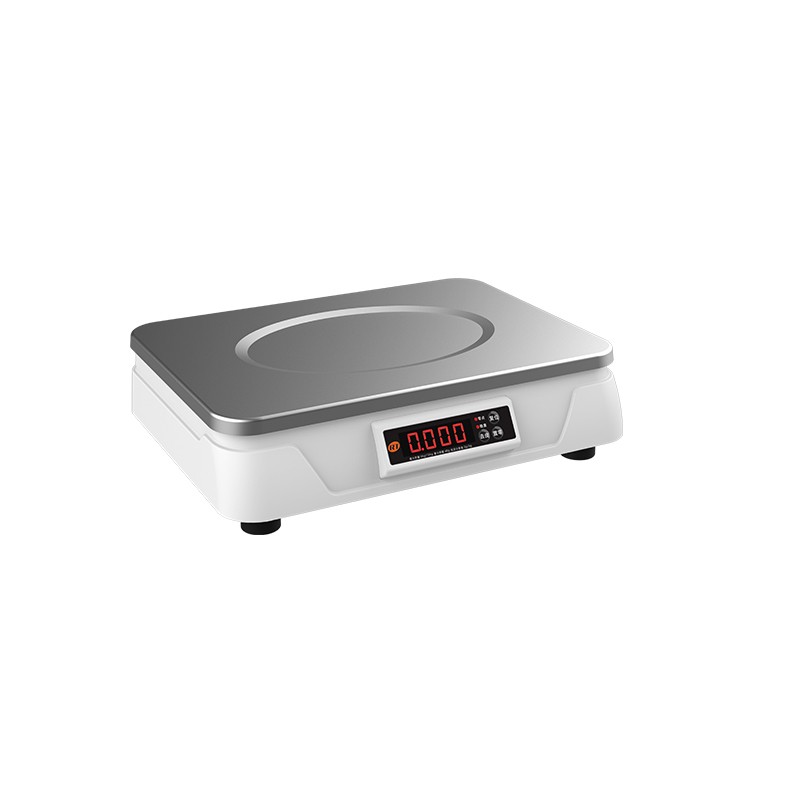 C11 Weighing Scale
 retail
 FOOD
FOOD Medical
 Mobile office/home
 asset Management
 logistics
 Driver download
 User Manual
 Tool Download
 Tag software
 Product Video
 Development Documentation
 Frequently Asked Questions
 User Guide
 Company News
 Exhibition Updates
 Industry Insights
 Product Update
 General situation
 Development history
 Honors and Qualifications
 R&D strength
 Team activities
 Social responsibility




SF Express RP410/RP410H Installation Steps
I. Printer driver download
Visit Rongda's official website linkm.tjhq.ccFind Service Support - Driver Download, and click.Download the dedicated driver for SF Express RP410.

II. Installation Steps
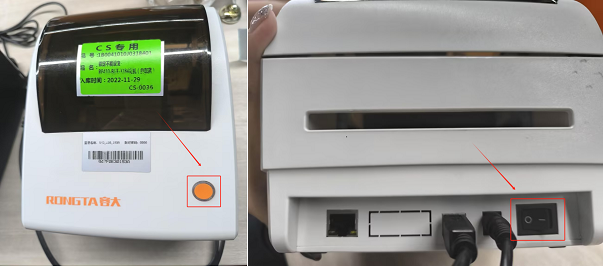
1.Plug the device into a power source andConnect the USB cable to the computer and load the paper roll into the printer.: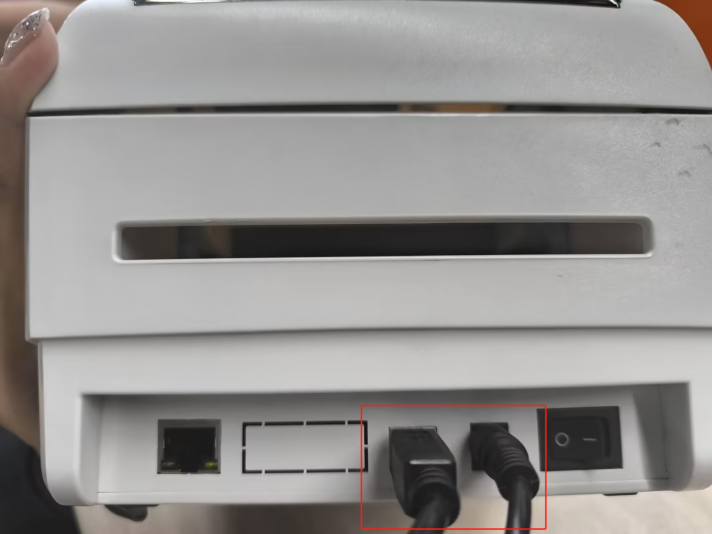
2.Turn off the printer, press and hold the paper feed button while turning it on, until a self-test page is printed:
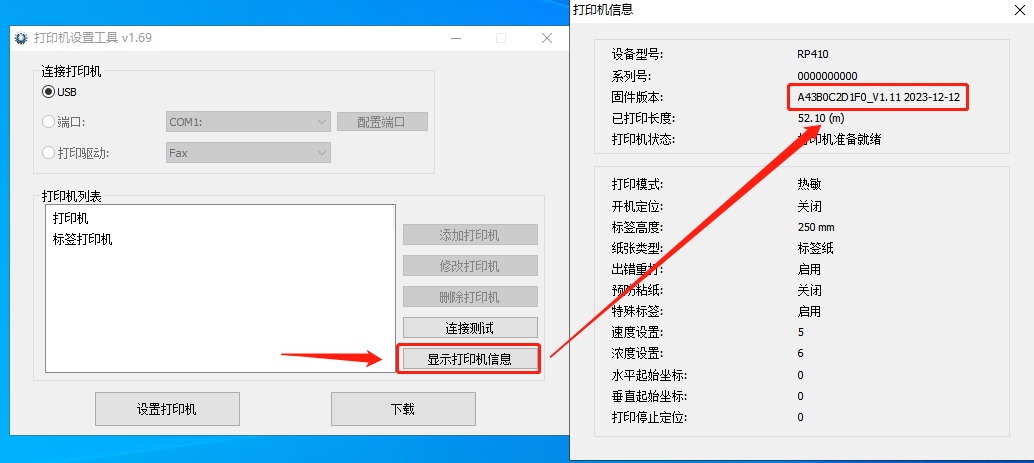
3.Check the device model and software version.(It is necessary to distinguish between RP410 and RP410H, and then...Updated to version with date 1212):
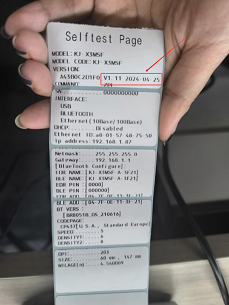
4.If notFor versions released on December 12, 2023, please follow the steps below to upgrade your application. If you already have version 2023-12-12, please skip this step:
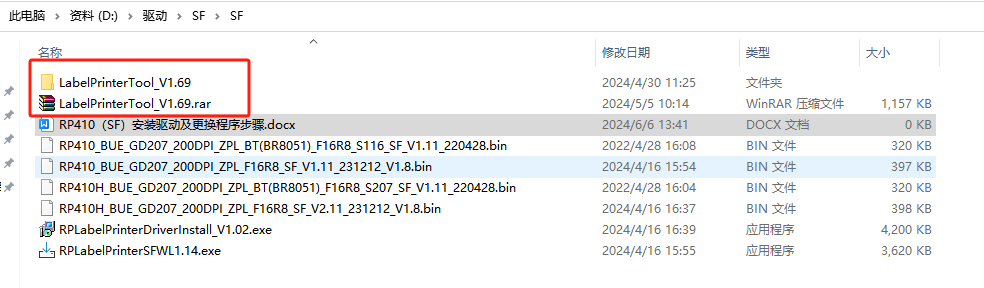
4.1 Unzip the tool and double-click to enter the folder:
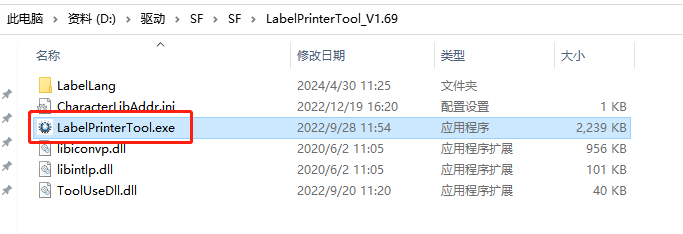
4.2Select the application and run it:
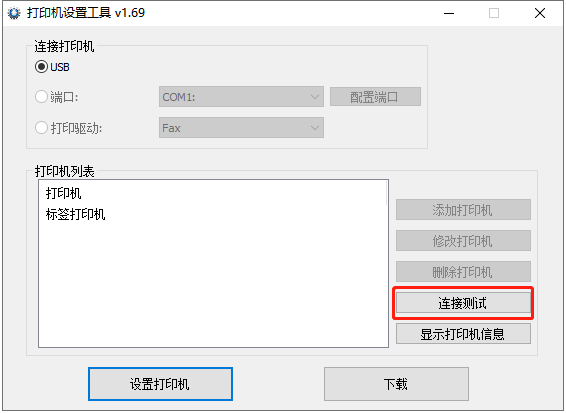
4.3 Test Connection:
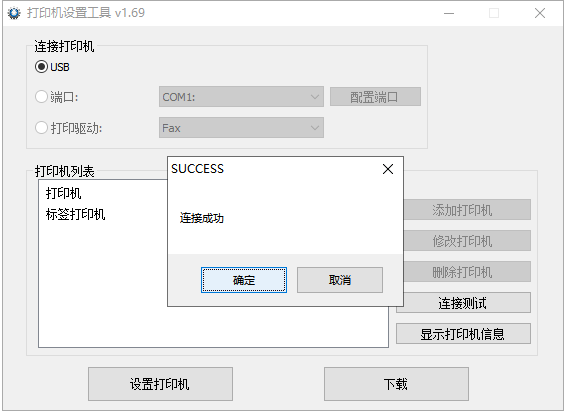
Test successful, proceed to the next step:
If the connection fails, restart the printer.examineIs the USB cable properly connected?。
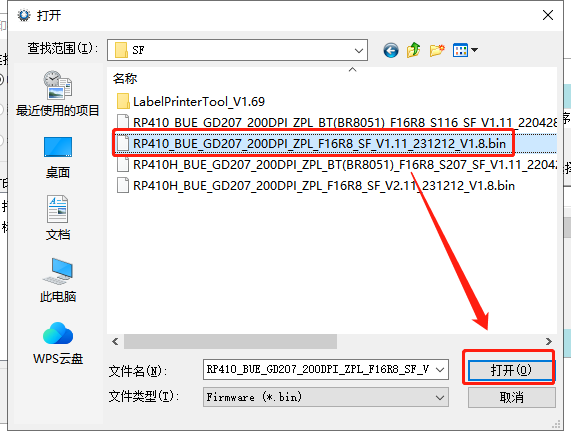
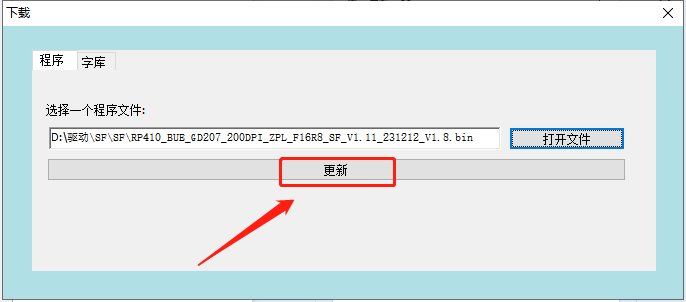
4.4 Click "Download", and in the download interface that appears, click "Open File" and select the version with the corresponding program extension 231212.The machine in the picture below isRP410(You can check the model number on the bottom label of the machine.)Then select the following file:
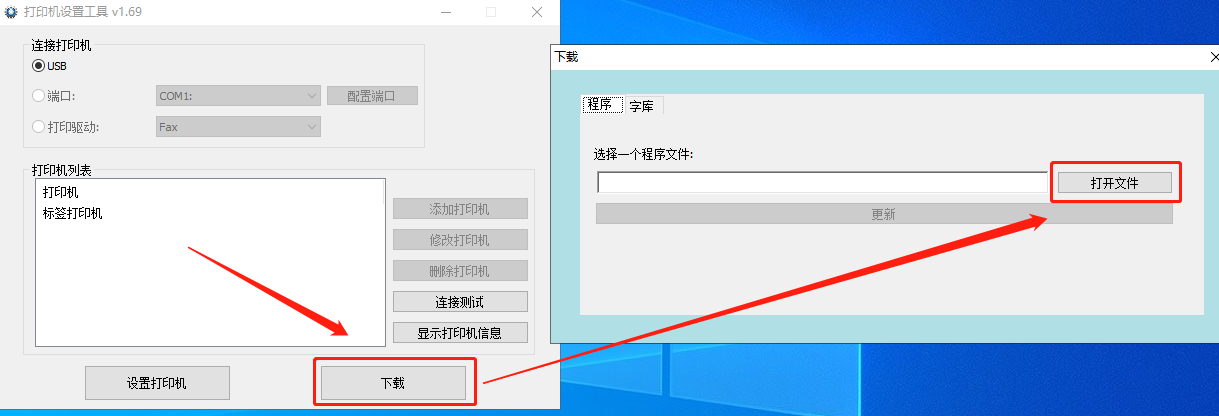
4.5 Click “Update”:
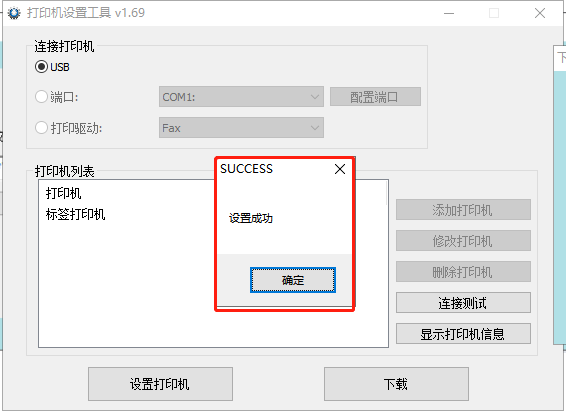
4.6 A setup success screen appears:
4.7 After waiting 10 seconds for the device to restart, you will see that the date has changed, indicating that the update was successful.
5. Install the driver:
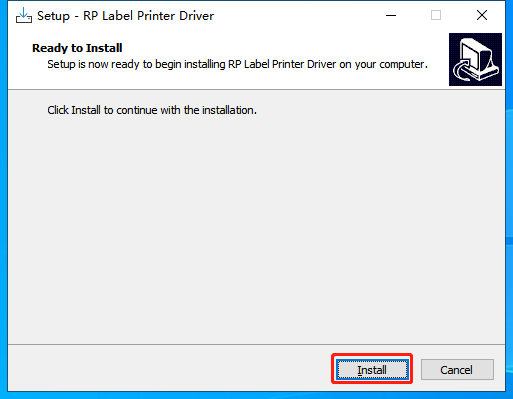
5.1 Double-click the installer
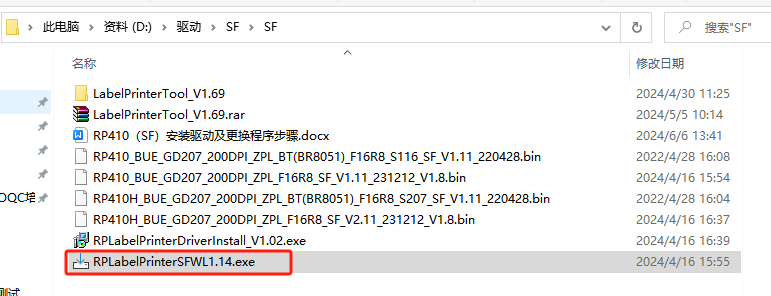
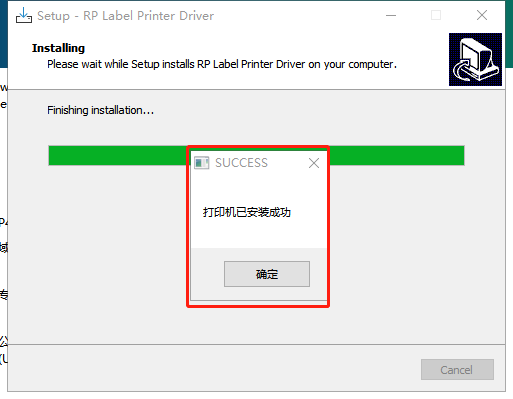
5.2 Click "install" until you see the message "Printer installed successfully". If you see the message "Printer not connected", restart the printer and try again.
6. Print the test page:
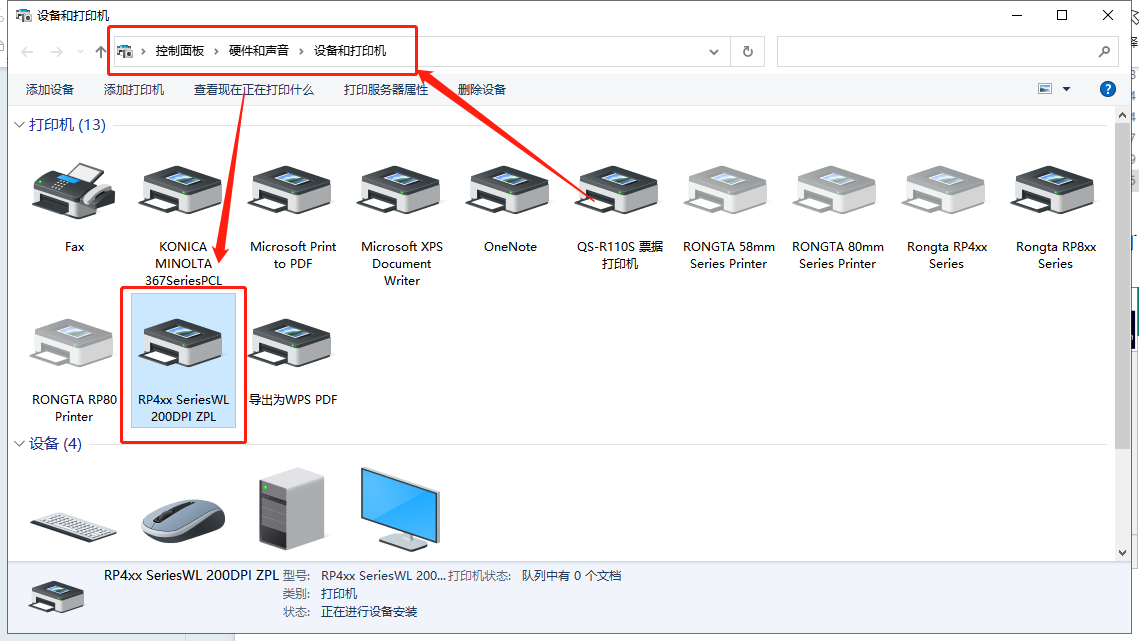
6.1OpenIn the Control Panel, find "Devices and Printers," right-click, and install.Good printer driver(RP4xx Series WL 200DPI ZPL):
6.2?choosePrinter Properties - Test Page:
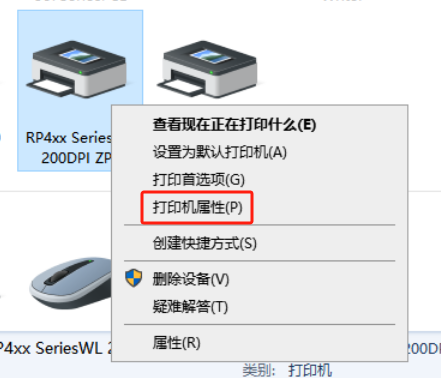
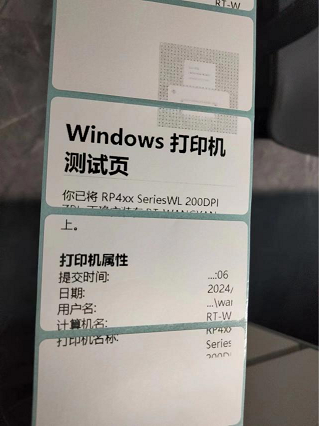
6.3 Once the following content appears, all settings are complete, and the printer has been successfully installed.