

 80mm Receipt Printer
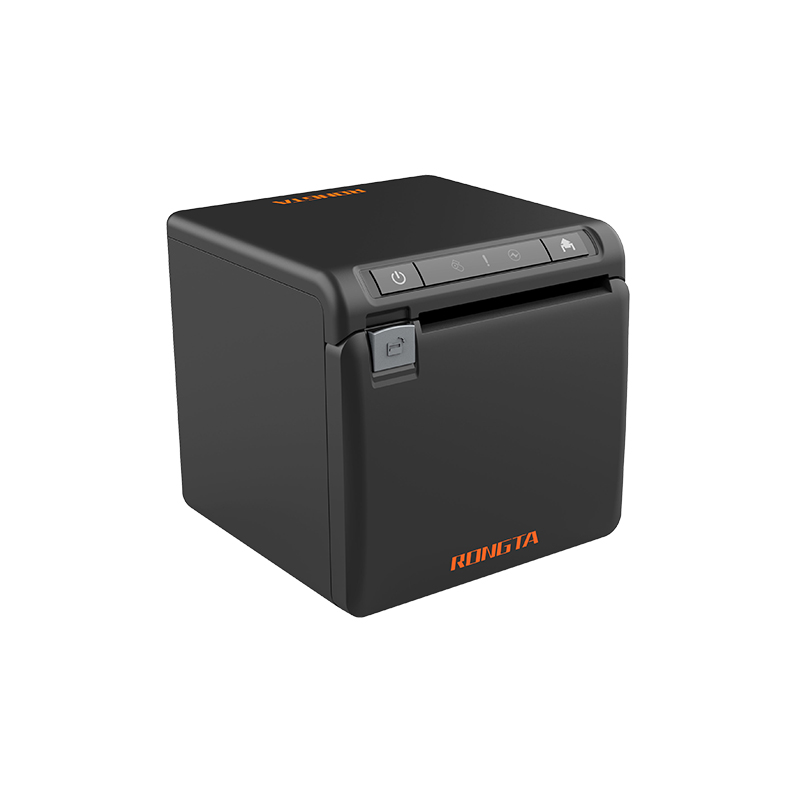 ACE H2 Receipt Printer
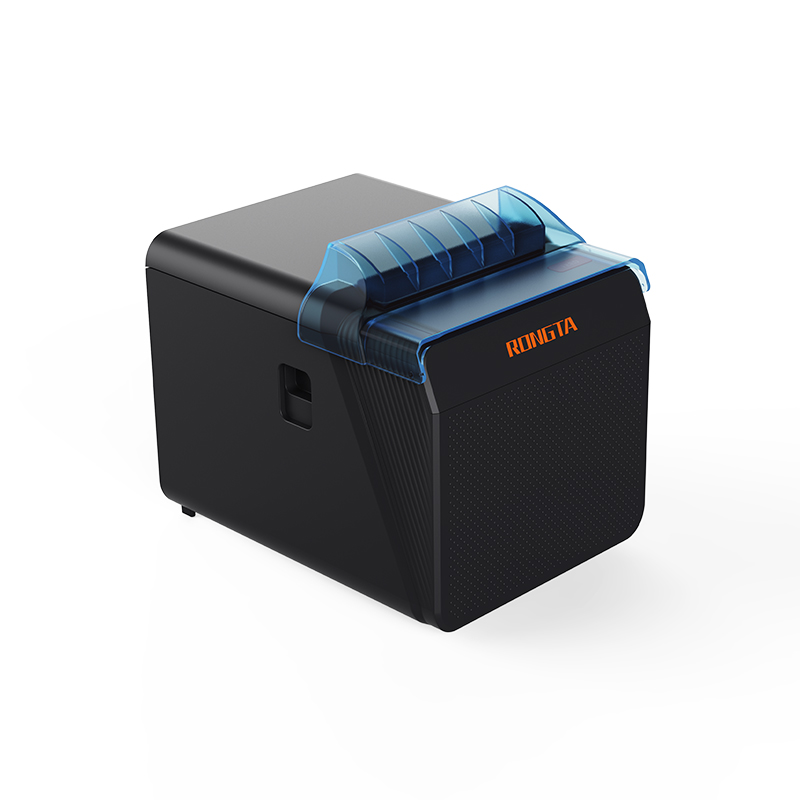 RP337 Receipt Printer
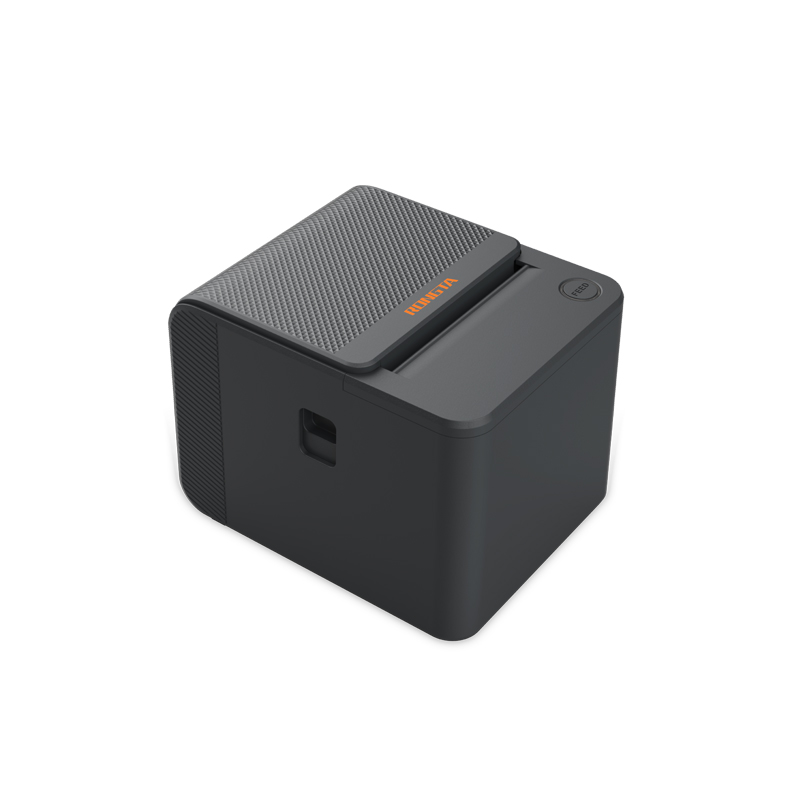 RP336S Dual-Color Receipt Printer
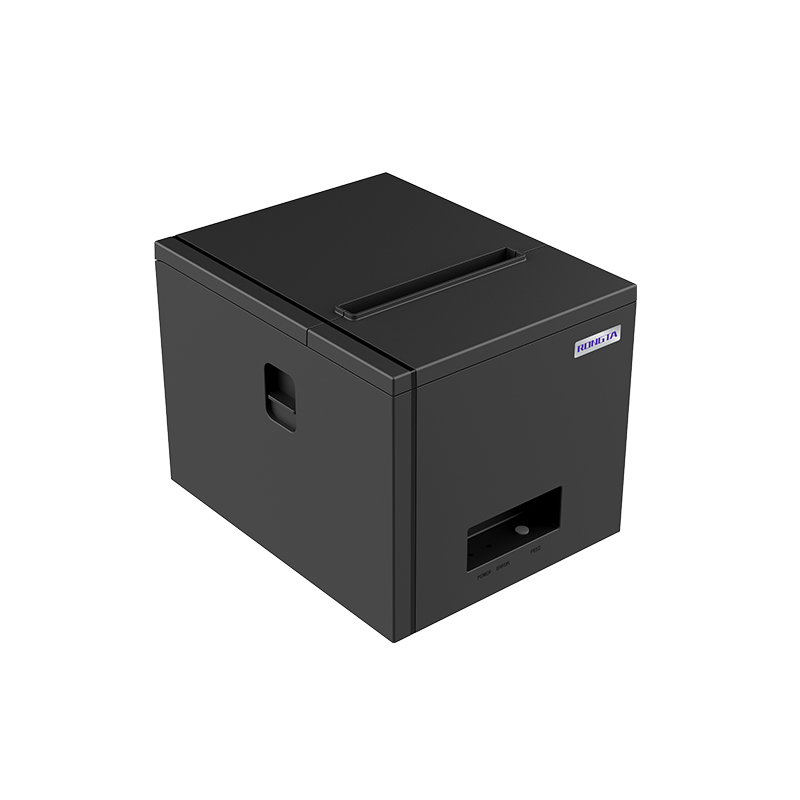 RP350 Receipt Printer
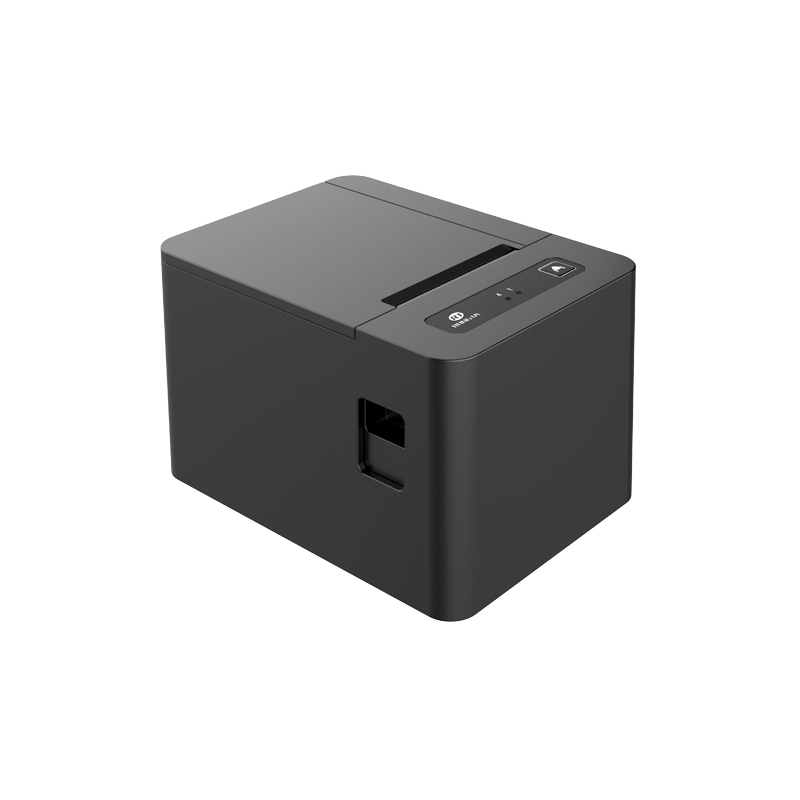 RP582 Receipt Printer
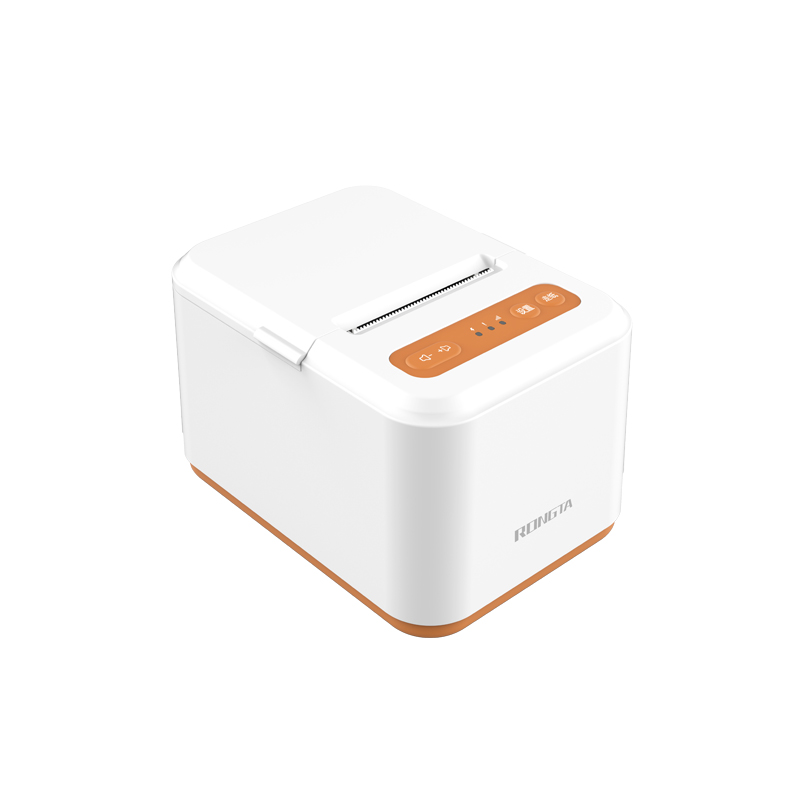 RP581 Receipt Printer
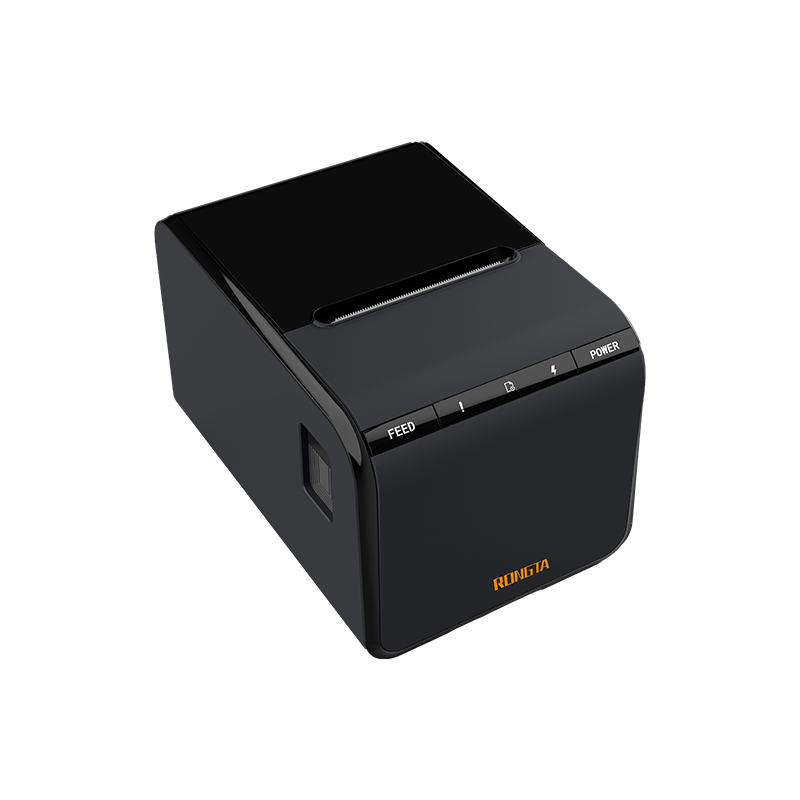 ACE G1Y Receipt Printer
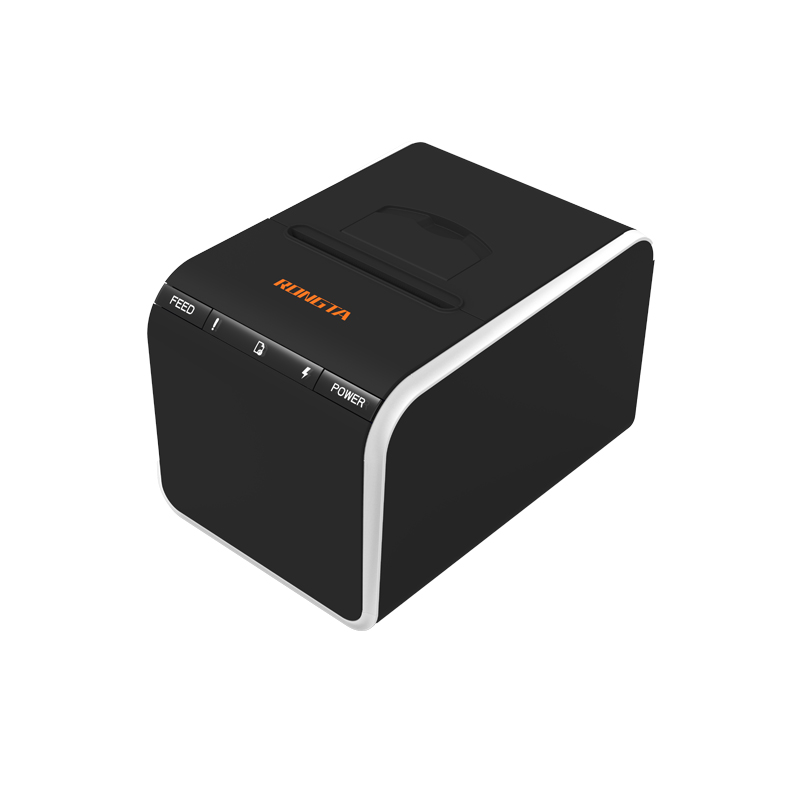 ACE G1YP Cloud Printer
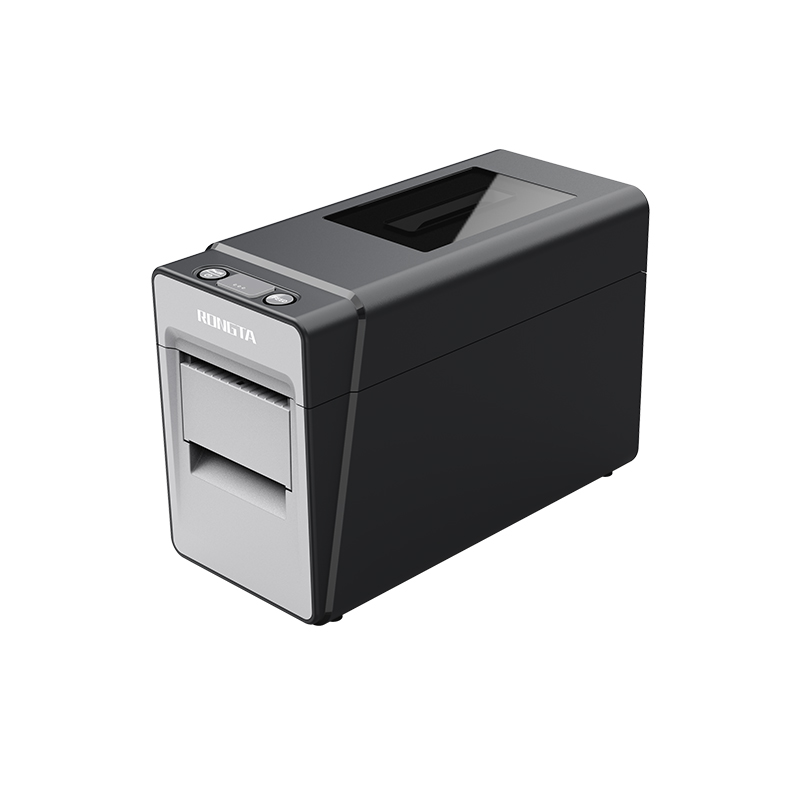 RP216 2'' Dual-color High-definition Label Printer
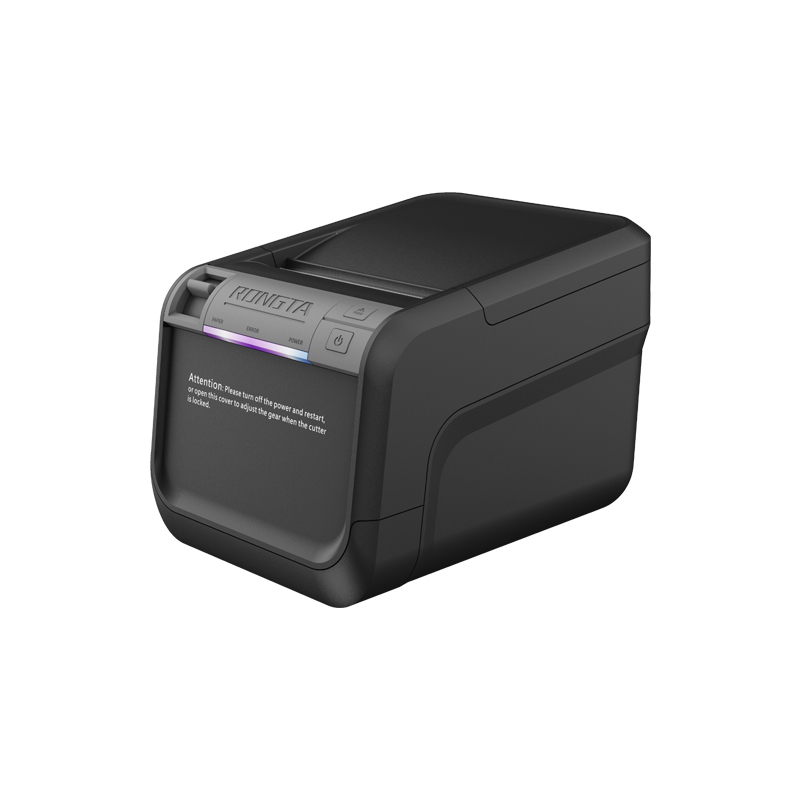 ACE V1S 3'' Backless Label Printer
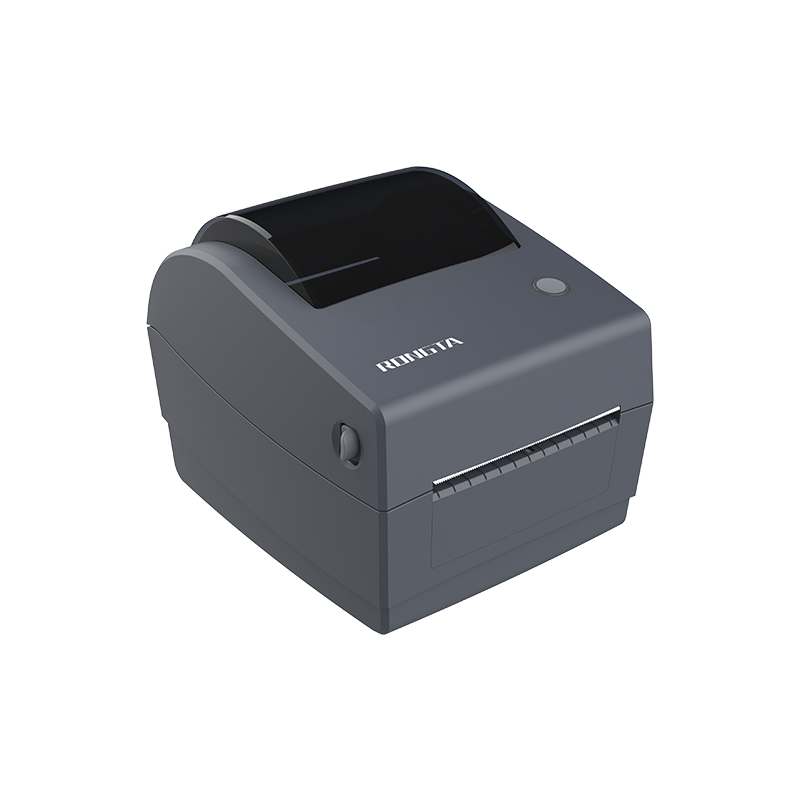 RP310D 3'' Dual-color Label Printer
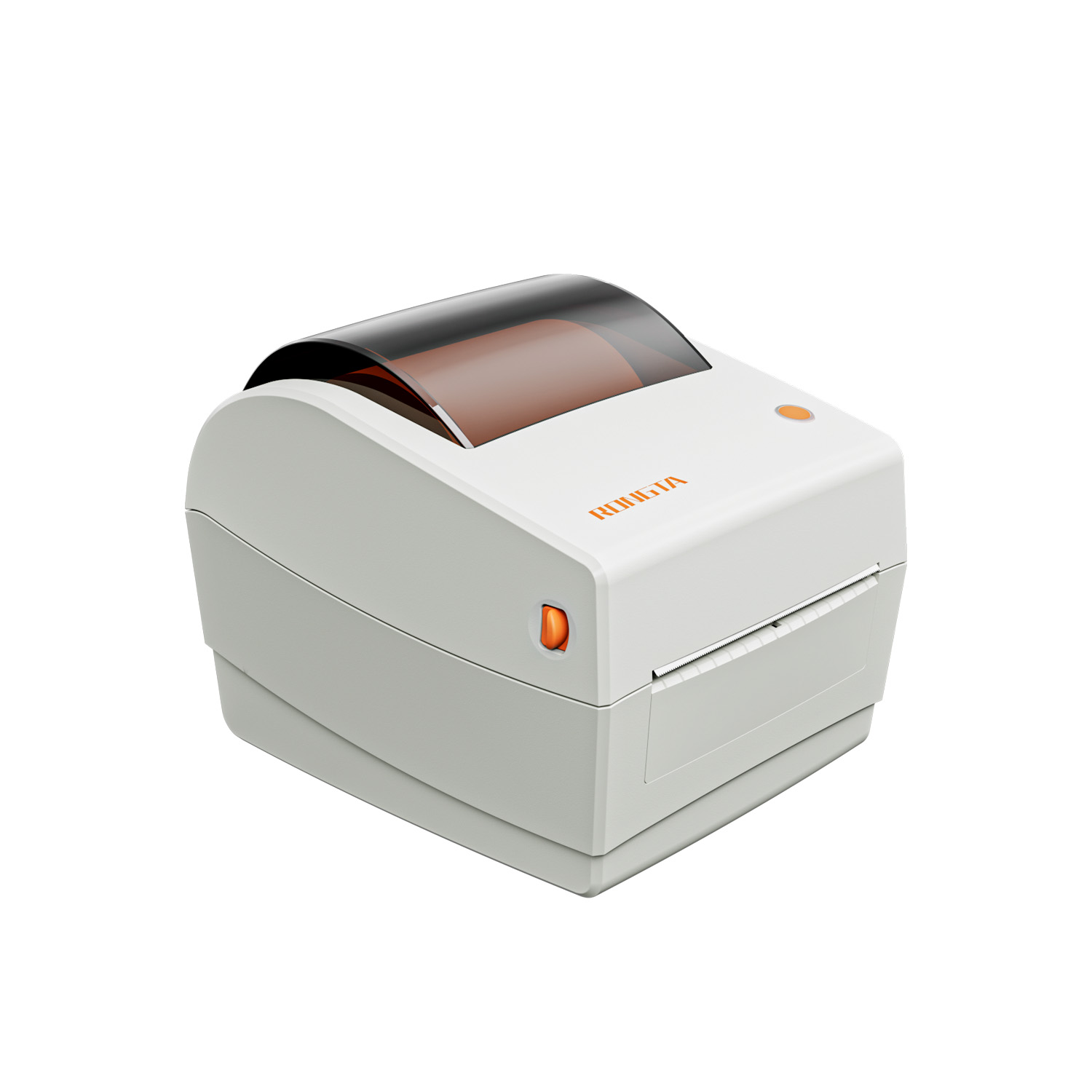 RP410N 4'' Thermal Label Printer
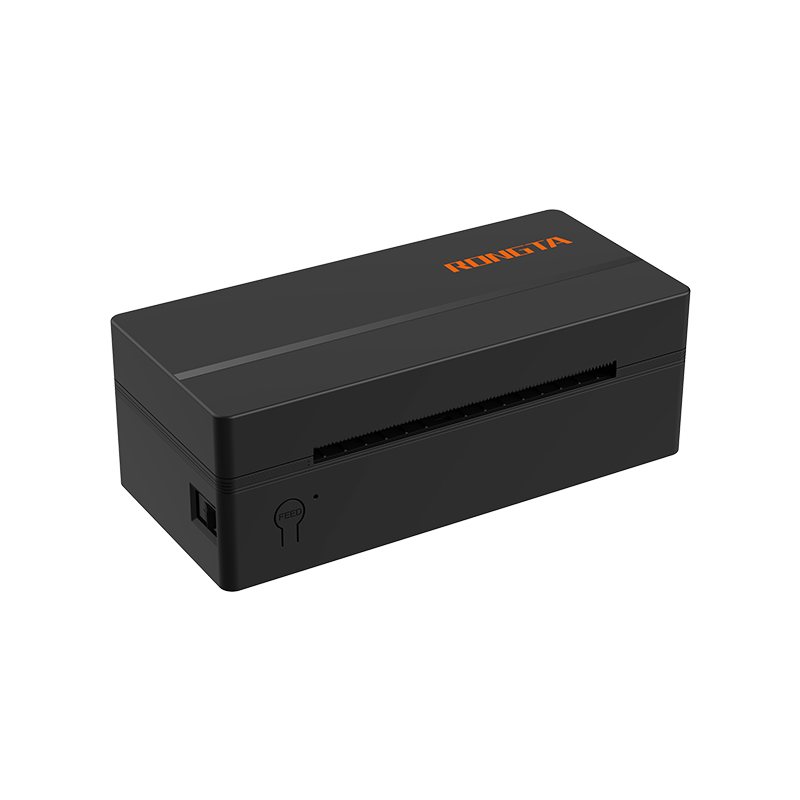 RP425 4'' Electronic Waybill Printer
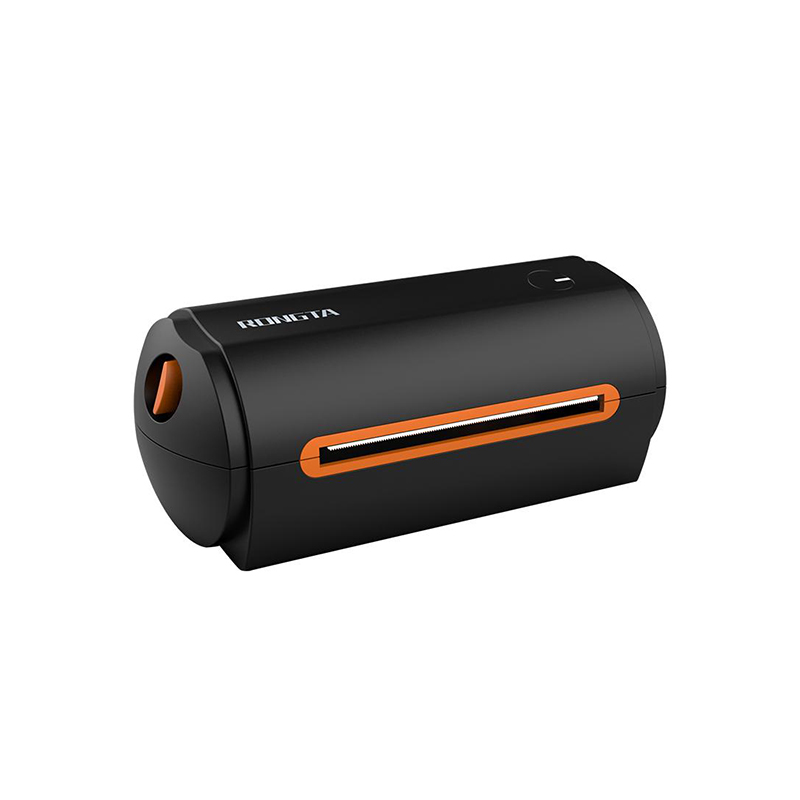 RP422 4'' Electronic Waybill Printer
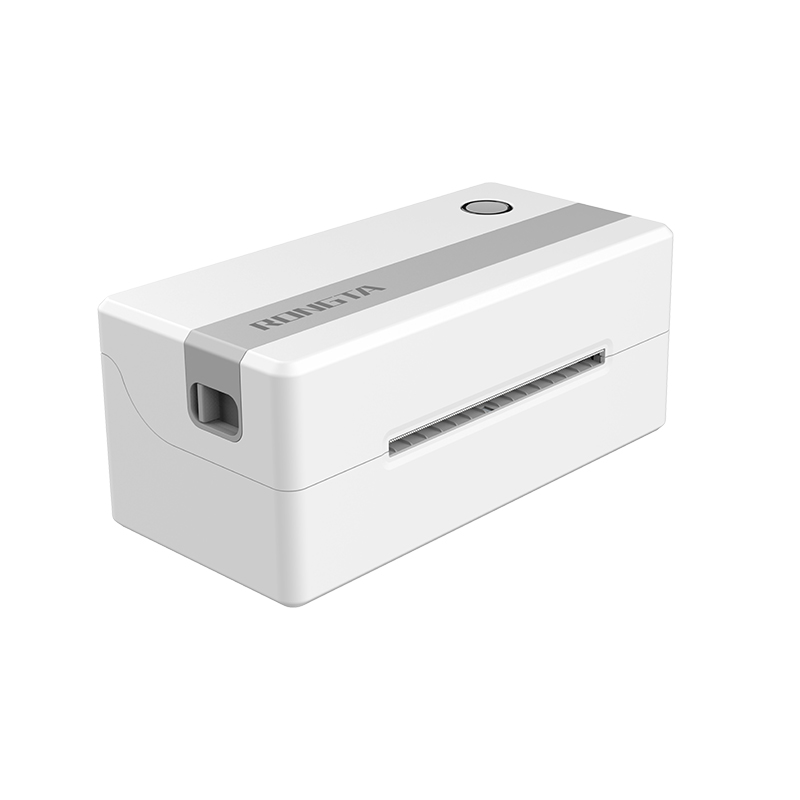 RP421A 4'' Electronic Waybill Printer
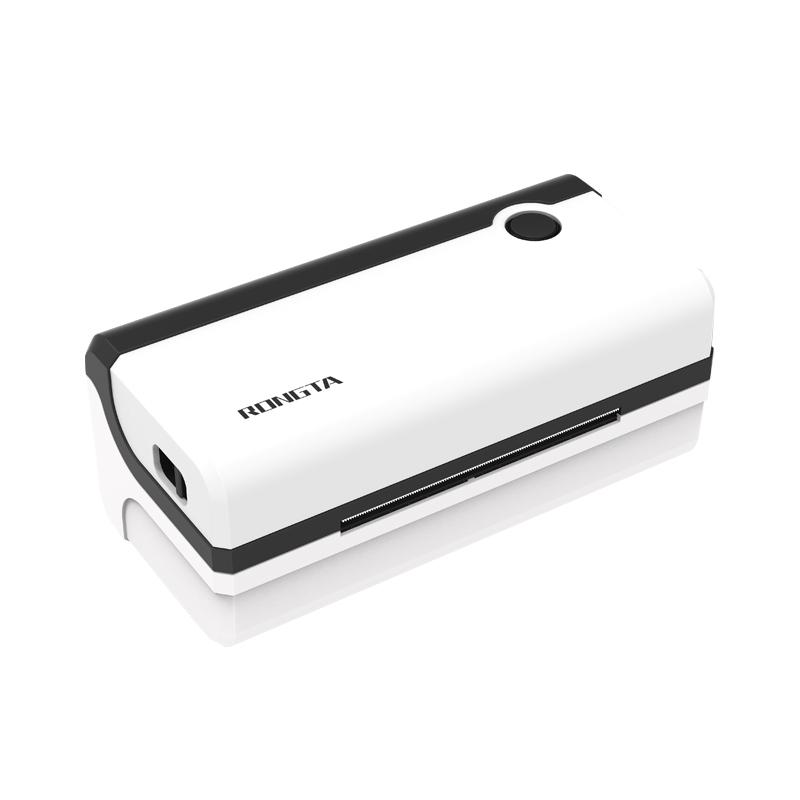 RP420 4'' Electronic Waybill Printer
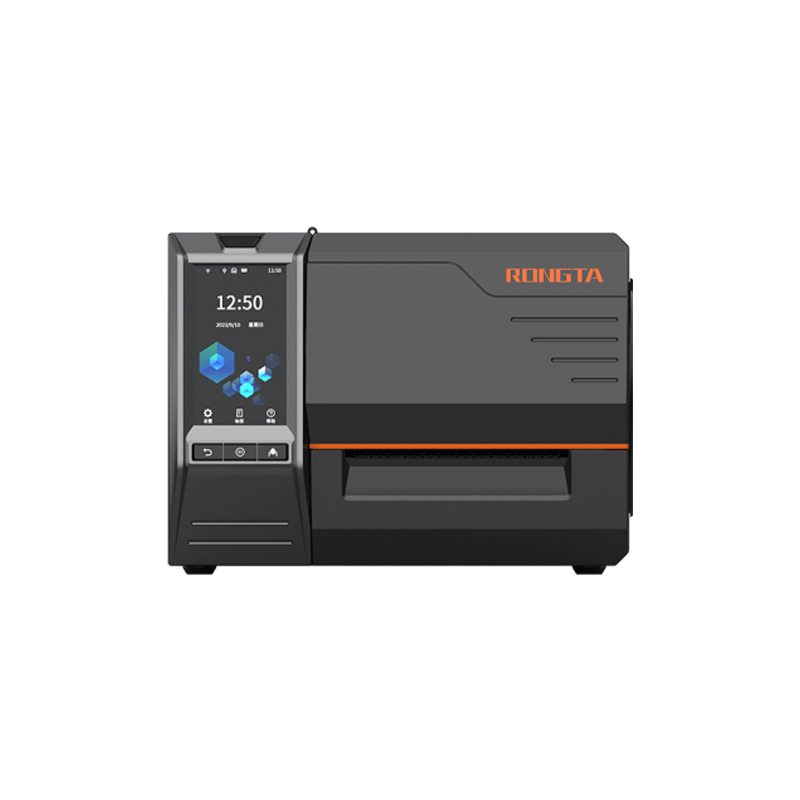 RI463 Series Barcode Printers
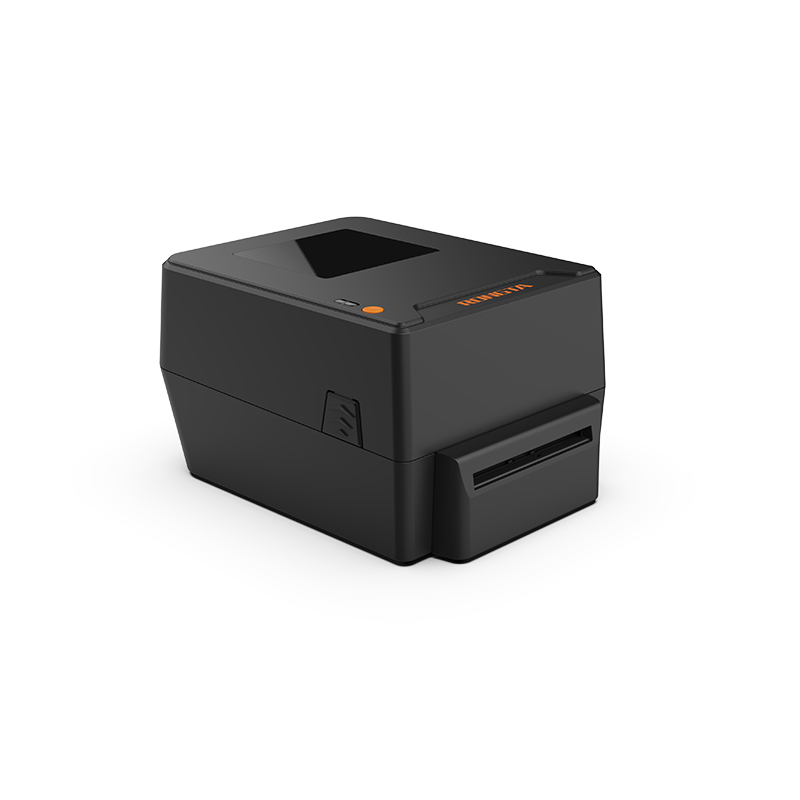 RP400A 4'' Thermal Transfer Tape Cutter Printer
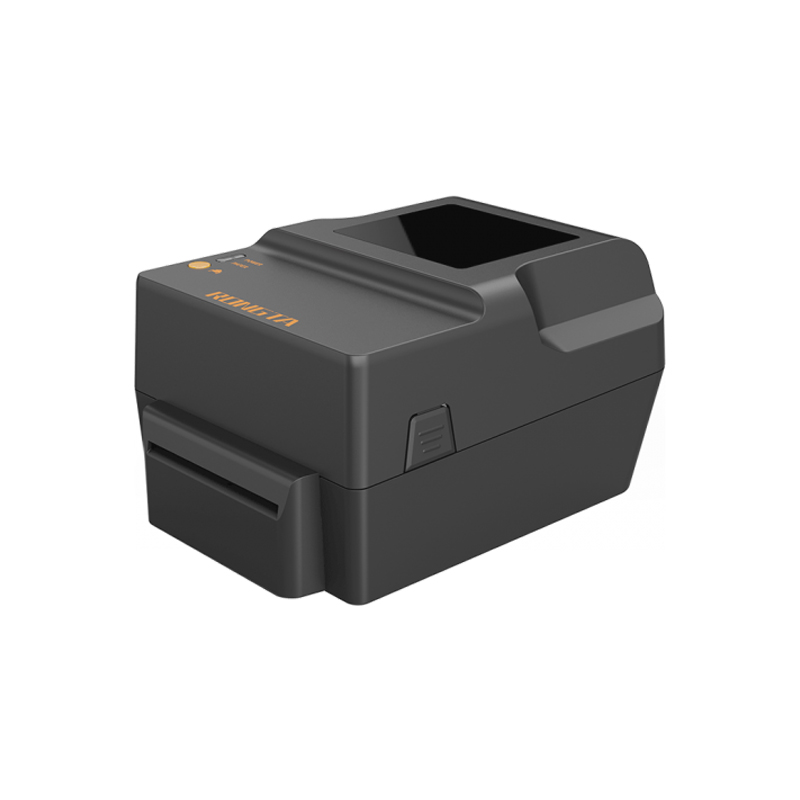 RP400H 4'' Thermal Transfer Tape Cutter Printer
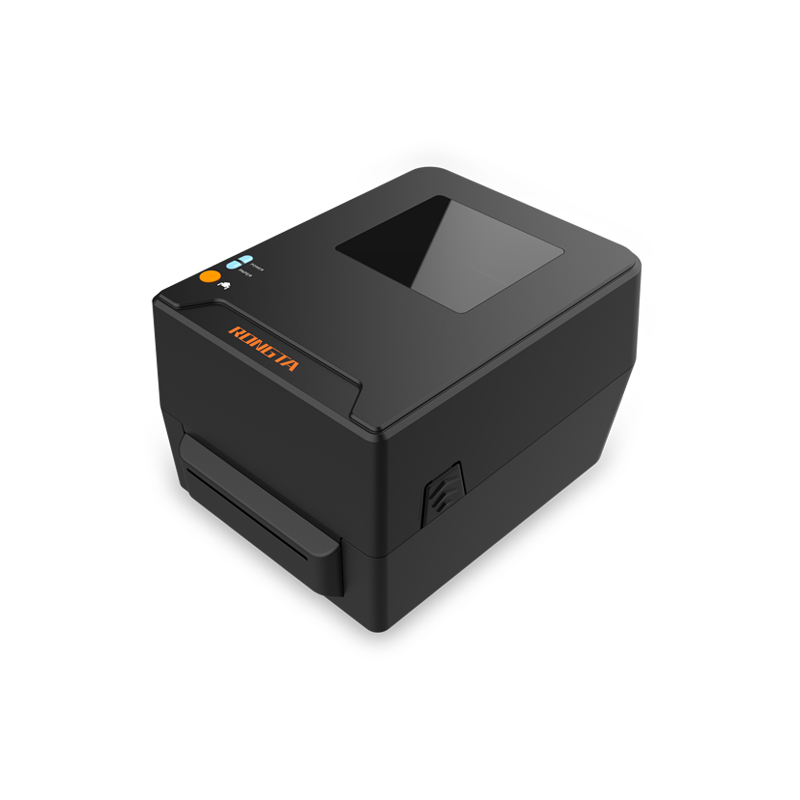 RPF413 300dpi RFID barcode label printer
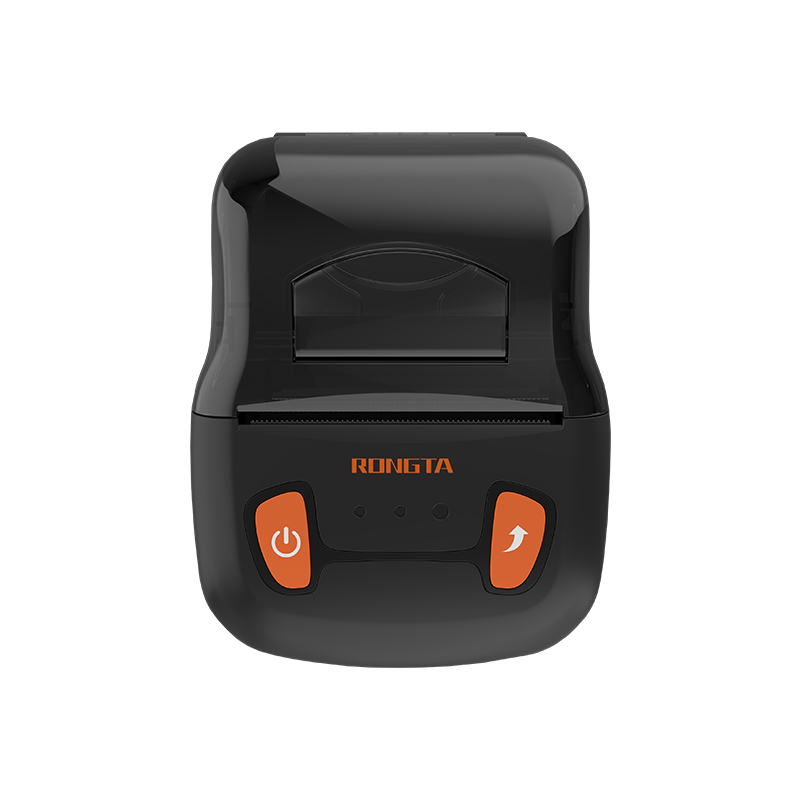 RPP02A Portable Receipt Printer
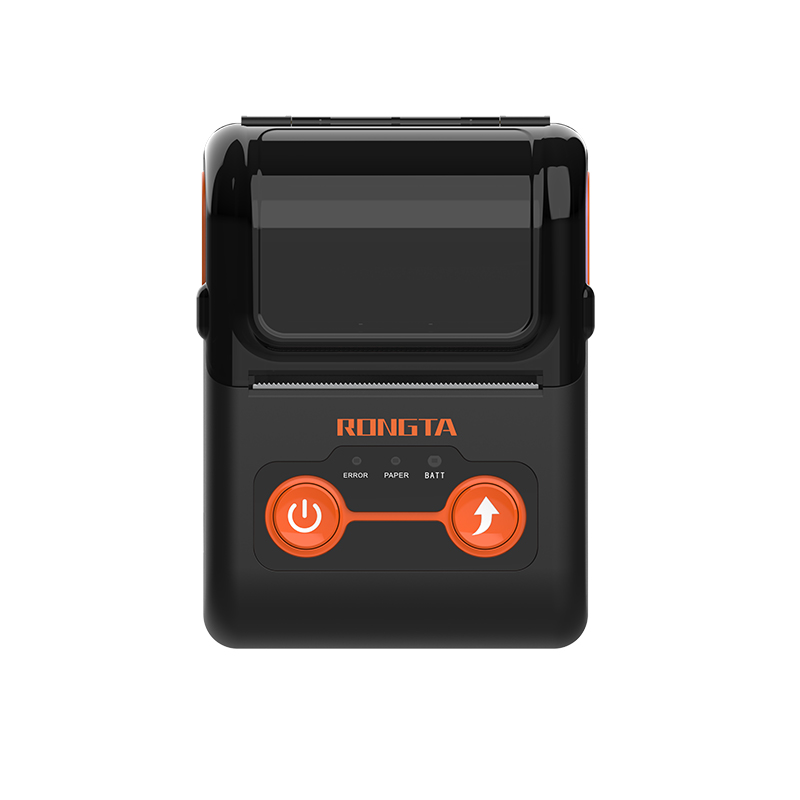 RPP02B Thermal Portable Printer
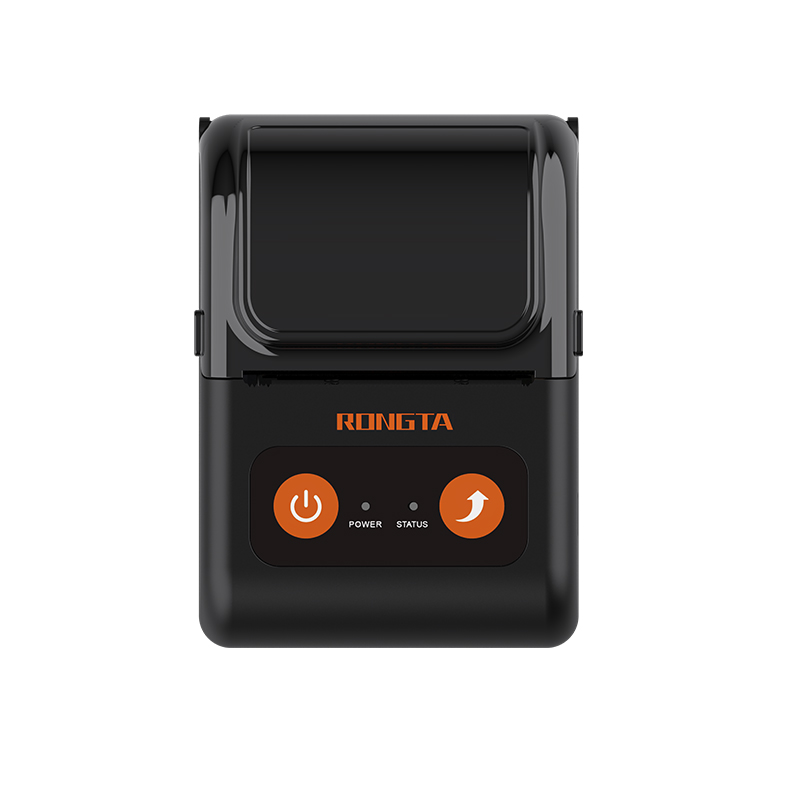 RPP02C Portable Receipt Printer
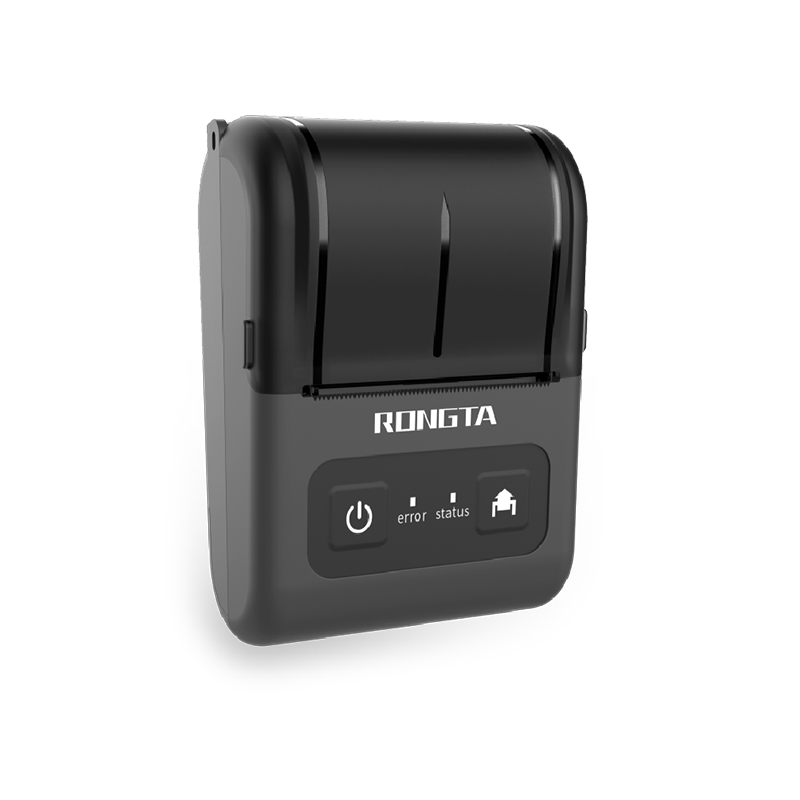 RPP02D Thermal Portable Printer
 RPP04 4" Portable Label Printer
 RPP30 3" Portable Label Printer
 ACE M1 2" Portable Label Printer
 RPP320N 3" Portable Label Printer
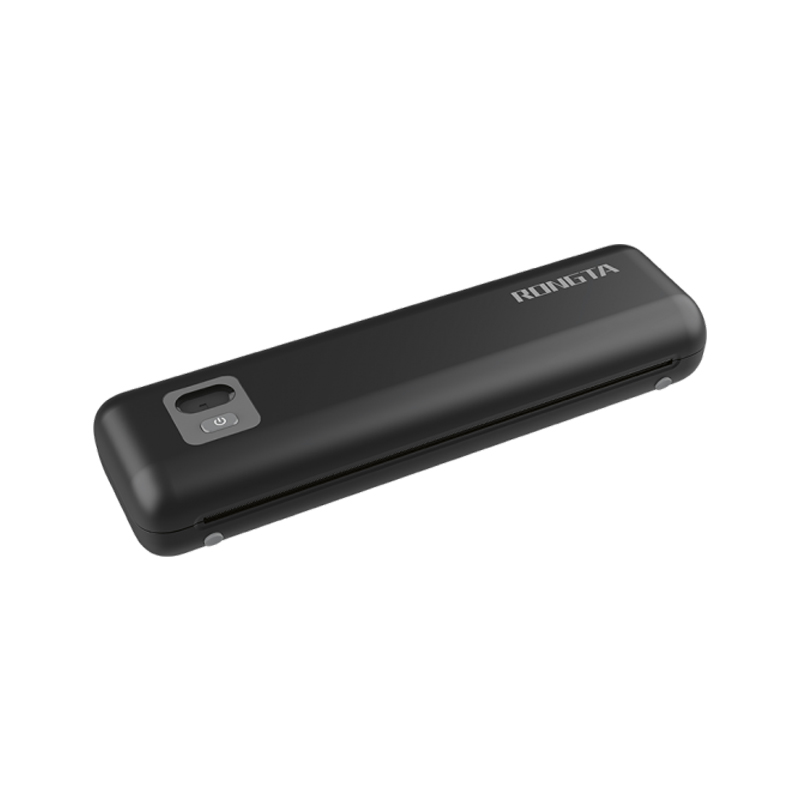 F82A A4 Front-Out Paper Tray Thermal Printer
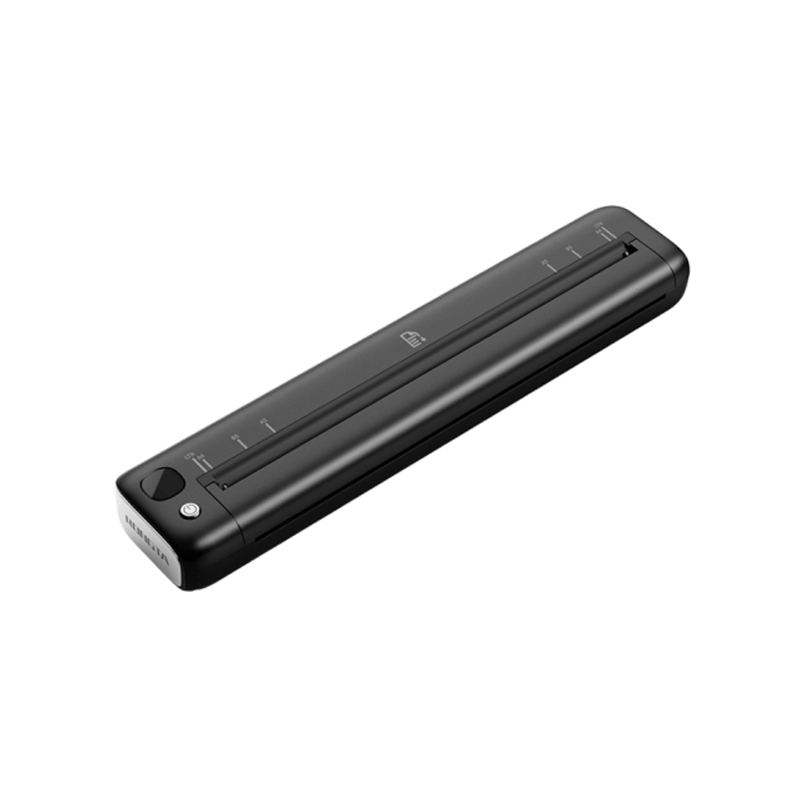 F81A Portable A4 Thermal Printer
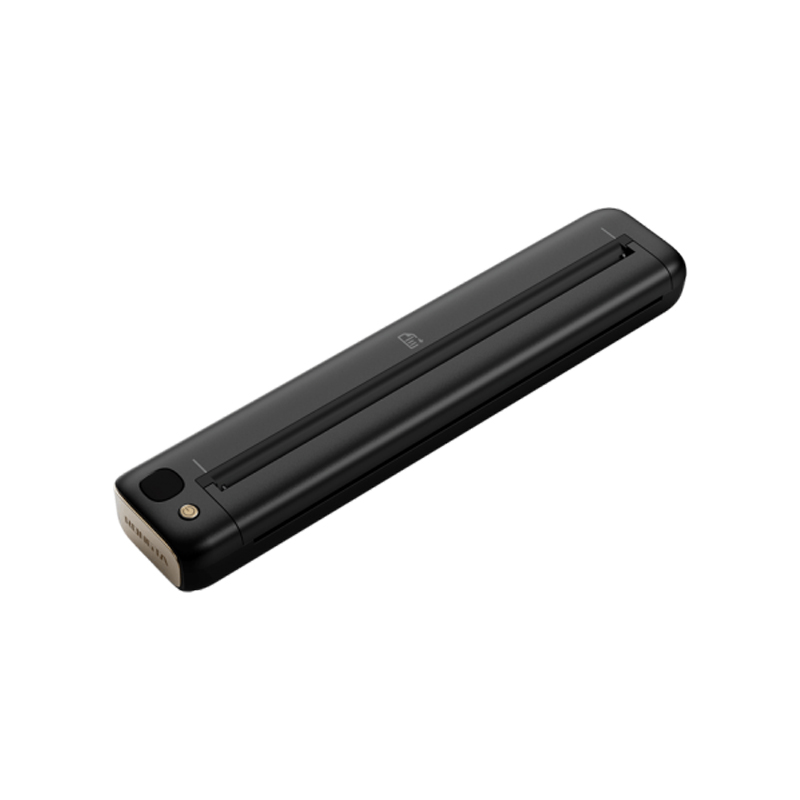 F81S Portable A4 Tattoo Printer
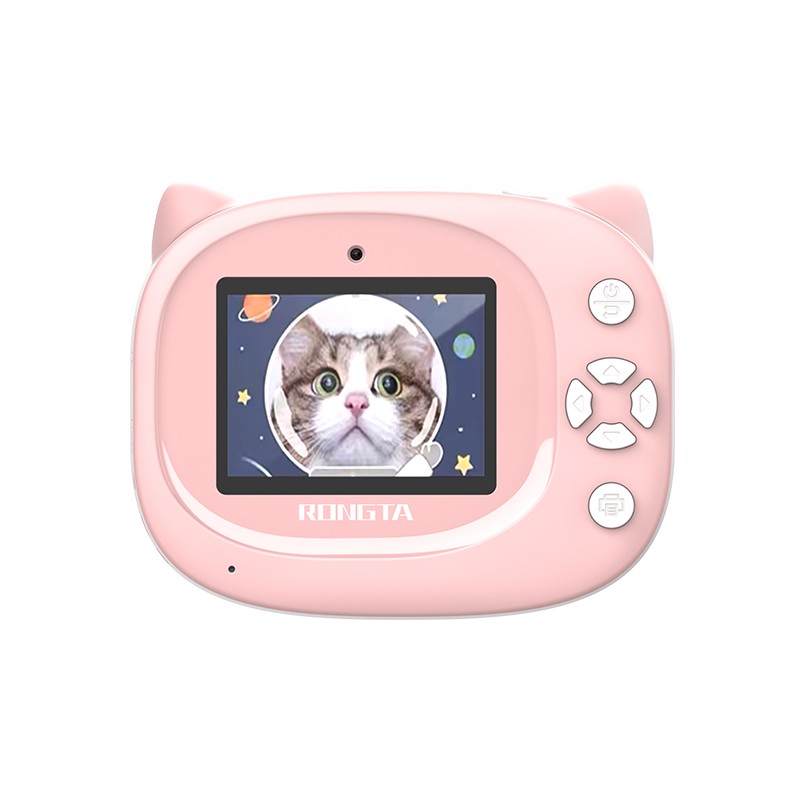 Z1 Children's Educational Photo Printer
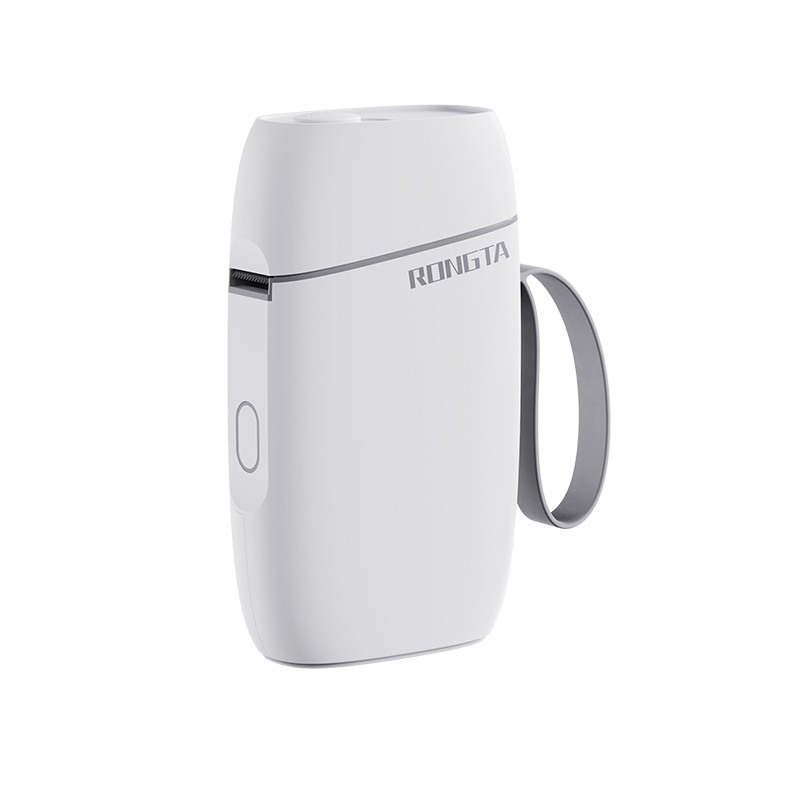 R5 Mini Label Printer
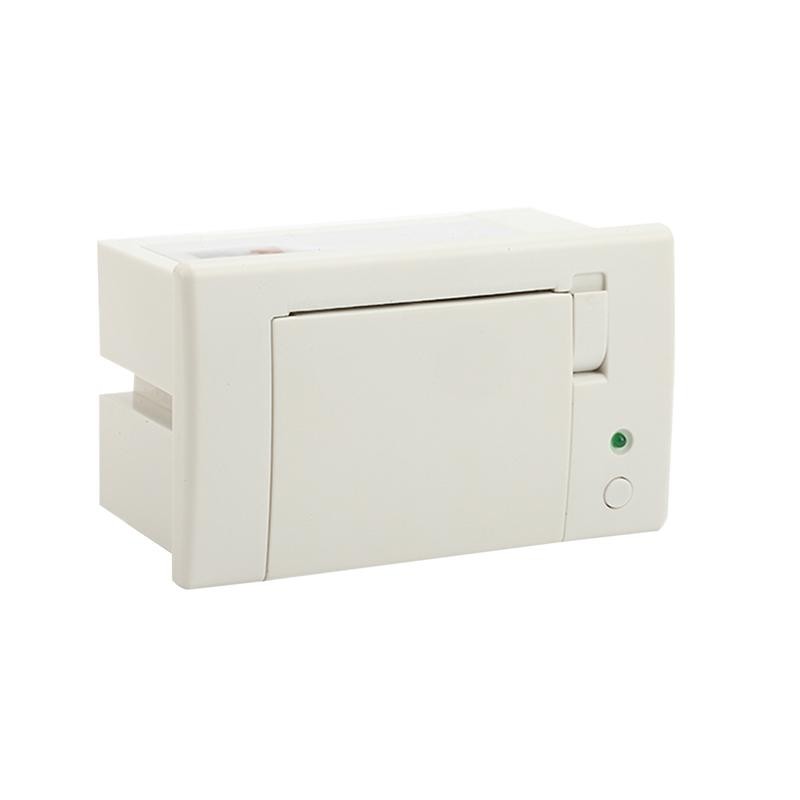 RP07 58mm Embedded Printer
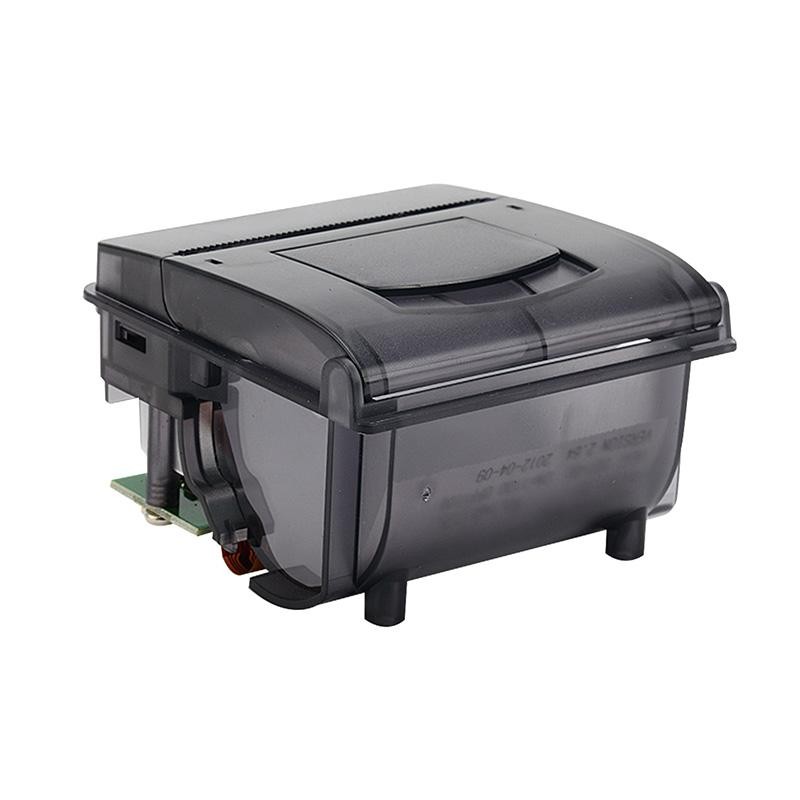 RP203 58mm Embedded Printer
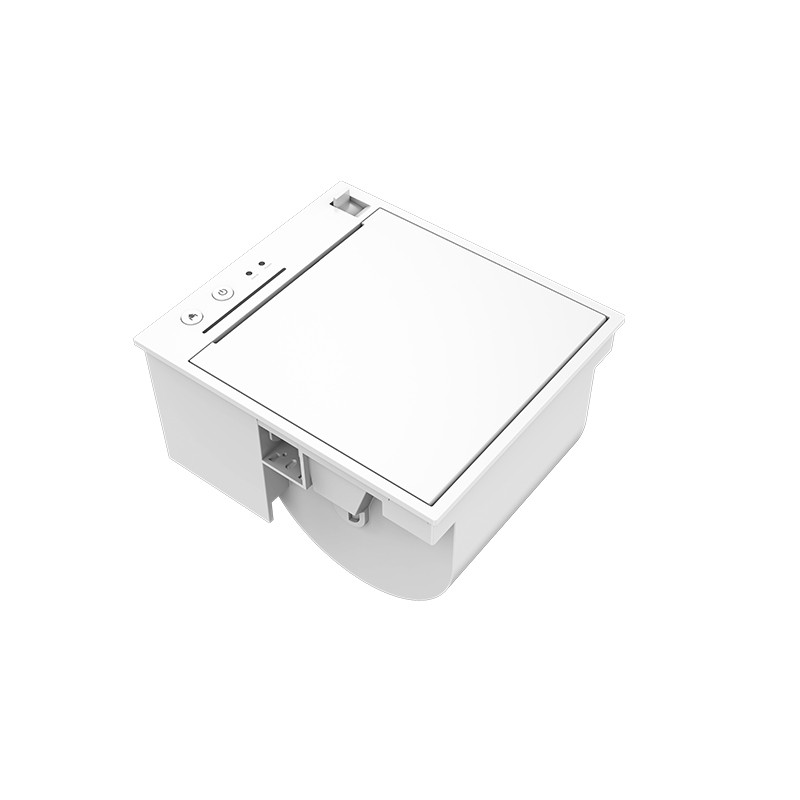 PM315 Embedded Thermal Printer
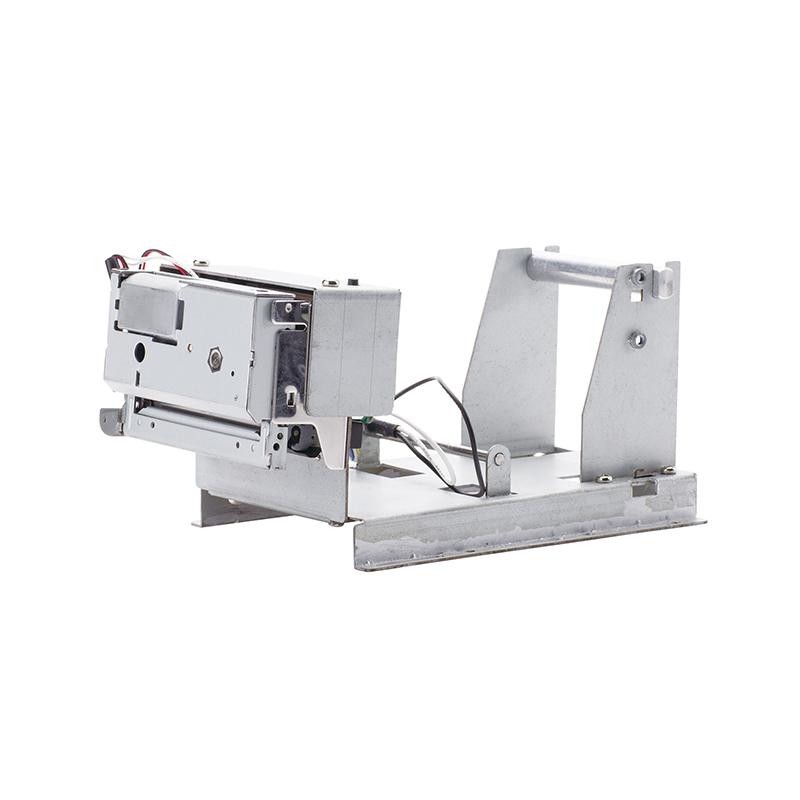 PM201 48mm Printing Module
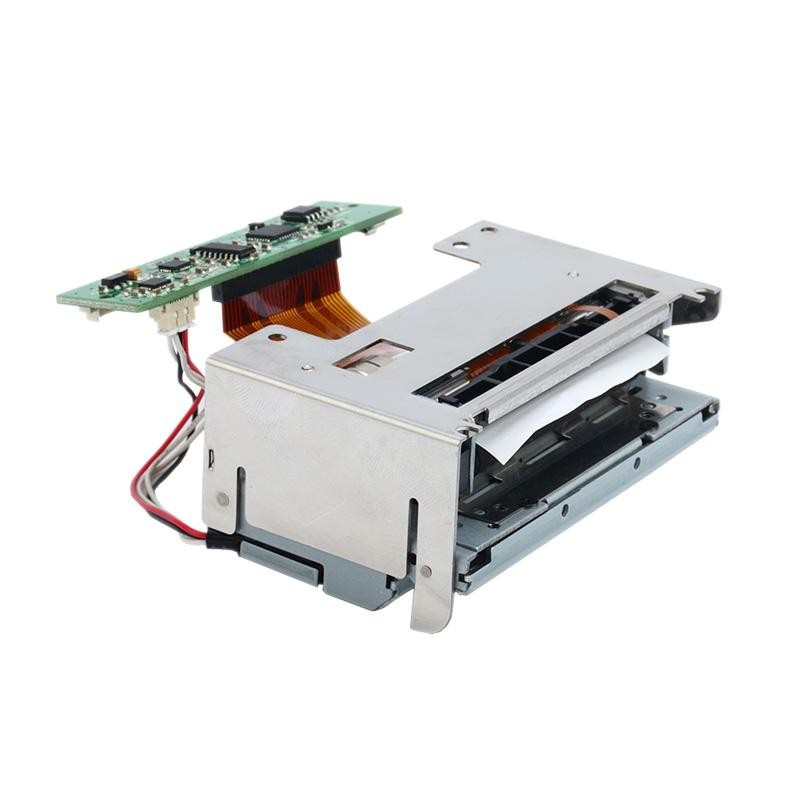 PM628 58mm printing module
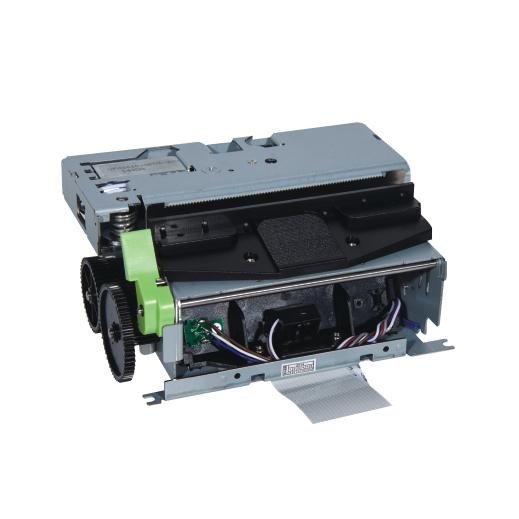 PM532A Printing Module
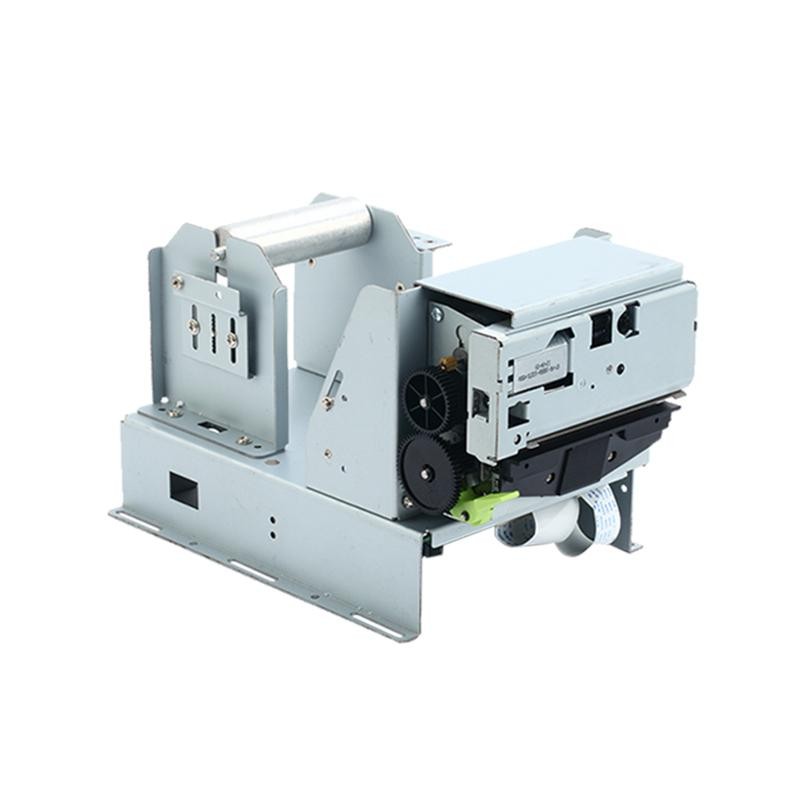 PM532B printer module
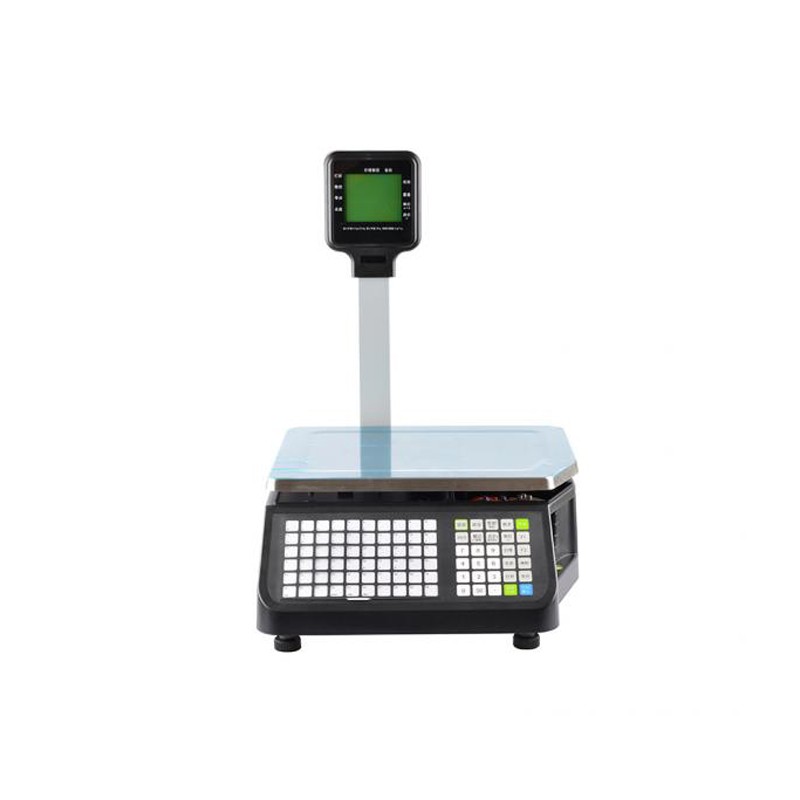 LS015/LS015A Barcode Scale
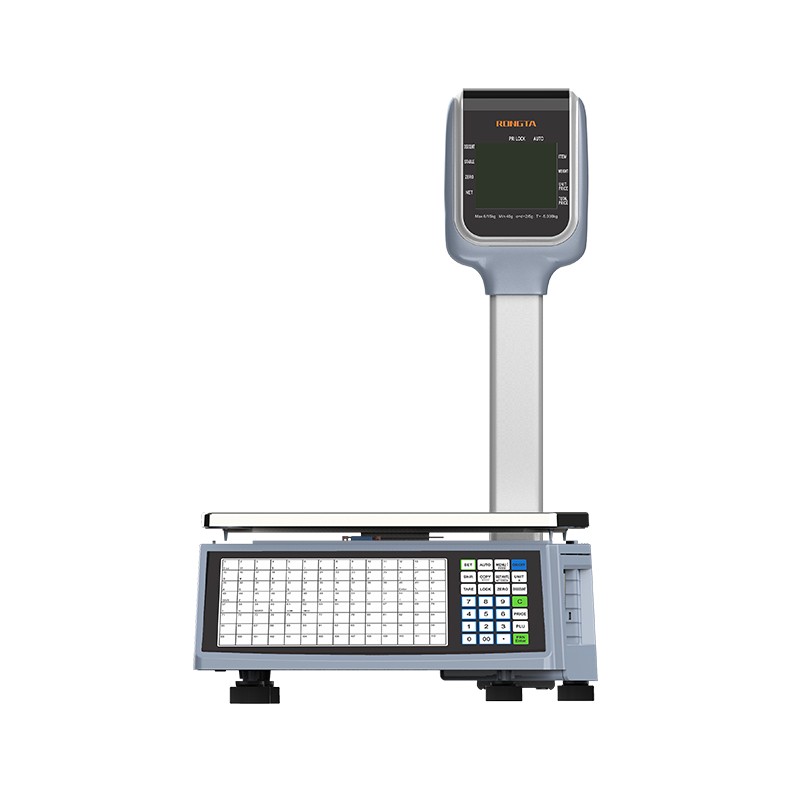 RLS1815D/RLS1830D Barcode Scale
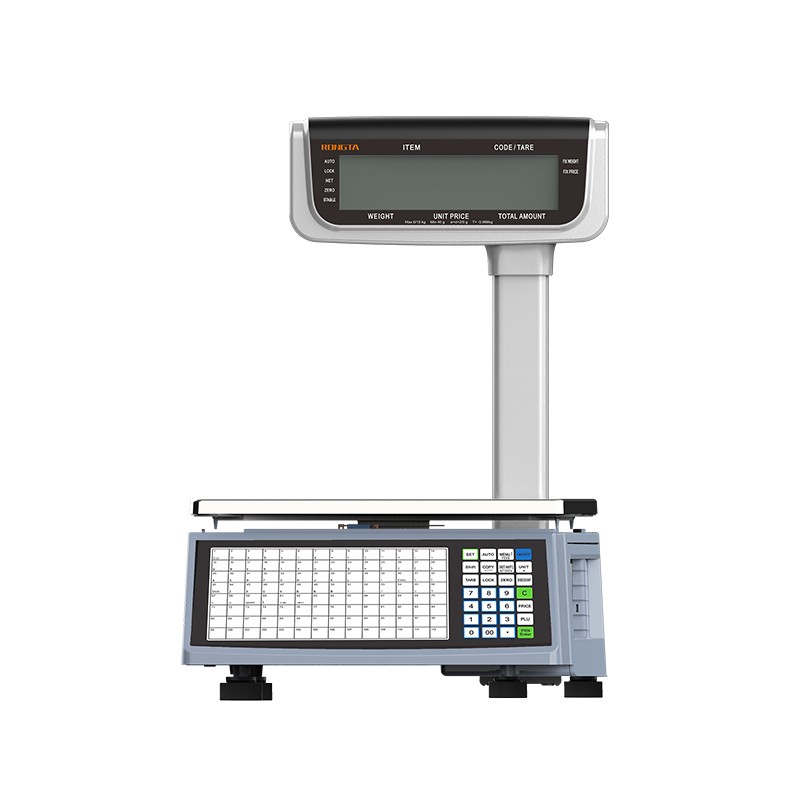 RLS1815C/RLS1830C Barcode Scale
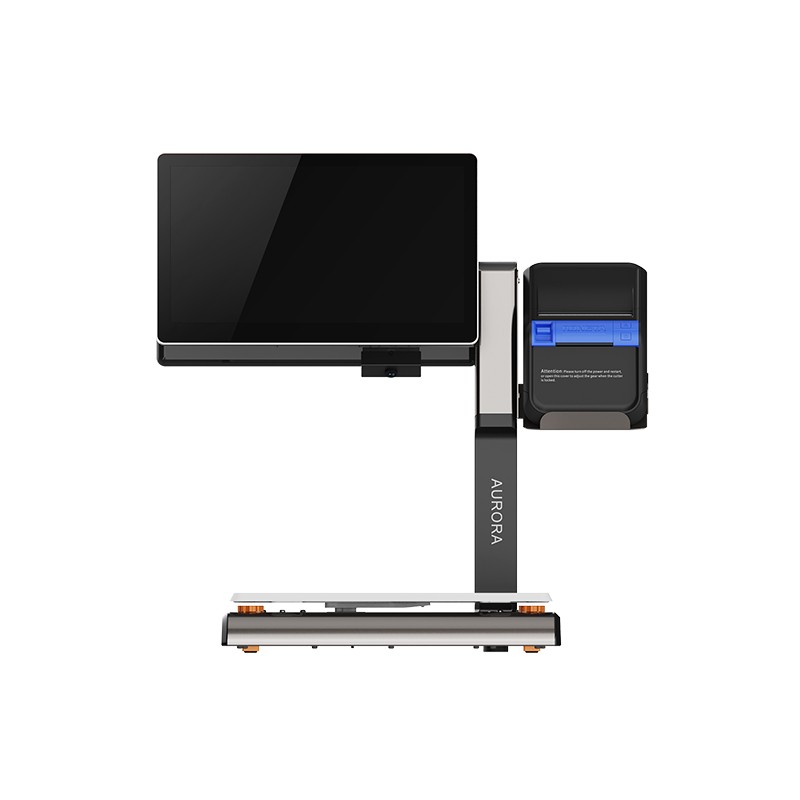 AURORA S2L-S Labelless Scale
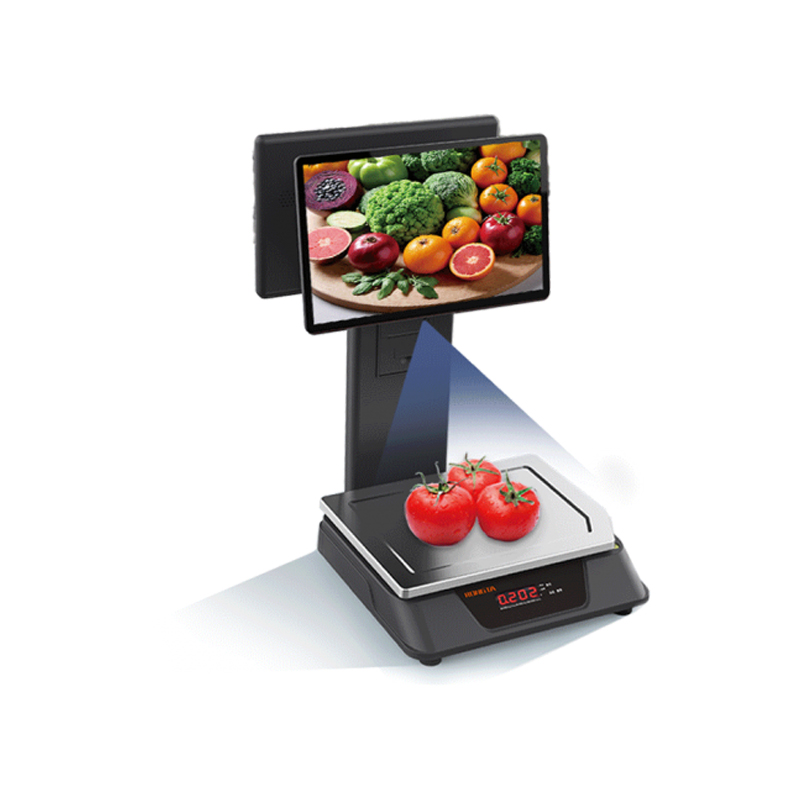 AURORA E1 PRO-AI Cash Register Scale
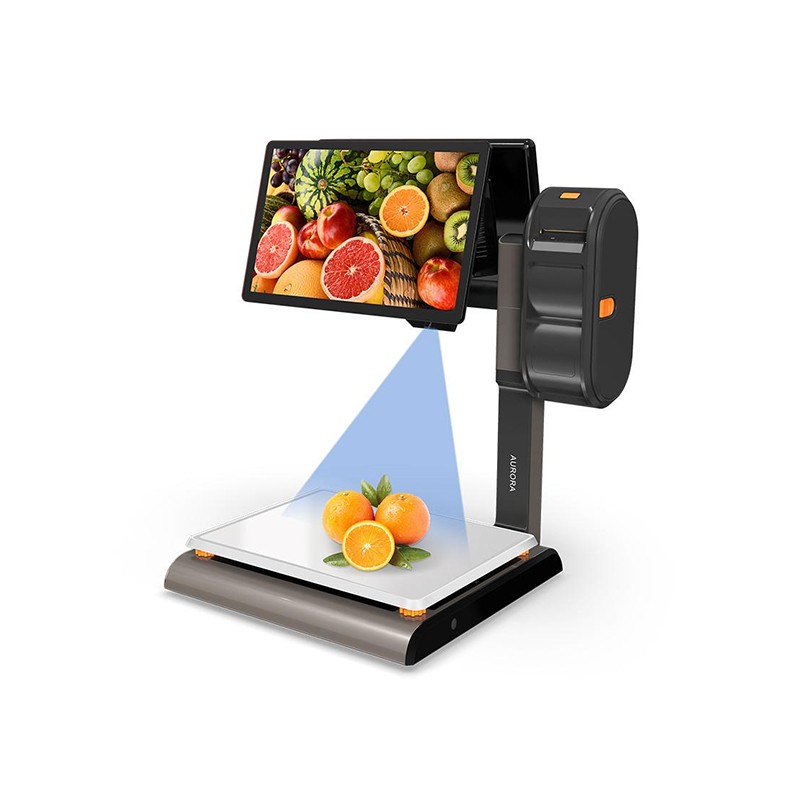 AURORA S2L-AI Label Scale
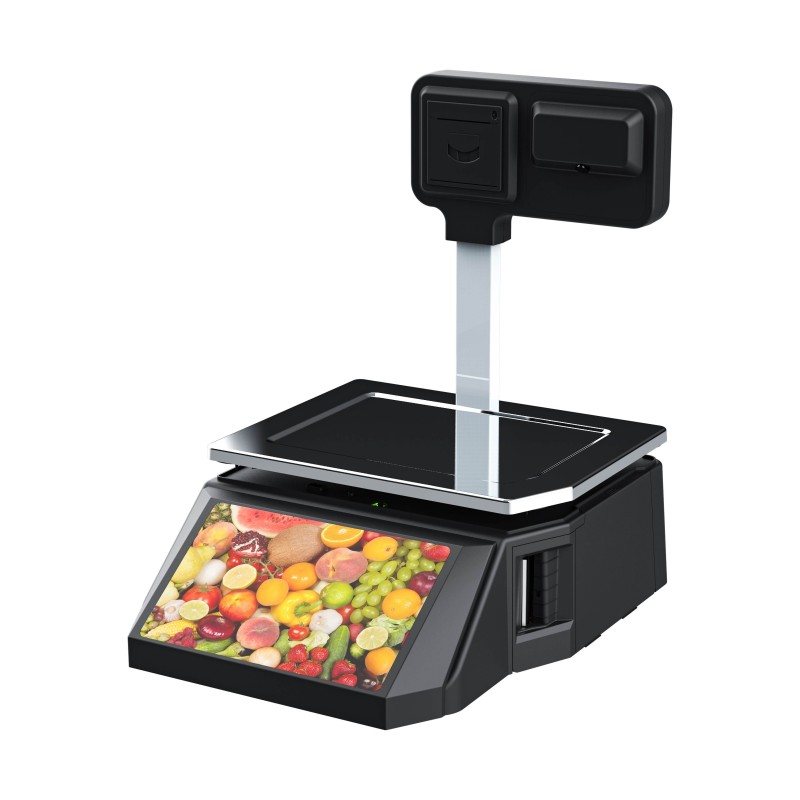 DP01-AI Smart Tag Cashier Dual-Use Scale
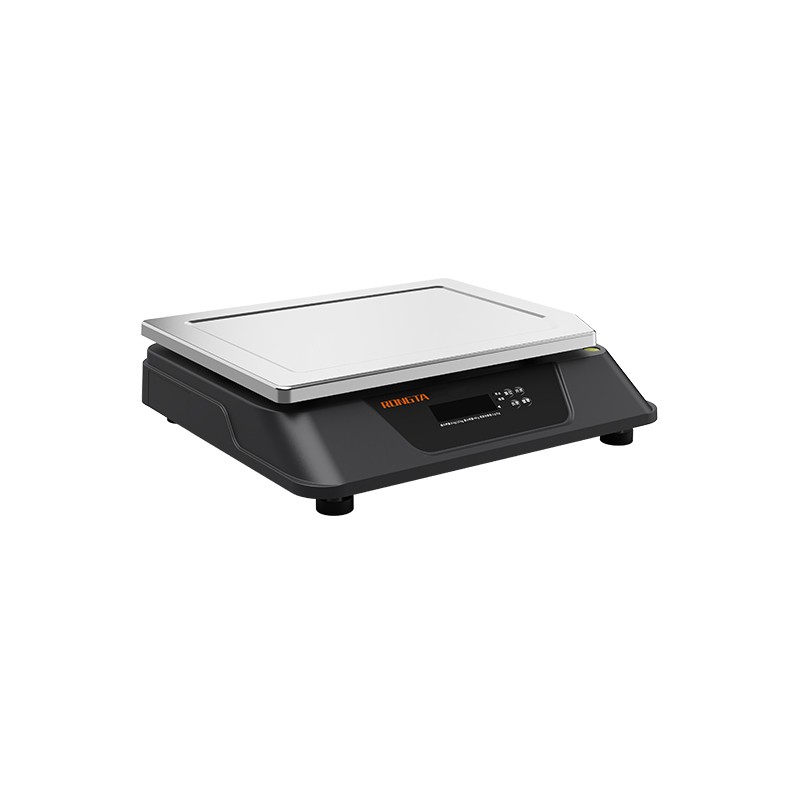 C3 Weighing Scale
 C1 weighing scale
 C11 Weighing Scale
 retail
 FOOD
FOOD Medical
 Mobile office/home
 asset Management
 logistics
 Driver download
 User Manual
 Tool Download
 Tag software
 Product Video
 Development Documentation
 Frequently Asked Questions
 User Guide
 Company News
 Exhibition Updates
 Industry Insights
 Product Update
 General situation
 Development history
 Honors and Qualifications
 R&D strength
 Team activities
 Social responsibility




Service Support
Rongda Technology RP325 Thermal Receipt Printer Installation, Indicator Lights, and Self-Test Instructions
2026-01-12
Rongda TechnologyRP325 Thermal Receipt PrinterInstallation, indicator lights, and self-test instructions
I. Installation of the paper roll
The 325 series printers use 80.0 mm thermal paper rolls and feature an easy-load paper mechanism, making paper loading very convenient.
The installation method for thermal paper is as follows:
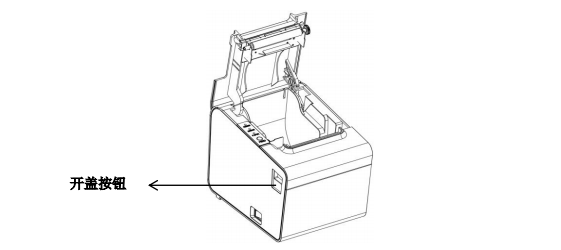
(1) Open the printer cover.
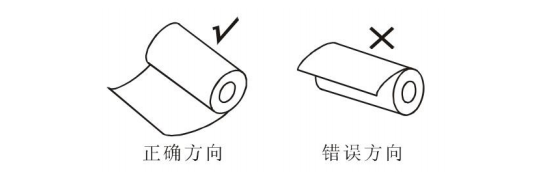
(2) Place the thermal paper roll into the paper loading compartment as shown in the figure below.
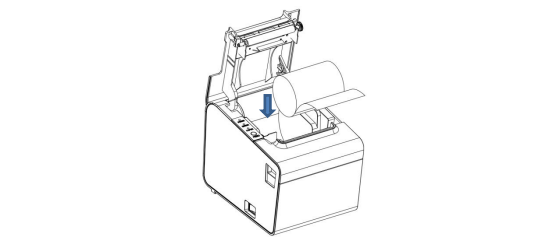
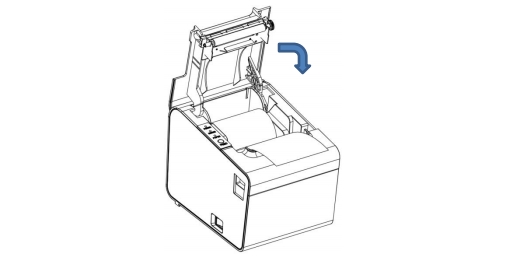
(3) Pull a small section of the printing paper out of the box and close the top cover.
(4) Use the machine's blades to tear off the excess paper roll.
?
II. Printer power switch, buttons, and indicator lights
1. Power switch
The power switch is used to turn the printer on and off. The printer's power switch is located on the left side of the printer. Pressing the "-" button turns the printer on; pressing the "O" button turns the printer off.
Note: Only turn on the switch after connecting to a power source.
2. Buttons and indicator lights
The buttons and indicator panel are shown in the following figure:
Button and indicator light function description:
FEED button: Paper feed button
In standby mode, pressing the paper feed button feeds paper continuously. During printing, the paper feed button is ineffective.
Press and hold this button before powering on the printer to perform a self-test after power-on.
POWER light (green): Power indicator
The light stays on after the power is connected.
ERROR light (red): Error indicator
The printer flashes an error indicator, such as a paper shortage, paper jam, printhead overheating, printhead error, or other abnormalities.
PAPER light (red): Paper detection indicator
The paper detection indicator light stays on when the printer is out of paper. It turns off when the paper out sensor detects paper.
?
III. Printer Self-Test
The self-test function checks if the printer is working properly. If it correctly prints the self-test checklist, it means that everything is normal except for the connection interface with the host computer; otherwise, it needs to be repaired. The self-test will print the software version number, print density, interface type, and English and some Chinese characters in sequence.
The self-test procedure is as follows: After the printer is connected, press and hold the paper feed button and then turn it on.
To power on the printer, first perform a printer reset test. After the reset is complete, release the FEED button in less than 5 seconds. The printer will then perform a self-test and print out a self-test checklist.