

 80mm Receipt Printer
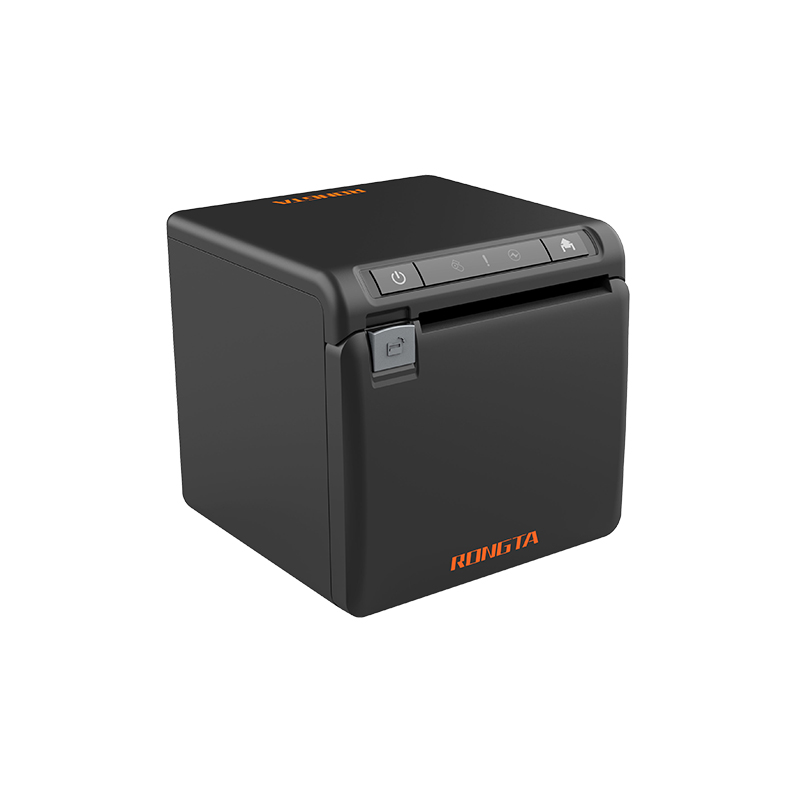 ACE H2 Receipt Printer
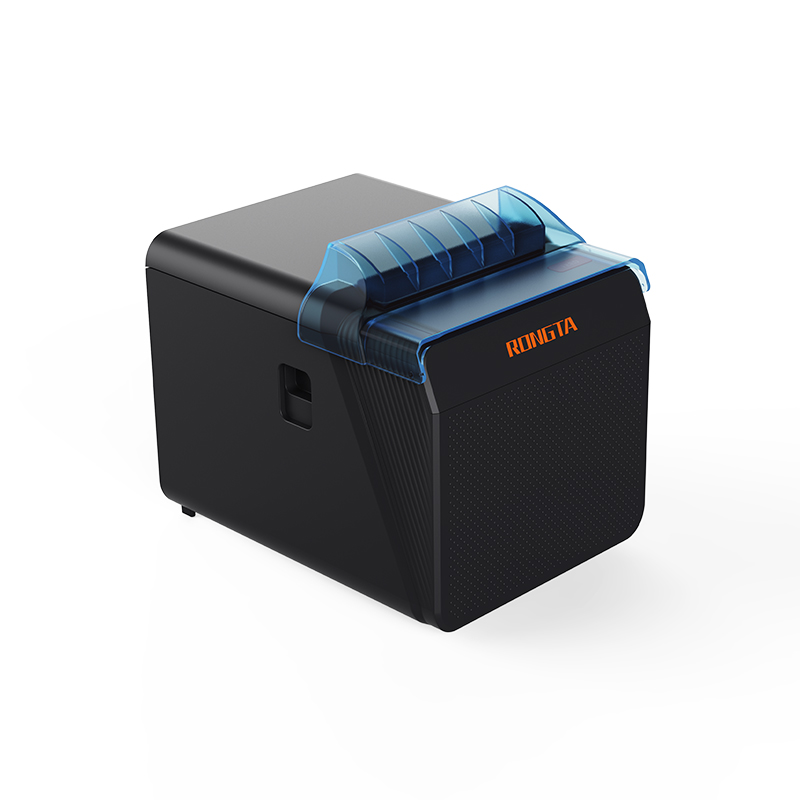 RP337 Receipt Printer
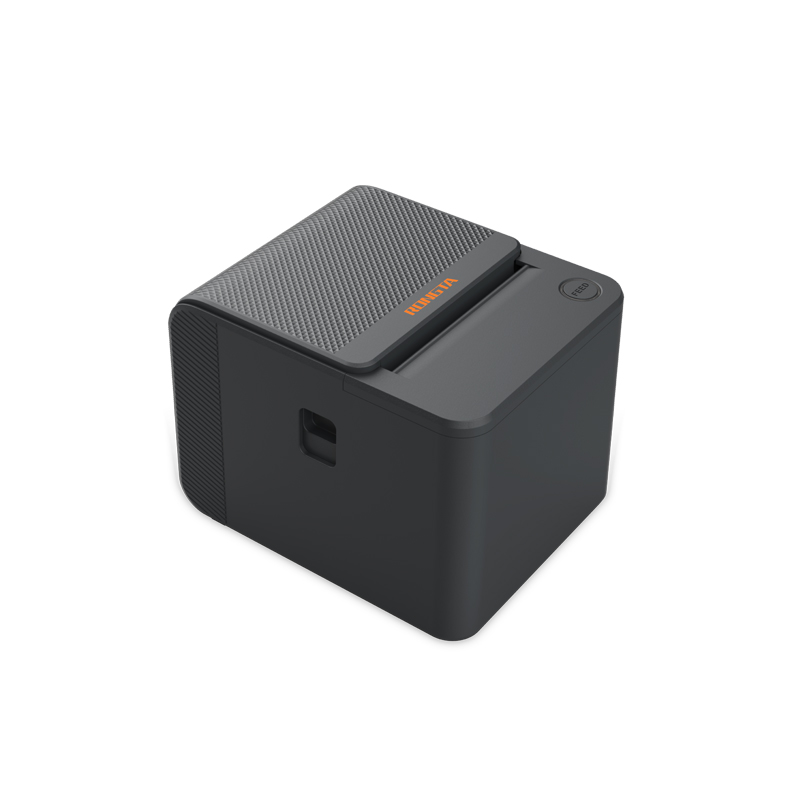 RP336S Dual-Color Receipt Printer
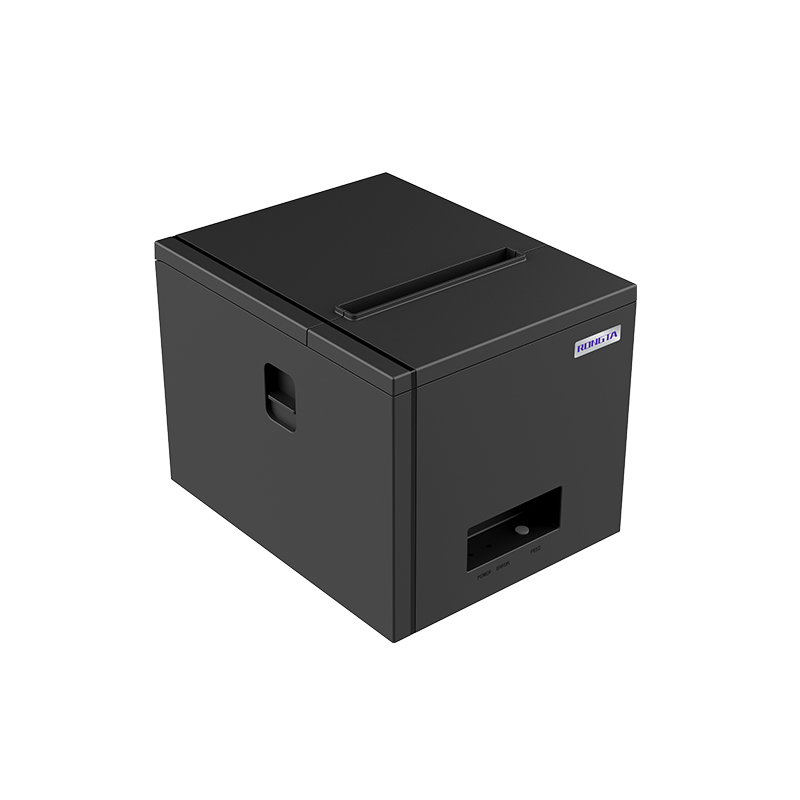 RP350 Receipt Printer
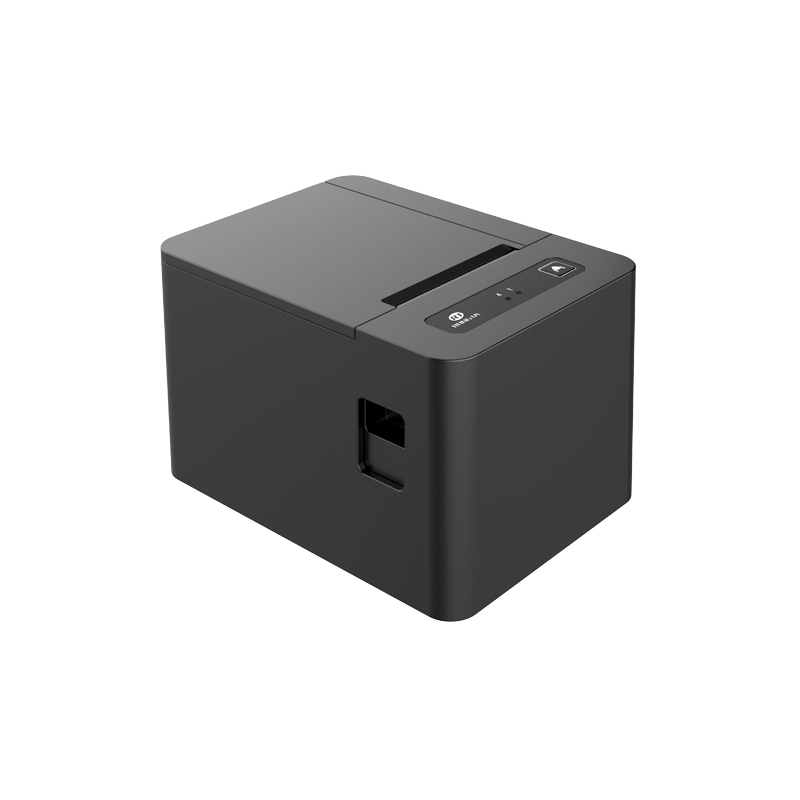 RP582 Receipt Printer
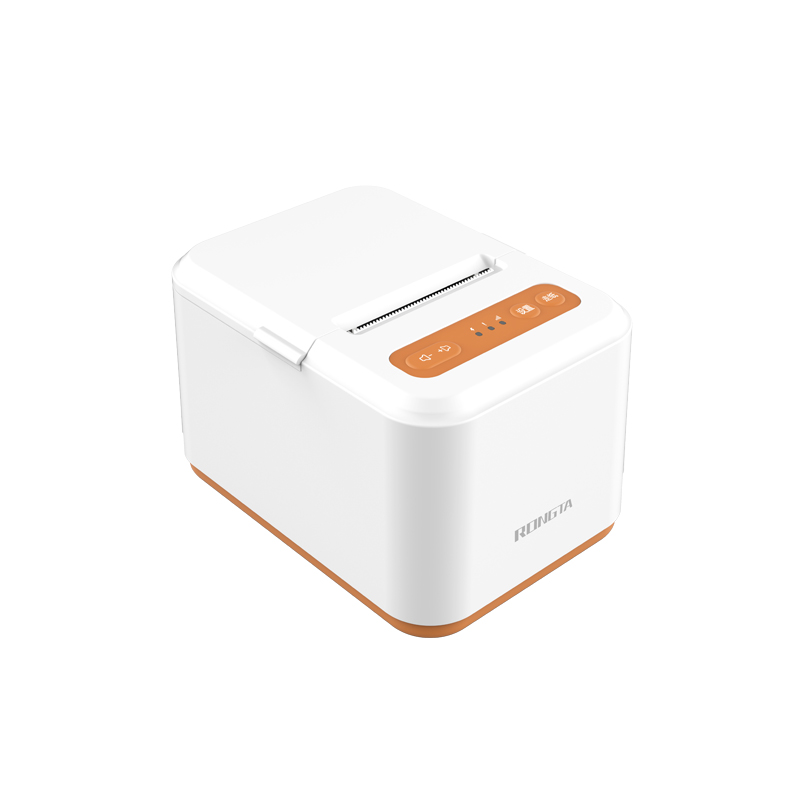 RP581 Receipt Printer
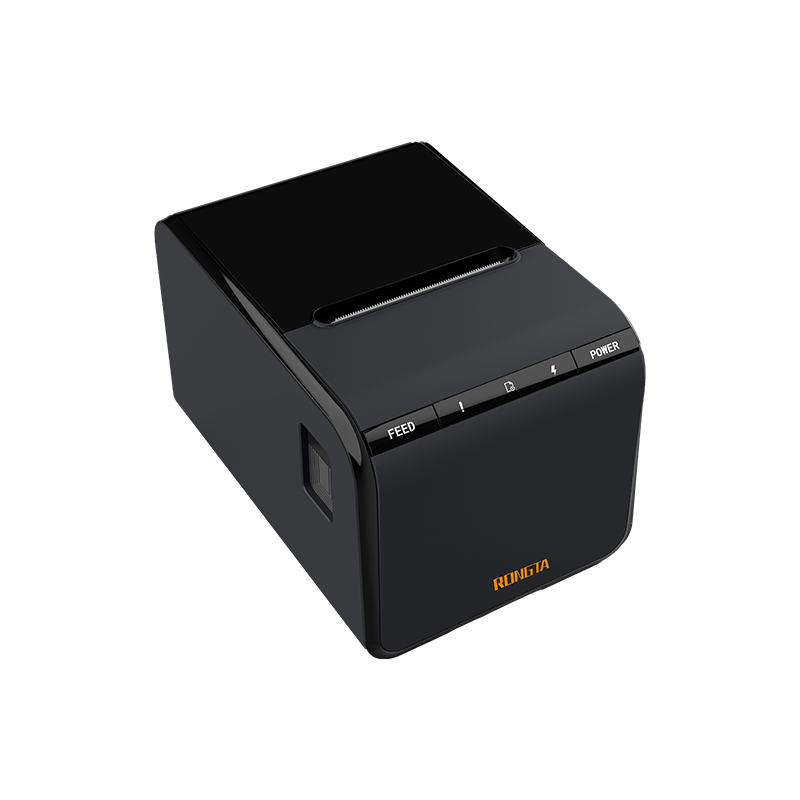 ACE G1Y Receipt Printer
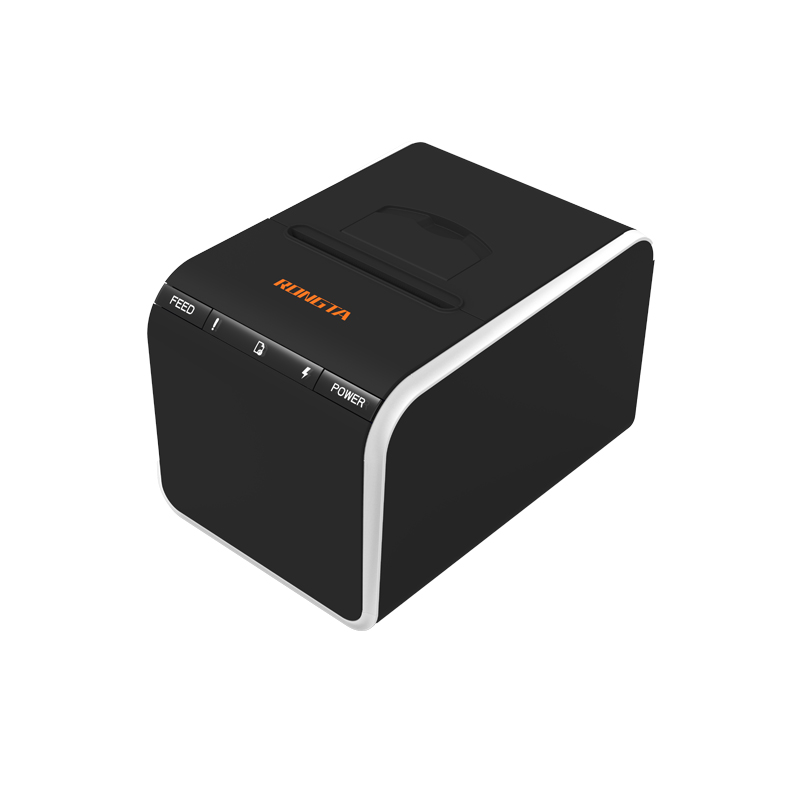 ACE G1YP Cloud Printer
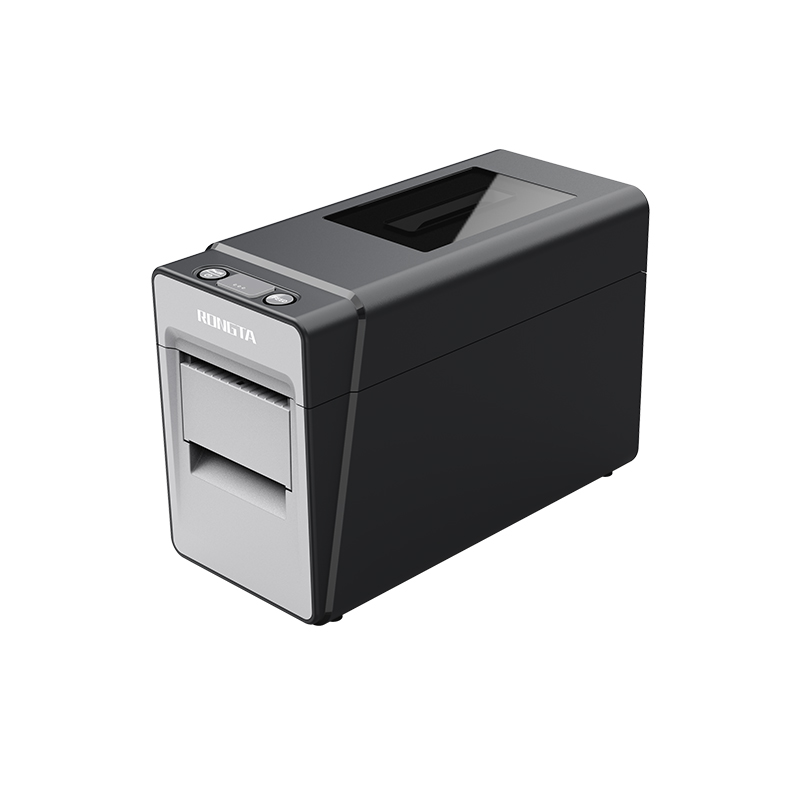 RP216 2'' Dual-color High-definition Label Printer
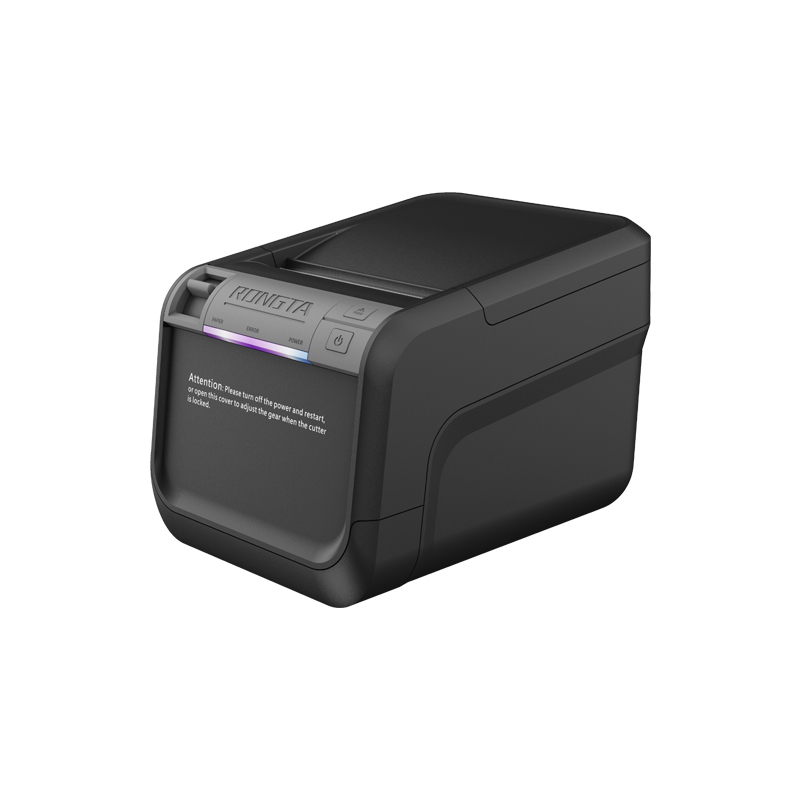 ACE V1S 3'' Backless Label Printer
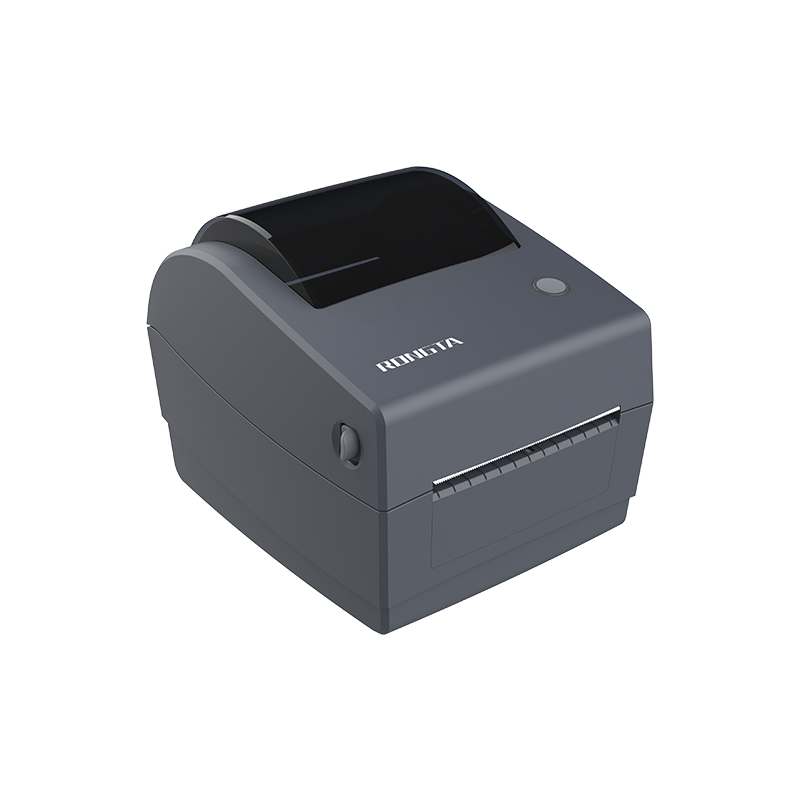 RP310D 3'' Dual-color Label Printer
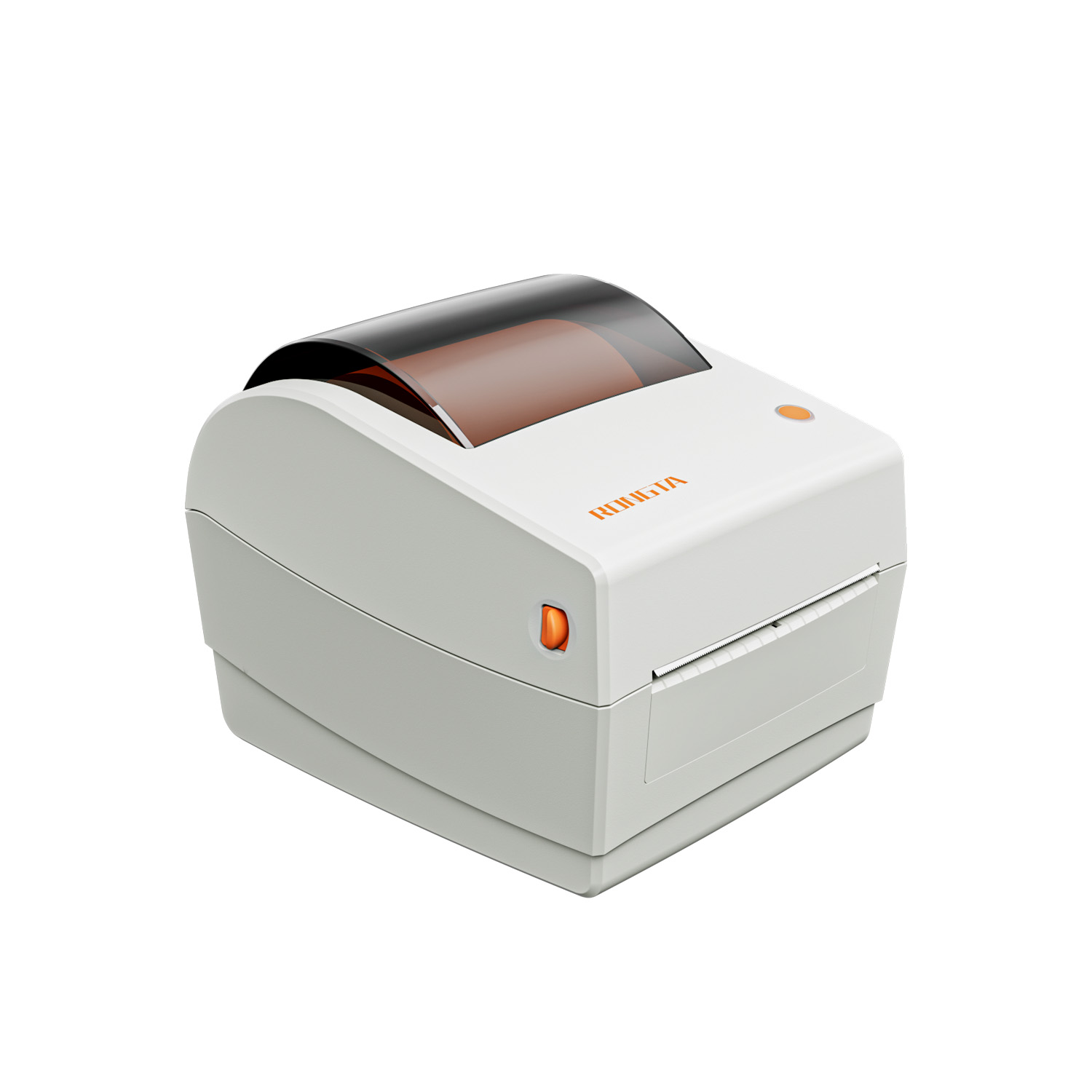 RP410N 4'' Thermal Label Printer
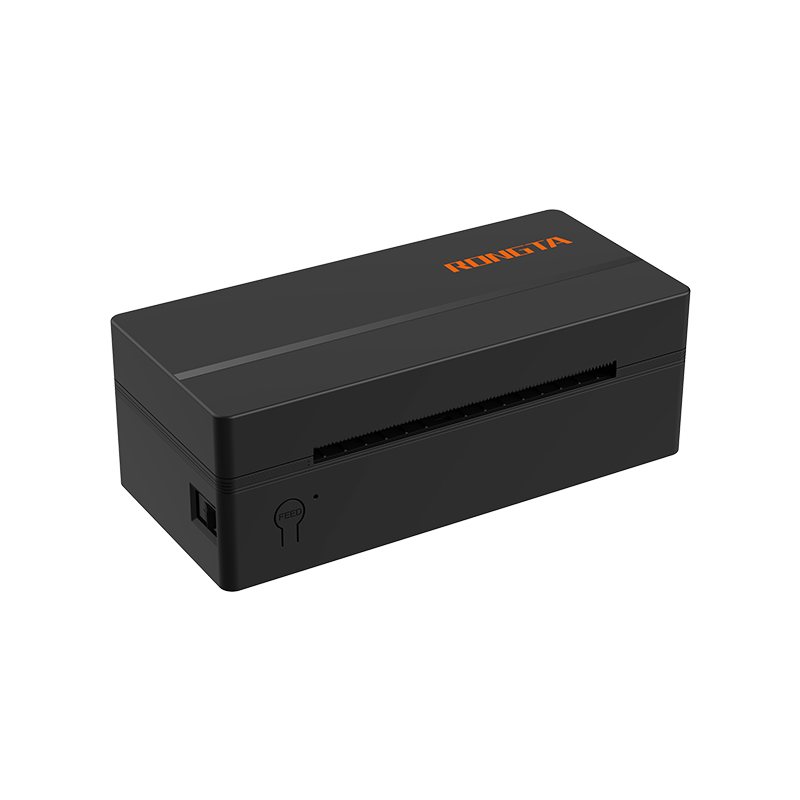 RP425 4'' Electronic Waybill Printer
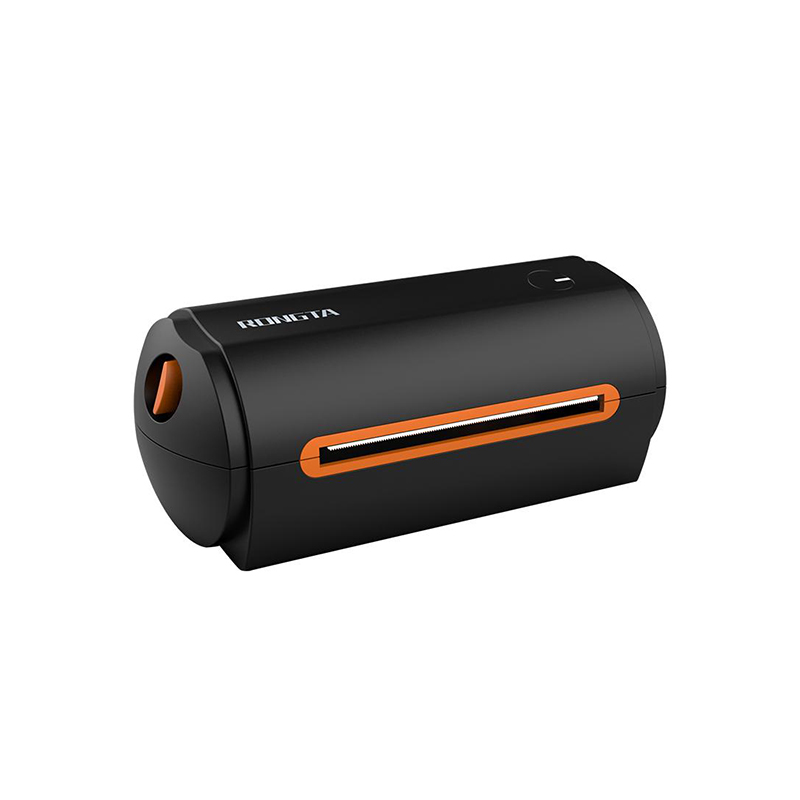 RP422 4'' Electronic Waybill Printer
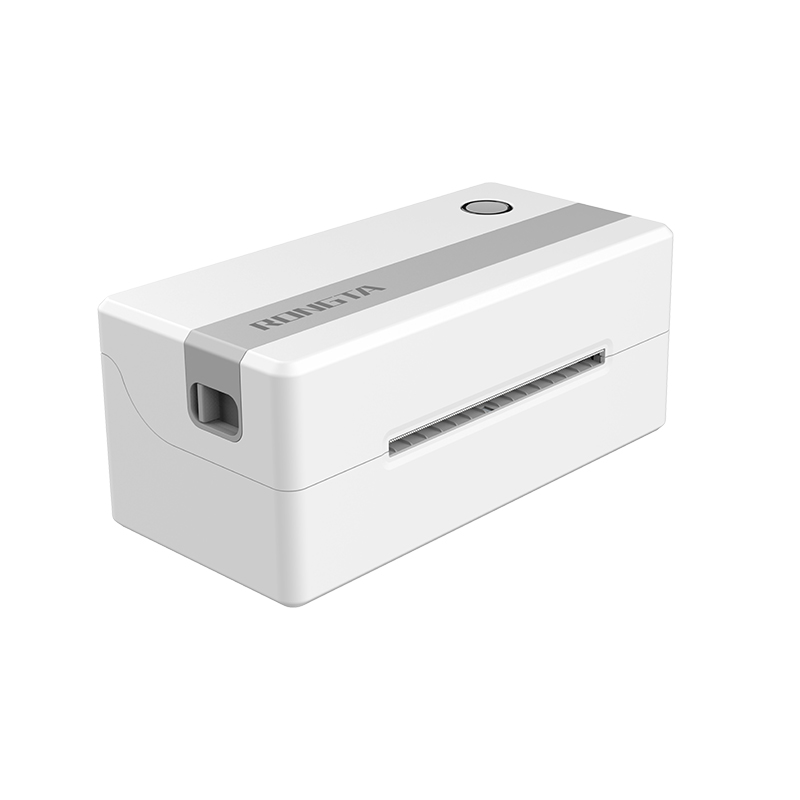 RP421A 4'' Electronic Waybill Printer
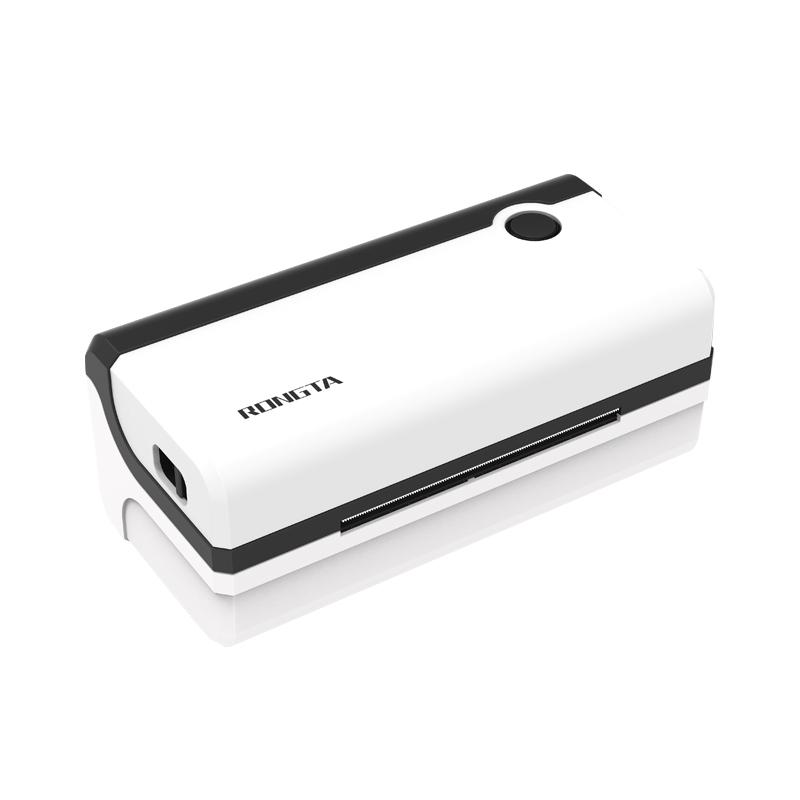 RP420 4'' Electronic Waybill Printer
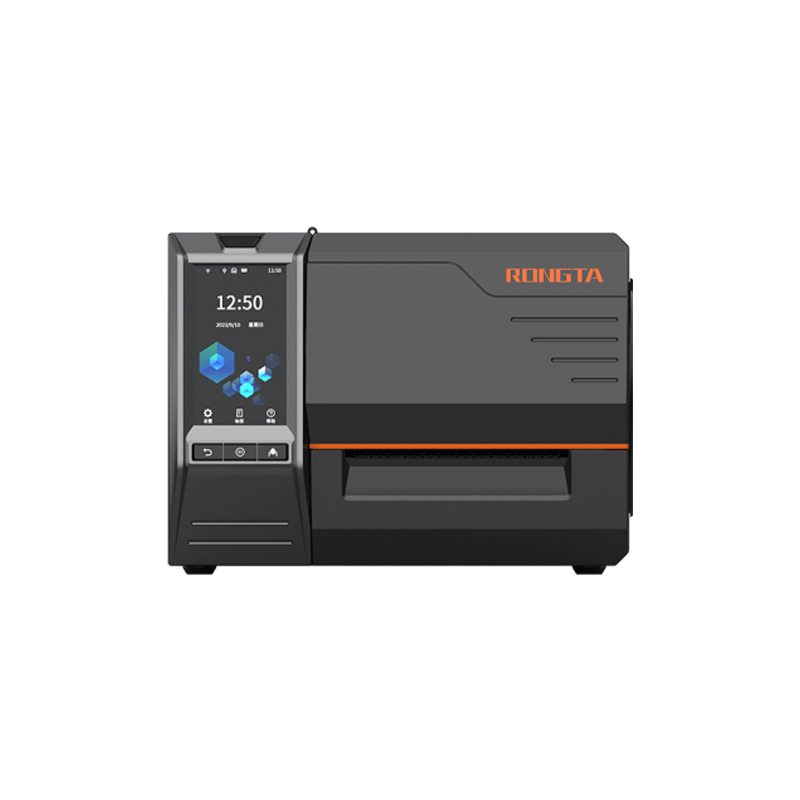 RI463 Series Barcode Printers
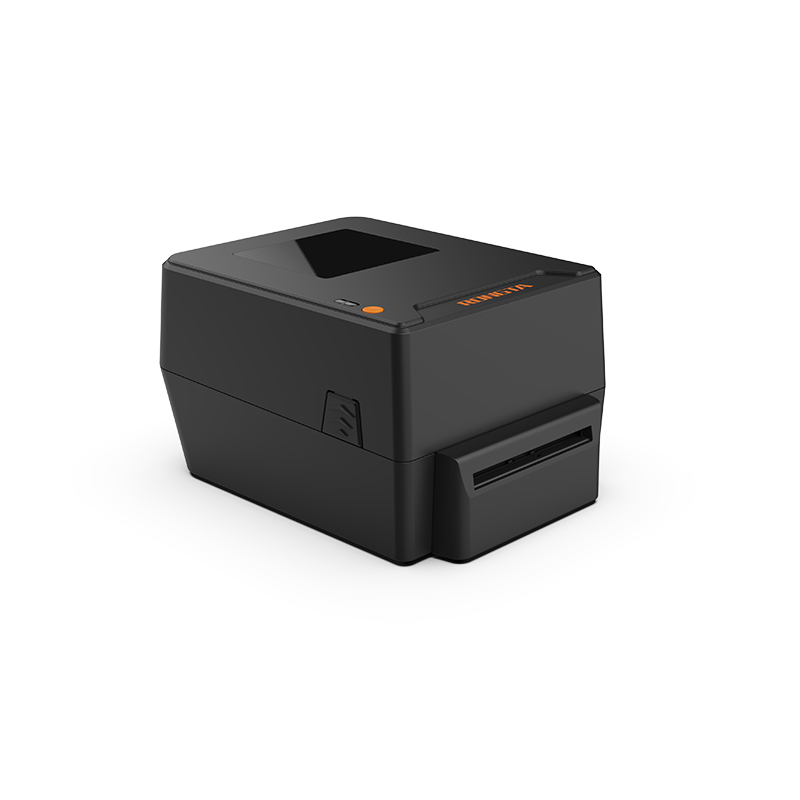 RP400A 4'' Thermal Transfer Tape Cutter Printer
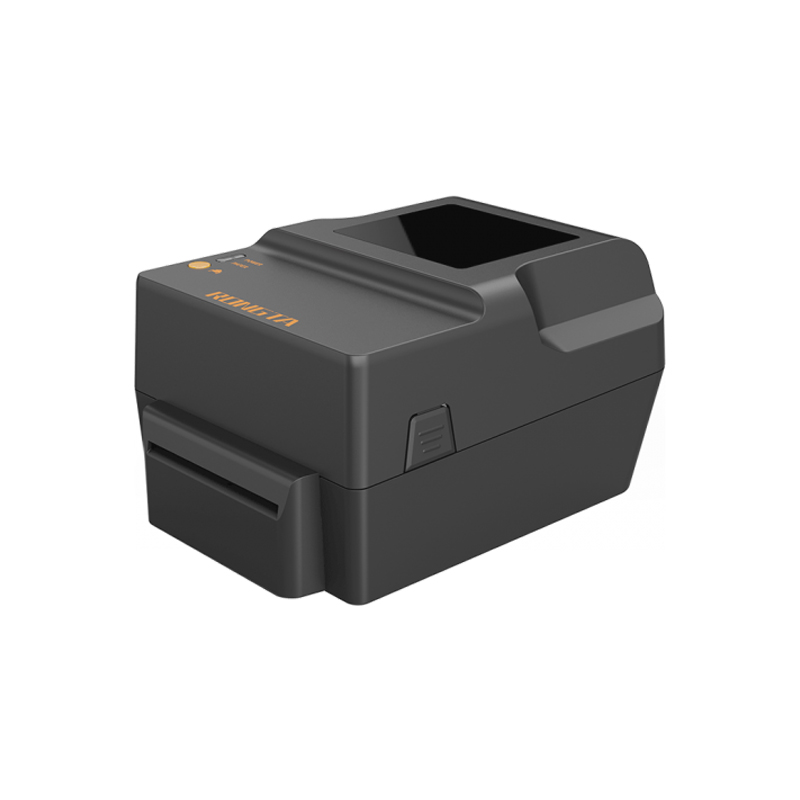 RP400H 4'' Thermal Transfer Tape Cutter Printer
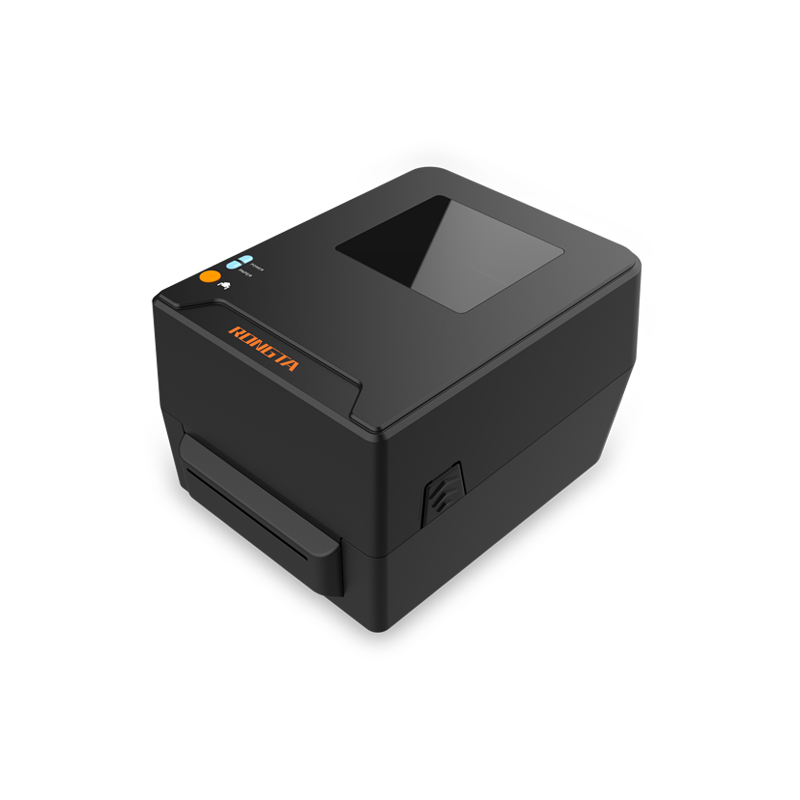 RPF413 300dpi RFID barcode label printer
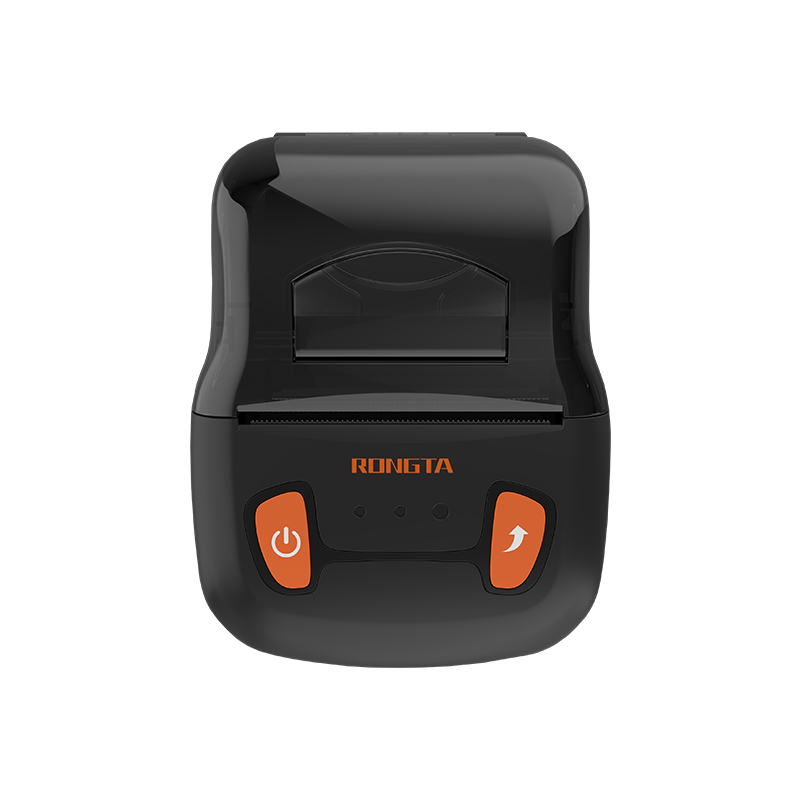 RPP02A Portable Receipt Printer
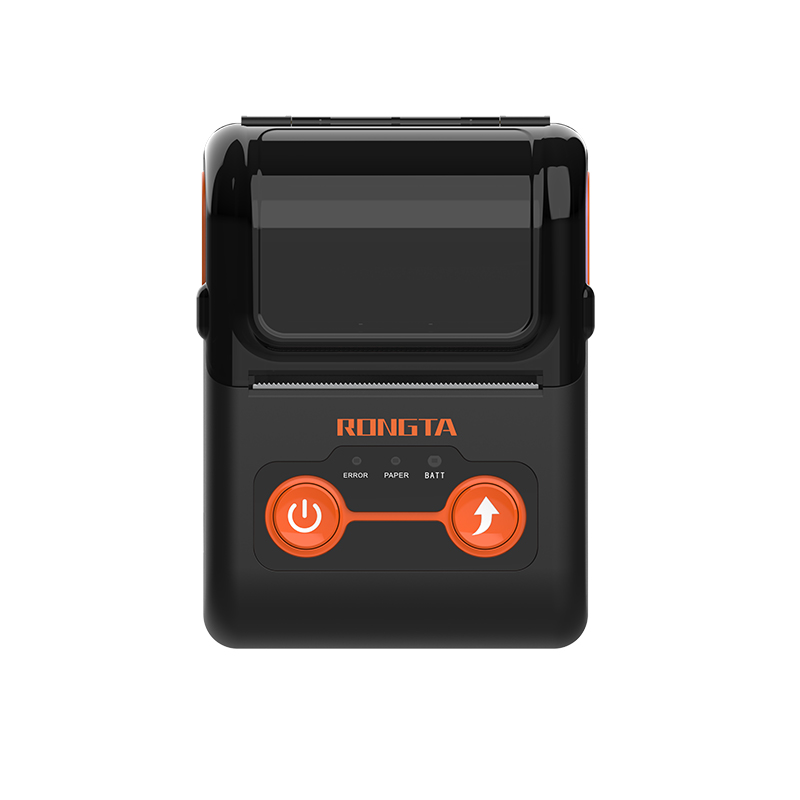 RPP02B Thermal Portable Printer
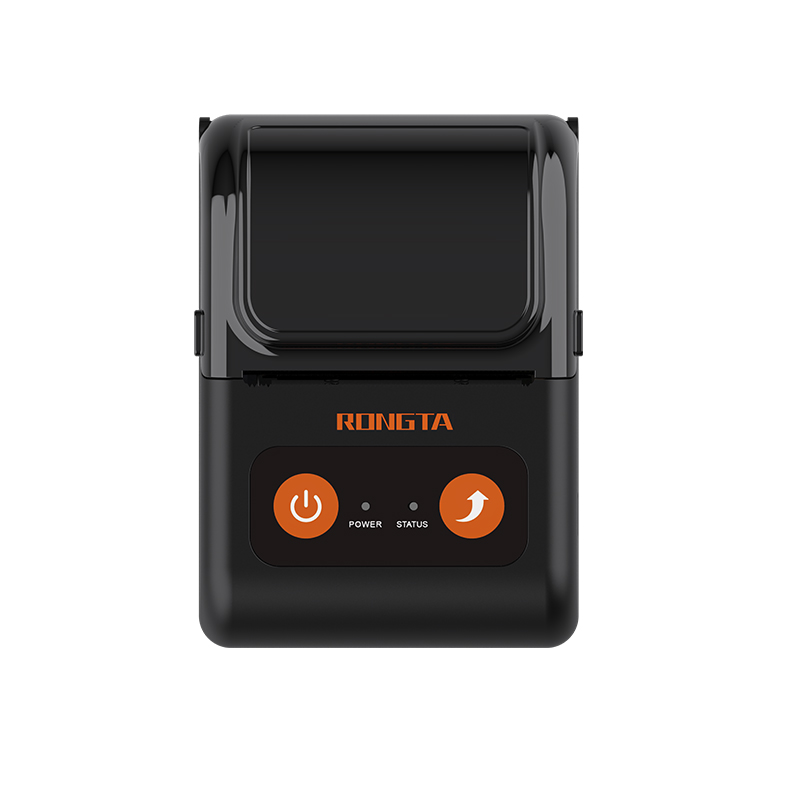 RPP02C Portable Receipt Printer
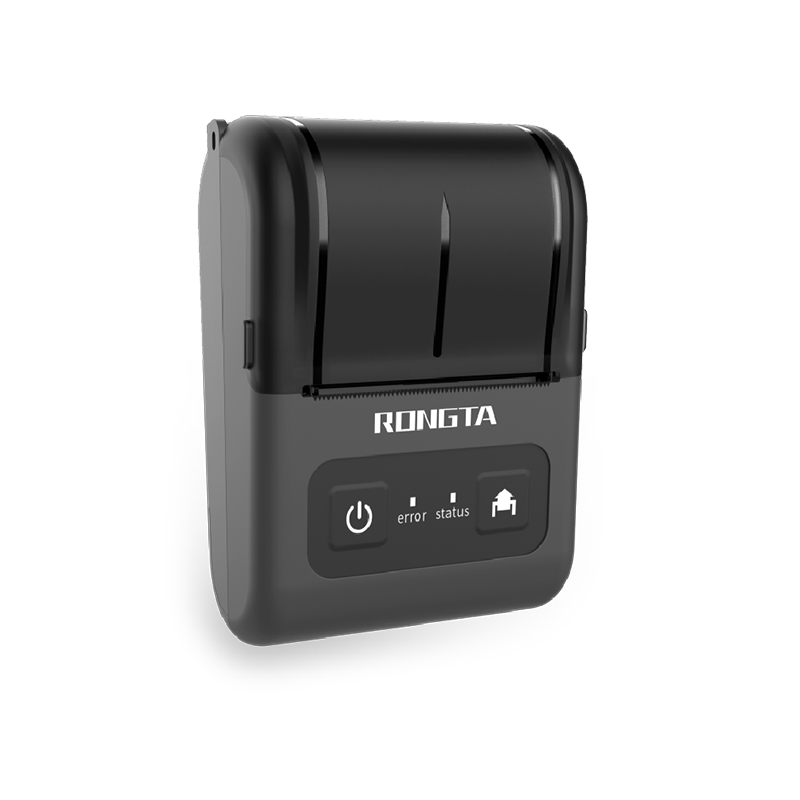 RPP02D Thermal Portable Printer
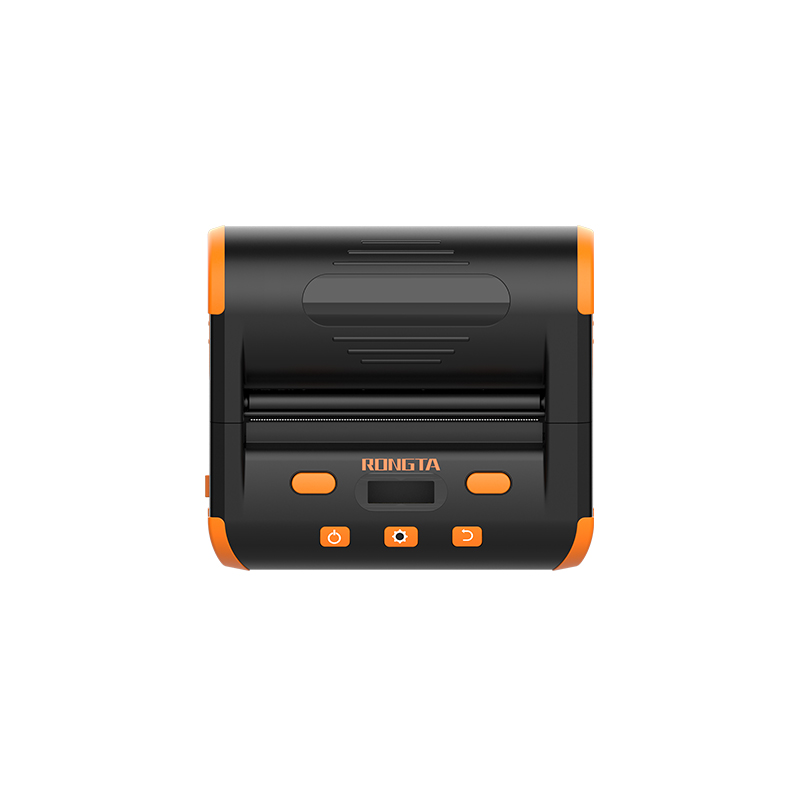 RPP04 4" Portable Label Printer
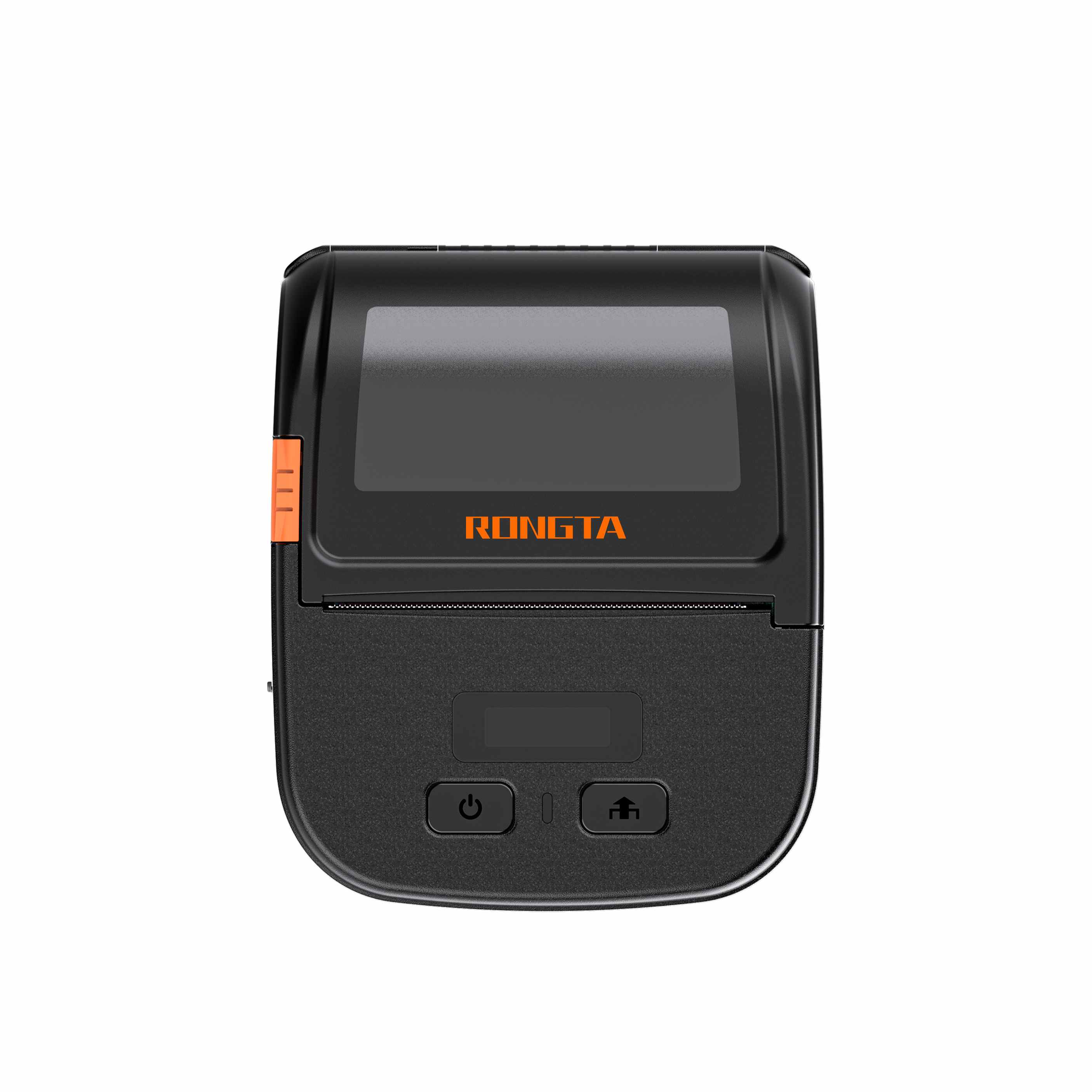 RPP30 3" Portable Label Printer
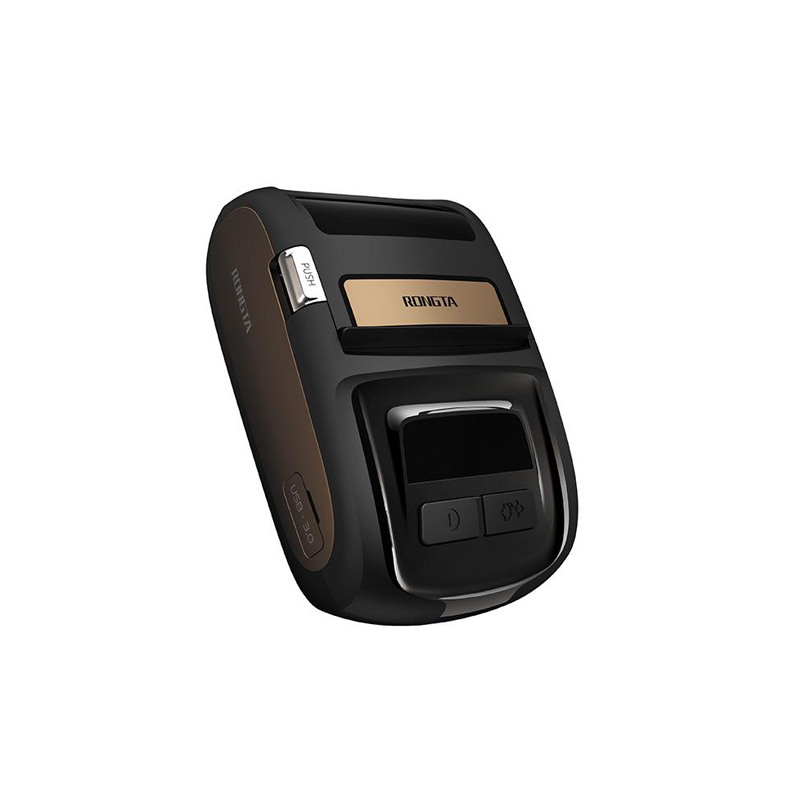 ACE M1 2" Portable Label Printer
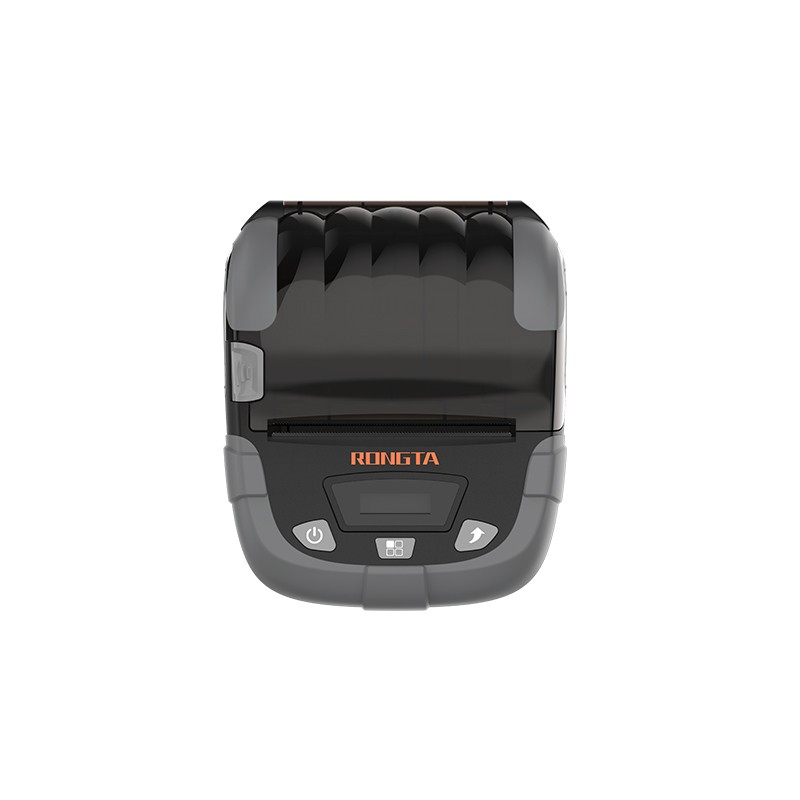 RPP320N 3" Portable Label Printer
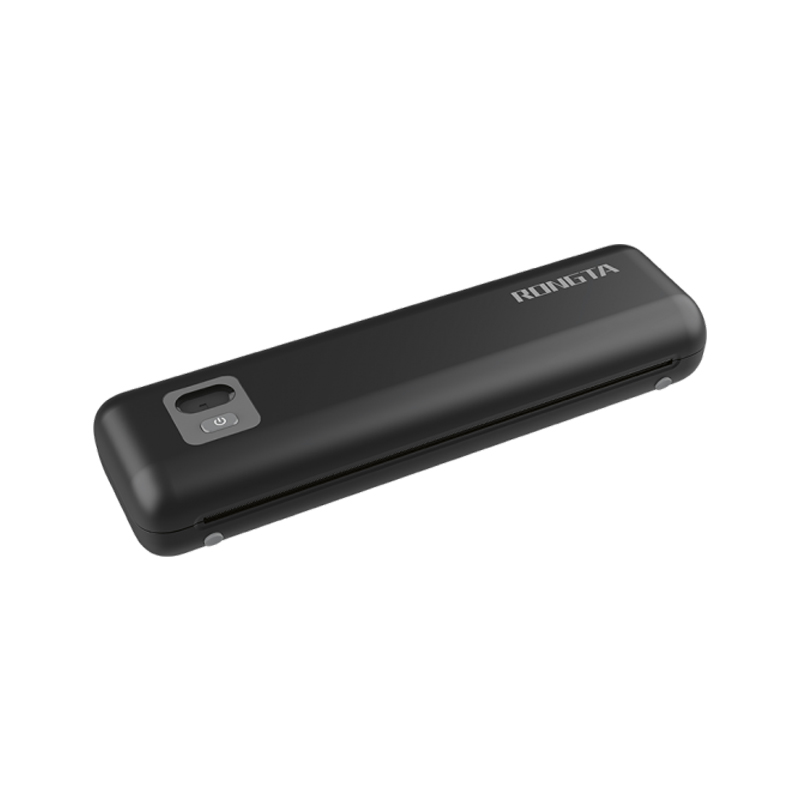 F82A A4 Front-Out Paper Tray Thermal Printer
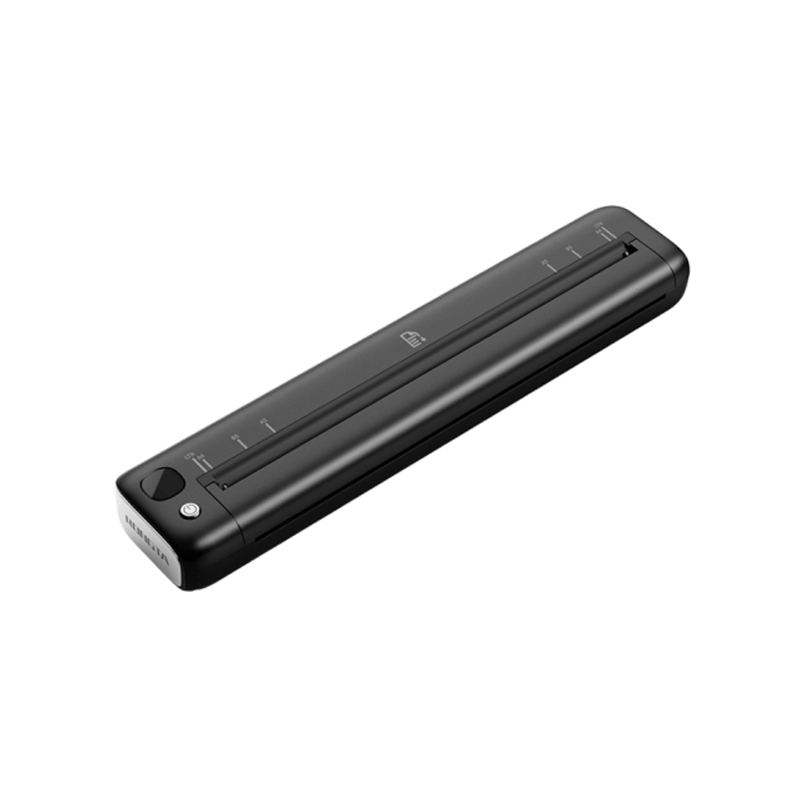 F81A Portable A4 Thermal Printer
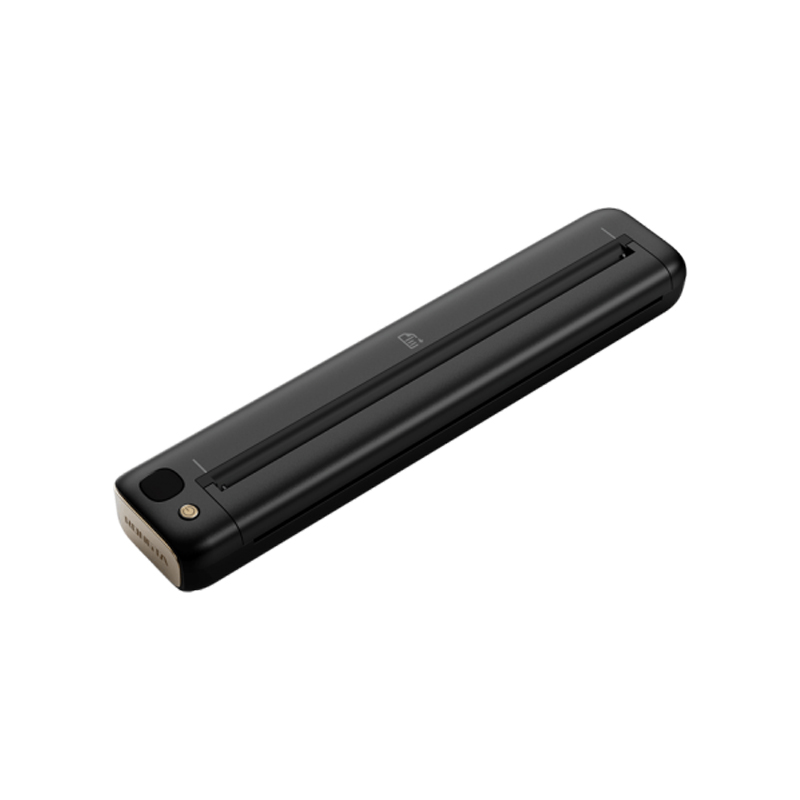 F81S Portable A4 Tattoo Printer
 Z1 Children's Educational Photo Printer
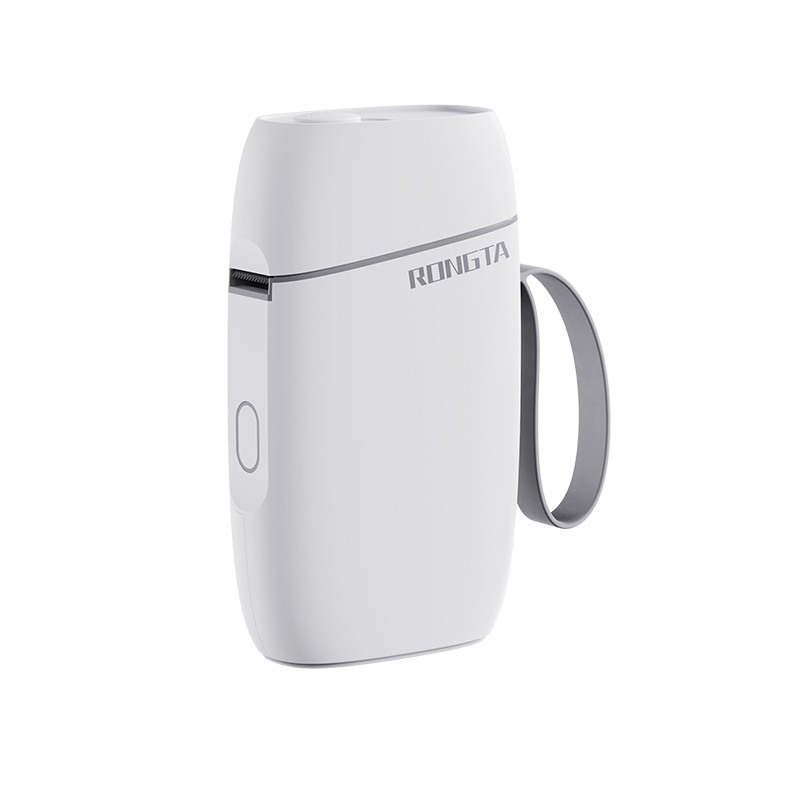 R5 Mini Label Printer
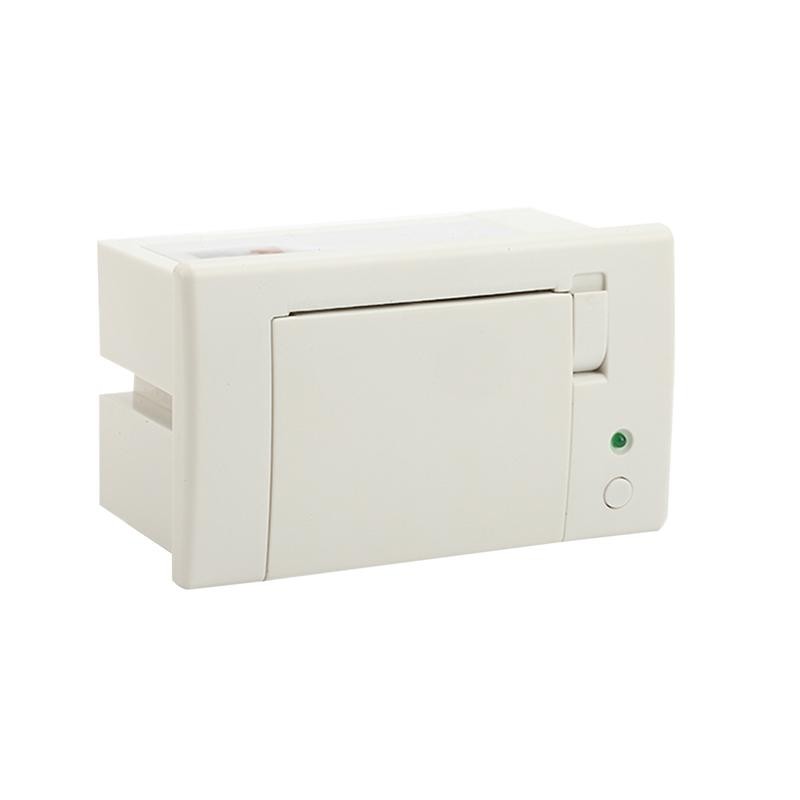 RP07 58mm Embedded Printer
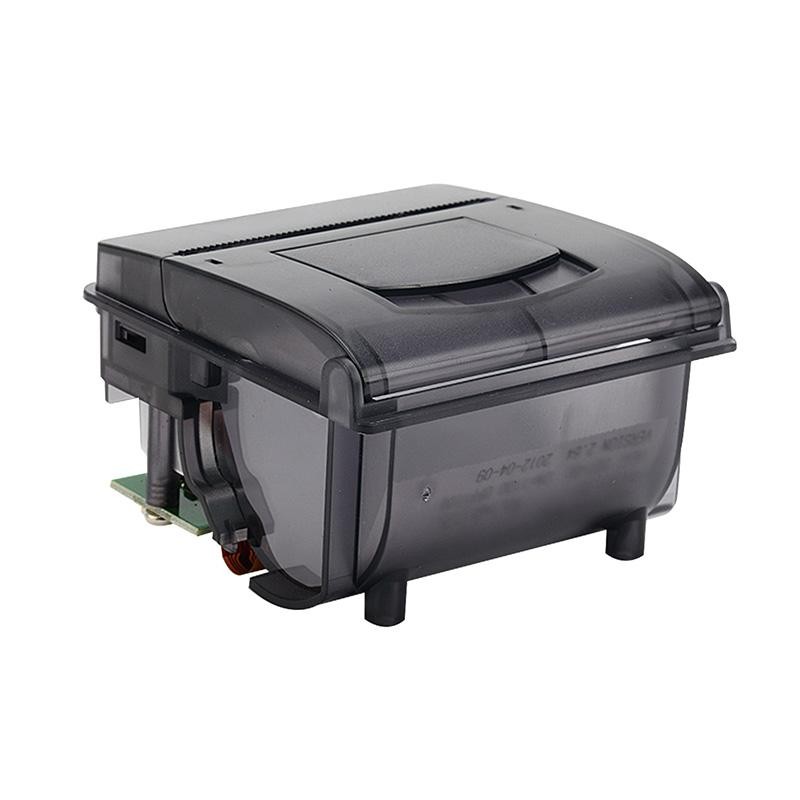 RP203 58mm Embedded Printer
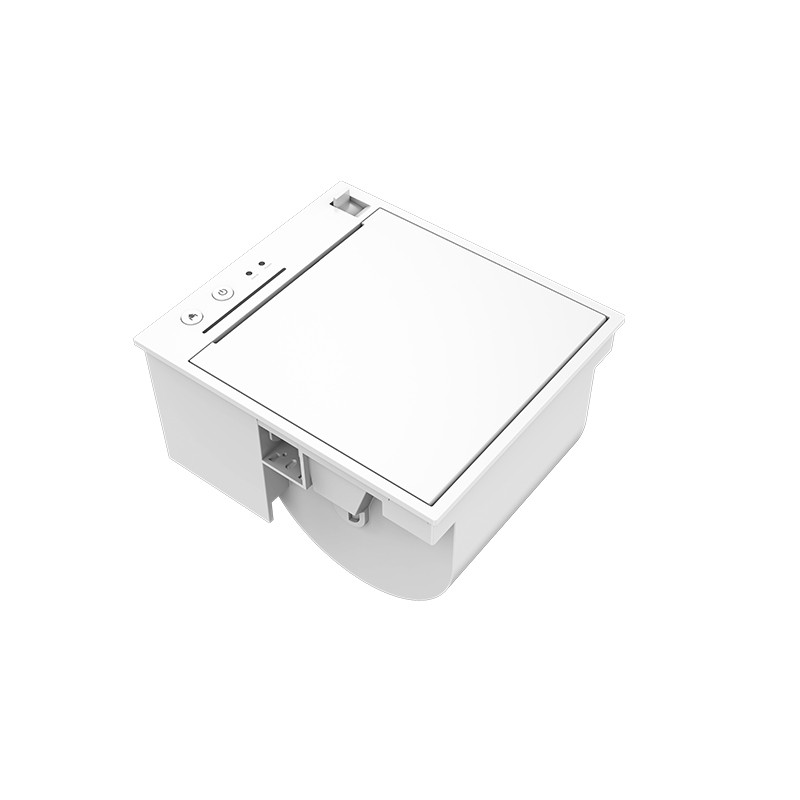 PM315 Embedded Thermal Printer
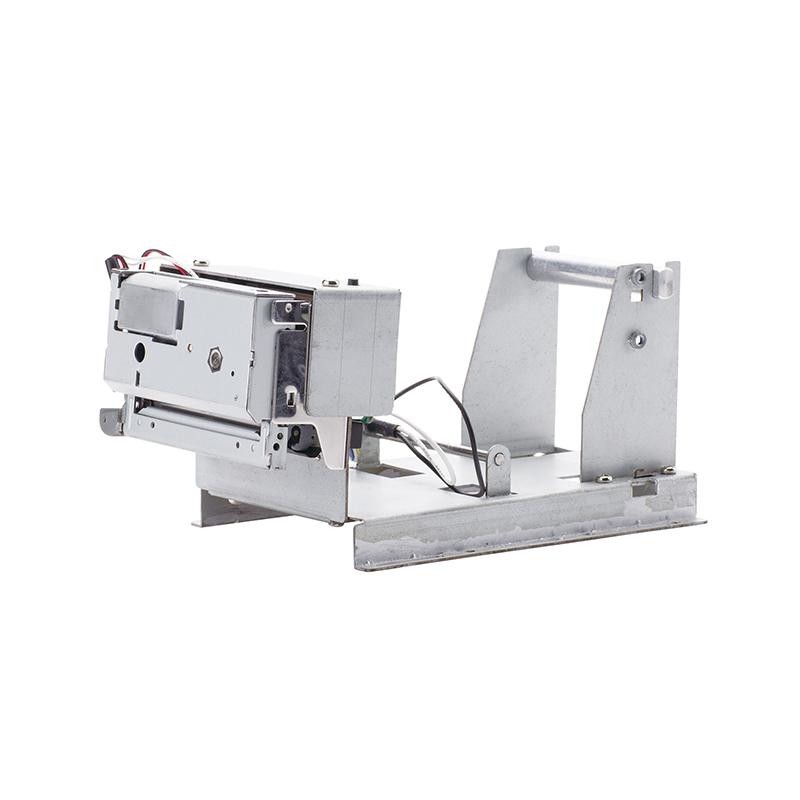 PM201 48mm Printing Module
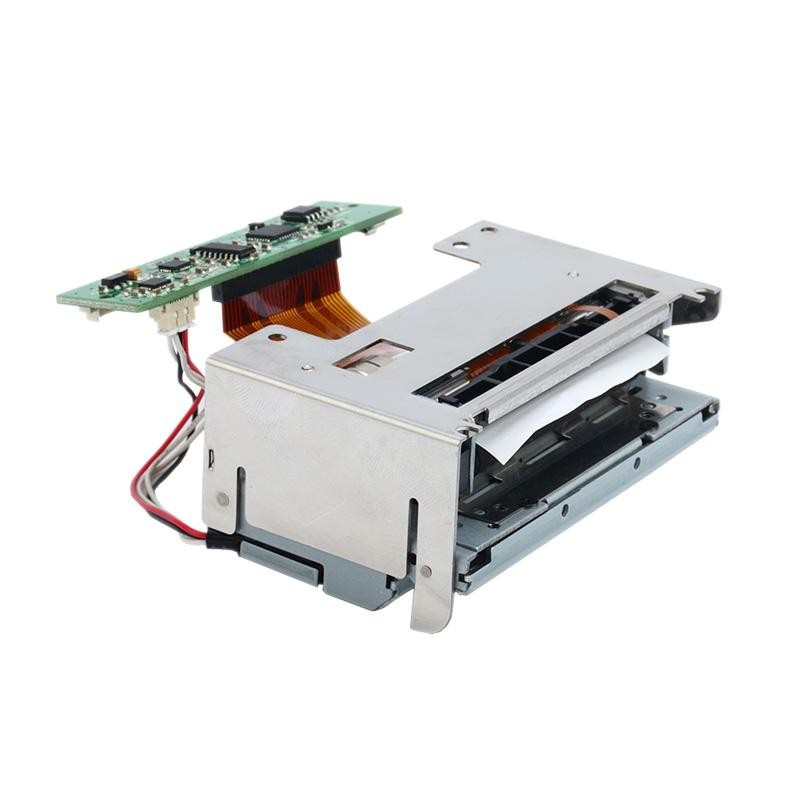 PM628 58mm printing module
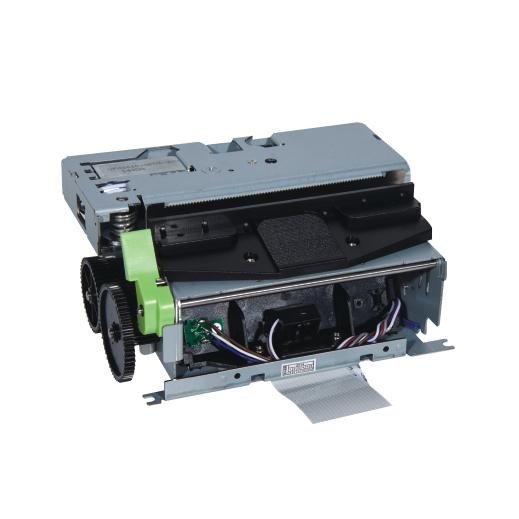 PM532A Printing Module
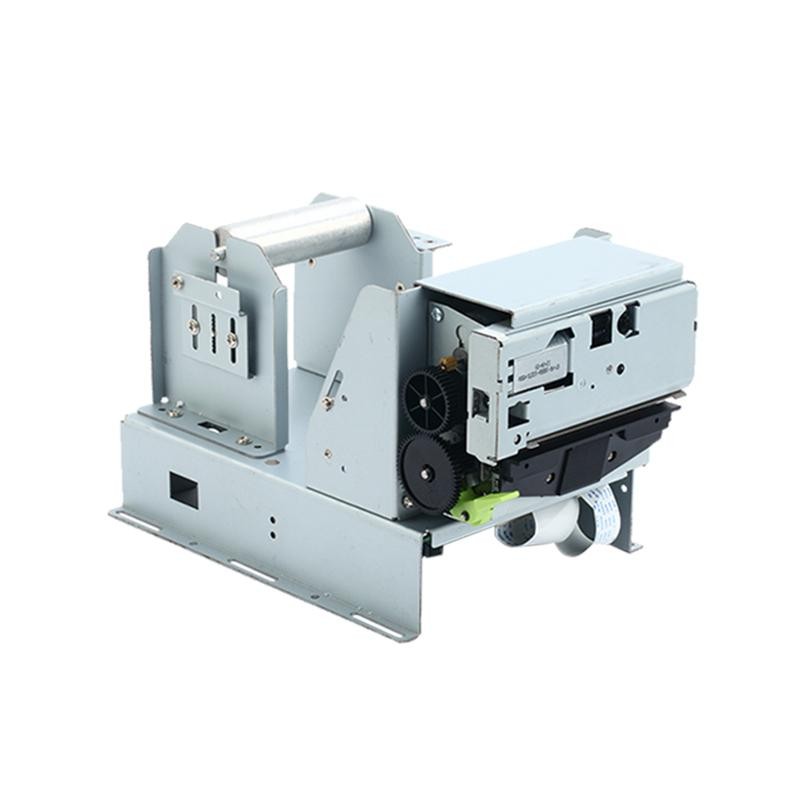 PM532B printer module
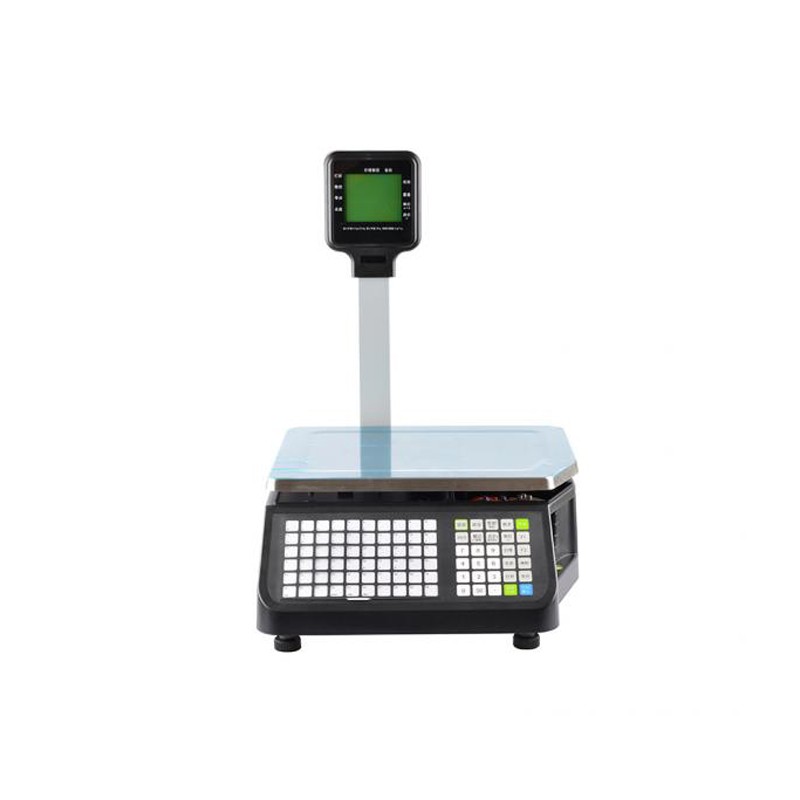 LS015/LS015A Barcode Scale
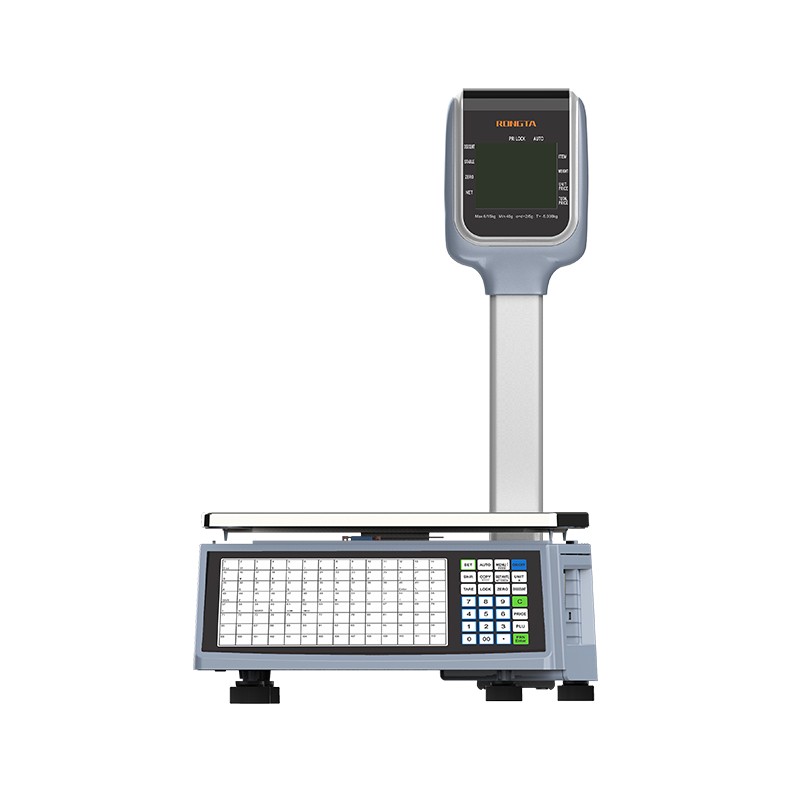 RLS1815D/RLS1830D Barcode Scale
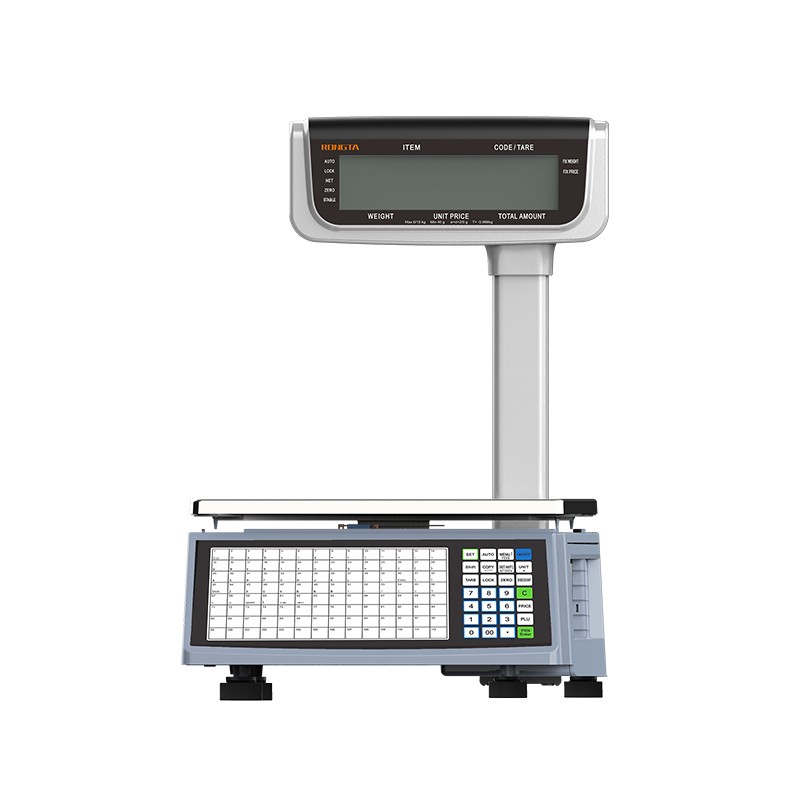 RLS1815C/RLS1830C Barcode Scale
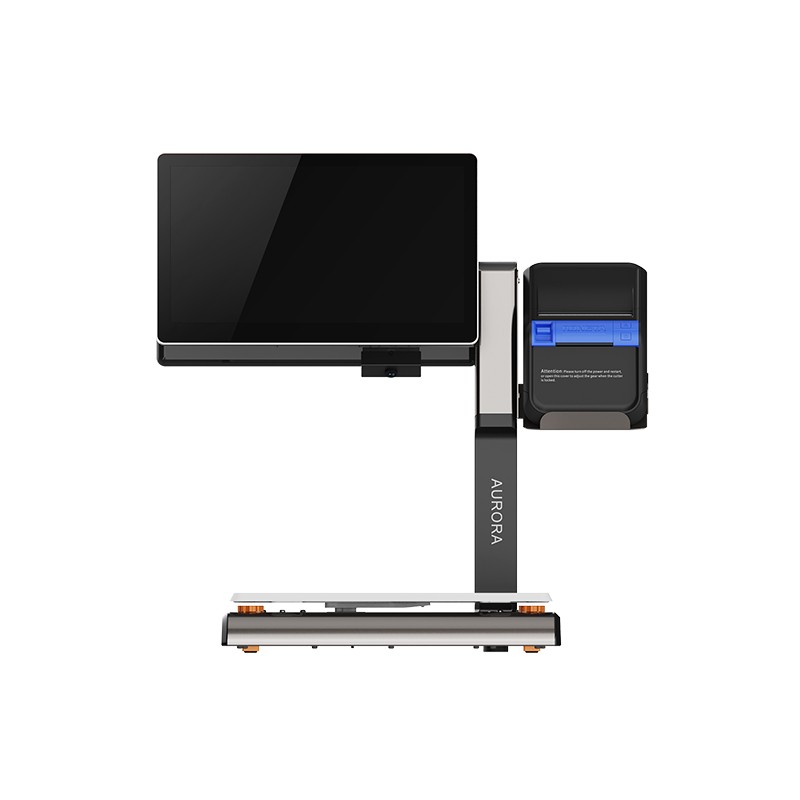 AURORA S2L-S Labelless Scale
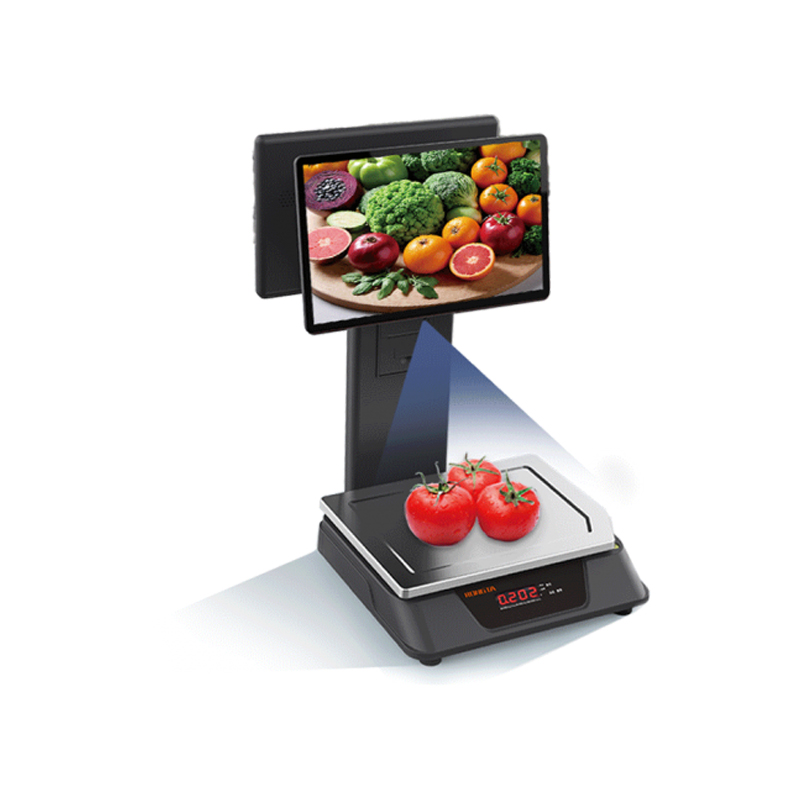 AURORA E1 PRO-AI Cash Register Scale
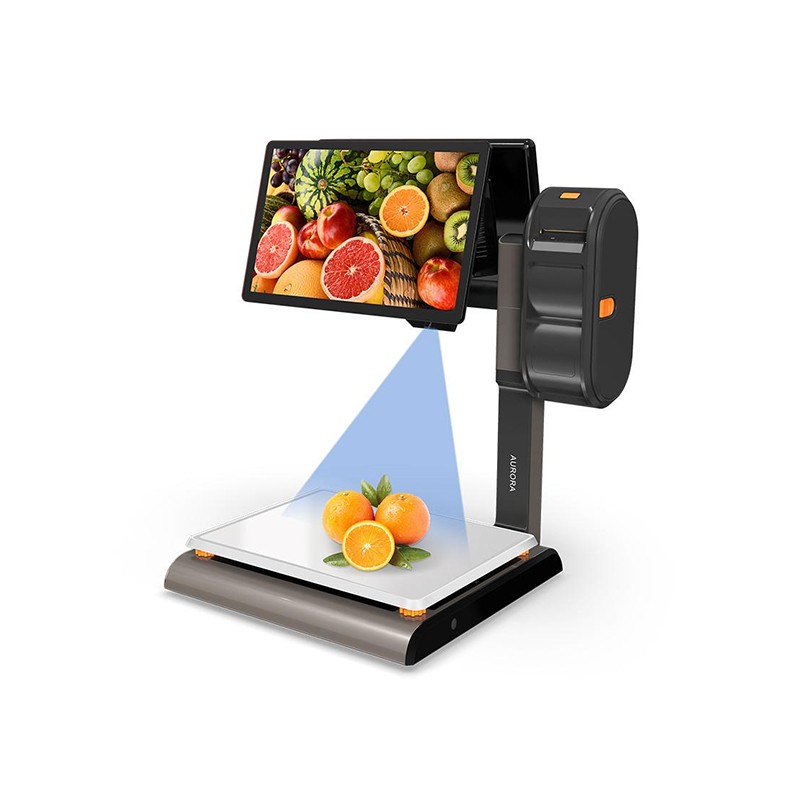 AURORA S2L-AI Label Scale
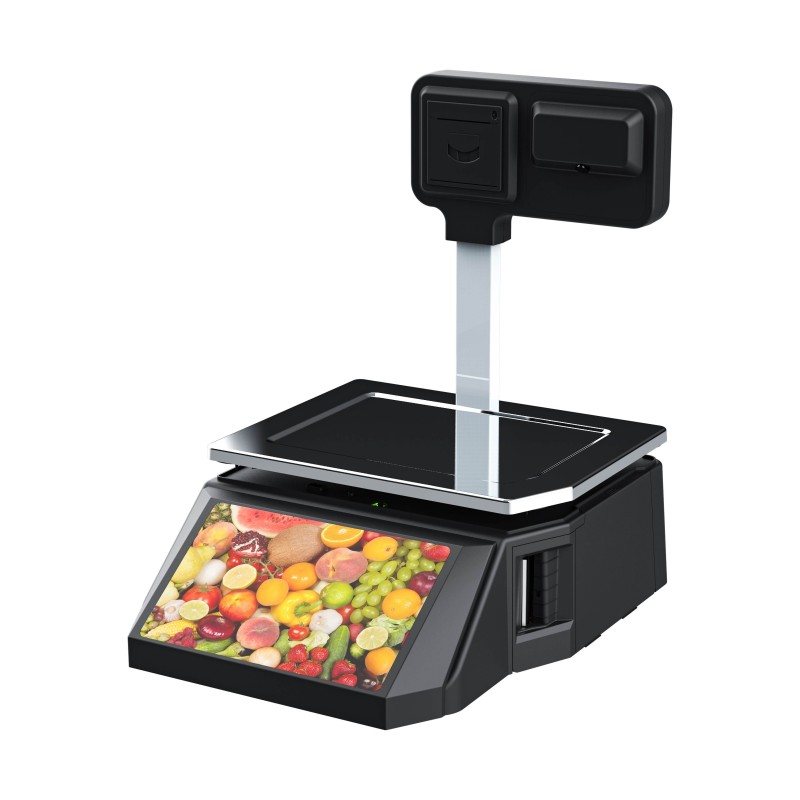 DP01-AI Smart Tag Cashier Dual-Use Scale
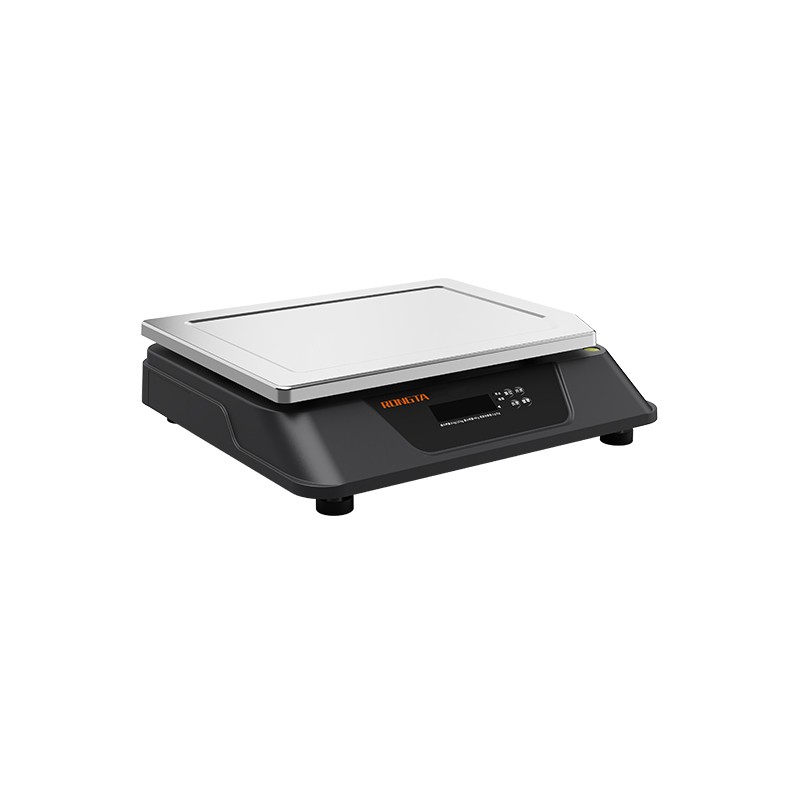 C3 Weighing Scale
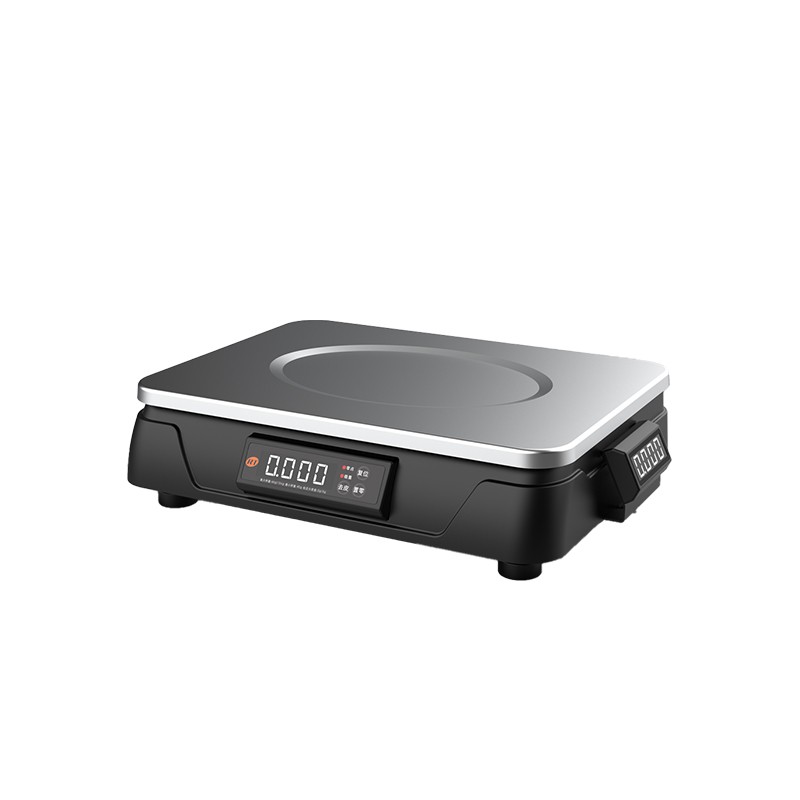 C1 weighing scale
 C11 Weighing Scale
 retail
 FOOD
FOOD Medical
 Mobile office/home
 asset Management
 logistics
 Driver download
 User Manual
 Tool Download
 Tag software
 Product Video
 Development Documentation
 Frequently Asked Questions
 User Guide
 Company News
 Exhibition Updates
 Industry Insights
 Product Update
 General situation
 Development history
 Honors and Qualifications
 R&D strength
 Team activities
 Social responsibility




Service Support
Introduction to the basic functions of Rongda Technology RPP200 handheld portable printer
2026-01-12
Rongda Technology RPP200Handheld portable printerIntroduction to basic functions
1. Preparations before using a handheld portable printer
1.1 Battery Installation
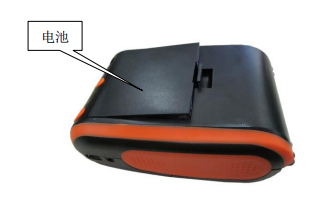
1) Pull the belt buckle upwards to open the battery cover and the battery compartment cover.
2) As shown in the picture, put the battery into the battery compartment, being careful not to reverse the positive and negative terminals of the battery;
3) Then close the battery compartment cover.
?
1.2 Installing the Printing Paper Roll
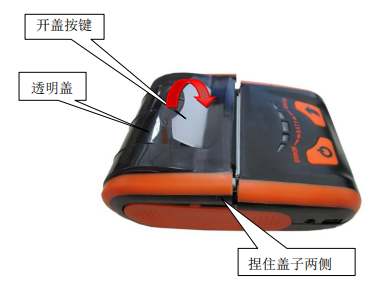
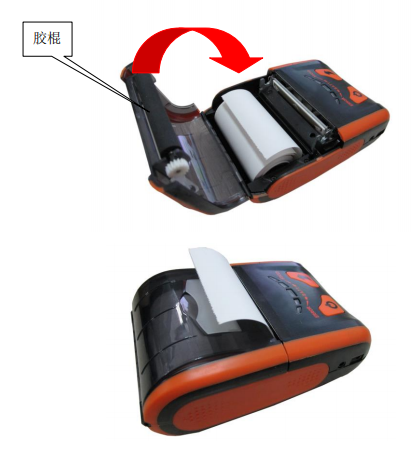
How to use
1) Pry up the opening button or pinch the two sides of the cover with your fingers and open the paper compartment cover with a little force;
2) As shown in the picture, put the paper roll into the paper tray, paying attention to the paper orientation. If it is put in backwards, it will not be able to print.
3) Pull out part of the paper roll as shown in the picture, making sure to pull the paper roll out of the paper tray;
4) After straightening the paper roll, close the top cover.
?
2. Basic Functions of Handheld Portable Printers
2.1 Powering on
With the printer powered off, press the power button for 2 seconds to turn it on and enter working mode. The status indicator light (green light) will remain on.
Note: If the battery indicator light (blue light) is completely off and the error indicator light (red light) is constantly on, it means that the printer's battery is about to run out of power. If you want to continue using it, please replace the battery or charge it as soon as possible.
2.2 Power off
With the printer powered on, press and hold the power button for 2 seconds to turn off the printer and turn off all indicator lights.
2.3 Self-test
After receiving the printer, users can perform a self-test at any time to check the printer's current settings and status.
The self-test method is as follows: Turn off the printer (if the printer is on), then press and hold the paper feed button, and then press the power button to turn it on. The printer will then print a self-test page, which contains the current status of the printer, printer settings, and printing examples.
2.4 Paper Feed (Manual Paper Feed)
When the printer is in normal working condition, press the paper feed button and the printer will start feeding paper.
2.5 Charging
After a period of use, the printer battery will eventually run out of power. When the battery is nearly depleted, the battery indicator light (blue light) will turn off completely, and the error indicator light (red light) will illuminate. At this point, the user should prepare to charge the printer. If the printer automatically shuts down during printing...Users must charge the device if they wish to continue using it.
The charging method is as follows: Plug the charger's AC plug into a 220V, 50HZ power outlet, and then plug the charging plug into the printer's charging outlet. The printer will start charging. During the charging process, if the printer is powered on, the battery power indicator light (blue light) will flash from left to right in a cycle until the battery is fully charged and the battery power indicator light stays on.
?