

 80mm Receipt Printer
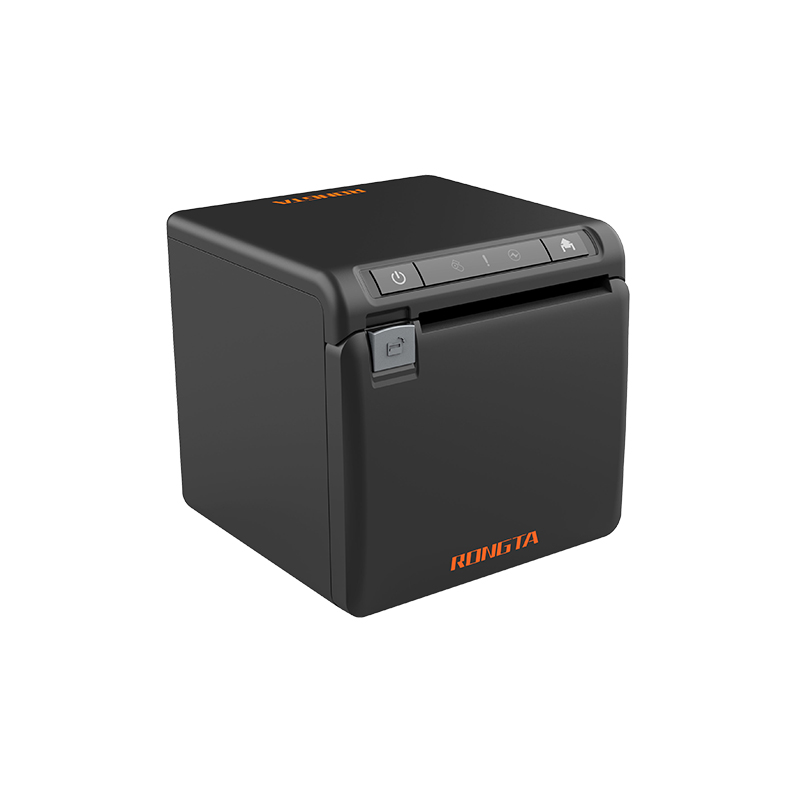 ACE H2 Receipt Printer
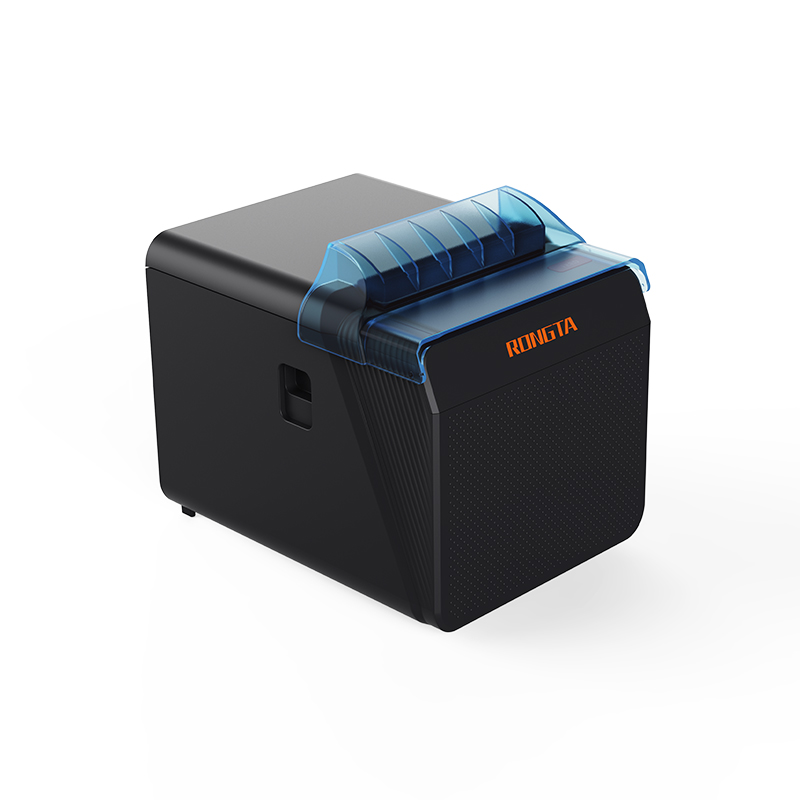 RP337 Receipt Printer
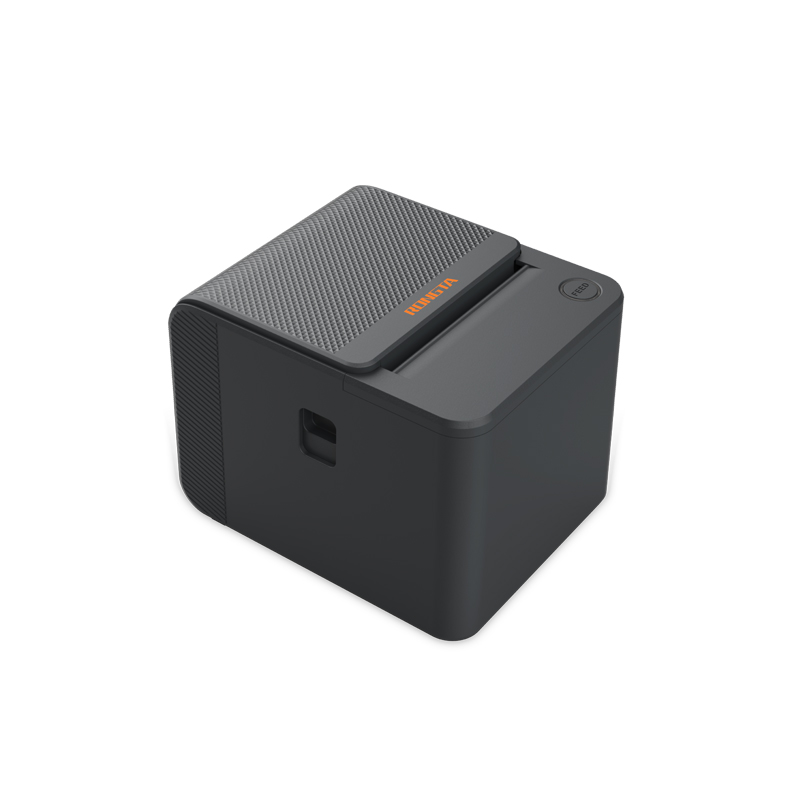 RP336S Dual-Color Receipt Printer
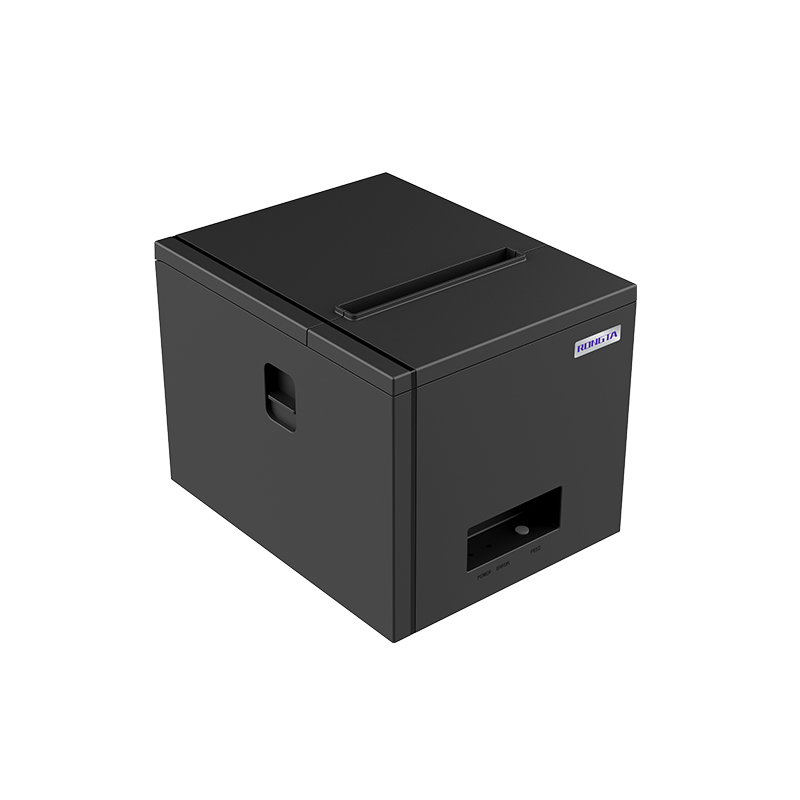 RP350 Receipt Printer
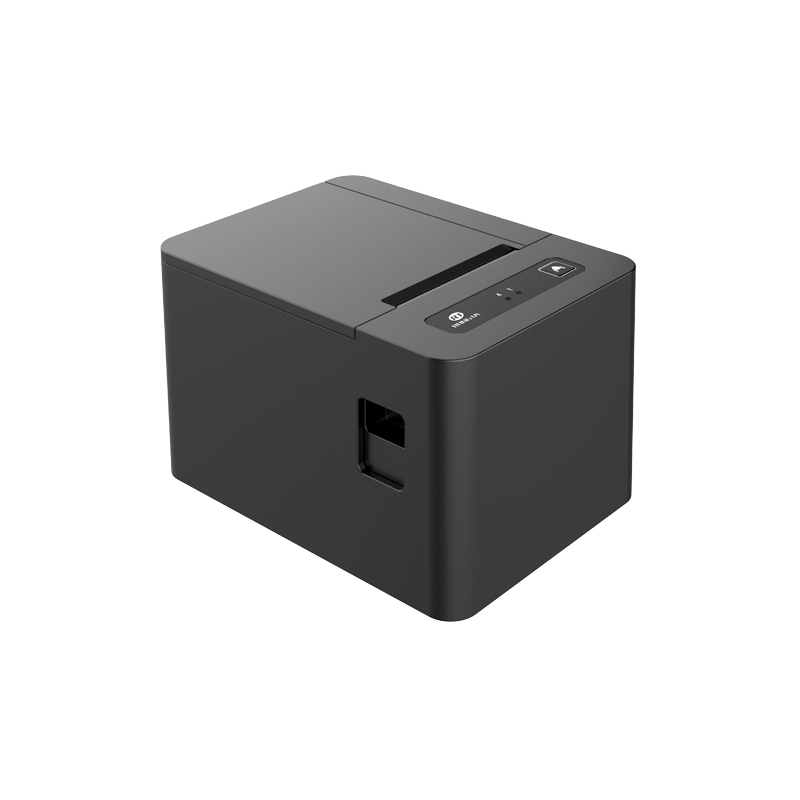 RP582 Receipt Printer
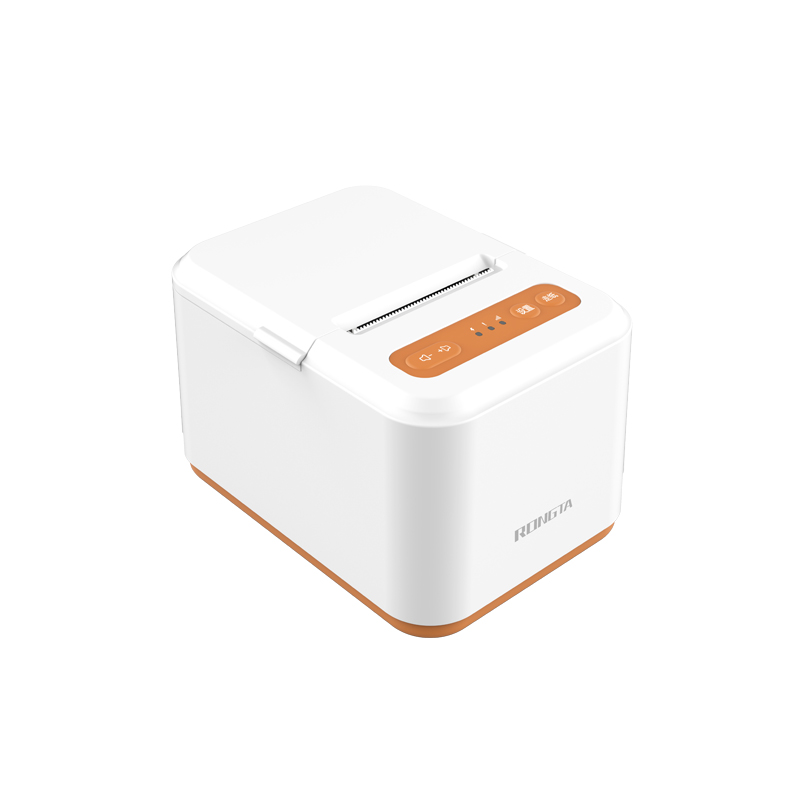 RP581 Receipt Printer
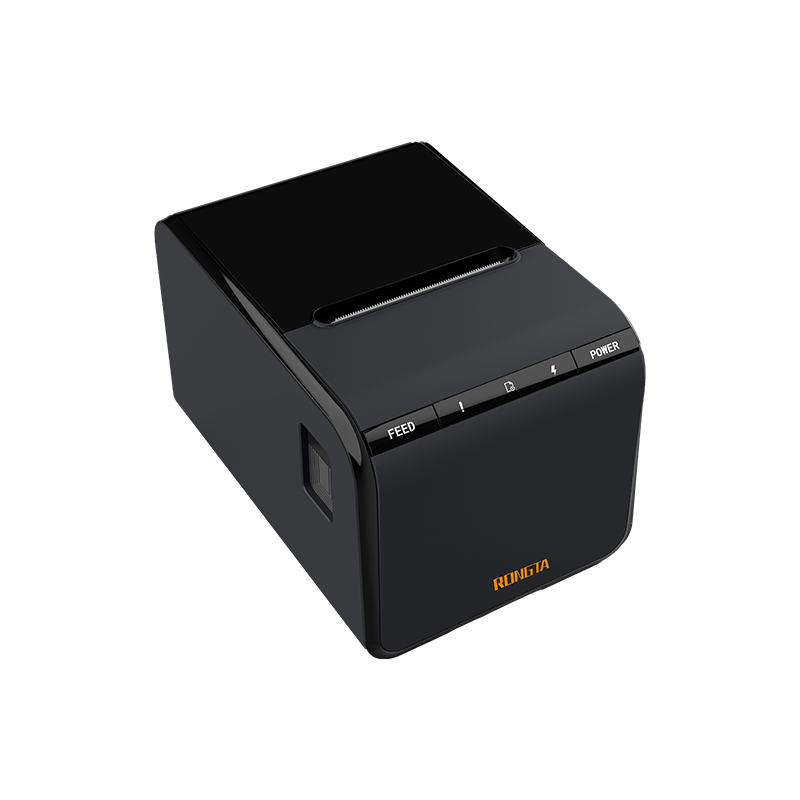 ACE G1Y Receipt Printer
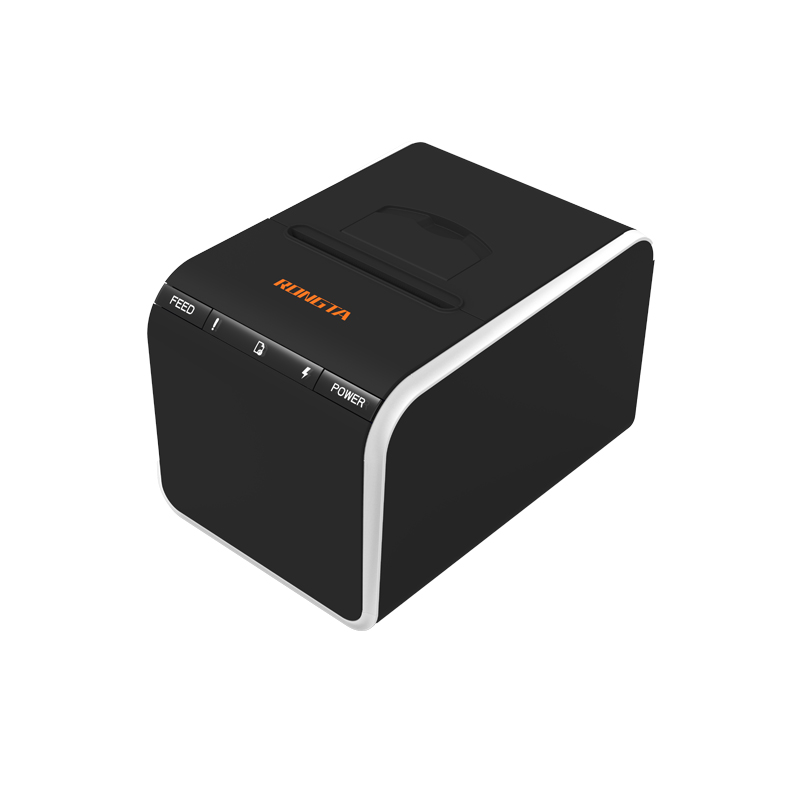 ACE G1YP Cloud Printer
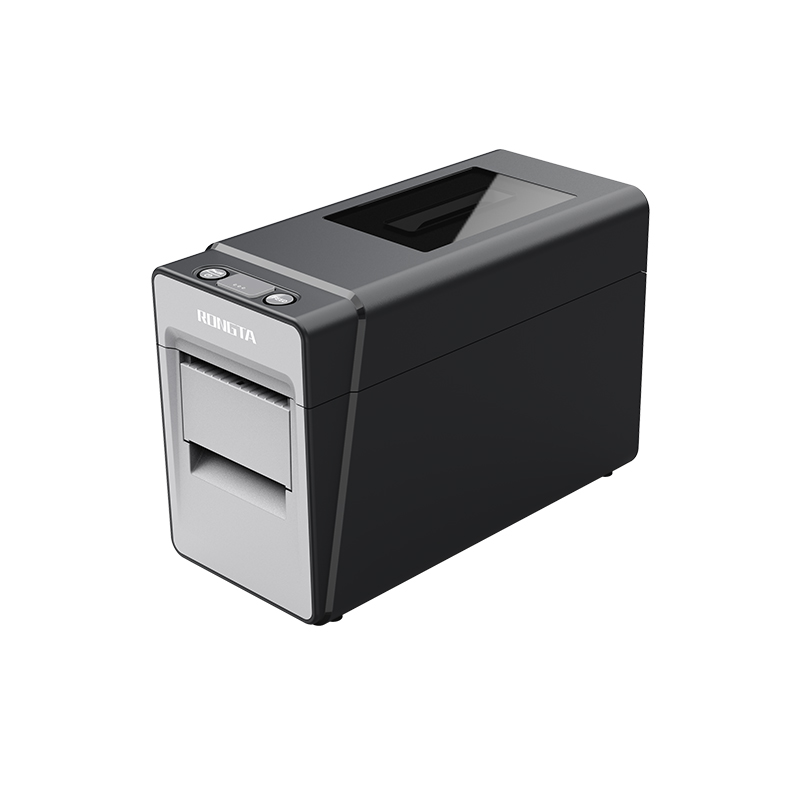 RP216 2'' Dual-color High-definition Label Printer
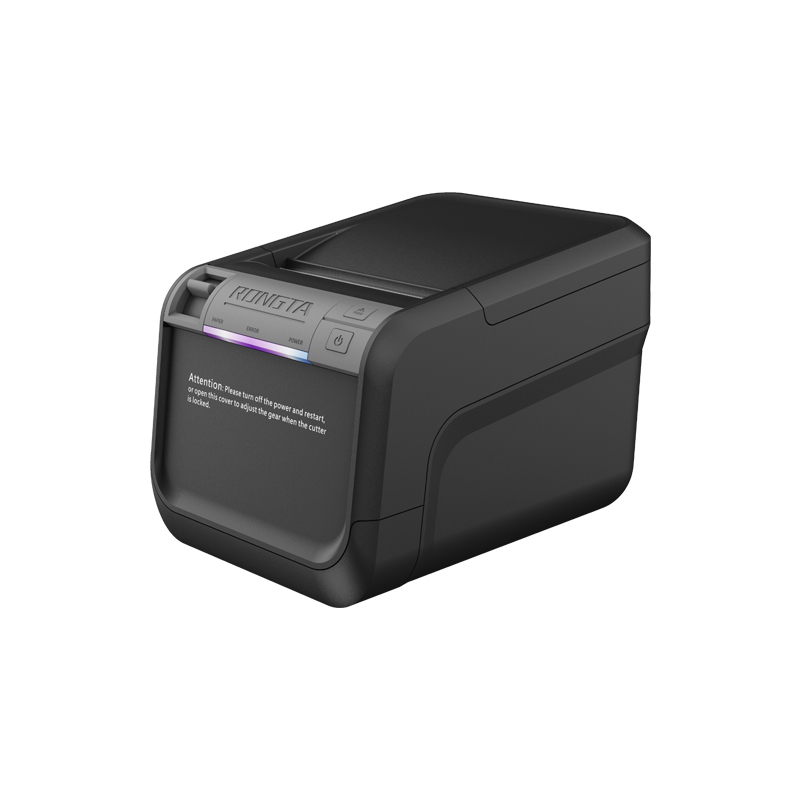 ACE V1S 3'' Backless Label Printer
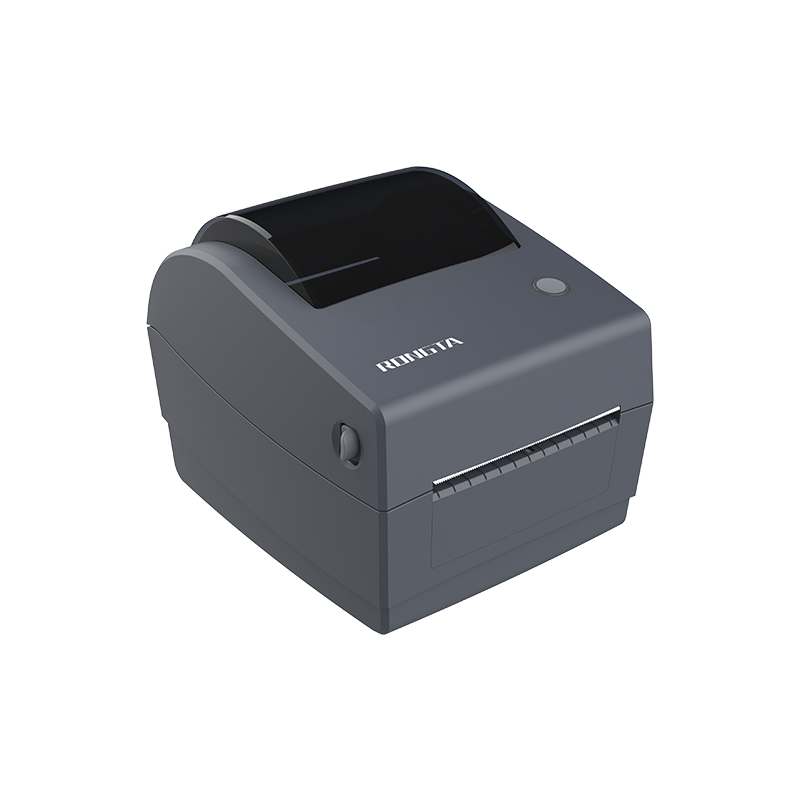 RP310D 3'' Dual-color Label Printer
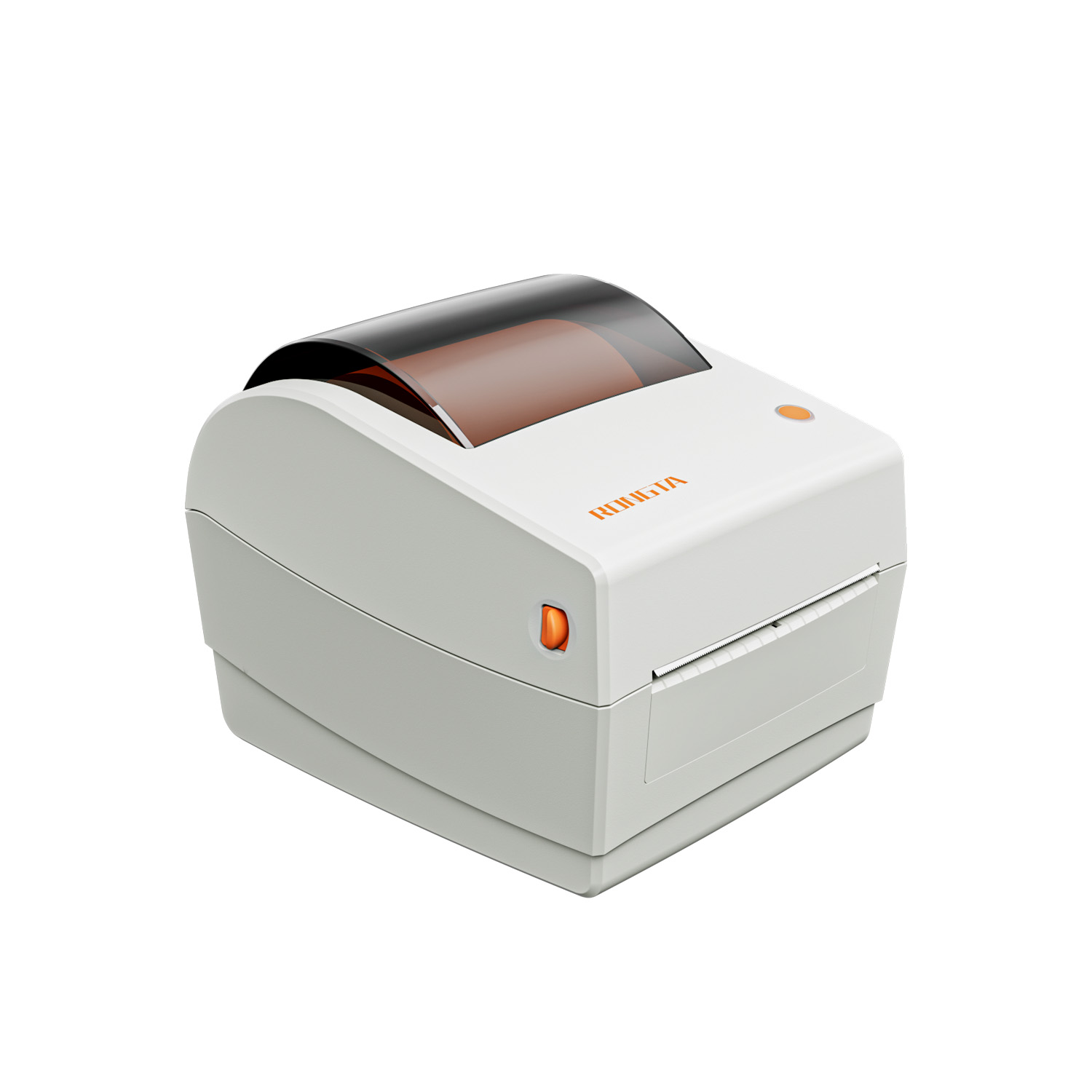 RP410N 4'' Thermal Label Printer
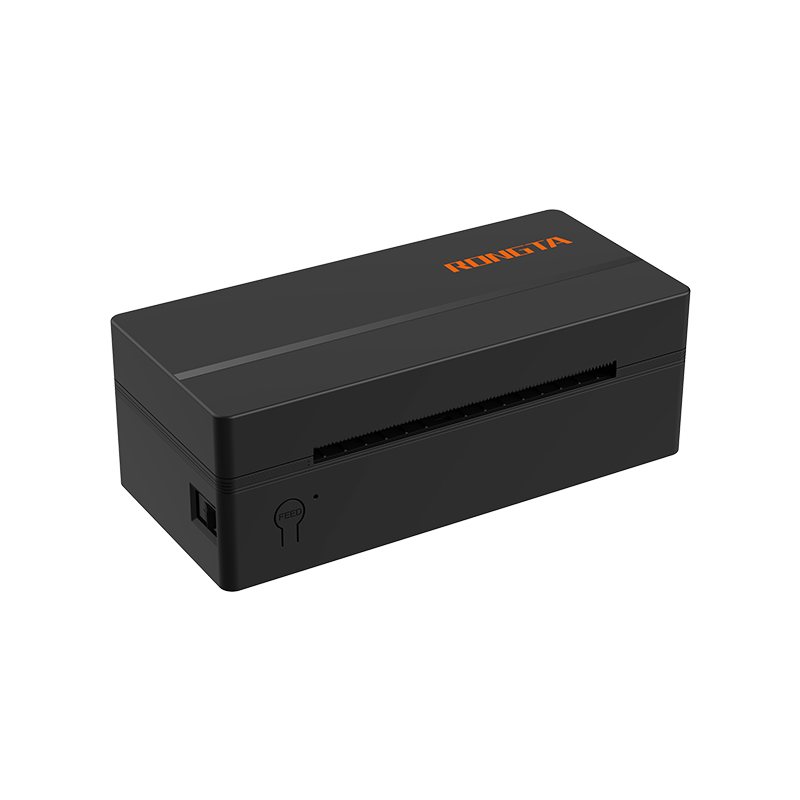 RP425 4'' Electronic Waybill Printer
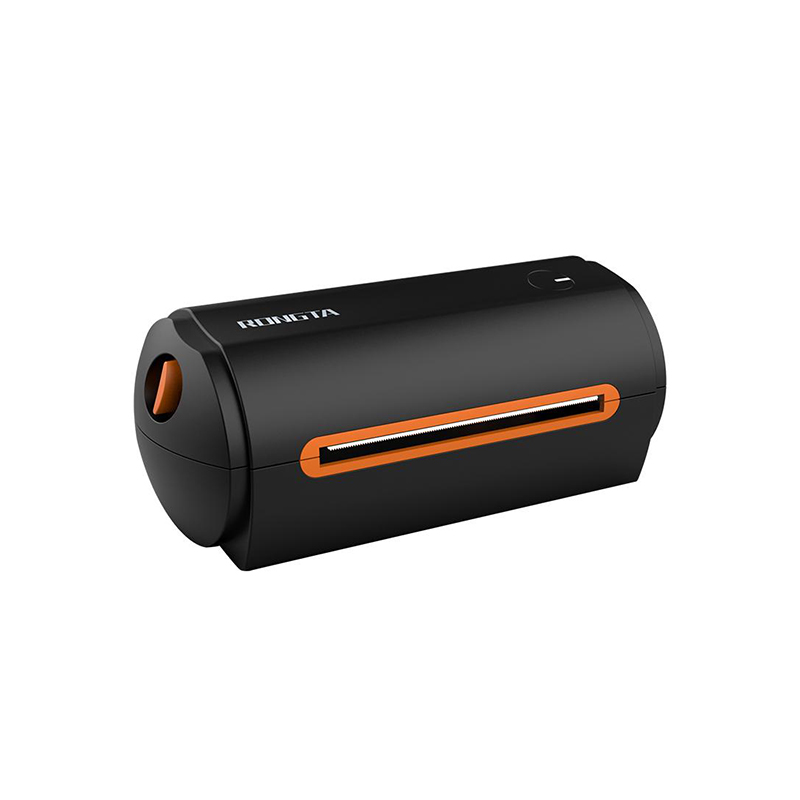 RP422 4'' Electronic Waybill Printer
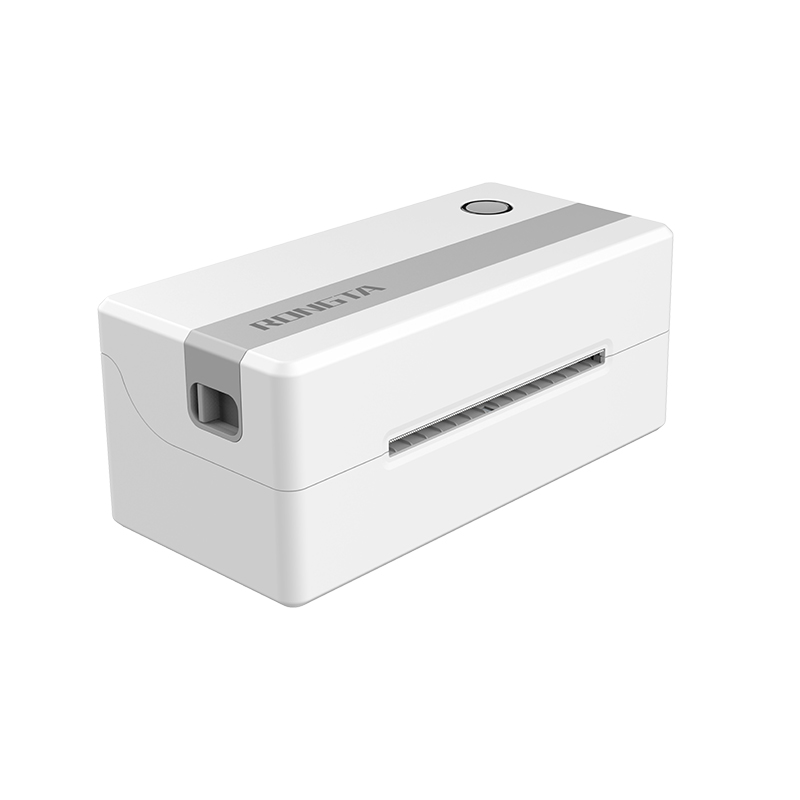 RP421A 4'' Electronic Waybill Printer
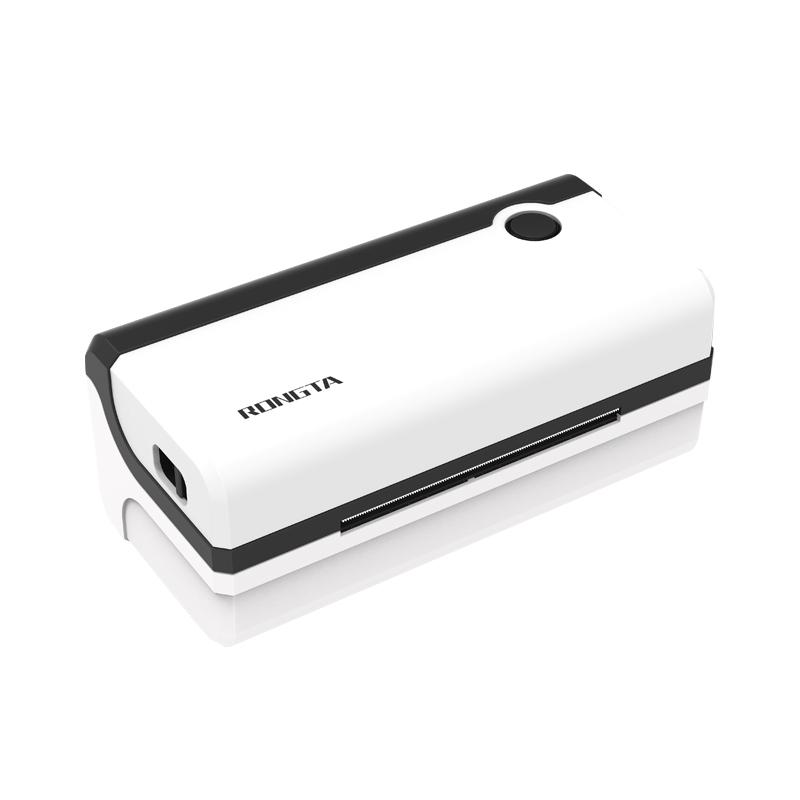 RP420 4'' Electronic Waybill Printer
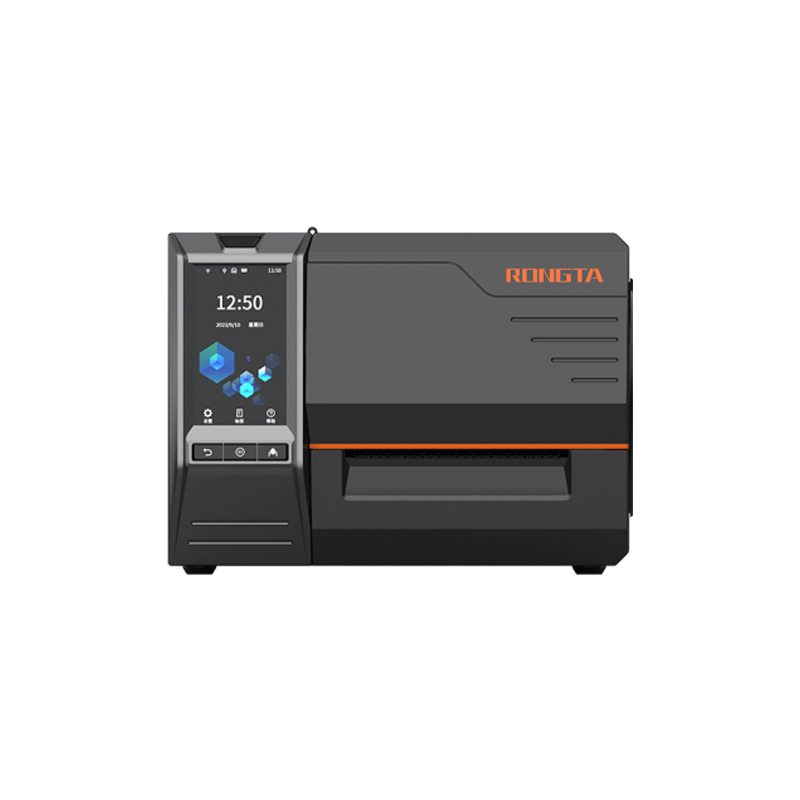 RI463 Series Barcode Printers
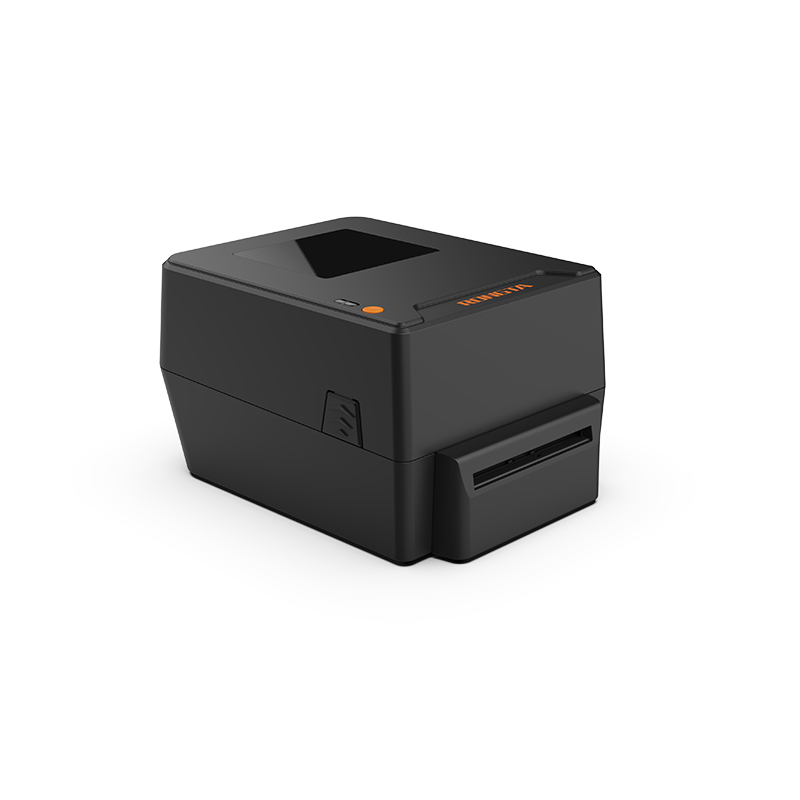 RP400A 4'' Thermal Transfer Tape Cutter Printer
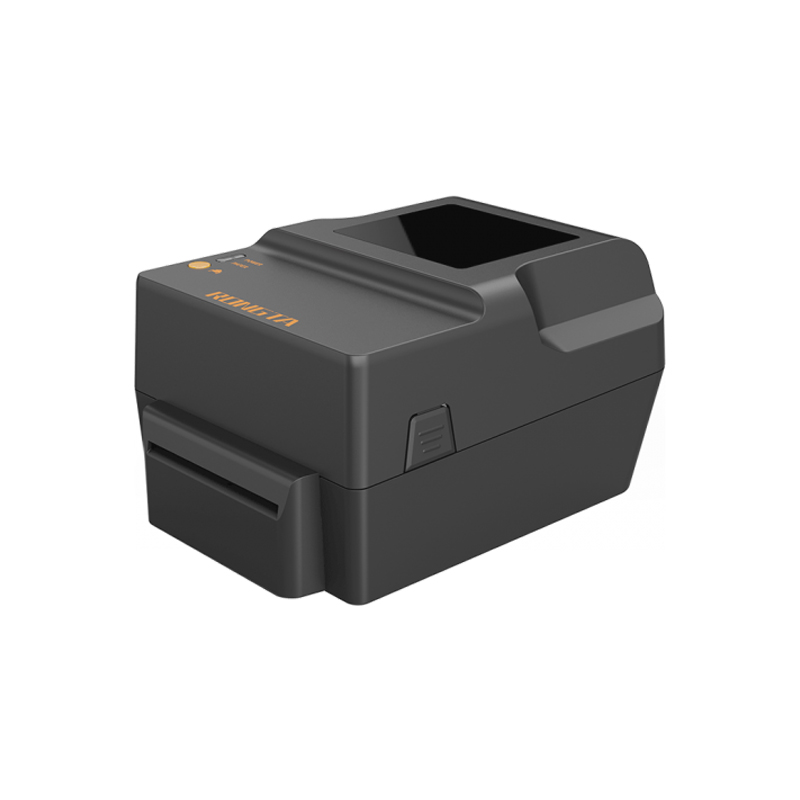 RP400H 4'' Thermal Transfer Tape Cutter Printer
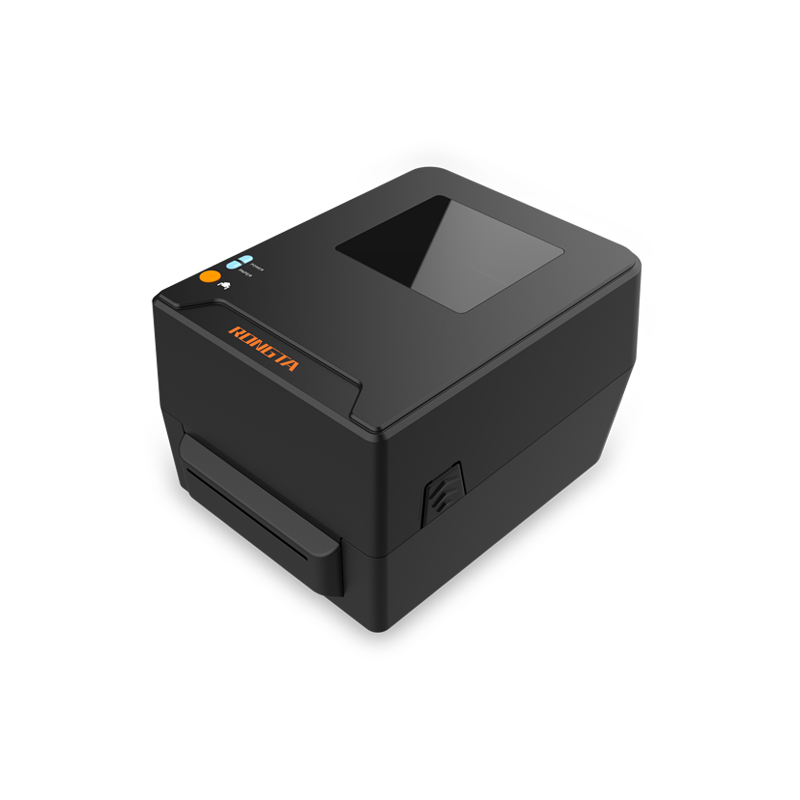 RPF413 300dpi RFID barcode label printer
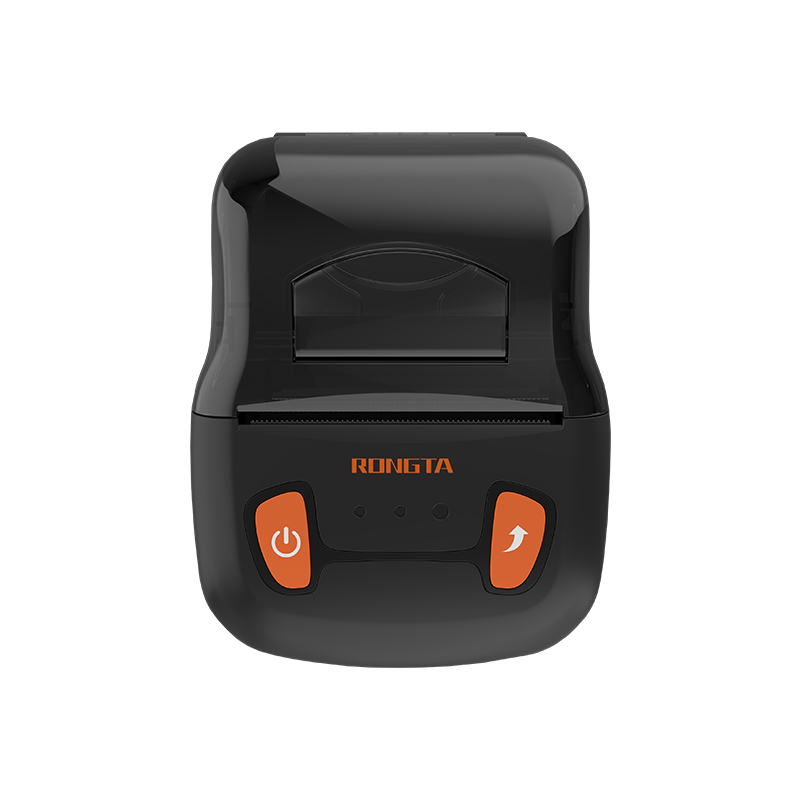 RPP02A Portable Receipt Printer
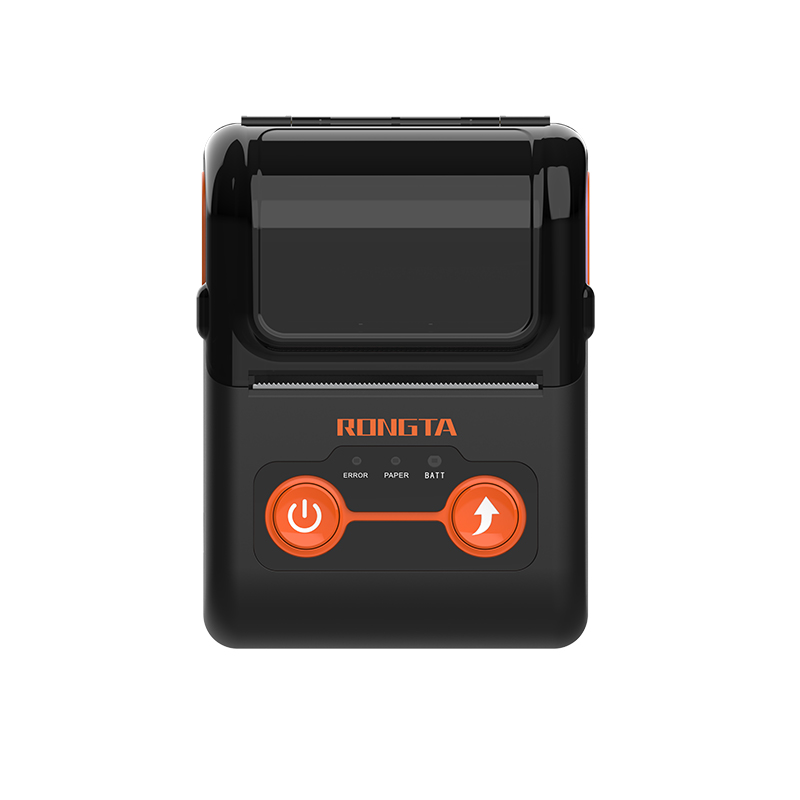 RPP02B Thermal Portable Printer
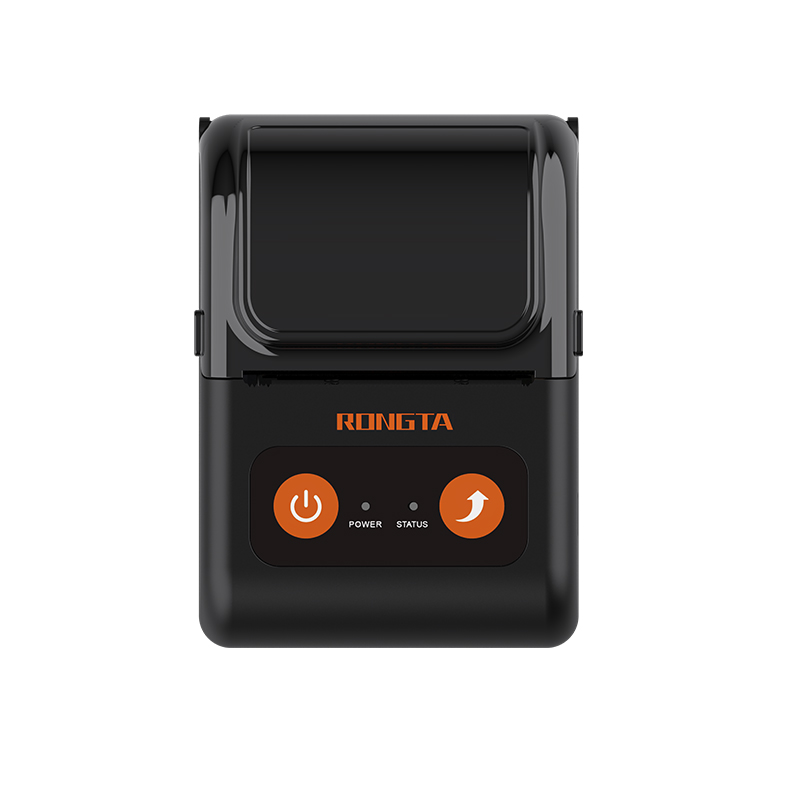 RPP02C Portable Receipt Printer
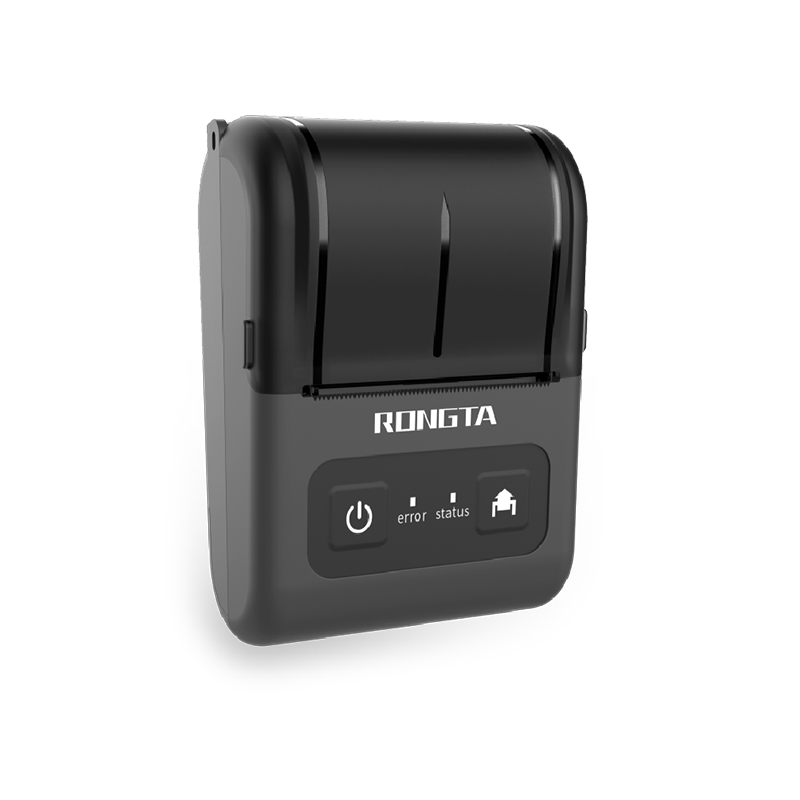 RPP02D Thermal Portable Printer
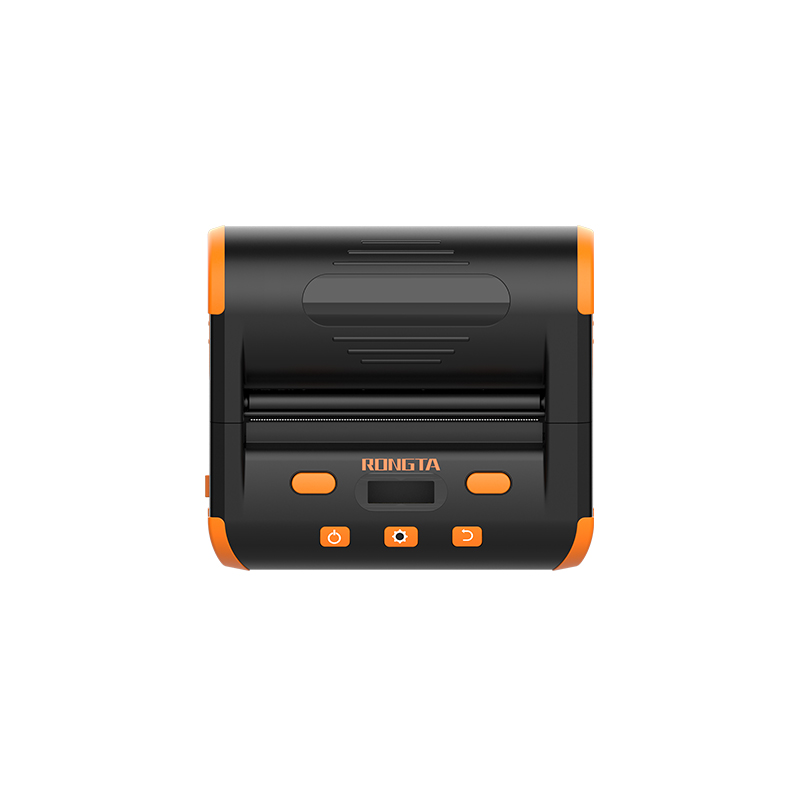 RPP04 4" Portable Label Printer
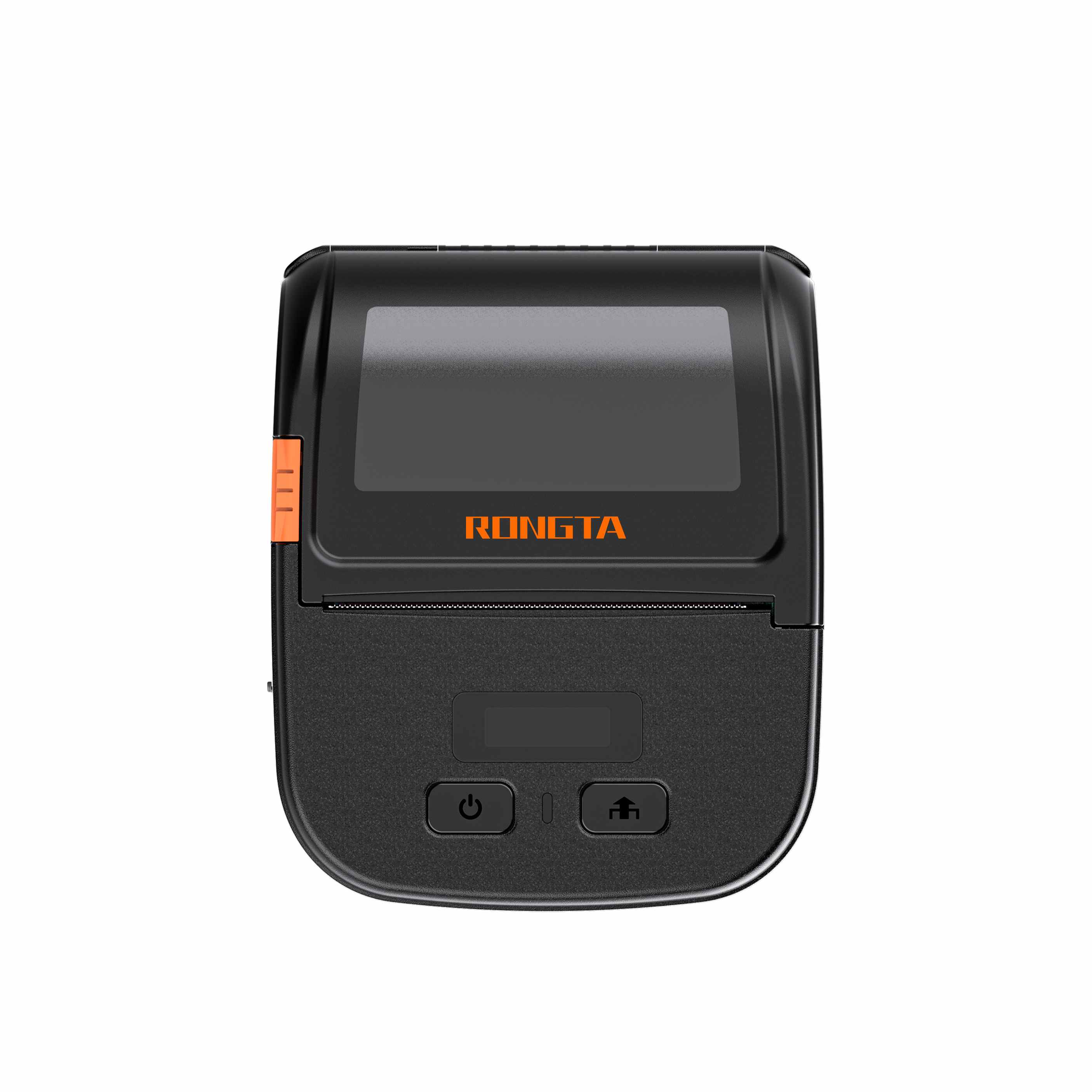 RPP30 3" Portable Label Printer
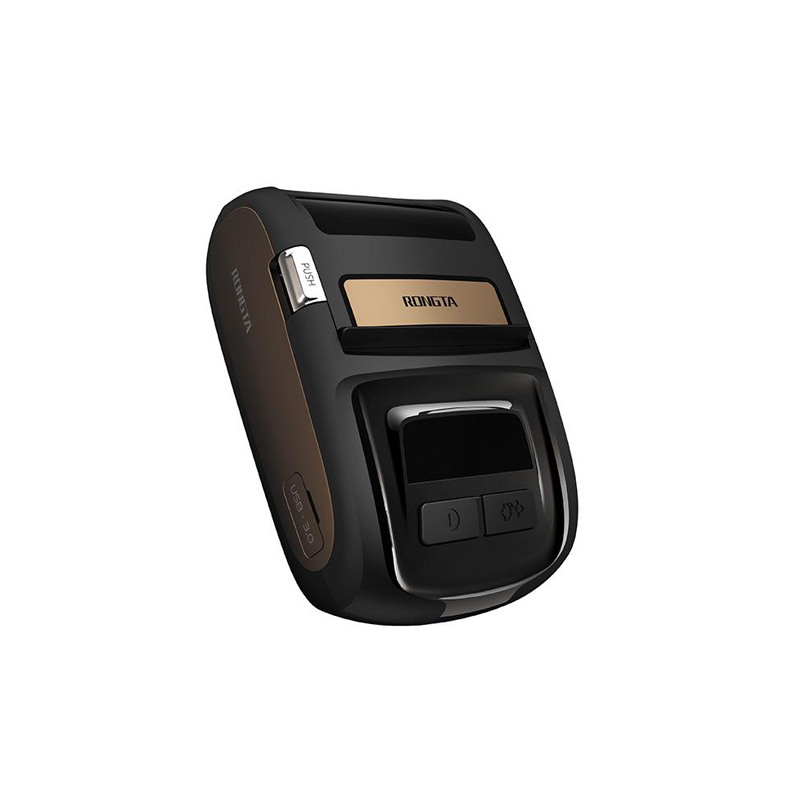 ACE M1 2" Portable Label Printer
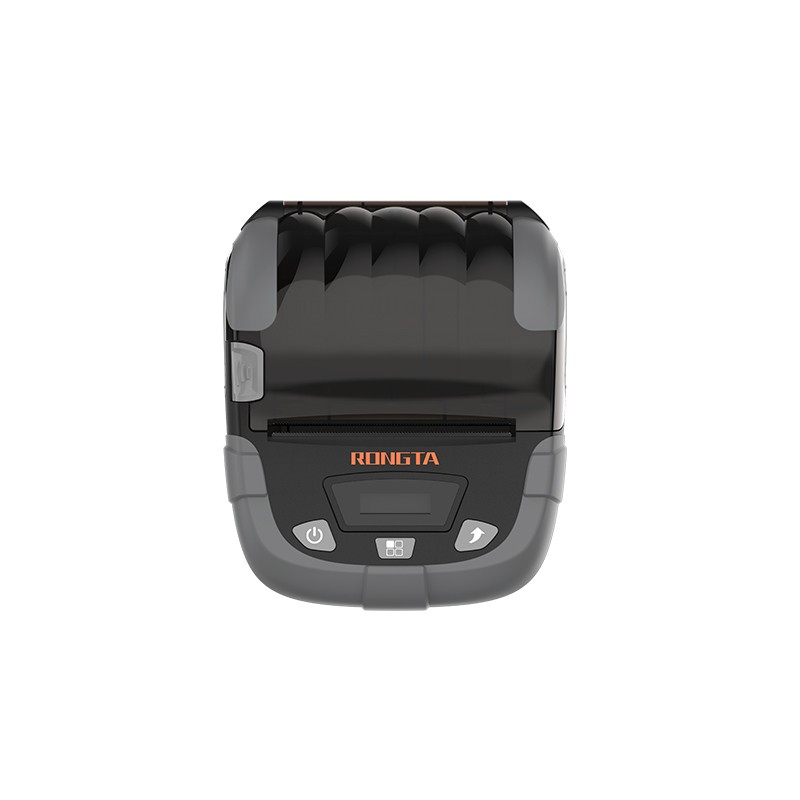 RPP320N 3" Portable Label Printer
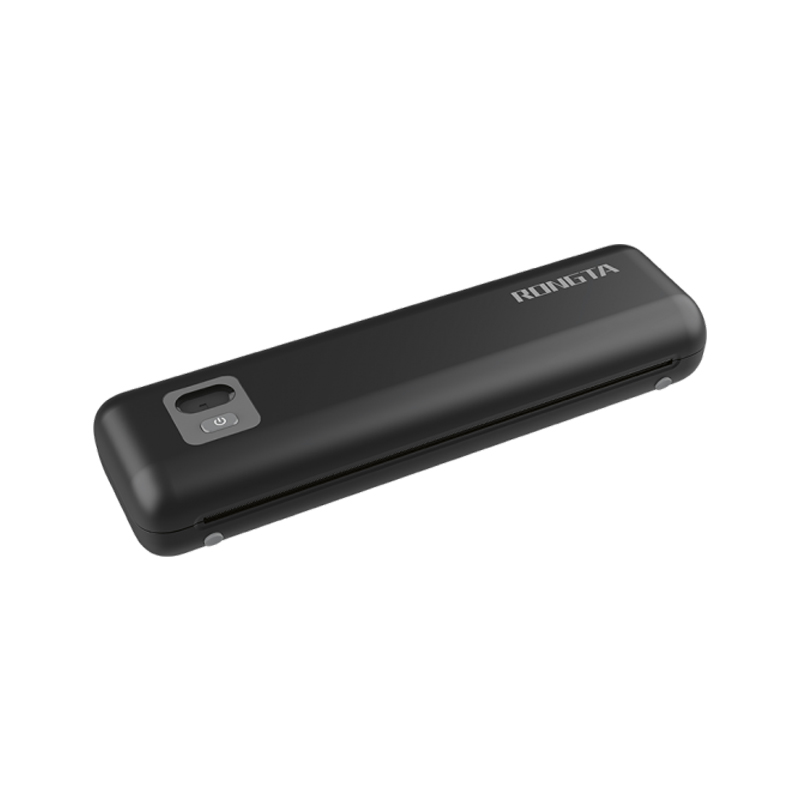 F82A A4 Front-Out Paper Tray Thermal Printer
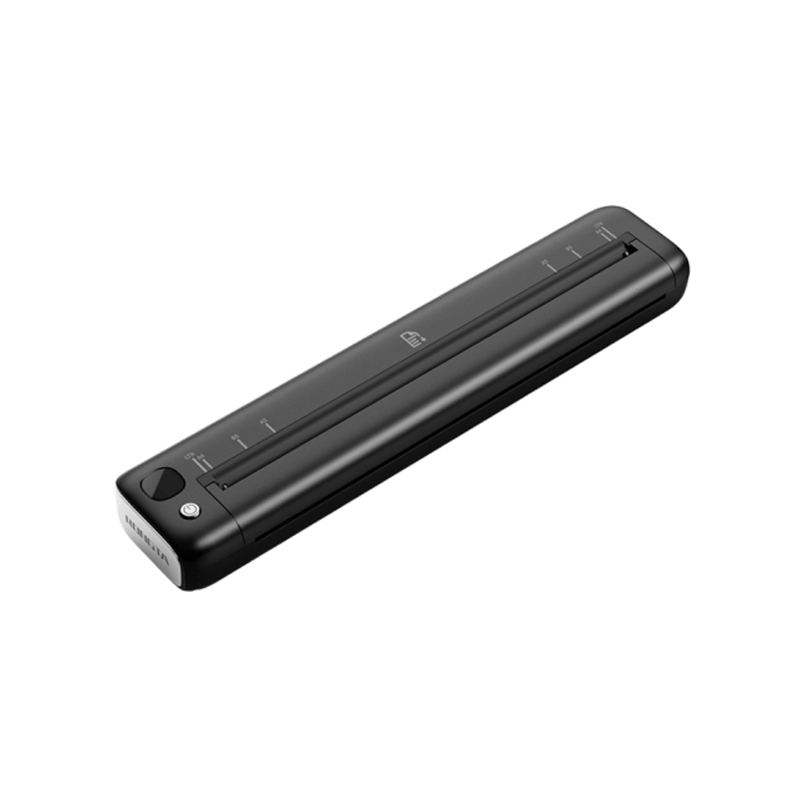 F81A Portable A4 Thermal Printer
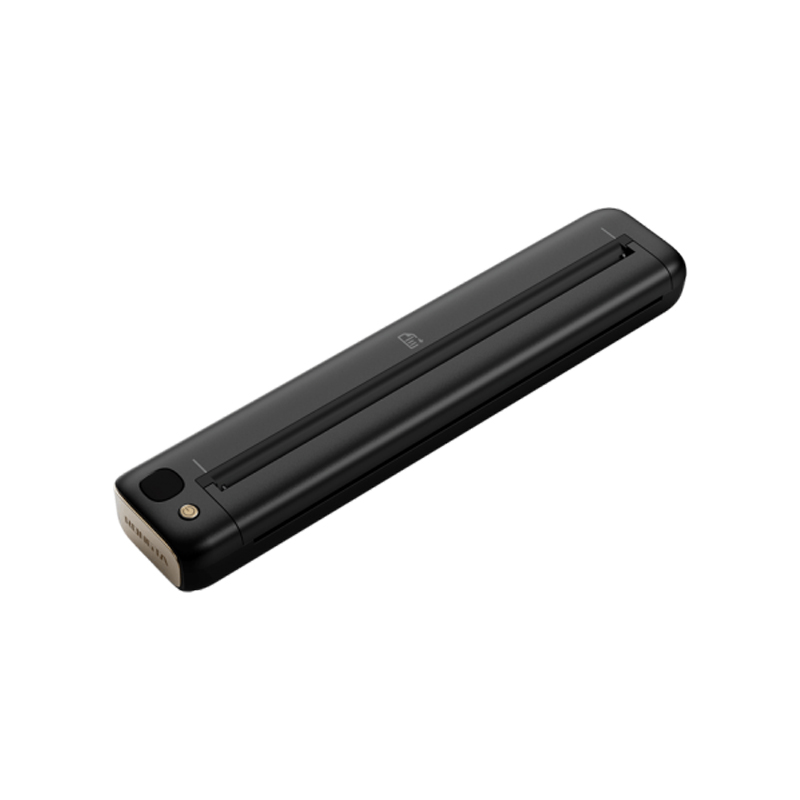 F81S Portable A4 Tattoo Printer
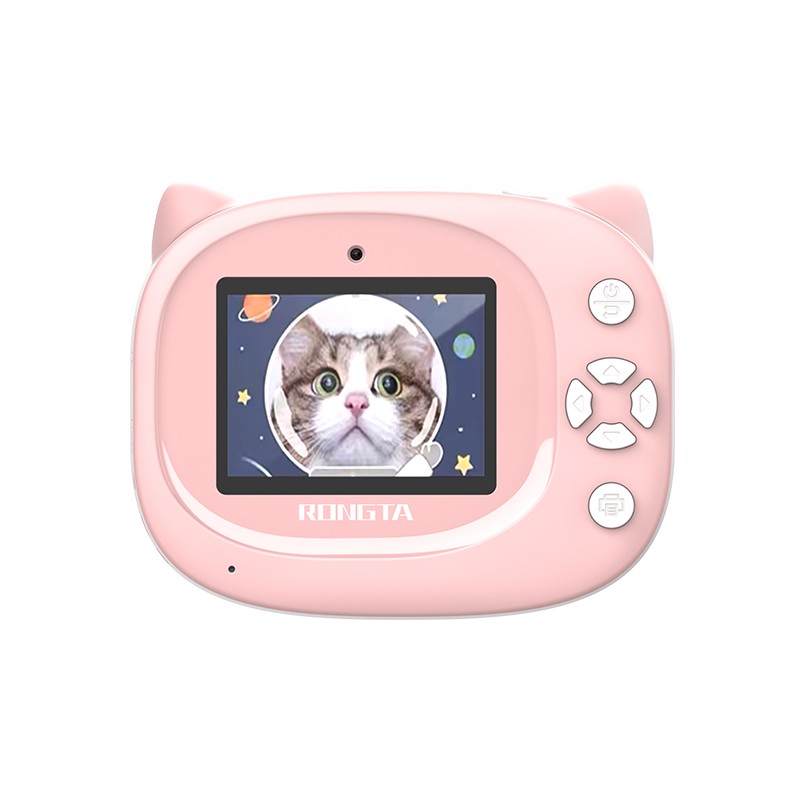 Z1 Children's Educational Photo Printer
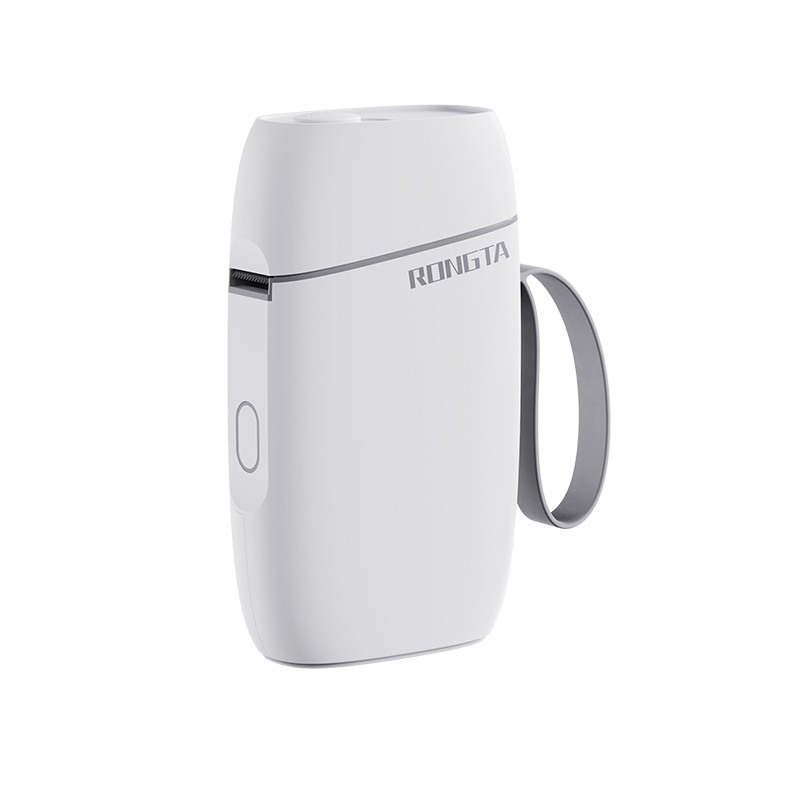 R5 Mini Label Printer
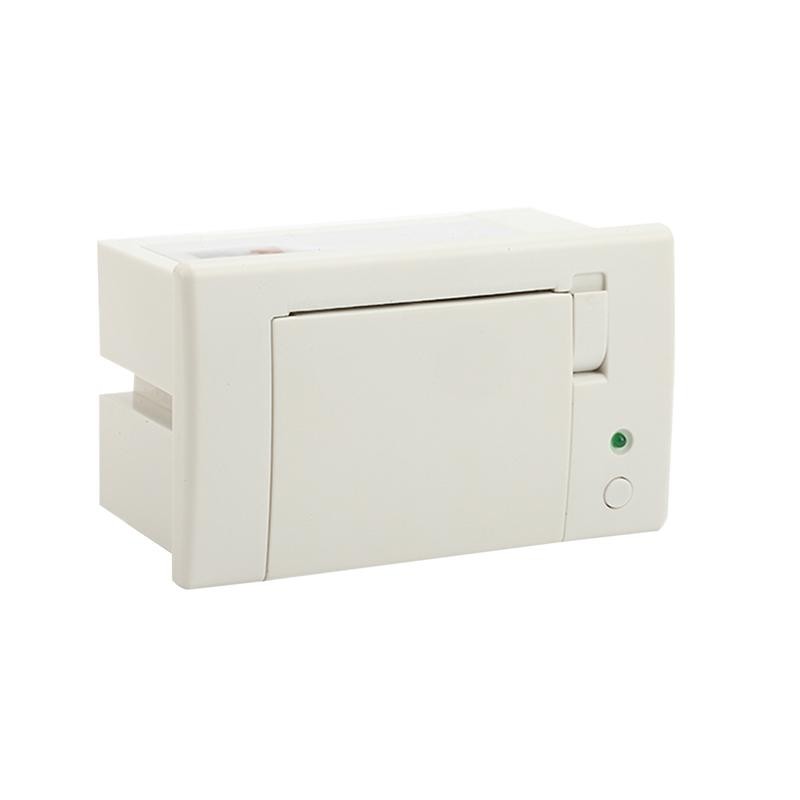 RP07 58mm Embedded Printer
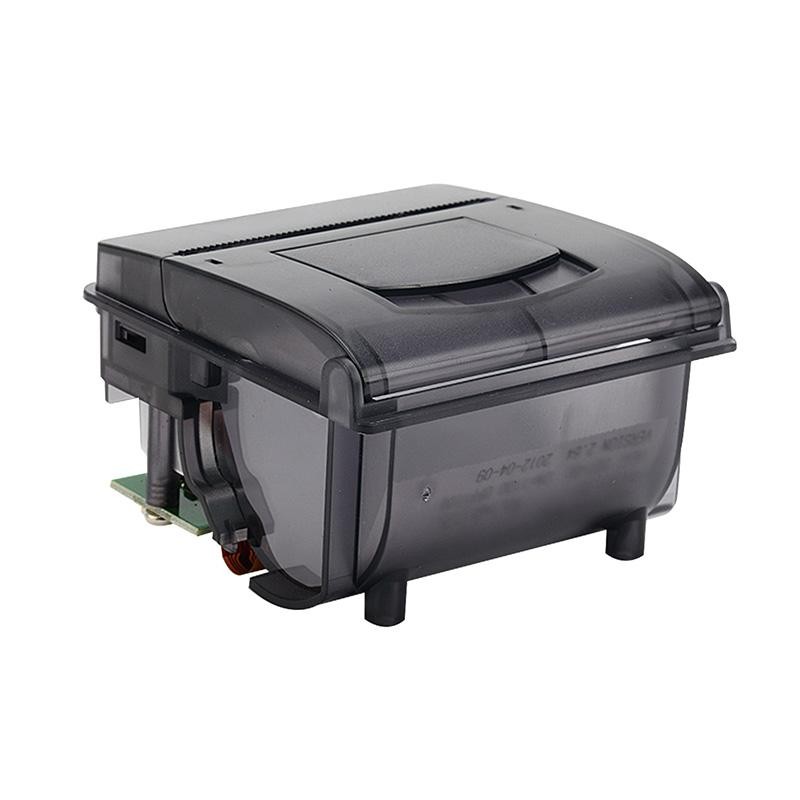 RP203 58mm Embedded Printer
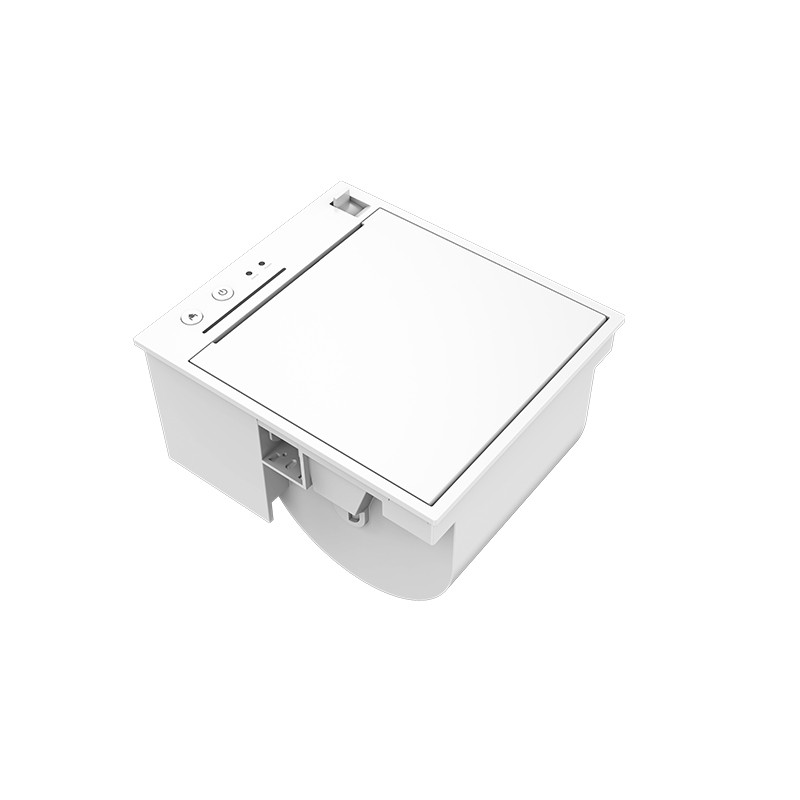 PM315 Embedded Thermal Printer
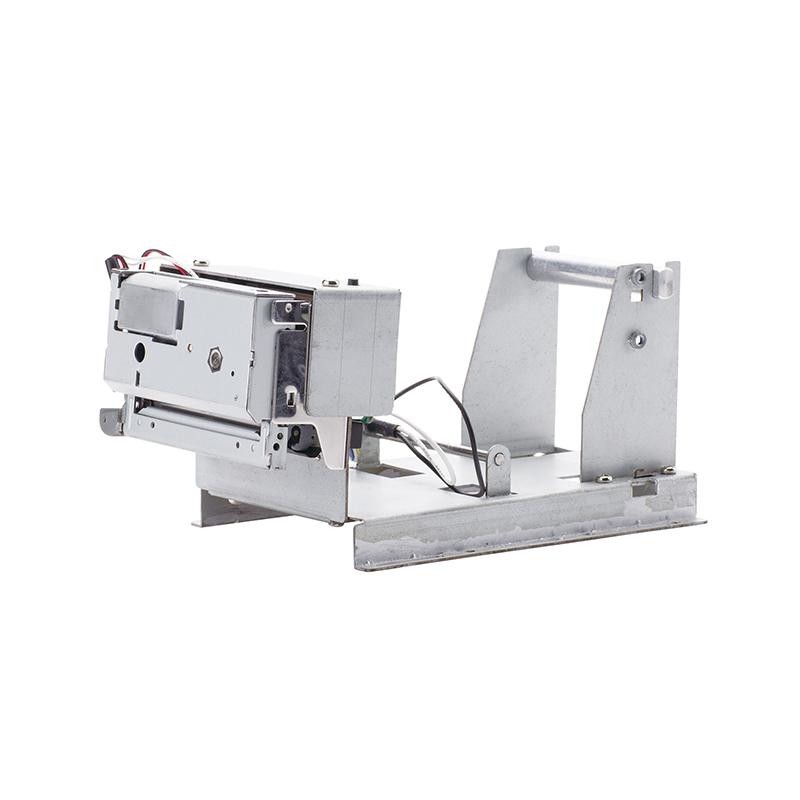 PM201 48mm Printing Module
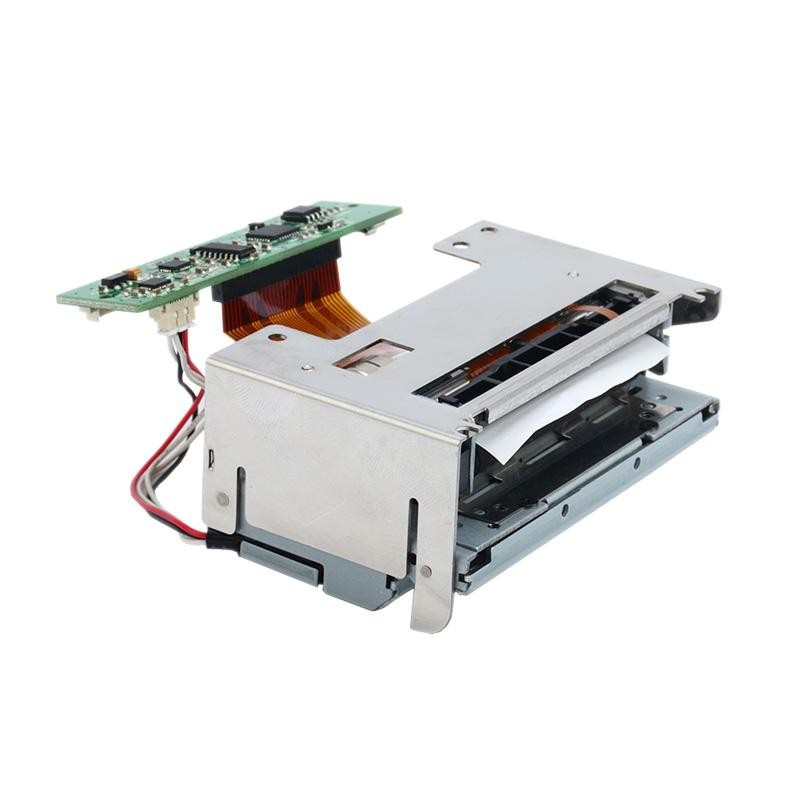 PM628 58mm printing module
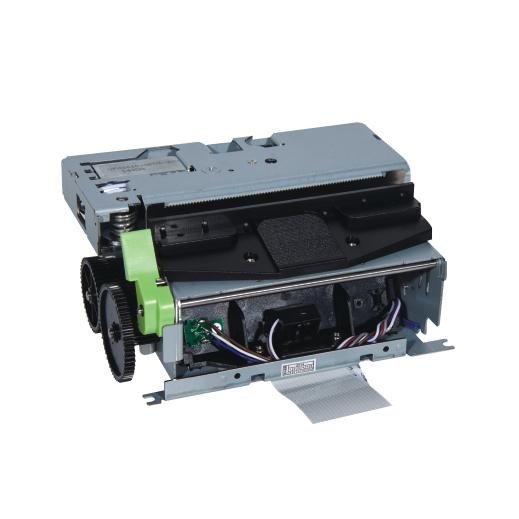 PM532A Printing Module
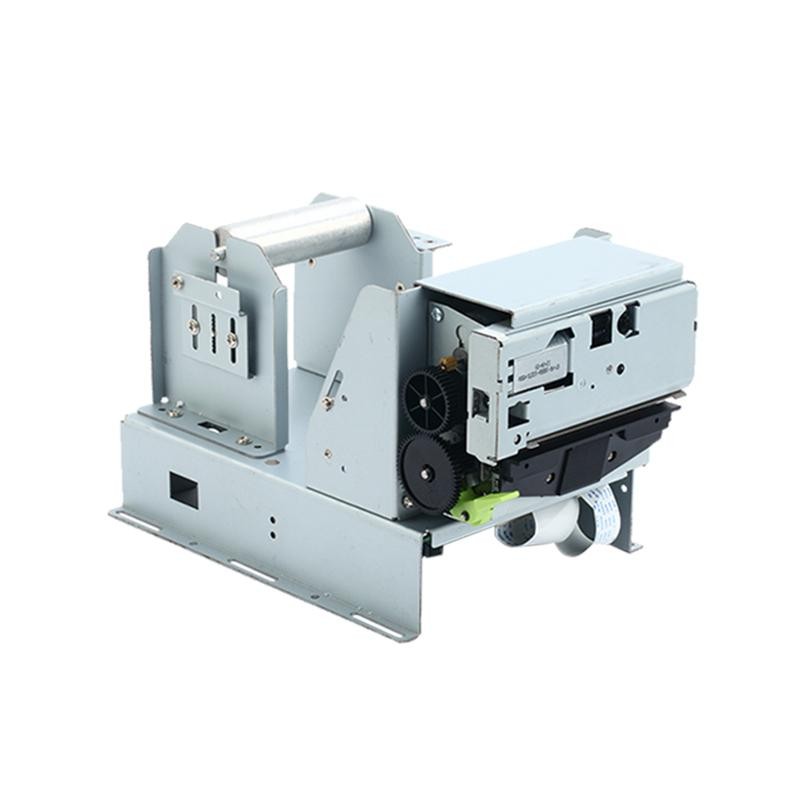 PM532B printer module
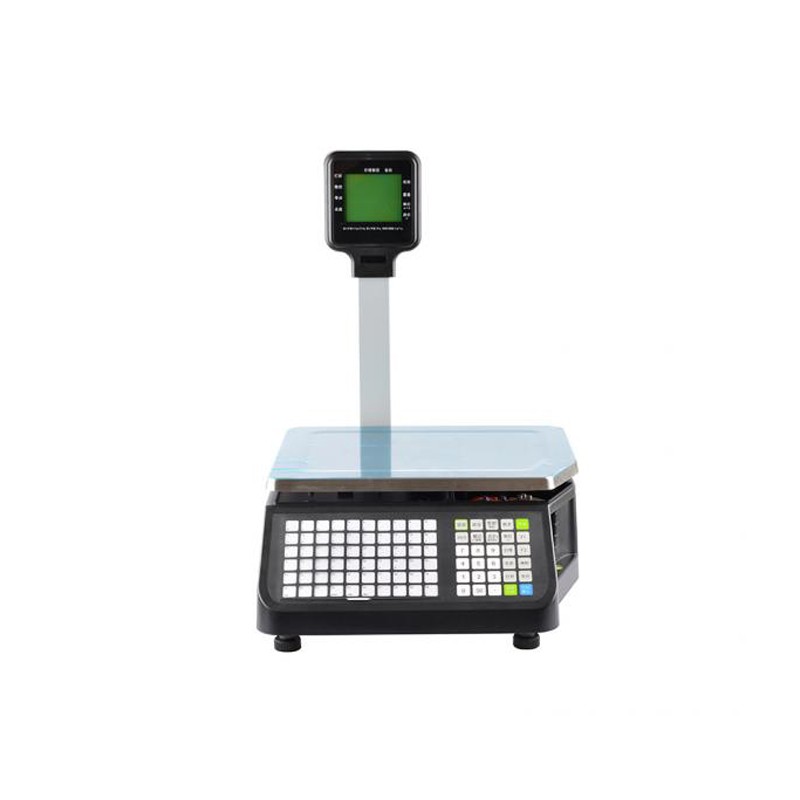 LS015/LS015A Barcode Scale
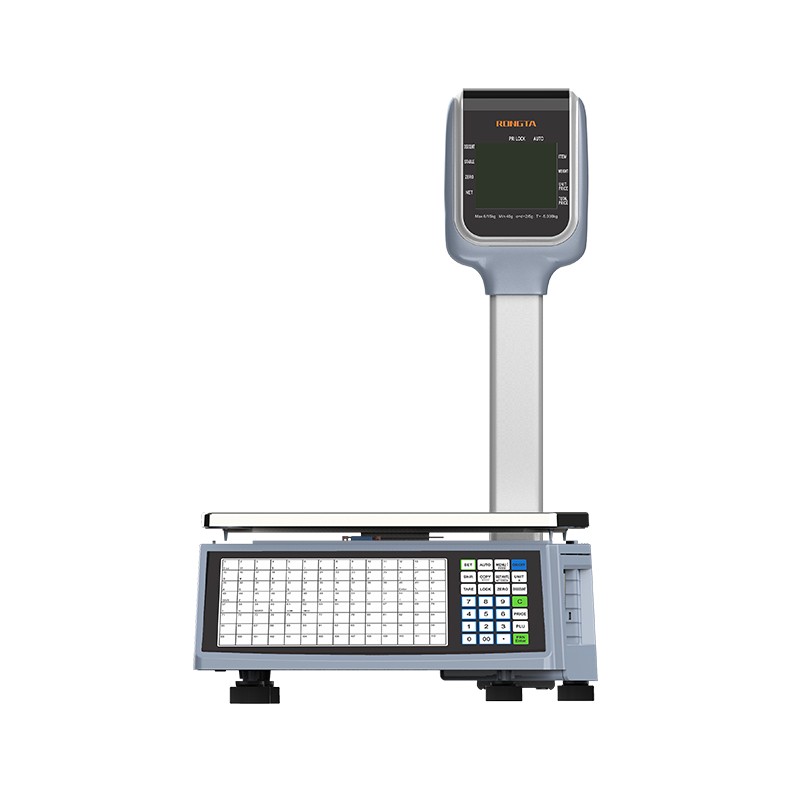 RLS1815D/RLS1830D Barcode Scale
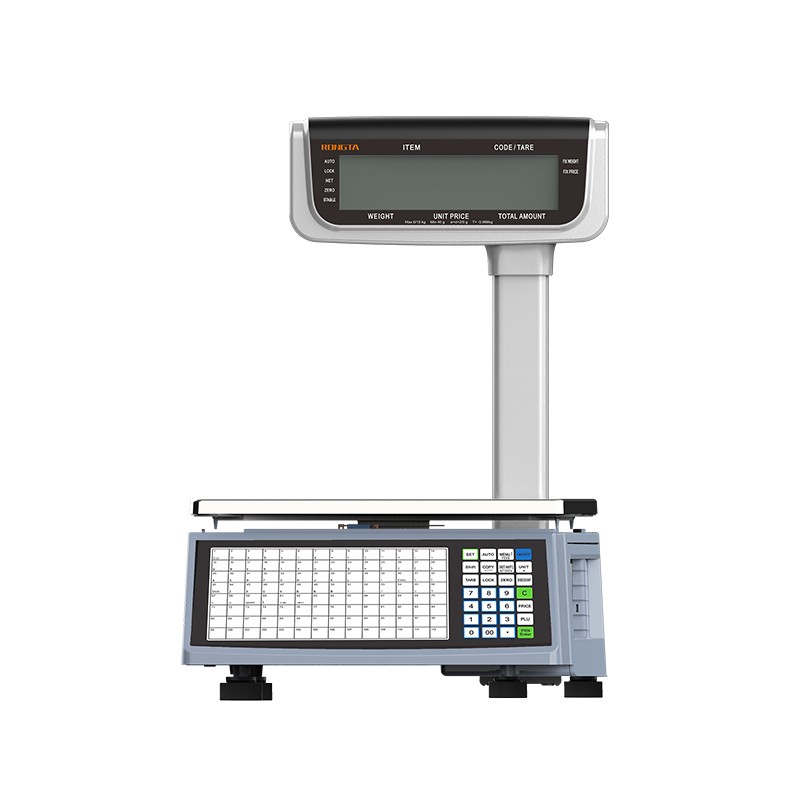 RLS1815C/RLS1830C Barcode Scale
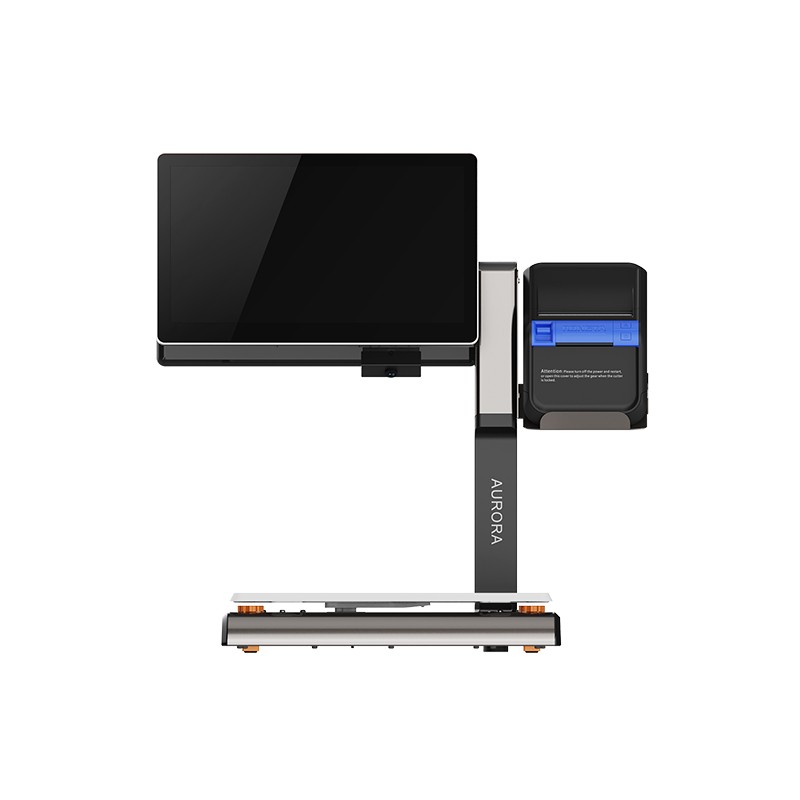 AURORA S2L-S Labelless Scale
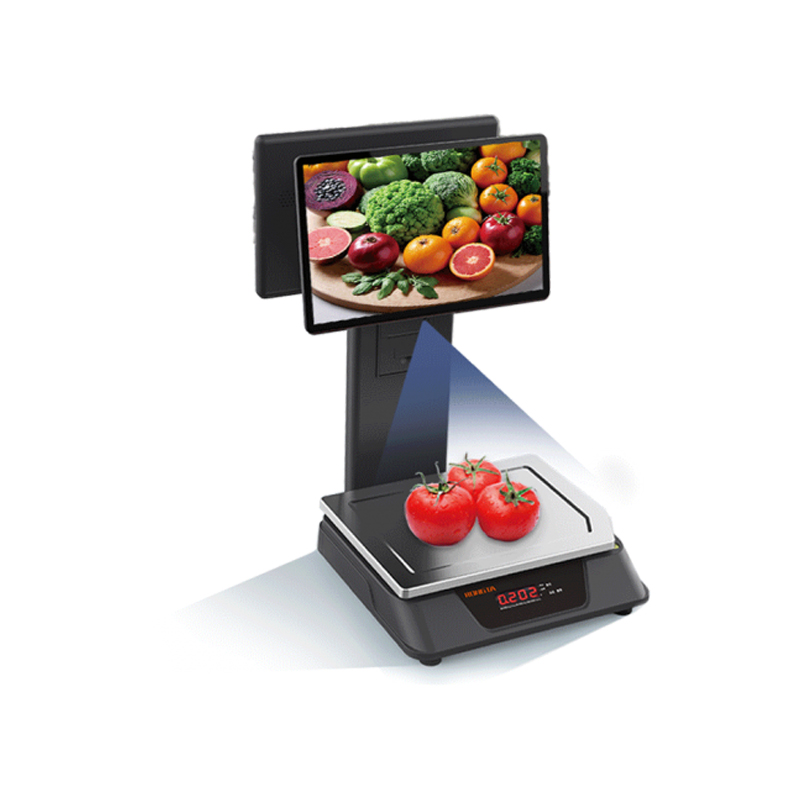 AURORA E1 PRO-AI Cash Register Scale
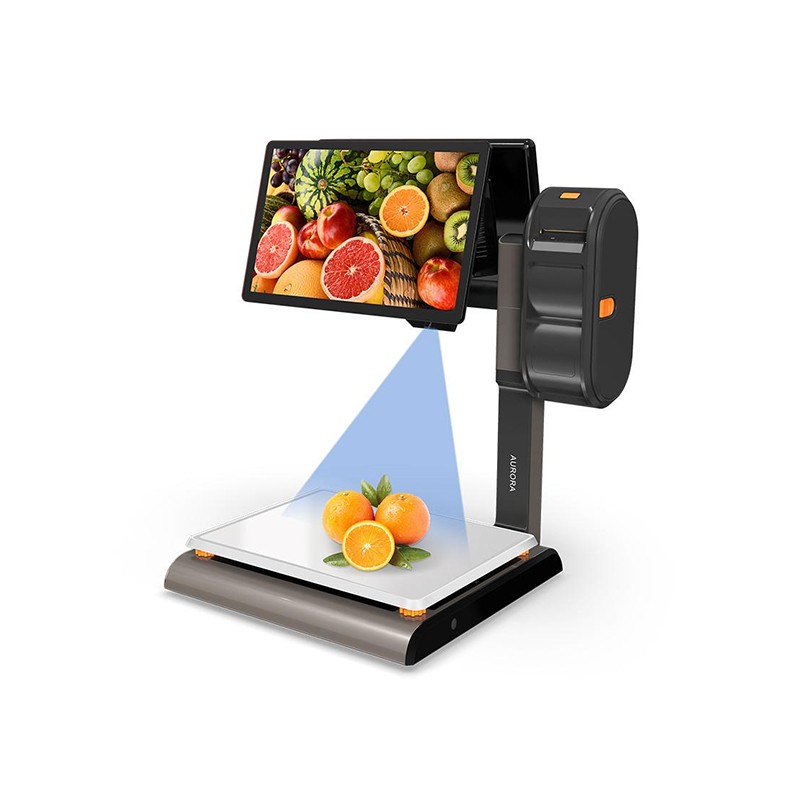 AURORA S2L-AI Label Scale
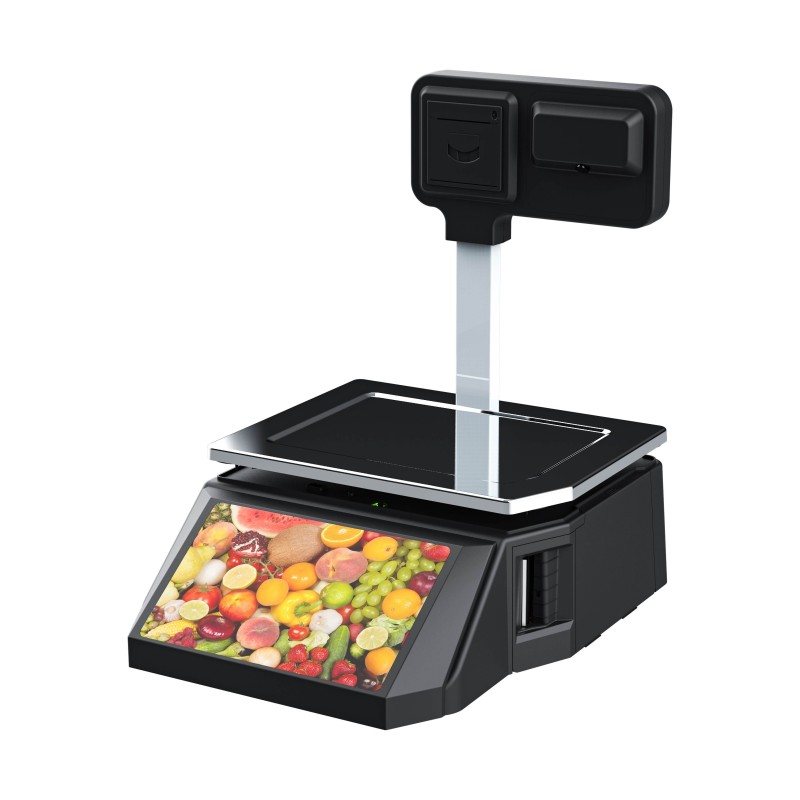 DP01-AI Smart Tag Cashier Dual-Use Scale
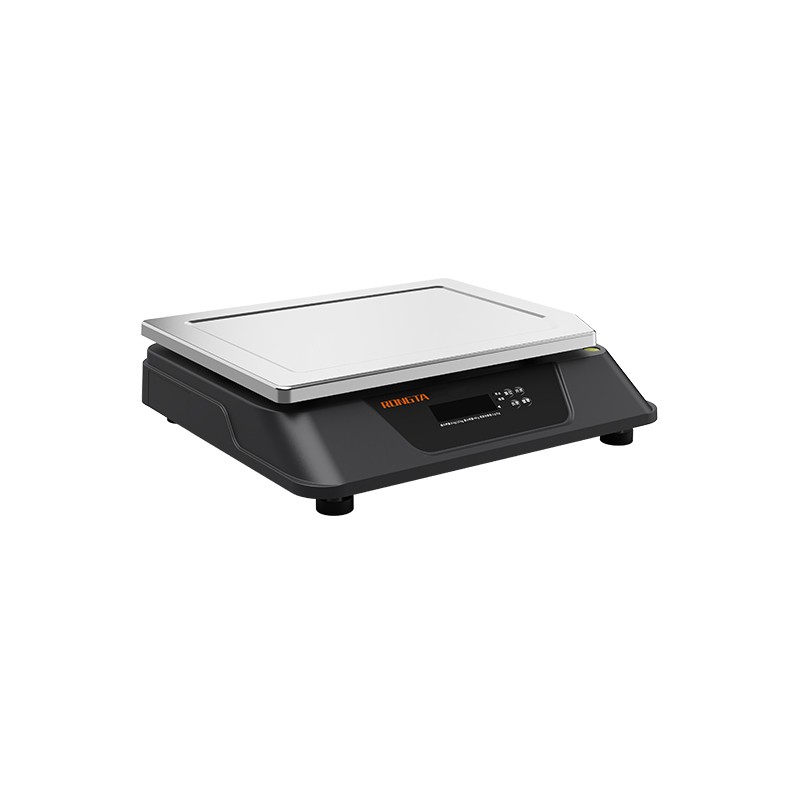 C3 Weighing Scale
 C1 weighing scale
 C11 Weighing Scale
 retail
 FOOD
FOOD Medical
 Mobile office/home
 asset Management
 logistics
 Driver download
 User Manual
 Tool Download
 Tag software
 Product Video
 Development Documentation
 Frequently Asked Questions
 User Guide
 Company News
 Exhibition Updates
 Industry Insights
 Product Update
 General situation
 Development history
 Honors and Qualifications
 R&D strength
 Team activities
 Social responsibility




Service Support
Connection and printing instructions for Rongda RPP300 portable receipt printer
2026-01-12
Rongda RPP300Portable Receipt PrinterConnection and printing instructions
1. USB connection
The printer comes with a USB cable as an optional accessory. Connect it to your computer's USB port and install the driver.
2. Wi-Fi communication
You can use wireless networking technology to communicate with your devices. Wi-Fi is a brand of wireless network communication technology owned by the Wi-Fi Alliance. Its purpose is to improve the interoperability between wireless network products based on the IEEE 802.11 standard.
Advantages of wireless networks: Wireless networks do not use cables; instead, they use radio waves to connect and transmit signals. They offer advantages such as freedom of movement, no line restrictions, quick and easy installation, and easy expansion.
1) Wireless infrastructure mode: Wireless devices in the network (computers, printers, etc.) use routers or access points to handle all data transmission and network traffic.
2) Using the 300 portable printer in wireless infrastructure mode has the following advantages: high network signal reliability; better network security performance; and flexible network scalability.
3) How to set up 300 wireless:
Preparation: Connect the printer to the PC via USB cable and install the USB virtual driver.
1) Open the WIFI parameter setting tool "Wifitool" included on the CD.
2) Enter the SSID name of the wireless router in the SSID field, such as printer.
3) Select the encryption type for your wireless router, choosing according to your router's settings. For example, for encryption type, the recommended type is "WPA-PSK/WPA2-PSK". For authentication type, if your router is set to "Auto", you can choose either WPA-PSK or WPA2-PSK in the Wifitool settings; if your router is set to "WPA-PSK" or "WPA2-PSK", the Wifitool settings must be the same as your router's.
4) If the router encryption method is set to "WEP", please keep the Wifitool settings consistent with the router settings.
5) Connect the printer to the computer via USB virtual serial port. After entering the WIFI parameters, select the corresponding serial port in the Wifitool tool, such as COM8. Select the printer's default baud rate "19200" (if the user has set the baud rate through the DIP switch, please enter the actual printer baud rate), and then click the "Settings" button.
After setup, please wait patiently. The printer will automatically connect to the wireless network within 1 minute. If the connection is normal, you can perform a self-test at any time. Use the self-test test page to check the printer's current wireless settings and status. If the self-test page shows no connection to the wireless network, please check the parameter settings. If the printed wireless parameters are inconsistent with the router's, please reset them and repeat the above steps.
?
3. Bluetooth pairing and printing
Before the 300 series portable micro printer can be used, it needs to be paired with the main device that drives the 300 series portable micro printer. The pairing process is initiated by the main device.
The typical pairing method is as follows:
1) Turn on the printer
2) The main device searches for external Bluetooth devices.
3) If there are multiple external Bluetooth devices, select the printer with the corresponding EDA address (see the self-test page for details).
4) Enter the password "0000"
5) Complete the pairing.
For specific pairing instructions, please refer to the Bluetooth function description of the main device.
The 300 series portable micro printer must be powered on during pairing.
Note: When pairing, please do not turn on multiple printers at the same time, otherwise it may be impossible to determine which printer was successfully paired.
After successful pairing, other host computers can still pair with the printer. Each printer can pair with up to 8 host computers. If more host computers pair with the printer, the host computer that was paired with the printer earliest will be automatically removed from the pairing list. If this host computer needs to drive the printer to print, it needs to be paired again.
4. Print using Bluetooth interface
For host computers with virtual Bluetooth serial ports (such as smartphones, POCKET PCs, Palm devices, laptops, etc.), after successful pairing, print data can be sent to the 300 series portable printer via the virtual Bluetooth serial port for printing. If the host computer does not have a virtual Bluetooth serial port, please consult the host computer supplier to drive the 300 series portable printer.
?